Vita Vionic Try-In Resin
Overview
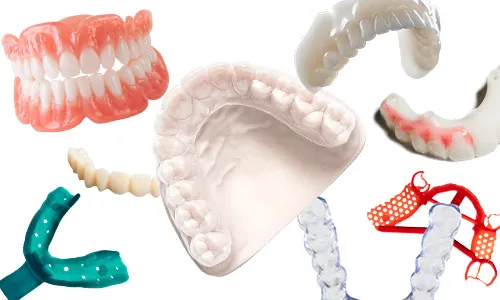
Vita Vionic Try-In Resin is a 3D printing solution that offers cost-effective, fast, and efficient production of a range of dental prosthetics.
Cost effective Fast and cost-effective production of immediate, replacement and final dentures, as well as temporary crowns/bridges using 3D printing. Efficient Reliable, reproducible fabrication of multiple dentures in a single process. Accelerated production and quality assurance through automated, validated processes and material properties.
Process secure Benefit from perfected matched materials with proven VITA quality. Count on reliable workflows from a single source, combined with validated printers and post-curing units.
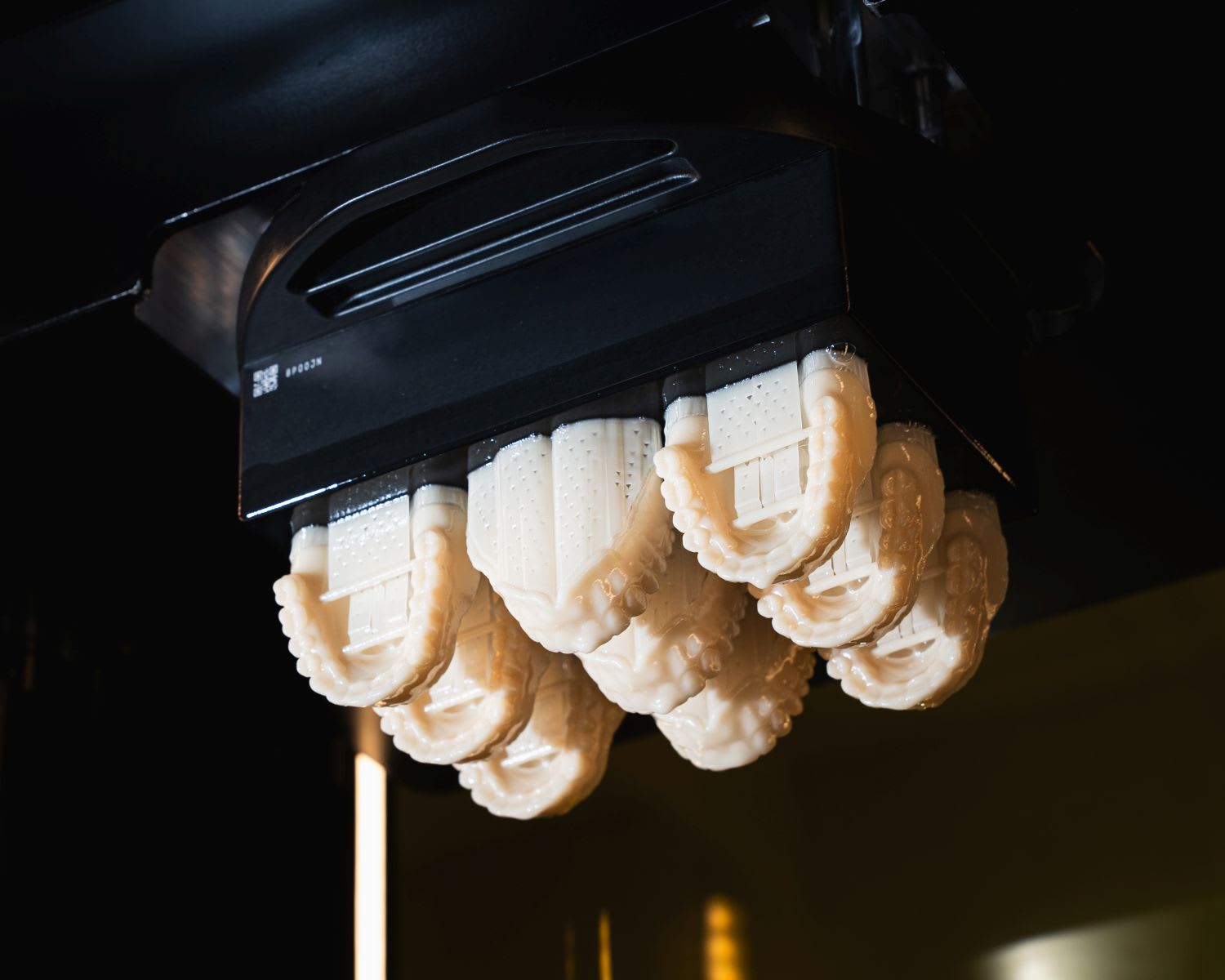
Carbon has validated the following shades:
- A2
This resin is not currently compatible with the AO Polishing Cassette.
Resource Links
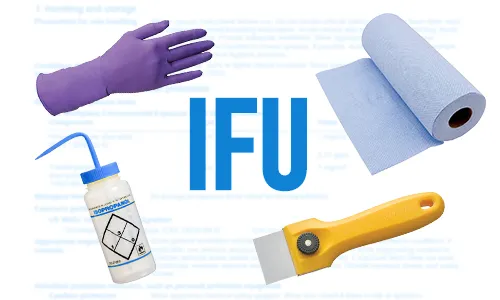
Scroll down to 'Instructions for Use' and click the appropriate region.

Scroll down to 'Safety data sheets' and click the appropriate region.
Protocol
This downloadable handout provides important usage information, including instructions about storage and post-processing. Print it out and bring it into the lab!
Design
See IFU above for manufacturer design recommendations.
Digital Preparation
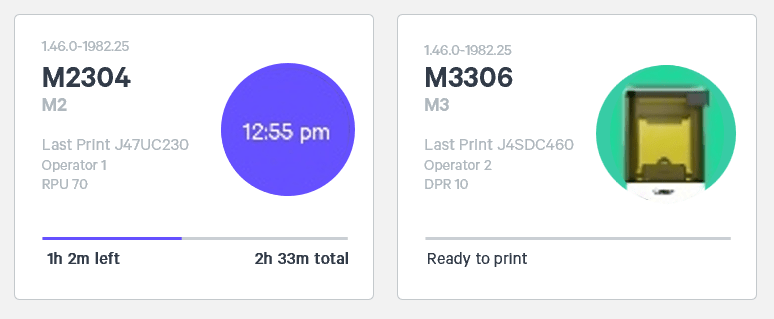
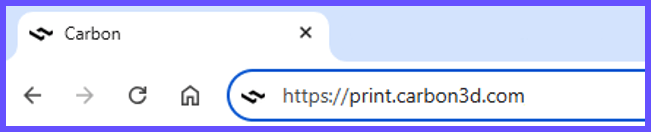
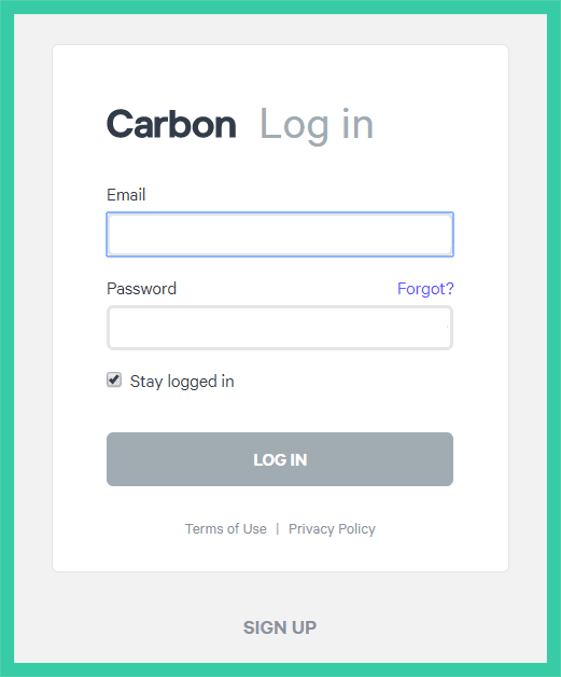
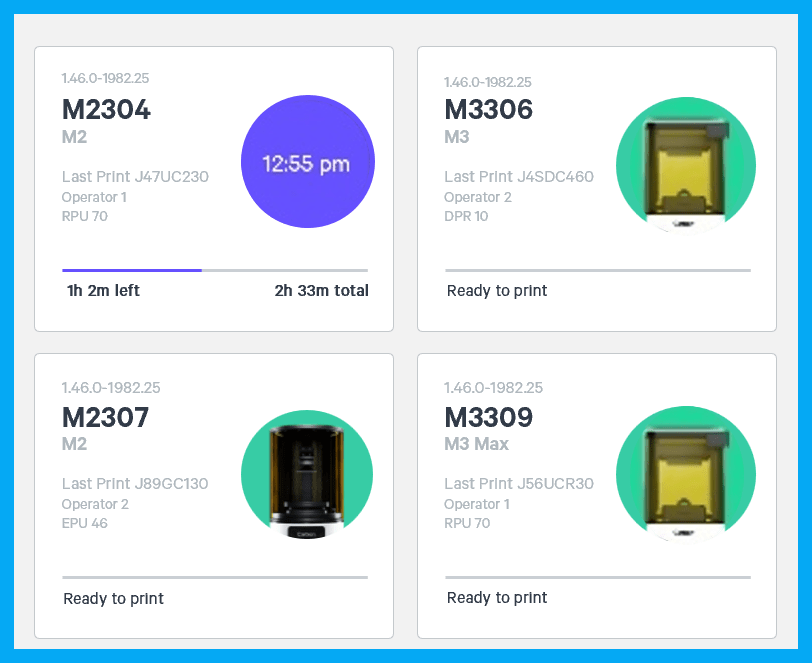
Connect to Printer
Connect to the printer software using your web browser.
Create Project
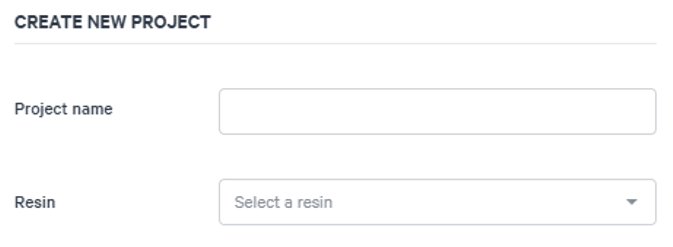
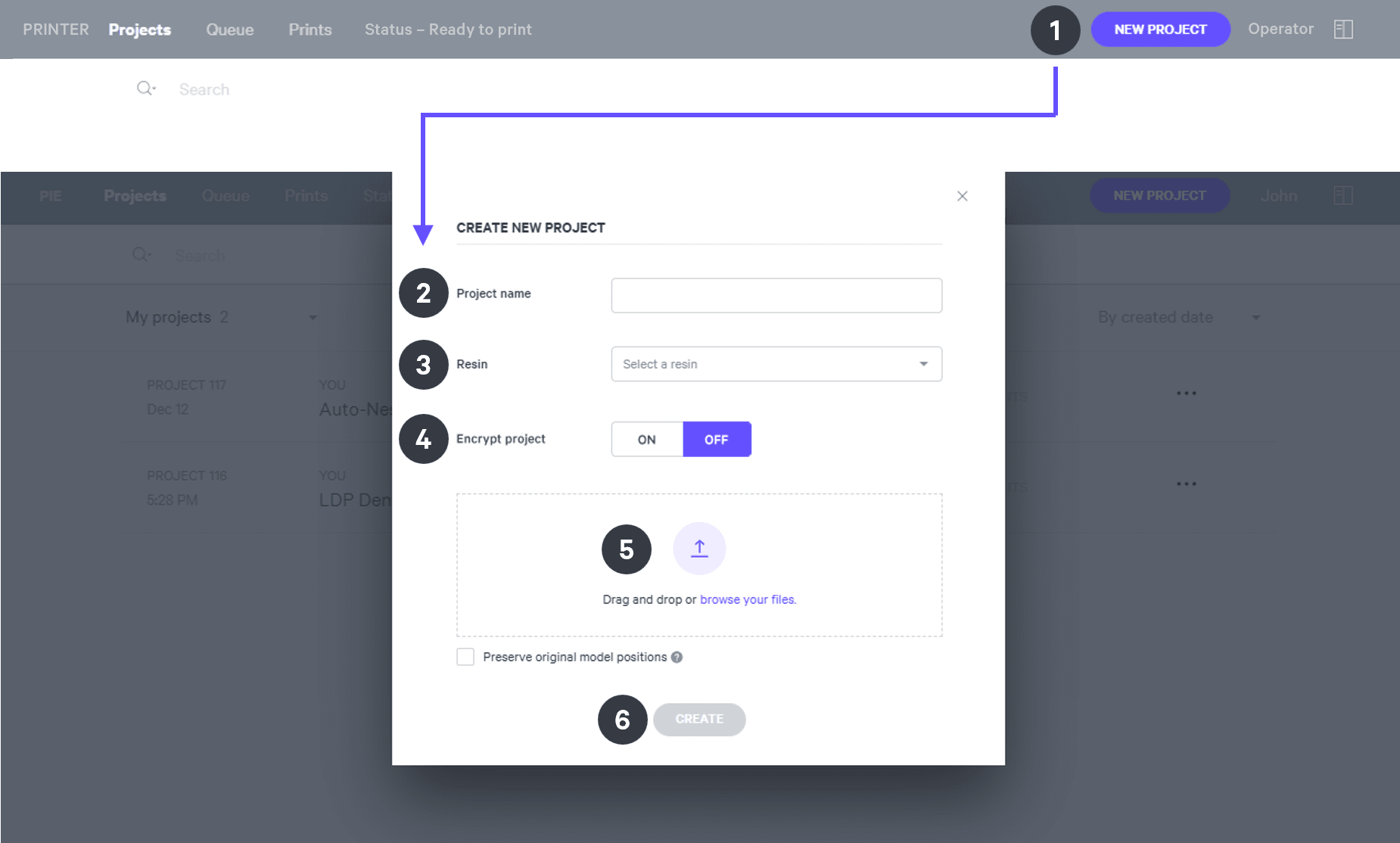
After you have chosen the printer, you must create a new project.
Orientation
For detailed information about orienting parts, read Orient.
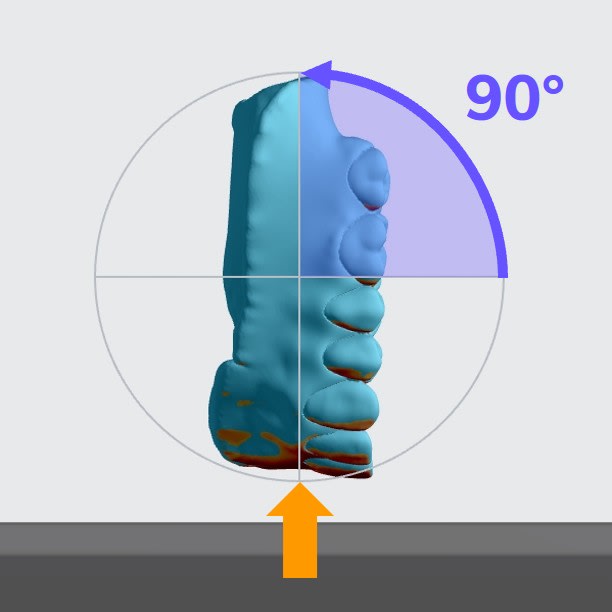
- Rotate full arches to approximately vertical to the platform with the anterior at the platform.
Supporting
See Supports for detailed information.
Select the Supports tab in the top bar or press Shift + S.

In the bottom bar, toggle Overhang Detection on and set the angle to 40 degrees.

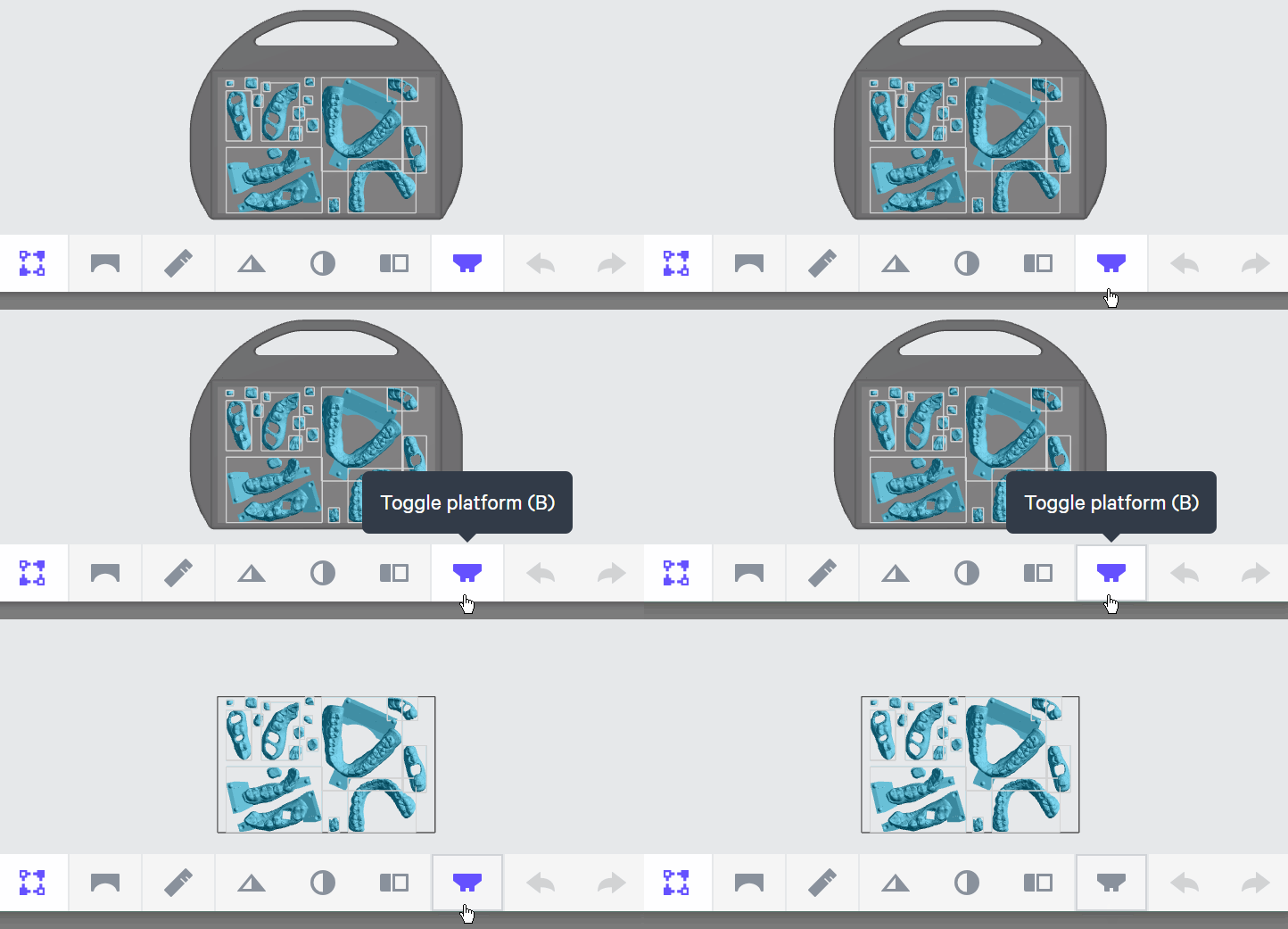
Also in the bottom bar, set Toggle Platform to off.
Set Part Postion to Above.

Support overhanging areas with patches.

Support T-bars with fences.

Nesting
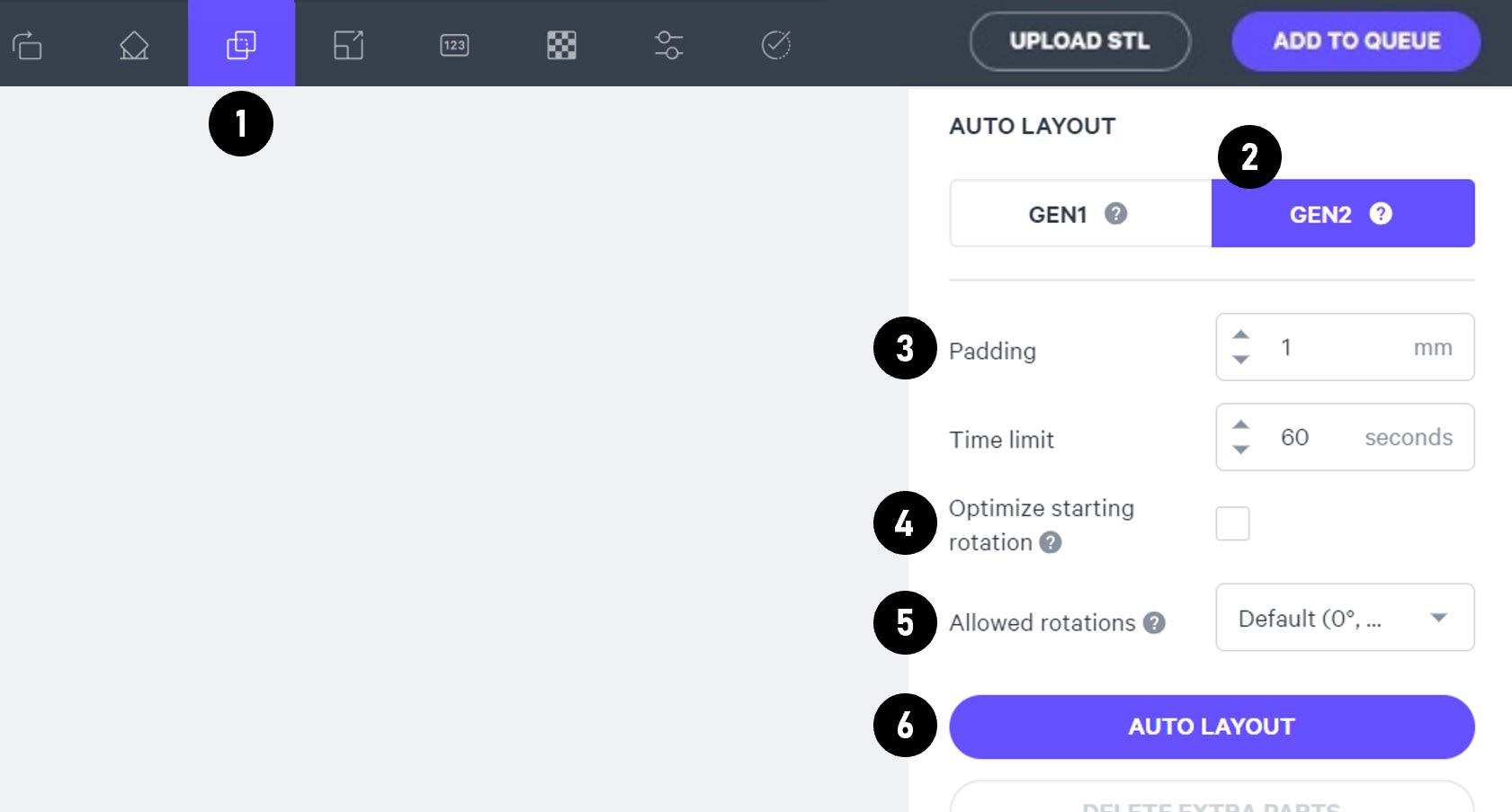
Select the Layout tab (Shift + L) in the top menu bar.
Under Auto Layout, select Gen2.
Gen2 usually gives the most efficient packing for dental devices.
Enter at least 1 mm in Padding.
Models require a minimum of 1 mm of space between them.
Leave Optimize starting rotation unchecked.
This leaves your parts in their previous orientations.
Leave Allowed rotations at the default setting.
This gives the software maximum flexibility to fit the most possible parts on the build platform.
Press the Auto Layout button to arrange your parts.
If necessary, nesting can be changed manually:
- Click and drag parts to adjust their position.
- Modify Z rotation by using the Spin tool or manual rotations under the Orient tab (Shift + O).
- Use the Part List tab as needed to more easily select models and focus on them.
Print Controls
Click Print Controls or Shift + P in the top menu bar.

Slicing
Set Slice Thickness to Standard (100 µm).

Reducing the slice thickness by choosing the Fine (50 µm) or Super-fine (25 µm) settings will increase print time and may reduce part quality and accuracy.
Project Analysis
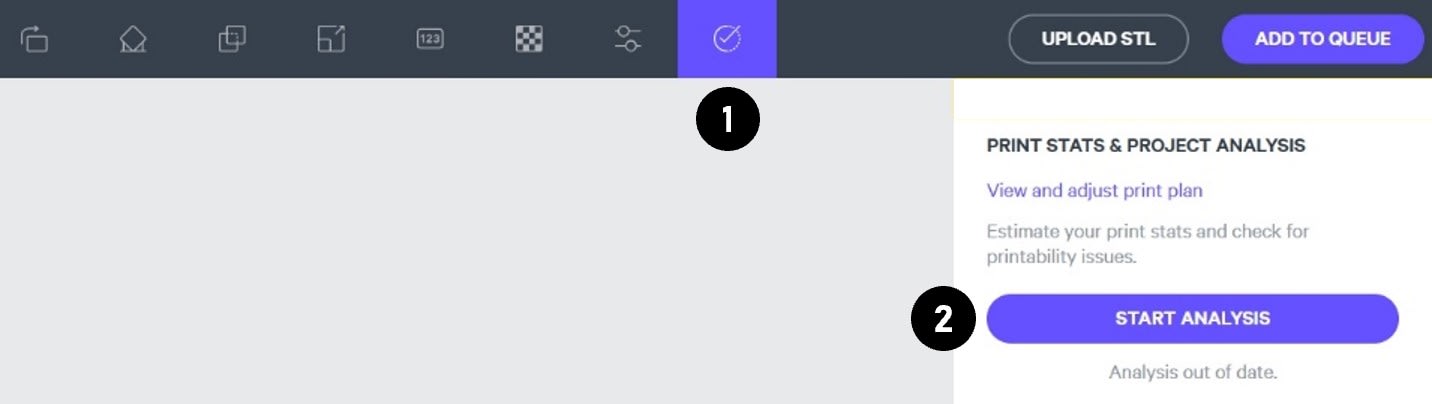
On the top menu bar, select the Project Analysis tab (Shift + A).
Press Start Analysis.
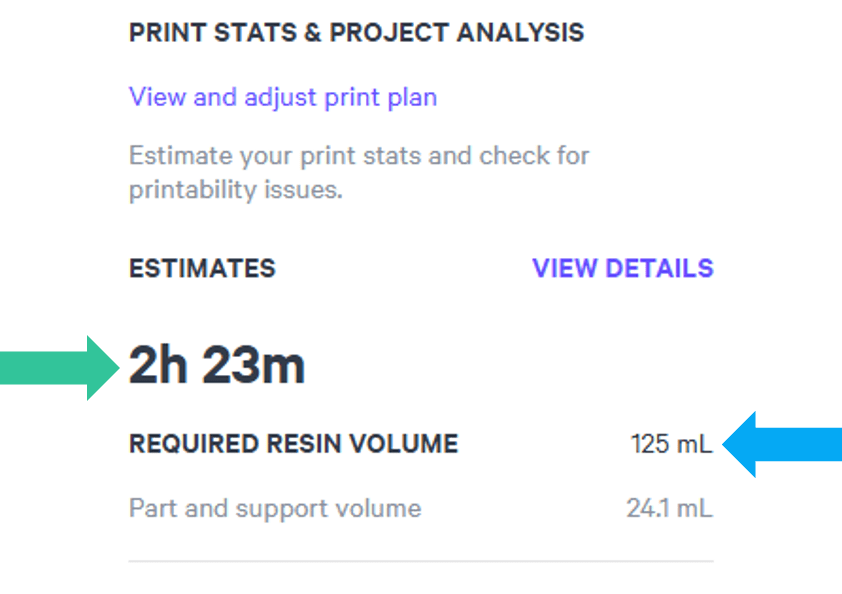
After a short time, the result of the project analysis will be displayed. Note the print time and the required resin volume.
Click Add to Queue.

Printing & Post-Processing
Consult the manufacturer IFU for dispensing, printing, washing, curing, bonding and finishing information.
Scroll down to 'Instructions for Use' and click the appropriate region.
Questions & Support
For questions about the resin properties, printing, washing or curing your parts, please contact the Vita support team:
- Phone: +49 7761 562 222
For questions about your Carbon printer or Carbon software settings used for this resin, please contact Carbon:
- Email: [email protected]
- Phone:
- U.S. and Canada 1-650-285-6307 option 2
- Germany +49 6102 5790849
- UK +44 (0) 2082 647484
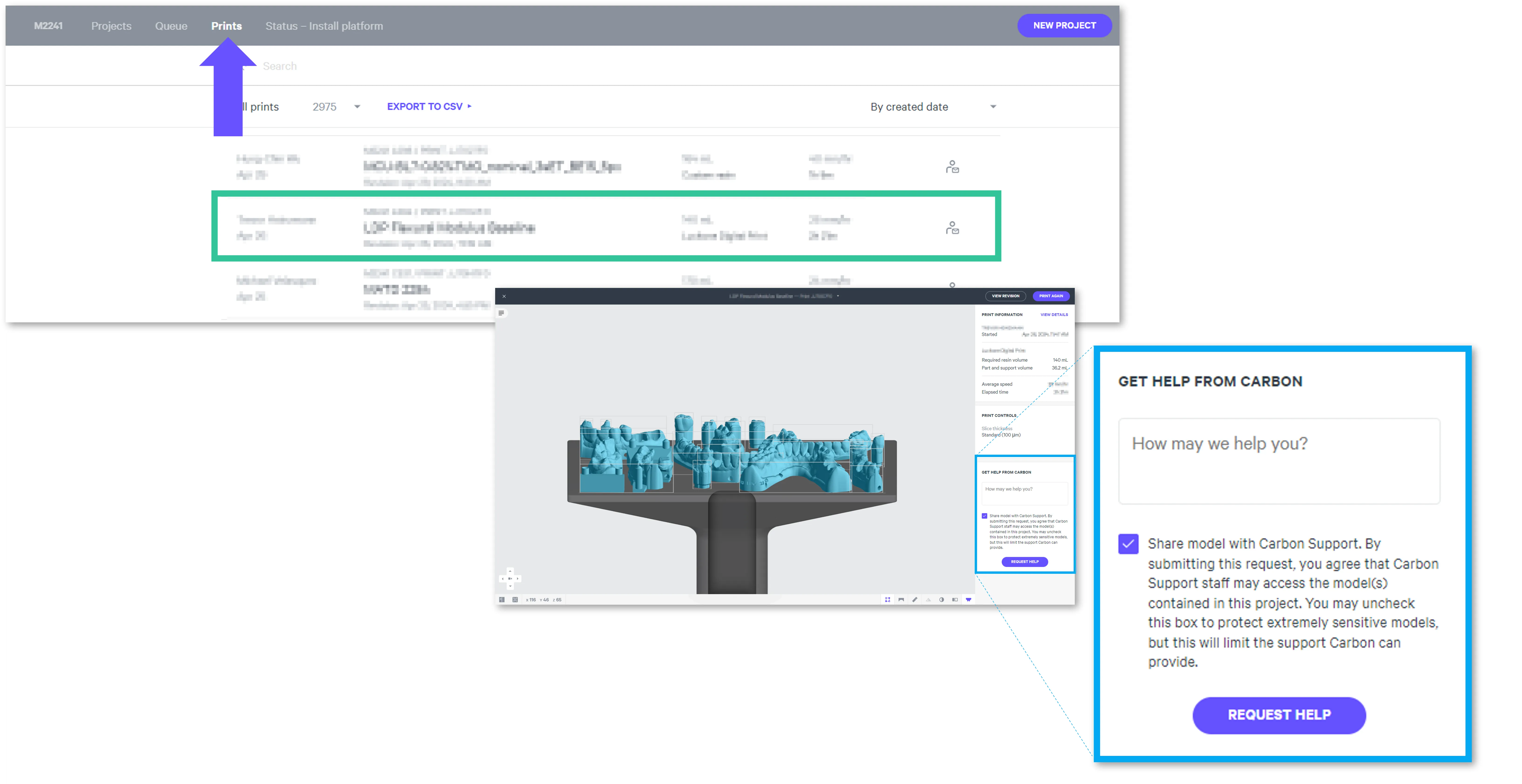
- Printer UI: On the dashboard, select the Prints tab. Select one of the printed projects. Click Request Help in the lower right corner.