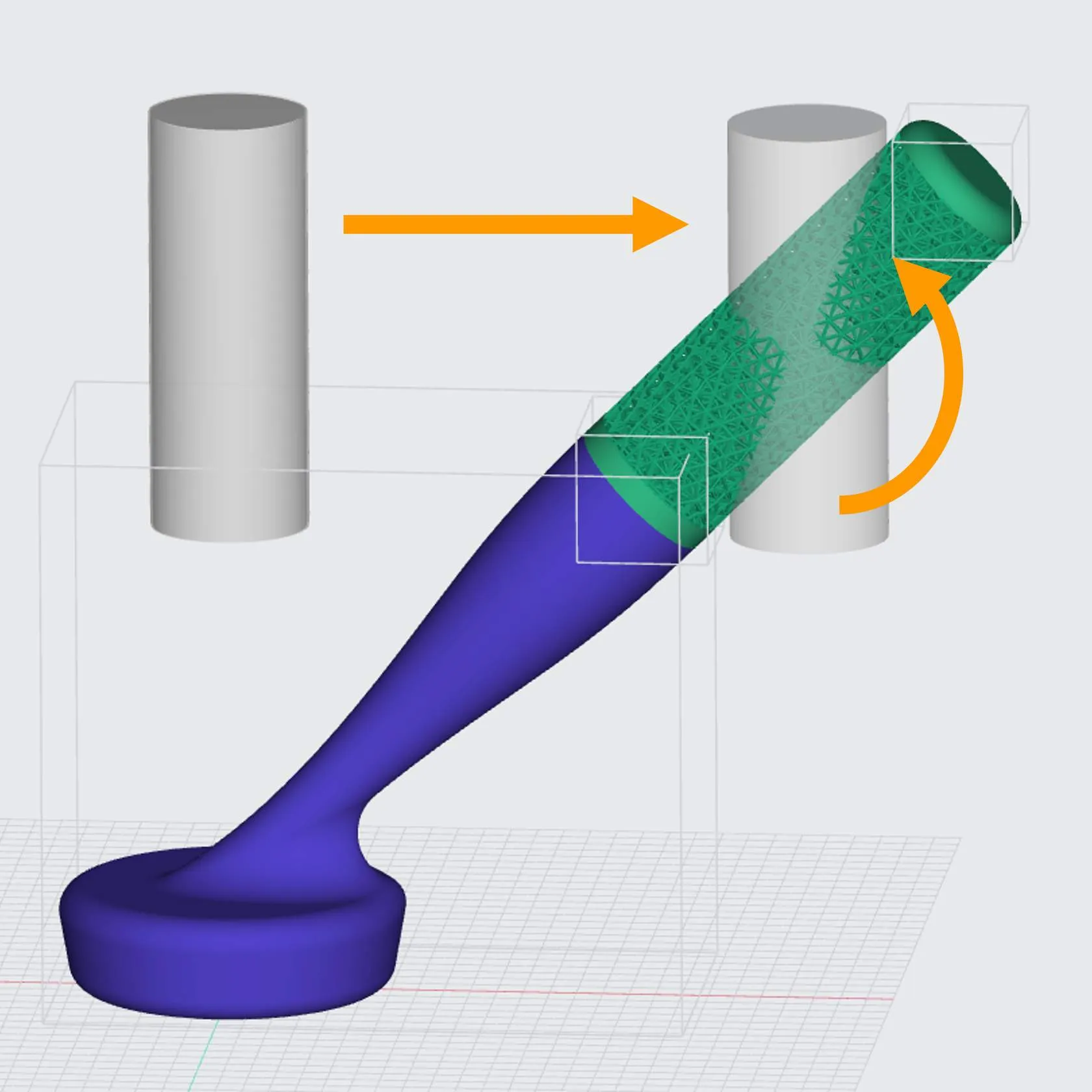
Rotate
Manipulating the input mesh with Translate, Rotate, or Scale may be helpful with some features to the get the result you want.
Rotate Workflow
Example Use Cases
Pattern
The orientation of your model will influence how the lattice pattern generates in the design space. Adjusting the orientation of your part is a tool you have to influence the aesthetics of your lattice.
This example uses a Voronoi lattice type. Note how Voronoi's secondary pattern is more prominent in the Y rotation in this geometry. (No other surface controls were used in this example.)


Base
The orientation of the part matters when using the Apply Base feature.
Ensure that the surface of your model that you want on the platform is oriented with that surface "down" in the XY world plane.

Symmetry
The Symmetry feature in the software uses the X-Y-Z cartesian coordinate system to specify either a plane or an axis to define the symmetry.
If a non-orthogonal plane or axis is desired for symmetry in your geometry, the translate and/or rotate tool can facilitate your design goals.
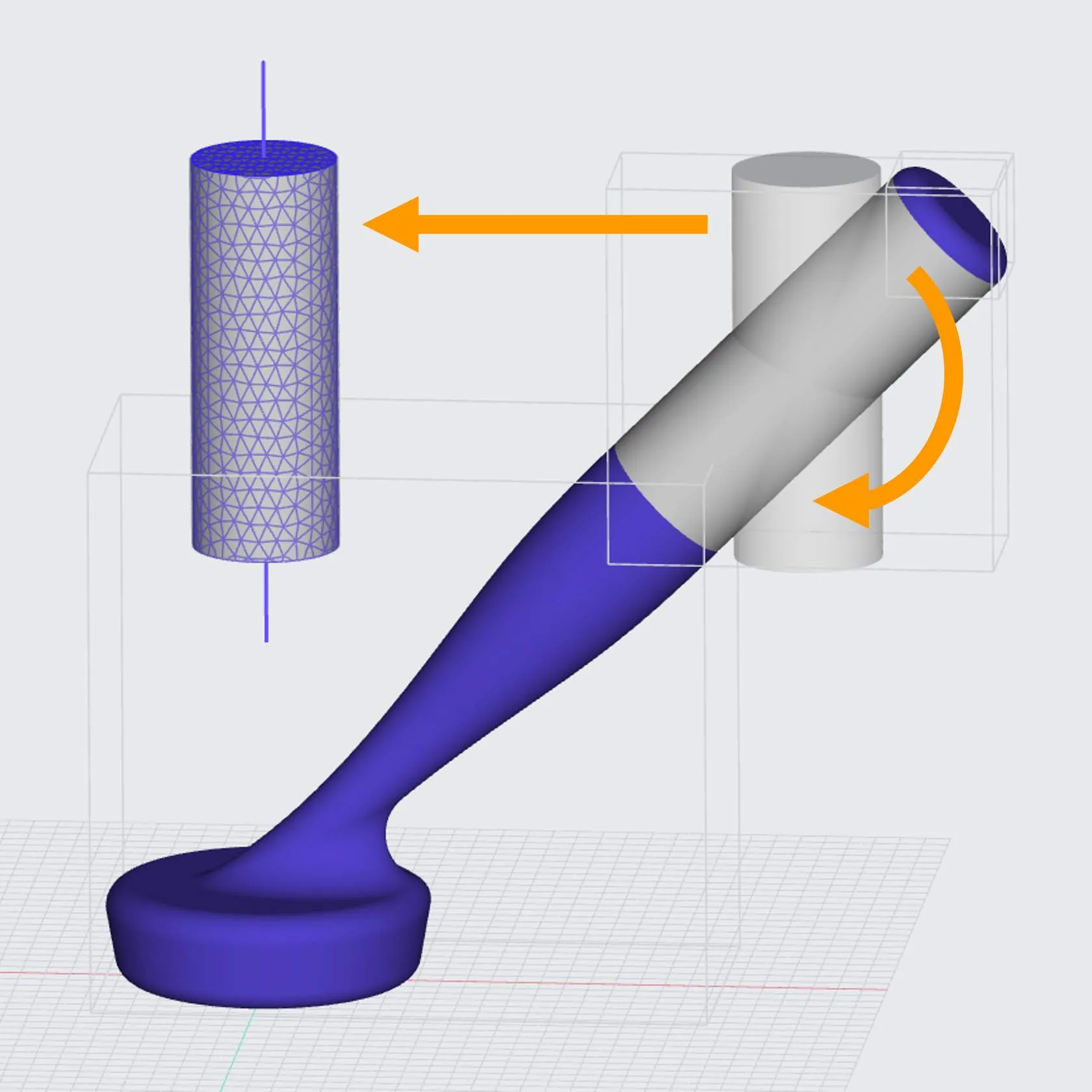
Combine
The Combine feature can merge the lattice and other part geometries into one stl file for download, but you may need to adjust part location to achieve the design goal.
In the scrubber brush example from above, after we lattice the handle, we want to move the lattice back to its original location to combine with caps on either end for printing.