---
title: Settings and User Management
slug: software/settings-and-user-management
description: Optimize your experience in Carbon's printer software with this guide to accessing and modifying user and company settings.
docTags:
createdAt: 2024-07-01T22:49:45.621Z
---
# Accessing Settings
Multiple types of settings are available for editing to suit your individual and company's needs.
::embed[]{url="https://player.vimeo.com/video/688642121?dnt=1"}
::::VerticalSplit{layout="middle"}
:::VerticalSplitItem
**User Settings**
- Hover over username
- Click Settings
- Account Settings
- Project Settings
- Notification Settings
- API Tools
:::
:::VerticalSplitItem
**Company Settings**
- Admin users have more settings
- User Management
- Company Project Settings
- Company Feature Settings
:::
::::
## Admin Access
::::VerticalSplit{layout="middle"}
:::VerticalSplitItem
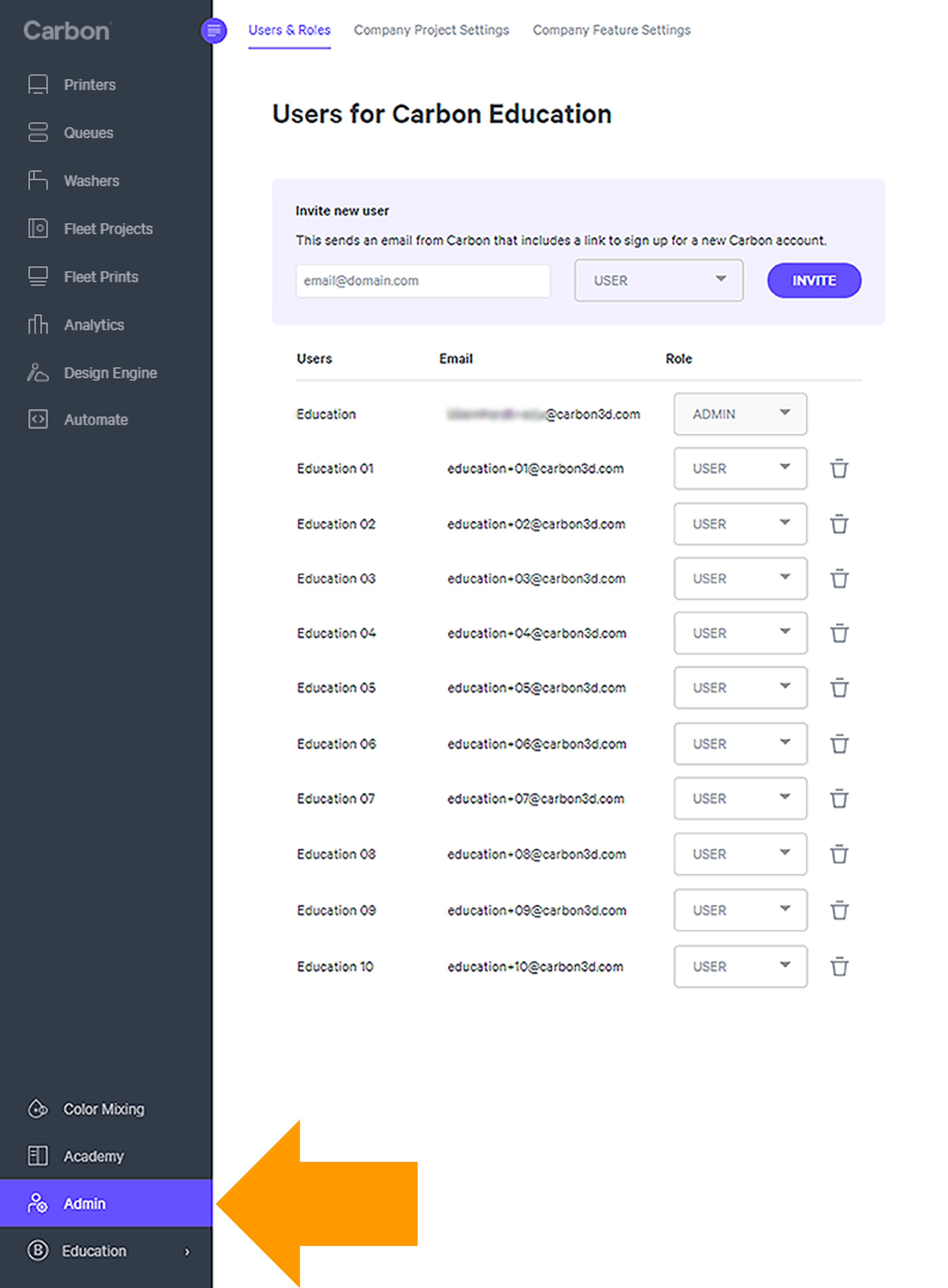
If your company has identified at least one Admin user, that user will have an entry in the left navigation on their Dashboard, just above their username.
- If you don't see an entry for Admin, then you are not an Admin user.
- To be assigned this role, please ask the current Admin user at your company.
- If you don't think your company has identified an Admin user, please contact [Carbon Support](mailto\:support@carbon3d.com) to set up the initial Admin user.
:::
:::VerticalSplitItem
:::
::::
# User Management
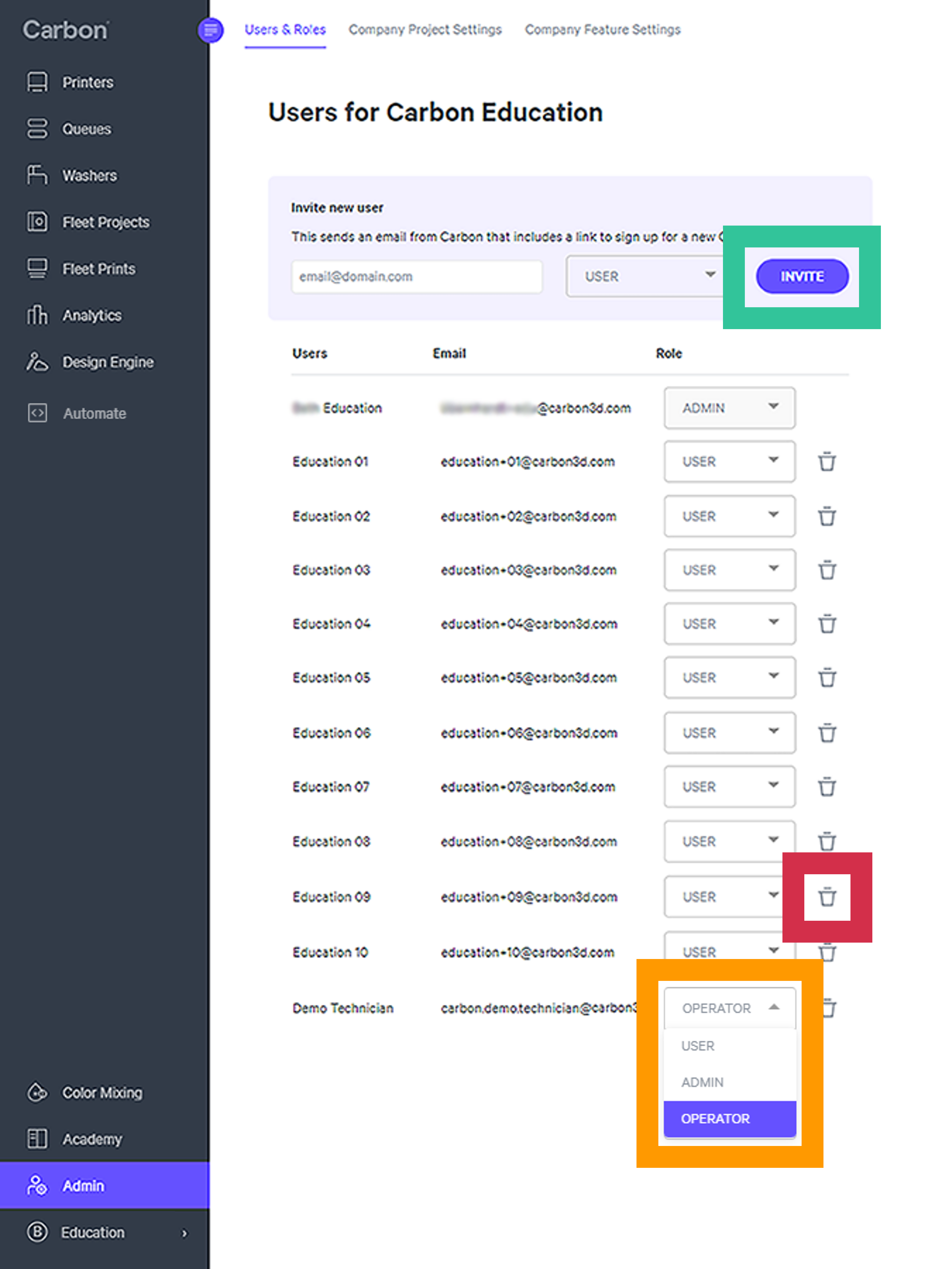
Carbon admin users can manage users within their company under the **Users & Roles** tab within the Admin view.
## Admin Features
::::VerticalSplit{layout="middle"}
:::VerticalSplitItem
- [Invite a New User](docId\:PqxnKG4ONeIQP4BmaSXIY)
- **Delete users** by clicking on the trash can icon**.**
- Change the **role of users** via the drop down menu**.**
### User Roles
- **OPERATOR** – has access to upload .carbon files, queue and print them, but they do not have access to view or edit any projects.
- **USER** – has access to all printer features except the user management tool. Can create, view, edit, queue, and print projects.
- **ADMIN** – has access to everything a USER can do, plus additional admin actions.
:::
:::VerticalSplitItem
:::
::::
:::hint{type="info"}
Admins are advised to regularly review which users have access to their Carbon ecosystem to ensure it accurately reflects the needs of their organization.
:::
## Adding New Users
There are two methods for adding a new user to your account.
- Admins may [Invite a New User](docId\:PqxnKG4ONeIQP4BmaSXIY)
- New User [Self Sign Up](docId\:PqxnKG4ONeIQP4BmaSXIY)
### Invite a New User
Inviting users with this method is advised for greater control.
- Admins can assign users a role
- Email domain does not need to match the company domain
*e.g. Users may have a gmail address, or similar*
:::::WorkflowBlock
::::WorkflowBlockItem
**Invite New User**
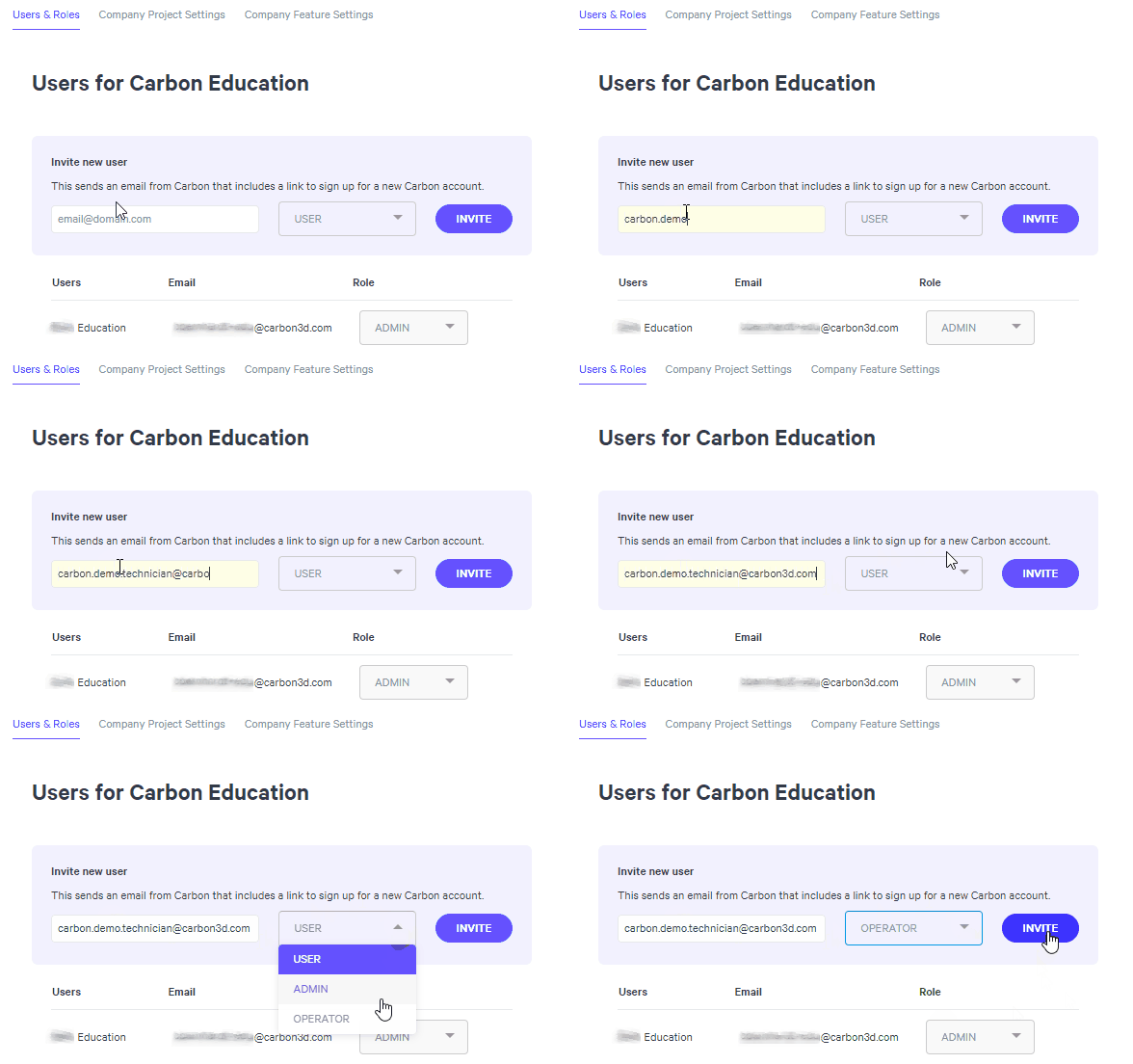
1. **Type in the email address of the new user.**
2. **Select the **[user role](docId\:PqxnKG4ONeIQP4BmaSXIY)**:** OPERATOR, USER, ADMIN
3. **Click INVITE**
*An Invite Sent confirmation message will appear briefly at the bottom of the screen*
:::hint{type="warning"}
Once invited, new users will not appear in this list until they have successfully completed the sign up process.
:::
::::
:::WorkflowBlockItem
**New User Sets Up Account**
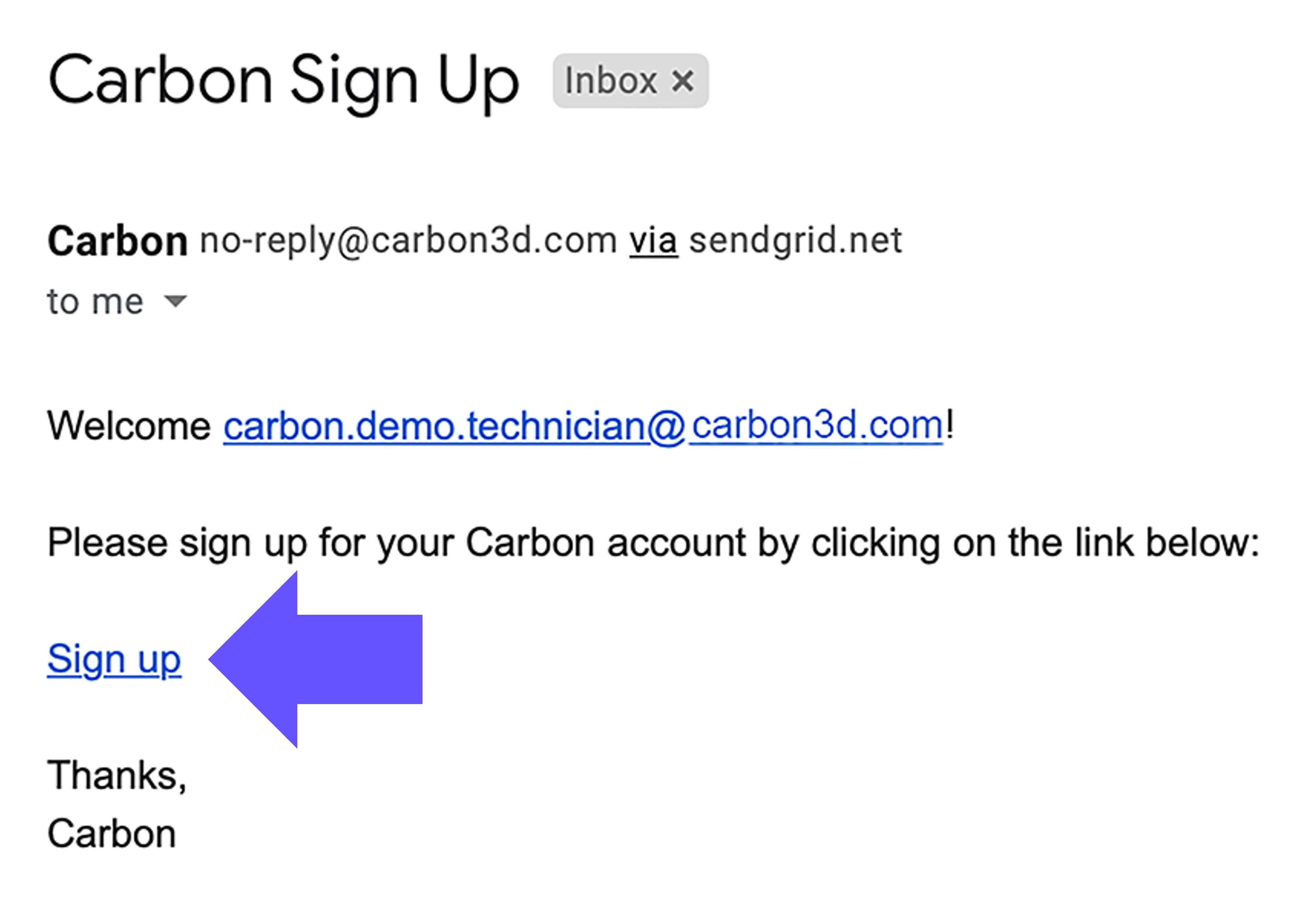
1. New user receives a **Carbon Sign Up email **message.
1. Click on the **Sign up **link
2. **Enter login information**
1. First and last name
2. Create password
3. Click **SIGN UP**
3. The admin will now see the **new user listed **along with their role.
- And the Printer UI will launch for the new user.

:::
:::::
### Self Sign Up
Users may also sign up themselves, with a couple restrictions.
- Users default\* to the **USER **role
- Admins will need to modify the role under the [Users & Roles](docId\:PqxnKG4ONeIQP4BmaSXIY) tab if the new user needs to be an OPERATOR or ADMIN.
*\*Exception when Carbon Support has modified the default for a specific user in advance of sign up.*
- Email address must match the company domain
::::::WorkflowBlock
:::WorkflowBlockItem
Navigate to the company's printer network: [print.carbon3d.com](https://print.carbon3d.com)
:::
:::WorkflowBlockItem
Click **SIGN UP** below the log in dialog.
::Image[]{src="https://res.cloudinary.com/carbon3d/image/upload/t_auto_quality_format/Education/Software/Printer-UI/Settings-User-Management/Self-sign-up.jpg" size="40" width="2829" height="3713" position="flex-start" alt="Sign Up on Log in dialog" darkWidth="2829" darkHeight="3713" showCaption="false"}
:::
:::::WorkflowBlockItem
**New User Sets Up Account**
::::VerticalSplit{layout="middle"}
:::VerticalSplitItem
The user receives a **Carbon Sign Up email **message, clicks on the **Sign up **link, and enters login information.
*Same email and workflow as the admin invitation.*
:::
:::VerticalSplitItem
:::
::::
:::hint{type="danger"}
If the email address entered does not match the company's domain (e.g. a gmail address), the user will be denied access. An admin must invite this user to use a **NON company email.**
::Image[]{src="https://res.cloudinary.com/carbon3d/image/upload/t_auto_quality_format/Education/Software/Printer-UI/Settings-User-Management/Self-sign-up_denied-email.jpg" size="70" width="2787" height="1568" position="center" alt="NON Company email response" darkWidth="2787" darkHeight="1568" showCaption="false"}
:::
:::::
::::::
# Company Settings
Admins have control over settings for the whole company.
## Company Project Settings
An Admin user can choose settings to use company wide for consistency across projects.

:::::::WorkflowBlock
::::::WorkflowBlockItem
:::::ExpandableHeading
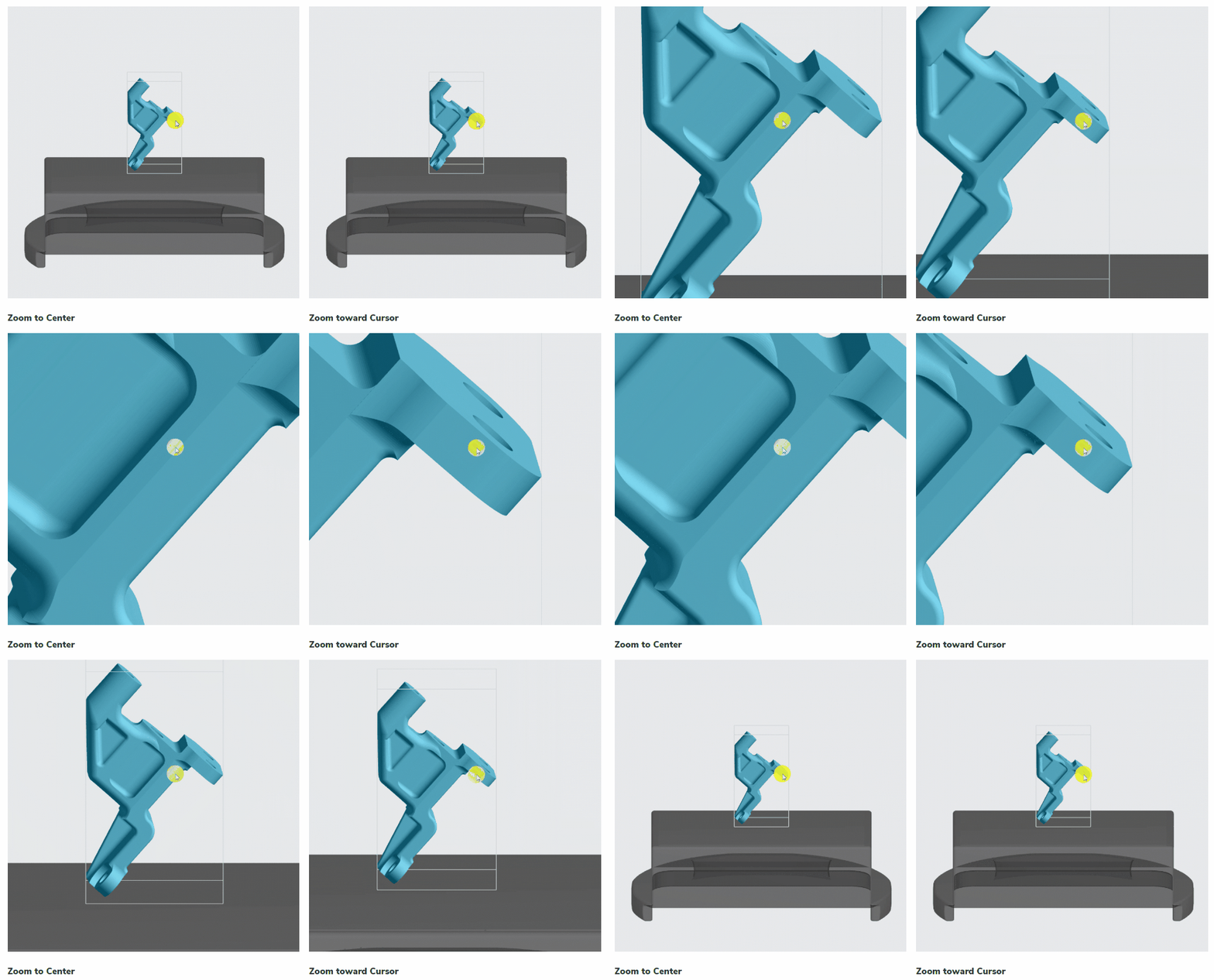
**Zoom Behavior**
::::VerticalSplit{layout="left"}
:::VerticalSplitItem
Choose your preferred zoom behavior
- Zoom to Center
- Zoom toward Cursor
*Default setting: Zoom to Center*
*This setting serves software versions v1.38 and higher.*
:::
:::VerticalSplitItem
:::
::::
:::::
::::::
::::WorkflowBlockItem
:::ExpandableHeading
**Model Units**
Set the units to default to those most commonly used.
*Default setting: Millimeters*
:::
::::
::::WorkflowBlockItem
:::ExpandableHeading
**Resin**
If a particular resin is used consistently, you may select it here to default the material selection to every project.
*Default setting: none*
:::
::::
::::WorkflowBlockItem
:::ExpandableHeading
**Part Position**
***Part Position v1.32 - v1.35***
Choose your preferred default part position for [Auto Orientation](docId\:rMnxtq1NIAHXZOc4bZXWu) and [Supports](docId\:VUbpoAitbLM11aM9-qJ1p):
- Above Platform
- On Platform
*Default setting: Above Platform*
*This setting serves software versions v1.32 through v1.35.*
***Part Position ≥ v1.36***
Choose your preferred default part position for [Auto Orientation](docId\:rMnxtq1NIAHXZOc4bZXWu):
- Above Platform
- On Platform
Note this setting **does not affect part position for supports. **If you do not use Auto Orientation, you must select a part position in the [Supports](docId\:VUbpoAitbLM11aM9-qJ1p) tab.
*Default setting: Above Platform*
*This setting serves software versions v1.36 and higher.*
:::
::::
::::WorkflowBlockItem
:::ExpandableHeading
**Auto Layout**
Select your preferred options for auto layout:
- Overlap bounding boxes
*Default setting: unchecked*
- Do not rotate parts
*Default setting: unchecked*
- Padding
*Default setting: 5 mm*
Reference the [Layout](docId\:SJ39gtBagt0cSGVVlCfli) lesson for more information.
:::
::::
:::::WorkflowBlockItem
::::ExpandableHeading
**Release Film**
If you print regularly with release film, you can check this option to accommodate release film thickness by default.
:::hint{type="danger"}
**⚠** If you select this option but fail to apply the release film, your print could fail to adhere to the platform.
:::
Reference the [Print Controls](docId\:N9rCrE4j391HMxwvP-udG) lesson for more information on the release film option.
*Default setting: unchecked*
::::
:::::
::::WorkflowBlockItem
:::ExpandableHeading
**Part Labels**
Select your preferred options for part labels:
- Label text
Particularly useful when used with tokens.
*Default setting: \{print\_uuid}*
- Text size (height dimension)
*Default setting: 1.5 mm*
- Depth (either embossed or engraved)
*Default setting: 0.5 mm*
- Embossed (proud of part surface) or
Engrave (recessed in part surface)
*Default setting: Emboss*
Reference the [Part Labels](docId\:vfU7-TIB33YB0yPEZd5so) guide for more information.
:::
::::
::::WorkflowBlockItem
:::ExpandableHeading
**Print Profile**
Choose your preferred print profile.
Reference the [Print Controls](docId\:N9rCrE4j391HMxwvP-udG) guide for more information on print profiles.
*Default setting: default*
:::
::::
::::WorkflowBlockItem
:::ExpandableHeading
**Slice Thickness**
Choose your preferred slice thickness:
- Standard**\*** - 100 µm
- Fine - 50 µm
- Super-fine - 25 µm
Reference the [Print Controls](docId\:N9rCrE4j391HMxwvP-udG) guide for more information on slicing.
**\***Standard slicing thickness may vary by resin.
*Default setting: Standard*
:::
::::
:::::::
## Company Feature Settings
Feature Settings for your company can be toggled ON/OFF by Admin users.
- Multi factor authentication
- Only Admins can update printer software
More feature settings may be listed in your UI for legacy customers or those participating in select beta programs. Contact your account manager if you have questions about additional options.
### Installing Software Updates
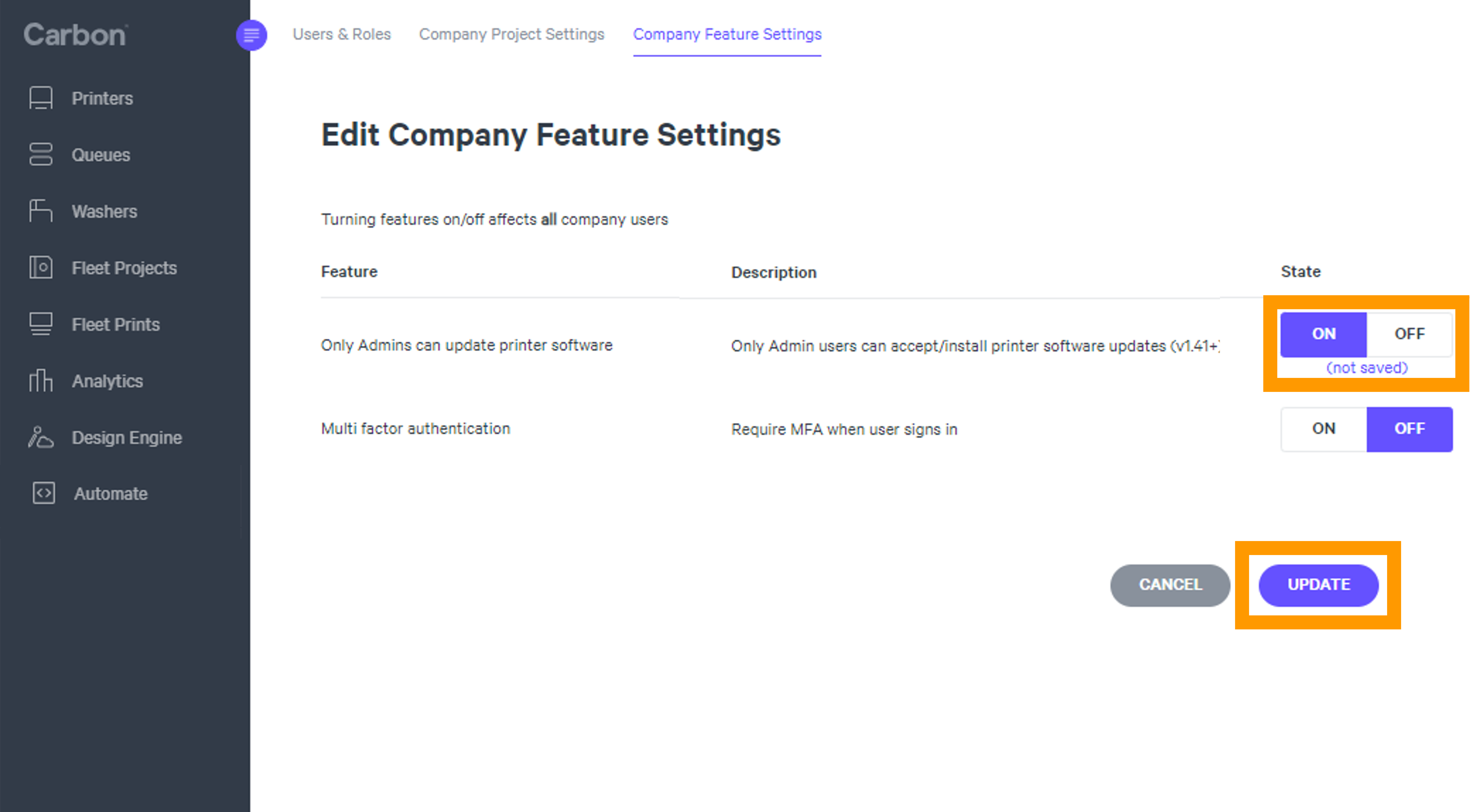
Customers have the option to specify that **only Admins can accept/install software updates** for the printers. This feature may be useful to organizations that have restrictions around when and how software updates are accepted.
::::VerticalSplit{layout="right"}
:::VerticalSplitItem
:::
:::VerticalSplitItem
To allow only Admin users to accept/install printer software updates:
- Turn state toggle to **ON**
- Press **UPDATE **at the bottom of the page to save the setting
*Setting available in software v1.41 and higher*
:::
::::
### Multi Factor Authentication
::::VerticalSplit{layout="right"}
:::VerticalSplitItem
:::
:::VerticalSplitItem
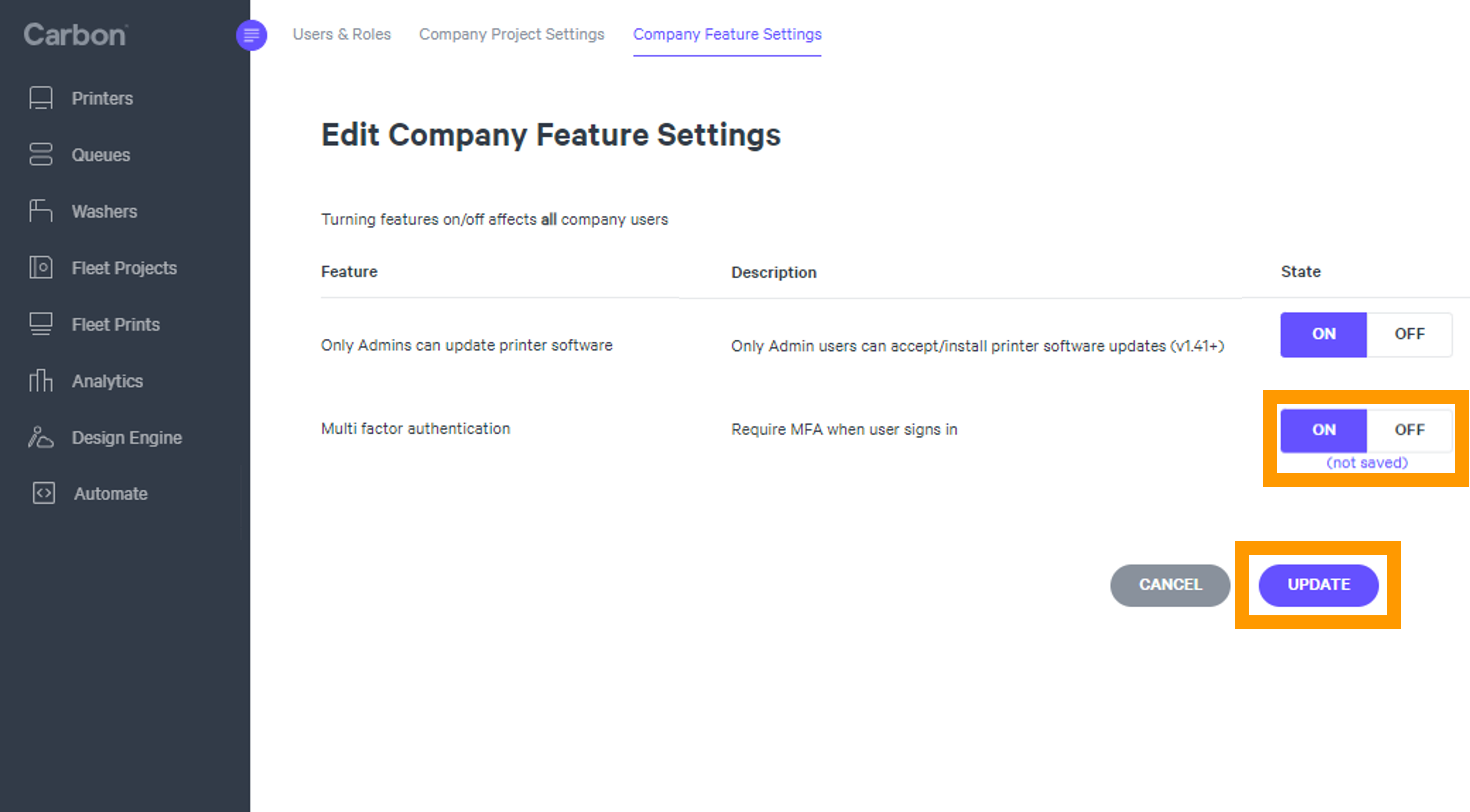
Require multi factor authentication when users sign in:
- Turn state toggle to **ON**
- Press **UPDATE **at the bottom of the page to save the setting
:::
::::
# User Settings
## Account Settings
::::VerticalSplit{layout="right"}
:::VerticalSplitItem
:::
:::VerticalSplitItem
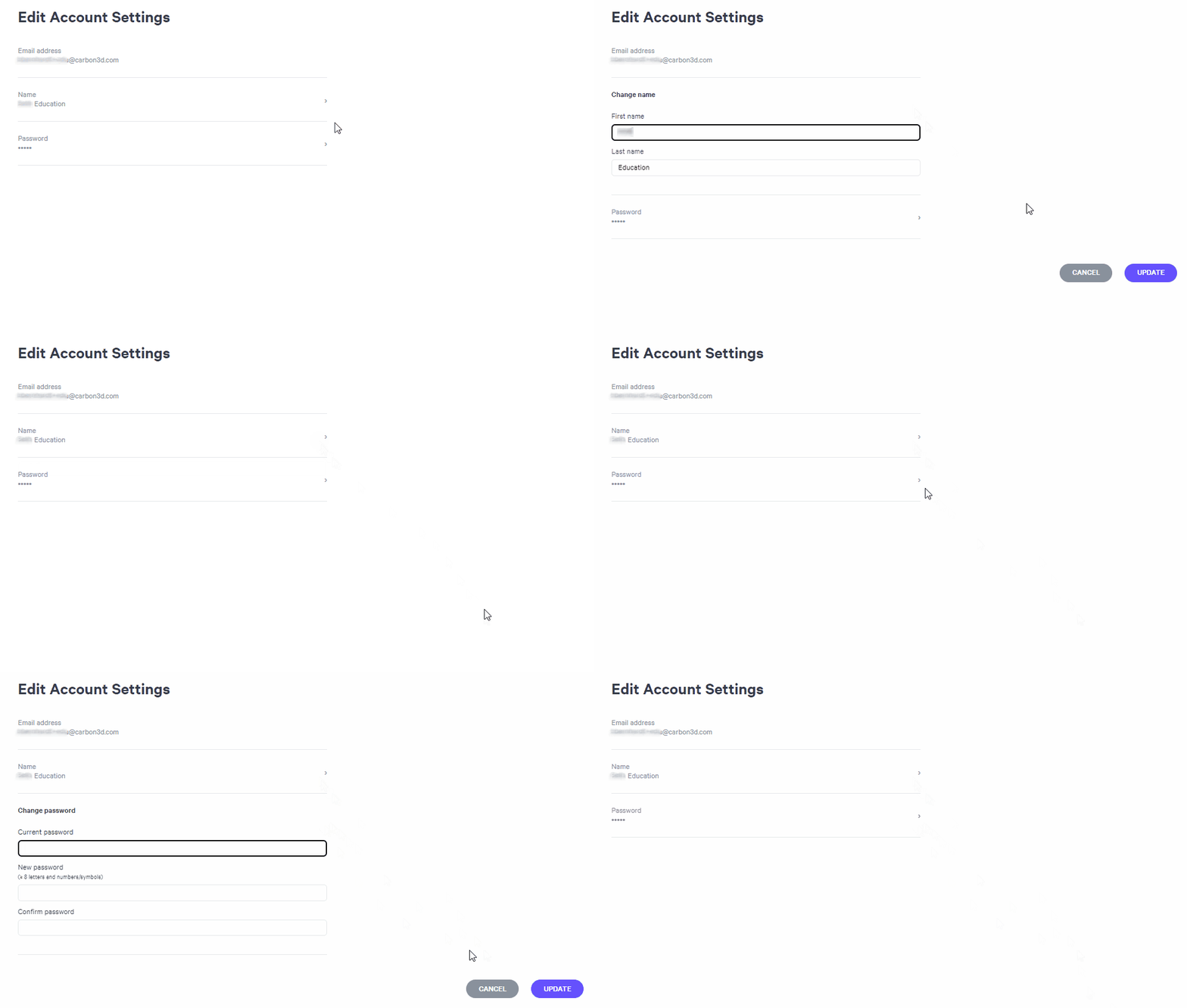
**Available Account Settings**
- Email - **not editable**
- Name - can be edited
- Password - can be reset
:::
::::
## Project Settings
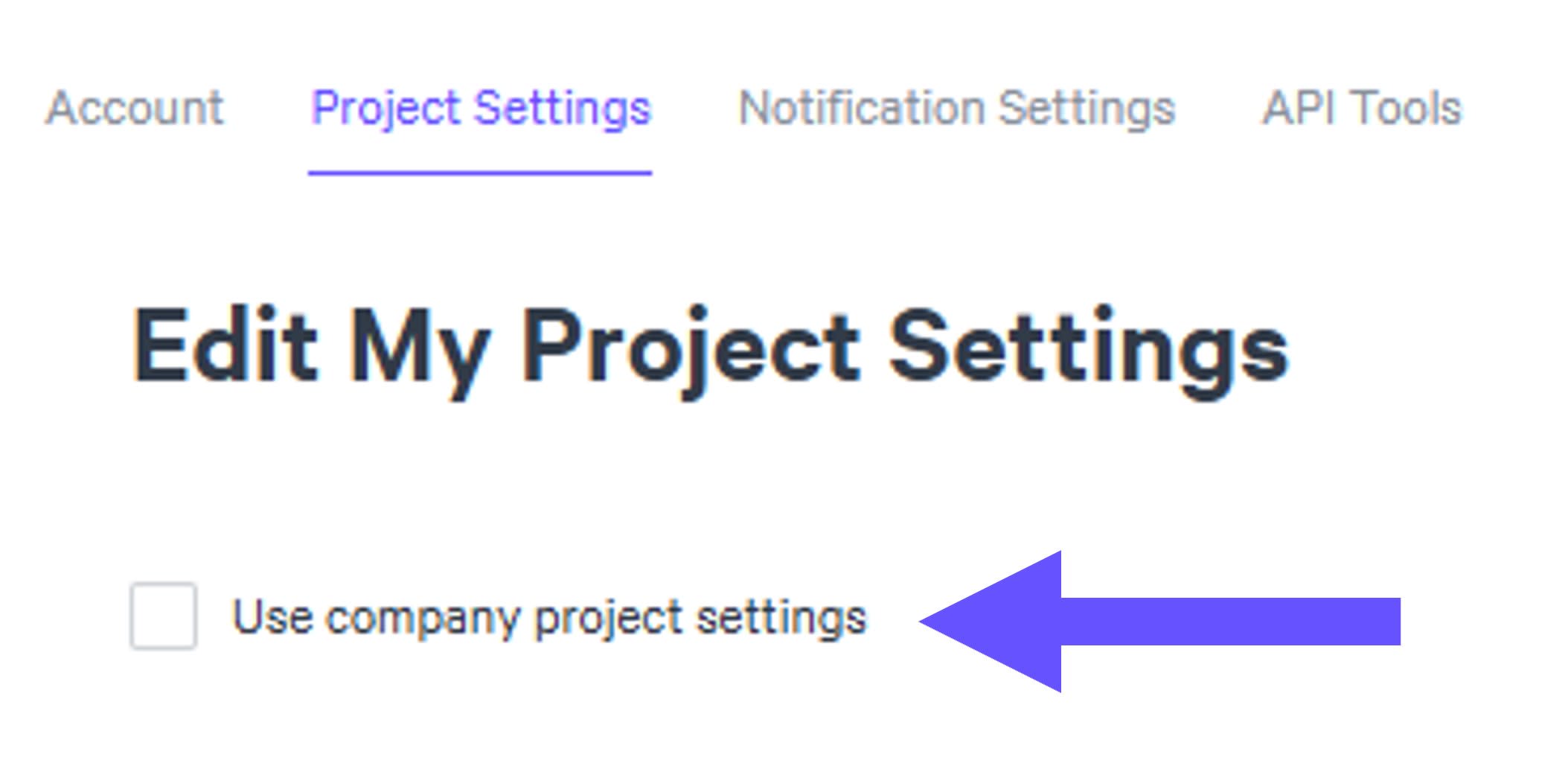
Users can set up their own project settings if they are not using the company's project settings. User project settings are the same fields as the [Company Project Settings](docId\:PqxnKG4ONeIQP4BmaSXIY).
**Use Company Project Settings**
::::VerticalSplit{layout="middle"}
:::VerticalSplitItem
Check this box to instead use the company settings for consistency across the organization.
[Company Project Settings](docId\:PqxnKG4ONeIQP4BmaSXIY) are set by the administrator.
*Default setting: unchecked*
:::
:::VerticalSplitItem
:::
::::
## Notification Settings
::::VerticalSplit{layout="right"}
:::VerticalSplitItem
:::
:::VerticalSplitItem
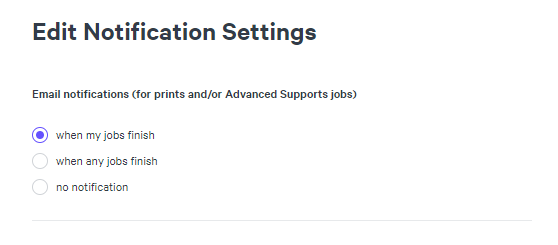
**Email Notifications**
Users have the ability to choose when to receive emails when Prints and Advanced Auto Supports are complete.
- Your jobs
- Any jobs
- No notification
:::
::::
## API Tools
::::VerticalSplit{layout="right"}
:::VerticalSplitItem
:::
:::VerticalSplitItem
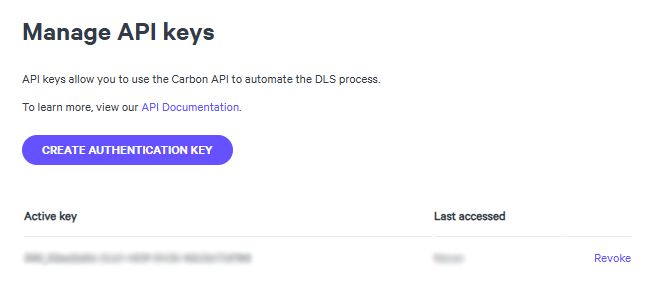
**Manage API Keys**
Users that utilize Carbon's API Tools or [Automate: Automatic Print Preparation (APP)](docId\:RdxnuAgHPa5GQfBl5QYSb) will manage their authentication keys here.
This is how users login to those features.
:::
::::
:::hint{type="warning"}
Authentication Keys are only available for [Admin accounts](docId\:PqxnKG4ONeIQP4BmaSXIY).
:::