---
title: Print Controls
slug: software/print-controls
description: Learn about the Print Controls tab in Carbon's printer software and discover optional print parameters for prints.
docTags:
createdAt: 2024-07-01T23:04:15.017Z
---
The Print Controls tab contains optional print parameters. The majority of prints will not require adjustments.
# Print Controls Features
Click on the name of a feature below for more information.

::::::::WorkflowBlock{src="https://api.archbee.com/api/optimize/3CesIL2dYMCHPZvRjp8S0/Yl2fI4hLtwu5sNyJjQ8yf_print-controls-background-v142.png" size="100" width="1440" height="810" position="center" alt="Print Controls UI with number key"}
::::::WorkflowBlockItem
:::::ExpandableHeading
### Print Profile
::::VerticalSplit{layout="middle"}
:::VerticalSplitItem
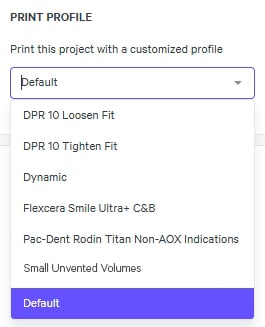
The print profile is the program created by the printer software during print analysis that controls the printer movements and the creation of the part during printing.
:::
:::VerticalSplitItem
:::
::::
**Default**
- Use for **first prints.**
- The software analyses the geometry and chooses an optimal print speed for the resin.
- Most prints will operate best with the default print mode.
***
**DPR 10 Loosen/Tighten Fit**
Two Print Profiles for use with DPR 10 are available to all customers to provide Dental Labs with more control over print outcomes:
- **DPR 10 Loosen Fit** → Use this Print Profile for DPR 10 prints if, on previous prints, the fit of mating parts (e.g. dies) is **too tight**
- **DPR 10 Tighten Fit **→ Use this Print Profile for DPR 10 prints if, on previous prints, the fit of mating parts (e.g. dies) is **too loose**
*Available in software *[v1.45](docId\:MgQiv81rgzN0OdMk3llI6)* and higher.*
***
**Dynamic (M1/M2 printers)**
- Prioritizes **print speed.**
- The software looks for areas **where resin will flow more quickly**
- and speeds up the print in those areas.
- **Not all parts will find increased print speed.**
- Print speed can contribute to part defects, so it is recommended to use dynamic print mode only after confirming successful print results in default.
Force feedback (FFB) printers (M3, M3 Max, L1) will see minimal difference, or even higher print speeds with the dynamic print profile because FFB already optimizes speed where possible. Dynamic is a tool for M1 and M2 printers. Reference Print Plan and Force Feedback in the **DLS Printer Dynamics** course for more information.
::::VerticalSplit{layout="middle"}
:::VerticalSplitItem
*Dynamic Print Profile Example*
This build saves 30 minutes of print time (3h 12m instead of 3h 42m in Default) with the Dynamic print profile on an M2 Printer (results vary per build).
Time is saved at the** small and consistent cross sections** at the end of the print.
There is both more space for resin flow and a consistent flow pattern that allows for faster printing at these slices.
:::
:::VerticalSplitItem

:::
::::
***
**Flexera Smile Ultra+ C\&B**
For use with [Desktop Health Flexcera Smile and Flexcera Smile Ultra+](docId\:W2OS9mPiqny9nX83agFMd) resin under applicable conditions.
***
**Pac-Dent Rodin Titan Non-AOX Indications**
For use with [Pac-Dent Rodin Titan](docId\:NbYifH5lbtNwXGgbye8we) resin under applicable non-AOX conditions.
*Available in software *[v1.46](docId\:M57IWulEuClyGcsBkFE62)* and higher.*
***
**Small Unvented Volumes**
For use with prints where there is distortion or extra cured resin on the surface of critical features inside holes. This addresses issues of [Veining](docId\:JjgVKSG_a4HnG6aTN-IY2) or [Caping](docId\:bOSFTxf_qsCXLl9rrYeTn) that can negatively impact the fit of mating parts, most commonly seen in analog or anterior die holes in DPR 10, but applicable to any application with similarly fitting parts like connectors.
May also help with [Resin Starvation](docId:3EIqqQqCGKwU6QNgdR5Ox) in parts with large window-facing cross sections.
*Available in software *[v1.46](docId\:M57IWulEuClyGcsBkFE62)* and higher.*
***
**Custom Print Profiles**
Carbon Support may provide custom print profiles to solve specific print issues as needed. Those profiles will be made available in your drop down menu when needed. Please reach out to [Carbon's Support ](mailto\:support@carbon3d.com)team if you need assistance.
A few of the commonly shared print profiles, intended for specific resins, were limited to use with only applicable resins in [v1.43](docId\:A0Gh07euhJtL7Zz9vJ3_E). (RPU 70 and DPR 10)
***
:::ExpandableHeading
**L1 B1 EPU Default **(deprecated)
As of [v1.45](docId\:MgQiv81rgzN0OdMk3llI6), all projects created prior to [v1.43](docId\:A0Gh07euhJtL7Zz9vJ3_E) using the **L1B1 EPU Default** print profile were converted to **Default**.
History of this print profile:
- Designed for all **EPU **resin prints on an **L1 Printer **using a **B1-L1 cassette**
- Better printability and faster print times for most applicable geometries
- Notes per software release
- The L1 B1 EPU Default print profile was first released in software [v1.36](docId\:PkKEVEMQlil7endS8Gl8P)
- Projects on software [v1.39](docId\:oxY9qayf9B9BsjAwYh82B) or earlier using the L1 B1 EPU Default print profile did not automatically carry forward after updating to [v1.40](docId:7rRhsF3zsLHy9NaKpwRnd). “Unknown Profile” was displayed as your print plan until a selection was made.
- The L1 B1 EPU Default print profile became default for all EPU prints on L1 printers with B1 cassettes as of software [v1.41](docId:3M9Z9l0Zl1QYG5jbtry9l). This means that all L1 EPU prints on B1 cassettes automatically had these print plan settings applied without needing to select a specific print profile dropdown.
- The L1 B1 EPU Default print profile remained available via the print profile drop-down menu for the [v1.41](docId:3M9Z9l0Zl1QYG5jbtry9l) release, but was removed as of [v1.43](docId\:A0Gh07euhJtL7Zz9vJ3_E).
- Projects using the L1 B1 EPU Default Print Plan that were created prior to [v1.43](docId\:A0Gh07euhJtL7Zz9vJ3_E) were converted to Default in [v1.45](docId\:MgQiv81rgzN0OdMk3llI6).
:::
:::::
::::::
:::::WorkflowBlockItem
::::ExpandableHeading
### Print Plan
[Print Plan Adjustments](docId\:NxUK0dltz_vemEAU0DIpN) can be used to eliminate defects and adjust print times by adjusting the default print plan operating your printer.

:::hint{type="info"}
Requires software version v1.39 or higher.
:::
::::
:::::
::::WorkflowBlockItem
:::ExpandableHeading
### Release Film
Selecting this checkbox will cause your print to begin printing off the platform to compensate for the thickness of the release film.
**⚠ If you select this option but fail to apply the release film, your print could fail to adhere to the platform.**
If the “Print with release film” box is selected for a print, there will be an indication on the printer screen that release film needs to be applied to the platform prior to starting the print.

:::
::::
:::::::WorkflowBlockItem
::::::ExpandableHeading
### Wash Profile
:::::VerticalSplit{layout="middle"}
::::VerticalSplitItem
Four wash profiles are available to select for the build beyond the standard wash options when using the part washer.
Learn more in the [Smart Part Washer](docId\:wqF74fRjKKXuo1vaJRDQa) guide.
:::hint{type="warning"}
Note that if your part washer is using the optional [Production Mode](docId\:wqF74fRjKKXuo1vaJRDQa), only the wash profile selected will be available at the washer. Default will run if none is selected.
:::
::::
:::VerticalSplitItem

:::
:::::
:::hint{type="info"}
Available in software v1.36 and above.
:::
::::::
:::::::
::::::WorkflowBlockItem
:::::ExpandableHeading
### Slicing
The slicing options define the slice thickness used in printing.
::::VerticalSplit{layout="middle"}
:::VerticalSplitItem
**Standard**
Recommended in most cases with an optimal balance of surface quality and print time.
*(varies per resin - 100 µm most common)*
:::
:::VerticalSplitItem

:::
::::
**Fine**
Print speed 2x longer than standard.
Use when surface finish improvement is needed and print time is less important.
**Super-fine**
Print speed 4x longer than standard.
Use only when surface finish is critical and print time is not a concern. Not recommended for tall parts.
:::::
::::::
::::::WorkflowBlockItem
:::::ExpandableHeading
### Slicing Algorithm
::::VerticalSplit{layout="middle"}
:::VerticalSplitItem
Two slicing algorithms are available to choose from.
- Default Slicer
- Legacy Slicer
:::
:::VerticalSplitItem

:::
::::
**Default Slicer**
The Default Slicer was formerly called the Gen2 Slicer & the Poisson Slicer. This became the default slicing method in [v1.42](docId\:Zya19aHcjNB9seZxWqSa_) software.
::::VerticalSplit{layout="middle"}
:::VerticalSplitItem

:::
:::VerticalSplitItem
Parts are analyzed and simple repairs are made to stl models upon import.
The status of whether a part is water tight can be found in the Part Settings, accessed from the Parts List.
:::
::::
::::VerticalSplit{layout="middle"}
:::VerticalSplitItem
Parts with small holes in the stl model are filled.
:::
:::VerticalSplitItem

:::
::::
When a model is missing a triangle in the stl mesh, the software does not definitively know what the closed shape is supposed to be.
::::VerticalSplit{layout="middle"}
:::VerticalSplitItem

:::
:::VerticalSplitItem
The **orange point** in this 2D graphic could fall inside or outside the shape.
The **Default Slicer** uses the principles of the Poisson equation to mathematically determine the correct shape when information is missing to create slices.
:::
::::
To learn more about how the algorithm works, reference this [blog post ](https://www.carbon3d.com/resources/engineering/fast-inside-outside-segmentation/)written by Carbon software engineers.
:::hint{type="warning"}
Project Analysis may take longer (\~30% increase) when using the Default Slicer when errors are present in the .stl file.
:::
:::hint{type="info"}
If errors persist in your project's slicing, repair the model in a 3rd party stl file repair program.
:::
**Legacy Slicer**
The Legacy Slicer was formerly called the Gen1 Slicer and was the default slicer until [v1.42](docId\:Zya19aHcjNB9seZxWqSa_).
The Legacy Slicer (formerly known as Gen 1 Slicer) is **still available via a drop-down option**, and can be selected if needed.
However, Carbon recommends using the Default Slicer for all projects unless there is a specific, validated need to revert to the Legacy Slicer.
:::hint{type="warning"}
Parts with small holes in the stl model may not slice properly with the Legacy Slicer (formerly Gen1 Slicer), which could lead to print defects.
:::
:::hint{type="info"}
Projects created prior to the installation of software [v1.42](docId\:Zya19aHcjNB9seZxWqSa_) will retain their previous slicing setting. Consider updating slicing settings to the new Default for the best print results.
:::
:::::
::::::
::::::::
# Additional Options per Printer
Some printers may have additional options in print controls if there are different hardware options.
:::hint{type="info"}
You will only see these options if you have obtained multiple hardware types through your printer subscription.
:::
::::VerticalSplit{layout="right"}
:::VerticalSplitItem
### M2 Printers
M2 printers have multiple cassette types available.
- M2-C2 (default)
- M2C4
- M2C5
:::
:::VerticalSplitItem

:::
::::
### M3/M3 Max Printers
M3 and M3 Max printers have 1 platform and 1 cassette available (D1) and will not have an options menu for either.
### L1 Printer
L1 printer have multiple cassette and platform types.
::::VerticalSplit{layout="middle"}
:::VerticalSplitItem
**Platforms**
- L1 P1 Flat (default)
- L1 P2 Channel
- L1 P0 Channel Legacy
::Image[]{src="https://api.archbee.com/api/optimize/3CesIL2dYMCHPZvRjp8S0/VNduNyuOYOeSgowh0dwaB_240212-l1-platform-dropdown.png" size="70" width="400" height="350" position="center" showCaption="false"}
:::
:::VerticalSplitItem
**Cassettes**
- B1\_L1 (default)
- C2\_L1
- B1\_L1\_HV
::Image[]{src="https://api.archbee.com/api/optimize/3CesIL2dYMCHPZvRjp8S0/qCgbg4tH8McH4zxMVDyVc_240212-l1-cassette-dropdown.png" size="70" width="400" height="350" position="center" showCaption="false"}
:::
::::