---
title: Fleet Management
slug: software/fleet-management
description: Optimize your fleet production with the Carbon Dashboard – a cloud-based management tool designed for seamless printer and part washer oversight.
docTags:
createdAt: 2024-07-01T22:52:41.884Z
---
The Carbon Dashboard is a cloud-based tool to manage an entire fleet of printers and part washers.
By containing metadata about your prints (not about your models), you can orchestrate the work your fleet is doing from a central location.
Software updates to the dashboard are run automatically behind the scenes, so you will always have the latest tools available.
(Individual printer software is updated separately.)
# Printer Dashboard
The printer dashboard is your home page for all Printer UI operations. Details and the status of all printers can be referenced from this central location.
:::hint{type="info"}
See also [Printer Dashboard UI](docId:1bT3mas8msvxq9CDza67C) for more information on the other sidebar items.
:::
The printer dashboard contains the following visibility options:
::::VerticalSplit{layout="middle"}
:::VerticalSplitItem
**Filters**
- Status
- Type
- Automation
:::
:::VerticalSplitItem
**Sorting**
- Name
- Resin
- State
- Software Version
- Time Remaining
:::
::::


::::::::WorkflowBlock
::::WorkflowBlockItem
:::ExpandableHeading
**Software Version**
The software version currently installed on the printer is noted above the printer name.
In this example, software version **v1.44**.0-1714.17 is installed. Note the first three numbers when cross referencing with [Printer Software Release Notes](docId\:artQng7lXAwlvwvlWs0Qe).
:::
::::
::::WorkflowBlockItem
:::ExpandableHeading
**Printer Name**
The printer can be renamed by admin users. See below for more information.
:::
::::
::::WorkflowBlockItem
:::ExpandableHeading
**Printer Type**
The printer type is listed below the name.
Example: M3
:::
::::
::::WorkflowBlockItem
:::ExpandableHeading
**Last (or current) Print Number**
All prints can be referenced on the [Fleet Prints](docId:91X-qyIpcgNgDxmb1ktJ7) tab.
:::
::::
::::WorkflowBlockItem
:::ExpandableHeading
**User**
The username of the person who sent the last or current print noted above.
:::
::::
::::WorkflowBlockItem
:::ExpandableHeading
**Resin**
The selected resin of the print noted above.
:::
::::
::::::WorkflowBlockItem
:::::ExpandableHeading
**Progress Bar**
::::VerticalSplit{layout="middle"}
:::VerticalSplitItem
The progress bar shows the total and remaining time of a print while printing.
:::
:::VerticalSplitItem

:::
::::
:::::
::::::
::::::WorkflowBlockItem
:::::ExpandableHeading
**Printer Status**
::::VerticalSplit{layout="middle"}
:::VerticalSplitItem
The current state of the printer is noted here.
Status states include:
:::
:::VerticalSplitItem
- Ready to print
- Install cassette
- Install platform
- Printing time
Example: **49m left **1h 51m total
- Remove part
- Factory Mode
- Contact Support
- Offline
:::
::::
See more about [Printer Status ](docId:91X-qyIpcgNgDxmb1ktJ7)below.
:::::
::::::
::::::WorkflowBlockItem
:::::ExpandableHeading
**Image of Printer Status**

::::VerticalSplit{layout="middle"}
:::VerticalSplitItem
The current state of the printer is also indicated visually. From left to right:
*Shown here with an M2 printer. Actual printer image will match the correct model.*
:::
:::VerticalSplitItem
- Ready to print
- Install cassette
- Install platform
- Time current print finishes
- Remove part
- Factory Mode
- Contact Support
- Offline
:::
::::
:::::
::::::
:::::::WorkflowBlockItem
::::::ExpandableHeading
**AO Backpack**
::::VerticalSplit{layout="middle"}
:::VerticalSplitItem
This icon indicates whether the printer is fitted with the [AO Backpack](docId\:K-8b42NeZQ-pIa8PL-dg-) accessory.
- The icon is in color when Auto Mode is ON (shown above).
- The icon is gray when Auto Mode is OFF (shown here).
No icon is visible for printers without an AO Backpack.
:::
:::VerticalSplitItem

:::
::::
:::::VerticalSplit{layout="middle"}
::::VerticalSplitItem
:::hint{type="warning"}
**Auto Mode ON** status is controlled at the **printer only**.
:::
::::
::::VerticalSplitItem
:::hint{type="info"}
**Auto Mode OFF** status is controlled at the** printer** or the **printer status screen.**
:::
::::
:::::
:::hint{type="info"}
**AO Backpack **is an accessory to the **M3 printer** that enables unattended printing with automatic part removal, resin refill, and part collection with minimal downtime between cycles.
:::
::::::
:::::::
::::::::
## Printer Status
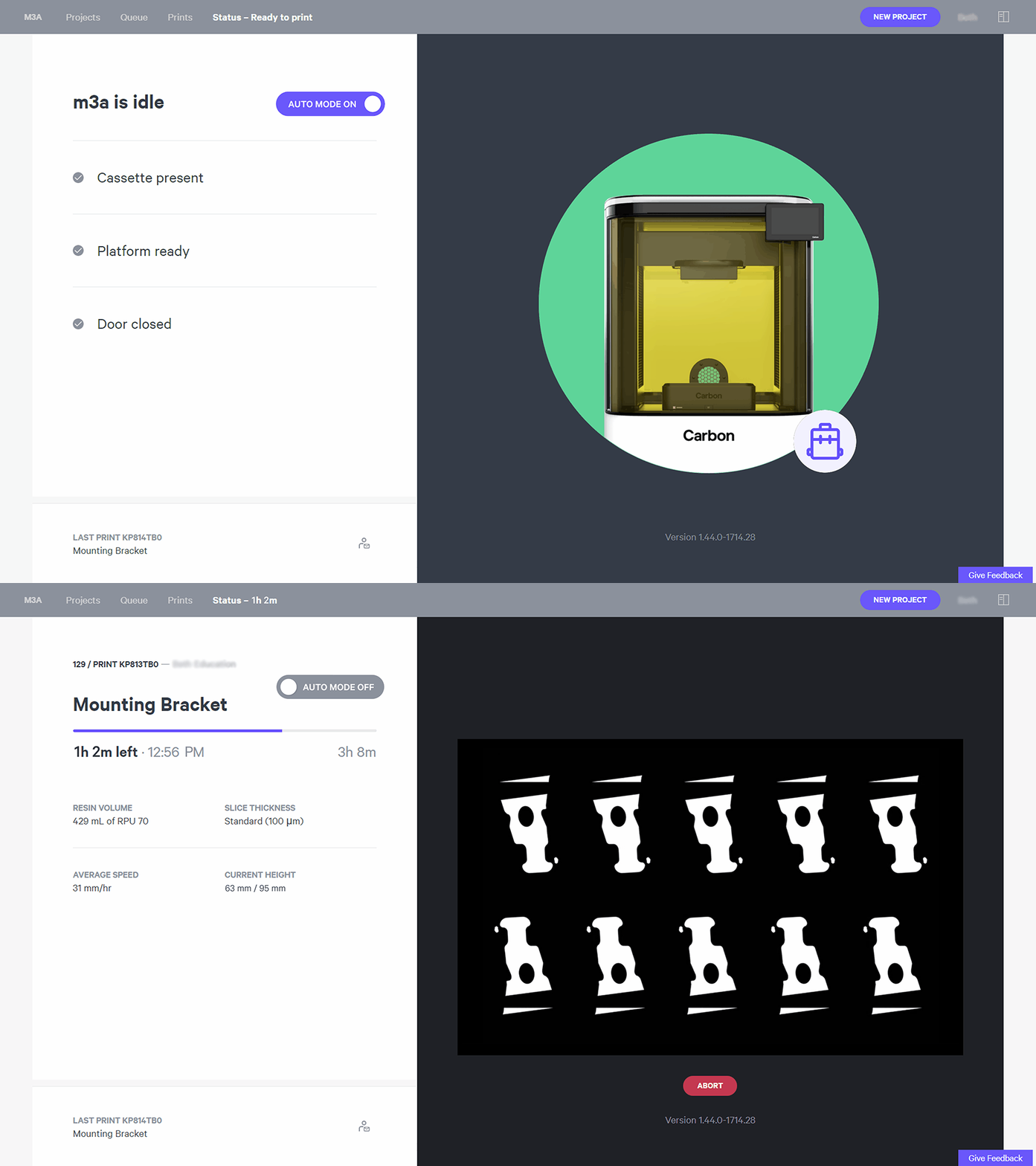
Printer status indicators occur on both the [printer dashboard](docId:91X-qyIpcgNgDxmb1ktJ7) and on the [printer UI's](docId:1bT3mas8msvxq9CDza67C) status page.
**M3 Printer Status Page Example**
An M3 printer **ready to print** in one view and **actively printing** in another view.
:::hint{type="info"}
This M3 printer example is fitted with the AO Backpack accessory.
In the idle view, the example shows Auto Mode ON and the example printing view demonstrates the OFF condition.
:::
:::hint{type="info"}
**Auto Mode** can be **toggled OFF** from the printer status page. Reference AO Backpack's [auto mode completion](docId\:Z5J06e2yhoHwLisiFaRFT) guide for more information. Auto Mode can only be **toggled ON at the printer**.
:::
## Printer Names
[Admin users](docId\:PqxnKG4ONeIQP4BmaSXIY) may change the names of printers in your fleet.
*Full functionality requires software *[v1.40](docId:7rRhsF3zsLHy9NaKpwRnd)* or higher.*
::::VerticalSplit{layout="middle"}
:::VerticalSplitItem

:::
:::VerticalSplitItem
- Visit the Printer Dashboard (print.carbon3d.com)
- Click on the three dots in the lower right-hand corner of a printer tile
- Use the modal to input a new name for your printer
- Submit
:::
::::
:::ExpandableHeading
**Printer Naming Notes**
- Renaming is only available to [admin users](docId\:PqxnKG4ONeIQP4BmaSXIY). Individuals with the User or Operator role type cannot rename printers.
- Renaming a printer **may take several minutes** to propagate throughout the system.
- Your printer **names must be unique within your organization**; you cannot have two printers with the same name.
- Printer names can contain **1-20 alphanumeric characters and select symbols**: dash (-) and period (.). Spaces are allowed, but become dashes (-) when transcribed into a printer URL. Underscores are not allowed. Regardless of whether you have entered an upper- or lowercase character, the first character of a printer name will be automatically capitalized in some areas of display.
- While the name you have chosen will be displayed wherever you see the printer name, **Carbon will maintain a consistent record of the printer’s name at the time of manufacture**, allowing for continuity in record-keeping. If you use print or printer data available via API endpoints or CSV exports, your chosen printer name will be reflected in the field labeled “printer alias.” “Printer name” will continue to reflect the printer’s name at manufacture.
:::
:::ExpandableHeading
**IT Restrictions**
If your organization employs strict network settings that require specific whitelisting of allowed URLs, note that changing the name of a printer will require coordination with your IT team.
Every Carbon printer has its own URL, and with the installation of printer software v1.40, changing the name of a printer will now alter this URL. For example, a printer named m9999 can be reached at m9999.customer.print.carbon3d.com. If you change the name of this printer to “New-Name,” the printer’s URL will now be new-name.customer.print.carbon3d.com, as long as your printer is not already operating with a custom domain. This new URL may take a few minutes to propagate and become available.
Before renaming any printers, confirm requirements with your IT team to ensure your access to the printer interface is not interrupted.
:::
## Software Version
Printer software runs locally on your printers over your local network and controls how the printer operates.
Software releases must be accepted before installation. This allows you to have control over installations when in the middle of a production run.
**Installing Updates**
- A **warning banner** appears at the top of the printer dashboard when hardware is out of date.
- Click the **Details** button for a list of outdated hardware (printers and part washers).
- Uncheck any hardware that is in the middle of a production run as needed.
- Click **Update **to install the latest software on the checked hardware.
- Return to update any remaining printers when production runs are complete.

::::VerticalSplit{layout="middle"}
:::VerticalSplitItem
Updates can also be made from the
- Queues tab on the dashboard
- Printer screen
- The prompt seen here will appear when you open a printer
:::
:::VerticalSplitItem

:::
::::
:::hint{type="danger"}
**ⓘ Do not restart/power-cycle your printer during software updates.**
:::
::Image[]{src="https://api.archbee.com/api/optimize/3CesIL2dYMCHPZvRjp8S0/58KHMY5bN1K99aofF2BhG_updating-screen-on-printer-v141.png" size="60" width="611" height="241" position="center" alt="Printer during a software update" darkWidth="611" darkHeight="241" showCaption="false"}
:::hint{type="warning"}
You are responsible for accepting updates and installing the latest Software. Carbon actively supports only the most recent and locked Software version.
:::
### Version Lock
Carbon releases software updates on a regular cadence. We understand that certain high-volume manufacturers have rigorous protocols in place for process sensitive applications that require a high degree of validation for each software release.
::::VerticalSplit{layout="middle"}
:::VerticalSplitItem

:::
:::VerticalSplitItem
For these applications, revalidating processes on the standard cadence can be disruptive to production schedules.
Carbon offers **version lock for select software versions**. The Carbon Support team will support locked versions for a specified number of years.
To utilize this feature, **customers must opt in**. Discuss the version lock option with your account manager if you think it is right for you.
:::
::::
::::VerticalSplit{layout="middle"}
:::VerticalSplitItem
**Version Lock Product Description**
::File{src="https://api.archbee.com/api/presign/3CesIL2dYMCHPZvRjp8S0/sq3JgDg1OkkRmllTV9TCm-20260409-191600.pdf" label="Version Lock_Product Description_v0122.pdf"}
:::
:::VerticalSplitItem
**Version Lock FAQ**
::File{src="https://api.archbee.com/api/presign/3CesIL2dYMCHPZvRjp8S0/AgkN_1LlN8JFhmUSTusjd-20260409-191600.pdf" label="Version Lock_FAQ_v0121.pdf"}
:::
::::
**Version Lock History**
Version lock releases overlap to offer flexibility in adoption schedules.
| **Version Lock** | **Hardware** | **Launch** | **Retired** |
| ------------------------------------- | ---------------------- | -------------- | --------------------------------------------------- |
| [v1.39](docId\:oxY9qayf9B9BsjAwYh82B) | M1, M2, M3, M3 Max, L1 | April 2023 | Active
`Supported until `
`December 2026` |
| [v1.5](docId\:ekXk1YjUzLovmuhP9vrVw) | Part Washer | April 2023 | Active
`Supported until `
`December 2026` |
| [v1.31](docId:12vCxnXuEQdjnrn3SRho-) | M1, M2, L1 | September 2021 | September 2023 |
*Carbon plans to release a new lockable version in 2027.*
# Queues
## Add to Queue
**From Project Page**
::::VerticalSplit{layout="left"}
:::VerticalSplitItem
1. Add to Queue from the project page
2. Specify print options
1. Copies per printer
2. Choose printers
3. More than one can be selected
4. Add notes for operator
3. Add to queue
4. Add more prints to queue as needed
:::
:::VerticalSplitItem

:::
::::
**From Fleet Projects**
::::VerticalSplit{layout="left"}
:::VerticalSplitItem
1. Add to Queue from Fleet Projects
1. Click project for details
2. Add to queue
2. Specify print options
1. Copies per printer
2. Choose printers
3. More than one can be selected
4. Add notes for operator
3. Add to queue
:::
:::VerticalSplitItem

:::
::::
### Auto Mode
When selecting printers to queue builds, the backpack icon will appear next to the printer type to indicate a printer fitted with the [AO Backpack](docId\:K-8b42NeZQ-pIa8PL-dg-)**.**
::::VerticalSplit{layout="left"}
:::VerticalSplitItem
Choose those printers when using **Auto Mode** and ensure that Auto Mode is enabled at the printer or on the printer's status screen.
:::
:::VerticalSplitItem
::Image[]{src="https://res.cloudinary.com/carbon3d/image/upload/Education/Software/Printer-UI/Fleet-Management/Queues-backpack.png" size="90" width="723" height="392" position="center" alt="Printers list with M3s fitted with an AO Backpack" darkWidth="723" darkHeight="392" showCaption="false"}
:::
::::
Prints that are not compatible with Auto Mode will be skipped and placed at the bottom of the print queue.
Hover over the **Skipped in Auto Mode** tag to view the reason why the print was skipped.
::Image[]{src="https://res.cloudinary.com/carbon3d/image/upload/Education/Software/Printer-UI/Fleet-Management/auto-skipped.png" size="72" width="893" height="127" position="center" caption="Skipped in Auto Mode" alt="Skipped in Auto Mode" darkWidth="893" darkHeight="127" showCaption="true"}
### Automatic Print Preparation (APP)
Builds generated through APP are either manually or automatically queued per the [Pipeline configuration's queue settings](docId\:RdxnuAgHPa5GQfBl5QYSb) (*login required to view information*).
:::hint{type="warning"}
Builds created in automation via APP **cannot be opened for viewing from the printer’s queue**. To check the Builds, use the APP interface from the [Builds tab](docId\:RdxnuAgHPa5GQfBl5QYSb).
:::
### Reprinting
**From Fleet Prints - View Print**
To queue a previously printed project, utilize the **Print Again** button. Pressing this button will queue another print of the project to the same printer where it was previously printed. The project will be resliced and a new print plan will be calculated for this print.
::::VerticalSplit{layout="left"}
:::VerticalSplitItem
**Print Again**
- Fleet Prints
- View Print
- Print Again
- Add to Queue
- Same printer
:::
:::VerticalSplitItem

:::
::::
::::VerticalSplit{layout="left"}
:::VerticalSplitItem
**Lock the Project**
To yield the same results print-to-print:
- Do not edit the project - Use the same resin
- Use equivalent hardware (same printer type, same cassette type)
- Same installed software version
:::
:::VerticalSplitItem
::Image[]{src="https://api.archbee.com/api/optimize/3CesIL2dYMCHPZvRjp8S0/DcJAvyiQB2cEub17LD0wl_lock-project.gif" size="70" width="450" height="450" position="center" alt="Lock the project" darkWidth="450" darkHeight="450" showCaption="false"}
:::
::::
:::hint{type="warning"}
Older software versions contained a **Reprint...** button that was disabled in software v1.42 for M3 and M3 Max printers and for all other printers in v1.43. The reprint functionality used the same slices and print plan as previously calculated. This functionality is no longer appropriate as the software has evolved to create prints plans that react to hardware conditions in real-time. Reference [v1.42](docId\:Zya19aHcjNB9seZxWqSa_) and [v1.43](docId\:A0Gh07euhJtL7Zz9vJ3_E)release notes for details.
The **Print Again** button replaced this functionality.
:::
**Revision**
::::VerticalSplit{layout="right"}
:::VerticalSplitItem
Note that when you send a print to queue, you are sending a revision from that moment in time.
If you make additional changes to the project, you will need to send a new revision to the queue to capture changes.
:::
:::VerticalSplitItem

:::
::::
## Manage Queues
::::VerticalSplit{layout="left"}
:::VerticalSplitItem
**Single Printer Queue**
- Each printer has its own queue
- Prints can be reordered
:::
:::VerticalSplitItem

:::
::::
::::VerticalSplit{layout="left"}
:::VerticalSplitItem
**Fleet Printers Queue**
- Drag and drop to reorder prints
- Within one printer
- Or between printers
- Click on a project for details
- Printer
- User
- Resin
- Print Time
- Print Controls
- Edit Notes
:::
:::VerticalSplitItem

:::
::::
## Required Resin Amount
The minimum required resin amount to run the print can be referenced in multiple locations:
::::VerticalSplit{layout="left"}
:::VerticalSplitItem
**Project Analysis**
:::
:::VerticalSplitItem
::Image[]{src="https://api.archbee.com/api/optimize/3CesIL2dYMCHPZvRjp8S0/ITQdh8pFNXRqPgGiDcuwR_image.png" size="50" width="1680" height="1680" position="flex-start" alt="Project Analysis" showCaption="false"}
:::
::::
::::VerticalSplit{layout="left"}
:::VerticalSplitItem
**Single Printer Queue**
:::
:::VerticalSplitItem
::Image[]{src="https://api.archbee.com/api/optimize/3CesIL2dYMCHPZvRjp8S0/ur309Dy32MOLRlOz9oZqc_image.png" size="50" width="1680" height="1680" position="flex-start" alt="Single Printer Queue" darkWidth="1680" darkHeight="1680" showCaption="false"}
:::
::::
::::VerticalSplit{layout="left"}
:::VerticalSplitItem
**Fleet Printer's Queue**
:::
:::VerticalSplitItem
::Image[]{src="https://api.archbee.com/api/optimize/3CesIL2dYMCHPZvRjp8S0/tqPEhf8NCboOJlg99wh3M_image.png" size="50" width="1680" height="1680" position="flex-start" alt="Fleet Printer's Queue" darkWidth="1680" darkHeight="1680" showCaption="false"}
:::
::::
::::VerticalSplit{layout="left"}
:::VerticalSplitItem
**Printer**
:::
:::VerticalSplitItem
::Image[]{src="https://api.archbee.com/api/optimize/3CesIL2dYMCHPZvRjp8S0/eOqzZ0nf0oljUAFJlCq93_image.png" size="50" width="1680" height="1680" position="flex-start" alt="Printer" showCaption="false"}
:::
::::
## Operator Notes
Notes can be used to provide the operator instructions for when they run the print.
Notes can be seen on both the **Single Printer Queue** and the **Fleet Printers Queue**.
::::VerticalSplit{layout="middle"}
:::VerticalSplitItem

:::
:::VerticalSplitItem

:::
::::
## Start Print
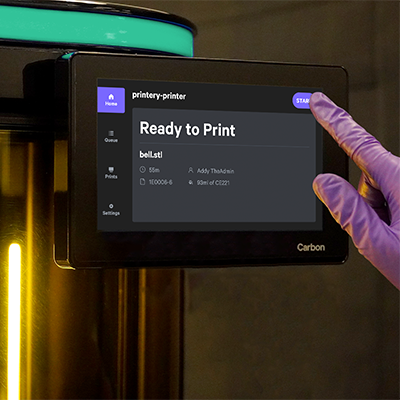
Prints can be started from both the **Single Printer Queue** or at the **printer** itself.
*(Always ensure that the printer is ready and resin has been dispensed.)*
::::VerticalSplit{layout="middle"}
:::VerticalSplitItem

:::
:::VerticalSplitItem
:::
::::
# Washers
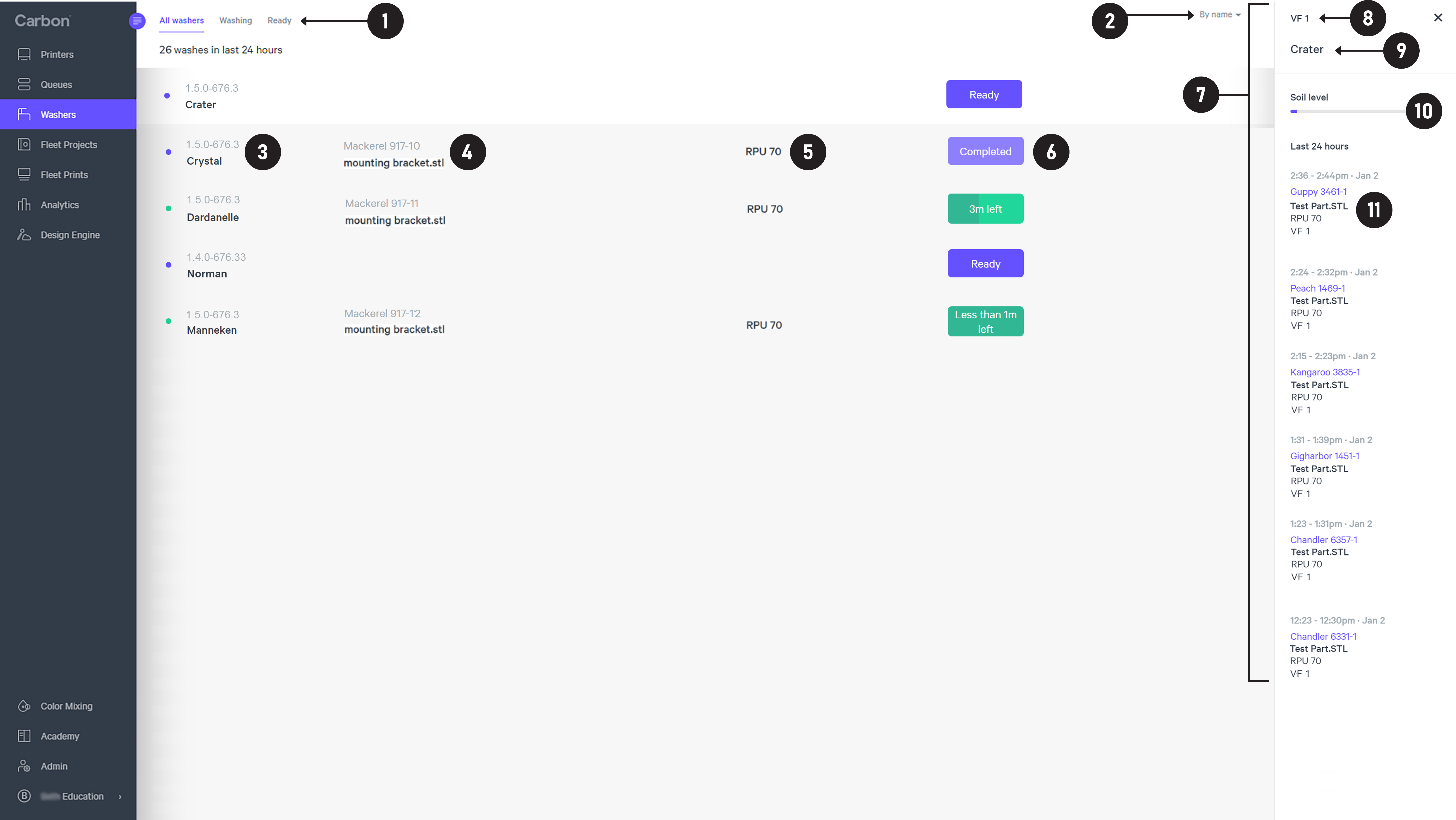
The washers tab provides status information on all Smart Part Washers.
Click on the number below for more details.
:::::WorkflowBlock
::::WorkflowBlockItem
:::ExpandableHeading
**Filter by Washer Status**
Filter the list of part washers in your fleet by status.
:::
::::
::::WorkflowBlockItem
:::ExpandableHeading
**Sort Part Washers**
::Image[]{src="https://api.archbee.com/api/optimize/3CesIL2dYMCHPZvRjp8S0/rtW_6-V5F5IcZBR_VFYqa_image.png" size="50" width="189" height="173" position="center" caption="By Name" alt="By Name" darkWidth="189" darkHeight="173" showCaption="true"}
:::
::::
::::WorkflowBlockItem
:::ExpandableHeading
**Part Washer Info**
- Software Version
- Part Washer Name
:::
::::
::::WorkflowBlockItem
:::ExpandableHeading
**Print Info**
- Printer name and print number where the wash originated
- Project name of wash
:::
::::
::::WorkflowBlockItem
:::ExpandableHeading
**Resin of Current Wash**
Example RPU 70
:::
::::
::::WorkflowBlockItem
:::ExpandableHeading
**Current Status**
Ready, Completed or wash time remaining
:::
::::
::::WorkflowBlockItem
:::ExpandableHeading
**Part Washer Details**
Click on a part washer to pull up the details pane.
:::
::::
::::WorkflowBlockItem
:::ExpandableHeading
**Current Solvent**
Reference the [Smart Part Washer](docId\:hVGVBThCKEk4HXJqQFpO_) page for validated solvents.
:::
::::
::::WorkflowBlockItem
:::ExpandableHeading
**Part Washer Name**
Example Crater
:::
::::
::::WorkflowBlockItem
:::ExpandableHeading
**Soil Level**
The solvent must be changed when the soil level is reached.
Reference the [Smart Part Washer](docId\:hVGVBThCKEk4HXJqQFpO_) page for maintenance details.
:::
::::
::::WorkflowBlockItem
:::ExpandableHeading
**Wash History**
The wash history for the previous 24 hours is provided with the following details:
- Time and Date
- Printer Name and Print Number
- Project Name
- Resin
- Solvent
:::
::::
:::::
# Fleet Projects
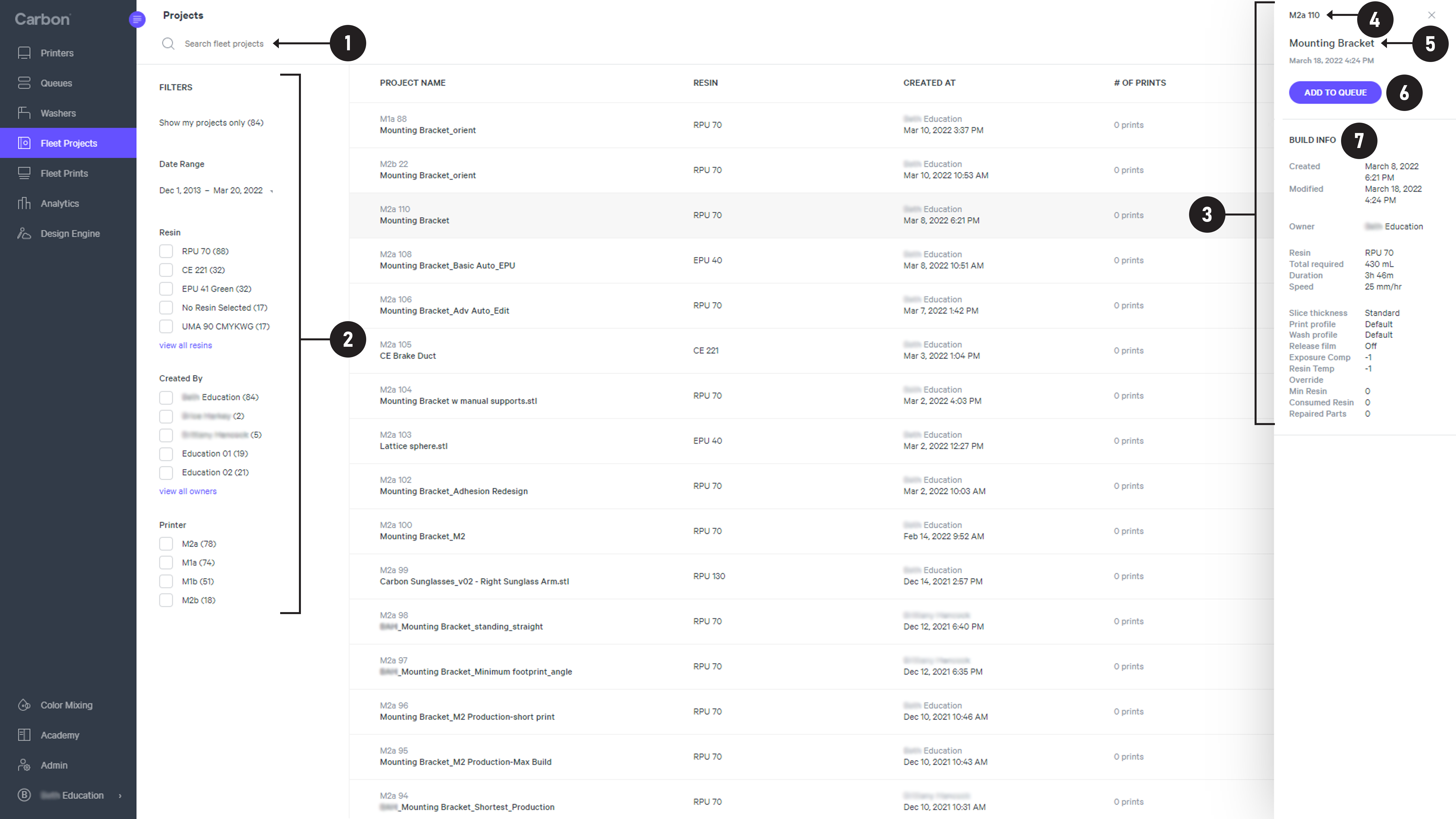
**Fleet Projects **consists of any build layout created in the Printer UI, whether printed or not.
Click on the number below for more details.
:::::WorkflowBlock
::::WorkflowBlockItem
:::ExpandableHeading
**Search Bar**
Openly search for all projects across your fleet. Search by any criteria and suggestions will be provided as you type. See [search tips](docId:91X-qyIpcgNgDxmb1ktJ7).
- Project
- URL
- Printer
- User
- Resin
- Part file names (STL files)
:::
::::
::::WorkflowBlockItem
:::ExpandableHeading
**Filter Projects**
Filter projects by the following criteria, solo or in combination
- Your projects
- Date Range
- Resin
- Created By
- Printer
:::
::::
::::WorkflowBlockItem
:::ExpandableHeading
**Project Details**
Click on a project to pull up the details pane.
:::
::::
::::WorkflowBlockItem
:::ExpandableHeading
**Printer and Project**
Printer name and project number
:::
::::
::::WorkflowBlockItem
:::ExpandableHeading
**Project Name**
Example Mounting bracket
:::
::::
::::WorkflowBlockItem
:::ExpandableHeading
**Add to Queue**
One method of adding a project to a queue. See [other options here.](docId:91X-qyIpcgNgDxmb1ktJ7)
:::
::::
::::WorkflowBlockItem
:::ExpandableHeading
**Build Info**
- Created Date and Time
- Modified Date and Time
- Owner (user)
- Resin Info
- Print Controls
:::
::::
:::::
## Project Backup
:::hint{type="warning"}
**Carbon does not store or archive projects. **This information is stored on the printer’s onboard server, and cannot be recovered if the server is replaced, reset, or otherwise compromised.
To prevent data loss, we recommend backing up critical projects at least **once a month **and when** swapping printers. **Depending on your usage and requirements, more frequent backups may be necessary.
:::
::::VerticalSplit{layout="right"}
:::VerticalSplitItem
Reference monthly maintenance for your printer for backup instructions. *The process is the same for all printers.*
- [M2 Projects](docId:0YWe7YMSIyDn_IMLDVTpn)
- [M3 and M3 Max Projects](docId\:ZfgT6dGBrGDUsj0_ZsWUk)
- [L1 Projects](docId:98b0AYItf-NOlpodFyUKj)
:::
:::VerticalSplitItem
:::
::::
# Fleet Prints
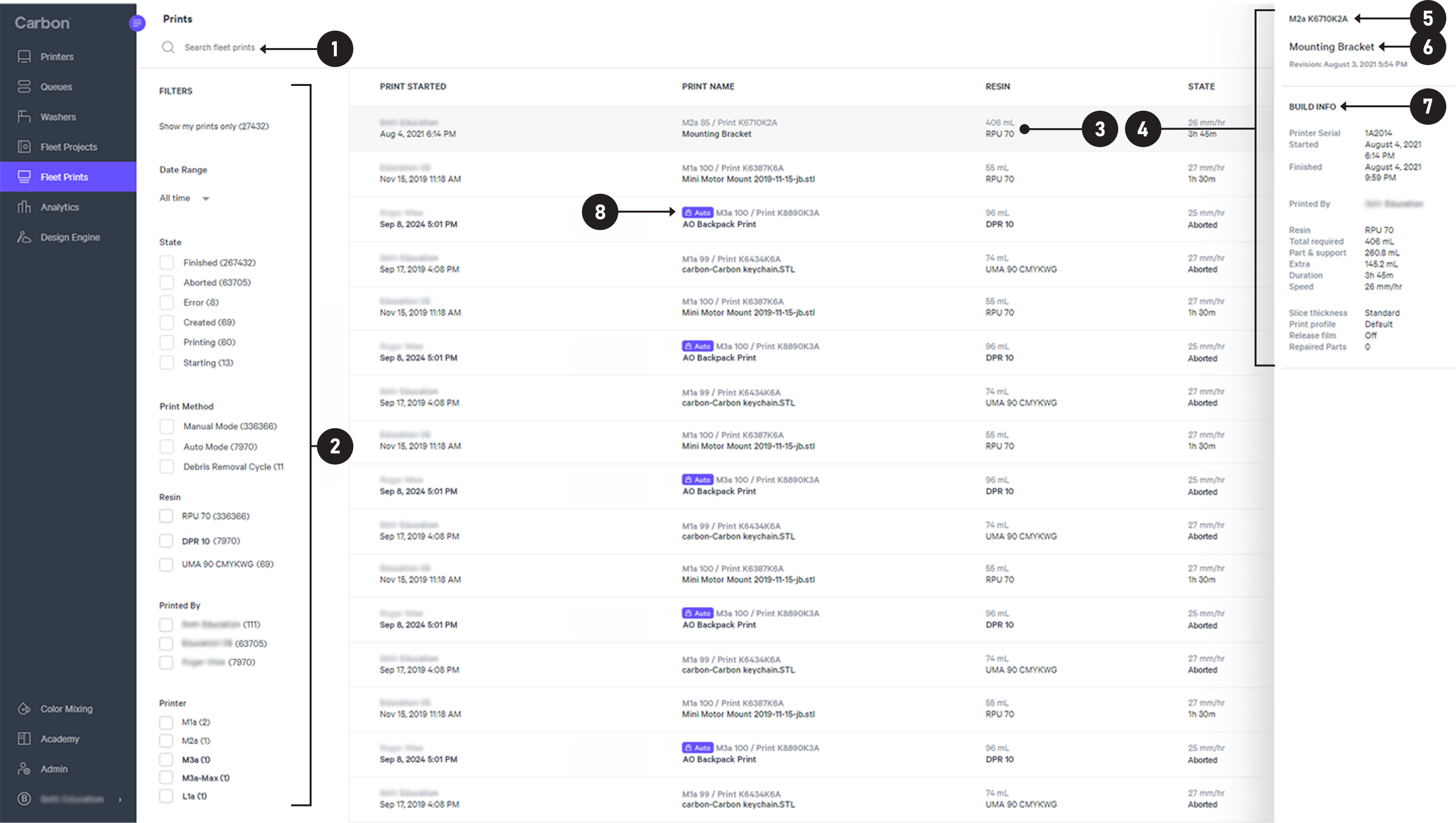
**Fleet Prints **consists of all projects that have been printed.
This includes prints that did not complete printing, such as aborted prints.
Click on the number below for more details.
::::::WorkflowBlock{src="https://res.cloudinary.com/carbon3d/image/upload/Education/Software/Printer-UI/Fleet-Management/Fleet-Prints_v144.png" size="100" width="6600" height="3727" position="center" alt="Fleet Prints numbered graphic"}
::::WorkflowBlockItem
:::ExpandableHeading
**Search Bar**
Openly search for all prints across your fleet. Search by any criteria and suggestions will be provided as you type. See [search tips](docId:91X-qyIpcgNgDxmb1ktJ7).
- Project
- URL
- Printer
- User
- Resin
- Part file names (STL files)
:::
::::
::::WorkflowBlockItem
:::ExpandableHeading
**Filter Prints**
Filter projects by the following criteria, solo or in combination
- Your prints
- Date Range
- State
- Print Method
- Resin
- Printed By
- Printer
:::
::::
::::WorkflowBlockItem
:::ExpandableHeading
**Print**
One print per row
:::
::::
::::WorkflowBlockItem
:::ExpandableHeading
**Print Details**
Click on a print to pull up the details pane.
:::
::::
::::WorkflowBlockItem
:::ExpandableHeading
**Printer and Print**
Printer name and print number
:::
::::
::::WorkflowBlockItem
:::ExpandableHeading
**Project Name**
Project name with the revision date and time below.
:::
::::
::::WorkflowBlockItem
:::ExpandableHeading
**Build Info**
- Printer Serial
- Started
- Finished
- Printed By
- Print Info
- Print Controls
:::
::::
:::::WorkflowBlockItem
::::ExpandableHeading
**AO Backpack**
This icon indicates whether the print was completed in [Auto Mode](docId:91X-qyIpcgNgDxmb1ktJ7) with an AO Backpack.
:::hint{type="info"}
**AO Backpack **is an accessory to the **M3 printer** that enables unattended printing with automatic part removal, resin refill, and part collection with minimal downtime between cycles.
:::
::::
:::::
::::::
## Search Tips
- You can **bookmark your searches**.
- If you frequently use particular search terms, bookmarking saves a URL that captures your search terms.
- **Part file names (STL files)** are among the terms that can be searched.
- This can be particularly useful when printing bespoke parts. For example, if you need to find a particular dental customer's ID number, putting that number in the file name can later help you find what print that part was on.
## Export to CSV
::::VerticalSplit{layout="middle"}
:::VerticalSplitItem

:::
:::VerticalSplitItem
All print data can be exported as a .CSV file.
This can be especially useful to tracks parts when using tokens as part labels. Examples include:
- **Printer Serial Number **
with token \{printer\_serial}
- **Print ID**
with token \{print\_uuid}
- **Project ID**
with token \{project\_id}
- **STL File Names**
with token \{part\_name}
:::
::::
# Analytics
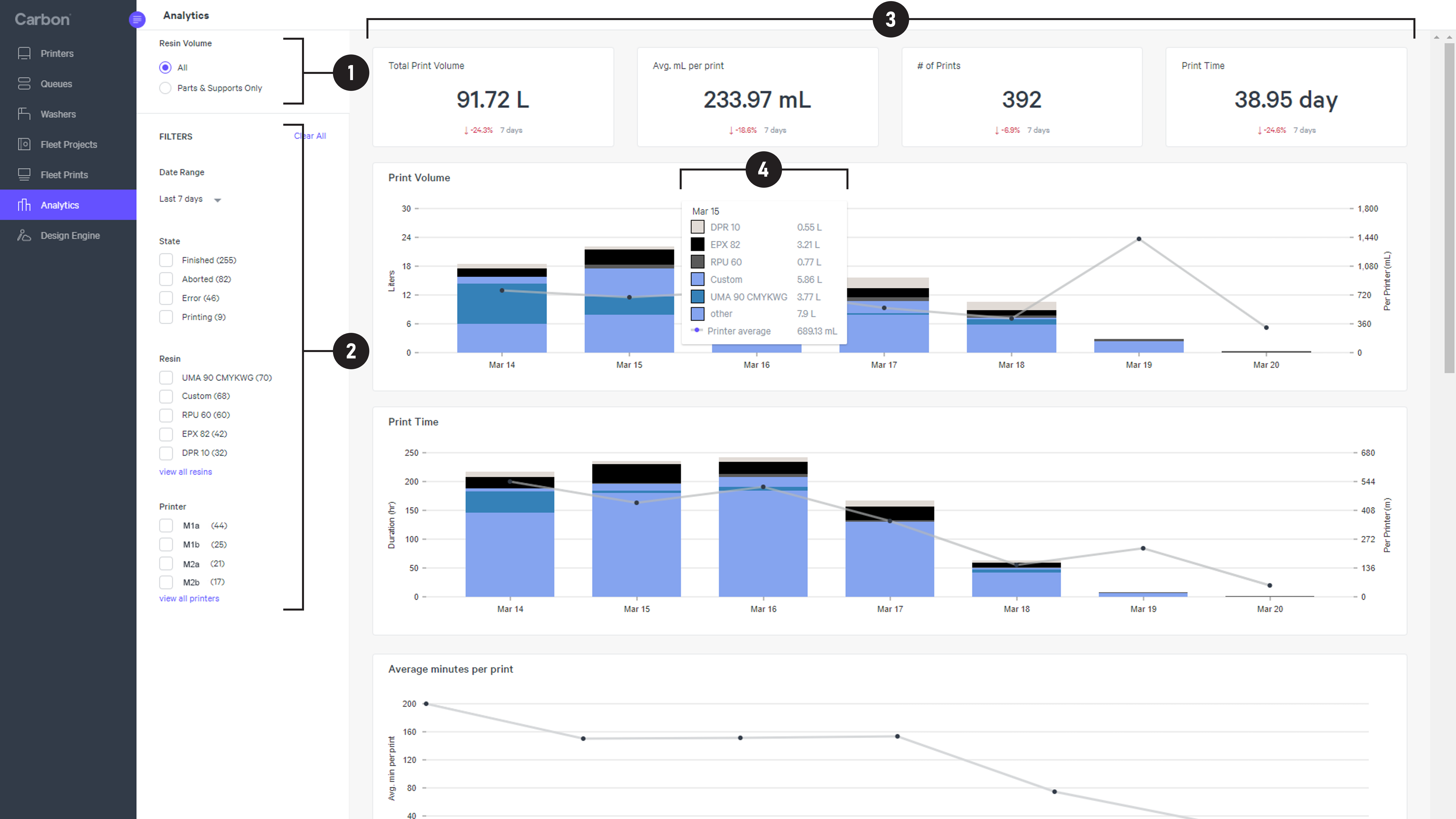
The Printer UI offers options for analyzing your print history.
Click on the number below for more details.
:::::WorkflowBlock
::::WorkflowBlockItem
:::ExpandableHeading
**Resin Volume**
Compile analytics by resin volume:
- All
- Part & Supports Only
:::
::::
::::WorkflowBlockItem
:::ExpandableHeading
**Filter Results**
- Date Range
- State
- Resin
- Printer
:::
::::
::::WorkflowBlockItem
:::ExpandableHeading
**Analytics**
The following analytics are provided:
- Total Print Volume
- Avg. mL per print
- \# of Prints
- Print Volume
- Print Time
- Average minutes per print
- Prints
- Resin (mL) per print
- Parts
- Resin (mL) per part
:::
::::
::::WorkflowBlockItem
:::ExpandableHeading
**Data Details**
Hover over a data point for details
:::
::::
:::::
## Resin Forecasting
This document describes the information displayed in the Analytics tool located in the Carbon Printer Dashboard, and provides instructions on how to use this tool to forecast resin usage for your printer fleet.
::File{src="https://api.archbee.com/api/presign/IUjOpuVPV7qLYmC62cjKs-9rtbC1lafsGnq1AFnjYCq-20240816-075732.pdf" label="Resin Forecasting v01.00.pdf"}