Automatic Print Preparation (APP) Release Notes
New Layout Configuration Option
Automatic Print Preparation Pipelines can now be configured to use rectangular part bounding boxes instead of actual part footprints when laying out parts for a Build. While this setting is not recommended for most standard workflows (where closely nesting parts using all available negative space nets the best-possible packing density), it provides a new option for applications with different needs.
Find it in the Build Settings section of the Pipeline Configuration workflow, within Layout Configuration, labeled “Use rectangular bounding box as part perimeter.” When enabled, this setting preserves the rectangular bounding boxes that surround each part footprint, so no part is nestled in the concave space of another.
Dental Model Autosupport Improvements
Part Preparation Operations for dental models that include autosupports have been updated to provide more robust supports on certain types of models.
This improvement will be applied to newly processed parts automatically; you do not need to take action to adopt this change.
Please report any model autosupport anomalies to [email protected].
Die Labeling Improvements
Label placement accuracy for Dental Dies has been improved, especially for dies that do not have a separate, thinner “peg” at the base. In the past, such dies may have failed to process at all, or may have processed with a label placed on an undesirable surface.
This improvement impacts all Part Preparation options that include labeling for Dental Dies:
- AutoLabel (emboss) + Optimize Starting Rotation (dental dies only)
- AutoLabel (engrave) + Optimize Starting Rotation (dental dies only)
- AutoSupport + AutoLabel (emboss) + Optimize Starting Rotation (dental dies only)
- AutoSupport + AutoLabel (engrave) + Optimize Starting Rotation (dental dies only)
- AutoSnap + AutoSupport + AutoLabel (engrave) + Optimize Starting Rotation (dental dies only)
This improvement will be applied to newly processed parts automatically; you do not need to take action to adopt this change.
Please report any die labeling anomalies to [email protected].
Improved Part Grouping Behavior
Users can now define Groups (eg, an order or patient case) in the Uploader. Previously, only Automate was aware of Groups, so depending on upload timing, Automate could start processing a Group before the Uploader finished sending all parts, resulting in a Group split across Builds.
Should I define Groups in my Uploaders?
YES if:
- You have experienced unexpected Group splitting that negatively impacts your workflows
- You use the “never split Groups” (or, optionally, “split as needed”) setting in your Automate Pipelines
NO if:
- You use the “maximum density” setting in your Automate Pipelines
- You are happy with how Automate currently processes Groups
How to Configure Groups in Uploaders
To configure Groups in Uploaders, you will provide:
- A pattern, written in Regular Expression (RegEx), defining where the Group indicator appears in your filenames
- A “group waiting time” (expressed in seconds) telling the system how long to wait for additional files within a Group
Consult Carbon Academy for detailed guidance on these settings, or reach out to [email protected] for assistance.
Additional Layout Configuration Settings
Additional settings are now available in the Layout Configuration section of Build Settings (part of Pipeline configuration) to provide enhanced capability and flexibility.
- Edge Padding (X and Y): Retains a prescribed amount of empty space along the edges of the platform
- Reduces the available platform space (and thus reduces the maximum number of parts per platform), but can be useful to support other workflow needs (e.g. certain types of spin-cleaning)
- “Edge Padding X” holds space in the X-direction on the platform, resulting in open space along the short edges of the platform
- “Edge Padding Y” holds space in the Y-direction on the platform, resulting in open space along the long edges of the platform
- Optimize starting rotation: Parts are rotated around the z-axis to an optimal starting position before they are laid out on the platform
- This setting helps achieve maximum build density and is recommended for applications in which fitting the maximum number of parts on a build is critical
- This setting should be left off if you have pre-determined the rotation of parts for certain printability or post-processing requirements
- Certain Part Preparation Operations include “Optimize starting rotation” (reference the Part Preparation Operations Catalog for details); when these Operations are in use, leaving the setting unchecked in Build Settings will not disable the functionality
- Allowed rotations: Optionally limits which rotations (around the z-axis) are allowed for parts when attempting to optimize build layout
- By default, 4 rotations are tried per part; this maximizes build density (the number of parts per Build) while still protecting for a reasonable processing time
- Limiting this to 2 rotations (0 and 180) or disallowing part rotation entirely (0 only) may be desirable when a predetermined part rotation supports certain printability or post-processing requirements
For existing Pipelines that are performing to your satisfaction, no changes are necessary; these additions will not alter the behavior of existing Pipelines.
For new Pipelines:
- Carbon recommends the following settings for all Dental Lab workflows (Models/Dies, Dentures, etc):
- Edge Padding X, Y: 0mm (default)
- Optimize starting rotation: enabled (though common Dental Part Preparation Operations include this functionality as well)
- Allowed rotations: default (0, 90, 180, 270)
Other applications should configure Build Settings to match your layout needs; contact [email protected] for help if needed
Automation for Denture Bases
Denture Bases can now be automatically prepared for printing. The program orients models (posterior at the platform, tilted to ~65°); supports edges, T-bars, and cameo surfaces; and (optionally) labels the model with specified text.
An Order Form is required to access this feature; contact your Carbon representative or [email protected] for more information.
Restored functionality: Part numbers on the Build Details page
To guard against processing errors with certain Builds, part numbers were temporarily removed from the Build Details page. Those part numbers have now been restored.
Only Builds generated after this update will contain this information; previously generated Builds will still lack this information.
Improved labeling for dental dies
Some customers experienced occasional instances of labels applied to dental dies improperly extending onto the tooth surface. The automatic die labeling functionality in Part Preparation options for dies that include AutoLabeling has been improved to reduce the incidence of this unwanted behavior.
Improved behavior of Interconnected Grid at part intersection points
The Interconnected Grid (an optional Build Setting to connect all Parts on a Build with a thin grid) has been refined to improve clean separation between the grid and parts during post-processing.
Change temporarily reverted: Part numbers on the Build Details pageThe update released on January 8, 2026 was linked to processing issues with certain Builds. To protect core functionality, part numbers have once again been temporarily removed from the Build Details page. For builds that include an Interconnected Grid (ICG), that ICG will be numbered as if it were a printed part on the Build. Intended functionality will be restored in an upcoming release.
Restored functionality: Part numbers on the Build Details page
As part of a recent bugfix related to correcting errors in part numbering on the printable Build Summary, part numbers were temporarily removed from the Build Details page. Those part numbers have now been restored.
Only Builds generated after this update will contain this information; previously generated Builds will still lack this information.
Bugfix: Part identification errors
In some cases, Carbon found that numbered part names were transposed on the Build Details page and on the printable Build Summary, resulting in difficulty identifying parts accurately. This error has been corrected for the printable Build Summary, and part numbers have been temporarily removed from the Build Details page to avoid sharing potentially incorrect information. Part numbers will be restored on the Build Details page in an upcoming release.
Protection against queueing unprintable Builds
When manually editing automatically prepared Builds, users have sometimes inadvertently made changes that result in parts being outside the printable bounds of the platform. This results in an unprintable Build that may disrupt later production, especially when using the AO Backpack for automatic printing.
In the Build editing interface, the “Create Build” button will now be disabled if any parts exceed the printable bounds of the platform. Impacted parts will display as pink; correct the part positioning error to complete and enqueue the edited Build.
New Part Preparation option for Dental Dies
A new Part Preparation option is available for preparing Dental Dies for printing: AutoSnap + AutoSupport + AutoLabel (engrave) + Optimize Starting Rotation (dental dies only). This option snaps the bases of dies to the print platform before adding supports and optimizing the starting rotation to enable denser packing layouts. Engraved part labels are optional.
Carbon recommends this option for preparing dental dies for printing.
Protection against deleted Uploader configurations
Some customers have experienced a browser deleting configured Uploaders ([customer].print.carbon3d.com/automate/file-uploader). Because this experience has been disruptive to workflows, a change to the File Uploader application now enforces persistent storage of this information to avoid accidental loss.
To enable this improvement, navigate to the File Uploader and refresh the application (using the in-browser “refresh” button or cmd+r / ctrl+r). Once this improvement is enabled, a new icon is visible in the top-right corner of the File Uploader screen to indicate successful persistent storage.
In some cases (using the browser’s “incognito mode,” limited disk space on the computer, multi-month gaps between site visits, or manually clearing Chrome’s history), Uploader configuration storage may be interrupted. In that case, the storage disk icon will be replaced with a slashed circle labeled “Persistent storage is disabled. Your settings may be lost.” Warnings will also be shown if a user tries to create a new Uploader or exit the browser tab/window under these conditions. If you encounter warnings about storage persistence, do not exit the application. Contact [email protected] for assistance if needed.
Users are reminded that Uploaders are specific to a single user’s computer and web browser, and that the File Uploader application must be open for files to upload (either as a tab in the Chrome browser or as a locally-installed application).
View Slice Videos for prepared Builds
A Slice Video is now available for automatically prepared Builds. This video can optionally be viewed prior to queueing a Build to a printer to check for errors that may disrupt printing.
Access the Slice Video from the Build Preview section of a Build Details page, near existing functionality to view the meshes and the first slice of the Build. Videos can be downloaded in .mp4 format if desired (use the 3-dot menu in the lower right-hand corner).
The Slice Video is only available for Builds generated after 11/21/25; it is not available for previously created Builds.
Improved functionality on the Builds tab
The Builds tab is now easier to navigate.
- Search: Search for a Build by name
- Filters: Filter Builds by creation date to see only builds created after a specified date
Loading performance/responsiveness of the Builds tab is also improved.
Numbered Parts on the printable Build Summary (“Traveler”)
The printable (PDF) Build Summary (commonly referred to as the “Traveler”) has been updated to include part numbering on the image of the Build that maps to the numbered list of parts.
Note that if an automatically generated Build is manually edited, part visualization and numbering on the Build Summary may exhibit inconsistencies
- The Interconnected Grid may become numbered as a part
- A deleted part may still be listed on the Parts List
- Other anomalies are possible
Updated printable Build Summary (“Traveler”)
The printable (PDF) Build Summary (commonly referred to as the “Traveler”) has been updated:
- The “front” of the platform (the platform edge nearest to the user when standing in front of the printer) is indicated on the image
- The filename of a generated Build Summary is {BuildName} - BuildSummary.pdf
Note that some details included in the previous printable Build Summary have been removed for simplicity; this information is still available via the in-application Build Details page for each Build:
- Group names (eg, customer cases/orders used as groups within the system) and information about the Group Splitting behavior used when the Build was created
- Information about initial Build creation (user, date/time)
- Y/N indication on the presence of an Interconnected Grid (the Interconnected Grid is visible in the image of the Build if it is present)
Bug Fixes
- First Slice View: The image rendering has been adjusted to accurately display the size and location of the initial slice.
New Features
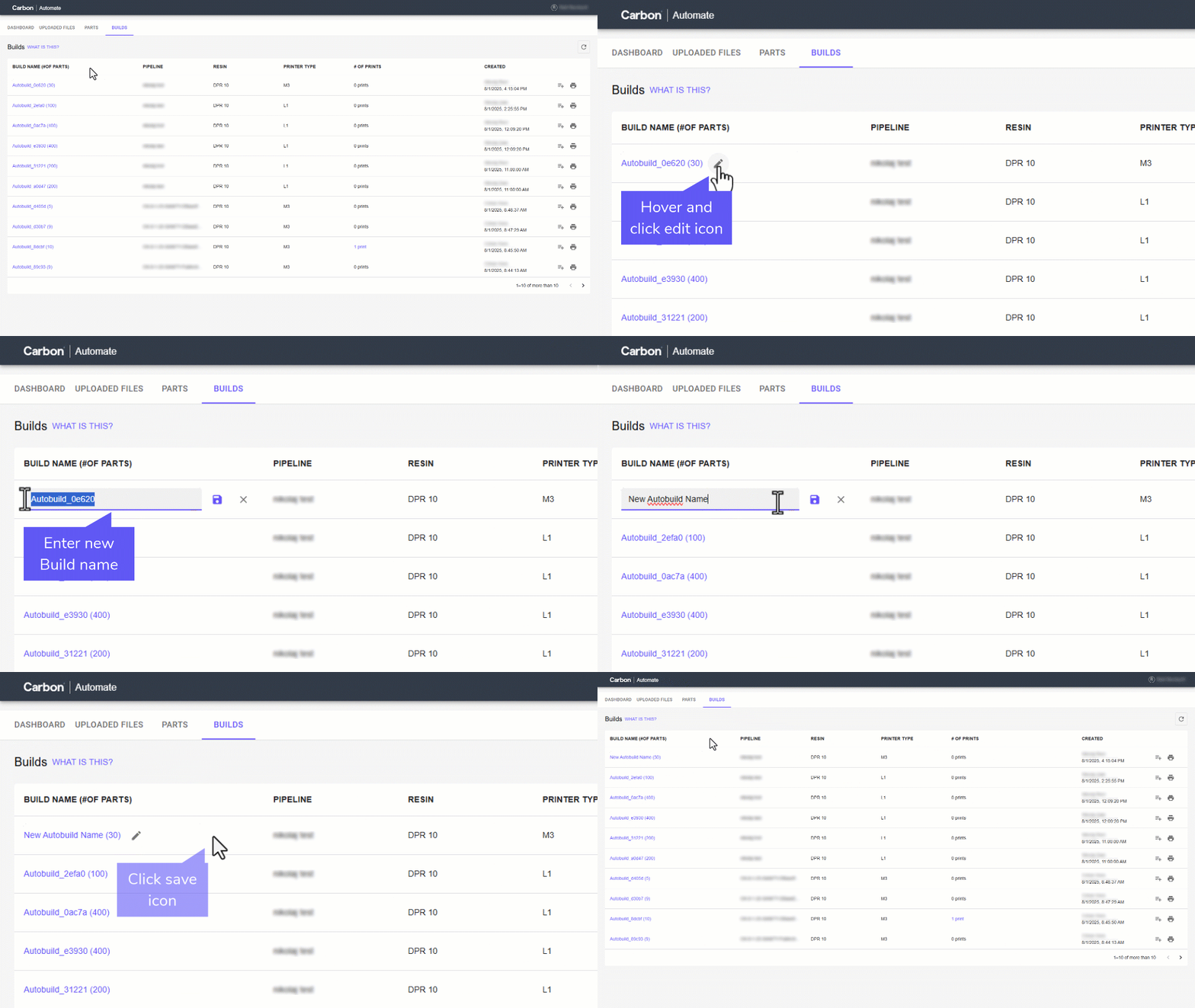
- Edit Build Name: Users can now directly edit the name of a build within the builds list.
Any user, not just the pipeline creator, can update a build's name.
Hover over the build name you wish to edit and click the edit icon.
Enter the new name. Click the save icon to apply your changes.
Bug Fixes
- (Applicable to APP BETA ONLY) Added additional improvements to increase robustness of build creation to reduce the chance of parts failing due to Build Preparation
New Features
- A new model program, called AutoSnap + AutoSupport + Optimize Starting Rotation (Dental Models Only) is now available. This model program snaps the largest flat portion of your model to the platform prior to adding supports. This can be useful if your models are not already oriented flat on the platform. There is no harm in running this operation on models already in the correct orientation, so it can be useful when only a subset of your models require orientation. For more information, please visit Carbon Academy.
Bug Fixes
- (Applicable to APP BETA ONLY) Improved robustness of build creation to reduce the chance of parts failing due to Build Preparation
Feature Updates
- Change default of AutoFlush to FALSE
Bug Fixes
- Resolved queued build unknown issue
- Resolved Regular Expression issue backspace
- Resolved issue of paginating between builds page
- Resolve issues in accepting all filenames
Automatic Print Preparation was released in February, 2025, following a Beta release active through May, 2025. Release notes for specific features were not published prior to June, 2025.