---
title: Navigation and Options
slug: software/DE-navigation-and-options
description: Learn about the basic navigation controls, features, and options in Carbon Design Engine.
docTags:
createdAt: 2024-06-28T17:49:57.248Z
---
# Design Engine User Interface
## Dashboard UI
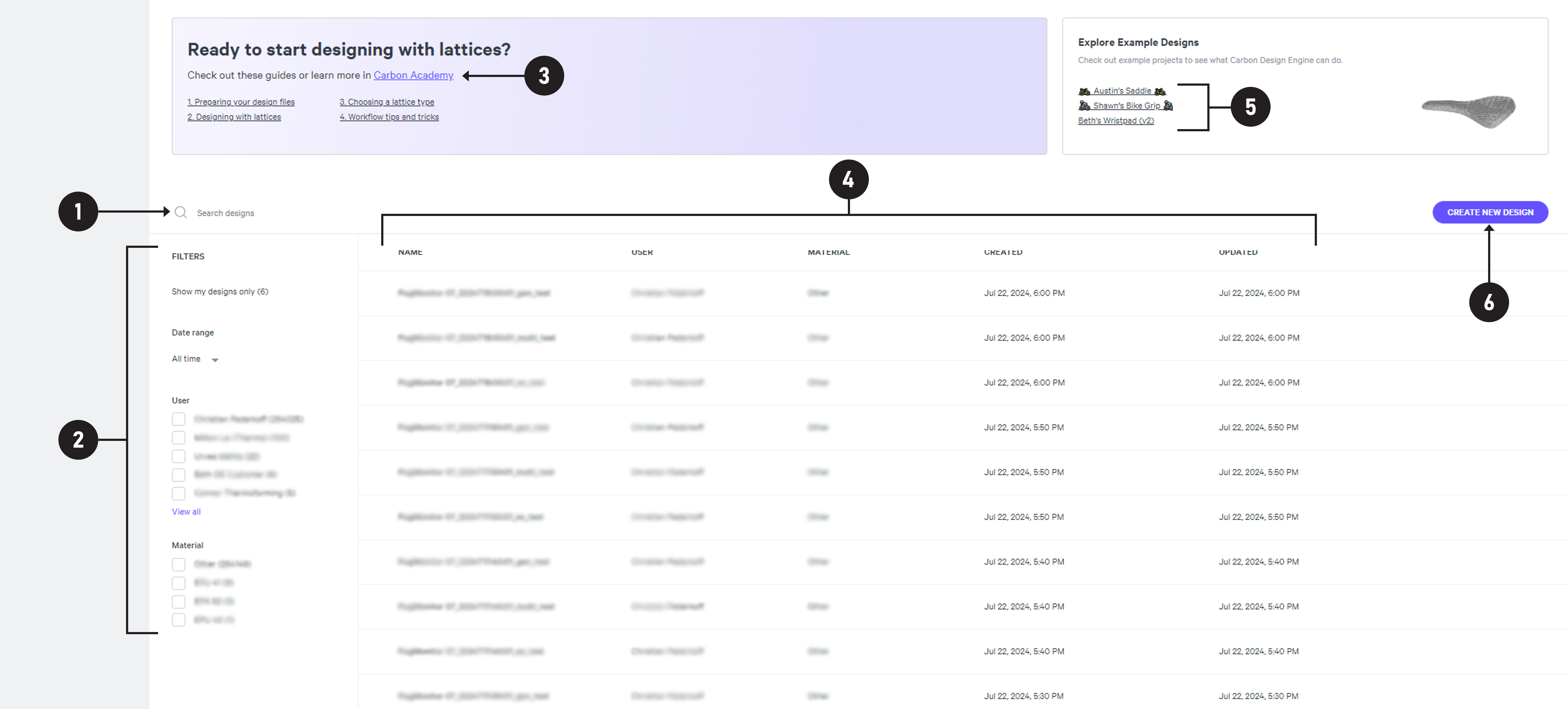
The dashboard is the landing page for the Design Engine and is the hub for all of your company's designs.
Click on the name of a feature below for more information.
::::::WorkflowBlock
::::WorkflowBlockItem
:::ExpandableHeading
**Search**
Search bar to find specific designs.
:::
::::
::::WorkflowBlockItem
:::ExpandableHeading
**Filters**
Design files can be filtered by:
- Your designs only
- Date range
- User
- Material
:::
::::
::::WorkflowBlockItem
:::ExpandableHeading
**Training Course Link**
This link takes you to the full documentation in Carbon Academy.
:::
::::
:::::WorkflowBlockItem
::::ExpandableHeading
**Recent Designs**

Design files are listed in order of most recently modified.
Hover over a design to access **duplicate** and **delete** actions.
:::hint{type="info"}
**Note:** You will need to use duplicate to edit another user's design.
:::
::::
:::::
::::WorkflowBlockItem
:::ExpandableHeading
**Example Designs**
Take a look at example lattice designs from Carbon experts.
:::
::::
::::WorkflowBlockItem
:::ExpandableHeading
**Create New Design**
Start your own design here.
:::
::::
::::::
## Design UI
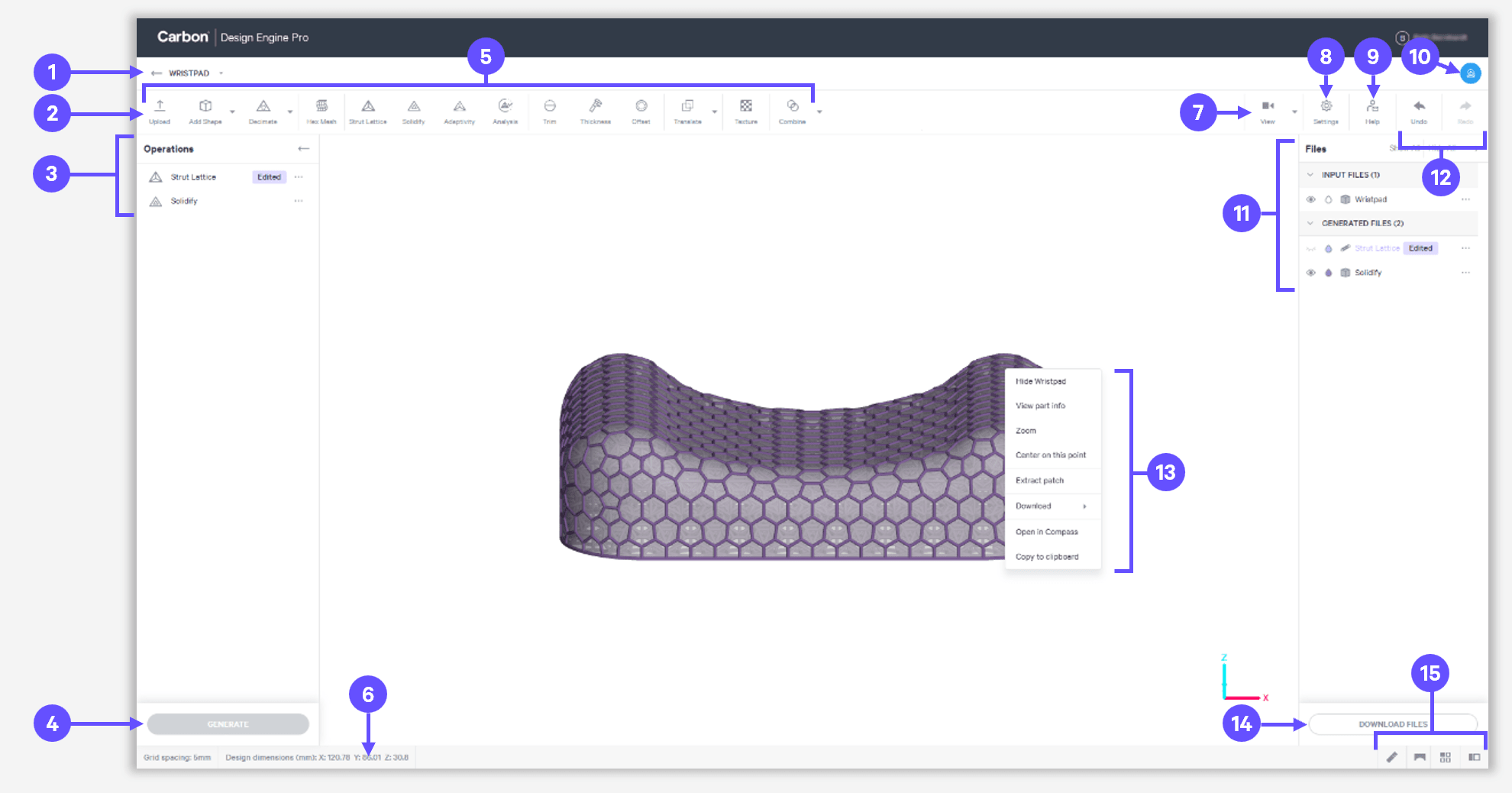
The design page is the workspace for any given design project.
Click on the name of a feature below for more information.
:::::::WorkflowBlock
::::::WorkflowBlockItem
:::::ExpandableHeading
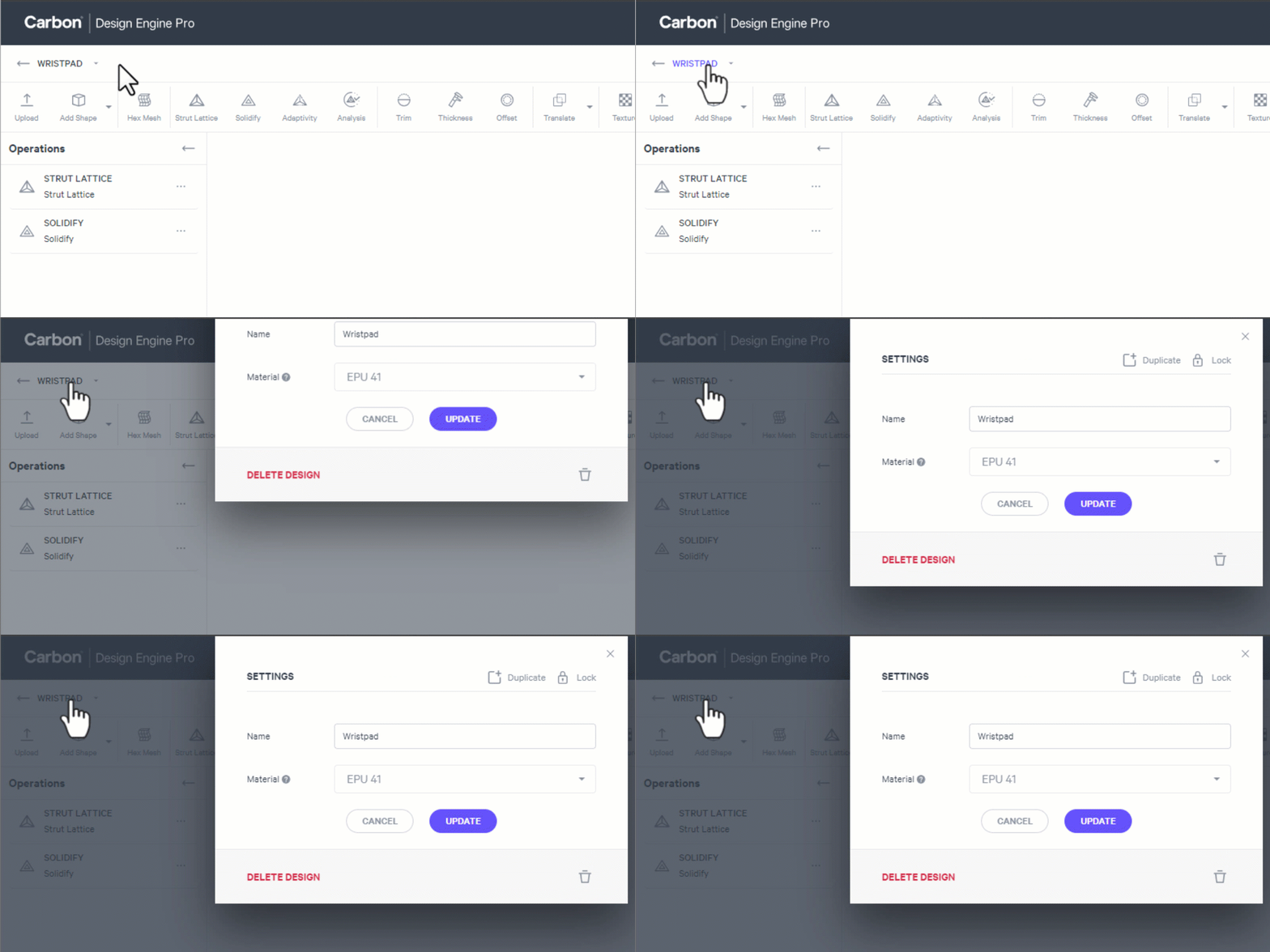
**Design Name**
::::VerticalSplit{layout="right"}
:::VerticalSplitItem
:::
:::VerticalSplitItem
Clicking on the design name will launch the Settings dialog, where you can:
- Duplicate
- Lock
- Rename
- Select material
- Delete
:::
::::
:::::
::::::
::::::WorkflowBlockItem
:::::ExpandableHeading
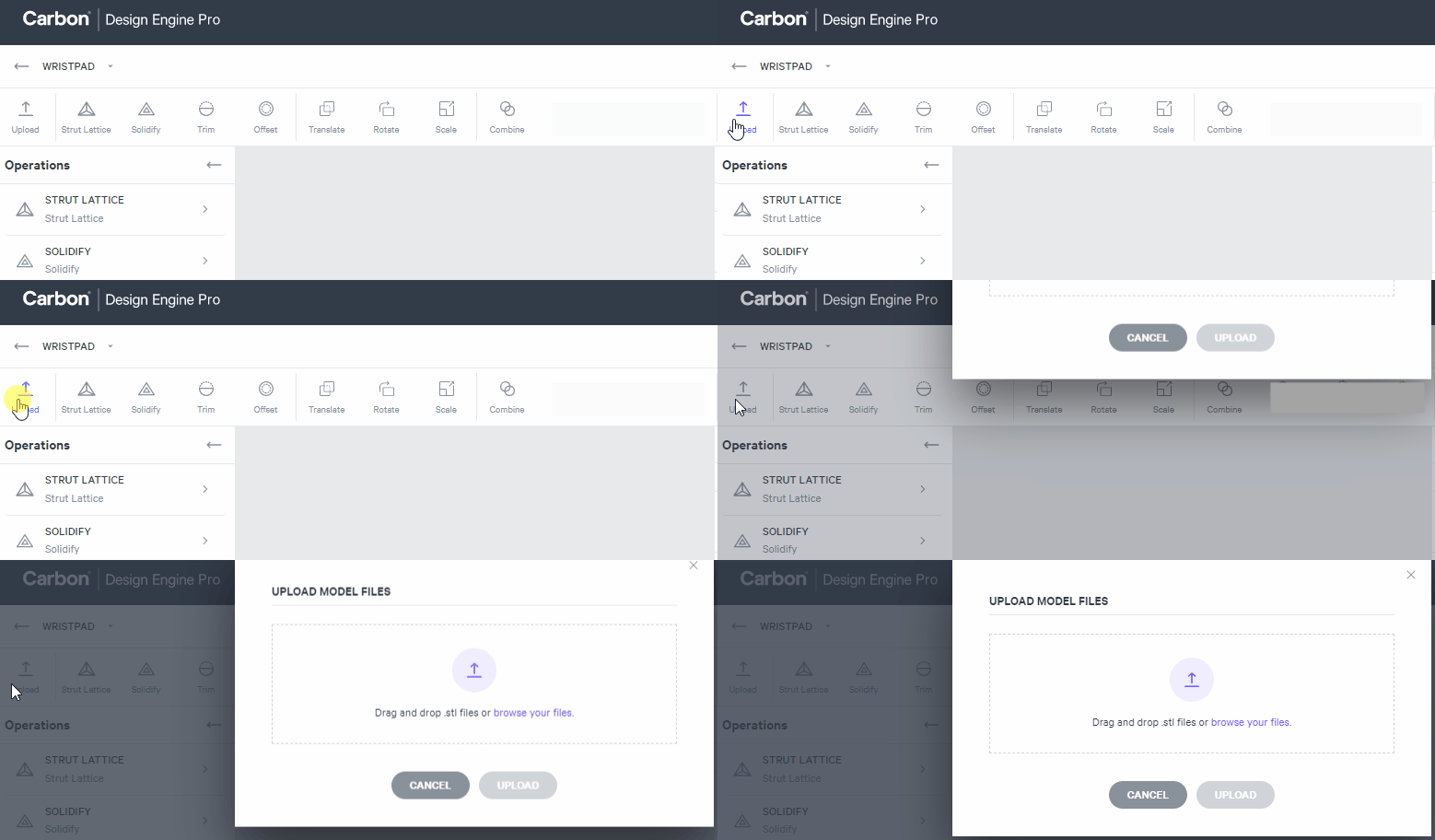
**Upload**
::::VerticalSplit{layout="left"}
:::VerticalSplitItem
Add additional model files to the design here.
:::
:::VerticalSplitItem
:::
::::
:::::
::::::
:::::WorkflowBlockItem
::::ExpandableHeading
**Operations**
Each operation you use from the toolbar will appear in the operations list.
The list can be hidden or show as needed.
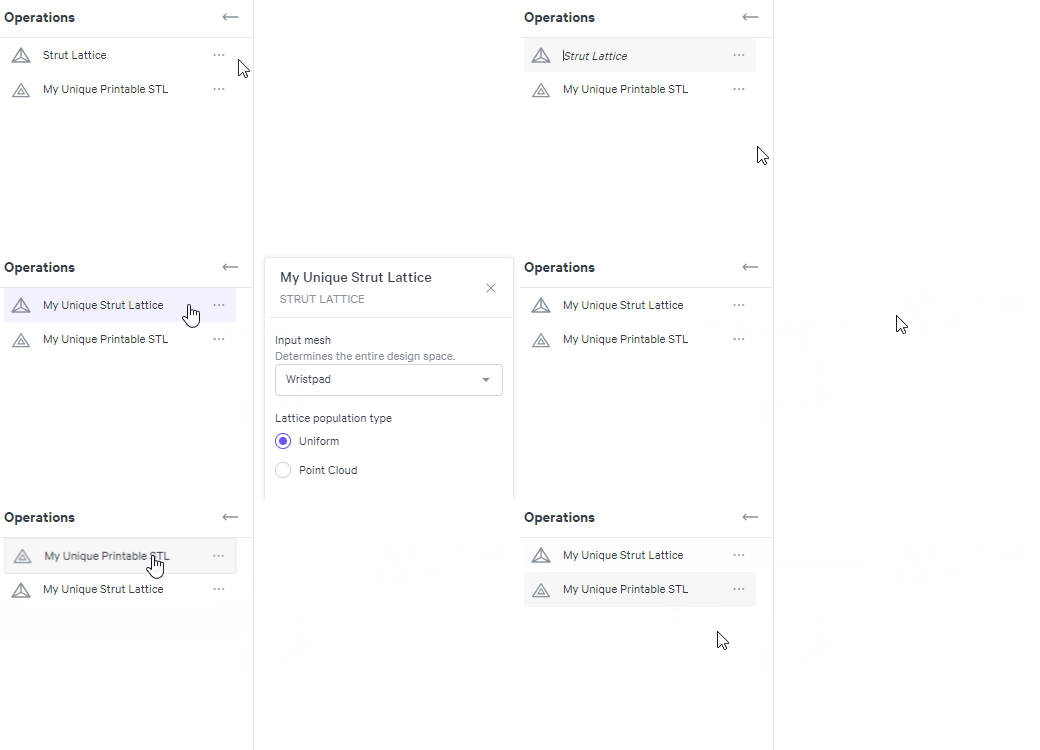
- Right-click or click the dots for menu options.
- The name that appears in the list is the name you have given the operation. By default, this will be the operation name.
- Hover over the operation to see both the given name and operation type.
- Click on a tool or select Edit from its menu to open the operation window.
- Operations are applied to the design in the order listed. You can re-order operations by clicking and dragging on a tool to place it where you want.
:::hint{type="info"}
Sidebar is **resizable** - hover over the vertical divider, click & drag to expand or reduce width.
Long names will be revealed relative to the width.
:::
::::
:::::
::::::WorkflowBlockItem
:::::ExpandableHeading
**Generate**
::::VerticalSplit{layout="right"}
:::VerticalSplitItem
The generate button activates whenever you have made changes to the current design.
:::
:::VerticalSplitItem

:::
::::
:::::
::::::
::::WorkflowBlockItem
:::ExpandableHeading
**Operations Toolbar**
All the **operational tools available **to you to add to the operations list for your design.
:::
::::
::::WorkflowBlockItem
:::ExpandableHeading
**Design Dimensions**
The bounding box dimensions of your design.
:::
::::
::::::WorkflowBlockItem
:::::ExpandableHeading
**View**
::::VerticalSplit{layout="right"}
:::VerticalSplitItem
Change the view of your design to preset views. Shortcut keys are available as noted.
- Planar views - shortcut **1-6**
- Camera Reset - shortcut **0**
- Zoom to Fit - shortcut **F**
See [Basic Navigation Controls](docId\:IgTMBndAl41qlotU4RxuA) above for more details.
:::
:::VerticalSplitItem
::Image[]{src="https://res.cloudinary.com/carbon3d/image/upload/v1721773104/Education/Software/Design-Engine/Navigation-Options/UI-assets/View-Menu.png" size="80" width="270" height="431" position="center" darkWidth="270" darkHeight="431" showCaption="false"}
:::
::::
:::::
::::::
::::::WorkflowBlockItem
:::::ExpandableHeading
**Settings**
::::VerticalSplit{layout="middle"}
:::VerticalSplitItem
:::
:::VerticalSplitItem
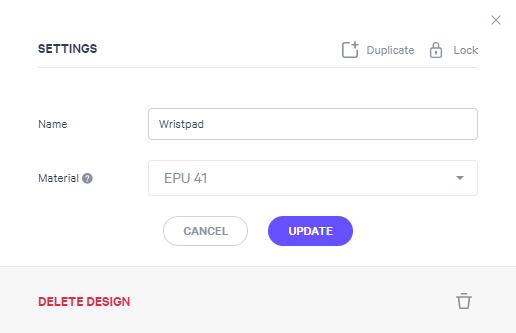
The Settings dialog allows you to:
- Duplicate
- Lock
- Rename
- Select material
- Delete
:::
::::
:::::
::::::
::::::WorkflowBlockItem
:::::ExpandableHeading
**Help**
::::VerticalSplit{layout="middle"}
:::VerticalSplitItem
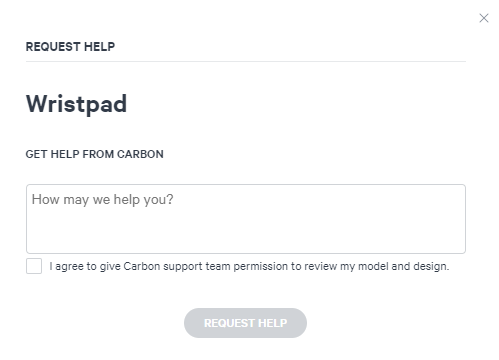
Reach out directly to Carbon Support to receive help.
:::
:::VerticalSplitItem
:::
::::
:::::
::::::
::::::WorkflowBlockItem
:::::ExpandableHeading
**Lattice Search**
::::VerticalSplit{layout="right"}
:::VerticalSplitItem
:::
:::VerticalSplitItem
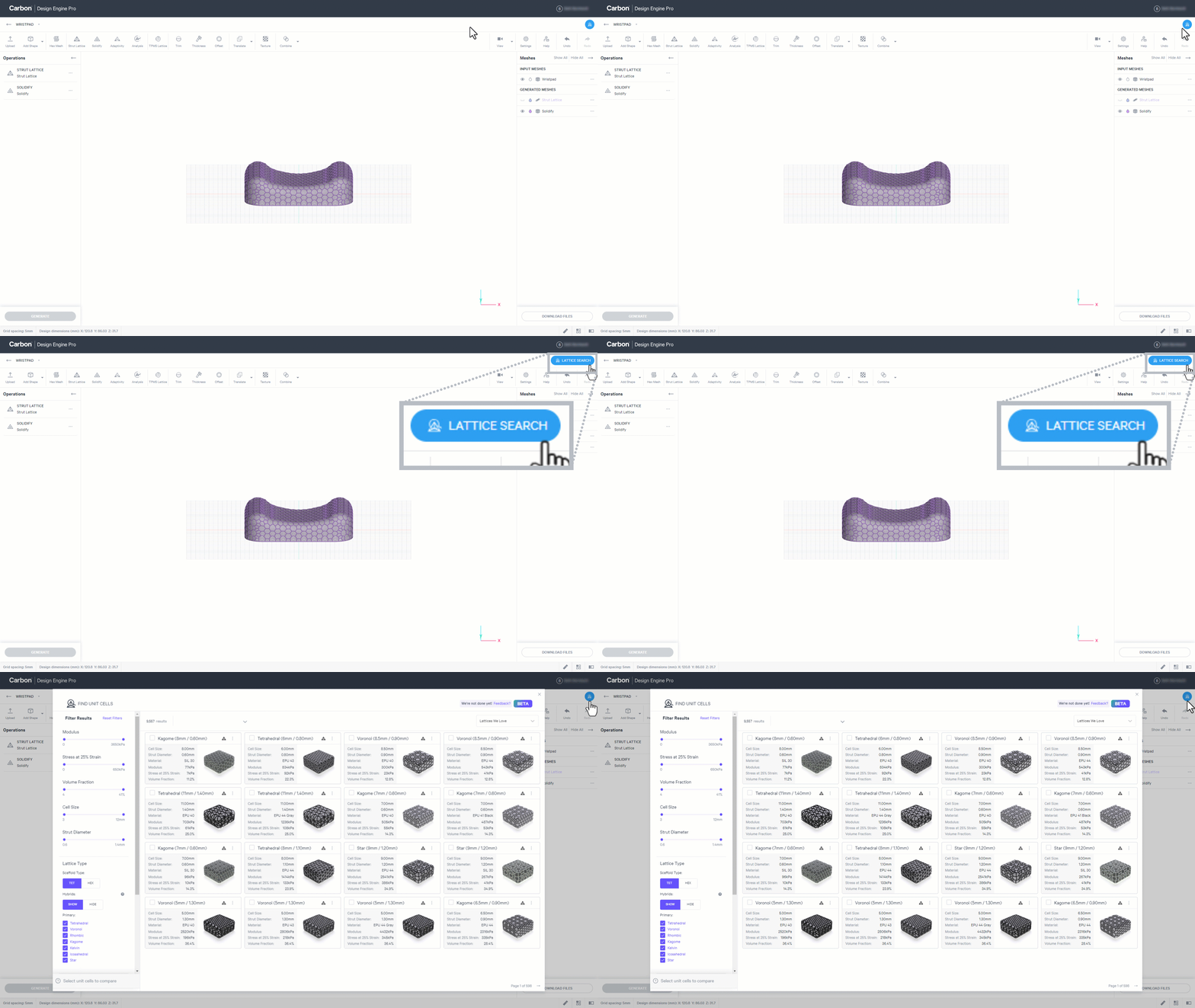
Launch the Lattice Search interface to search the vast metamaterials library of lattices.
:::
::::
:::::
::::::
:::::WorkflowBlockItem
::::ExpandableHeading
**Files List**
All input and generated files can be viewed in the parts list. The list can be hidden or shown as needed.
- Input and generated lists respectively can be collapsed/expanded
Actions that can be taken with each part:
- Turn on/off visibility
- Adjust appearance
- Menu actions
Reference [File Options](docId\:IgTMBndAl41qlotU4RxuA) for more information.
:::hint{type="info"}
Sidebar is **resizable** - hover over the vertical divider, click & drag to expand or reduce width.
Long names will be revealed relative to the width.
:::
::::
:::::
::::WorkflowBlockItem
:::ExpandableHeading
**Undo - Redo**
Undos and redos are unlimited.
:::
::::
::::WorkflowBlockItem
:::ExpandableHeading
**Context Menu**
**Right-click** on a mesh to access the context menu.
The context menu offers quick access to a variety of useful options for the object clicked on.
Options will vary based on the clicked object, in this example a Solidified lattice.
:::
::::
::::::WorkflowBlockItem
:::::ExpandableHeading
**Download Files**
::::VerticalSplit{layout="right"}
:::VerticalSplitItem
:::
:::VerticalSplitItem
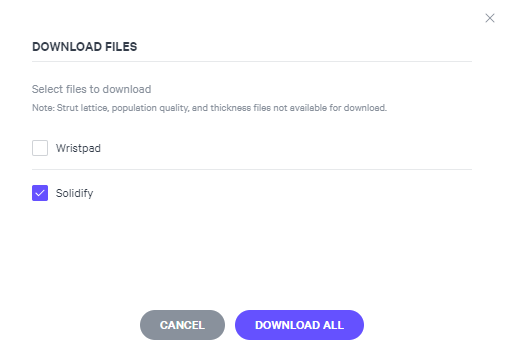
Select multiple or all files to download at once.
:::
::::
:::::
::::::
::::WorkflowBlockItem
:::ExpandableHeading
**Bottom Bar**
The bottom bar tools provide visibility and assessment assistance when setting up your project. See below for more information.
:::
::::
:::::::
### Bottom Bar Features
:::::ExpandableHeading
****:inlineImage[]{src="https://res.cloudinary.com/carbon3d/image/upload/t_auto_quality_format/Education/Software/Design-Engine/Navigation-Options/Navigation/Measure.png" alt caption width="100" height="100"}** Measure**
::::VerticalSplit{layout="left"}
:::VerticalSplitItem
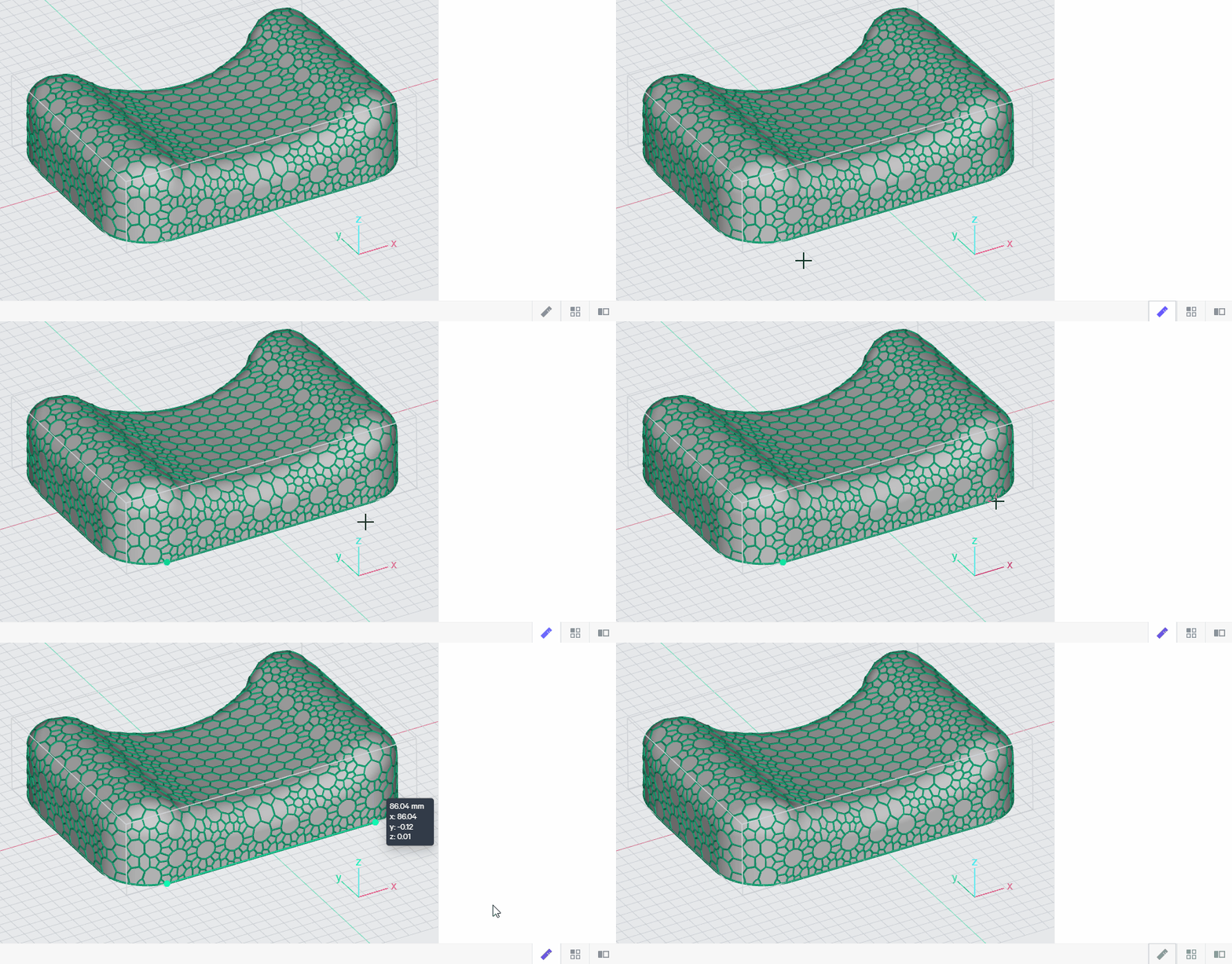
The measure ruler allows you to click two points to find the distance between them.
:::
:::VerticalSplitItem
:::
::::
:::::
::::::ExpandableHeading
****:inlineImage[]{src="https://res.cloudinary.com/carbon3d/image/upload/t_auto_quality_format/Education/Software/Design-Engine/Navigation-Options/Navigation/Overhang-Detection.png" alt caption width="100" height="100"} **Overhang Detection**
Overhang detection provides a gradient color range to provide guidance on where to place supports. The color range is anchored around the [recommended unsupported angle](docId\:t94PR-A-C0pIhY6LJsWk7) for the resin in the 30-40° range.
Click on the **? **Help icon in the software for Range Information while working. Click on the icons below for more information and guidance on what each color means in practice.

:::::WorkflowBlock
::::WorkflowBlockItem
:::ExpandableHeading
**Essential - Dense**
Dark red areas require supports with a dense spacing, matching the maximum recommended overhang for the resin (ie use a 2 mm spacing for RPU 70).
If the combined red area (essential and recommended) measures smaller than the recommended overhang, supports may not be required. (Stability or adhesion supports may still be needed.)
:::
::::
::::WorkflowBlockItem
:::ExpandableHeading
**Recommended - Moderate**
To maintain accuracy, supports should also be applied to the lighter red area, but you can use a moderate spacing of approximately twice the recommended overhang (ie start with a 4 mm spacing for RPU 70).
If the combined red area (essential and recommended) measures smaller than the recommended overhang, supports may not be required. (Stability or adhesion supports may still be needed.)
:::
::::
::::WorkflowBlockItem
:::ExpandableHeading
**Optional - Sparse**
This is the recommended minimum **unsupported angle** for the resin.
You may choose to include supports in the orange area if you have a tight tolerance on a feature.
Spacing can be sparse at approximately triple the recommended overhang (ie start with a 6 mm spacing for RPU 70).
You may choose to NOT use supports in the orange area if post-processing is limiting production capacity and you want to push the limits on your use of supports.
:::
::::
::::WorkflowBlockItem
:::ExpandableHeading
**Stability - Supplementary**
Additional supports are recommended in the following conditions to withstand printing forces. Spacing is less of a guideline here as the main factors to consider are resin and orientation.
- Softer resins such as the EPU family will require more stability.
- Orientations where the center of gravity is both far from the platform and far from the adhesion area require more stability\*.
Start at a moderate spacing and iterate as needed.
*\*Stability supports may be needed outside of yellow overhang areas as well, depending on the orientation. The yellow areas simply indicate an area where supplemental supports are advised in unstable conditions.*
:::
::::
::::WorkflowBlockItem
:::ExpandableHeading
**Self-supporting - None**
No supports needed.
:::
::::
:::::
::::VerticalSplit{layout="middle"}
:::VerticalSplitItem
This RPU 70 part has an 8.5 mm hole.
Measuring half of the total detected overhang (half because this overhang is a bridge), we measure over 2 mm, which exceeds the [recommended overhang](docId\:t94PR-A-C0pIhY6LJsWk7) for RPU 70.
However, if we measure just the red areas (essential and recommended), the measurement falls below the recommended overhang.
This hole will print fine without supports. Optionally, you could add supports if the hole requires an especially tight tolerance, but in most conditions that will not be necessary.
:::
:::VerticalSplitItem

:::
::::
::::::
:::ExpandableHeading
****:inlineImage[]{src="https://res.cloudinary.com/carbon3d/image/upload/t_auto_quality_format/Education/Software/Design-Engine/Navigation-Options/Navigation/Hide-show-grid.png" alt caption width="100" height="100"}** Hide/Show Grid**
:::
:::ExpandableHeading
****:inlineImage[]{src="https://res.cloudinary.com/carbon3d/image/upload/t_auto_quality_format/Education/Software/Design-Engine/Navigation-Options/Navigation/toggle-clip-plane.png" alt caption width="100" height="100"} **Toggle Clip Plane**
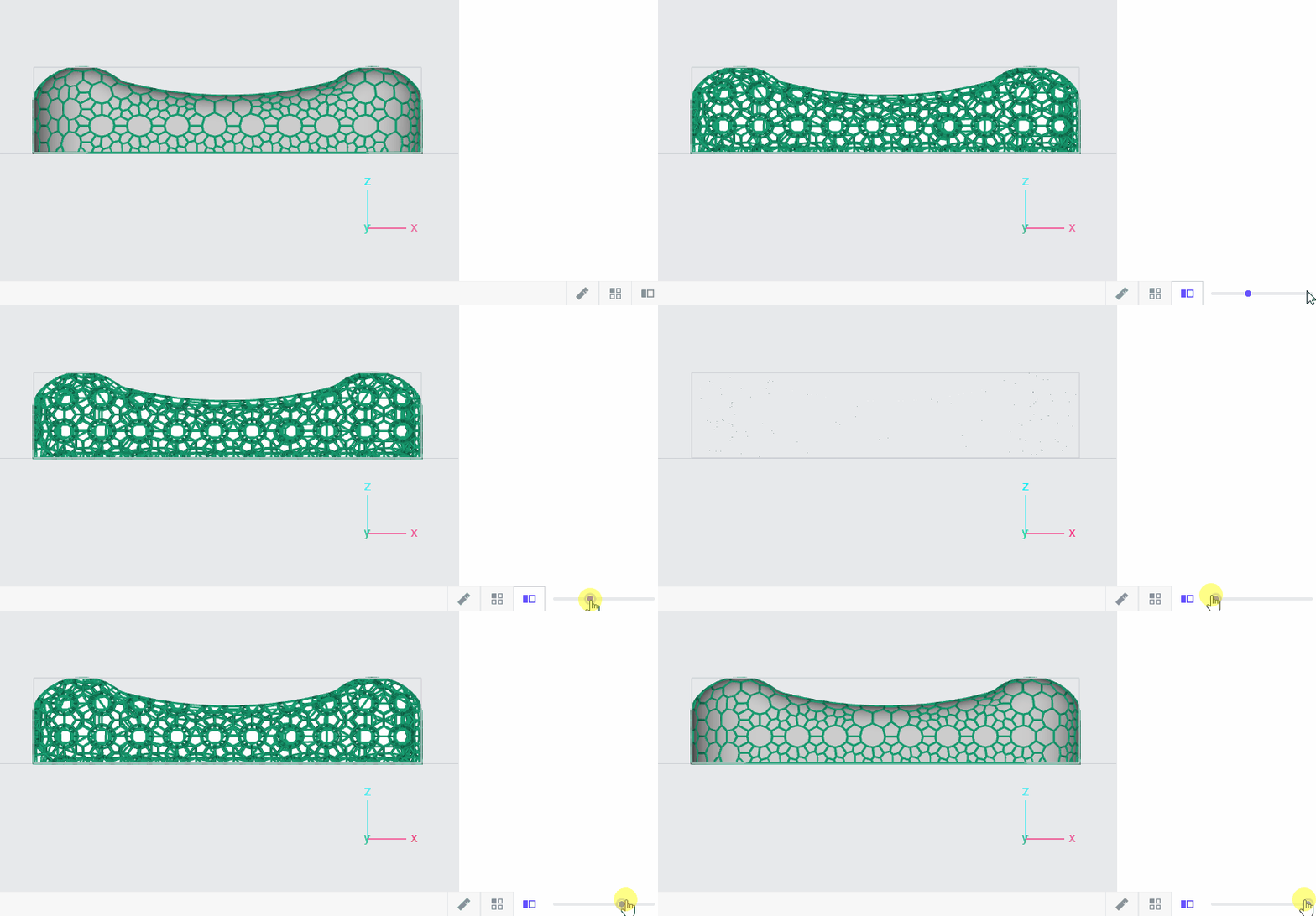
Toggle clip plane allows you to view the design in a section cut of your choosing.
- Set the view to where you want the section cut
- Slide along the bar to view the cut plane
:::
# Navigation
## Zoom
::::VerticalSplit{layout="middle"}
:::VerticalSplitItem
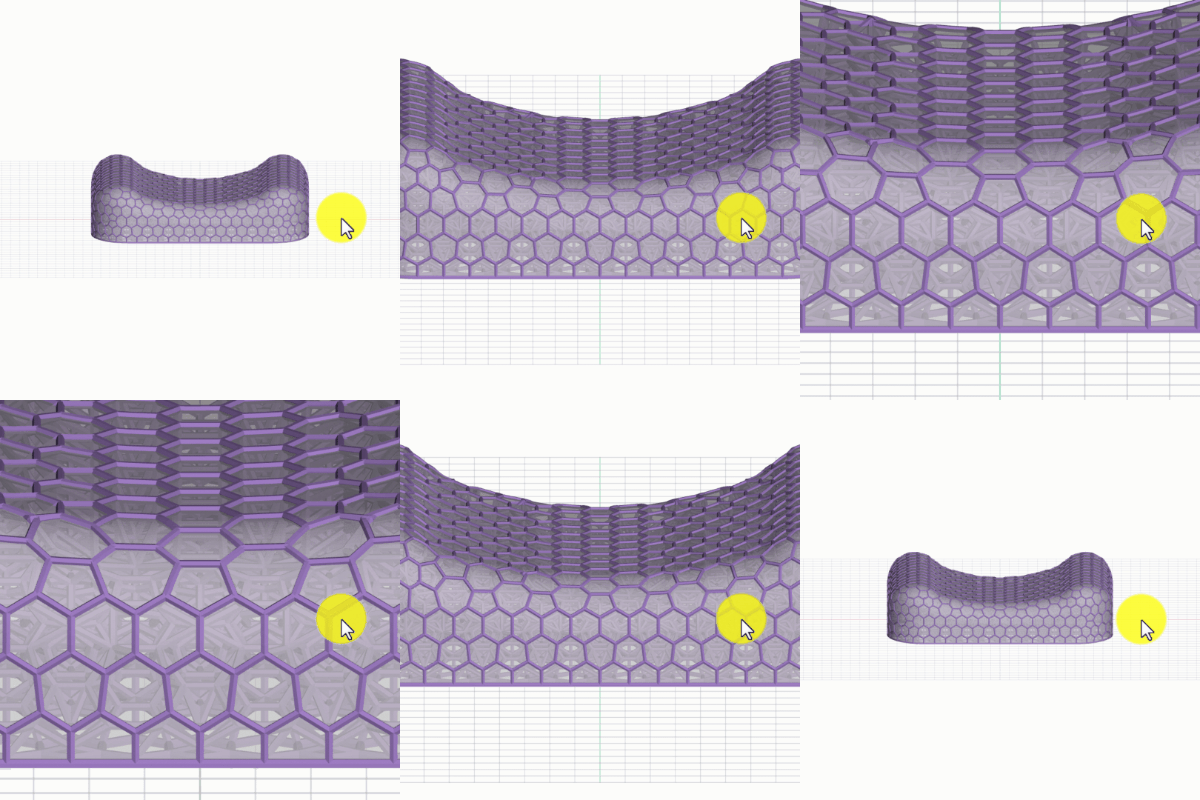
**Zoom to Center**
View always zooms to the center of the display screen (Default behavior)
*Usage*
- Mouse - Scroll the mouse wheel
- Touchpad - Drag two-fingers on the touchpad
:::
:::VerticalSplitItem
:::
::::
::::VerticalSplit{layout="middle"}
:::VerticalSplitItem
:::
:::VerticalSplitItem
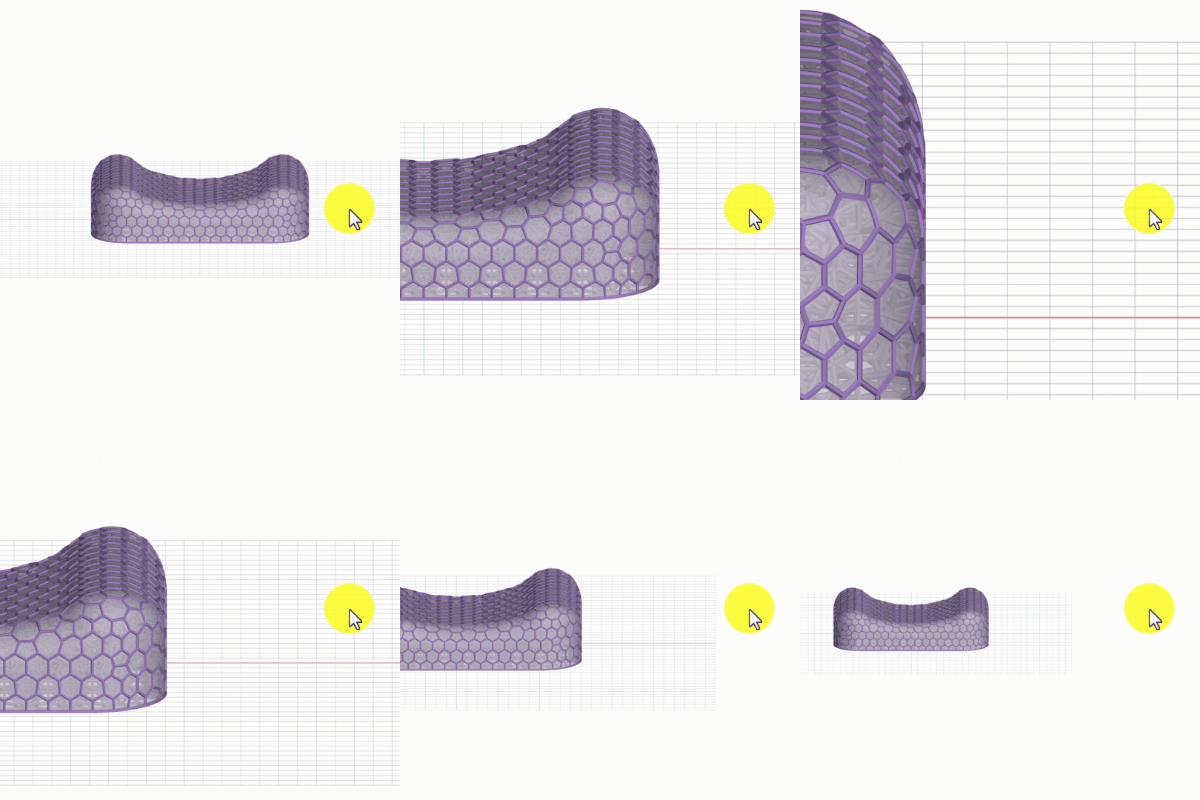
**Zoom toward Cursor**
View zooms/pans in one motion in the direction of the cursor placement
Press the keyboard shortcut **-** to enable/disable
*Usage*
- Mouse - Scroll the mouse wheel
- Touchpad - Drag two-fingers on the touchpad
:::
::::
::::VerticalSplit{layout="middle"}
:::VerticalSplitItem
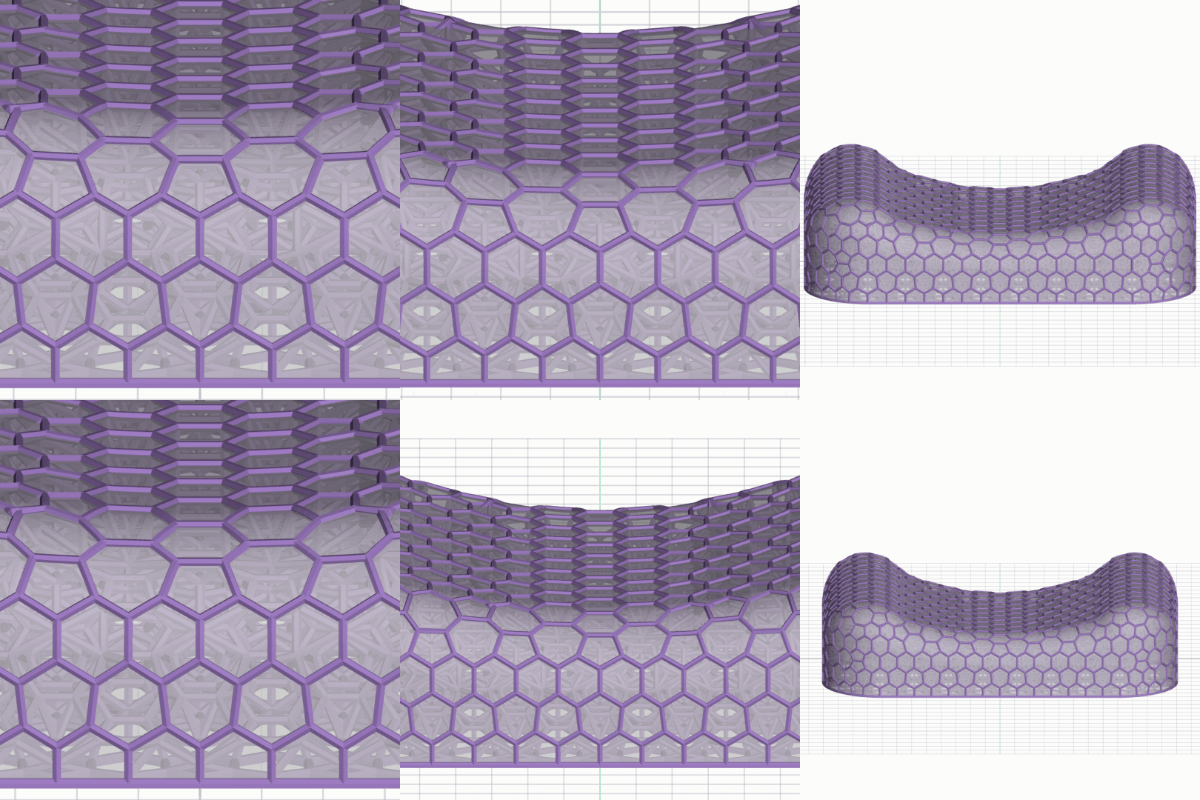
**Zoom to Fit**
Zooms to the extents of the model and centers in the project area
*Usage*
- Keyboard shortcut **F**
- View Menu
- File Menu
:::
:::VerticalSplitItem
:::
::::
## Maneuver
::::VerticalSplit{layout="middle"}
:::VerticalSplitItem
:::
:::VerticalSplitItem
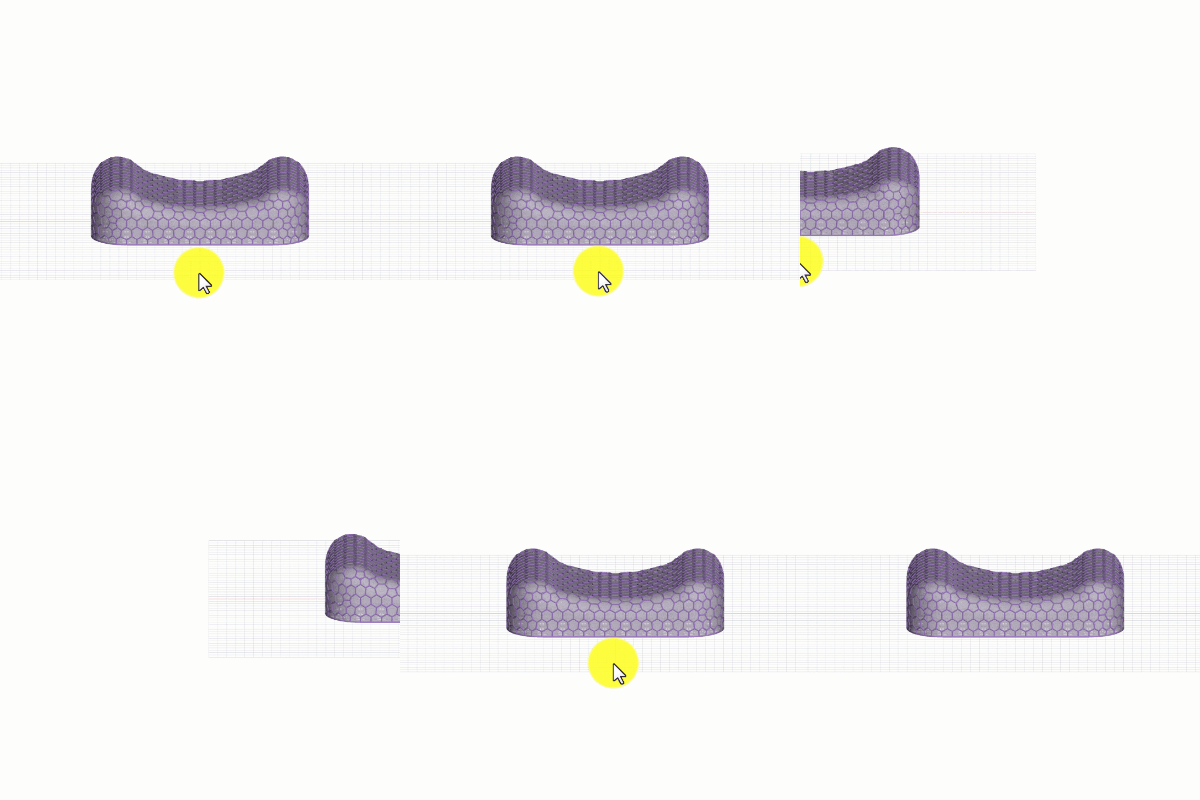
**Pan**
Move in two dimensions
*Usage*
- Mouse/Touchpad and Keyboard - Press Shift + right-click and drag
- Mouse - Press middle mouse button and drag
:::
::::
::::VerticalSplit{layout="middle"}
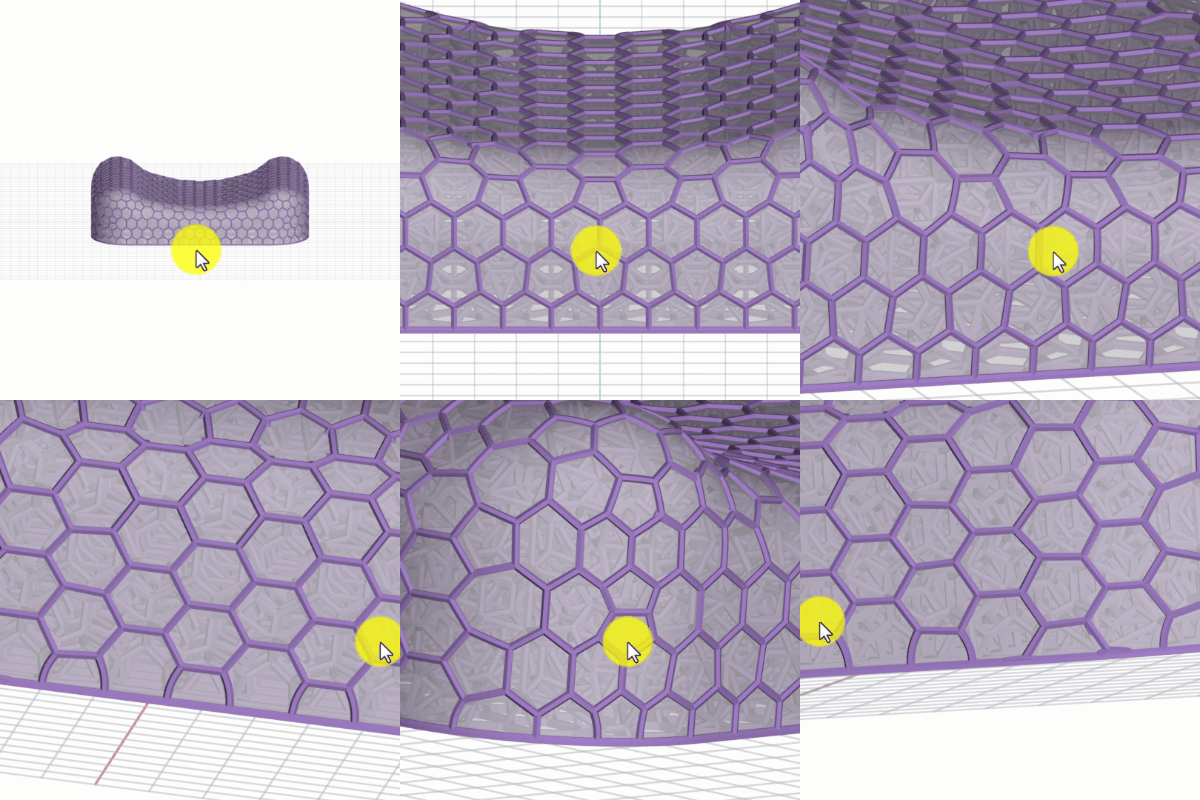
:::VerticalSplitItem
**Orbit**
Move in three dimensions around the world origin (Default behavior)
*Usage*
- Mouse and Touchpad - Right-click and drag
:::
:::VerticalSplitItem
:::
::::
## Views
::::VerticalSplit{layout="middle"}
:::VerticalSplitItem
:::
:::VerticalSplitItem
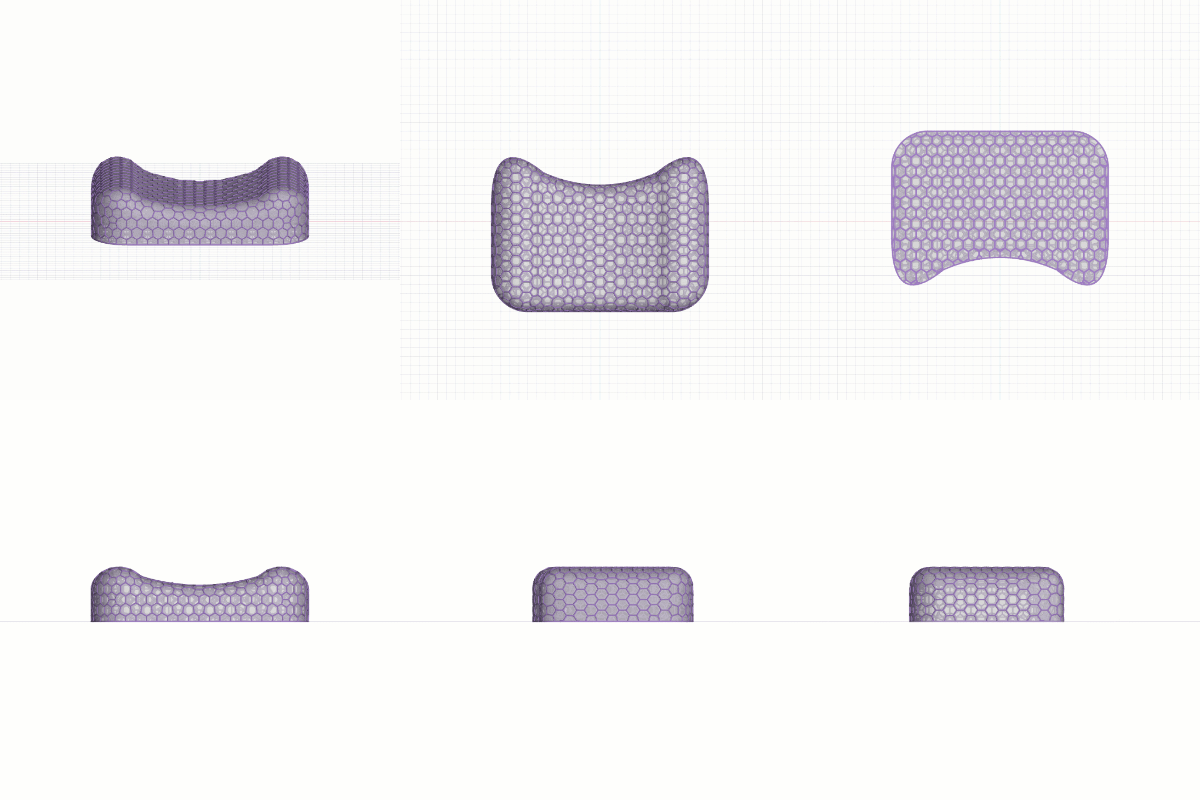
**Planar Views**
Snaps to orthogonal views:
Top, bottom, front, back, left, right
*Usage*
- Keyboard shortcut **1-6**
- Rotate camera 45° ← ↑ → ↓
- Rotate camera 90° **shift** ← ↑ → ↓
- View Menu
:::
::::
::::VerticalSplit{layout="middle"}
:::VerticalSplitItem
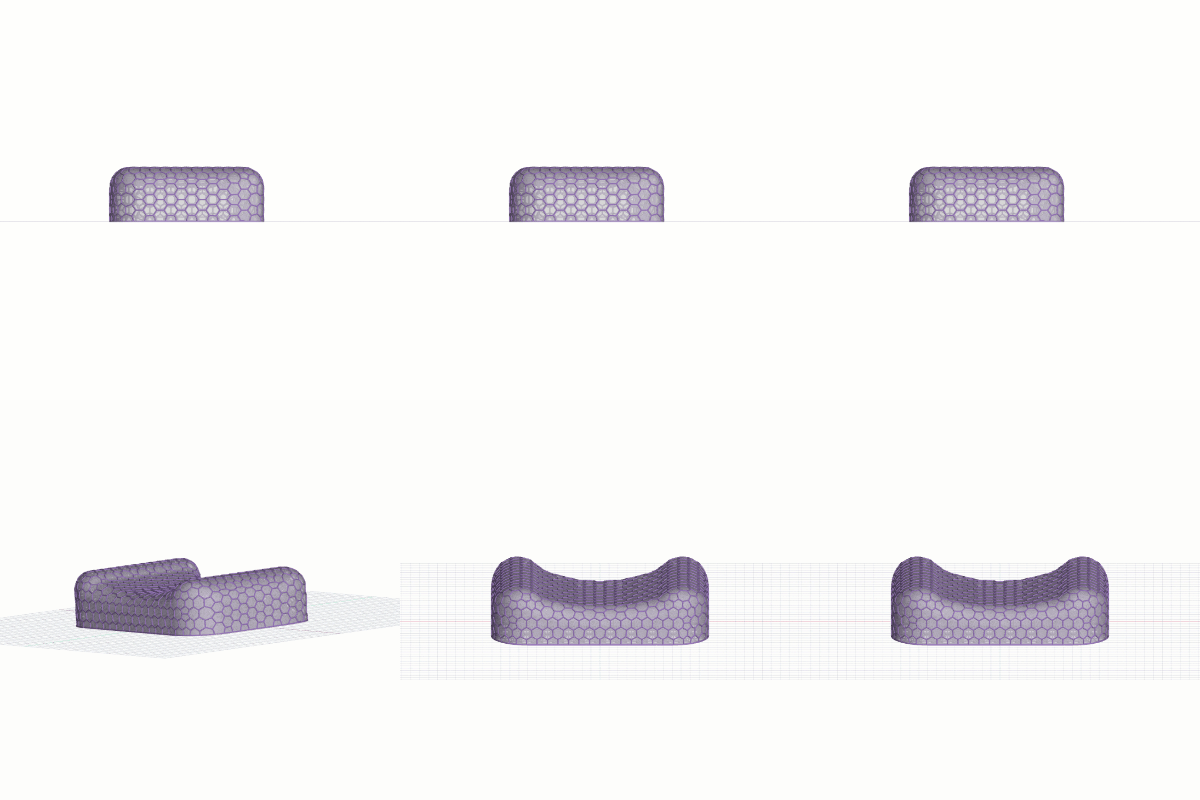
**Camera Reset**
Zooms to a preset central view
*Usage*
- Keyboard shortcut **0**
- View Menu
:::
:::VerticalSplitItem
:::
::::
# Keyboard Shortcuts
A handful of keyboard shortcuts are available in Carbon Design Engine.
| **Feature** | **Shortcut** |
| ----------------------------------------------------------------- | -------------------------------------------------- |
| Measure | **M** |
| Hide/Show grid | **B** |
| Toggle clip plane | **C** |
| Change slider by 1 | **\<** or **>** |
| Change slider by 10 | **shift**-**\<** or **>** |
| Undo | **Ctrl/cmd**-**Z** |
| Redo | **Ctrl/cmd**-**shift**-**Z** |
| Strut Lattice Diameter View | **Ctrl/cmd**-**M** |
| Planar Views
Top \| Bottom \| Front \| Back \| Left \| Right | **1** \| **2** \| **3** \| **4** \| **5** \| **6** |
| Rotate camera 45° | **← ↑ → ↓ ** |
| Rotate camera 90° | **shift** **← ↑ → ↓ ** |
| Camera Reset | **0** |
| Zoom to Fit | **F** |
| Zoom toward Cursor | **-** |
| Disable snap
*in Edit Strut - Add Strut mode* | Hold **shift** |
# File Options
## Visibility Options
::::VerticalSplit{layout="left"}
:::VerticalSplitItem
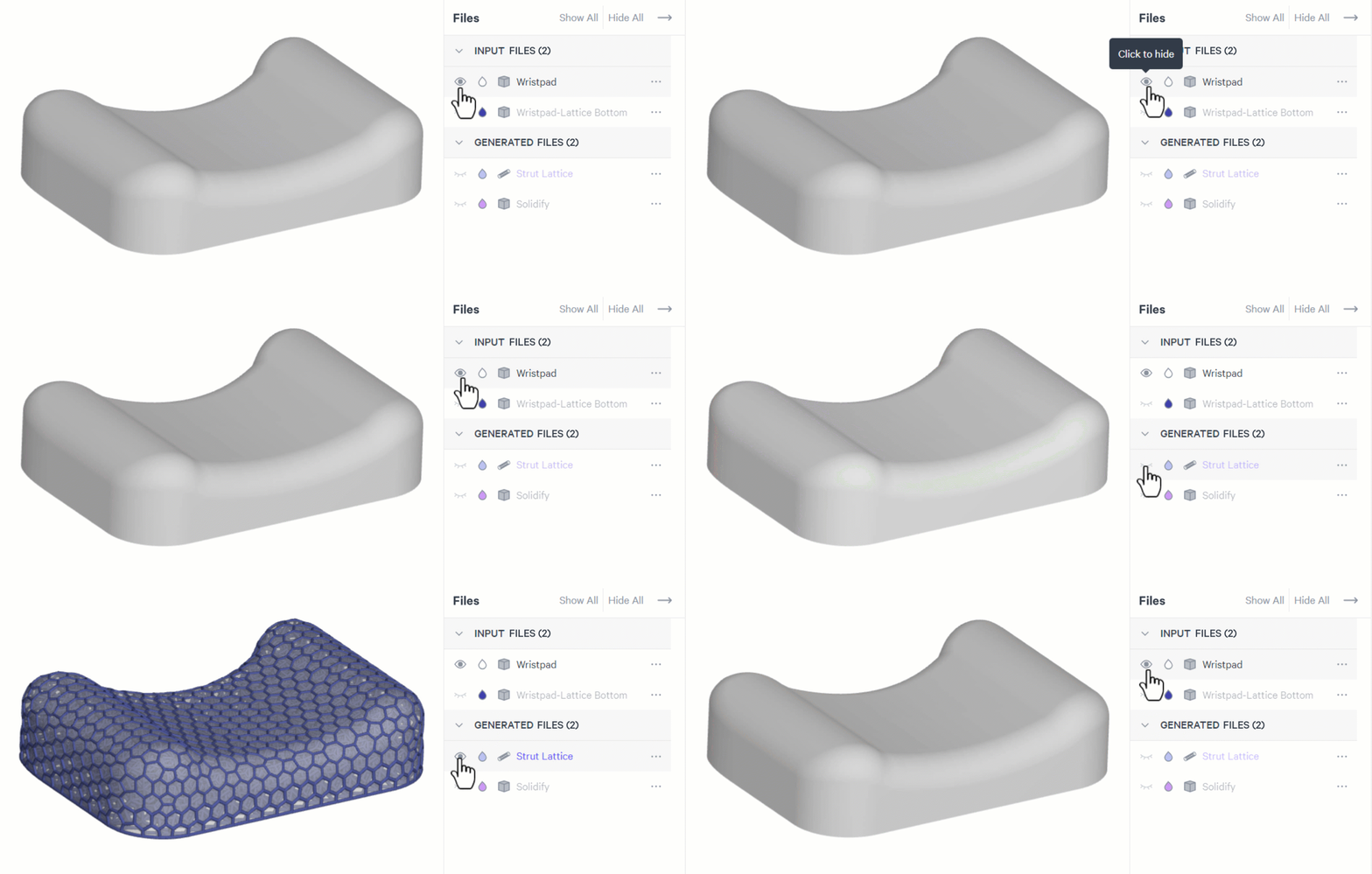
**Show/Hide**
- Click on the open eye 👁 icon to **hide **visible files
- Click on the closed eye **⏑** icon to **show **hidden files
:::
:::VerticalSplitItem
:::
::::
::::VerticalSplit{layout="left"}
:::VerticalSplitItem
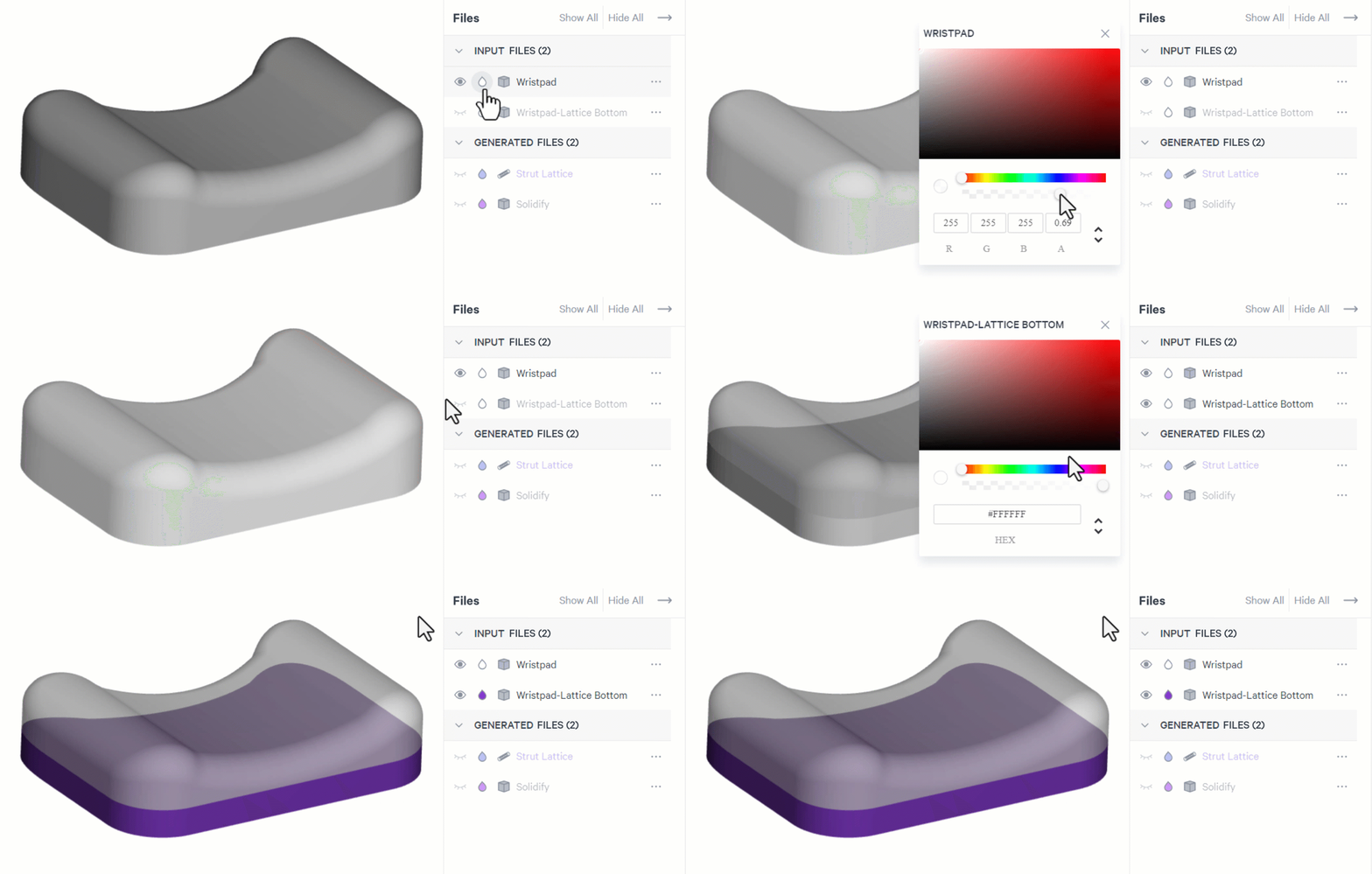
**Appearance**
- Adjust **transparency** with the slider bar | or enter a value in the alpha field (RGB*A*)
- Adjust **color** with the slider bar for hue and on the color field for tone | or enter a hex code
:::
:::VerticalSplitItem
:::
::::
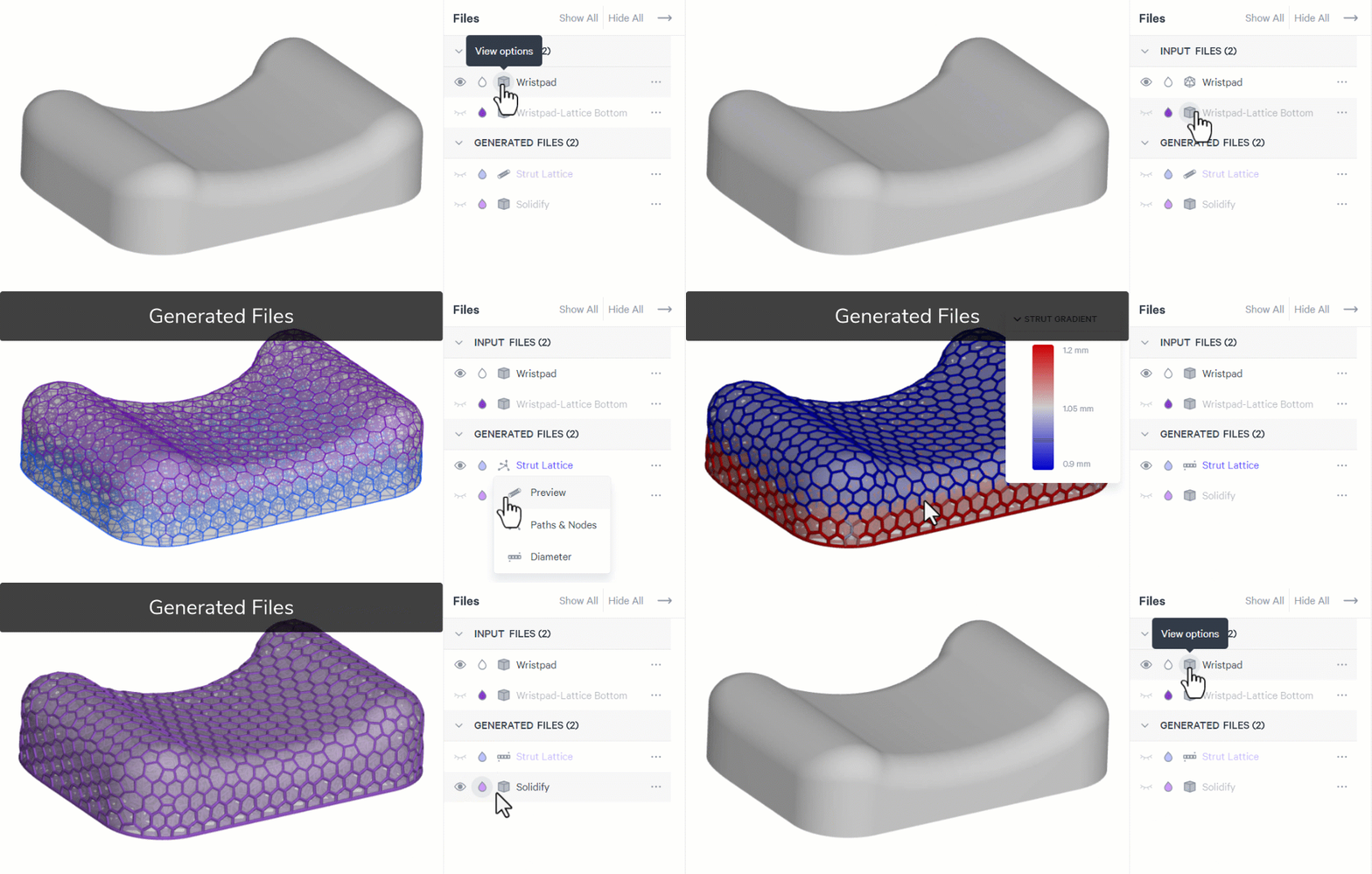
**View Options**
Input Files
- Select **Shaded **for a simple shaded view
- Select **Triangle **to view the STL triangles compiling the mesh
Generated Files
- Strut Lattice
- Select **Preview **for a volumetric preview of the struts
- Select **Paths & Nodes **for a line view of the struts
- Select **Diameter **to view a colored gradient representation of strut diameter.
(**Ctrl/cmd**-**M **keyboard shortcut)
- Ranging from red (largest) to gray (middle) to blue (smallest).
- Hover over a strut to view its diameter, length, and whether it is a boundary strut
- Solidify
- Default View Only
## File Menu Options
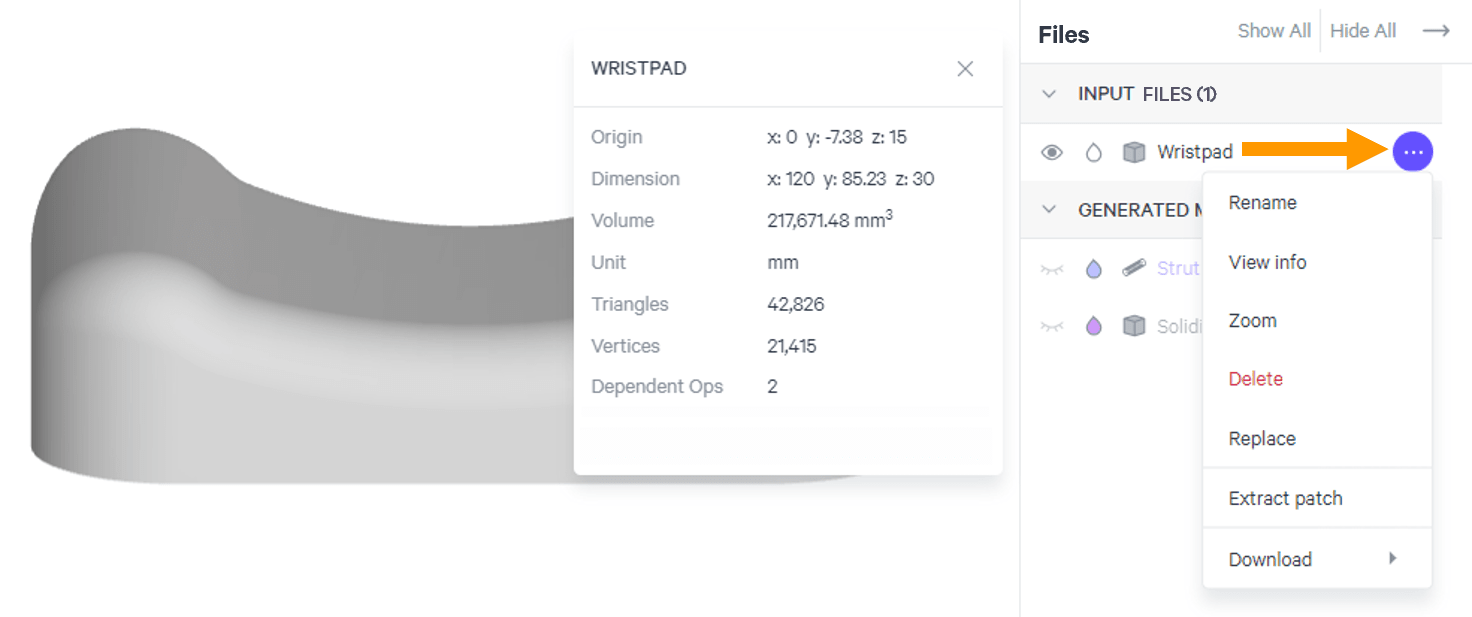
Various options are available from the files menu. Options will vary depending on the file type.
**Potential Menu Options**
- **Rename - **Change the name of the file
- **View info - **View metrics that define the file(stats may vary depending on the selected file)
- **Zoom - **Zooms to the extents of the file and centers in the project area
- **Delete - **Removes the file from the project
- [Replace](docId\:IgTMBndAl41qlotU4RxuA)** - **Update the input file with a revised file. This will update the file in all operations where selected. Patches will need to be reselected.
- [Extract (or edit) Patch](docId\:x7Oz62EQ1tqD2OXHY5ujD)** - **Available for design spaces, this opens the Extract Patch interface to extract a surface for use in applicable tools & features
- [Edit](docId:5lIpVKkLMW4AdtrleeGaG)** - **Available for strut lattices to bring up the editing interface to delete, modify, and/or add struts
- **Download - **Download the STL file.
Alternate file options available in some cases. Not available for strut lattices
## Strut Information
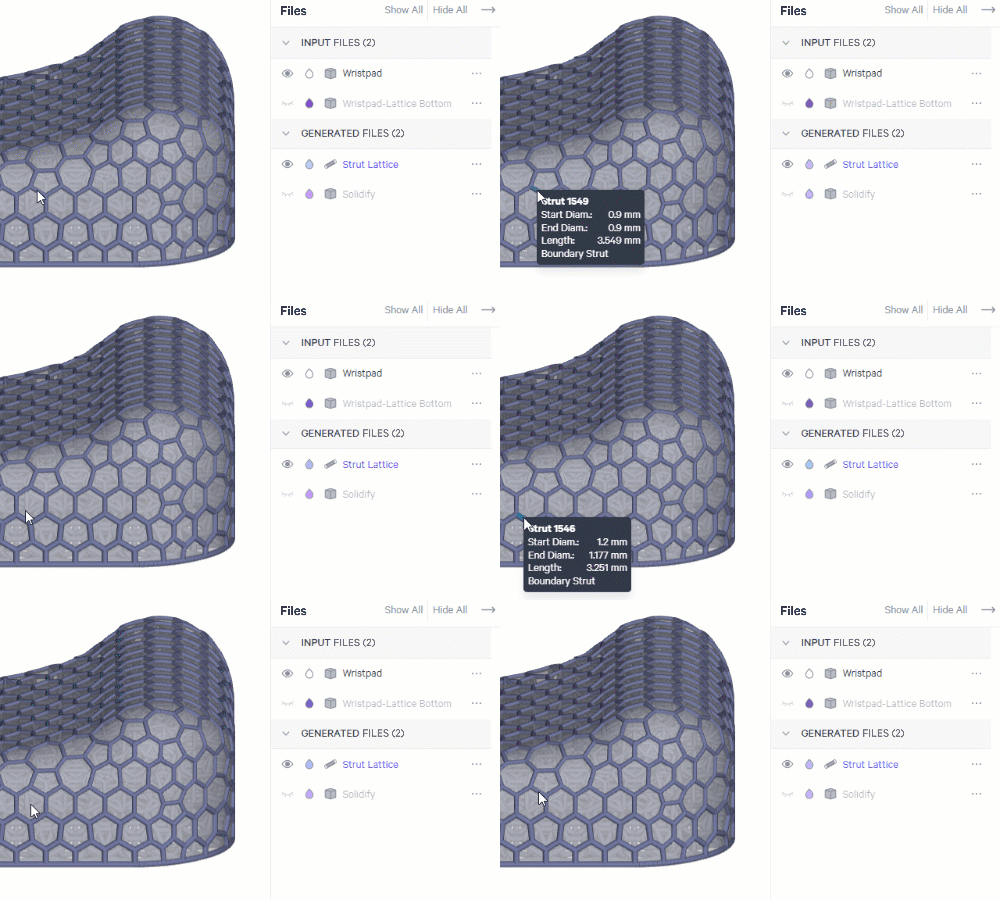
**Hover over a strut** in a lattice to view key information about the strut (diameter, length, and whether it is designated as a boundary strut or feature edge).
:::hint{type="info"}
Note that the tooltip is available for strut lattices only and not solidified lattices.
:::
::::VerticalSplit{layout="right"}
:::VerticalSplitItem
:::
:::VerticalSplitItem
Detailed strut information can be useful when editing struts or reviewing the results of a zonal lattice structure that includes different strut parameters.
:::
::::
## Replace File
When a file is used in multiple operations, you can update the file in all locations with the Replace function. This can be especially helpful if you are trying multiple iterations in one design.
::embed[]{url="https://player.vimeo.com/video/901244272"}
:::ExpandableHeading
Video Text
1. When a mesh is used in multiple operations, replace the mesh in all locations.
1. Import a new version of the input mesh
2. Choose to keep the original file name
3. Note affected operations - No Action Needed
4. Patches to update - **ACTION NEEDED**
5. Optionally delete all old patches
6. Regenerate for new mesh
2. Operations without Patches are complete
3. Operations with Patches require updates
1. Patches must be recreated from the updated mesh.
2. \[Old Patches >> New Patches >> New Lattice]
4. Mesh is updated in all operations
:::
## Download Options
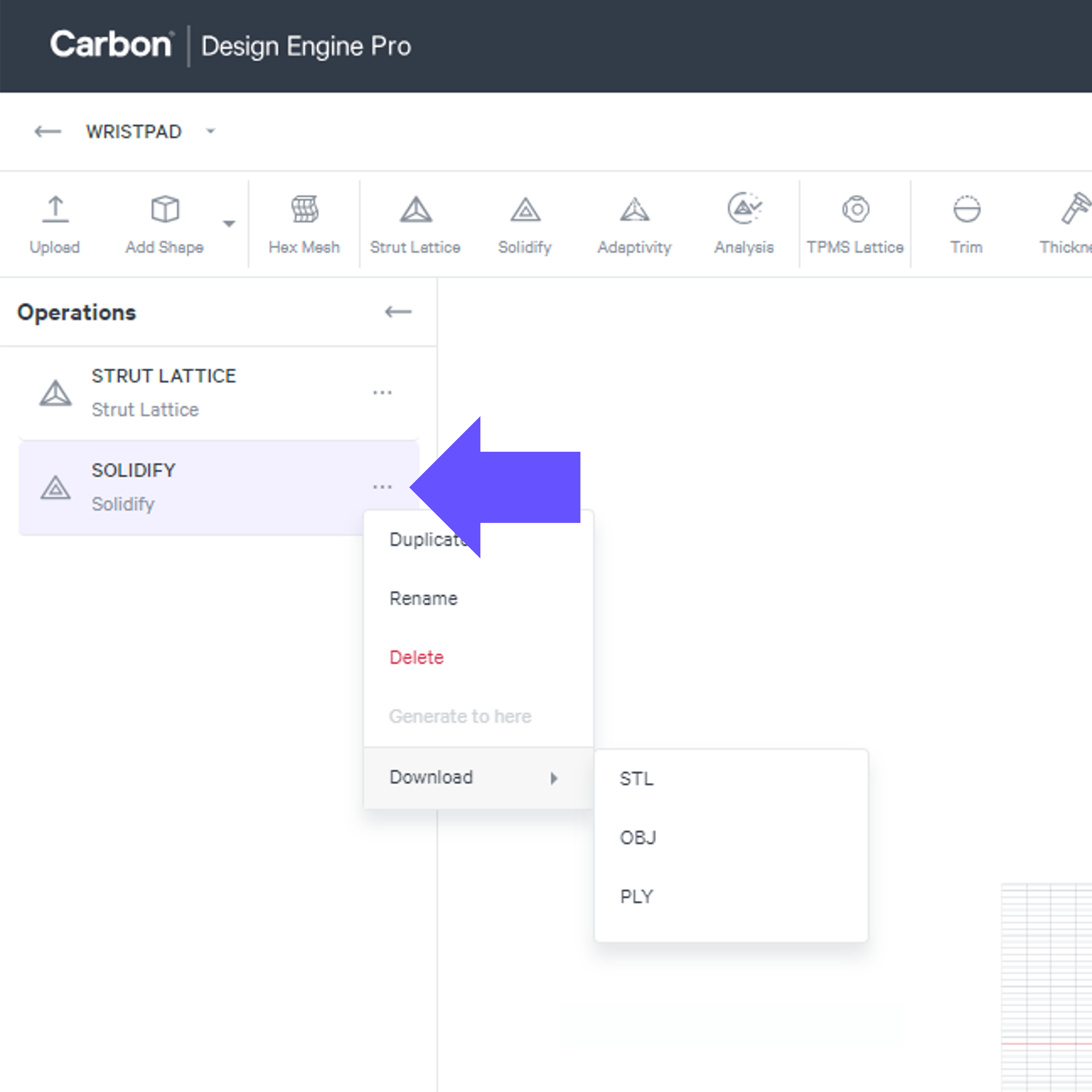
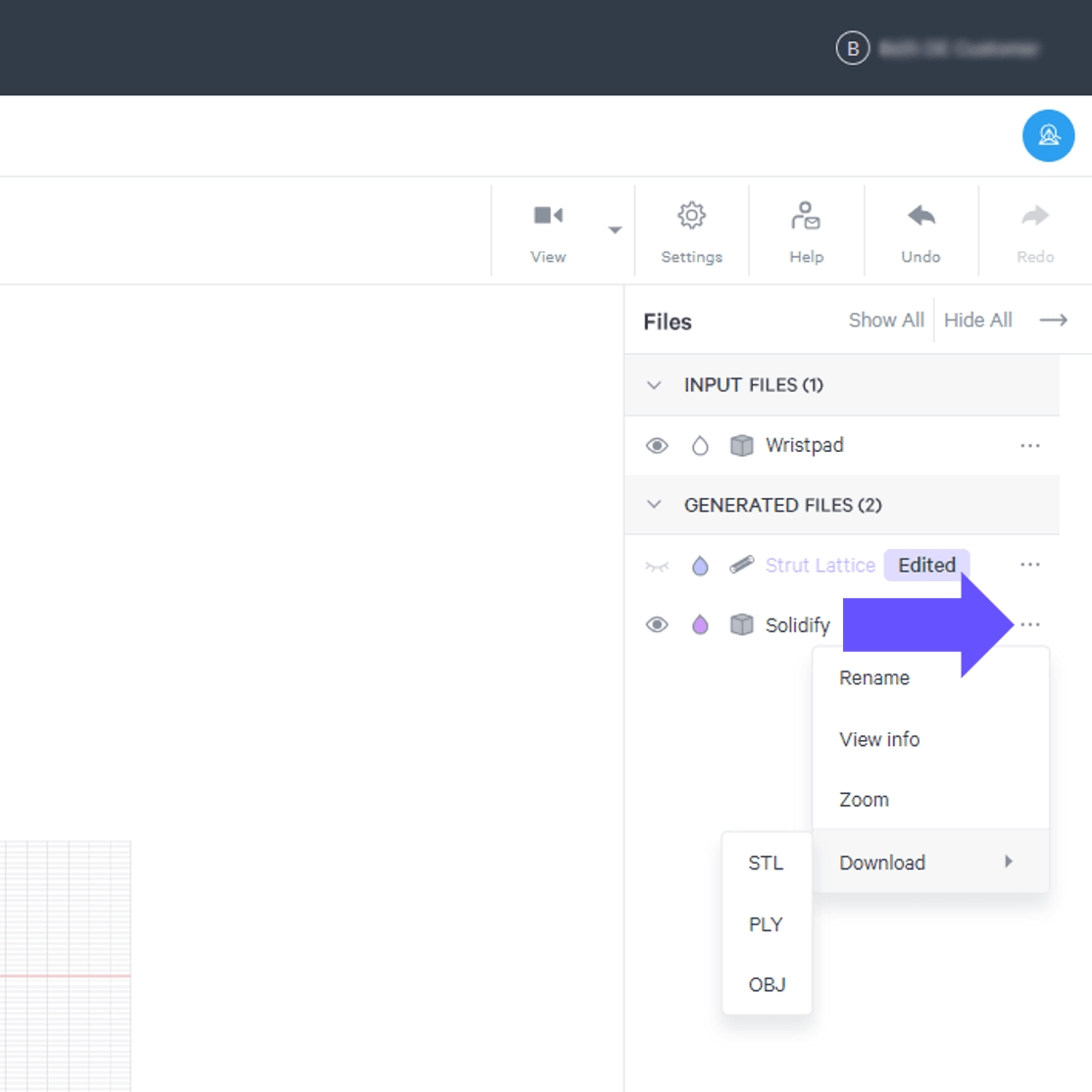
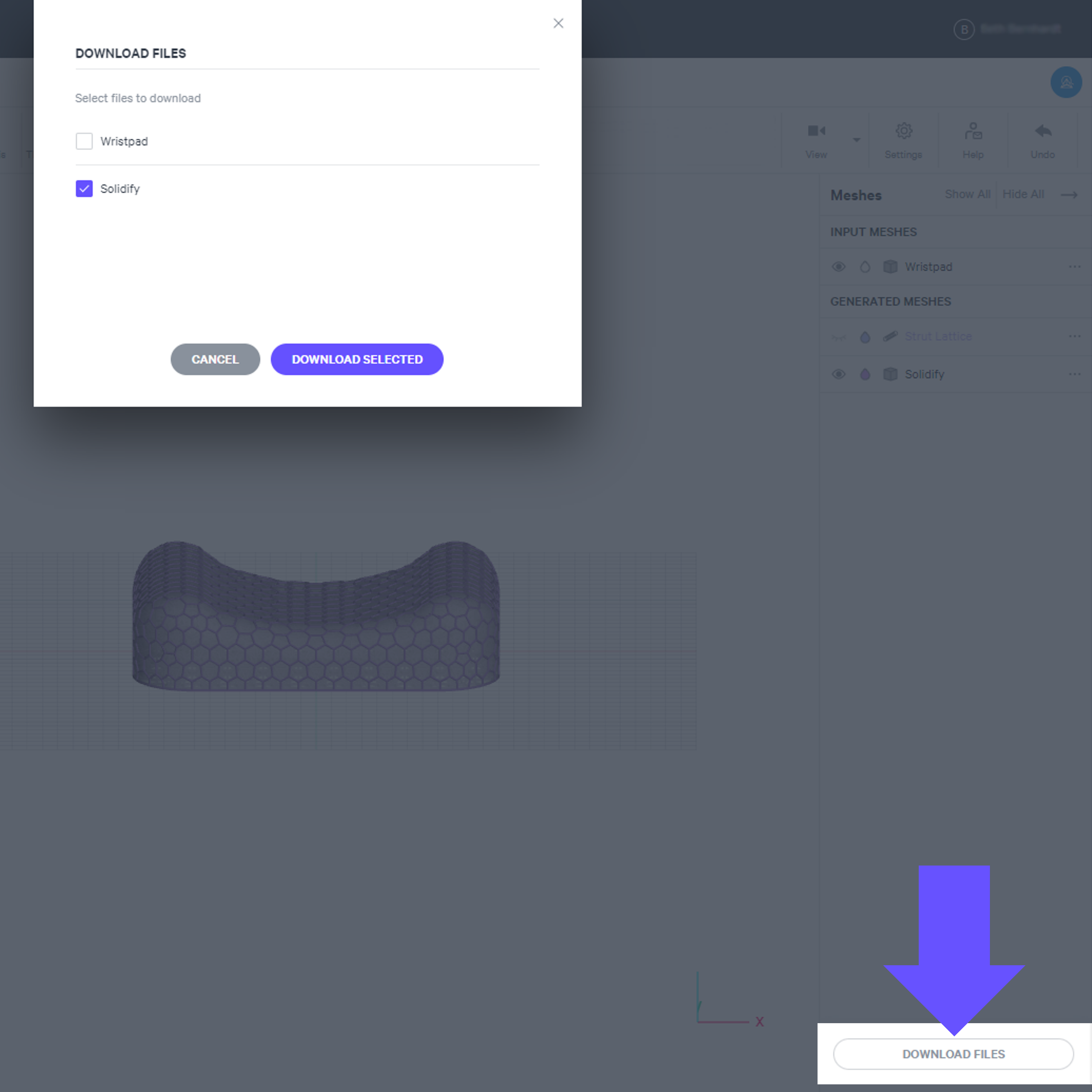
Design Engine provides multiple paths to downloading files. Alternate file options are available in some cases.
::::VerticalSplit{layout="middle"}
:::VerticalSplitItem
:::
:::VerticalSplitItem
**Operation List**
The operation menu allows for downloading a single file.
When the file is an STL mesh, OBJ and PLY file types are also available for download.
:::
::::
::::VerticalSplit{layout="middle"}
:::VerticalSplitItem
**Files List**
The file menu allows for downloading a single file.
When the file is an STL mesh, OBJ and PLY file types are also available for download.
:::
:::VerticalSplitItem
:::
::::
::::VerticalSplit{layout="middle"}
:::VerticalSplitItem
:::
:::VerticalSplitItem
**Download Files Button**
The button allows for selecting multiple files to download at once.
File type is STL only.
:::
::::
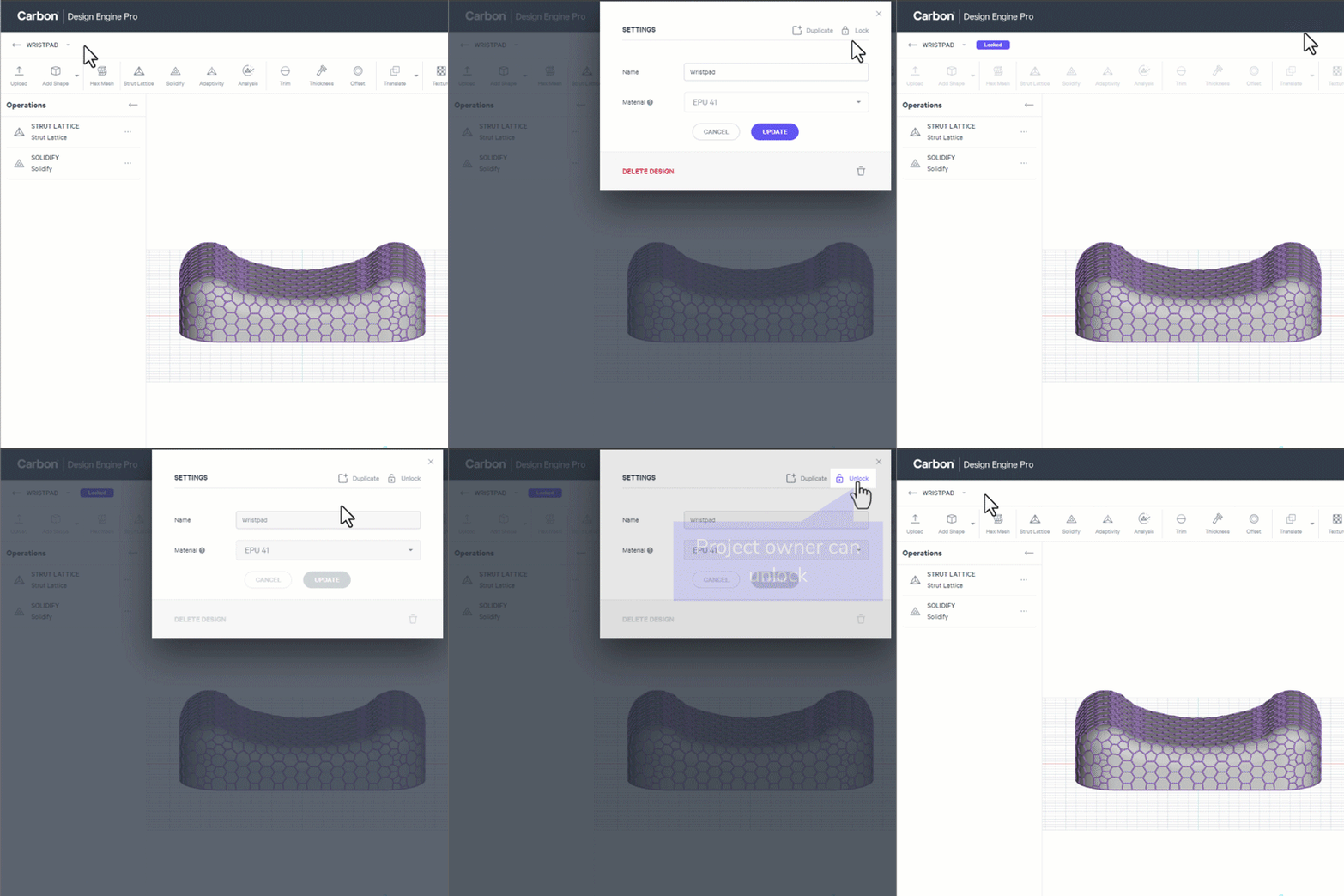
## Protected File States
::::VerticalSplit{layout="middle"}
:::VerticalSplitItem
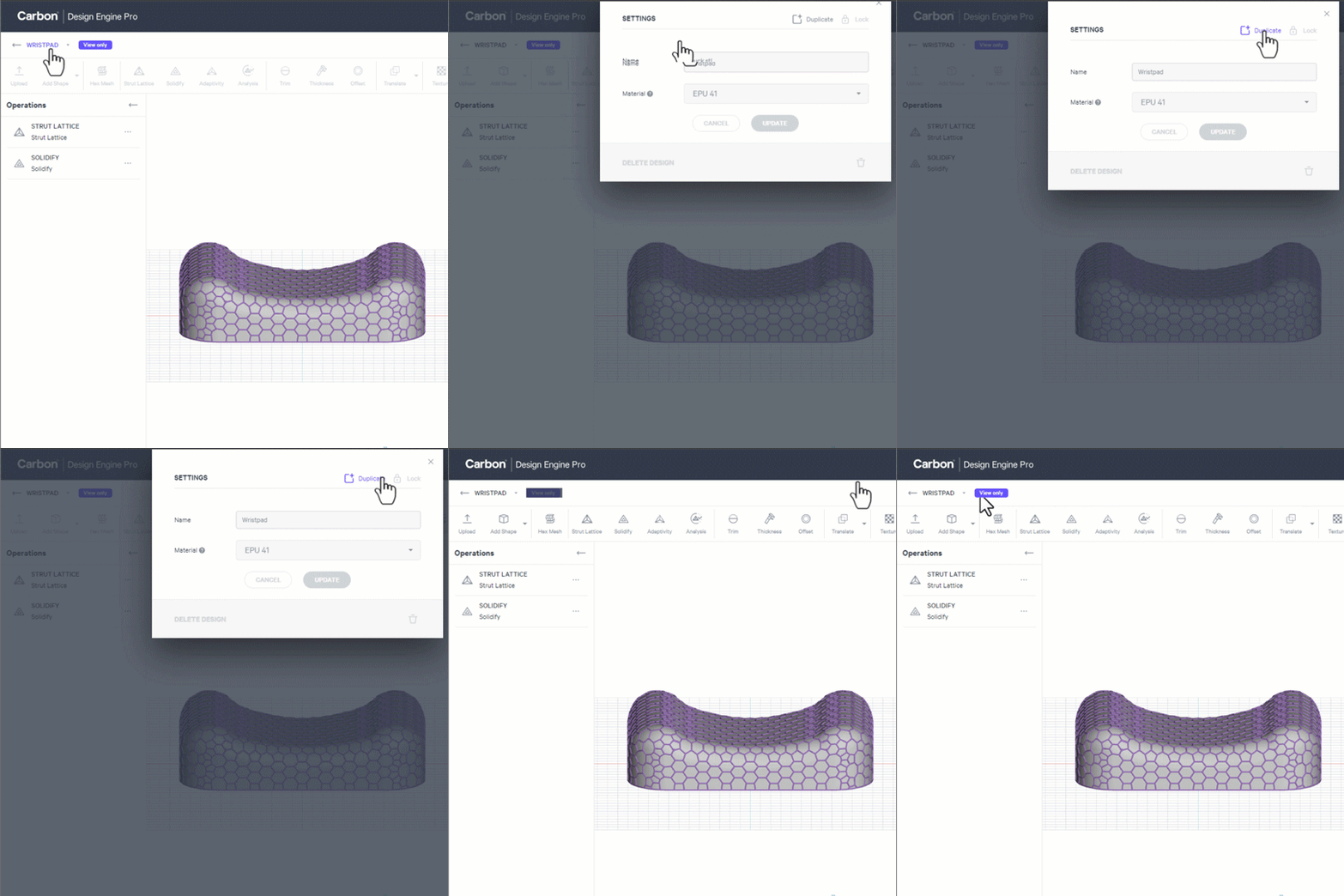
**View Only**
When you open a project created by another user, the project will open as **View Only** to prevent unwanted edits. A new user can duplicate the project to edit a new version.
:::
:::VerticalSplitItem
**Locked**
A project owner can create a **Locked** state.
- Click design name to launch settings
- Lock project to prevent changes
- Options with a locked project:
- Duplicate file to work on a new version
- Project owner can unlock
:::
::::
::::VerticalSplit{layout="middle"}
:::VerticalSplitItem
:::
:::VerticalSplitItem
:::
::::
# Operations Options
## Grouping Operations
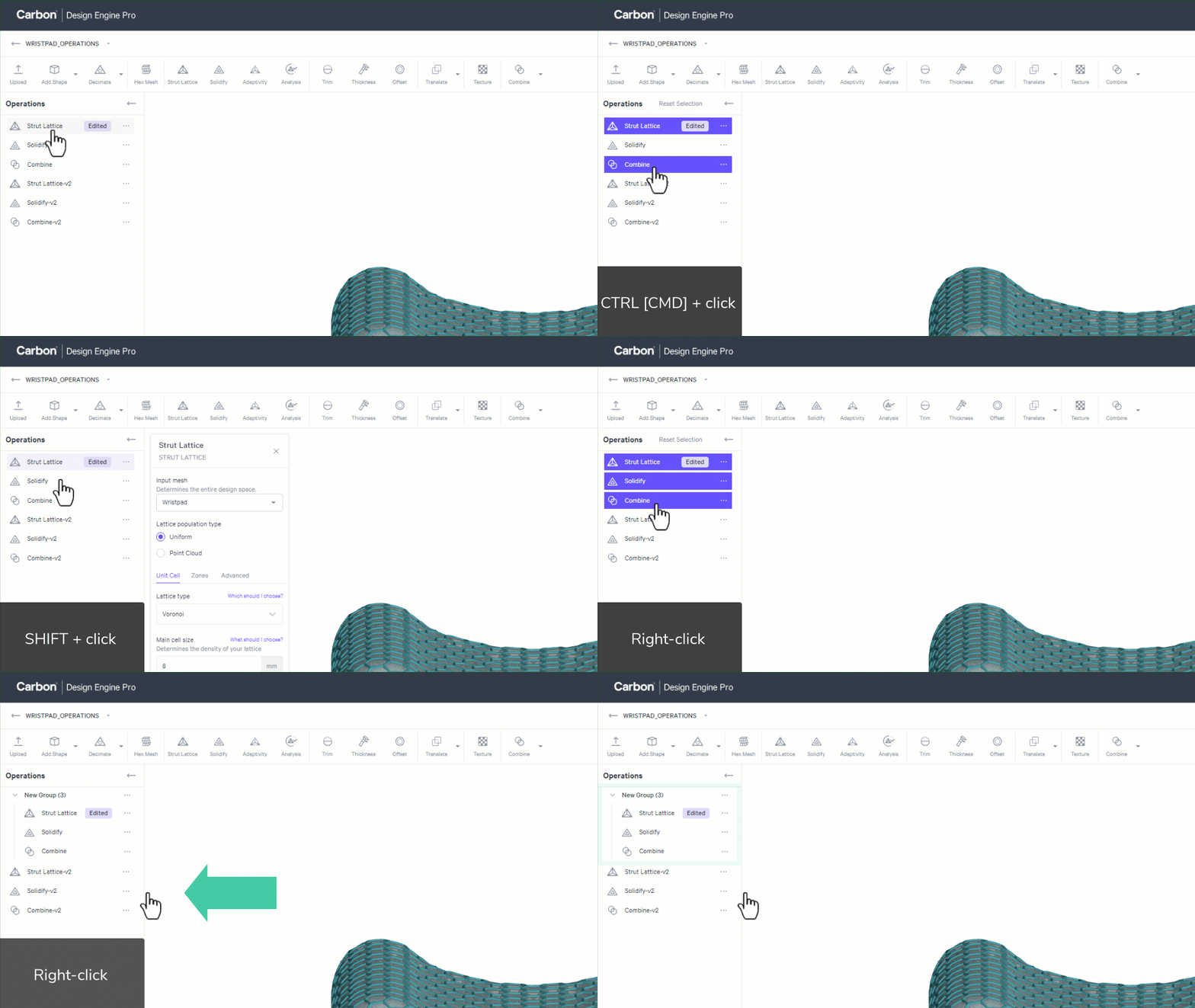
Operations can be grouped, allowing for easier management of large, complex design projects.
::::VerticalSplit{layout="middle"}
:::VerticalSplitItem
:::
:::VerticalSplitItem
**Create an Operation Group**
- Select multiple operations
- Individually with CTRL+click \[Windows] or CMD+click \[Mac]
- As a series with SHIFT+click
- Right-click and select **Create new group**
:::
::::
::::::Tabs
:::Tab{title="Operation Group Options"}
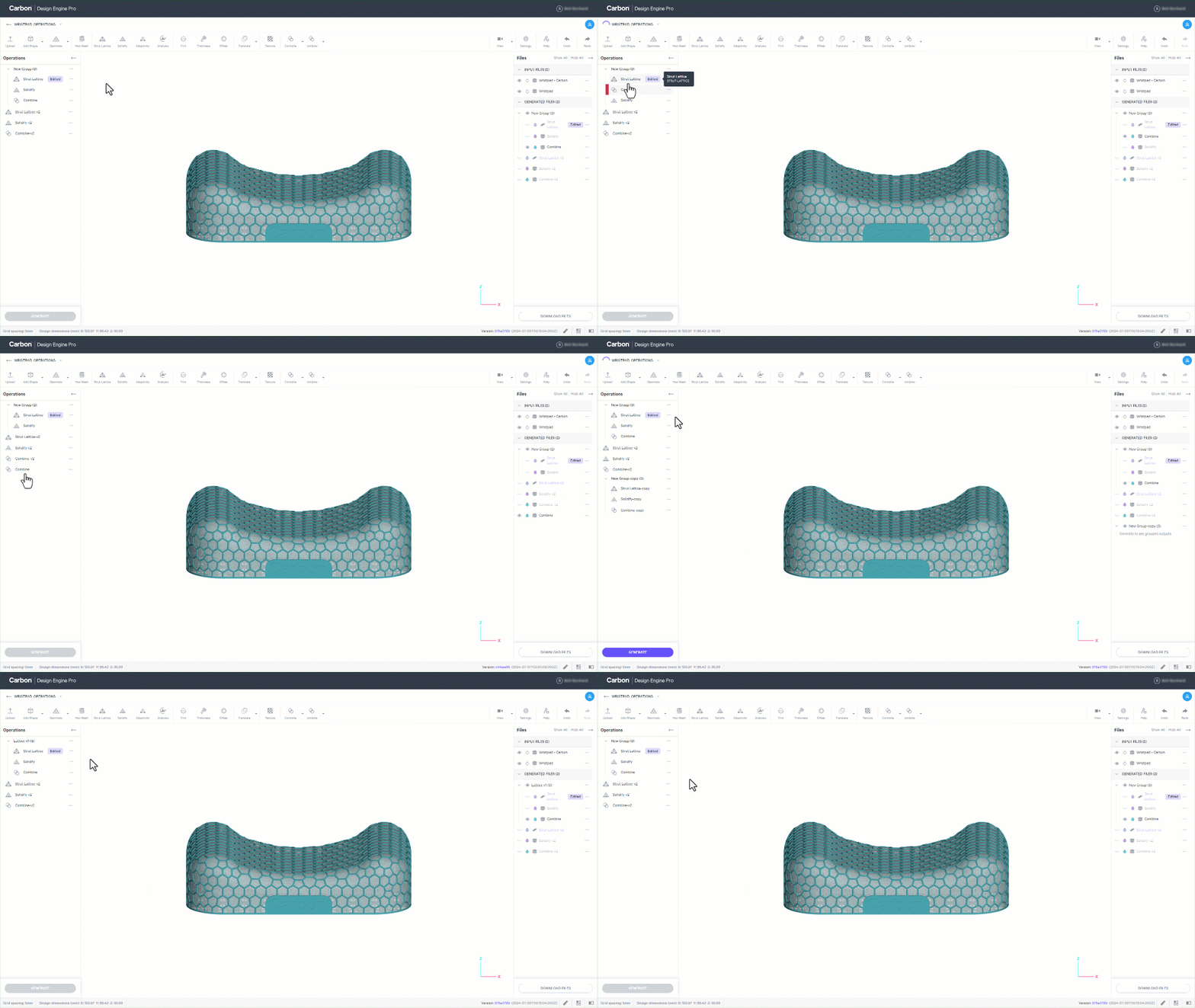
Once an Operation Group is created, the following actions can be taken
- Expand or collapse visibility of the grouped operations
- Re-order the operations with in the group
- Re-order the group's position in the operations list
- Move individual operations into and out of the group
- Click and drag or
- Use the operation menu (right-click or ... ) to Add to existing group/Remove from group
- Duplicate the group
- Rename the group
- Ungroup the operations
- Delete the group (including all operations within)
:::
:::Tab{title="No Groups within Groups"}
Groups nested within groups are not allowed.
:::
:::::Tab{title="Duplicated Group Dependencies"}
::::VerticalSplit{layout="middle"}
:::VerticalSplitItem
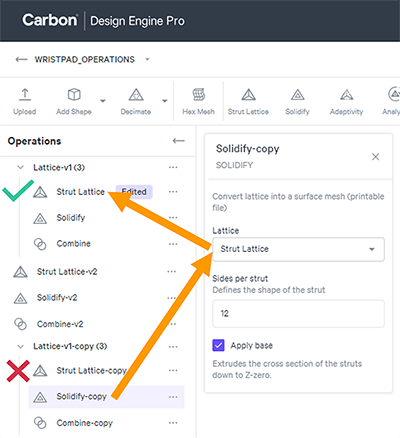
Duplicating a group does not maintain internal dependencies within the group.
For example, a duplicated Solidify operation that is grouped with a Strut Lattice operation will reference the original group's Strut Lattice.
:::
:::VerticalSplitItem
:::
::::
:::::
:::Tab{title="Generated Files List"}
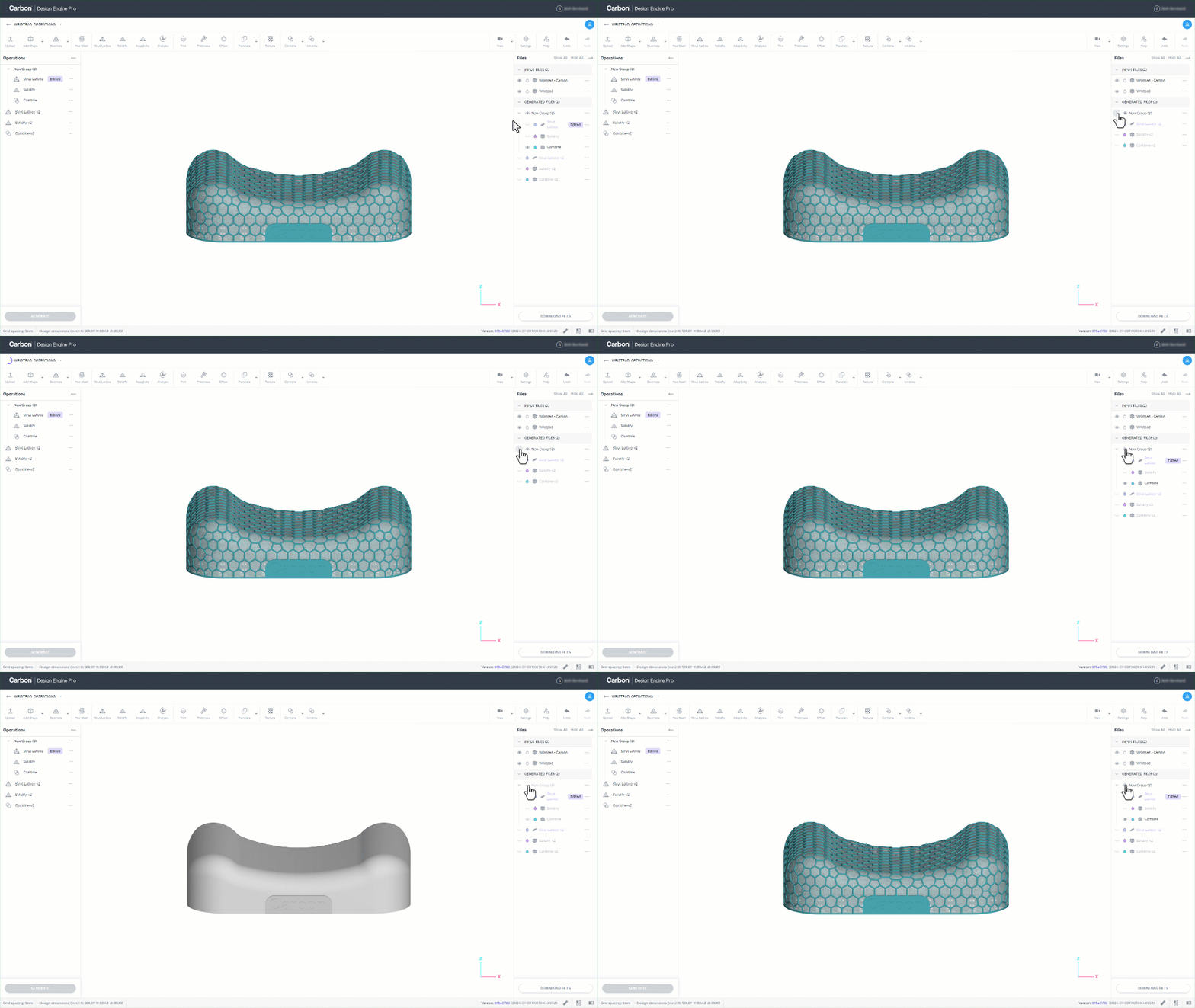
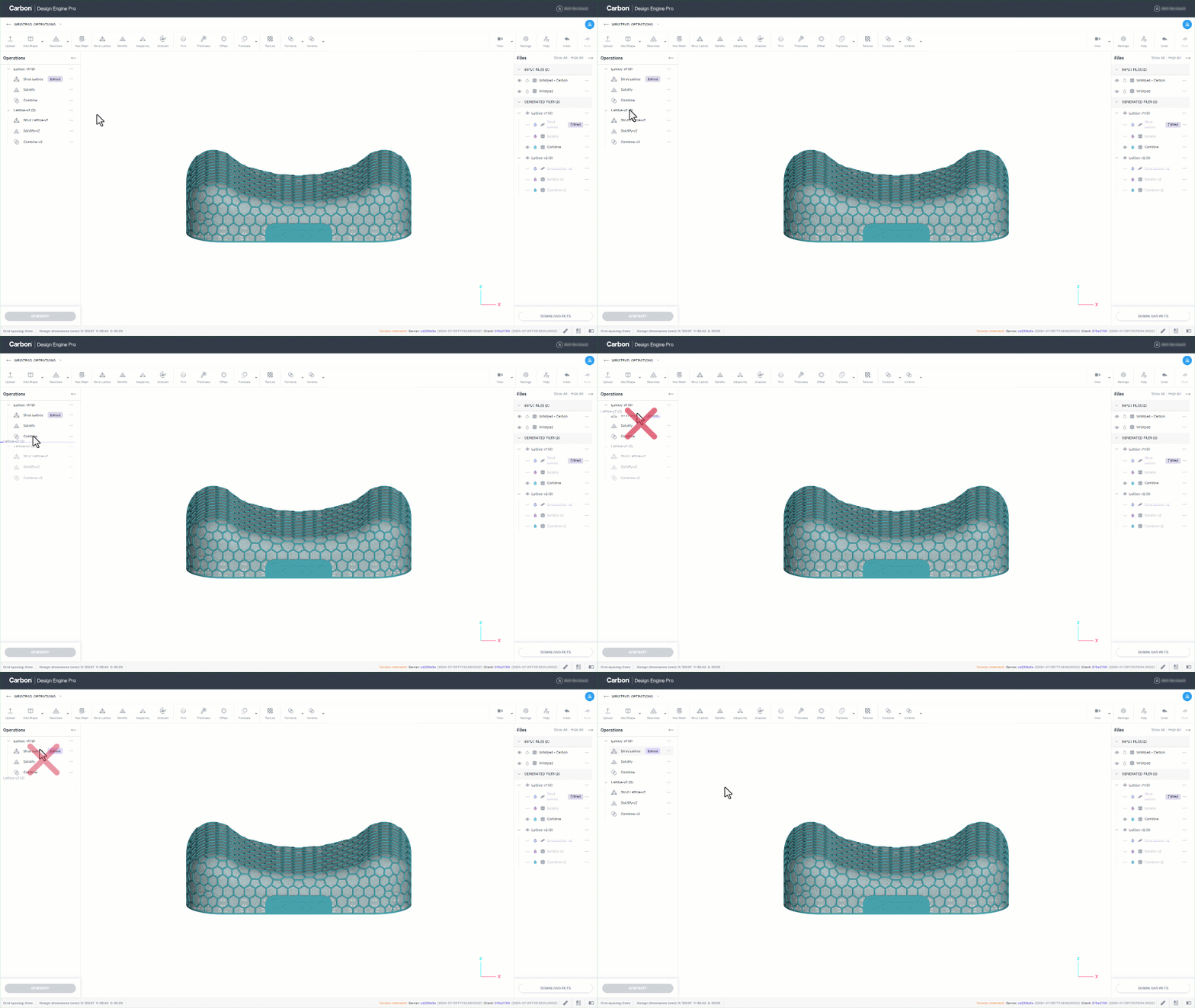
Generated Files are automatically grouped using the same schema as any Operation Groups. File Groups can be
- Collapsed & expanded independently of the operation group
- Hidden & viewed as needed
- The child's visibility state can differ from its siblings and the parent's visibility state
- The parent's visible state will show all children that are toggled to be visibly on
- Hiding the parent hides all children, regardless of their individual state
:::
::::::
## Generate to Here
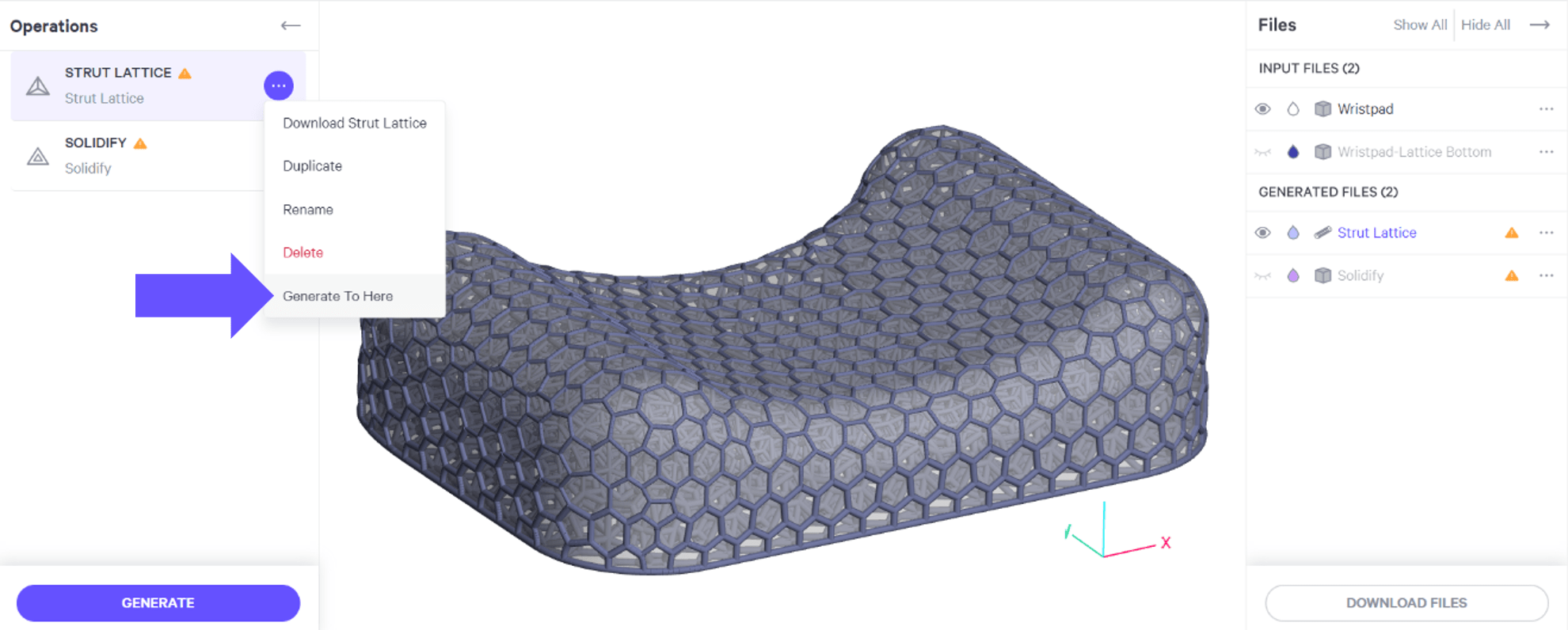
When you change a variable in an operation that requires re-generating the design, you have the option to generate only up to a particular operation to save the processing time of subsequent operations.
::::VerticalSplit{layout="right"}
:::VerticalSplitItem
:::
:::VerticalSplitItem
This is similar to a rollback bar in CAD programs.
- Select the menu of the operation you wish to generate up to.
- Select **Generate To Here**
:::
::::
## Operation Dependencies
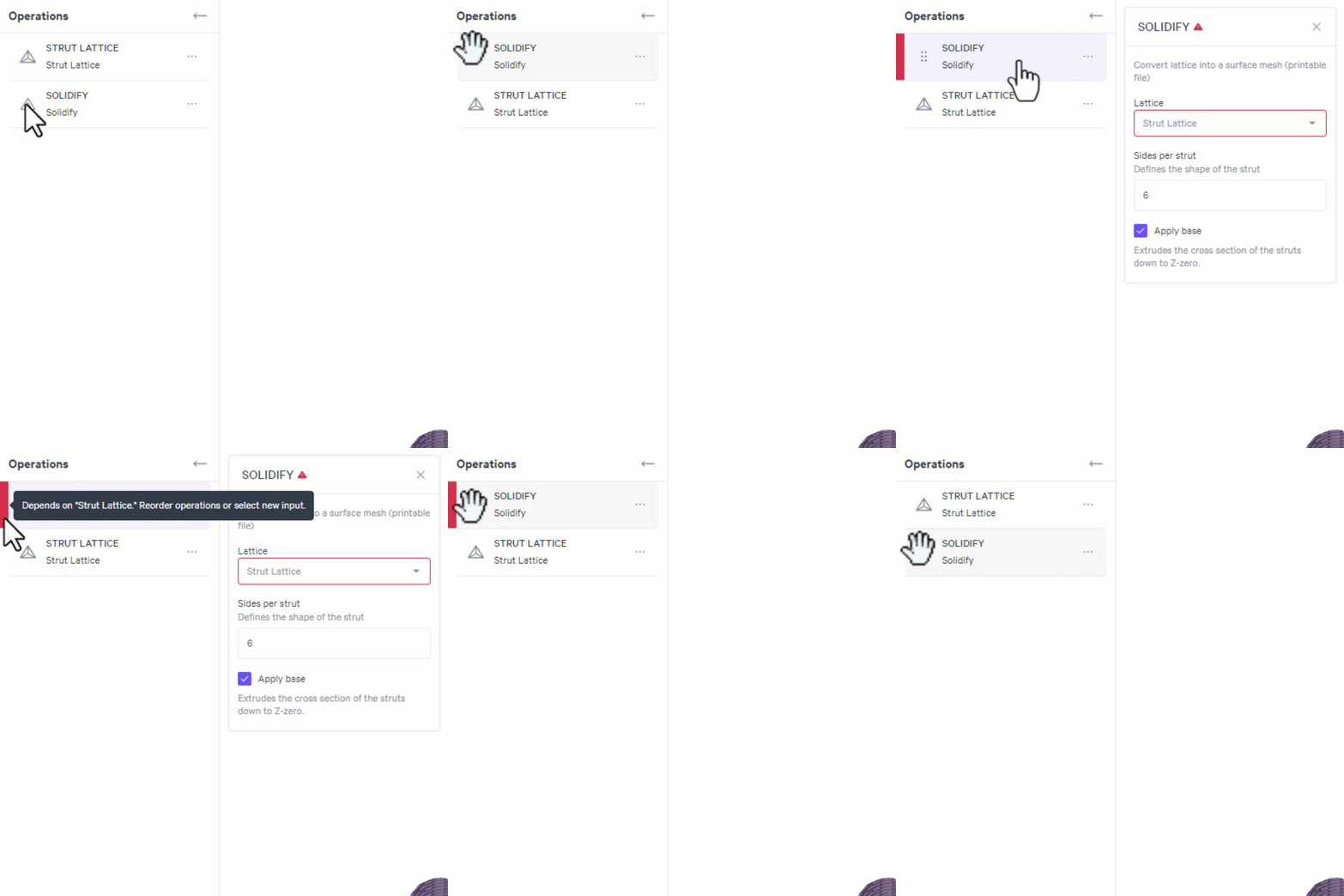
Adjusting operations may affect dependencies, ie operations that reference each other.
::::VerticalSplit{layout="middle"}
:::VerticalSplitItem
**Error**
Errors are marked in red when an operation will fail to generate due to a dependency.
Hovering on the red explains the error. In this case: ***Depends on "Strut Lattice." Reorder operations or select new input.***
:::
:::VerticalSplitItem
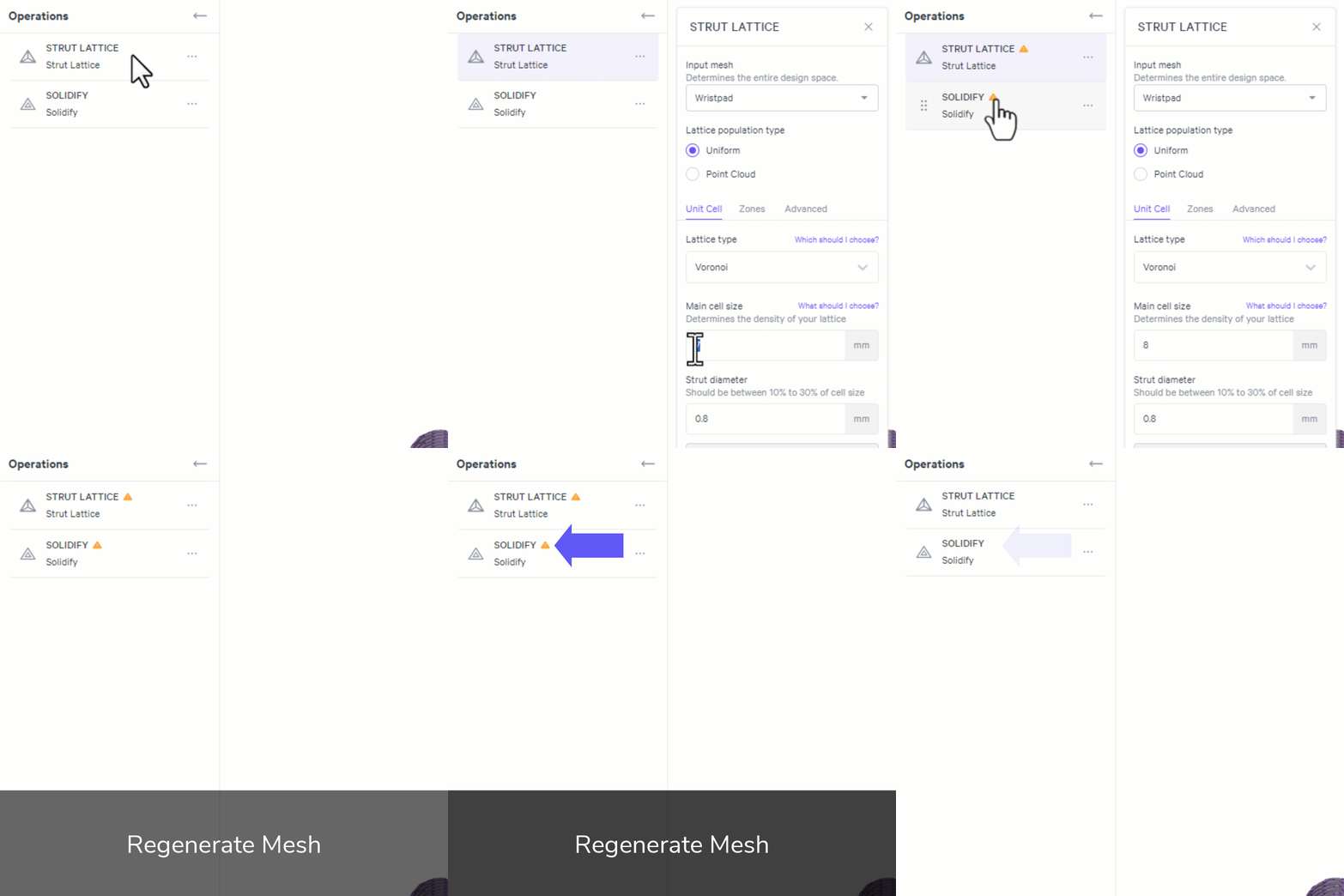
**Warning**
Warnings are marked in orange to alert you that something has been adjusted requiring a regeneration.
Hovering on the orange explains the warning. In this case: ***Output is stale. Operation inputs or values have changed.***
:::
::::
::::VerticalSplit{layout="middle"}
:::VerticalSplitItem
:::
:::VerticalSplitItem
:::
::::