---
title: Calculate and Weigh Bulk Components
slug: process/calculate-and-weigh-bulk
description: Enhance your resin mixing accuracy with our comprehensive guide on calculating and weighing bulk resin components. This document emphasizes the importance of mass measurements over volume, incorporating a tolerance of +/- 1.5%.
docTags:
createdAt: 2024-07-04T01:00:40.008Z
---
# Overview
Once the necessary materials and equipment have been gathered, it is time to calculate and weigh the appropriate amount of each component.
Take the following points into account before you begin.
- Accurate calculations and measurements are **critical **to attaining the appropriate material properties
- All measuring options described here are by **mass (weight). **Measuring by volume does not provide the necessary accuracy and is not recommended.
- Tolerances for weighing are **+/- 1.5%.** For example, when weighing out a target amount of 1000 g of RPU 70 Part A, an acceptable amount would be 985 - 1015 g.
- The workflow described below assumes the use of the [Carbon Resin Mixing Calculator](docId\:eHr4Rn9ypf660IgJ3vPrp). This is an interactive spreadsheet used to calculate the correct amount of components.
- Alternately, customers can develop their own process by referring directly to the information contained in the resin TDS (Technical Data Sheets).
# Simple Calculator Workflow
:::hint{type="info"}
This workflow applies to the **SIMPLE** tab on the Carbon Resin Mixing Calculator.
:::
::::::WorkflowBlock
:::WorkflowBlockItem
## Determine volume of resin
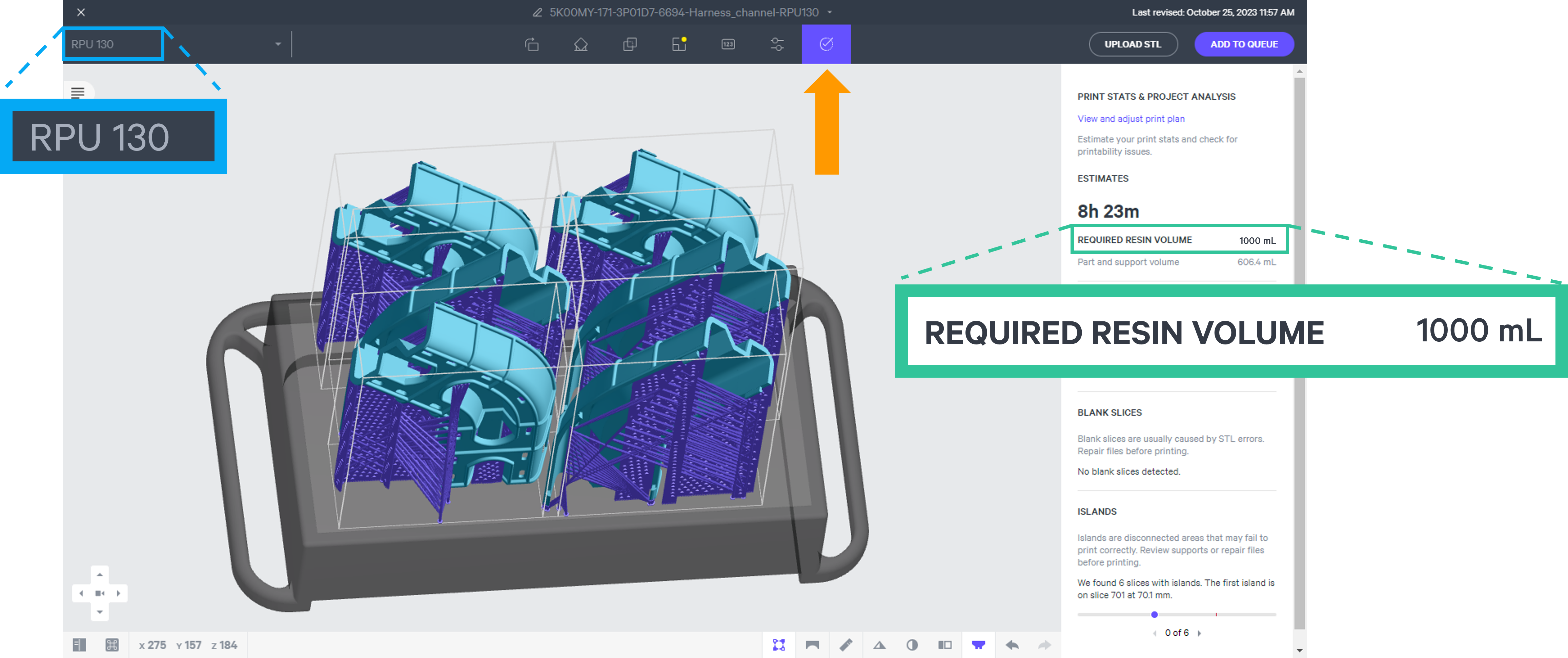
1. Go to **print.carbon3d.com**
2. Choose the appropriate **printer **and open the **project **that will be printed.
3. Note the **resin** that will be used for printing.
4. Under the **Project Analysis** tab, find and note the **Required Resin Volume.**
:::
:::WorkflowBlockItem
## Use the Resin Mixing Calculator spreadsheet
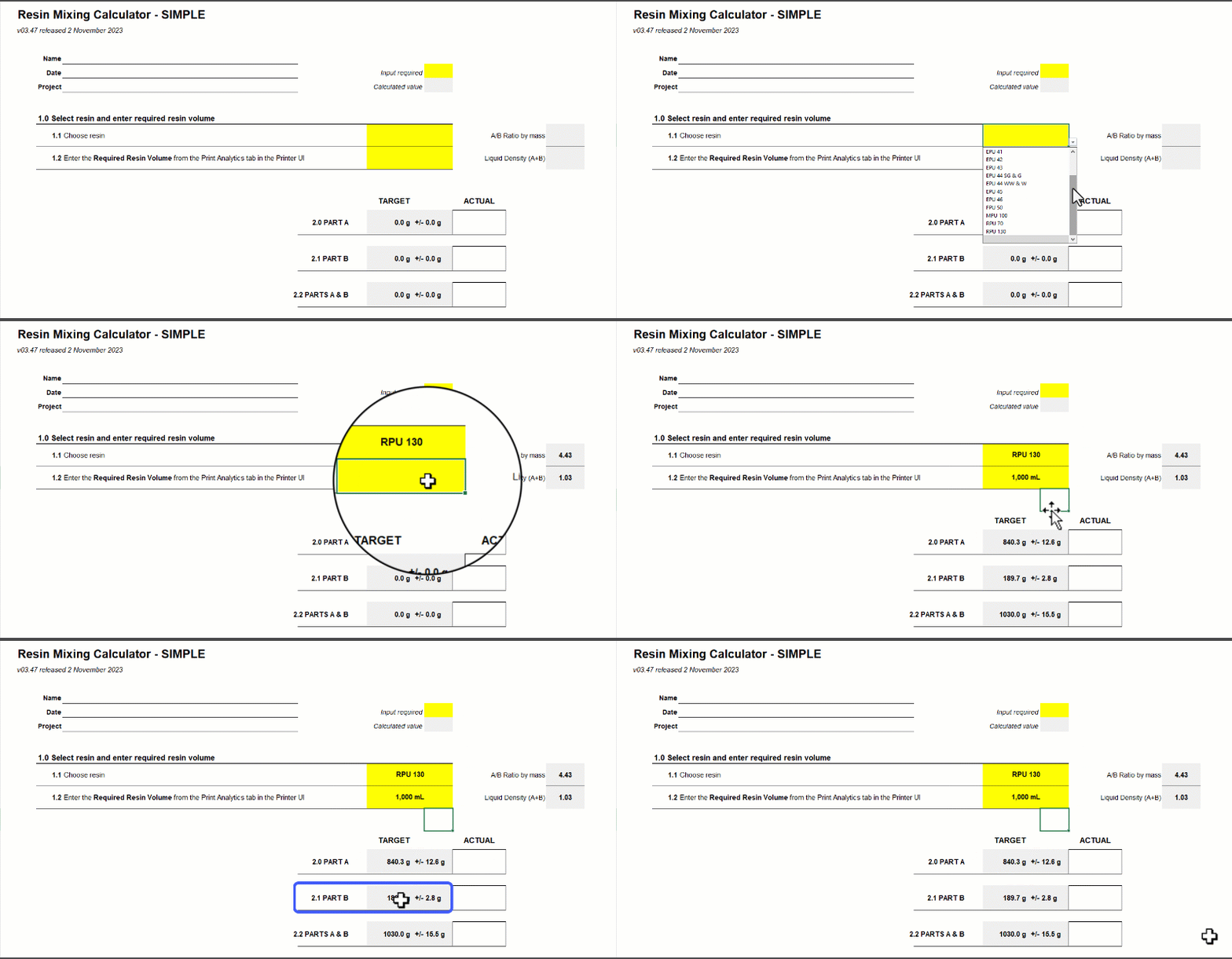
1. Download the spreadsheet [here.](docId\:eHr4Rn9ypf660IgJ3vPrp)
2. Open the spreadsheet. Yellow cells require user input. Gray cells are calculations created by the spreadsheet based on that input.
3. Go to **1.1 Choose resin.** Select the resin that will be mixed from the dropdown menu. In this example, we will use **RPU 130.**
4. Now enter the **Required Resin Volume **in** 1.2** and press return.
5. The **target amounts of Parts A and B **required for printing will now be displayed along with the allowable tolerances of +/- 1.5%.
1. **2.0** Target Part A is **840.3 g +/- 12.6 g**
2. **2.1** Target Part B is **189.7 g +/- 2.8 g**
3. **2.2 **Parts A & B is **1030.00 +/- 15.5 g**
:::
::::WorkflowBlockItem
## Add Part A to the mixing container
:::hint{type="info"}
**The scale is a precision instrument that is very sensitive. It may take several seconds for the scale to stabilize after adding anything to it. So be sure that the displayed mass is accurate before recording a reading or adding additional resin.**
:::
1. Place an appropriately sized mixing container on the scale.
2. After waiting for the scale display to stabilize, **press TARE.** This will set the scale to zero so that the scale is only weighing the resin components, not the mixing container.
3. Add Part A to the mixing container until the target amount is attained.
- Pour slowly so that you do not overpour. It is always easier to add more than to remove components from the mixing container.
- It can help to pause when you are **within 10-20 g** **of the target amount. **This helps prevent adding too much resin.
- Once the target amount is within **1-2 g,** switch to a pipette to dispense more accurately.
- It may be necessary to cut the tip of the pipette off due to the high viscosity of the Part A component.
- Remember to pause occasionally so that the scale has a chance to stabilize so that you can see an accurate mass reading.

::::
:::::WorkflowBlockItem
## Add Part B to the mixing container
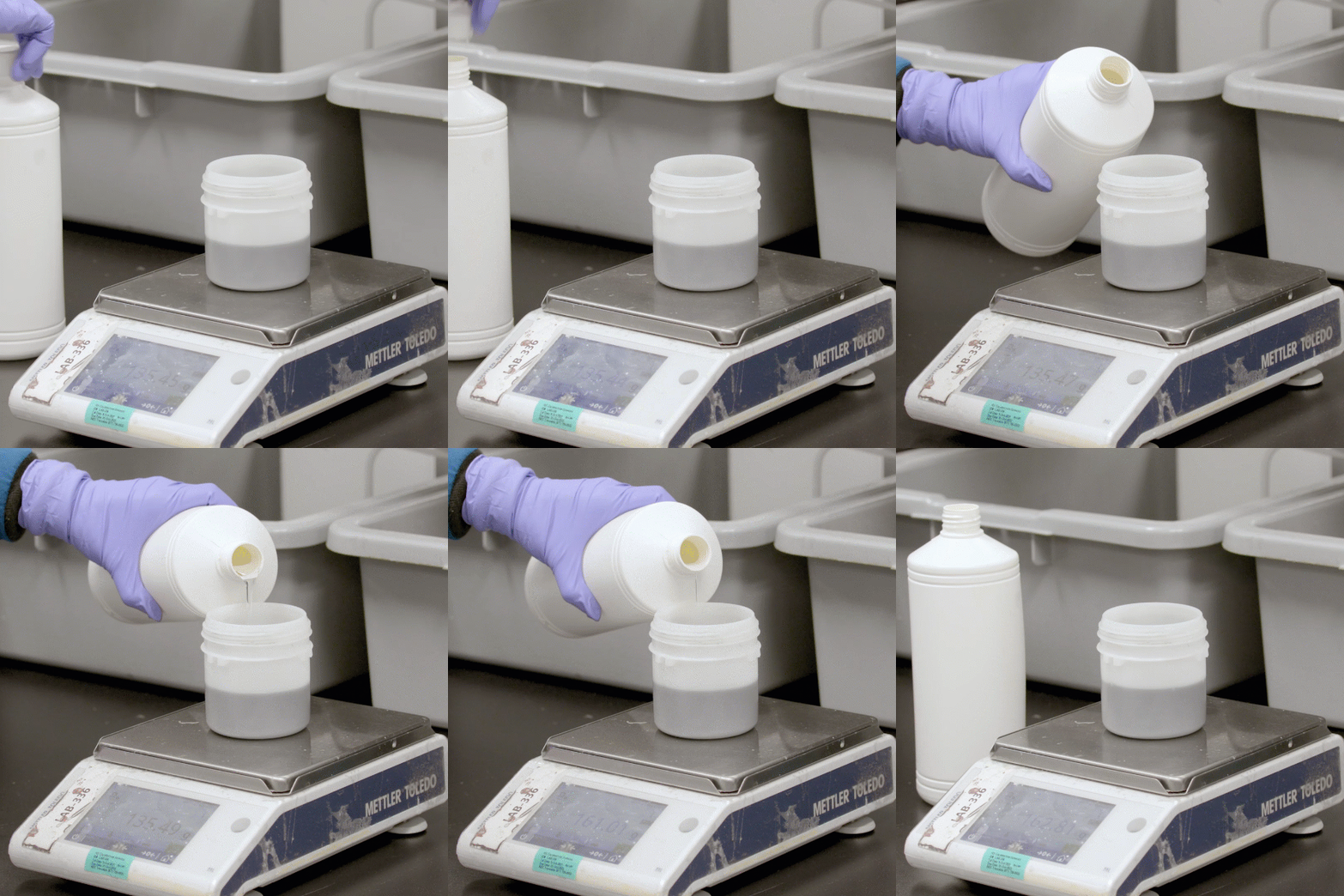
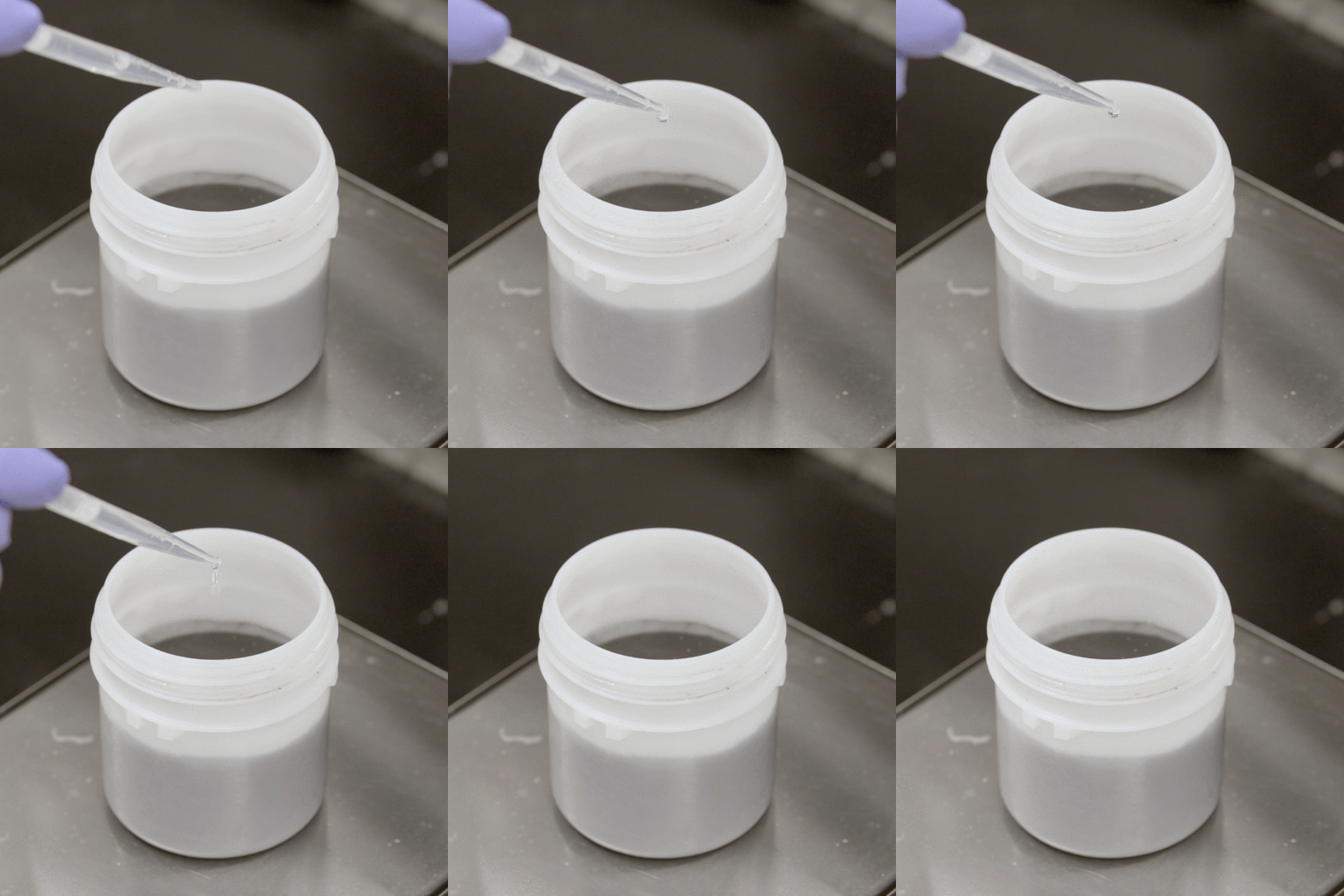
1. Add Part B to the mixing container on the scale until the target amount is attained.
- **Pour slowly.** Part B is much less viscous than Part A so it can flow quickly.
- Once the target amount is within **1-2 g,** switch to a pipette to dispense more accurately.
- Remember to pause occasionally to allow the scale to stabilize.
::::VerticalSplit{layout="middle"}
:::VerticalSplitItem
:::
:::VerticalSplitItem
:::
::::
:::hint{type="warning"}
**Use caution when adding Part B. If you add too much, you cannot remove it. More Part A will need to be added to achieve the correct ratio.
**
:::
:::::
::::::
# Interactive Calculator Workflow
:::hint{type="info"}
This workflow applies to the **INTERACTIVE **tab on the Carbon Resin Mixing Calculator.
:::
::::::WorkflowBlock
:::WorkflowBlockItem
## Determine volume of resin
1. Go to print.carbon3d.com
2. Choose the appropriate printer and open the project that will be printed.
3. Note the **resin** that will be used for printing.
4. Under the **Project Analysis** tab, find and note the **Required Resin Volume.**

:::
:::WorkflowBlockItem
## Use the Resin Mixing Calculator spreadsheet
1. Download the spreadsheet [here.](docId\:eHr4Rn9ypf660IgJ3vPrp)
2. Open the spreadsheet. Yellow cells require user input. Gray cells are calculations created by the spreadsheet based on that input.
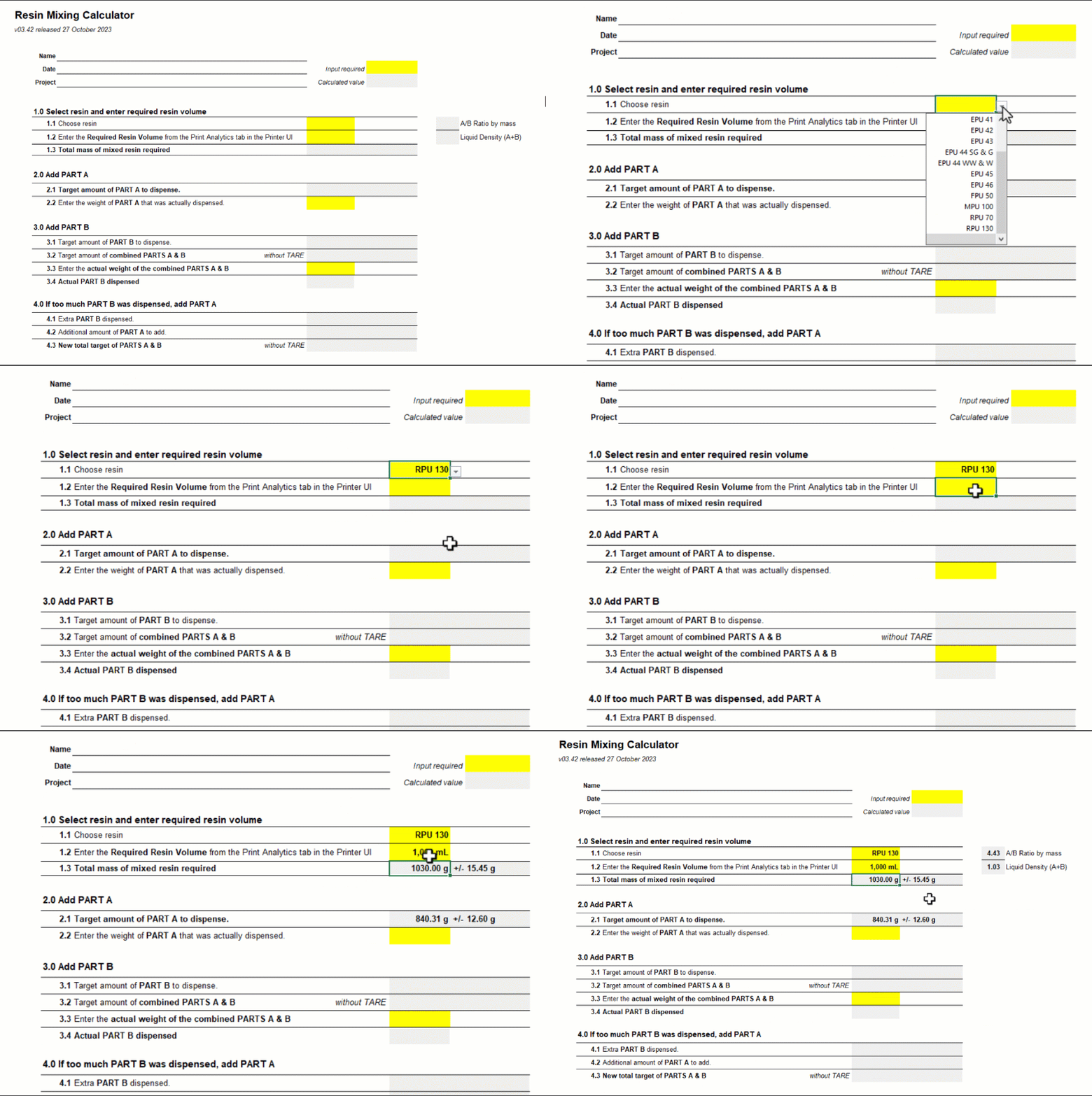
3. Go to **1.1 Choose resin.** Select the resin that will be mixed from the dropdown menu. In this example, we will use **RPU 130.**
4. Now enter the **Required Resin Volume **in** 1.2** and press return.
5. **1.3 **will now display the **total mass of mixed resin required** for printing and a tolerance of +/- 1.5%. This number is derived by multiplying the Required Resin Volume by the Liquid Density (A+B). The total mass (Parts A and B) required is **1030.00 +/- 15.45 g.**
:::
::::WorkflowBlockItem
## Add Part A to the mixing container
**2.1** now shows the target amount of **Part A** to dispense:** 840.31 g +/- 12.60 g.**
:::hint{type="info"}
**The scale is a precision instrument that is very sensitive. It may take several seconds for the scale to stabilize after adding anything to it. So be sure that the displayed mass is accurate before recording a reading or adding additional resin.**
:::
1. Place an appropriately sized **mixing container** on the scale.
2. After waiting for the scale display to stabilize, **press TARE.** This will set the scale to zero so that the scale is only weighing the resin components, not the mixing container.
3. Add **Part A** to the mixing container on the scale until the target amount is attained.
- **Pour slowly so that you do not overpour.** It is always easier to add more than to remove components from the mixing container.
- It can help to pause when you are **within 10-20 g** **of the target amount. **This helps prevent adding too much resin.
- Once the target amount is within **1-2 g,** switch to a pipette to dispense more accurately.
- It may be necessary to cut the tip of the pipette off due to the high viscosity of the Part A component.
- Remember to pause occasionally so that the scale has a chance to stabilize so that you can see an accurate mass reading.

::::
:::WorkflowBlockItem
## Enter the actual amount of Part A into the Calculator
1. Enter the **actual mass** of Part A that was dispensed into **2.2** on the **Resin Mixing Calculator. **In this example, let us say that we poured a bit too much. So enter **842.52 g.**
2. The calculator will now display the values for Part B.
- **3.1** shows the target amount of Part B: **190.19 g +/- 2.85 g**
- **3.2** shows the target amount of Parts A & B: **1032.71 +/-2.85 g**
3. If you use the value from **3.1,** you will need to press **TARE **again. Otherwise continue to the next step.

:::
:::::WorkflowBlockItem
## Add Part B to the mixing container
1. Add Part B to the mixing container on the scale until the target amount is attained.
- **Pour slowly.** Part B is much less viscous than Part A so it can flow quickly.
- Once the target amount is within **1-2 g,** switch to a pipette to dispense more accurately.
- Remember to pause occasionally to allow the scale to stabilize.
::::VerticalSplit{layout="middle"}
:::VerticalSplitItem

:::
:::VerticalSplitItem

:::
::::
:::hint{type="warning"}
**Use caution when adding Part B. If you add too much, you cannot remove it. More Part A will need to be added to achieve the correct ratio.
**
:::
:::::
:::WorkflowBlockItem
## Enter the actual amount of Part B into the Calculator
1. Enter the **actual mass** of Part B that was dispensed into **3.3** on the** Calculator. **In this example, let us say that we poured a bit too much. So enter **1033.50 g.**
2. The calculator will now display the actual amount of Part B dispensed in **3.4.**
1. If the amount poured is within tolerance (+/- 1.5% of the total) then **OK!** will be displayed indicating the ratio is accurate. The components are ready to be mixed!
2. If not enough Part B was dispensed, **Add more Part B** will appear.
3. If too much Part B was dispensed, **Add Part A** will appear. This means you will need to proceed to the next step.
:::
:::WorkflowBlockItem
## If needed: Add more Part A
If too much Part B was dispensed, values will appear in section **4.0.**

1. **4.2 **shows the **additional amount of Part A **required to achieve the correct ratio: **32.32 g +/- 0.48 g**
2. **4.3 **shows the **new total target for Parts A & B: 1072.32 g +/- 0.48 g**
3. Carefully add Part A until the new total mass has been achieved.
4. **You are now ready to begin mixing!**
:::
::::::