---
title: Lucitone Digital Value 3D Economy Tooth and Trial Placement
slug: materials/lucitone-digital-value-3d-economy-tooth-and-trial-placement
docTags:
createdAt: 2024-07-19T19:41:06.293Z
---
# Overview
::::VerticalSplit{layout="middle"}
:::VerticalSplitItem
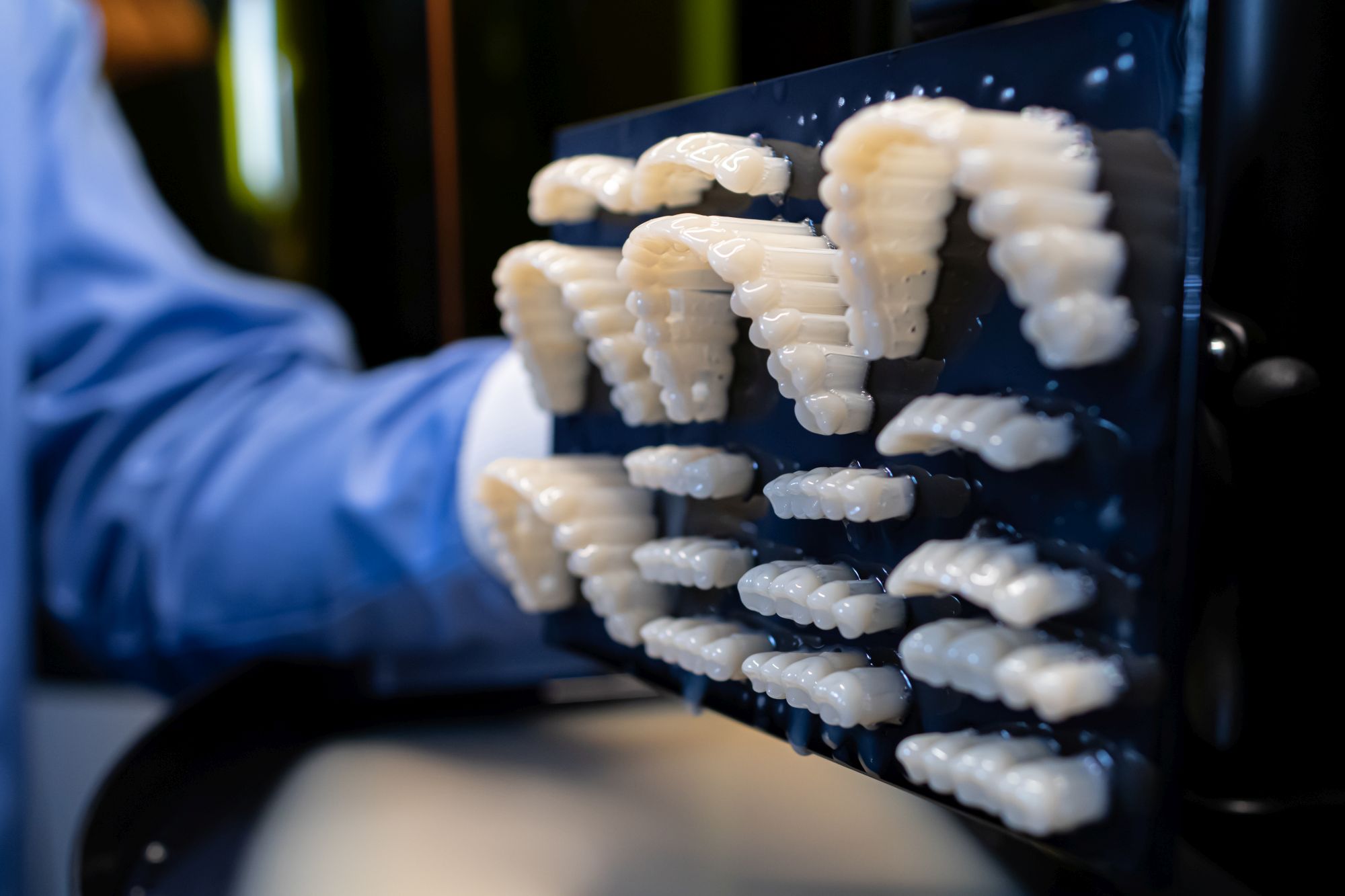
**Lucitone Digital Value™ 3D Economy Tooth & Trial Placement** resin is now available for Carbon M1/M2 printers to produce teeth for dentures. When paired with Lucitone Digital Print™ 3D Denture Base, you can create complete denture appliances with DLS.
The following shades are available:
- A1, A2, A3, B1, BL3
:::
:::VerticalSplitItem
:::
::::
:::hint{type="info"}
This resin is not currently compatible with the [AO Polishing Cassette](docId\:iFFh3q8-WLk-LIqr87bd5).
:::
## Resource Links
::::LinkArray{contentSource="CUSTOM"}
:::LinkArrayItem{headerType="IMAGE" headerImage="https://api.archbee.com/api/optimize/uXbZOKjJTGpPhjapQ8fvM-IOQIJkNnkbUAw9Q-ap1FV-20241115-235121.jpg"}
**[About the Material](https://www.carbon3d.com/materials/lucitone-digital-value-tooth)**
:::
:::LinkArrayItem{headerType="IMAGE" headerImage="https://api.archbee.com/api/optimize/3CesIL2dYMCHPZvRjp8S0/cJAKqDDnRUAeJAXNRThMm-20251016-221334.png"}
**[Manufacturer Instructions for Use](https://assets.dentsplysirona.com/websites/landingpages/english-united-states/lucitone-digital-print/documents-smile-way/LAB-IFU-Lucitone-Digital-Print-multilingual-906159-2021-02.pdf)**
:::
:::LinkArrayItem{headerType="IMAGE" headerImage="https://api.archbee.com/api/optimize/3CesIL2dYMCHPZvRjp8S0/1r3fpdvMUMFVZGfey2Tjn-20251016-221405.jpg"}
**[Safety Data Sheet](https://www.dentsplysirona.com/en/customer-support/download-center.html?downloadfilter=offset%3D0%26pageSize%3D20%26sort%3Ddate-desc%26filterTag%3Dasset-type%3Adocuments%2Fsafety-data-sheet%26q%3Ddigital%2520value%25203d%2520economy)**
:::
::::
## Protocol
This downloadable handout provides important usage information, including instructions about storage and post-processing. Print it out and bring it into the lab!
::File{src="https://api.archbee.com/api/presign/IUjOpuVPV7qLYmC62cjKs-D4_5P3g3AsMmDhhlGxux8-20240830-004833.pdf" label="Lucitone Digital Value 3D Economy Tooth & Trial Placement Protocol v01.00 REL.pdf"}
## Dental Post-Processing Grids
::::VerticalSplit{layout="right"}
:::VerticalSplitItem
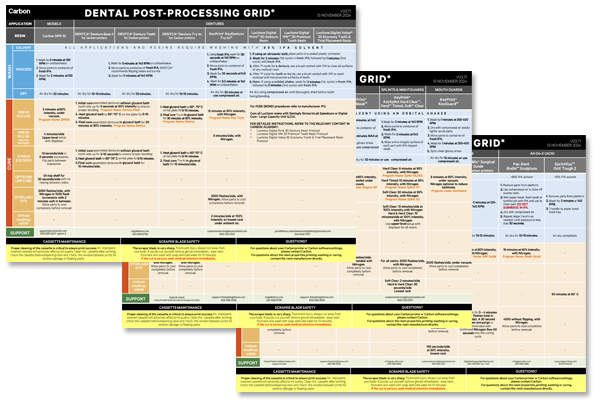
One of our most popular downloads! This table provides washing and curing instructions for all supported dental resins.
Print it and use it in the lab as a quick reference.
:::
:::VerticalSplitItem
:::
::::
::::VerticalSplit{layout="left"}
:::VerticalSplitItem
**English**
:::
:::VerticalSplitItem
::File{src="https://api.archbee.com/api/presign/3CesIL2dYMCHPZvRjp8S0/vQ2WsRger2d-CoLrn-m5f_dental-post-processing-grids-v0501.pdf" label="Dental-Post-Processing-Grids_v0501.pdf"}
:::
::::
::::VerticalSplit{layout="left"}
:::VerticalSplitItem
**German/Deutsch**
:::
:::VerticalSplitItem
::File{src="https://api.archbee.com/api/presign/uXbZOKjJTGpPhjapQ8fvM-seBSLAiWUzNDRI1GCLlop-20241125-214312.pdf" label="ZAHNÄRZTLICHES NACHBEARBEITUNGSGITTER v03.71 DE Deutsch.pdf"}
:::
::::
::::VerticalSplit{layout="left"}
:::VerticalSplitItem
**Spanish/Español**
:::
:::VerticalSplitItem
::File{src="https://api.archbee.com/api/presign/uXbZOKjJTGpPhjapQ8fvM-2i0UhzOfuA4aYJFusL1v2-20241203-180542.pdf" label="Rejilla de Posprocesamiento Dental v03.71 ES Espanol Spanish.pdf"}
:::
::::
# General Orientation & Support Information
## Hide the Platform
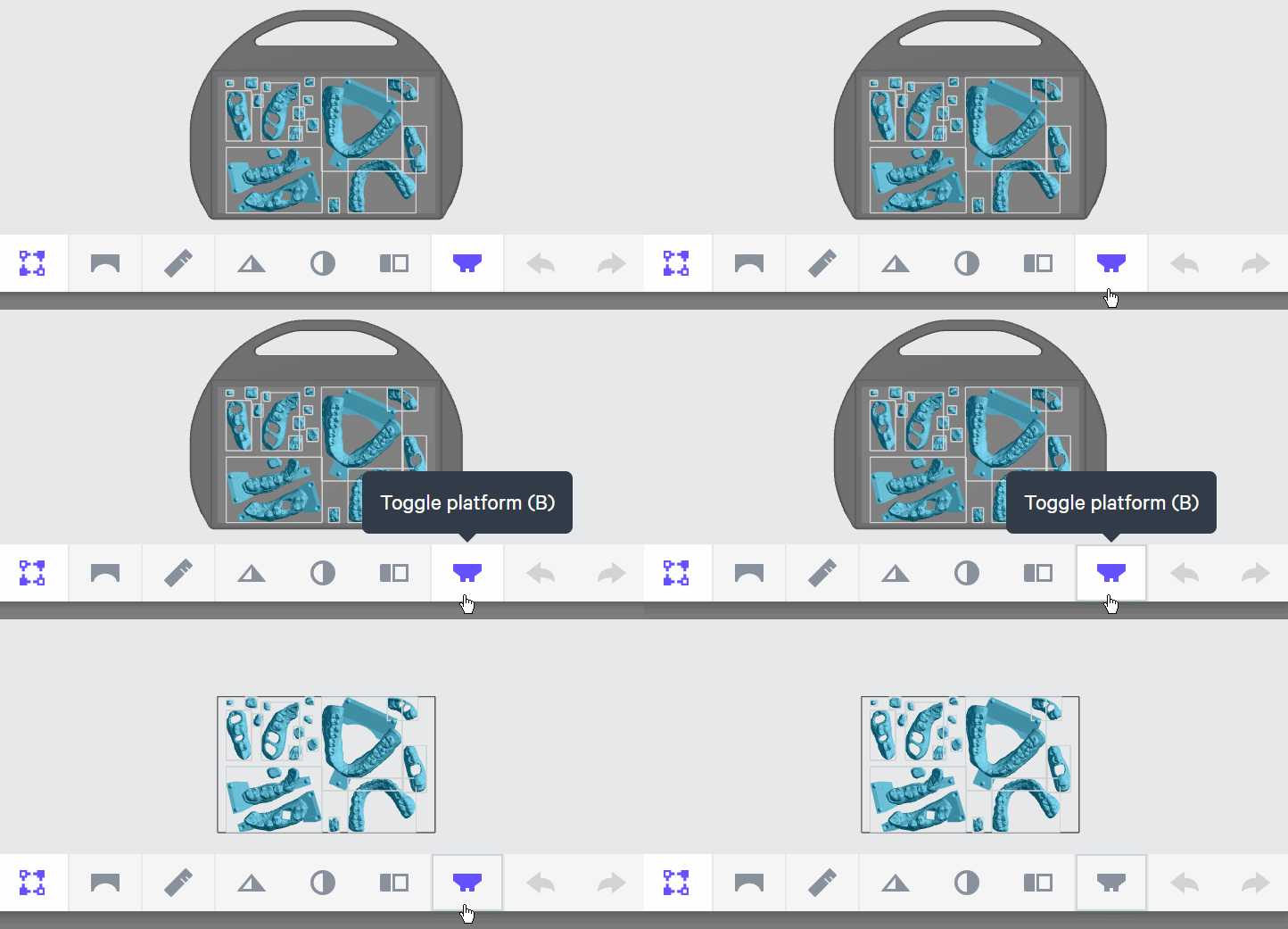
Use **Toggle platform** (or press **B**) to hide the platform before orienting parts. This will make it easier to see overhangs and place supports.
## Use Fence tool to create supports
::::VerticalSplit{layout="middle"}
:::VerticalSplitItem
### Fence tool
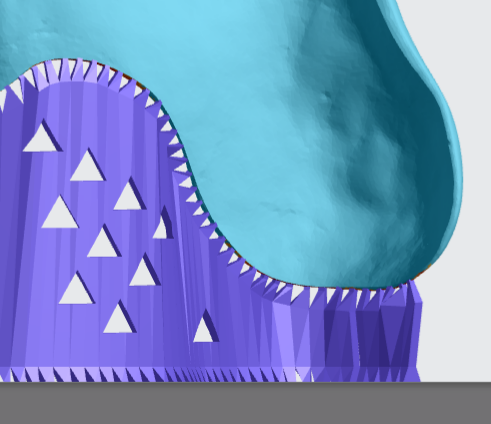
- [Fence supports](docId\:VUbpoAitbLM11aM9-qJ1p) are manually placed by the user and are best suited on **linear overhangs **or smaller areas.
- Fences provide stability while leaving smaller nubs than the default Bars option.
::Image[]{src="https://res.cloudinary.com/carbon3d/image/upload/v1741914724/Education/Materials/dental/__General_Use/standard-support-menu-fence.png" size="50" width="214" height="77" position="flex-start" showCaption="false"}
:::
:::VerticalSplitItem
:::
::::
:::hint{type="info"}
Review [Supports](docId\:VUbpoAitbLM11aM9-qJ1p) in [Printer UI](docId\:oId4ZNZtZYeltTPVJ984a) course for more information.
:::
# Denture Teeth
## Orientation
### Anterior Teeth
**Setup**
::::VerticalSplit{layout="middle"}
:::VerticalSplitItem
1. Orient the 2 anterior sections so the **root side is facing the platform**.
2. Position the camera so you are looking straight down on the platform:
- Push the **Reset camera icon** in the lower-left corner of the screen to return to the default view.
- Push **▲ to look straight down** at platform.
3. Adjust the sections so they are **mostly parallel with the front edge of the platform** (X-Axis).
4. Make sure that the **lingual region of each section is facing the lower portion of the screen**.
:::
:::VerticalSplitItem

:::
::::
**Final Orientation**
::::VerticalSplit{layout="middle"}
:::VerticalSplitItem

:::
:::VerticalSplitItem
1. Enter **45** into the X Axis field.
- The lingual side of the teeth sections will rotate 45 degrees toward the platform.
- Alternately, click on the X axis loop and rotate the teeth 45 degrees. See **Manually Adjust Orientation** in [Printer UI](https://learn.carbon3d.com/software/printer-ui/orient) for more information.
:::
::::
### Posterior Teeth
::::VerticalSplit{layout="middle"}
:::VerticalSplitItem
1. Position the camera so you are looking straight down on the platform:
- Push the **Reset camera icon** in the lower left corner of the screen to return to the default view.
- Push **▲ to look straight down** at platform.
2. Adjust the sections so they are **mostly parallel with the side edges of the platform** (Y-Axis).
3. Orient the sections so the **occlusal surfaces are roughly parallel with the platform**.
4. Enter **20 **into the X-Axis field.
- **The lingual side of the teeth sections will rotate 20 degrees toward the platform.**
- Alternately, click on the X axis loop and rotate the teeth 45 degrees. See **Manually Adjust Orientation** in [Printer UI](https://learn.carbon3d.com/software/printer-ui/orient) for more information.
:::
:::VerticalSplitItem

:::
::::
### Full Arches
::::VerticalSplit{layout="middle"}
:::VerticalSplitItem

:::
:::VerticalSplitItem
1. The arch should be **roughly parallel** with the platform.
- Because full arches are organic surfaces with no well defined flat areas, we do not recommend using Snap to Platform.
2. Make sure that the **anterior region of the arch is facing the upper portion of the screen**.
3. Enter **30 **into the X Axis field.
- **The lingual side of the teeth sections will rotate 30 degrees toward the platform.**
- Alternately, click on the X axis loop and rotate the teeth 45 degrees. See **Manually Adjust Orientation** in [Printer UI](https://learn.carbon3d.com/software/printer-ui/orient) for more information.
:::
::::
## Supporting
### Enter Support Mode
::::VerticalSplit{layout="middle"}
:::VerticalSplitItem
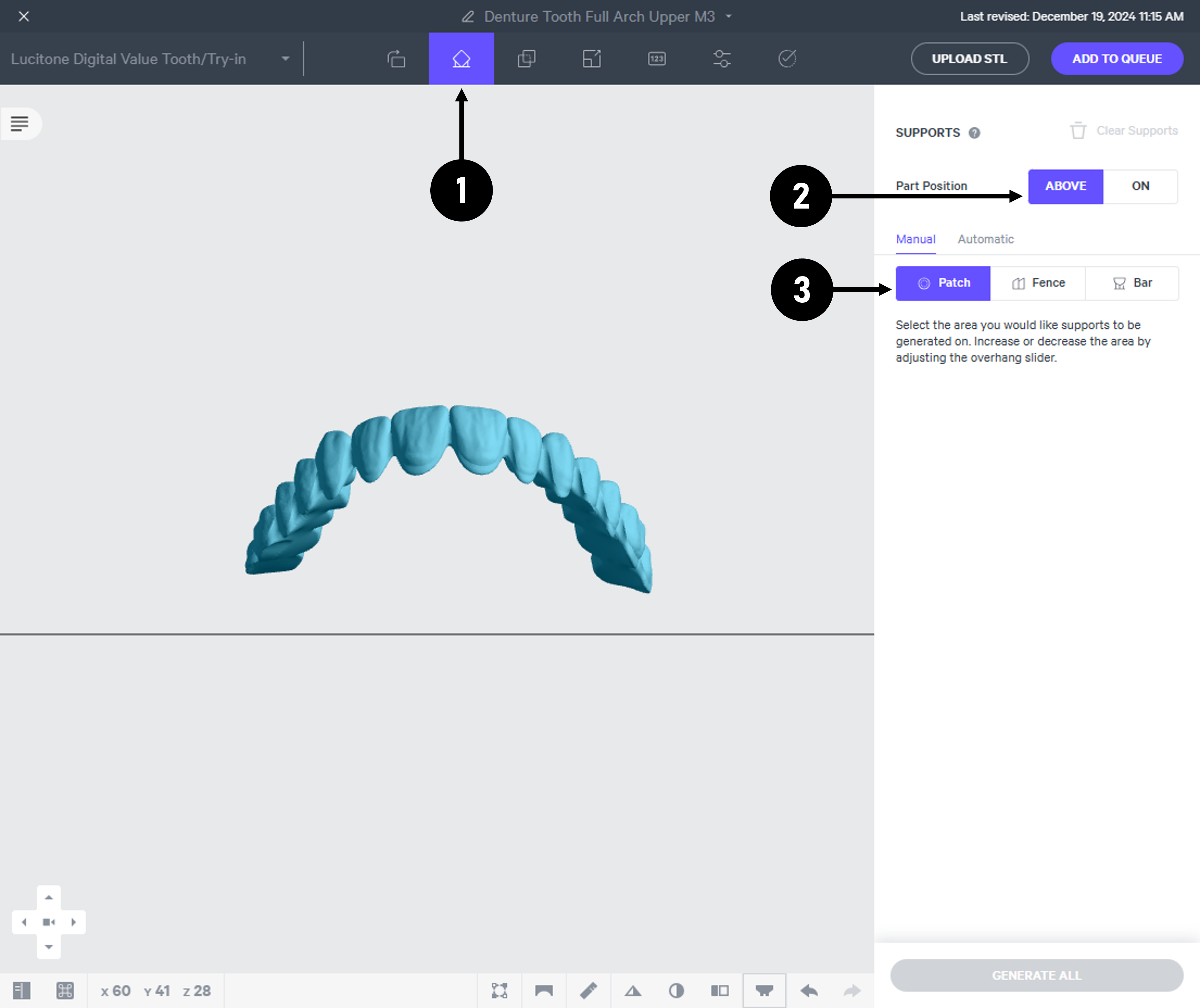
1. Click **Support** in the dark gray bar.
2. Under Position, select **Above Platform** to lift parts off the platform.
3. Make sure **Patch **is selected.
:::
:::VerticalSplitItem
:::
::::
::::VerticalSplit{layout="middle"}
:::VerticalSplitItem
**Note**: Do not use Automatic supports. This will create **bar supports** that leave large nubs on tooth surfaces and do not provide adequate accuracy.
:::
:::VerticalSplitItem

:::
::::
:::hint{type="info"}
**Remember to turn off the platform using Toggle Platform (or press B). This will make it much easier to see the underside of the parts.**
:::
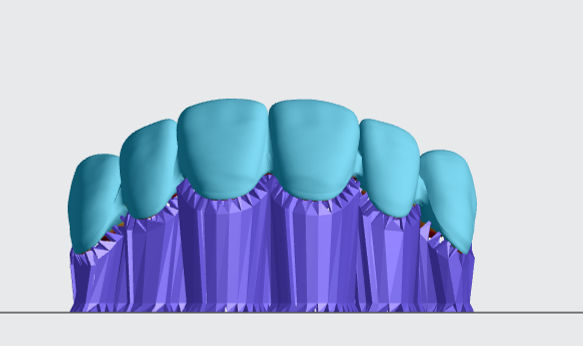
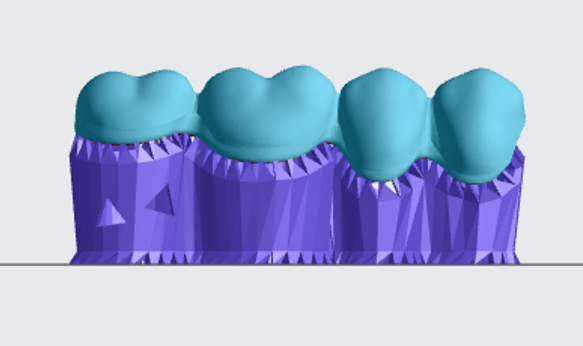
## Anterior and Posterior Teeth
::::VerticalSplit{layout="middle"}
:::VerticalSplitItem
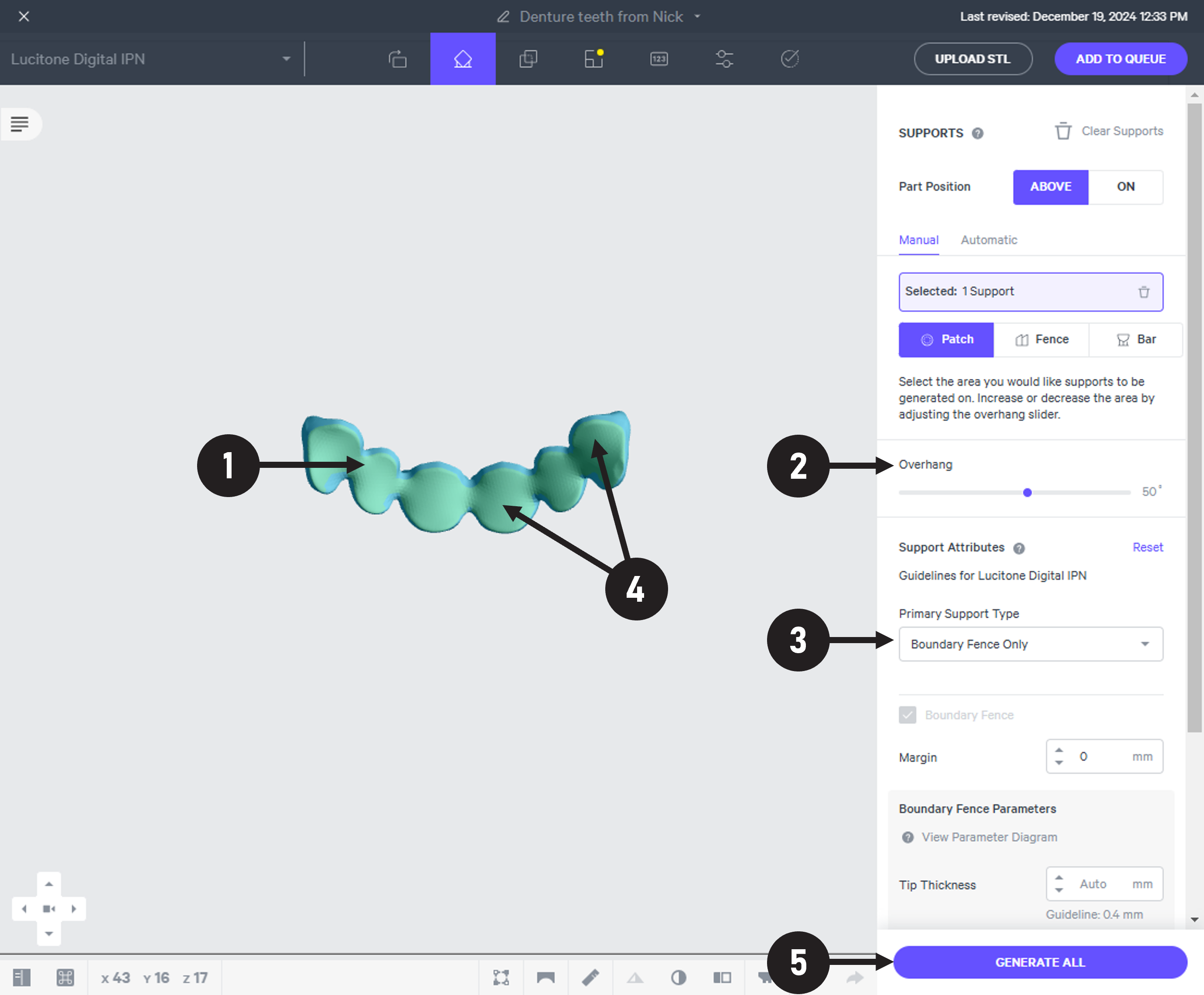
1. Click on the **basal side** of the teeth to be supported.
- The patch settings will now appear in the right menu.
2. Set **Overhang Angle** to **50 degrees.**
3. Set **Primary Support Fill Type **to **Boundary Fence Only.**
4. If needed, continue clicking on remaining basal surfaces until all overhangs are selected. **Green **indicates current selection and **light purple** shows previous selection(s).
5. Click **Generate All** to create the supports.
:::
:::VerticalSplitItem
:::
::::
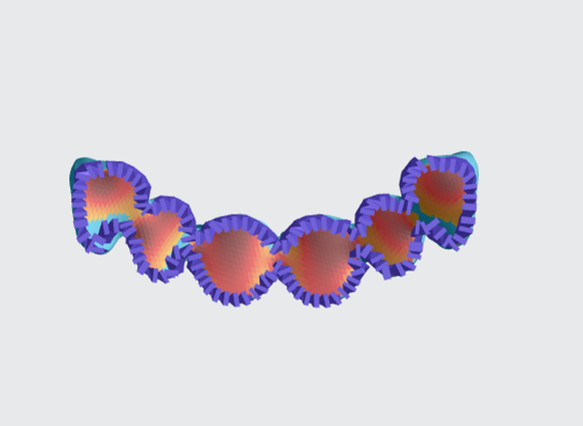
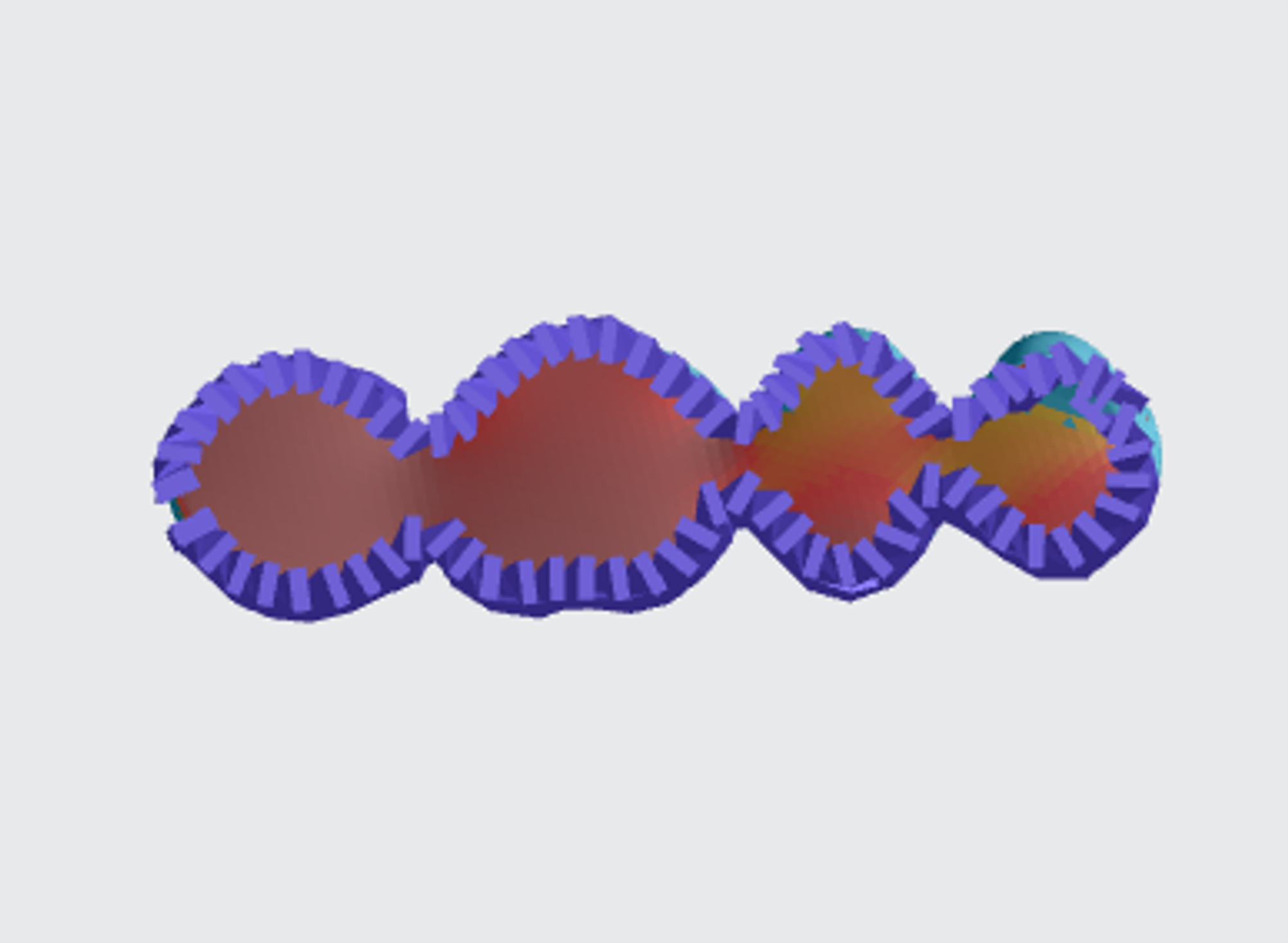
### Well Supported Examples
::::VerticalSplit{layout="middle"}
:::VerticalSplitItem
**Anterior**
:::
:::VerticalSplitItem
**Posterior**
:::
::::
::::VerticalSplit{layout="middle"}
:::VerticalSplitItem
:::
:::VerticalSplitItem
:::
::::
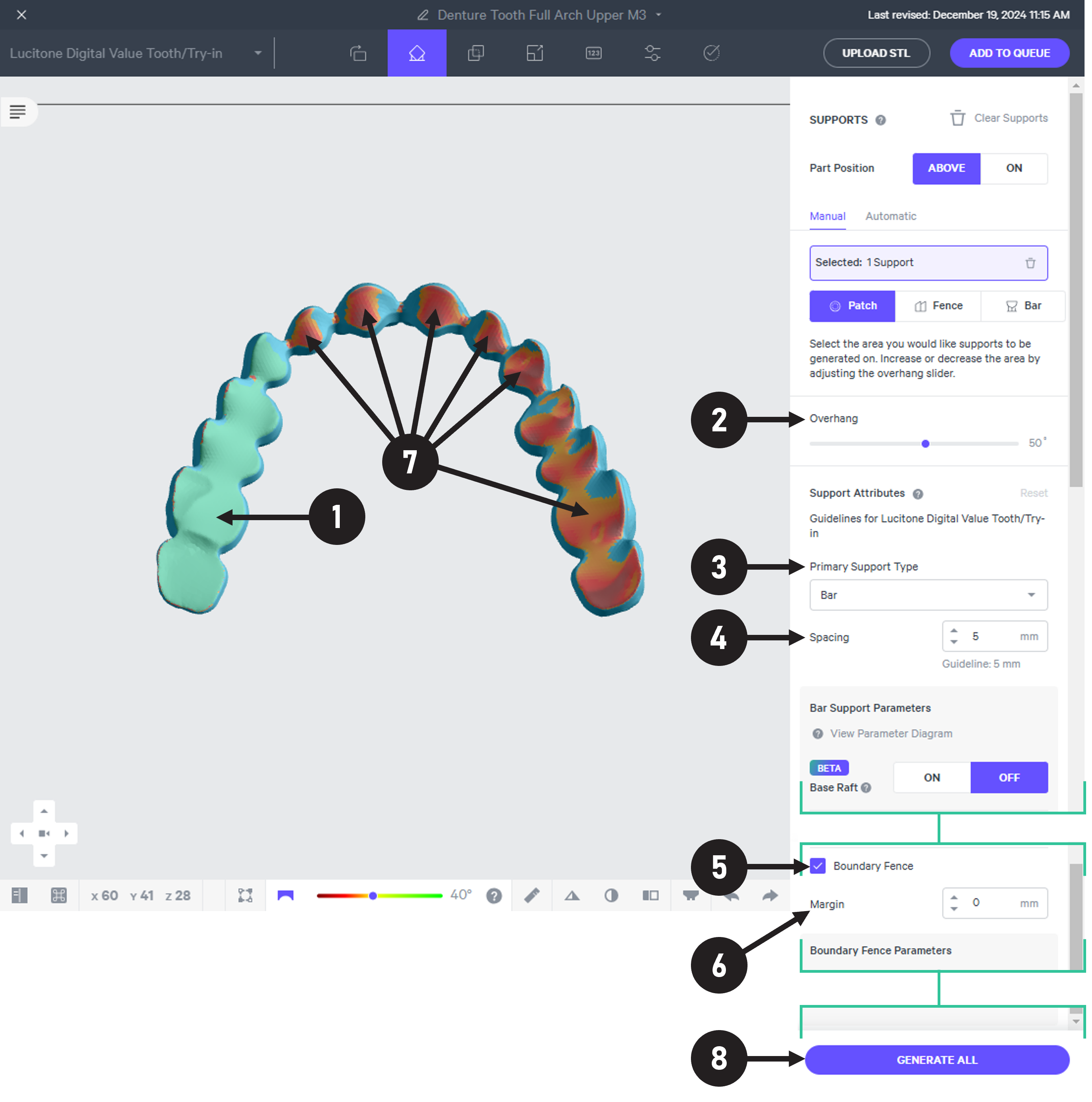
## Full Arches
::::VerticalSplit{layout="middle"}
:::VerticalSplitItem
1. Click on the **basal side** of the teeth to be supported.
- The patch settings will now appear in the right menu.
2. Set **Overhang Angle** to **50 degrees.**
3. Set **Primary Support Fill Type **to **Bar (default).**
4. Set **Spacing **to **5 mm (default).**
5. Make sure **Boundary Fence **is** checked (default).**
6. Set **Margin **to **0 mm (default).**
7. Continue clicking on remaining basal surfaces until all overhangs are selected. **Green **indicates current selection and **light purple** shows previous selection(s).
8. Click **Generate All** to create the supports.
:::
:::VerticalSplitItem
:::
::::
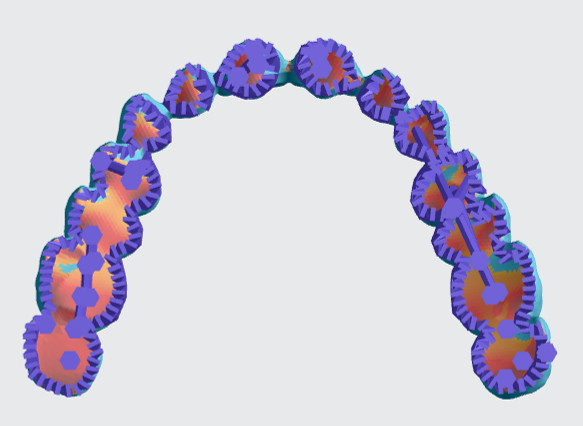
### Well Supported Example
::::VerticalSplit{layout="middle"}
:::VerticalSplitItem
**Intaglio**
:::
:::VerticalSplitItem
**Lingual**
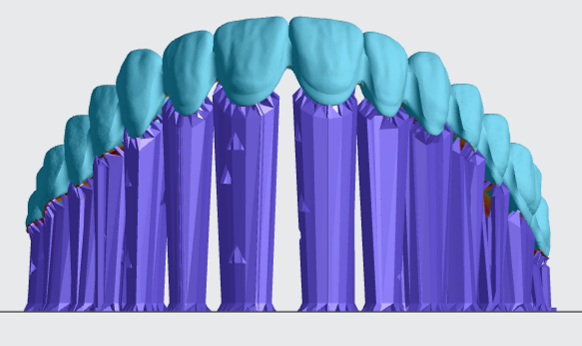
:::
::::
# Denture Try-Ins
## Orientation
### Proper orientation of Try-Ins
::::VerticalSplit{layout="middle"}
:::VerticalSplitItem
**LOWER TRY-IN**
- **65-degree**
- Intaglio surface faces platform

:::
:::VerticalSplitItem
**UPPER TRY-IN**
- **70-degree**
- Intaglio surface faces platform

:::
::::
### Make Parallel
::::VerticalSplit{layout="middle"}
:::VerticalSplitItem
Orient each try-in so that it is roughly parallel with the platform. This will ensure proper final tilt.
1. Click **Orient** in the main bar in the printer software.
2. Click **Minimize Footprint** button. This will orient the try-in **roughly perpendicular to the platform****.**
3. Orient the try-in so that the **tissue side is flat against the platform****.**
1. Type values in increments of **90 degrees **into the XYZ axis fields.
:::
:::VerticalSplitItem

:::
::::
### Spin
::::VerticalSplit{layout="middle"}
:::VerticalSplitItem
Spin the try-in around the Z axis so that the anterior of the try-in faces the bottom of the screen. This is necessary to ensure proper tilt angle in future steps.
1. Position the camera so you are looking straight down on the platform:
- **Push the Reset camera icon** in the lower left corner of the screen to the default view.
- Push **▲ to look straight down at platform****.**
2. Make sure that the anterior region of the try-in is facing the lower portion of the screen.
- Rotate the try-in as necessary **by entering values in the Z Axis field****.**
3. **Check that the model is properly oriented** and proceed to the next step.
:::
:::VerticalSplitItem

:::
::::
### Tilt Up
Now tilt the model up.
1. Click on the part to select it.
2. Tilt into position:
- **For lower try-ins, enter 65 into the X Axis field****.**
- **For upper try-ins, enter 70 into the X Axis field****.**
3. The **anterior** of each try-in should be touching the platform.
::::VerticalSplit{layout="middle"}
:::VerticalSplitItem
**LOWER TRY-IN**

:::
:::VerticalSplitItem
**UPPER TRY-IN**

:::
::::
## Supporting
The images below show the overall strategy for supporting try-ins.
- Support Try-Ins using **fences. **Each fence is a thin wall of support created by placing a series of dots on the Try-In surface.
- The most effective supports are built along the ridges of the Try-In, rather than on the tissue surface.
:::hint{type="warning"}
**Supports should never be created on the intaglio surface. **
:::
::::VerticalSplit{layout="middle"}
:::VerticalSplitItem
**UPPER TRY-IN**

:::
:::VerticalSplitItem
**LOWER TRY-IN**

:::
::::
### Enter Support Mode
::::VerticalSplit{layout="middle"}
:::VerticalSplitItem
1. Click **Supports** in the dark gray bar.
2. Under **Position**, select **Above Platform** to create room between the platform and the part.
3. Skip **Auto Support Method** as this mode is not recommended.
4. Click **Manually Add** to enter the **Edit Support **interface.
:::
:::VerticalSplitItem

:::
::::
### Setup
::::VerticalSplit{layout="middle"}
:::VerticalSplitItem
You will now see the support editing view. Optimize the interface for adding fences.
1. Click **Toggle Platform button** in the lower tool bar or press the **B key** to hide the platform. This will enable better visibility during fence creation.
2. Click **Overhang Detection button** **(V key)** to find areas that need support. Check that the angle is set to the default value of **40 degrees.**
:::
:::VerticalSplitItem

:::
::::
### Edges of Try-Ins
::::VerticalSplit{layout="middle"}
:::VerticalSplitItem
Support the edges of the try-in first. **Only lower Try-Ins require supports on the inner edge (pictured here).** Upper Try-Ins do not have an inner edge and therefore do not require supports.
1. Click **the fence icon** in the top menu bar.
2. Click a **series of points** along the edge to define the fence.
3. Click Esc key on keyboard to end a fence and begin another.
4. Hold down the E key and click with the mouse to reposition points.
5. Click **Generate** to create the fence geometry. This may take a few minutes.
:::
:::VerticalSplitItem

:::
::::
:::hint{type="warning"}
**Do not put supports on intaglio surfaces.**
:::
::::VerticalSplit{layout="middle"}
:::VerticalSplitItem
Here is an example of a fence created on the **outer edge of a lower Try-In.**
:::
:::VerticalSplitItem

:::
::::
::::VerticalSplit{layout="middle"}
:::VerticalSplitItem
Here is an example of a fence created on the **outer edge of an upper Try-In.**
- Be sure to apply fence all the way up the sides of the try-ins.
- Do not put supports on intaglio surfaces.
:::
:::VerticalSplitItem

:::
::::
### Anterior Surface of Try-Ins
::::VerticalSplit{layout="middle"}
:::VerticalSplitItem
Fences must be placed on the facials of anterior teeth. The area under each tooth must also be supported on **both upper and lower Try-Ins.** This is an example of anterior surface fences created on an **upper Try-In.**
- Create **two lines of fence supports** across the facial surface of anterior teeth to ensure a proper print.
- Be sure to apply the under tooth pocket fence so that it supports the **triangular area between teeth.**
- Use a **zigzag pattern** to support the central anterior area.
- Be careful not to make the supports too close together or they may merge into a solid mass.
:::
:::VerticalSplitItem

:::
::::
::::VerticalSplit{layout="middle"}
:::VerticalSplitItem
This is an example of anterior support fences on a **lower Try-In.**
:::
:::VerticalSplitItem

:::
::::
### Notes
- Supports need to be added along the **top support bar** of the lower Try-In.
- **Do not place supports on the intaglio surface.** Rely on edge supports to reinforce this area.

# Nesting
::::VerticalSplit{layout="right"}
:::VerticalSplitItem
1. Select the **Layout tab (Shift + L)** in the top menu bar.
2. Under **Auto Layout,** select **Gen2.**
- Gen2 usually gives the most effecient packing for dental devices.
3. **Padding** settings:
- For **denture teeth,** enter at least **1 mm.**
- For **denture try-ins, 5 mm** padding is recommended. Values down to 1 mm are acceptable.
4. Leave **Optimize starting rotation** unchecked.
- This leaves your parts in their previous orientations.
5. Leave **Allowed rotations** at the default setting.
- This gives the software maximum flexibility to fit the most possible parts on the build platform.
6. Press the **Auto Layout** button to arrange your parts.
:::
:::VerticalSplitItem

:::
::::
If necessary, nesting can be changed manually:
- Click and drag parts to adjust their position.
- Modify Z rotation by using the **Spin **tool or manual rotations under the **Orient tab** **(Shift + O).**
- Use the **Part List tab **as needed to more easily select models and focus on them.
# Print Preparation
## Print Controls
Click **Print Controls** or **Shift + P** in the top menu bar.

### Slicing
Set Slice Thickness to **Standard (100 µm).**
## Project Analysis
1. Select the **Project Analysis** tab.
2. Click **Start Analysis** and wait for the processing to complete.
1. Note the required resin volume and print time.
3. Click **Add to Queue.**

# Manufacturer Instructions for Use
::::LinkArray{contentSource="CUSTOM"}
:::LinkArrayItem{headerType="IMAGE" headerImage="https://api.archbee.com/api/optimize/3CesIL2dYMCHPZvRjp8S0/cJAKqDDnRUAeJAXNRThMm-20251016-221334.png"}
**[Manufacturer Instructions for Use](https://assets.dentsplysirona.com/websites/landingpages/english-united-states/lucitone-digital-print/documents-smile-way/LAB-IFU-Lucitone-Digital-Print-multilingual-906159-2021-02.pdf)**
:::
::::
# Questions & Support
**For questions about the resin properties, printing, washing or curing your denture teeth, please contact the Dentsply Sirona technical team:**
- Email: prosthetics.customerservice\@dentsplysirona.com
- Phone: 1-844-848-0137
For questions about your **Carbon printer** or **Carbon software settings** used for this resin, please [contact Carbon](https://learn.carbon3d.com/carbon-support):
- Email: [support@carbon3d.com](mailto\:support@carbon3d.com)
- Phone:
- **U.S. and Canada** 1-650-285-6307 option 2
- **Germany** +49 6102 5790849
- **UK **+44 (0) 2082 647484
- Printer UI: On the dashboard, select the **Prints** tab. **Select one of the printed projects.** Click **Request Help** in the lower right corner.
::Image[]{src="https://api.archbee.com/api/optimize/3CesIL2dYMCHPZvRjp8S0/YY6yCChSIB8SevmBwY76W_request-help-01.png" size="70" width="6541" height="3371" position="flex-start" alt="Location of button in the printer software" showCaption="false"}