---
title: Lucitone Digital Print 3D Denture Base
slug: materials/lucitone-digital-print-3d-denture-base
description: Unlock the potential of high-quality denture fabrication with our comprehensive guide on Lucitone Digital Print 3D Denture Base. This guide includes orientation and supporting recommendations.
docTags:
createdAt: 2024-07-24T01:02:09.149Z
---
::::VerticalSplit{layout="middle"}
:::VerticalSplitItem
**Lucitone Digital Print 3D Denture Base** is now available to produce denture bases. The material is a durable, biocompatible resin that produces premium dentures.
The following shades are available:
- Light
- Light Reddish Pink
- Original
- Original Opaque
- Dark Reddish Pink
:::
:::VerticalSplitItem

:::
::::
:::hint{type="success"}
This resin is compatible with the [AO Polishing Cassette](docId\:iFFh3q8-WLk-LIqr87bd5).
:::
:::hint{type="warning"}
When using the AO Polishing Cassette, denture bases must be oriented with the [posterior at platform](docId\:gegvFYfLs9BKHfa2wVVJu) and supported accordingly.
:::
## Resource Links
### About, IFU, SDS
::::LinkArray{contentSource="CUSTOM"}
:::LinkArrayItem{headerType="IMAGE" headerImage="https://api.archbee.com/api/optimize/uXbZOKjJTGpPhjapQ8fvM-IOQIJkNnkbUAw9Q-ap1FV-20241115-235121.jpg"}
**[About the Material](https://www.carbon3d.com/materials/lucitone-digital-print)**
:::
:::LinkArrayItem{headerType="IMAGE" headerImage="https://api.archbee.com/api/optimize/3CesIL2dYMCHPZvRjp8S0/cJAKqDDnRUAeJAXNRThMm-20251016-221334.png"}
**[Manufacturer Instructions for Use](https://www.dentsplysirona.com/en/customer-support/download-center.html?downloadfilter=offset%3D0%26pageSize%3D20%26sort%3Ddate-desc%26filterTag%3Dasset-type%3Adocuments%2Finstructions-for-use%26q%3Ddigital%2520print%2520denture)**
:::
:::LinkArrayItem{headerType="IMAGE" headerImage="https://api.archbee.com/api/optimize/3CesIL2dYMCHPZvRjp8S0/1r3fpdvMUMFVZGfey2Tjn-20251016-221405.jpg"}
**[Safety Data Sheet](https://www.dentsplysirona.com/en/customer-support/download-center.html?downloadfilter=offset%3D2%26pageSize%3D20%26sort%3Ddate-desc%26filterTag%3Dasset-type%3Adocuments%2Fsafety-data-sheet%26q%3Ddenture)**
*Search required*
:::
::::
### Protocol
This downloadable handout provides important usage information, including instructions about storage and post-processing. Print it out and bring it into the lab!
::File{src="https://api.archbee.com/api/presign/l3qPiIkNKH_ws5f331N8f-MPVoBYQK0Ep1aPWjbs_tJ-20240920-235325.pdf" label="Lucitone® Digital Print 3D Denture Resin v01.02.pdf"}
**Dental Post-Processing Grids**
::::VerticalSplit{layout="right"}
:::VerticalSplitItem
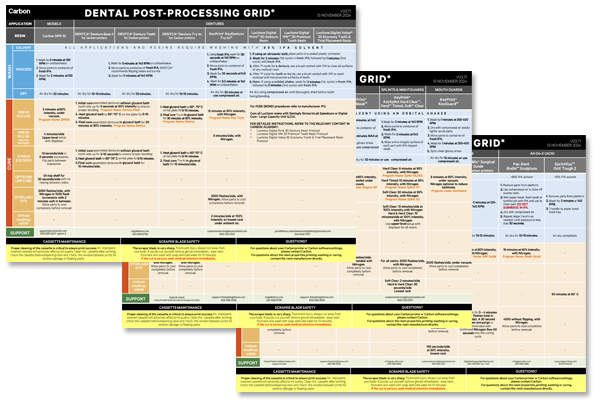
One of our most popular downloads! This table provides washing and curing instructions for all supported dental resins.
Print it and use it in the lab as a quick reference.
:::
:::VerticalSplitItem
:::
::::
::::VerticalSplit{layout="left"}
:::VerticalSplitItem
**English**
:::
:::VerticalSplitItem
::File{src="https://api.archbee.com/api/presign/3CesIL2dYMCHPZvRjp8S0/vQ2WsRger2d-CoLrn-m5f_dental-post-processing-grids-v0501.pdf" label="Dental-Post-Processing-Grids_v0501.pdf"}
:::
::::
::::VerticalSplit{layout="left"}
:::VerticalSplitItem
**German/Deutsch**
:::
:::VerticalSplitItem
::File{src="https://api.archbee.com/api/presign/uXbZOKjJTGpPhjapQ8fvM-seBSLAiWUzNDRI1GCLlop-20241125-214312.pdf" label="ZAHNÄRZTLICHES NACHBEARBEITUNGSGITTER v03.71 DE Deutsch.pdf"}
:::
::::
::::VerticalSplit{layout="left"}
:::VerticalSplitItem
**Spanish/Español**
:::
:::VerticalSplitItem
::File{src="https://api.archbee.com/api/presign/uXbZOKjJTGpPhjapQ8fvM-2i0UhzOfuA4aYJFusL1v2-20241203-180542.pdf" label="Rejilla de Posprocesamiento Dental v03.71 ES Espanol Spanish.pdf"}
:::
::::
# Print Preparation
There are two options to properly prepare your denture bases for printing:
- **manually**
- **automatically **using [Automate: Automatic Print Preparation (APP)](docId\:RdxnuAgHPa5GQfBl5QYSb)
:::hint{type="info"}
This guide provides instruction for **manual preparation.**
Reference [Denture Bases Automation Guidelines](docId\:ncGcxXQeyt610ogaVBKLe) if using APP. *`login required`*
:::
:::hint{type="success"}
Reference all [Printer UI](docId\:oId4ZNZtZYeltTPVJ984a) content for functionality and instructions not explicitly covered on this page.
:::
***
### Connect to Printer
::::VerticalSplit{layout="left"}
:::VerticalSplitItem
Connect to the printer software using your web browser.
:::
:::VerticalSplitItem
::Image[]{src="https://res.cloudinary.com/carbon3d/image/upload/t_auto_quality_format/Education/Materials/dental/__General_Use/Connect-printer_thumbnail.png" size="70" width="774" height="319" darkWidth="774" darkHeight="319" position="flex-start" alt="Connect to Printer" showCaption="false"}
:::
::::
::::::::ExpandableHeading
*Expand for steps*
:::::::WorkflowBlock
:::::WorkflowBlockItem
::::VerticalSplit{layout="middle"}
:::VerticalSplitItem
**Open browser**
Enter [https://print.carbon3d.com](https://print.carbon3d.com/) in the URL field.
:::
:::VerticalSplitItem
:::
::::
:::hint{type="info"}
Latest version of Chrome recommended.
:::
:::::
:::::WorkflowBlockItem
::::VerticalSplit{layout="middle"}
:::VerticalSplitItem
If you are not automatically logged in, enter your email and password and **click Log In****.**
:::
:::VerticalSplitItem
::Image[]{src="https://res.cloudinary.com/carbon3d/image/upload/t_auto_quality_format/Education/Materials/dental/__General_Use/Connect-login.png" size="60" width="561" height="677" darkWidth="561" darkHeight="677" position="center" alt="Carbon Log In" showCaption="false"}
:::
::::
:::::
::::::WorkflowBlockItem
:::::VerticalSplit{layout="middle"}
::::VerticalSplitItem
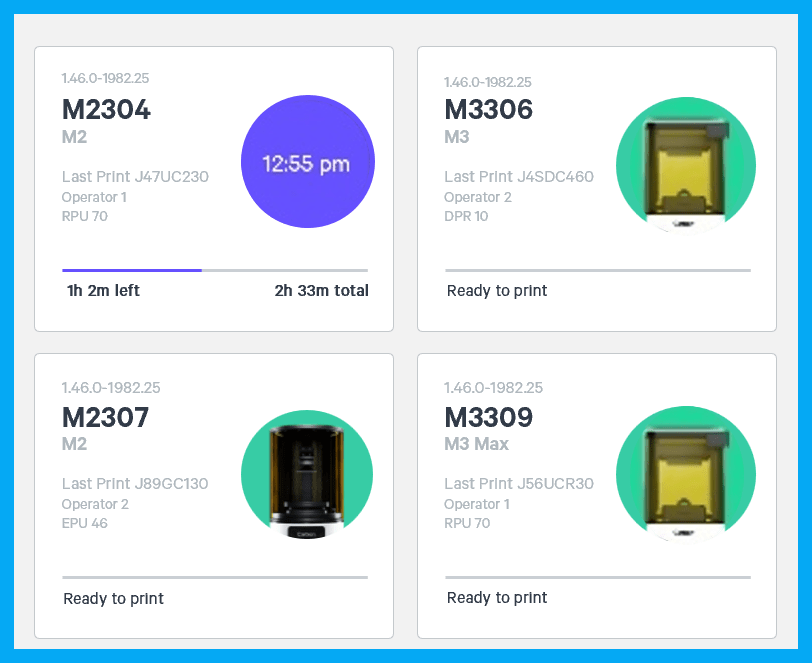
If you have multiple printers, **select the printer** that you wish to use to create the project.
:::hint{type="info"}
You may queue the build to other printers.
:::
::::
:::VerticalSplitItem
:::
:::::
::::::
:::::::
::::::::
***
### Create Project
::::VerticalSplit{layout="left"}
:::VerticalSplitItem
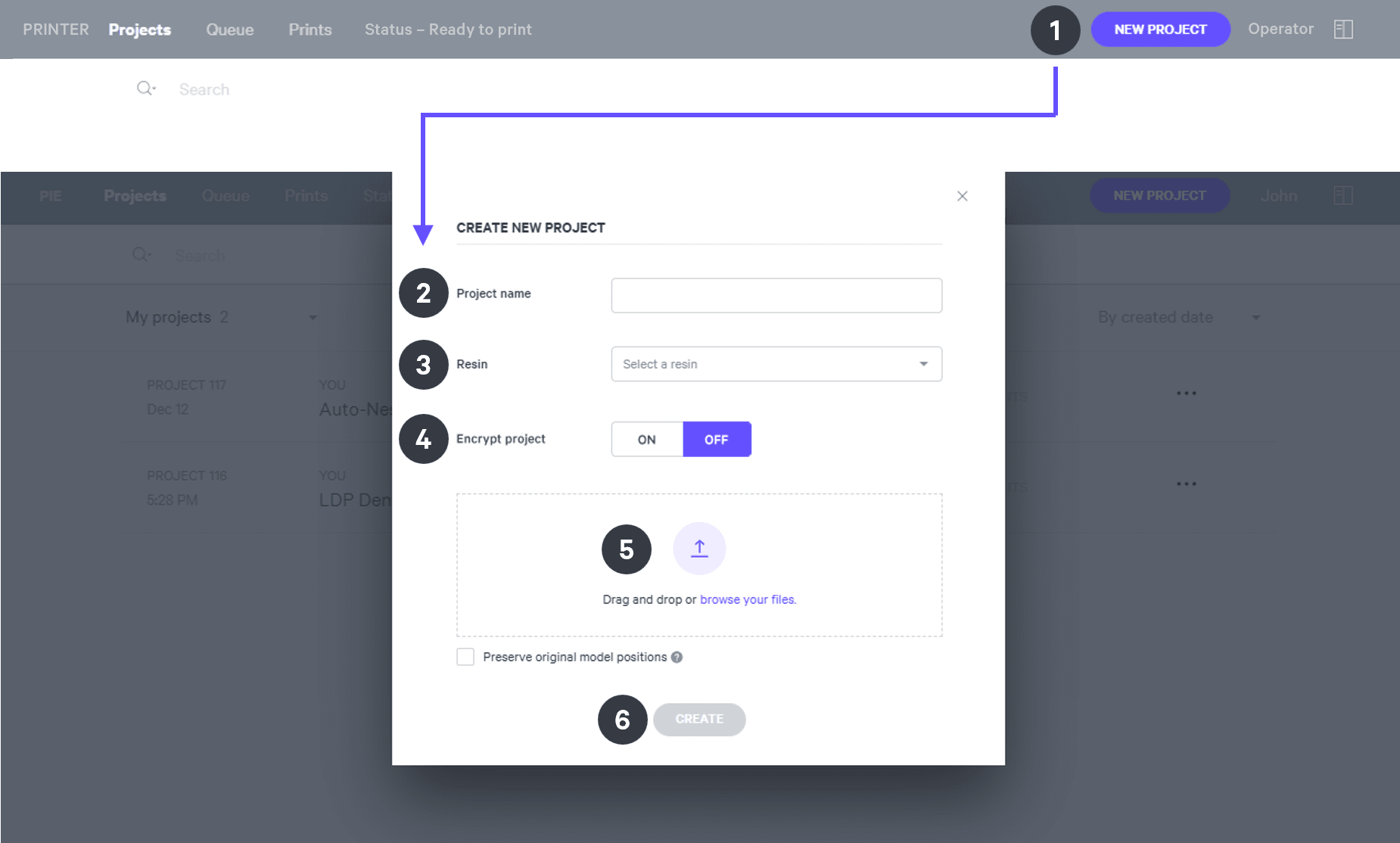
After you have chosen the printer, you must create a new project.
:::
:::VerticalSplitItem
::Image[]{src="https://res.cloudinary.com/carbon3d/image/upload/t_auto_quality_format/Education/Materials/dental/__General_Use/Create-project_thumbnail.png" size="70" width="673" height="247" darkWidth="673" darkHeight="247" position="flex-start" alt="Create Project" showCaption="false"}
:::
::::
::::::ExpandableHeading
*Expand for steps*
:::::WorkflowBlock
:::WorkflowBlockItem
Click **New Project.**
You can also drag your files from a file browser window and drop it on top of the **New Project** icon.
:::
:::WorkflowBlockItem
Enter a new **Project name.**
:::
:::WorkflowBlockItem
In the Resin dropdown, select **your resin.**
:::
::::WorkflowBlockItem
Only use [Encrypt project](docId:1bT3mas8msvxq9CDza67C) if you want to require a password to access the project.
:::hint{type="warning"}
**Carbon cannot provide support** for encrypted projects.
:::
::::
:::WorkflowBlockItem
**Drag and drop** your part files into the dotted box or click **browse your files **and select them in a file browser window.
:::
:::WorkflowBlockItem
Click **Create**
After a few moments you will see the project printer interface with your parts on the platform.
:::
:::::
::::::
***
::::::::::WorkflowBlock
:::::::::WorkflowBlockItem
## Orientation and Supports
**Orientation and Supports** varies by orientation strategy. Select your preferred option when using a manual workflow.
- Anterior at Platform
- Posterior at Platform
`Orientation used automatically by APP`
::::::::ExpandableHeading
### Anterior at Platform
:::hint{type="warning"}
Anterior at platform orientation is not valid for printing with the AO Polishing Cassette.
:::
**Orient**
::::VerticalSplit{layout="middle"}
:::VerticalSplitItem
**Lower Denture Base **
Goal
- **65**° tilt
- Intaglio surface faces platform
- **Anterior **touches platform
:::
:::VerticalSplitItem
**Upper Denture Base**
Goal
- **70**° tilt
- Intaglio surface faces platform
- **Anterior **touches platform
:::
::::
::::VerticalSplit{layout="middle"}
:::VerticalSplitItem
::Image[]{src="https://api.archbee.com/api/optimize/3CesIL2dYMCHPZvRjp8S0/stShcLZHJa0sUtXedwdNj_image.png" size="78" width="1680" height="1680" darkWidth="1680" darkHeight="1680" position="center" alt="Lower Denture Base" showCaption="false"}
:::
:::VerticalSplitItem
::Image[]{src="https://api.archbee.com/api/optimize/3CesIL2dYMCHPZvRjp8S0/PbBQlkMazsjpS-VZBoH0x_image.png" size="78" width="1680" height="1679" darkWidth="1680" darkHeight="1679" position="center" alt="Upper Denture Base" showCaption="false"}
:::
::::
:::hint{type="success"}
💡 The **LOWER** denture base gets the **LOWER angle**.
:::
::::::WorkflowBlock
:::WorkflowBlockItem
Click on **Orient **`Shift + O` in the top bar in the printer interface.

:::
:::WorkflowBlockItem
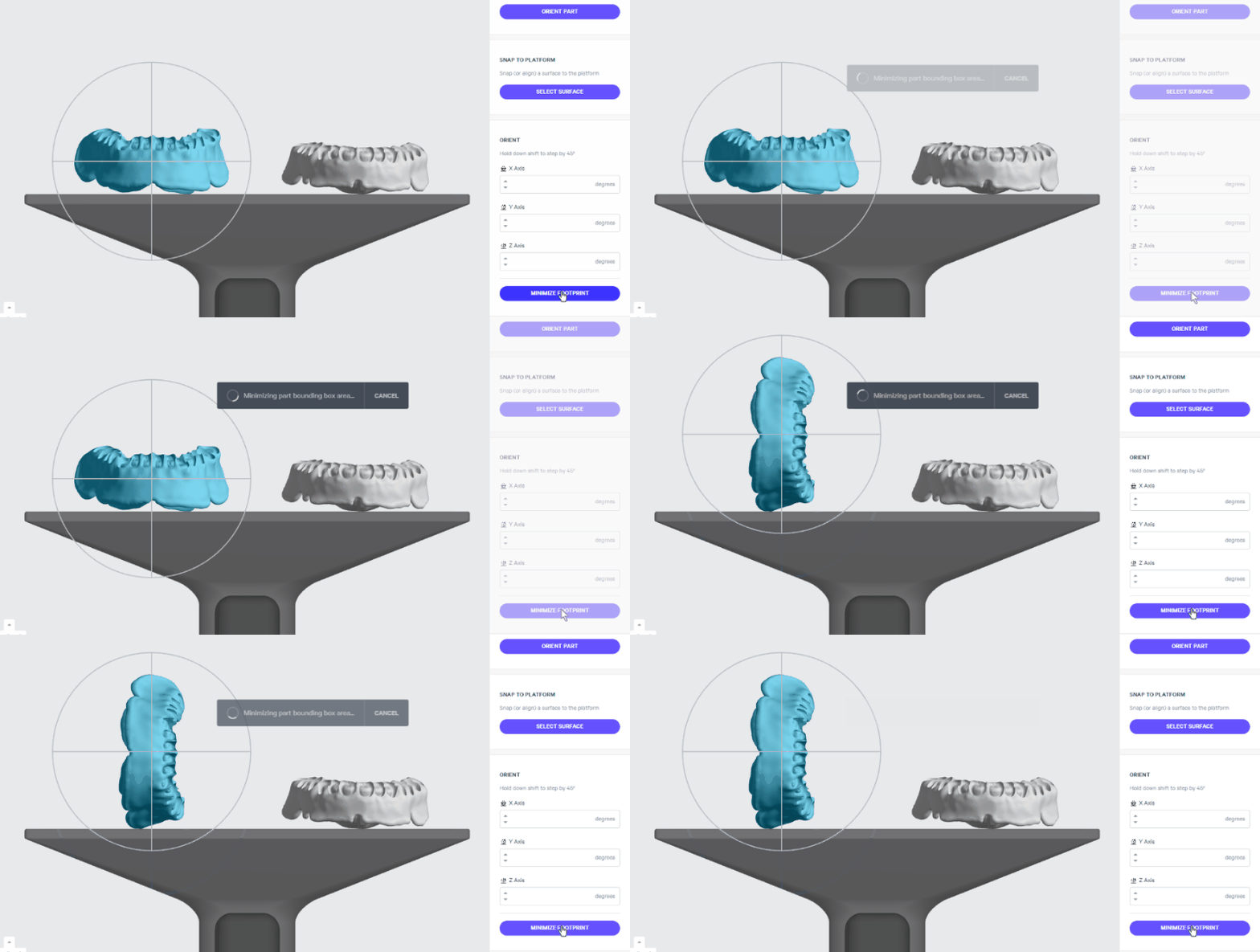
Click **Minimize Footprint** button.
This will orient the base roughly perpendicular to the platform.
:::
::::WorkflowBlockItem
**Manually **lay the** denture flat.**
The intaglio surface (tissue side) should face the platform.
- Click on the denture to select it.
- Hover over the axis loop seen while looking at the front of the denture. *The ****green*** *Y axis in this example.*
- Click and hold on the axis loop and rotate until the denture is roughly parallel to the platform.

:::hint{type="info"}
💡Change views and adjust as needed until the denture is positioned. *Adjusting the **red** X axis in this example from the side view.*
Hold **Shift** while rotating to move in 45 degree increments.
:::
::::
:::::WorkflowBlockItem
**Tilt** Into Position
- Click on the denture to select it.
- Hover over the axis loop seen while looking at the side of the denture. *The * *X axis in this example.*
- Click and hold on the axis loop and rotate to the specified angle so the **anterior** of the denture is touching the platform.
::::VerticalSplit{layout="middle"}
:::VerticalSplitItem
**Lower Denture Base**

:::
:::VerticalSplitItem
**Upper Denture Bases**

:::
::::
:::::
::::::
**Supports**
:::hint{type="danger"}
**No **supports on** intaglio surfaces**.
:::
:::::::WorkflowBlock
:::::WorkflowBlockItem
**Set Up** UI for Supports
::::VerticalSplit{layout="middle"}
:::VerticalSplitItem
**Toggle Platform OFF**

- Click **Toggle Platform **in the bottom bar
**`B`**` shortcut`
:::
:::VerticalSplitItem
**Overhang Detection 30°**

- Click **Overhang Detection **in the bottom bar
**`V`**` shortcut`
- Set angle to 30°
:::
::::
:::::
::::::WorkflowBlockItem
Enter **Manual Fence** Support Mode
:::::ExpandableHeading{isOpen="true"}
::::WorkflowBlock
:::WorkflowBlockItem
Click on **Supports **`Shift + S` in the top bar in the printer interface.

:::
:::WorkflowBlockItem
Under **Part Position**, select **Above** to create room between the platform and the part.
::Image[]{src="https://res.cloudinary.com/carbon3d/image/upload/t_auto_quality_format/Education/Materials/dental/__General_Use/Support-part-position-above.png" size="80" width="355" height="62" darkWidth="355" darkHeight="62" position="center" alt="Part Position - Above" showCaption="false"}
:::
:::WorkflowBlockItem
Click the **Manual** tab and select **Fence**.
::Image[]{src="https://res.cloudinary.com/carbon3d/image/upload/t_auto_quality_format/Education/Materials/dental/__General_Use/Support-fence-menu.png" size="82" width="350" height="110" darkWidth="350" darkHeight="110" position="center" alt="Manual Tab - Fence Mode" showCaption="false"}
:::
:::WorkflowBlockItem
Leave the **Support Attributes** at the default values.
:::
::::
:::::
**Manual Fence Supports**
Place fence supports for the following denture base conditions where illustrated in the examples below.
- Denture Base Edges
- Tooth Pockets
- T-bars
:::::ExpandableHeading{isOpen="true"}
Manual Fence Workflow
::::WorkflowBlock
:::WorkflowBlockItem
Click a series of points along the **edge of red areas** to define the fence.
:::
:::WorkflowBlockItem
Click **Esc** key on keyboard to end a fence and begin another.
:::
:::WorkflowBlockItem
Hold down the **E** key and click with the mouse to **reposition points**.
:::
:::WorkflowBlockItem
Click **Generate All** to create the fence geometry. *This may take a few minutes.*
:::
::::
:::::
**Error: Support Couldn't Be Added**
::::VerticalSplit{layout="middle"}
:::VerticalSplitItem
Sometimes an **error **will occur when you try to generate a new fence.
If this happens, the points will turn pink and an error message will appear.
:::
:::VerticalSplitItem

:::
::::
:::hint{type="info"}
💡Try making multiple shorter fences or try adding the fence in a slightly different place.
:::
::::::
:::::WorkflowBlockItem
Support **Denture Edges**
::::VerticalSplit{layout="middle"}
:::VerticalSplitItem
Click along** red areas on edges, **indicated by the Overhang Detection tool.
- Upper dentures
- Outer/buccal edge
- Posterior edge
- Lower dentures
- Outer/buccal edges
- Inner/lingual
:::
:::VerticalSplitItem

:::
::::
:::hint{type="info"}
On outer/buccal edges, support at least the **width of the 6 anterior teeth**.
:::
**Upper Denture Base**
::Image[]{src="https://api.archbee.com/api/optimize/l3qPiIkNKH_ws5f331N8f-0mvOdWDqiZah3AGoQaYjD-20240920-231600.gif" size="92" width="1036" height="728" darkWidth="1036" darkHeight="728" position="center" caption="Upper Denture Base Outer Edge" alt="Upper Denture Base Outer Edge" showCaption="true"}
Although **upper dentures** do not have an inner edge, they may require** supports along the posterior edge** to ensure proper accuracy.
Define points along the edge to generate a fence support.

**Lower Denture Base**
::Image[]{src="https://api.archbee.com/api/optimize/l3qPiIkNKH_ws5f331N8f-_yjpqygAqq6lFumjfqRbA-20240920-231638.gif" size="92" width="1036" height="728" darkWidth="1036" darkHeight="728" position="center" caption="Lower Denture Base Outer Edge" alt="Lower Denture Base Outer Edge" showCaption="true"}
::Image[]{src="https://api.archbee.com/api/optimize/l3qPiIkNKH_ws5f331N8f-FtiUIM-EiTufcLq6P69rL-20240920-231719.gif" size="92" width="1036" height="728" darkWidth="1036" darkHeight="728" position="center" caption="Lower Denture Base Inner Edge" alt="Lower Denture Base Inner Edge" showCaption="true"}
:::::
:::::WorkflowBlockItem
Support **Tooth Pockets**
The areas below tooth pockets must be supported.
- **Support both upper and lower dentures.**
- Be sure to support the **papillae (triangular area between teeth). **
- Support under all pockets that have overhangs indicated in red.
- **Adding supports in tooth pockets is discouraged as it may require additional finishing and may affect tooth fit.**
::::VerticalSplit{layout="middle"}
:::VerticalSplitItem
**Lower Denture**

:::
:::VerticalSplitItem
**Upper Denture**

:::
::::
::::VerticalSplit{layout="middle"}
:::VerticalSplitItem

:::
:::VerticalSplitItem

:::
::::
:::::
:::WorkflowBlockItem
Support **T-Bars**

:::
::::::WorkflowBlockItem
Support **Anterior Area**
The last area requiring supports will use the **Patch** support tool to fill the area with fence supports. The outer anterior area is typically a large overhang that requires dense supports.
This is required for **both upper **and **lower dentures. **The example pictured below is an **upper denture.**
:::::ExpandableHeading{isOpen="true"}
::::WorkflowBlock
:::WorkflowBlockItem
While in the Supports menu, click the **Manual** tab and select **Patch**.
:::
:::WorkflowBlockItem
**Click in the large overhang** on the anterior of the upper base. A green patch will appear.
:::
:::WorkflowBlockItem
Under **Support Attributes** click **Primary Support Type** and select **Fence**.
:::
:::WorkflowBlockItem
In the **Spacing** box, type **3.5 mm**.
:::
:::WorkflowBlockItem
Scroll down to the bottom of the Supports menu and turn **Boundary Fence OFF**.
:::
:::WorkflowBlockItem
Adjust the **Overhang** slider until the red highlighted overhang areas are covered by the green patch. Typically this will be between **35° - 45°**.
:::
:::WorkflowBlockItem
Click **Generate All**.
:::
::::
::embed[]{url="https://player.vimeo.com/video/782400225?dnt=1"}
:::::
::::::
:::::::
**Examples of Well Supported Dentures**
Use the images below as a reference for well supported upper and lower dentures.
::::VerticalSplit{layout="middle"}
:::VerticalSplitItem

:::
:::VerticalSplitItem

:::
::::
::::VerticalSplit{layout="middle"}
:::VerticalSplitItem

:::
:::VerticalSplitItem

:::
::::
::::::::
::::::::ExpandableHeading
### Posterior at Platform
:::hint{type="warning"}
Posterior at platform orientation must be used for printing with the [AO Polishing Cassette](docId\:iFFh3q8-WLk-LIqr87bd5).
:::
**Orient**
::::VerticalSplit{layout="middle"}
:::VerticalSplitItem
**Lower and Upper Dentures Bases**
Goal
- **70°** tilt
- Intaglio surface faces platform
- **Posterior **touches platform
:::
:::VerticalSplitItem

:::
::::
:::::WorkflowBlock
:::WorkflowBlockItem
Click on **Orient **`Shift + O` in the top bar in the printer interface.

:::
:::WorkflowBlockItem
Click **Minimize Footprint** button.
This will orient the base roughly perpendicular to the platform.

:::
::::WorkflowBlockItem
**Manually **lay the** denture flat.**
The intaglio surface (tissue side) should face the platform.
- Click on the denture to select it.
- Hover over the axis loop seen while looking at the front of the denture.
*The ****green*** *Y axis in this example.*
- Click and hold on the axis loop and rotate until the denture is roughly parallel to the platform.

:::hint{type="info"}
💡Change views and adjust as needed until the denture is positioned. *Adjusting the ****red**** X axis in this example from the side view.*
Hold **Shift** while rotating to move in 45 degree increments.
:::
::::
:::WorkflowBlockItem
**Tilt** Into Position
- Click on the denture to select it.
- Hover over the axis loop seen while looking at the side of the denture. *The * *X axis in this example.*
- Click and hold on the axis loop and rotate to the specified angle so the **posterior** of the denture is touching the platform.
::Image[]{src="https://api.archbee.com/api/optimize/l3qPiIkNKH_ws5f331N8f-nodMTrKPbINGUU77InU-v-20240920-230457.gif" size="86" width="600" height="600" darkWidth="600" darkHeight="600" position="center" caption="Rotate 70°" alt="Rotate 70°" showCaption="true"}
:::
:::::
**Supports**
:::hint{type="danger"}
**No** supports on **intaglio surfaces**.
:::
:::::::WorkflowBlock
:::::WorkflowBlockItem
**Set Up** UI for Supports
::::VerticalSplit{layout="middle"}
:::VerticalSplitItem
**Toggle Platform OFF**

- Click **Toggle Platform **in the bottom bar
**`B`**` shortcut`
:::
:::VerticalSplitItem
**Overhang Detection 30°**
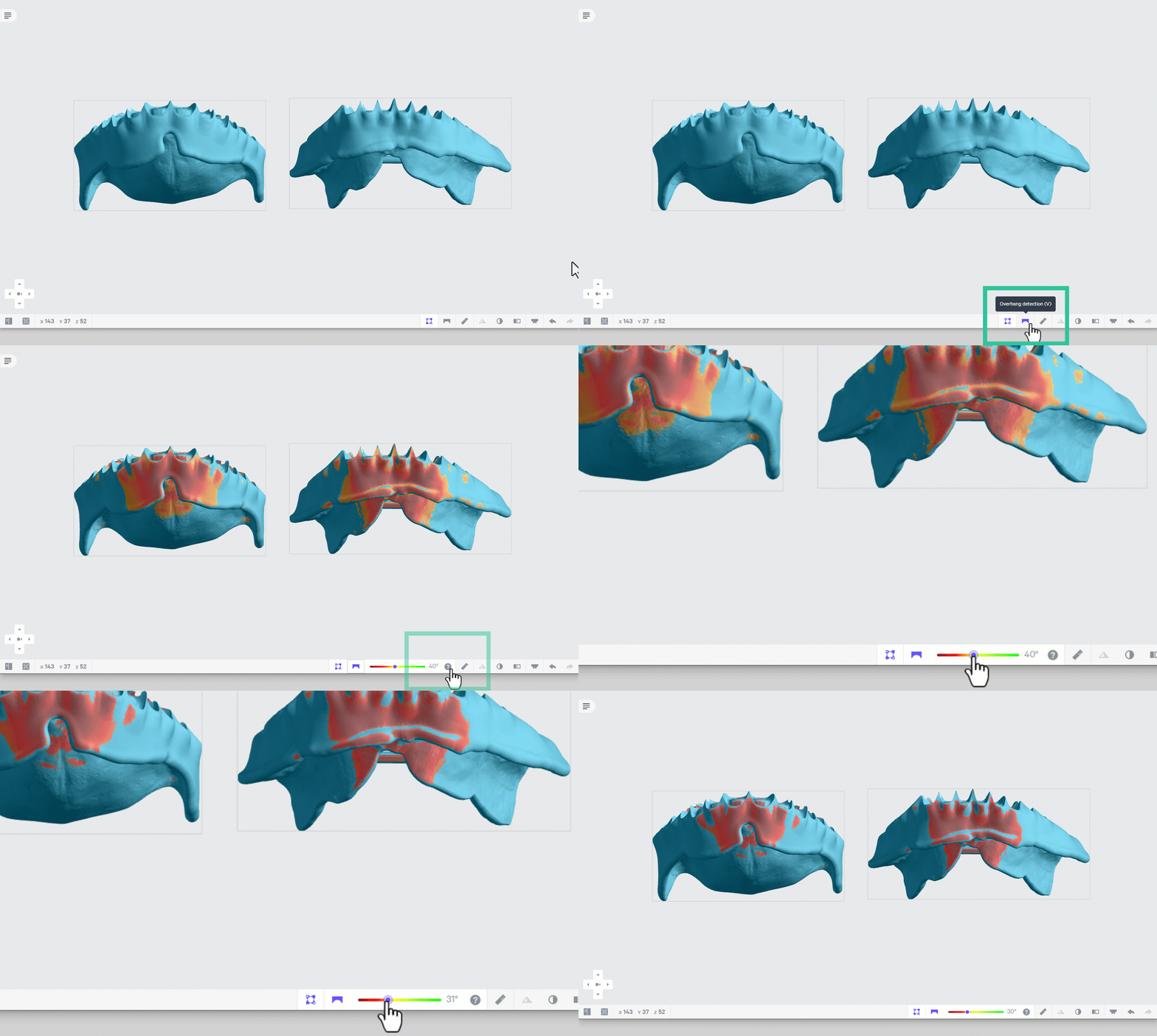
- Click **Overhang Detection **in the bottom bar
**`V`**` shortcut`
- Set angle to **30°**
:::
::::
:::::
::::::WorkflowBlockItem
Enter **Manual Fence** Support Mode
:::::ExpandableHeading{isOpen="true"}
::::WorkflowBlock
:::WorkflowBlockItem
Click on **Supports **`Shift + S` in the top bar in the printer interface.

:::
:::WorkflowBlockItem
Under **Part Position**, select **Above** to create room between the platform and the part.
::Image[]{src="https://res.cloudinary.com/carbon3d/image/upload/t_auto_quality_format/Education/Materials/dental/__General_Use/Support-part-position-above.png" size="80" width="355" height="62" darkWidth="355" darkHeight="62" position="center" alt="Part Position - Above" showCaption="false"}
:::
:::WorkflowBlockItem
Click the **Manual** tab and select **Fence**.
::Image[]{src="https://res.cloudinary.com/carbon3d/image/upload/t_auto_quality_format/Education/Materials/dental/__General_Use/Support-fence-menu.png" size="82" width="350" height="110" darkWidth="350" darkHeight="110" position="center" alt="Manual Tab - Fence Mode" showCaption="false"}
:::
:::WorkflowBlockItem
Leave the **Support Attributes** at the default values.
:::
::::
:::::
**Manual Fence Supports**
Place fence supports for the following denture base conditions where illustrated in the examples below.
- Denture Base Edges
- T-bars
:::::ExpandableHeading{isOpen="true"}
Manual Fence Workflow
::::WorkflowBlock
:::WorkflowBlockItem
Click a series of points along the **edge of red areas** to define the fence.
:::
:::WorkflowBlockItem
Click **Esc** key on keyboard to end a fence and begin another.
:::
:::WorkflowBlockItem
Hold down the **E** key and click with the mouse to **reposition points**.
:::
:::WorkflowBlockItem
Click **Generate All** to create the fence geometry. *This may take a few minutes.*
:::
::::
:::::
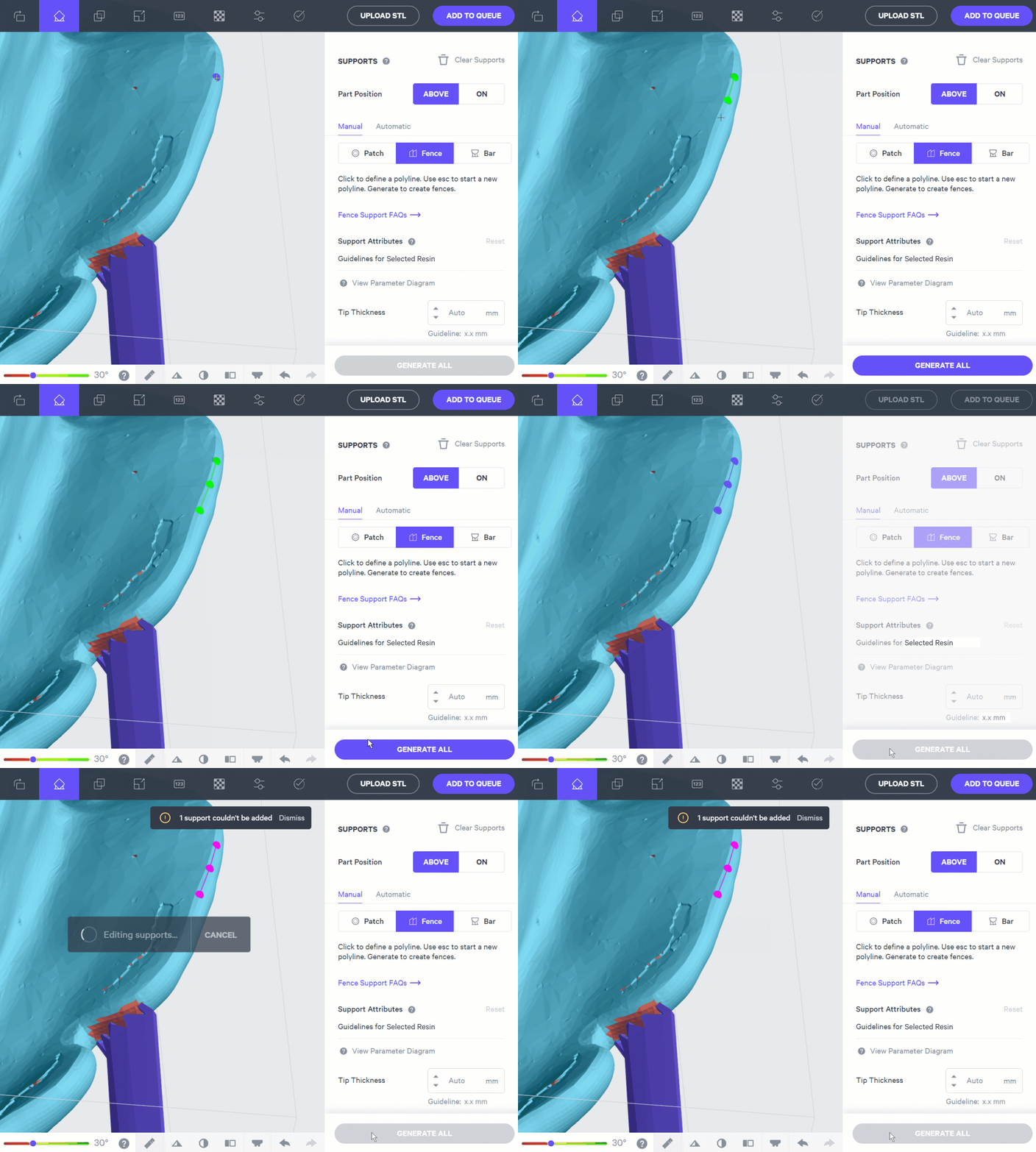
**Error: Support Couldn't Be Added**
::::VerticalSplit{layout="left"}
:::VerticalSplitItem
Sometimes an **error **will occur when you try to generate a new fence.
If this happens, the points will turn pink and an error message will appear.
:::
:::VerticalSplitItem
:::
::::
:::hint{type="info"}
💡Try making multiple shorter fences or try adding the fence in a slightly different place.
:::
::::::
:::::WorkflowBlockItem
Support **Denture Edges**
::::VerticalSplit{layout="left"}
:::VerticalSplitItem
Click along **red areas on edges**, indicated by the Overhang Detection tool.
:::
:::VerticalSplitItem

:::
::::
::::VerticalSplit{layout="middle"}
:::VerticalSplitItem

:::
:::VerticalSplitItem

:::
::::
:::::
:::::WorkflowBlockItem
Support **T-Bars**
::::VerticalSplit{layout="left"}
:::VerticalSplitItem
Click along **red areas on edges**, indicated by the Overhang Detection tool.
:::
:::VerticalSplitItem

:::
::::
:::::
::::::WorkflowBlockItem
Support **Cameo Surface**
The last area requiring supports will use the **Patch** support tool to fill the area with fence supports. The lingual cameo surface is typically a large overhang that requires dense supports.
This is required for **lower dentures**.
:::::ExpandableHeading{isOpen="true"}

::::WorkflowBlock
:::WorkflowBlockItem
While in the Supports menu, click the **Manual** tab and select **Patch**.
:::
:::WorkflowBlockItem
**Click in the large overhang** on the cameo surface. A green patch will appear.
:::
:::WorkflowBlockItem
Under **Support Attributes** click **Primary Support Type** and select **Fence**.
:::
:::WorkflowBlockItem
In the **Spacing** box, type **3.5 mm**.
:::
:::WorkflowBlockItem
Scroll down to the bottom of the Supports menu and turn **Boundary Fence ON**.
:::
:::WorkflowBlockItem
Adjust the **Overhang** slider until the red highlighted overhang areas are covered by the green patch. Typically this will be between **35° - 45°**.
:::
:::WorkflowBlockItem
Click **Generate All**.
:::
::::
:::::
::::::
:::::::
**Examples of Well Supported Dentures**
Use the images below as a reference for well supported upper and lower dentures using the posterior at platform orientation.
::::VerticalSplit{layout="middle"}
:::VerticalSplitItem
**Upper Denture**

:::
:::VerticalSplitItem
**Lower Denture**

:::
::::
::::VerticalSplit{layout="middle"}
:::VerticalSplitItem

:::
:::VerticalSplitItem

:::
::::
::::VerticalSplit{layout="middle"}
:::VerticalSplitItem

:::
:::VerticalSplitItem

:::
::::
::::::::
:::::::::
::::::WorkflowBlockItem
## Layout
:::::ExpandableHeading{isOpen="true"}
::::WorkflowBlock
:::WorkflowBlockItem
Click on **Layout **`Shift + L` in the top bar in the printer interface.

:::
:::WorkflowBlockItem
Under **Auto Layout**, select **Gen2**.
:::
:::WorkflowBlockItem
Enter at least **1 mm** in **Padding**.
:::
:::WorkflowBlockItem
Leave **Optimize starting rotation** **unchecked**.
:::
:::WorkflowBlockItem
Leave **Allowed rotations** at the** default **setting.
:::
:::WorkflowBlockItem
Press the **Auto Layout **button to arrange your parts.
:::
::::
::Image[]{src="https://res.cloudinary.com/carbon3d/image/upload/t_auto_quality_format/Education/Materials/dental/__General_Use/layout-numbered02.png" size="54" width="761" height="952" position="center" alt="Auto Layout" darkWidth="761" darkHeight="952" showCaption="false"}
If necessary, part layout can be changed manually:
- Click and drag parts to adjust their position.
- Modify Z rotation by using the **Spin **tool.
- Use the **Part List tab **as needed to more easily select models and focus on them.
:::::
::::::
::::::::WorkflowBlockItem
## Print Controls
:::::::ExpandableHeading{isOpen="true"}
::::::WorkflowBlock
:::WorkflowBlockItem
Click on **Print Controls **`Shift + P` in the top bar in the printer interface.

:::
:::::WorkflowBlockItem
::::VerticalSplit{layout="middle"}
:::VerticalSplitItem
Set Slice Thickness to **Standard (100 µm).**
:::
:::VerticalSplitItem

:::
::::
:::hint{type="warning"}
**Reducing** the slice thickness will **increase print time** and may **reduce part quality and accuracy**.
:::
:::::
::::::
:::::::
::::::::
::::::WorkflowBlockItem
## Project Analysis
:::::ExpandableHeading{isOpen="true"}
::::WorkflowBlock
:::WorkflowBlockItem
Click on **Project Analysis **`Shift + A` in the top bar in the printer interface.

:::
:::WorkflowBlockItem
Click **Start Analysis** and wait for the processing to complete.
:::
:::WorkflowBlockItem
Note the following [Print Stats](docId\:gfR-GoC-Irq_L9_KanC-X)
- **Required Resin Volume**
You will use this number to dispense the correct amount of resin.
- Print Time
- Estimated Increase in Soil Load
:::
:::WorkflowBlockItem
Review warnings for
- [Unvented Volumes](docId\:gfR-GoC-Irq_L9_KanC-X)
- [Slices](docId\:gfR-GoC-Irq_L9_KanC-X)
- [Islands](docId\:gfR-GoC-Irq_L9_KanC-X)
:::
:::WorkflowBlockItem
Click **Add to Queue**
:::
::::
:::::
::::::
::::::::::
# Post-Processing
Follow [Manufacturer Instructions for Use (IFU)](docId\:gegvFYfLs9BKHfa2wVVJu) and [Protocol](docId\:gegvFYfLs9BKHfa2wVVJu).
# Questions & Support
## Dentsply Sirona
For questions about the **resin properties**, printing, washing or curing your denture teeth, please contact the Dentsply Sirona technical team:
- Email: [prosthetics.customerservice@dentsplysirona.com](mailto\:prosthetics.customerservice@dentsplysirona.com)
- Phone: 1-844-848-0137
## Carbon
For questions about your **Carbon printer** or **Carbon software settings** used for this resin, please [contact Carbon](https://learn.carbon3d.com/carbon-support):
- Email: [support@carbon3d.com](mailto\:support@carbon3d.com)
- Phone:
- **U.S. and Canada** 1-650-285-6307 option 2
- **Germany** +49 6102 5790849
- **UK **+44 (0) 2082 647484
- Printer UI: On the dashboard, select the **Prints** tab. **Select one of the printed projects.** Click **Request Help** in the lower right corner.
::Image[]{src="https://api.archbee.com/api/optimize/3CesIL2dYMCHPZvRjp8S0/YY6yCChSIB8SevmBwY76W_request-help-01.png" size="70" width="6541" height="3371" position="flex-start" alt="Location of button in the printer software" showCaption="false"}