Dental Materials
Keystone KeySplint Soft Clear
15 min
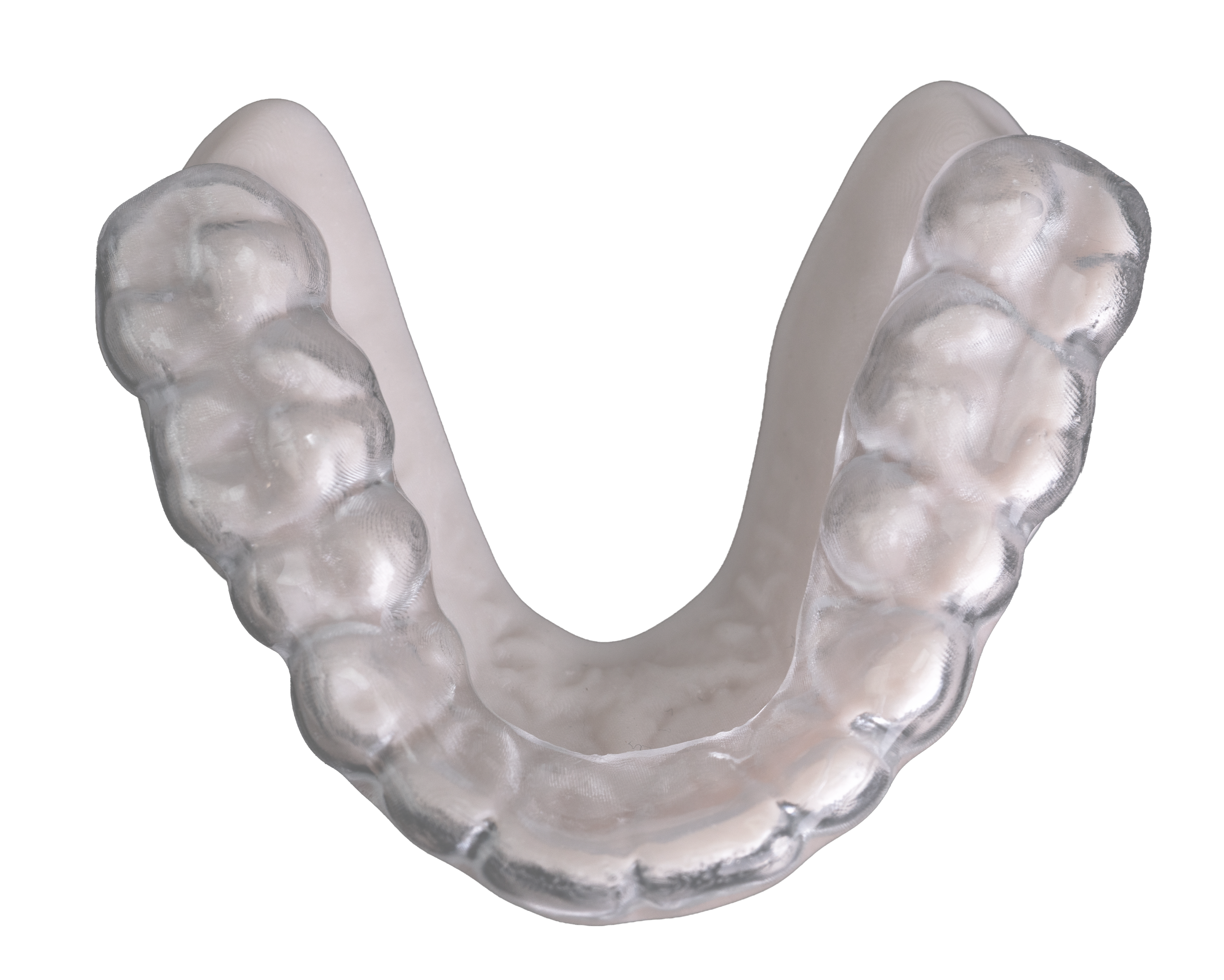
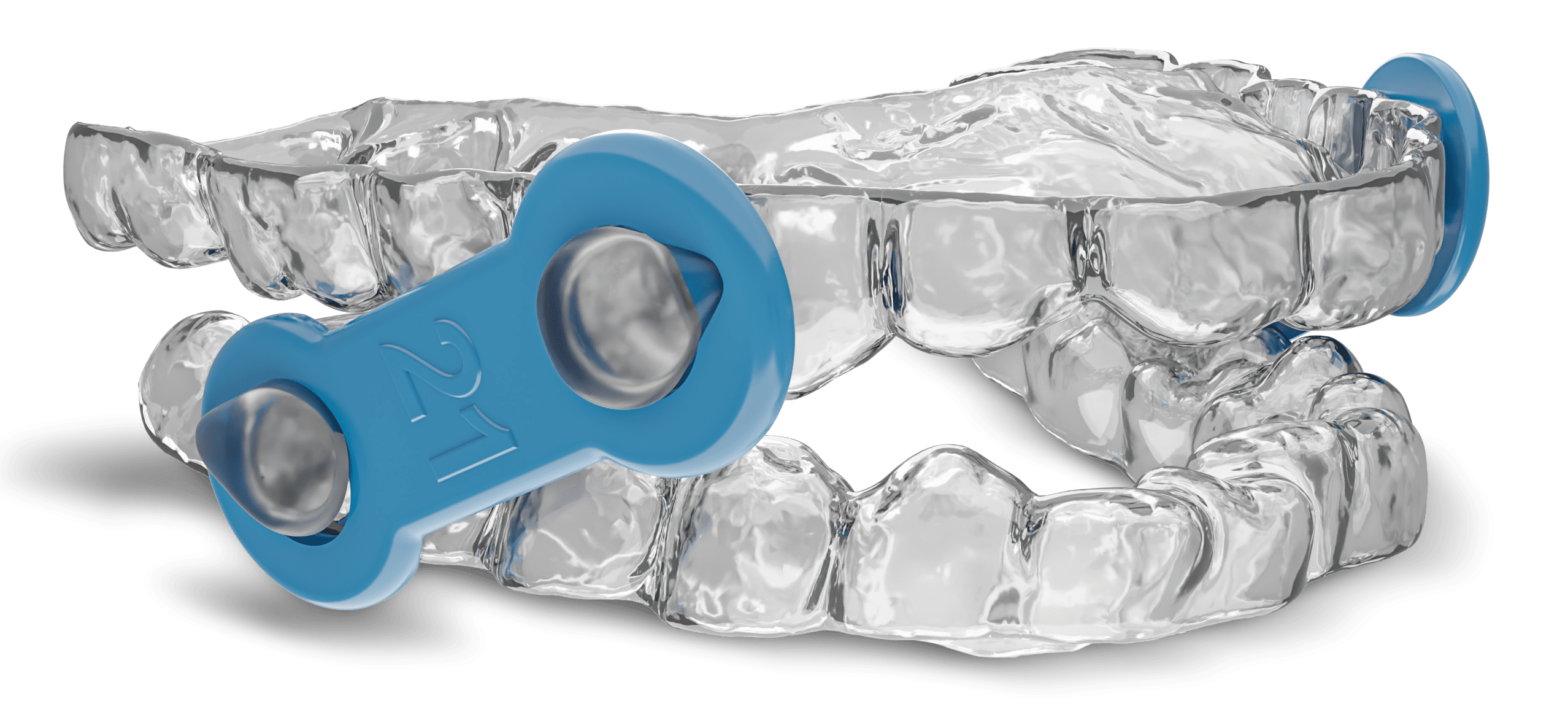
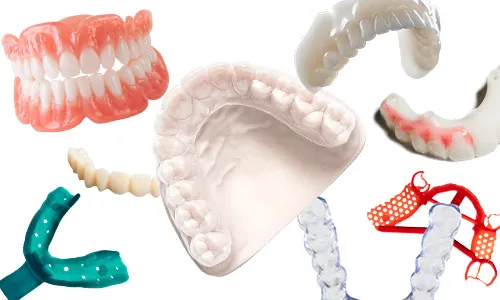
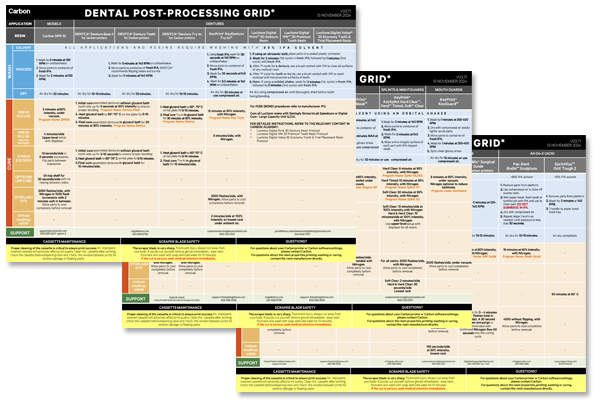
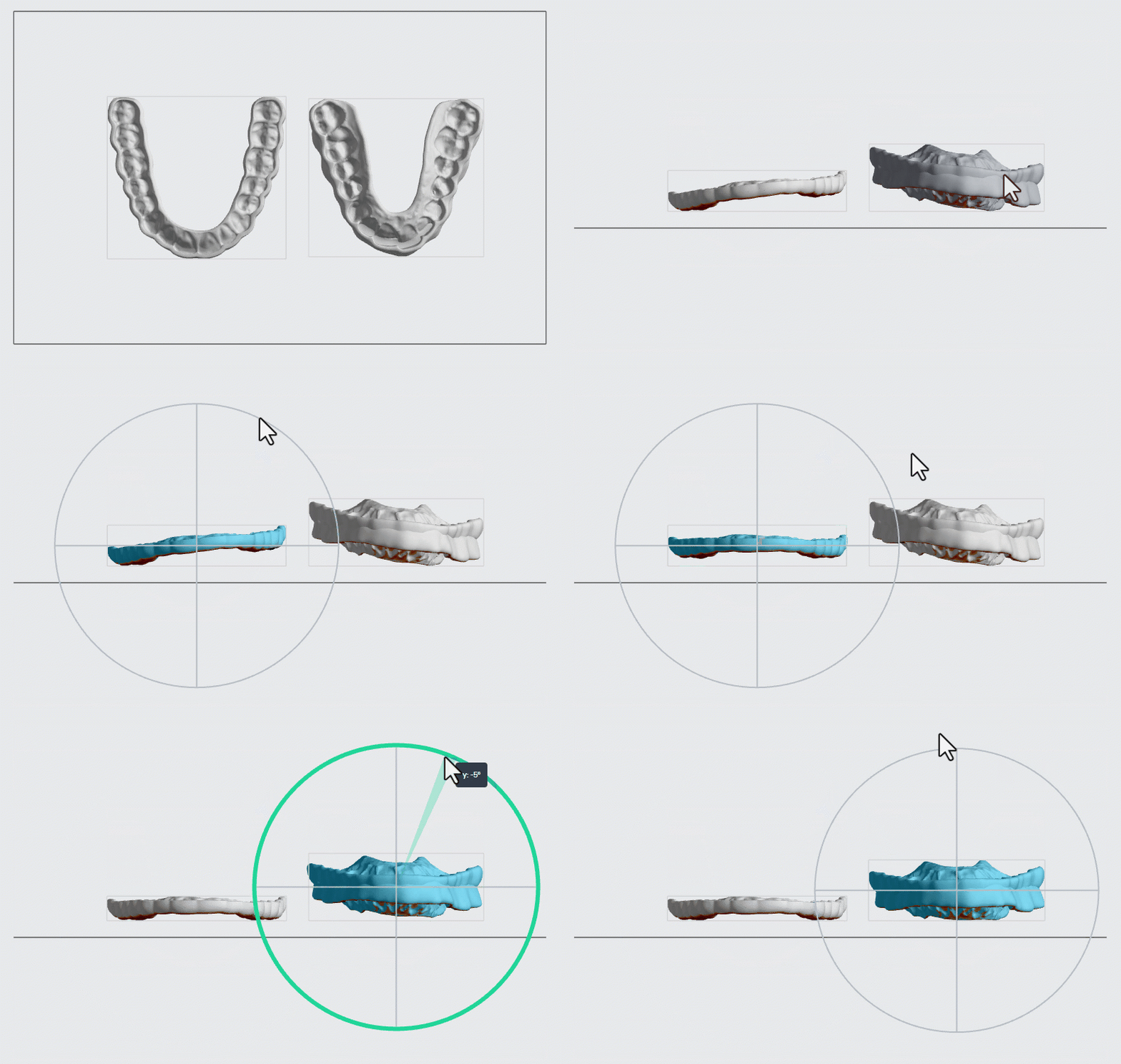
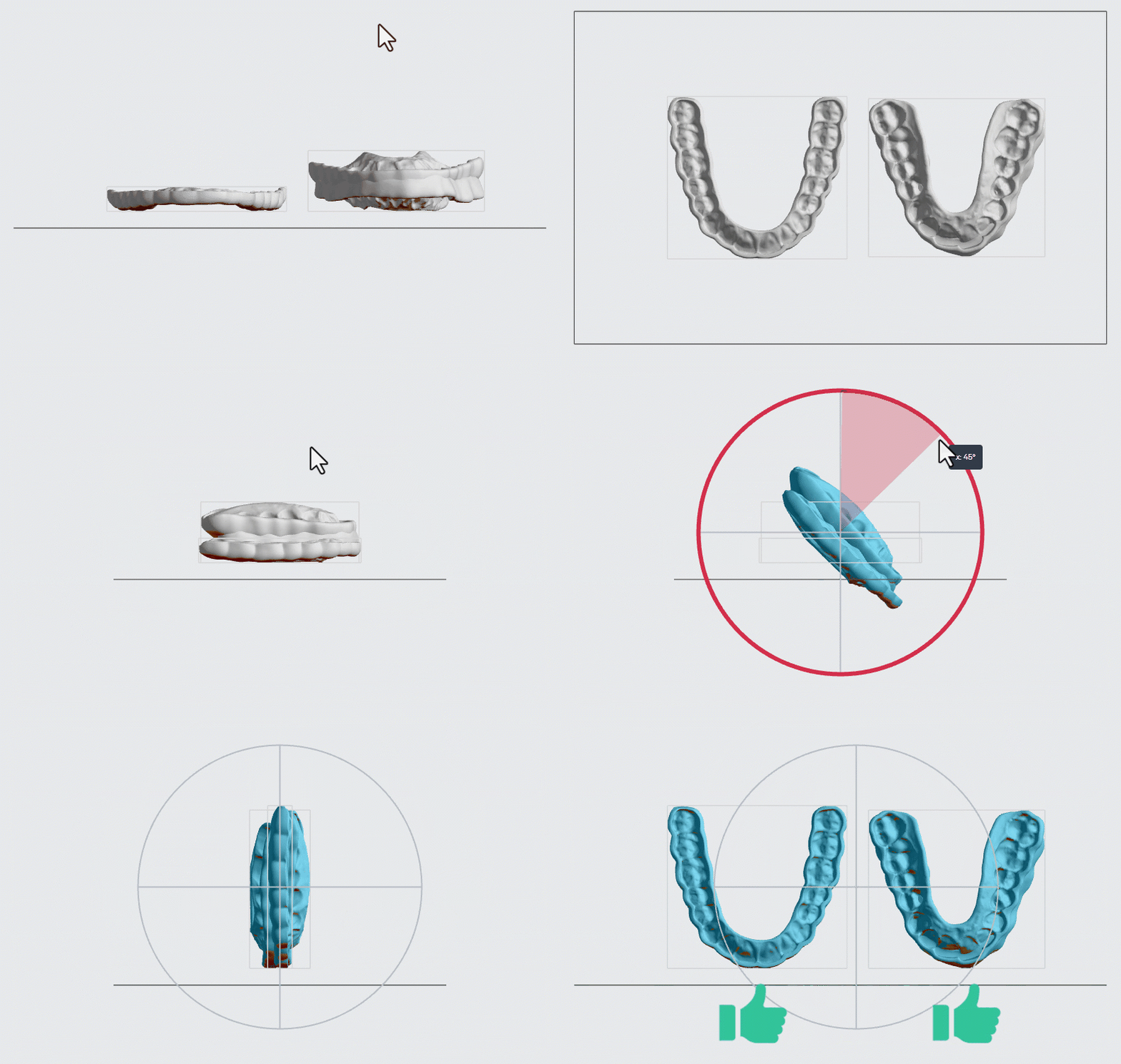
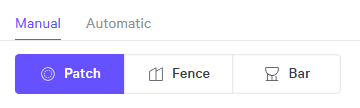
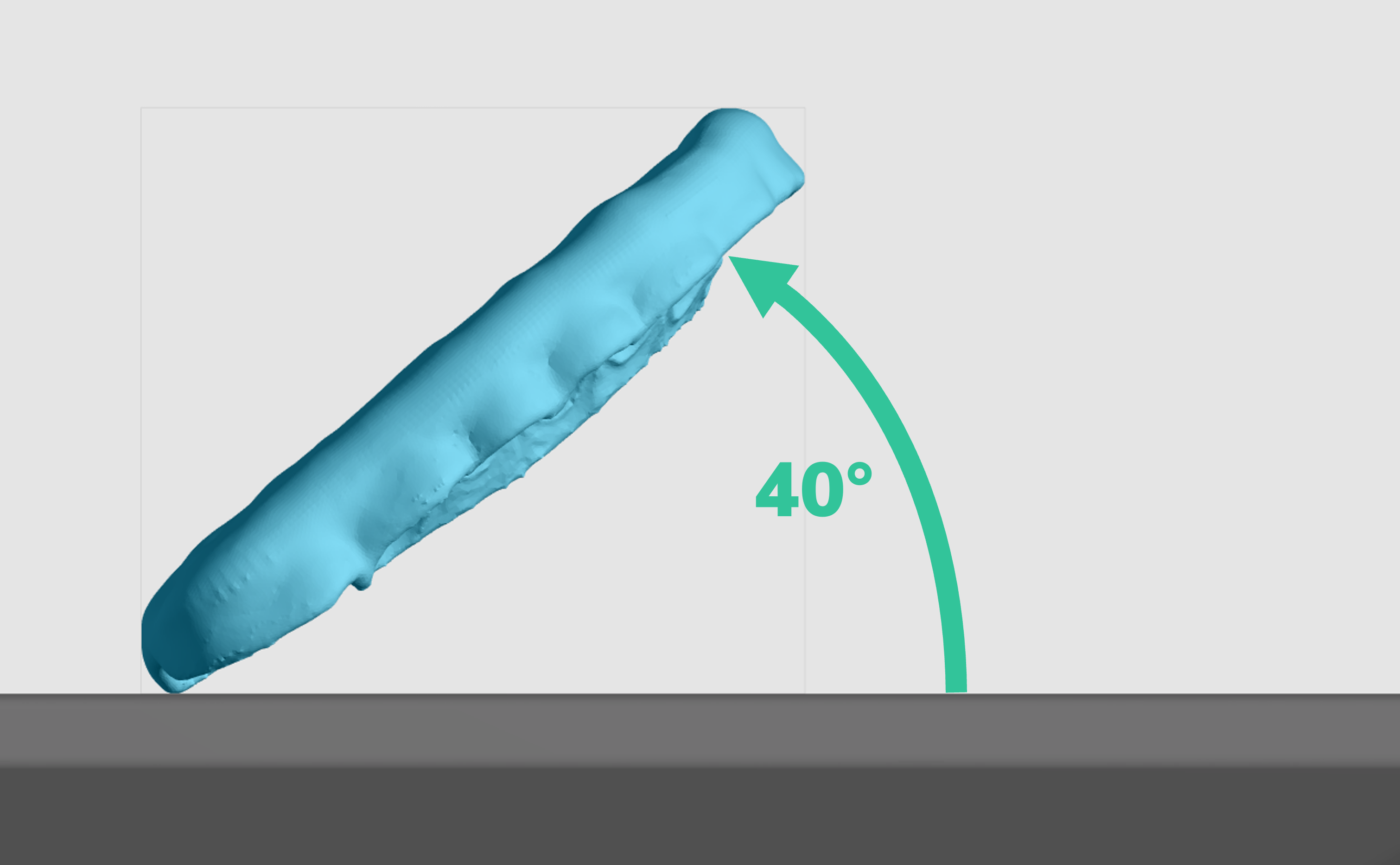
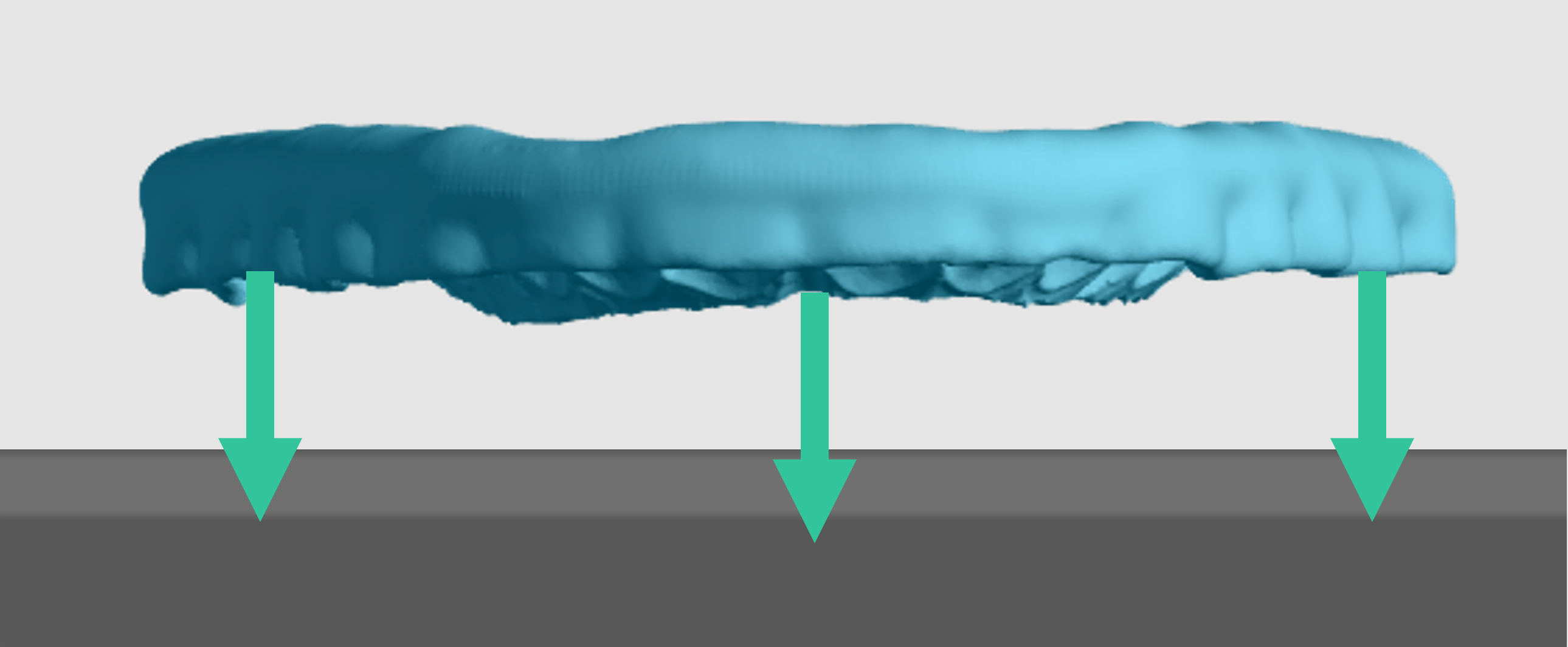
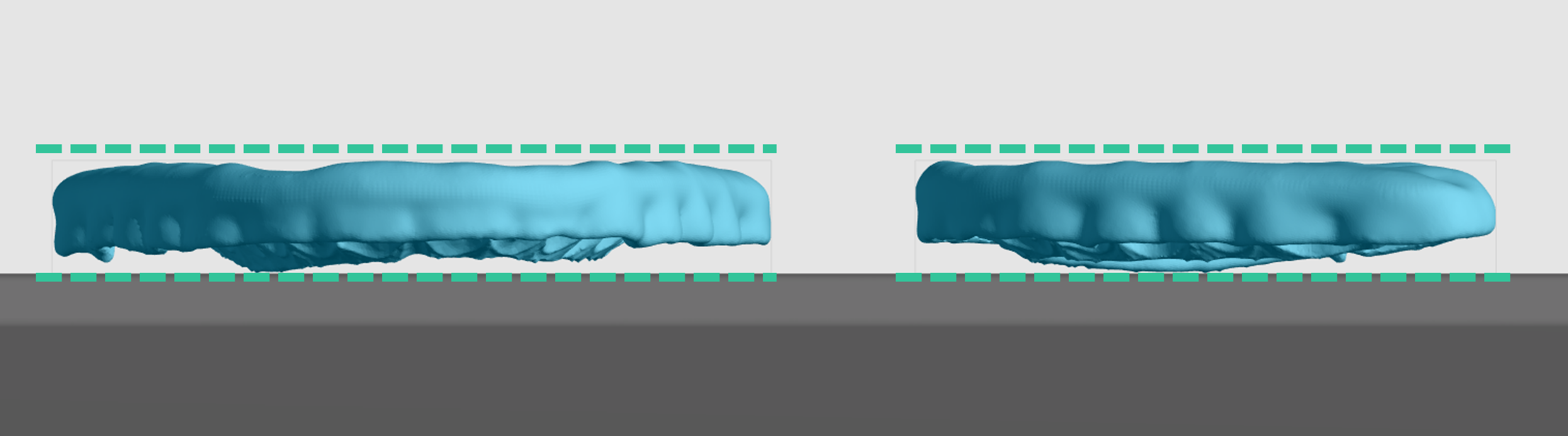
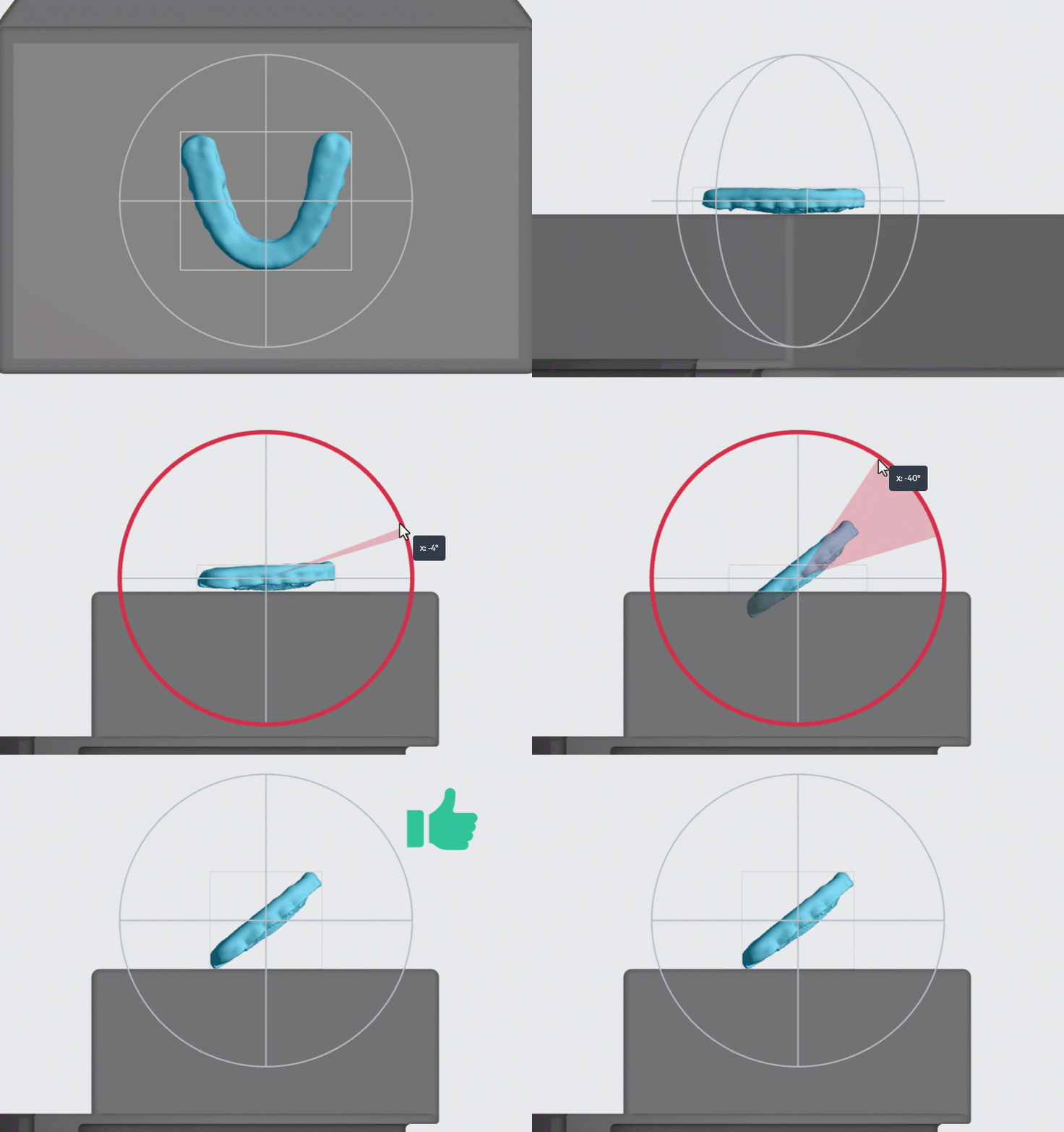
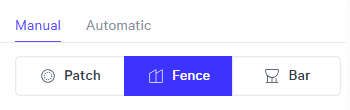
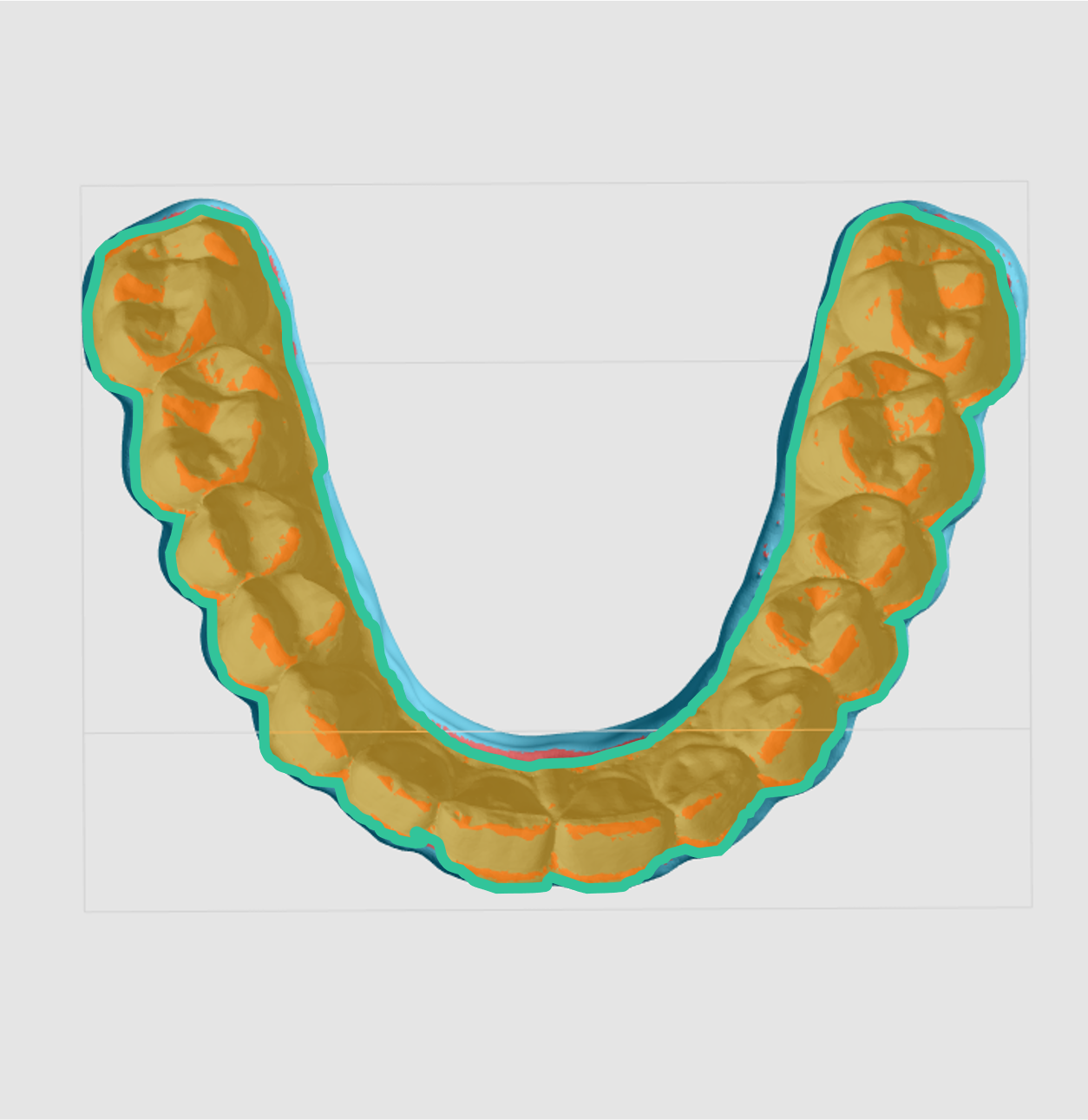
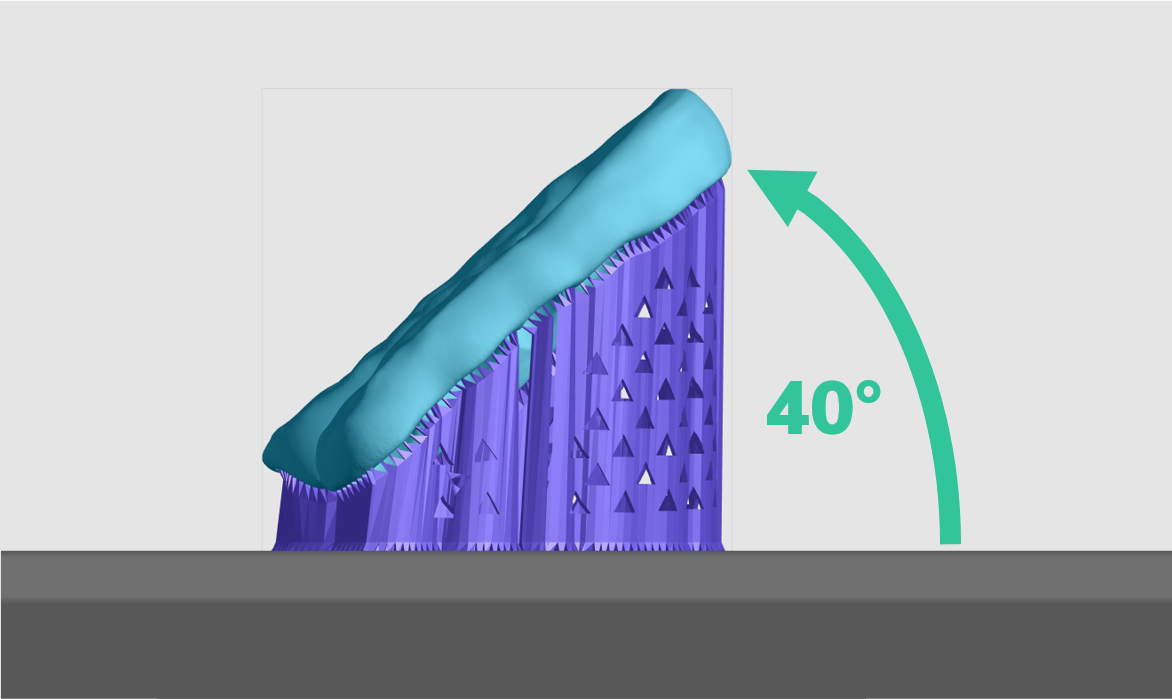
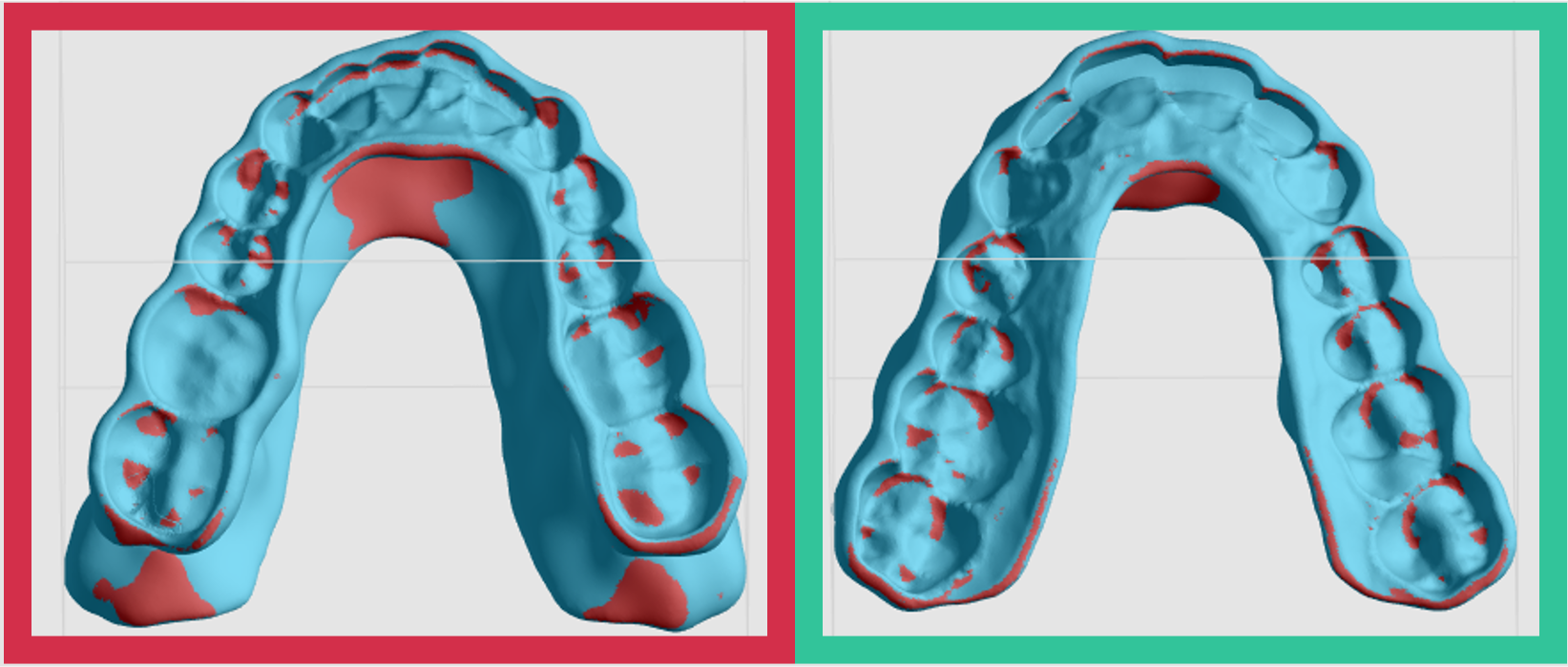
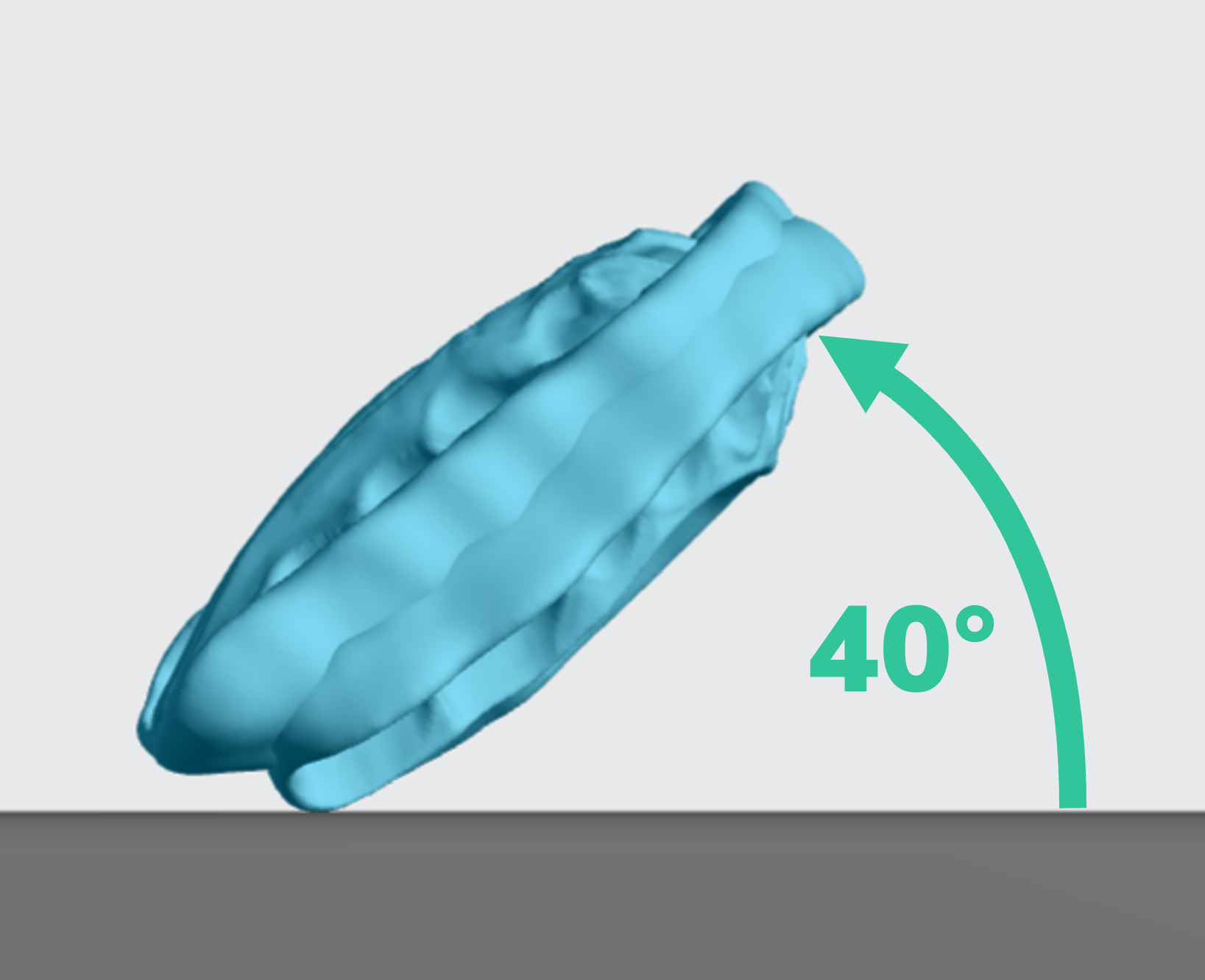
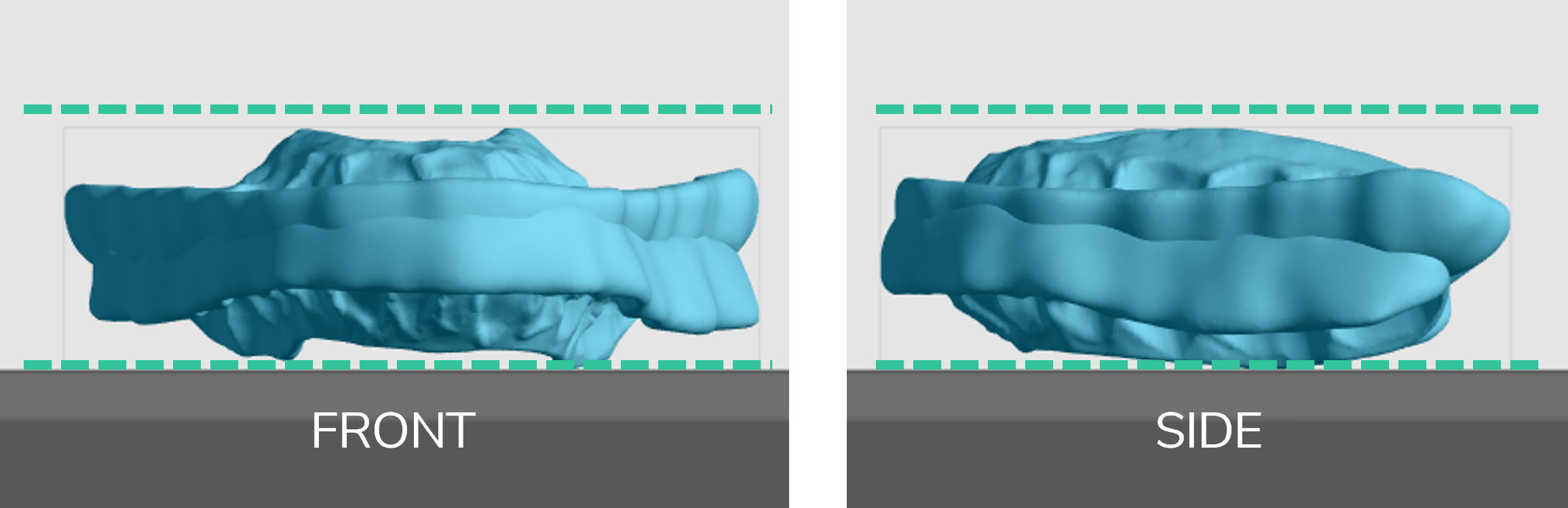
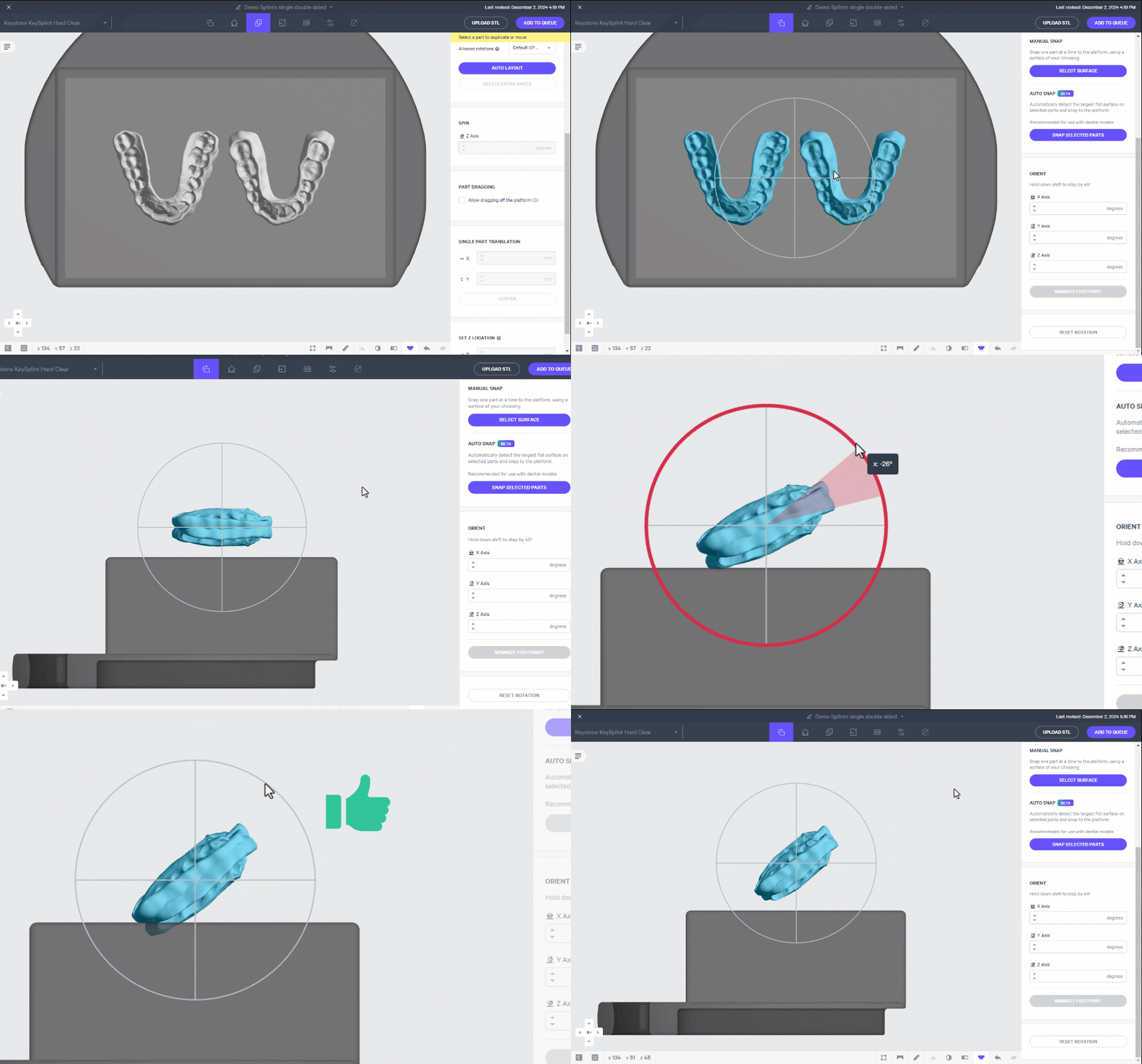
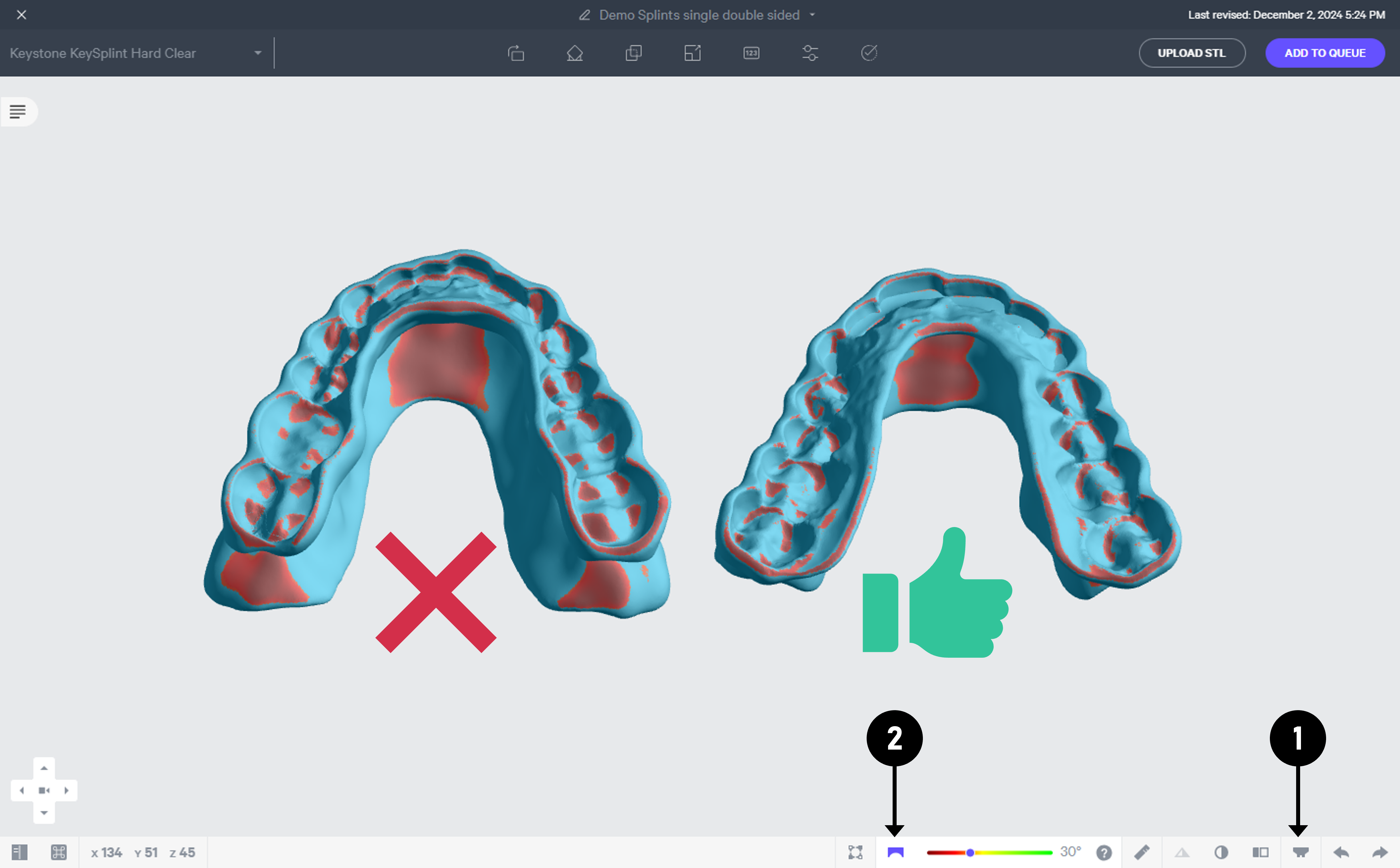
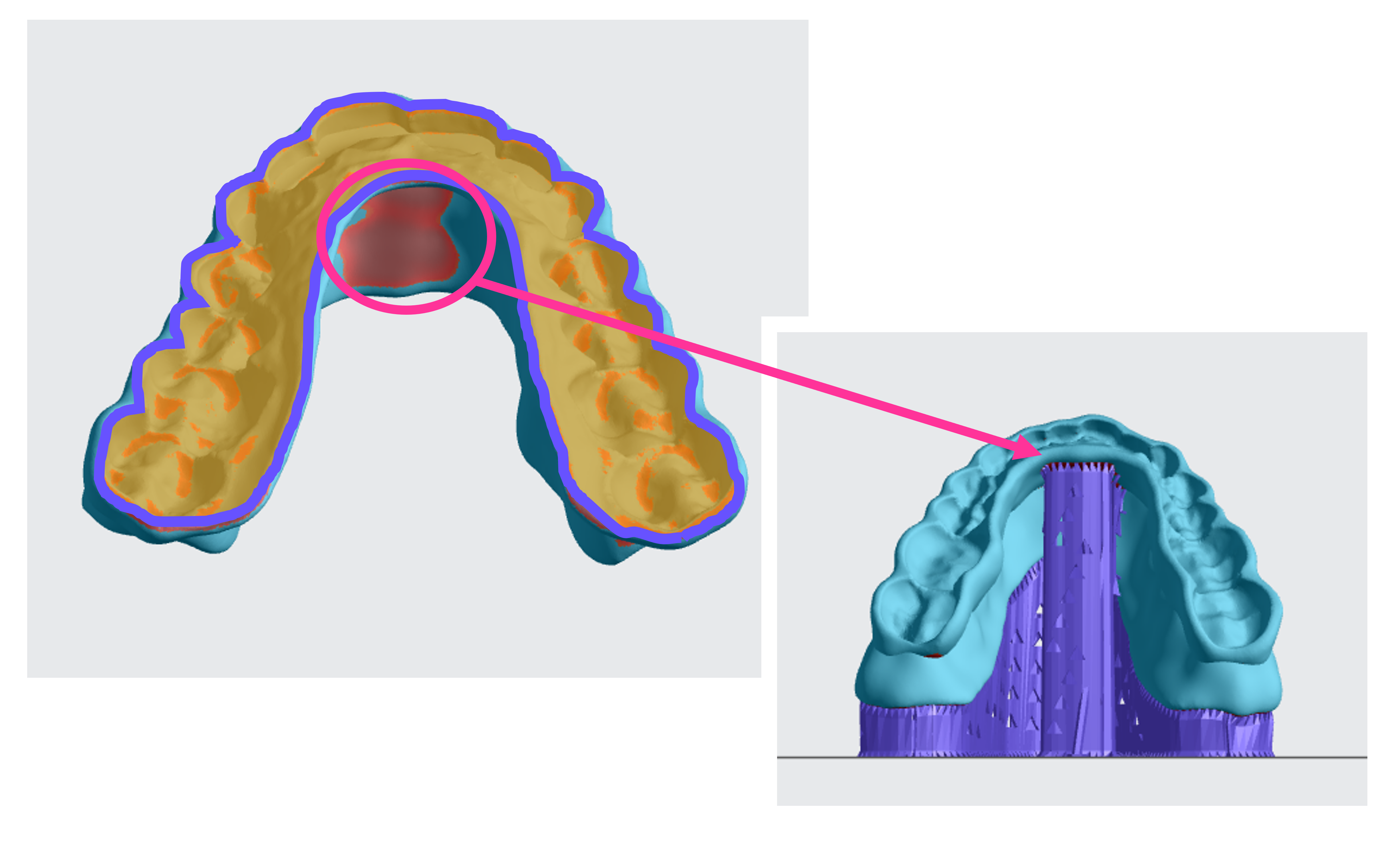
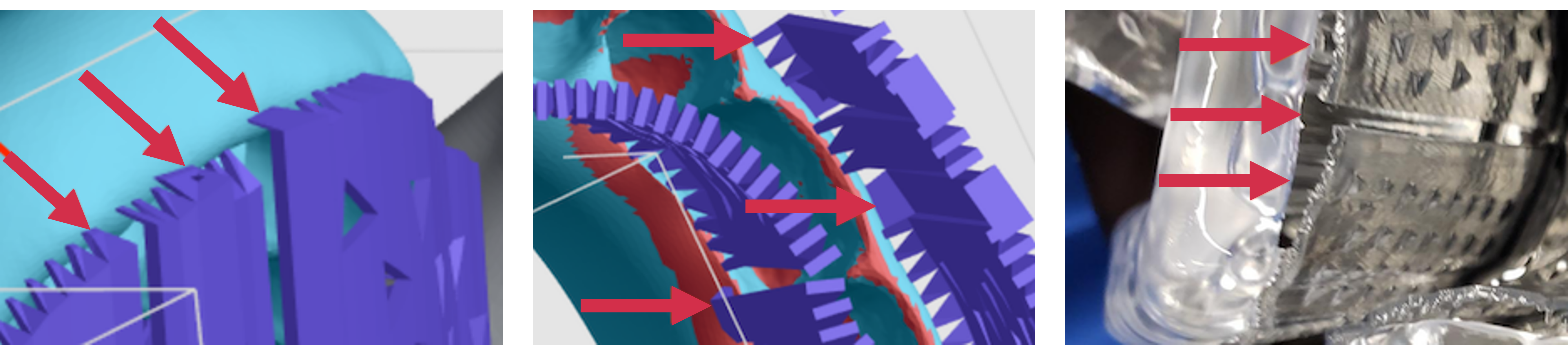
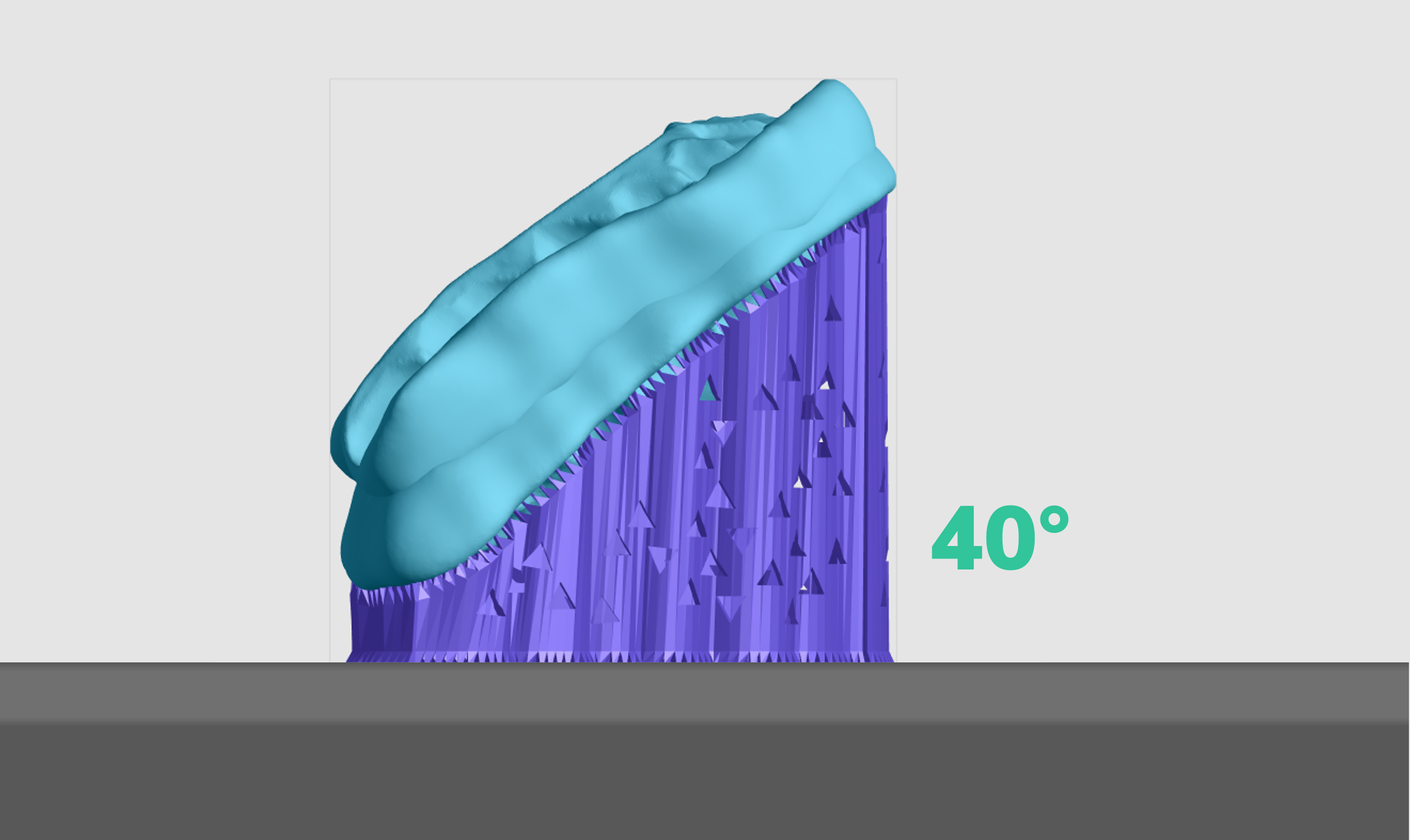
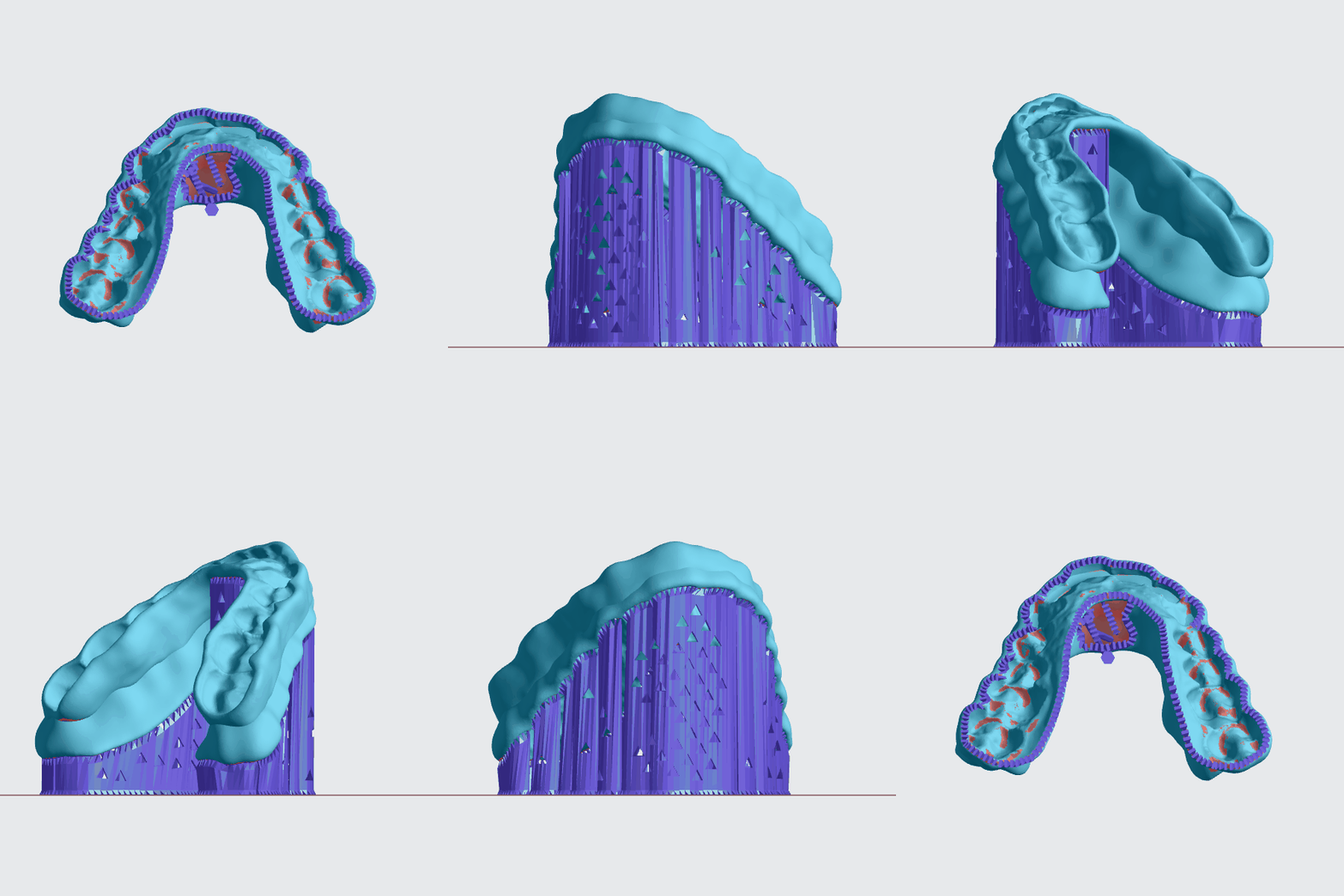
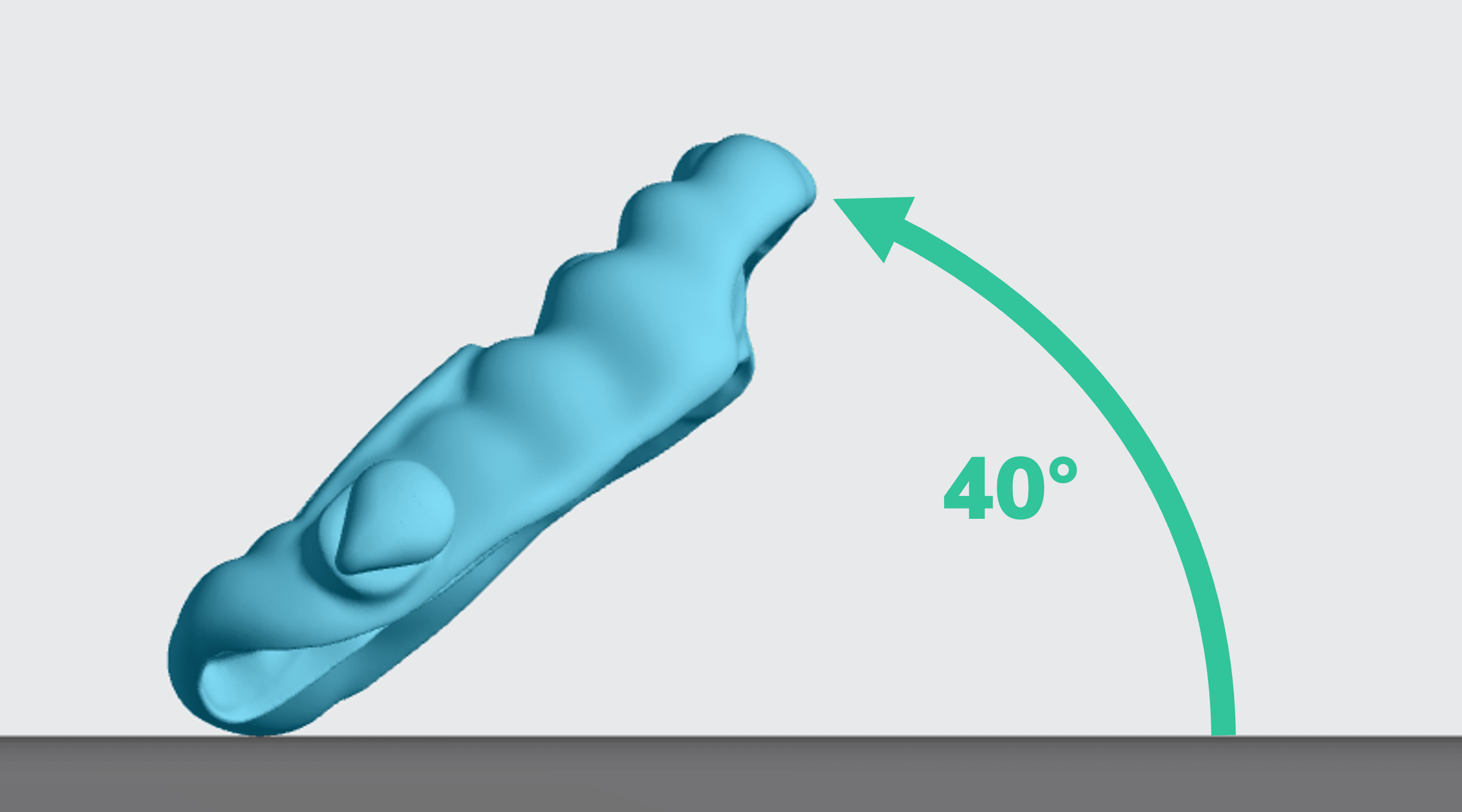
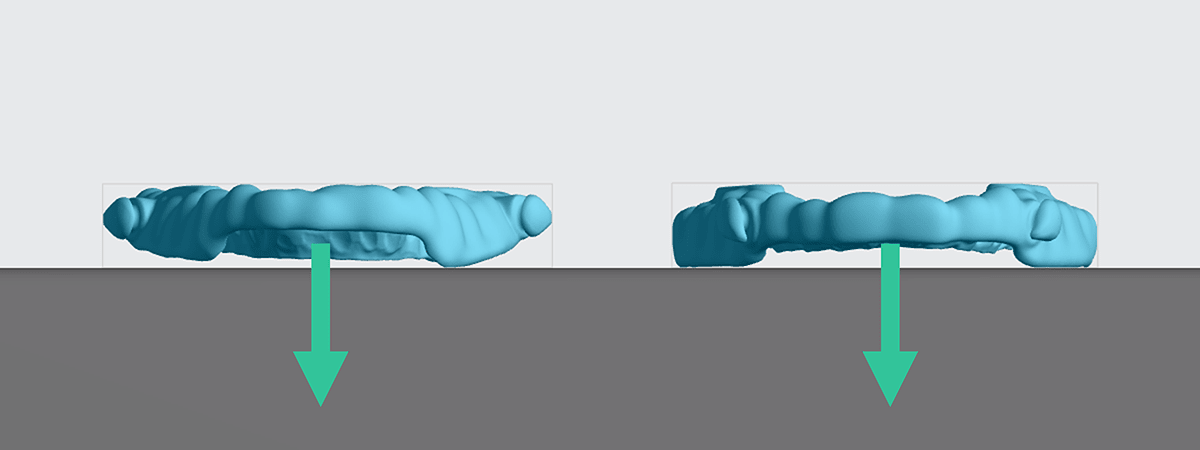
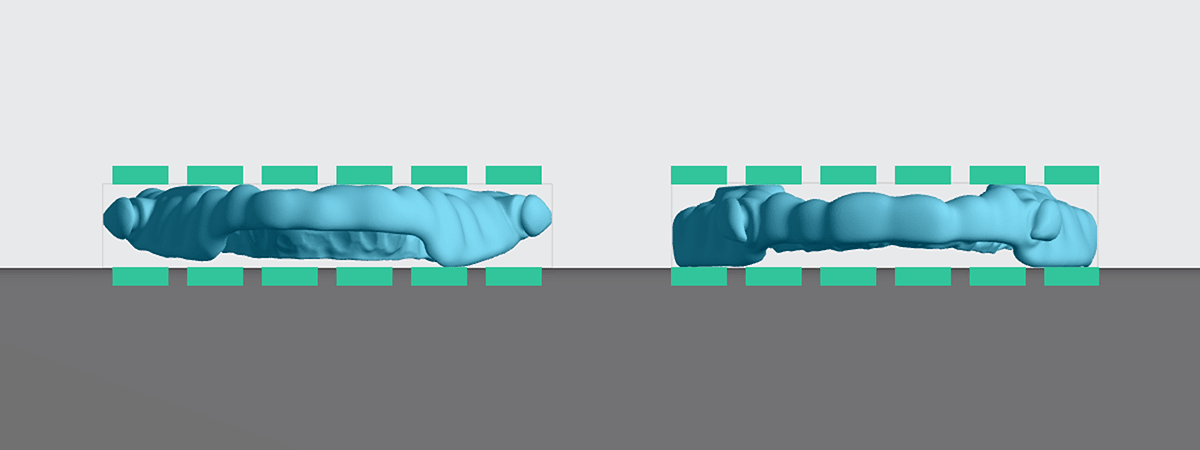
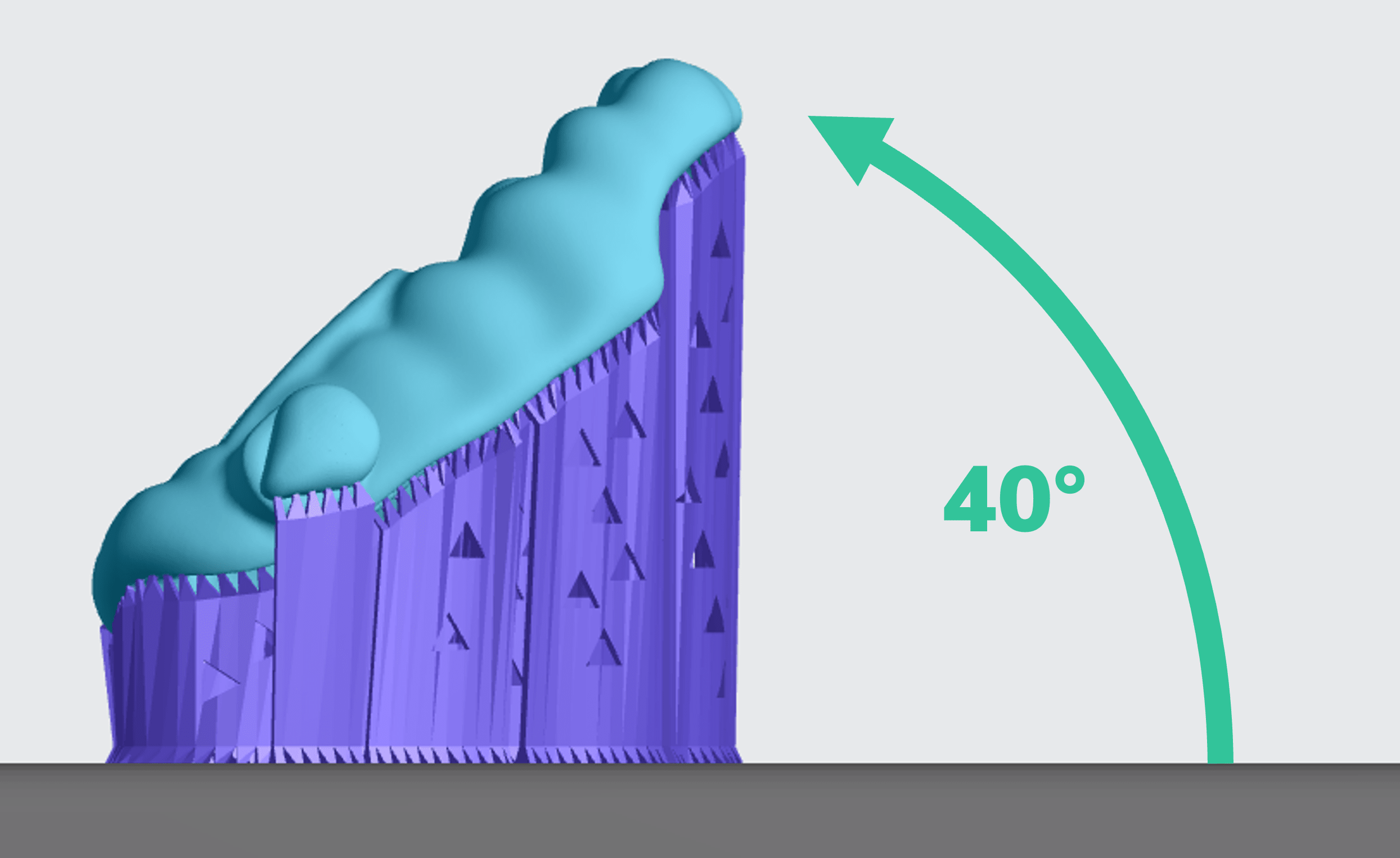
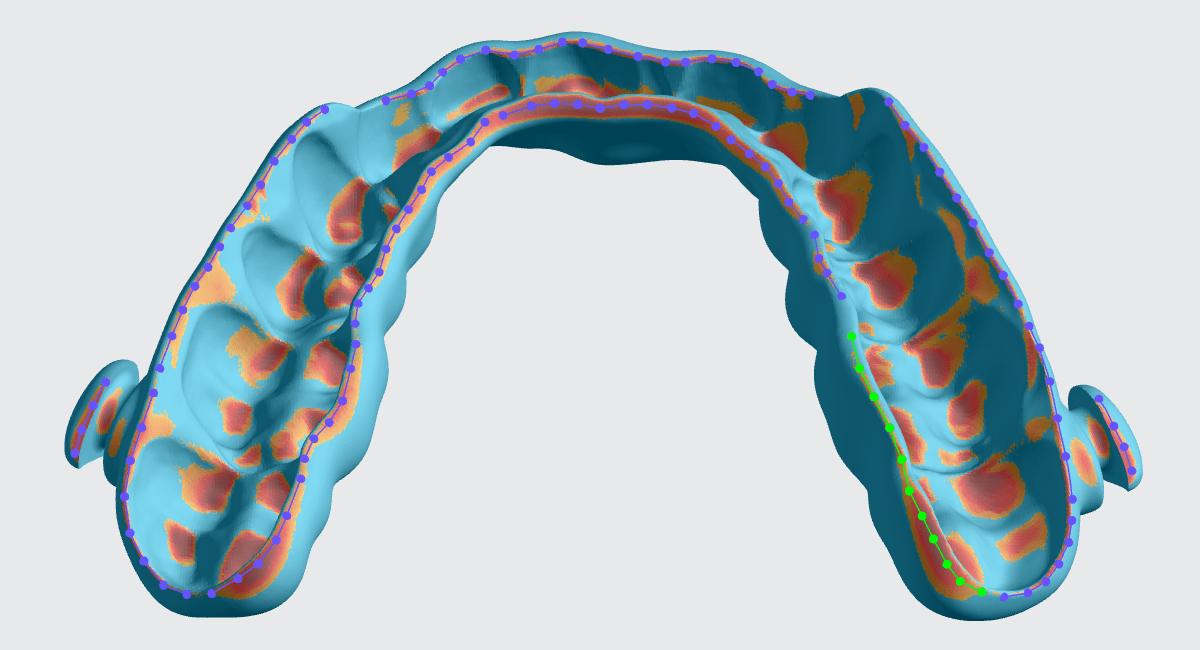
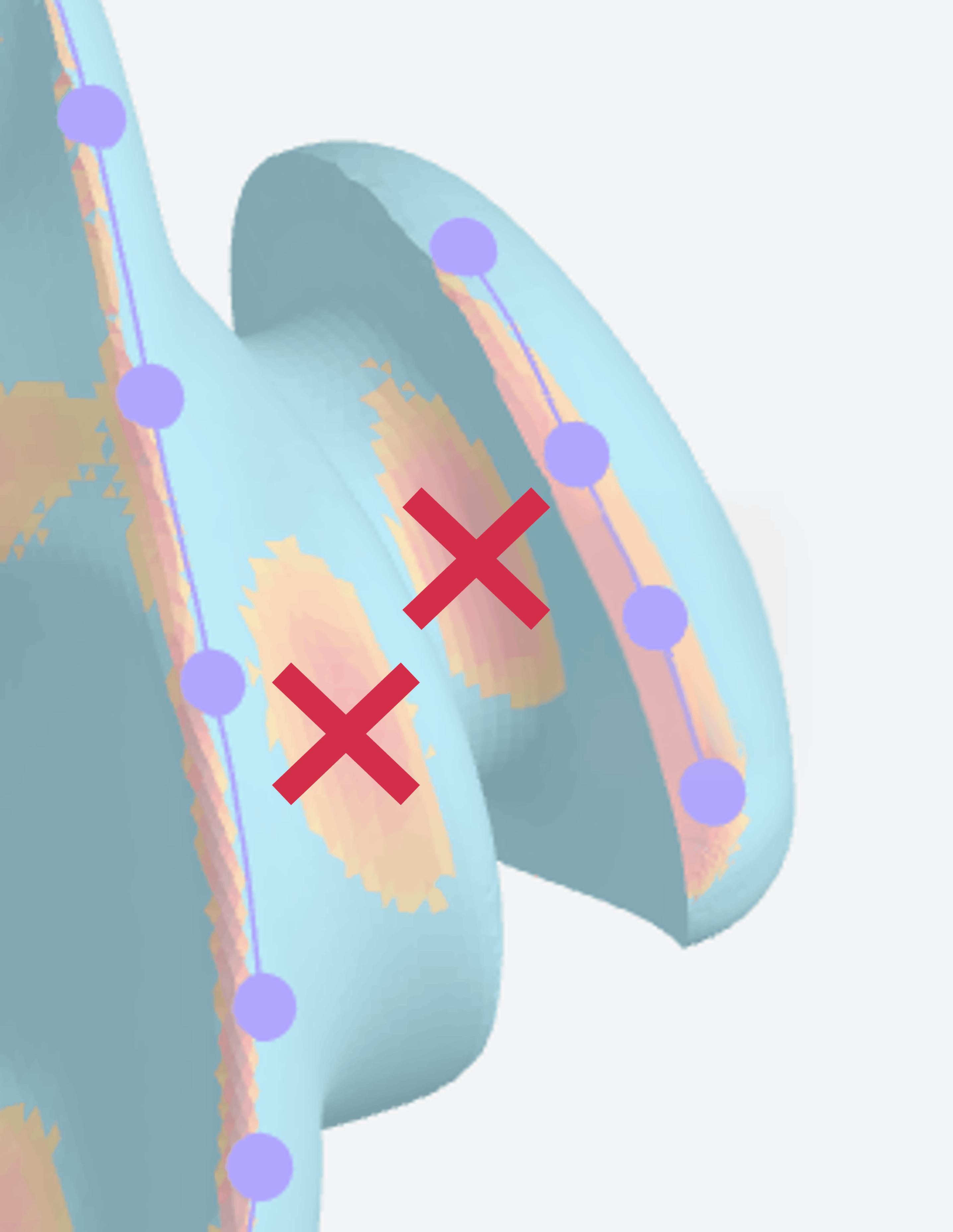
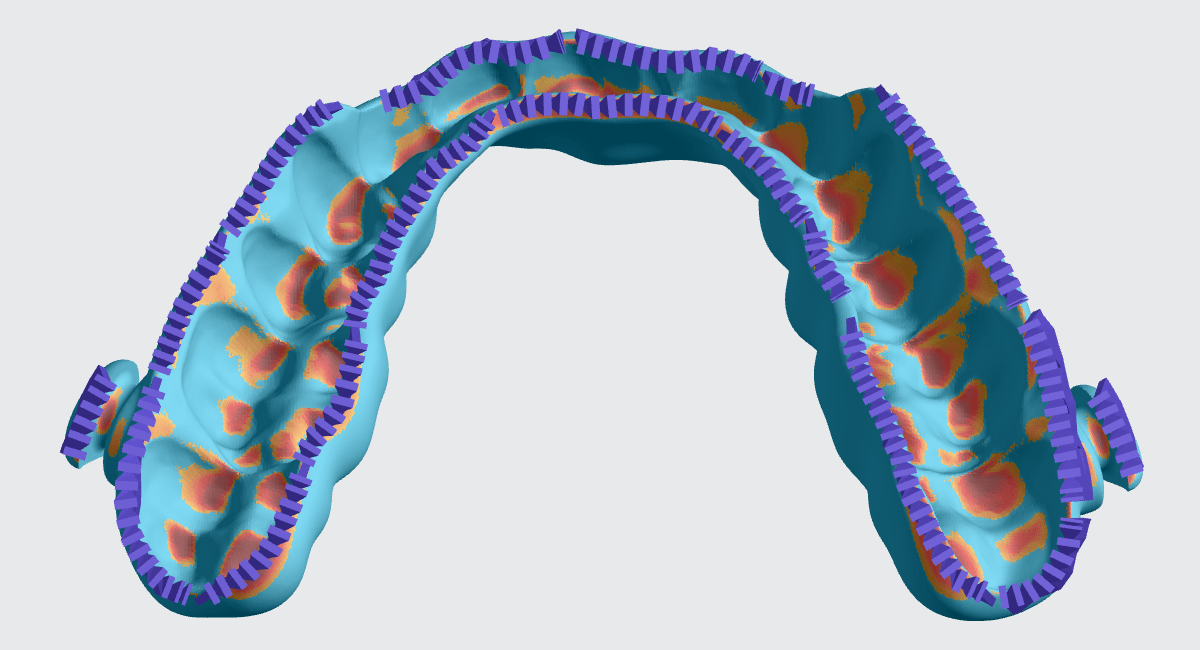
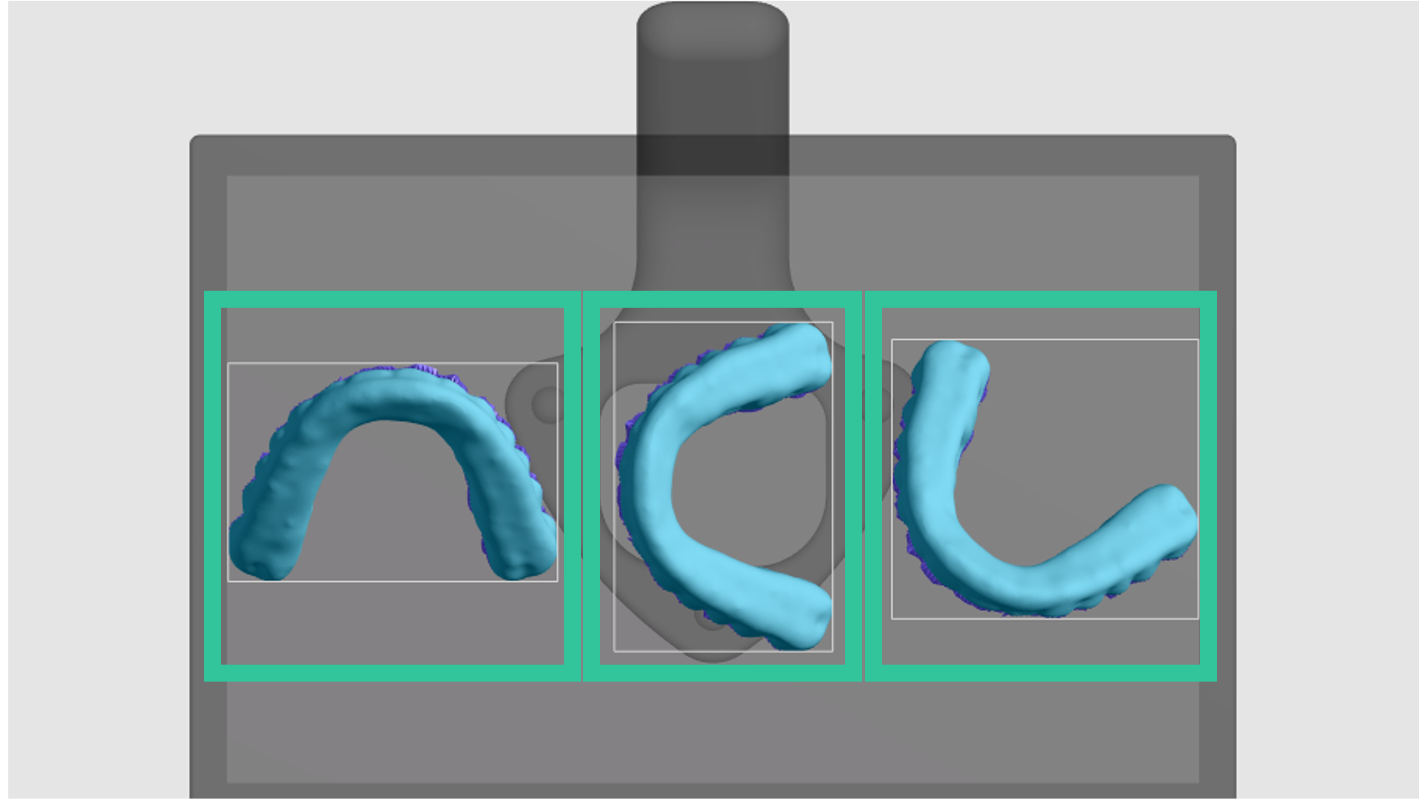
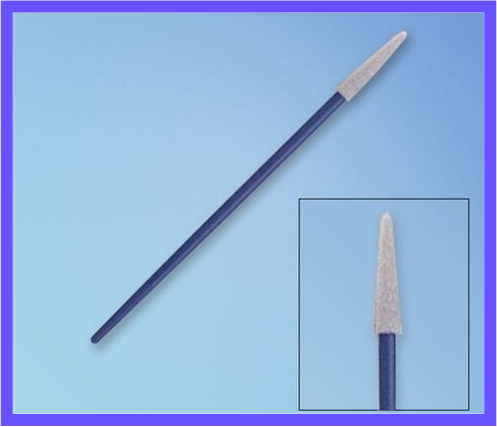
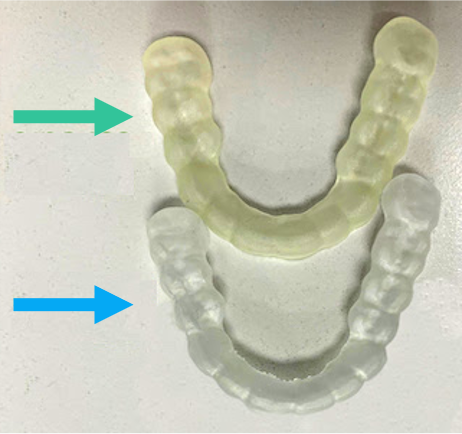
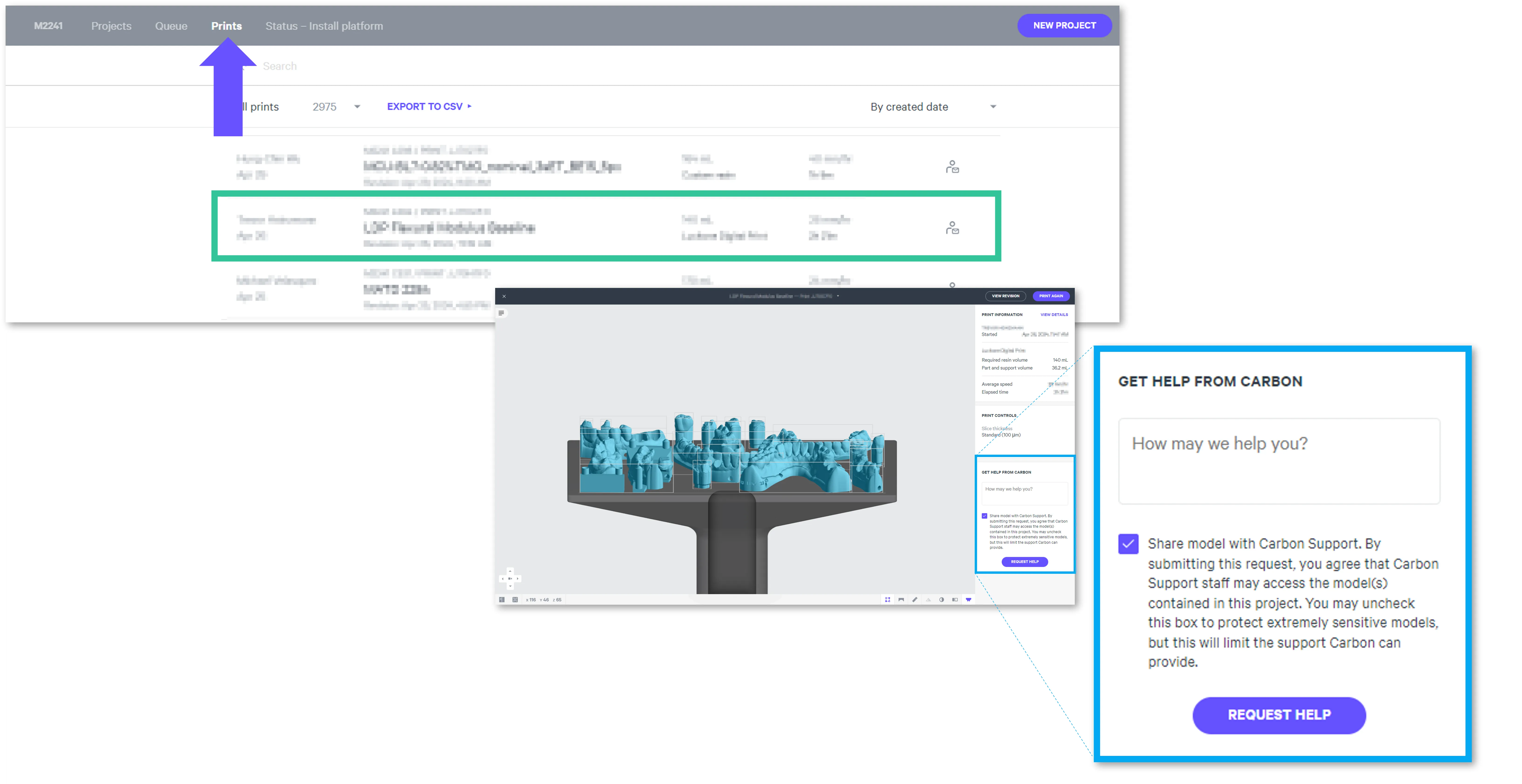
keystone keysplint soft™ clear is a clear, biocompatible resin, ideal for fast production the following indications are available for use with carbon® printers splints and night guards example splint ema 3d elastic mandibular advancement for sleep apnea example ema the validated https //apexsleep com/#ema 3d indication is a design available through apex docid\ x2gb7zibmyyrh2f5wcdjs for more details this resin is compatible with the docid\ iffh3q8 wlk liqr87bd5 for splints and night guards in the vertical orientation only ema indications have not been validated for use with the ao polishing cassette resource links about, ifu, sds https //www carbon3d com/materials/keysplint soft clear https //keyprint keystoneindustries com/wp content/uploads/2020/02/keysplint softforcarbon update usa pdf https //keyprint keystoneindustries com/wp content/uploads/2019/04/keysplintsoft 4220005 sds us 20190424 pdf protocol this downloadable handout provides important usage information, including instructions about storage, washing and curing print it out and bring it into the lab! english german/deutsch spanish/español dental post processing grids one of our most popular downloads! this table provides washing and curing instructions for all supported dental resins print it and use it in the lab as a quick reference images of dental post processing grids english german/deutsch spanish/español performance qualification certificate download the certificate https //docs carbon3d com/files/technical data sheets/pq certificate carbon m2 m3 keysplint soft pdf resin menu options tthe following resin dropdowns may be used with the printer/cassette combinations noted with ✔️, per indication 359,74 43181818181819,74 43181818181819,74 43181818181819,76 70454545454544#edebff #35334e unhandled content type center #edebff #35334e 2 1 unhandled content type center #edebff #35334e 2 1 unhandled content type #edebff #35334e unhandled content type center #edebff #35334e unhandled content type center #edebff #35334e unhandled content type center #edebff #35334e unhandled content type center #edebff #35334e unhandled content type #f3f4f6 #262c36 5 1 unhandled content type 1 1 unhandled content type center unhandled content type center unhandled content type center unhandled content type center unhandled content type 1 1 unhandled content type center unhandled content type center unhandled content type center unhandled content type center unhandled content type 1 1 unhandled content type center 1 1 unhandled content type center 1 1 unhandled content type center 1 1 unhandled content type center 1 1 unhandled content type 1 1 unhandled content type center 1 1 unhandled content type center 1 1 unhandled content type center 1 1 unhandled content type center 1 1 unhandled content type left #f3f4f6 #262c36 5 1 unhandled content type left unhandled content type center 1 1 unhandled content type center 1 1 unhandled content type center 1 1 unhandled content type center 1 1 unhandled content type the docid\ iffh3q8 wlk liqr87bd5 is available for splints and night guards in the vertical orientation only design recommendations carbon does not provide design recommendations for these indications carbon encourages users to follow the guidelines of your design software for splints and night guards for example, 3shape splint designer requires a 1 5 mm minimum wall thickness both single and double sided splints and night guards print well when following design software guidelines for the validated ema indication, docid\ x2gb7zibmyyrh2f5wcdjs to coordinate design print preparation orientation and supports varies by indication, part type, and orientation strategy splint and night guards all types | vertical orientation compatible with the ao polishing cassette single sided | tilted orientation double sided | tilted orientation ema (elastic mandibular advancement) for sleep apnea layout , print controls , and project analysis are the same for all indications orientation and supports select the indication type and orientation strategy (where applicabe) to expand the steps for orientation and supports splints and night guards | vertical orientation printing splints in a vertical orientation maximizes the amount of splints that can be printed at once orient click on orient (shift + o) in the top bar in the printer interface orient tab in top bar in the lower right corner of the bottom bar, turn on overhang detection (v) and set to 40 degrees areas that need support will appear red red orient the splints so they are about parallel to the platform orient splints parallel to the platform rotate the models 90 degrees with the anteriors facing the platform the models should be standing vertically, perpendicular to the platform rotate splints 90 degrees support click on supports (shift + s) in the top bar in the printer interface supports tab in top bar for the part position , select above to lift parts off the platform click the manual tab and select patch for supports generation method add supports click on the anterior surface of a splint to select a patch under the patch tab, adjust the overhang to between 40 and 60 degrees select a value to ensure that the patch covers the six anterior teeth in the primary support type dropdown menu, select fence fences are easier to remove and require less finishing than other support types enter a spacing value between 2 5 and 4 mm make sure the boundary fence checkbox is selected margin value should be 0 mm examples of well supported vertically oriented splints single sided splint double sided splint surfaces with supports will require finishing to ensure proper seating splints and night guards single sided | tilted orientation proper orientation of splints is critical to maximize yield by minimizing print defects achieve the required accuracy and surface quality single sided splint 40º tilt with anterior rotated away from platform intaglio surface facing platform orient click on orient (shift + o) in the top bar in the printer interface orient tab in top bar in the lower right corner of the bottom bar, turn on overhang detection (v) and set to 40 degrees areas that need support will appear red red orient the splint so that the intaglio surface is facing the platform adjust the splint so that it is mostly parallel with the platform rotate the splint so that it is at a 40 degree angle from the platform with the posterior close to the platform support carbon recommends using fences they are easy to remove and do not increase the footprint of the splint, enabling more to be fit onto the build platform 💡 toggle platform off ('b' keyboard shortcut) this will hide the platform and allow a clear view while you are adding supports click on supports (shift + s) in the top bar in the printer interface supports tab in top bar for the part position , select above to lift parts off the platform click the manual tab and select fence for supports generation method add supports click a series of points on the perimeter of the splint to define a fence click esc key on keyboard to end a fence and begin another carbon recommends making a series of small fences, rather than making a single continuous fence, to give greater flexibility to reposition points hold down the e key and click with the mouse to reposition points click generate to create the fence geometry this may take a few minutes continue steps 1 4 until the entire perimeter is supported click done in the upper left corner when finished support the entire perimeter entire perimeter of the platform side of the model avoid supporting areas that come in direct contact with teeth avoid supporting areas that come in direct contact with teeth as this can affect fit and function example of well supported tilted splint splints and night guards double sided | tilted orientation double sided splints are oriented similarly to single sided splints, but determining which side should be supported requires comparing both sides using overhang detection carbon recommends supporting the side that has the fewest overhangs and thus requires the fewest supports this has a number of benefits part accuracy resulting from fewer unsupported overhangs on intaglio surface minimizes time creating the supports in the software reduces resin usage reduces finishing time by minimizing support nubs each splint is evaluated by duplicating it, flipping the copy, turning on the overhang detection tool, and then seeing which part has the fewest overhangs (red area) if there is not a clear difference, then either side may be supported in this example, the maxillary side of the splint has fewer overhangs and should be the side that is supported proper orientation of splints is critical to maximize yield by minimizing print defects achieve the required accuracy and surface quality double sided splint 40º tilt with anterior rotated away from platform mandibular or maxillary surface facing platform to minimize supports orient click on orient (shift + o) in the top bar in the printer interface orient tab in top bar adjust the splint so that it is mostly parallel with the platform either side of the splint can face the platform duplicate and flip the splint click layout in the main bar in the printer software click the splint model to select it enter 1 in number of copies and click duplicate a duplicate of the model will appear click orient in the main bar type 180 in the y axis field and press enter click layout again move the models apart from each other so they do not overlap you now have 2 copies of the splint one with maxillary impression facing the platform one with mandibular impression facing the platform rotate double sided splints so that it is at a 40 degree angle from the platform with the posterior close to the platform select both models rotate the splints until the anterior portions are at 40 degrees from the platform the posterior of the splint should be touching the platform compare overhangs click toggle platform button in the lower toolbar or press the b key to hide the platform this will allow you to see the overhang areas clearly click overhang detection or press the v key and set to 30º to find areas that need support orient the camera so that you see the models from the bottom (platform side) and can clearly see the red overhang areas orbit around the models as needed to make sure you can see all overhang areas you may want to adjust the model tilt ±5º to reduce overhangs you can adjust the models independently after carefully comparing the models, delete the model that has the most overhangs if there is no clear difference in overhang area, either one is fine to select support carbon recommends using fences they are easy to remove and do not increase the footprint of the splint, enabling more to be fit onto the build platform 💡 keep platform off ('b' keyboard shortcut) this will hide the platform and allow a clear view while you are adding supports click on supports (shift + s) in the top bar in the printer interface supports tab in top bar for the part position , select above to lift parts off the platform click the manual tab and select fence for supports generation method add fence supports along perimeter click a series of points on the perimeter of the splint to define a fence click esc key on keyboard to end a fence and begin another carbon recommends making a series of small fences, rather than making a single continuous fence, to give greater flexibility to reposition points hold down the e key and click with the mouse to reposition points click generate to create the fence geometry this may take a few minutes continue steps 1 4 until the entire perimeter is supported click done in the upper left corner when finished support the entire perimeter entire perimeter of the platform side of the model avoid supporting areas that come in direct contact with teeth avoid supporting areas that come in direct contact with teeth as this can affect fit and function add additional patch supports as needed double sided splints may require additional supports, especially for overhangs on the anterior lingual surfaces use patch supports for these areas click patch click an area of overhang under patch, set overhang to 30º set primary support type to fence check the boundary fence box click generate all to create the supports repeat as needed for additional areas of overhang double sided splints may require additional supports on polished/cameo surfaces polished/cameo surfaces if the supports are attaching at a horizontal angle , they may detach during printing causing part deformation supports should attach to the surface of the part that is facing the platform creating vertically oriented support tips please reapply the supports and move the attachment points to address this issue if this problem occurs troubleshooting if the supports are attaching at a horizontal angle , they may detach during printing causing part deformation supports should attach to the surface of the part that is facing the platform creating vertically oriented support tips please reapply the supports and move the attachment points to address this issue if this problem occurs example of well supported tilted splint ema orient proper orientation is critical to maximize yield minimize print defects achieve the required accuracy and surface quality goal 40º tilt with anterior rotated away from platform intaglio surface facing platform ema at 40 degree tilt click on orient (shift + o) in the top bar in the printer interface orient tab in top bar orient the part so that the intaglio surface is facing the platform intaglio surface facing platform adjust the part so that the facial surface is approximately parallel with the platform parallel with platform rotate the part so that it is at a 40º angle from the platform with the posterior close to the platform support carbon recommends using fence supports easy to remove does not increase the footprint of the part enables more parts to fit on the build platform goal perimeter fence support along edge of intaglio surface facing platform fence supports along perimeter 💡 toggle platform off ('b' keyboard shortcut) this will hide the platform and allow a clear view while you are adding supports click on supports (shift + s) in the top bar in the printer interface supports tab in top bar for the part position , select above to lift parts off the platform click the manual tab and select fence for supports generation method in the lower right corner of the bottom bar, turn on overhang detection (v) and set to 40 degrees areas that need support will appear red red add supports to perimieter click along the entire perimeter of the intaglio edge, platform side of the model avoid supporting areas that come in direct contact with teeth as this can affect fit and function carbon recommends making a series of small fences, rather than making a single continuous fence, to give greater flexibility to reposition points click esc key on keyboard to end a fence and begin another hold down the e key and click with the mouse to reposition points fence support polylines along permieter support the external edge on the button features and avoid supports avoid supports on the internal button surfaces, particularly on the recessed surface where bands will be placed suypport button edge and no supports on recesses click generate to create the fence geometry when all fence polylines have been drawn this may take a few minutes layout select the layout tab (shift + l) in the top menu bar layout tab in top bar under auto layout , select gen2 gen2 usually gives the most effecient packing for dental devices enter at least 1 mm minimum in padding leave optimize starting rotation unchecked this leaves your parts in their previous orientations leave allowed rotations at the default setting this gives the software maximum flexibility to fit the most possible parts on the build platform press the auto layout button to arrange your parts if necessary, nesting can be changed manually click and drag parts to adjust their position modify z rotation by using the spin tool the software will try four 90 degree rotations to maximize the build you may rotate the part in the z axis prior to running autolayout where it may be advantageous to fit more models use the part list tab as needed to more easily select models and focus on them print controls select the print controls tab (shift + p) in the top menu bar print controls tab slicing slice thickness should be standard (100 µ) reducing the slice thickness by choosing the fine (50 µ) or super fine (25 µ) settings will increase print time and may reduce part quality and accuracy project analysis select the project analysis tab (shift + a) in the top menu bar project analysis tab click start analysis and wait for the processing to complete note the required resin volume and print time click add to queue post processing pre cure reminder from the keystone industries® keyprint® keysplint soft™ docid\ x2gb7zibmyyrh2f5wcdjs using a clean foam swab dipped in ipa, wipe the entire intaglio surface of each part curing post curing discoloration a yellow tint yellow tint is expected and normal after curing parts printed in the keysplint soft the yellowish tint will fade away within 24 48 hours fade away within 24 48 hours if after this time period you are still experiencing issues with discoloration, please contact carbon support with a detailed description of the issue questions & support keystone for questions about the resin properties , printing, washing or curing your parts, please contact the keystone technical team email mailto\ customerservice\@keystoneind com phone u s and canada 1 800 333 3131 eu +49 77 31 91 21 01 apex https //apexsleep com/about/#contact to coordinate design of the ema devices email mailto\ frontdesk\@apexsleep com phone u s and canada 1 619 724 6040 carbon for questions about your carbon printer or carbon software settings used for this resin, please https //learn carbon3d com/carbon support email mailto\ support\@carbon3d com phone u s and canada 1 650 285 6307 option 2 germany +49 6102 5790849 uk +44 (0) 2082 647484 printer ui on the dashboard, select the prints prints tab select one of the printed projects select one of the printed projects click request help request help in the lower right corner