---
title: Keystone KeySplint Hard and Hard Clear
slug: materials/keystone-keysplint-hard-and-hard-clear
description: Explore the essential guide for using Keystone KeySplint Hard and Hard Clear resin with Carbon printers, including preparation, printing tips, and support methods.
docTags:
createdAt: 2024-07-18T20:06:54.818Z
---
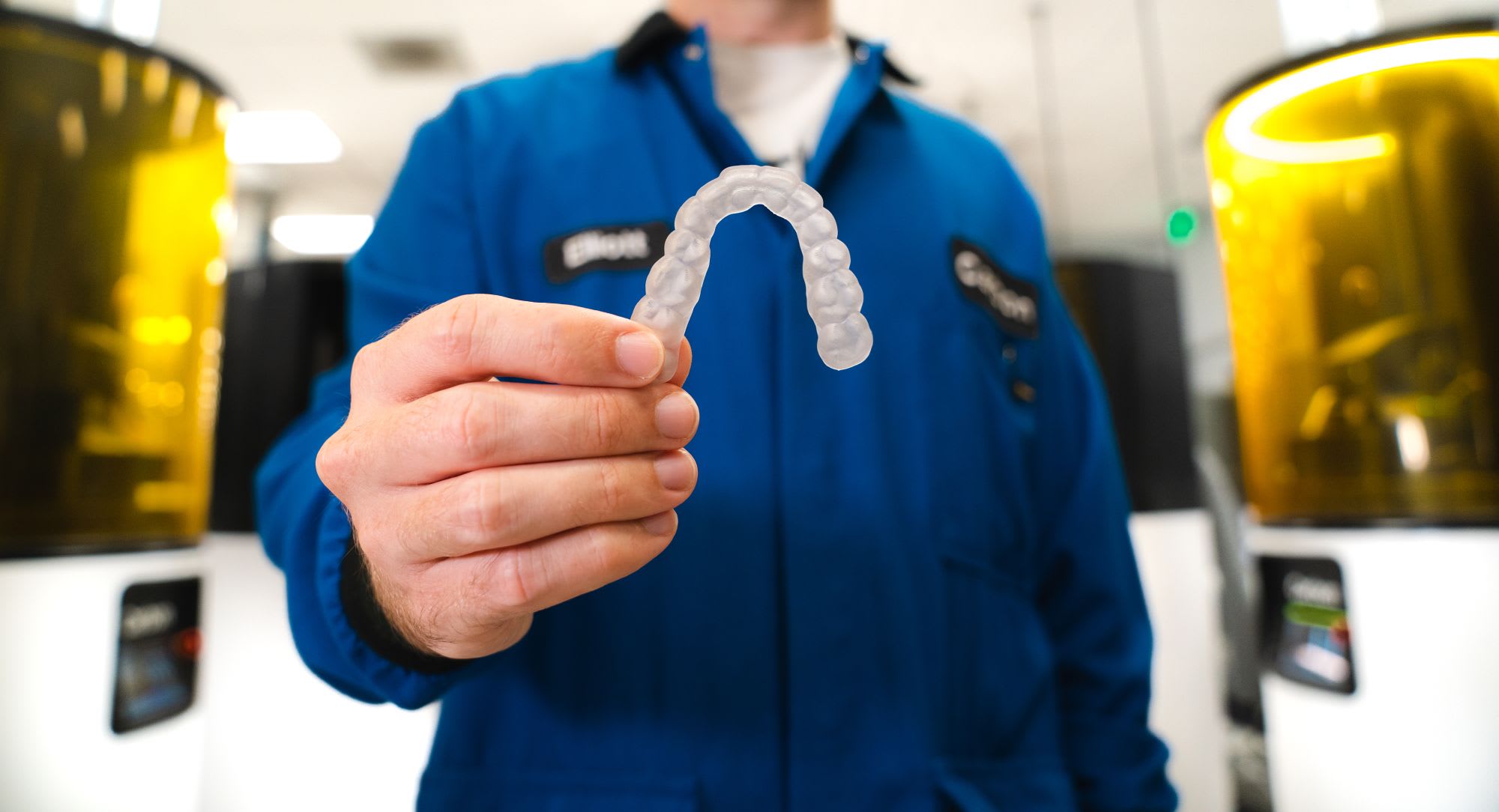
**Keystone KeySplint Hard™ **and **Keystone KeySplint Hard Clear™** are available to produce splints and night guards.
::::VerticalSplit{layout="middle"}
:::VerticalSplitItem
The materials are rigid, biocompatible resins that are ideal for fast production. KeySplint Hard is tinted and KeySplint Hard Clear is clear.
:::
:::VerticalSplitItem
:::
::::
:::hint{type="success"}
This resin is compatible with the [AO Polishing Cassette](docId\:iFFh3q8-WLk-LIqr87bd5) for **splints** and **night guards **in the** vertical orientation** only.
:::
## Resource Links
### About. IFU, SDS
::::LinkArray{contentSource="CUSTOM"}
:::LinkArrayItem{headerType="IMAGE" headerImage="https://api.archbee.com/api/optimize/uXbZOKjJTGpPhjapQ8fvM-IOQIJkNnkbUAw9Q-ap1FV-20241115-235121.jpg"}
**[About the Material](https://www.carbon3d.com/materials/keysplint-hard)**
:::
:::LinkArrayItem{headerType="IMAGE" headerImage="https://api.archbee.com/api/optimize/3CesIL2dYMCHPZvRjp8S0/cJAKqDDnRUAeJAXNRThMm-20251016-221334.png"}
**[Manufacturer Instructions for Use ](https://keyprint.keystoneindustries.com/wp-content/uploads/2021/09/4916111-NATLAB-1372-KeySplint_Hard_DOMESTIC_IFU_WEB.pdf)**
:::
:::LinkArrayItem{headerType="IMAGE" headerImage="https://api.archbee.com/api/optimize/3CesIL2dYMCHPZvRjp8S0/1r3fpdvMUMFVZGfey2Tjn-20251016-221405.jpg"}
**[Safety Data Sheet ](https://keyprint.keystoneindustries.com/wp-content/uploads/2023/05/KeySplint-Hard-4220004-4200004-SDS-US-EN-20230407.pdf)**
:::
::::
### Protocol
This downloadable handout provides important usage information, including instructions about storage and post-processing. Print it out and bring it into the lab!
::File{src="https://api.archbee.com/api/presign/uXbZOKjJTGpPhjapQ8fvM-qDM2DSaCjDg9dNGZugfbN-20241127-013021.pdf" label="KeyPrint KeySplint Hard Protocol v02.20.pdf"}
**Dental Post-Processing Grids**
::::VerticalSplit{layout="right"}
:::VerticalSplitItem
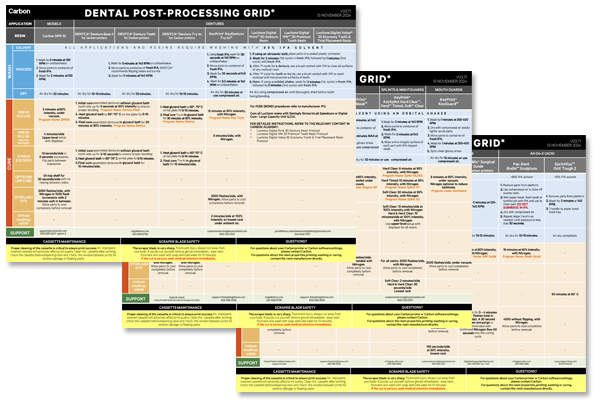
One of our most popular downloads! This table provides washing and curing instructions for all supported dental resins.
Print it and use it in the lab as a quick reference.
:::
:::VerticalSplitItem
:::
::::
::::VerticalSplit{layout="left"}
:::VerticalSplitItem
**English**
:::
:::VerticalSplitItem
::File{src="https://api.archbee.com/api/presign/3CesIL2dYMCHPZvRjp8S0/vQ2WsRger2d-CoLrn-m5f_dental-post-processing-grids-v0501.pdf" label="Dental-Post-Processing-Grids_v0501.pdf"}
:::
::::
::::VerticalSplit{layout="left"}
:::VerticalSplitItem
**German/Deutsch**
:::
:::VerticalSplitItem
::File{src="https://api.archbee.com/api/presign/uXbZOKjJTGpPhjapQ8fvM-seBSLAiWUzNDRI1GCLlop-20241125-214312.pdf" label="ZAHNÄRZTLICHES NACHBEARBEITUNGSGITTER v03.71 DE Deutsch.pdf"}
:::
::::
::::VerticalSplit{layout="left"}
:::VerticalSplitItem
**Spanish/Español**
:::
:::VerticalSplitItem
::File{src="https://api.archbee.com/api/presign/uXbZOKjJTGpPhjapQ8fvM-2i0UhzOfuA4aYJFusL1v2-20241203-180542.pdf" label="Rejilla de Posprocesamiento Dental v03.71 ES Espanol Spanish.pdf"}
:::
::::
### Performance Qualification Certificate
Download the certificate [here](https://docs.carbon3d.com/files/technical-data-sheets/pq-certificate_carbon-m2-m3_keysplint-hard.pdf).
## Resin Menu Options
Tthe following **resin dropdowns** may be used with the printer/cassette combinations noted with ✔️.
| | **M2** | **M3/M3 Max** | | |
| -------------------------------------------- | ------ | ------------- | ------ | ------ |
| **Resin Dropdown** | **C2** | **C4** | **D1** | **D4** |
| AO-Polish Keystone KeySplint Hard Clear\* | ❌ | ✔️ | ❌ | ✔️ |
| AO-Polish Zirlux Nightguard & Splint Rigid\* | ❌ | ✔️ | ❌ | ✔️ |
| Keystone KeySplint Hard | ✔️ | ❌ | ✔️ | ❌ |
| Keystone KeySplint Hard Clear | ✔️ | ❌ | ✔️ | ❌ |
| Zirlux Nightguard & Splint Rigid | ✔️ | ❌ | ✔️ | ❌ |
*\*The *[AO Polishing Cassette](docId\:iFFh3q8-WLk-LIqr87bd5)* is available for **splints** and **night guards **in the** vertical orientation** only.*
# Design Recommendations
:::hint{type="info"}
Carbon does not provide design recommendations for these indications.
:::
- Carbon encourages users to follow the guidelines of your design software for **Splints **and **Night Guards**.
- For example, 3Shape Splint Designer requires a **1.5 mm **minimum wall thickness.
- Both single and double-sided splints and night guards print well when following design software guidelines.
### Perimeter Edge
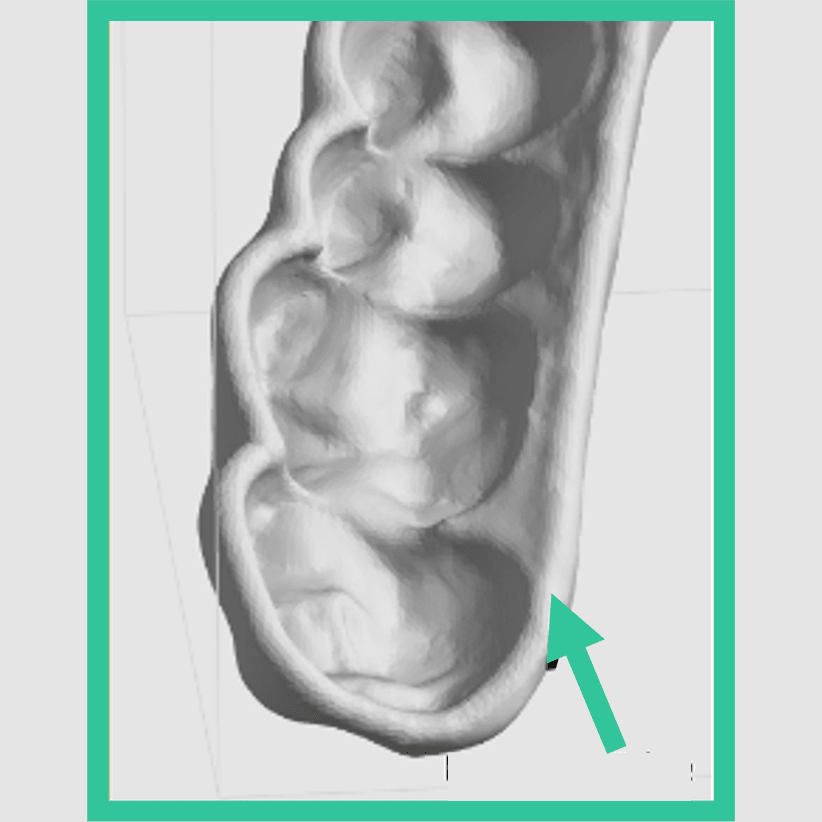
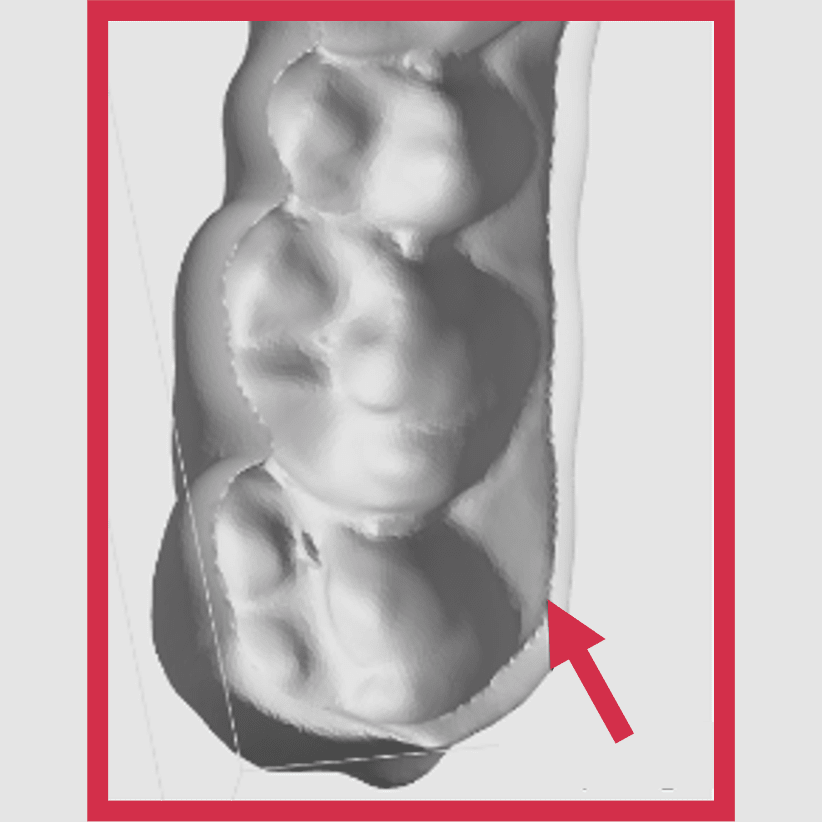
- Ensure that the perimeter of the splint does not come to a sharp 'knife' edge, as this makes support attachment difficult.
- The perimeter should at least be as wide as the tips of the supports to ensure ample space for support connection.
::::VerticalSplit{layout="middle"}
:::VerticalSplitItem
:::
:::VerticalSplitItem
:::
::::
# Print Preparation
**Orientation and Supports** varies by part type and orientation strategy for **splints** and **night guards.**
:::Paragraph{listStyleType="disc" indent="2"}
All Types | Vertical Orientation
*Compatible with the AO Polishing Cassette*
:::
:::Paragraph{listStyleType="disc" listStart="2" indent="2"}
Single-Sided | Tilted Orientation
:::
:::Paragraph{listStyleType="disc" listStart="3" indent="2"}
Double-Sided | Tilted Orientation
:::
**Layout**, **Print Controls**, and **Project Analysis** are the same for all indications.
:::::::::WorkflowBlock
::::::::WorkflowBlockItem
## Orientation and Supports
Select the **indication type** and **orientation strategy** (where applicabe) to expand the steps for orientation and supports.
:::::::ExpandableHeading
### Splints and Night Guards | Vertical Orientation
Printing splints in a **vertical **orientation maximizes the amount of splints that can be printed at once.
**Orient**
::::WorkflowBlock
:::WorkflowBlockItem
Click on **Orient** (Shift + O) in the top bar in the printer interface.

:::
:::WorkflowBlockItem
In the lower right corner of the bottom bar, turn on **Overhang Detection** (V) and set to **40 degrees. **Areas that need support will appear **red**.
::Image[]{src="https://res.cloudinary.com/carbon3d/image/upload/t_auto_quality_format/Education/Materials/dental/__General_Use/Orient-overhang-detection_40.png" size="50" width="1235" height="185" position="flex-start" alt="Overhang Detection set to 40 degrees" showCaption="false"}
:::
:::WorkflowBlockItem
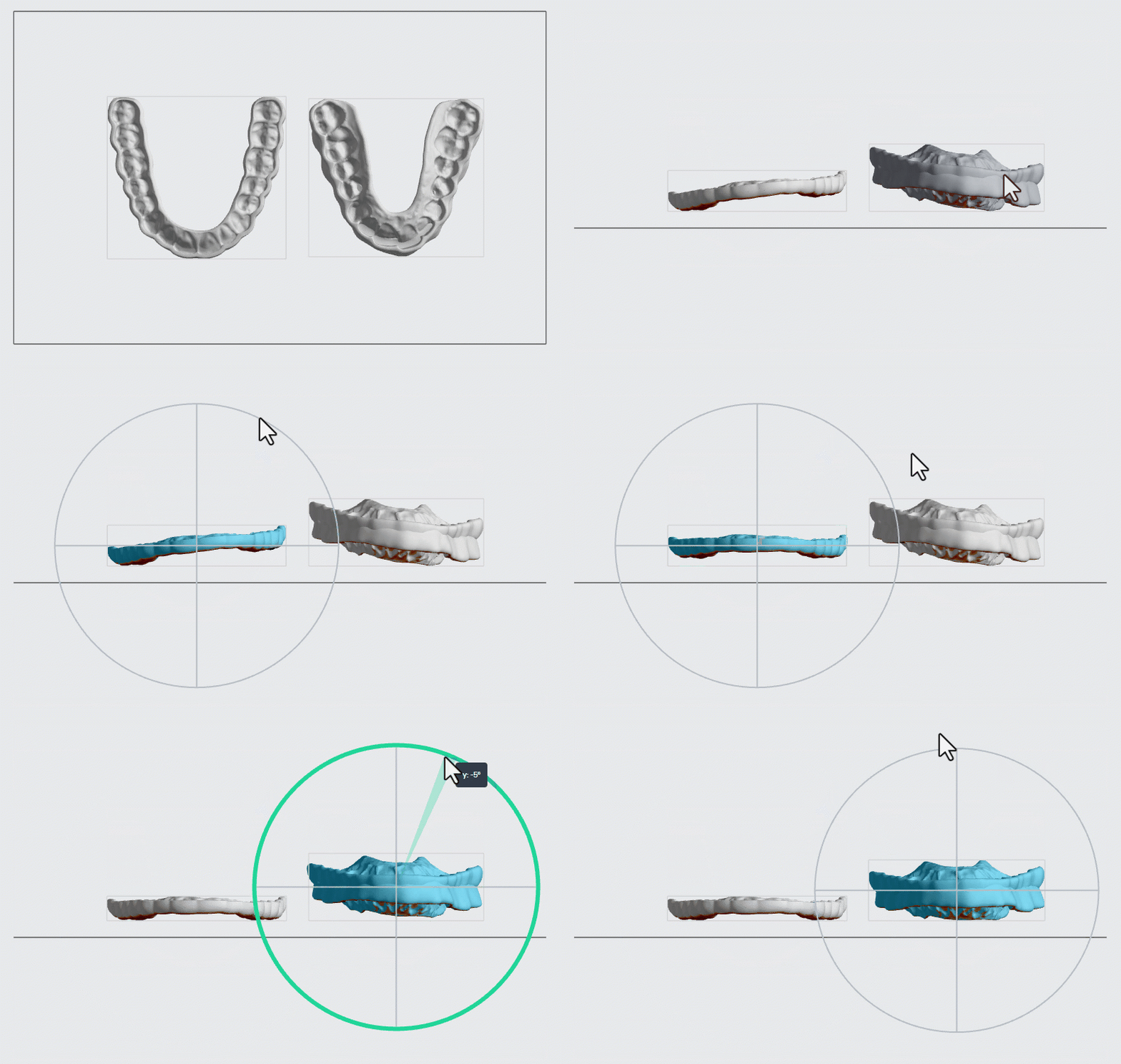
Orient the splints so they are **about parallel to the platform.**
:::
:::WorkflowBlockItem
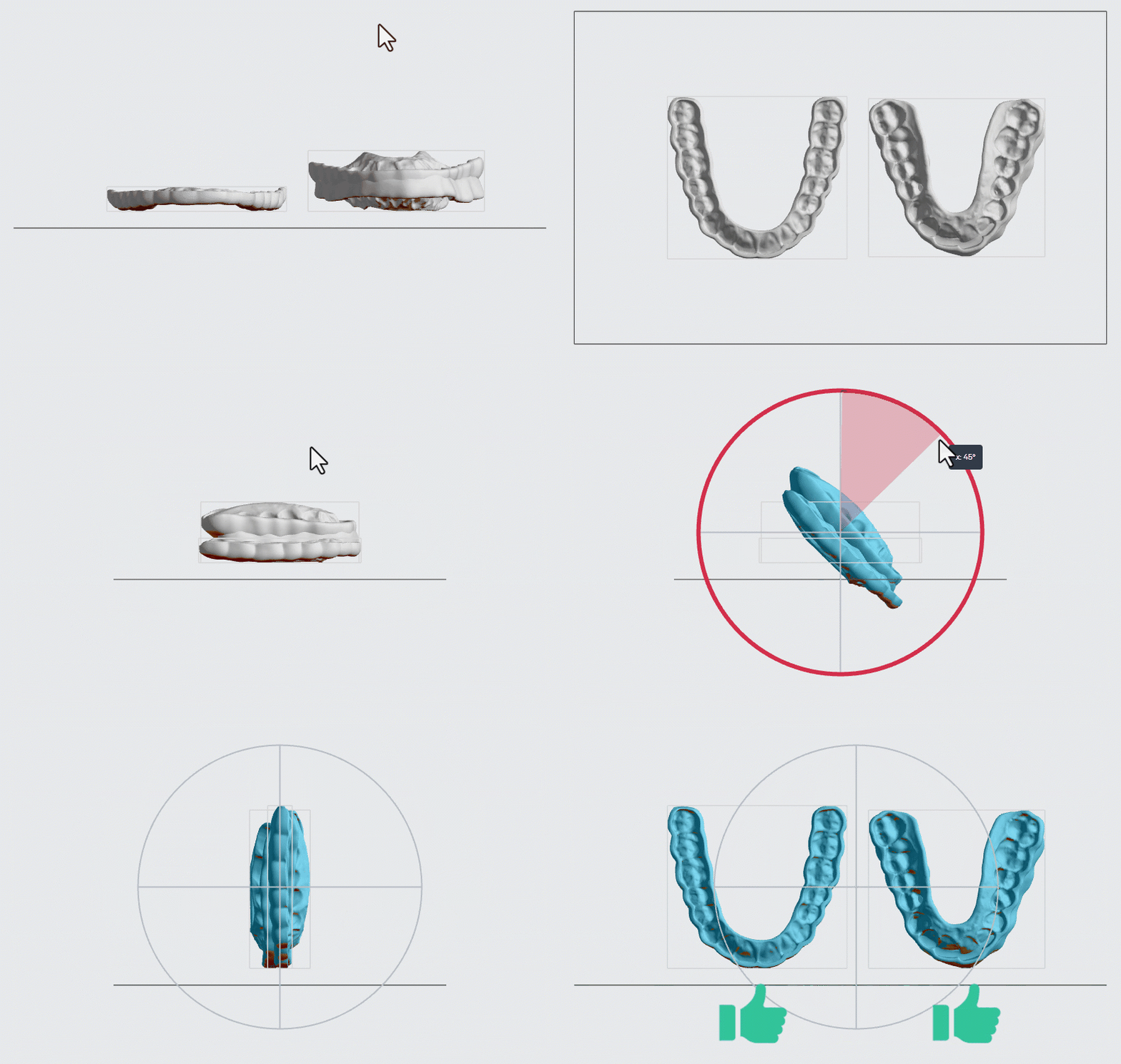
Rotate the models **90 degrees with the anteriors facing the platform.** The models should be standing vertically, perpendicular to the platform.
:::
::::
**Support**
::::::WorkflowBlock
:::WorkflowBlockItem
Click on **Supports** (Shift + S) in the top bar in the printer interface.

:::
:::WorkflowBlockItem
For the **Part Position**, select **Above** to lift parts off the platform.
::Image[]{src="https://res.cloudinary.com/carbon3d/image/upload/t_auto_quality_format/Education/Materials/dental/__General_Use/Support-part-position-above.png" size="70" width="355" height="62" position="flex-start" alt="Part Position Above" showCaption="false"}
:::
:::WorkflowBlockItem
Click the **Manual** tab and select **Patch** for supports generation method.
::Image[]{src="https://res.cloudinary.com/carbon3d/image/upload/t_auto_quality_format/Education/Materials/dental/__General_Use/Support-patch-menu.png" size="70" width="360" height="108" position="flex-start" alt="Manual Supports - Patch Method" showCaption="false"}
:::
:::WorkflowBlockItem
**Add supports**
1. Click on the anterior surface of a splint to select a patch.
2. Under the **Patch **tab, adjust the **Overhang **to between **40 and 60 degrees. **
1. Select a value to ensure that the patch covers the **six anterior teeth.**
3. In the **Primary Support Type** dropdown menu, select **Fence. **Fences are easier to remove and require less finishing than other support types.
4. Enter a **Spacing **value between **2.5 and 4 mm.**
5. Make sure the **Boundary Fence** checkbox is selected.
6. **Margin **value should be **0 mm.**
::embed[]{url="https://vimeo.com/1033957979?dnt=1"}
:::
:::::WorkflowBlockItem
**Examples** of well-supported vertically oriented splints
::::VerticalSplit{layout="middle"}
:::VerticalSplitItem
**Single-sided splint**

:::
:::VerticalSplitItem
**Double-sided splint**

:::
::::
:::::
::::::
:::hint{type="warning"}
Surfaces with supports will **require finishing** to ensure proper seating.
:::
:::::::
:::::::ExpandableHeading{isOpen="true"}
### Splints and Night Guards - Single-Sided | Tilted Orientation
Proper orientation of splints is critical to:
- Maximize yield by minimizing print defects
- Achieve the required accuracy and surface quality
::::VerticalSplit{layout="middle"}
:::VerticalSplitItem
**Single-Sided Splint**
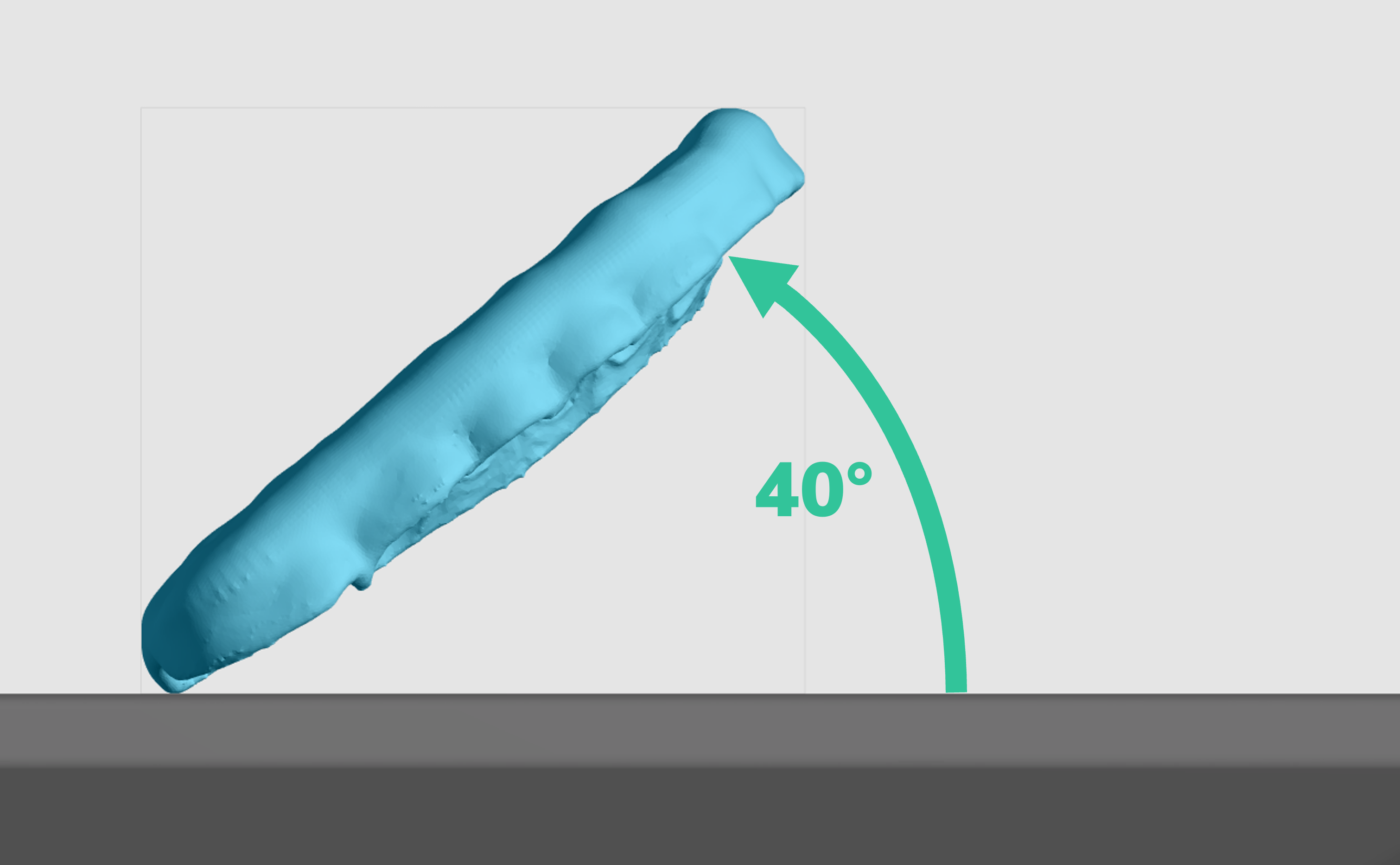
- **40º tilt** with anterior rotated away from platform
- Intaglio surface facing platform
:::
:::VerticalSplitItem
:::
::::
**Orient**
::::WorkflowBlock
:::WorkflowBlockItem
Click on **Orient** (Shift + O) in the top bar in the printer interface.

:::
:::WorkflowBlockItem
In the lower right corner of the bottom bar, turn on **Overhang Detection** (V) and set to **40 degrees. **Areas that need support will appear **red**.
::Image[]{src="https://res.cloudinary.com/carbon3d/image/upload/t_auto_quality_format/Education/Materials/dental/__General_Use/Orient-overhang-detection_40.png" size="50" width="1235" height="185" position="flex-start" alt="Overhang Detection set to 40 degrees" showCaption="false"}
:::
:::WorkflowBlockItem
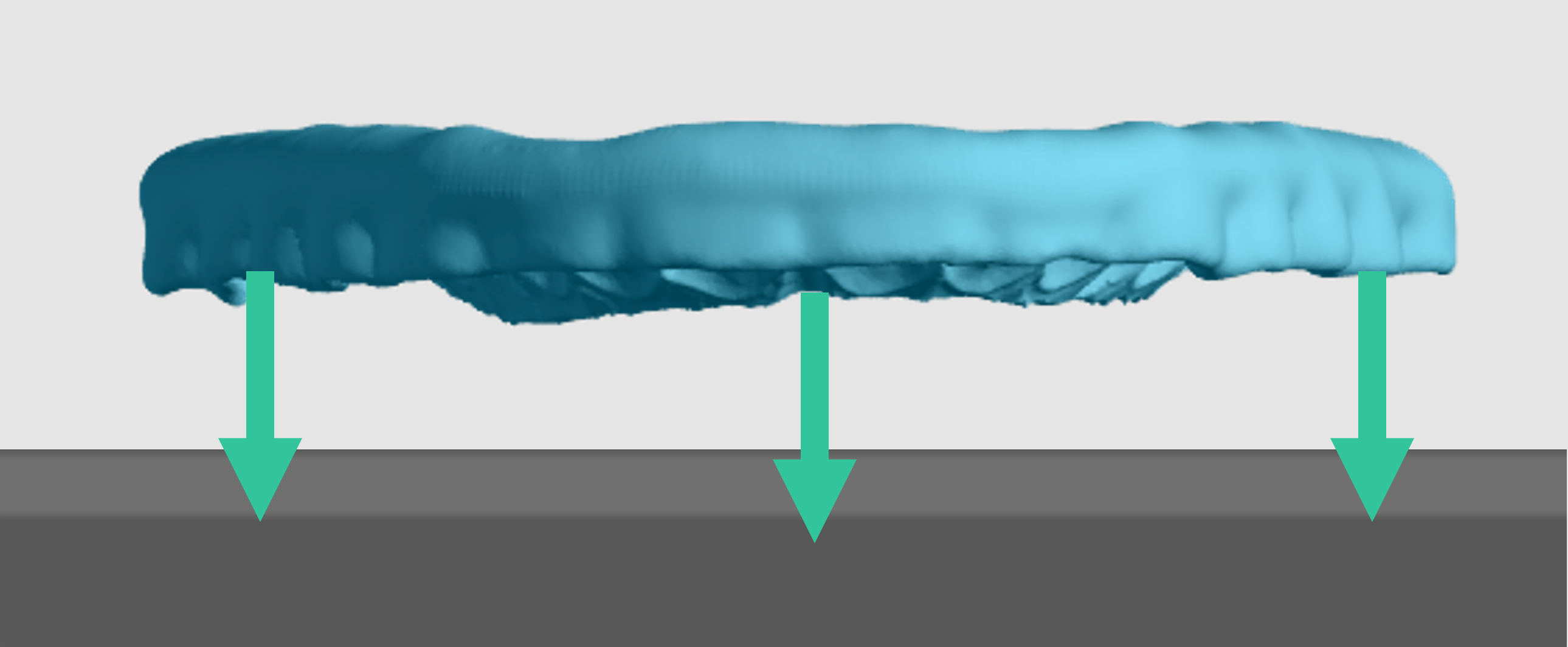
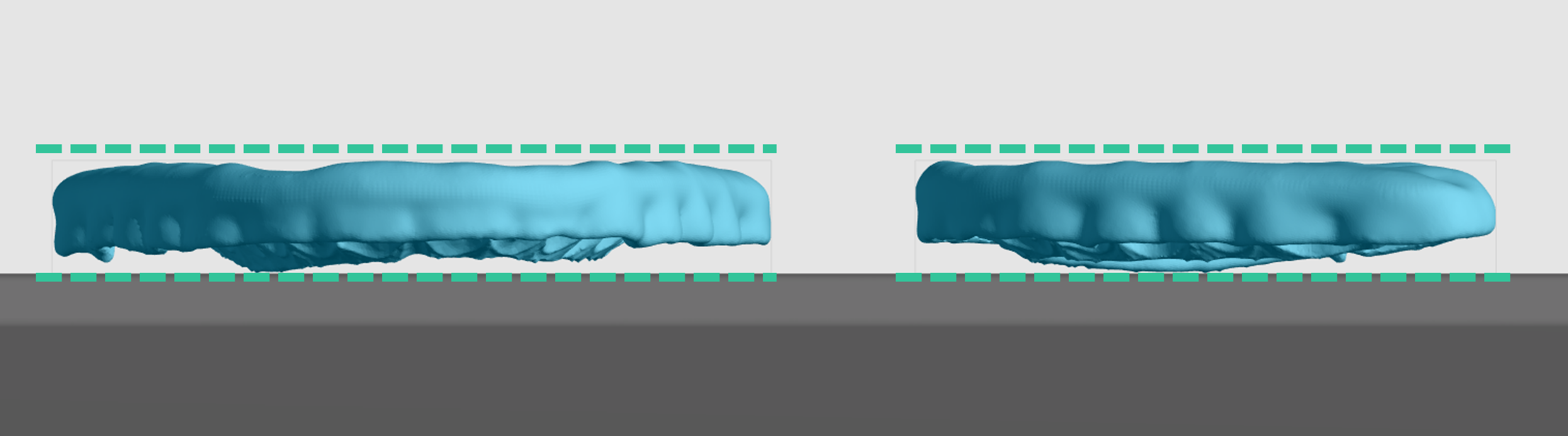
Orient the splint so that the** intaglio surface is facing the platform**
:::
:::WorkflowBlockItem
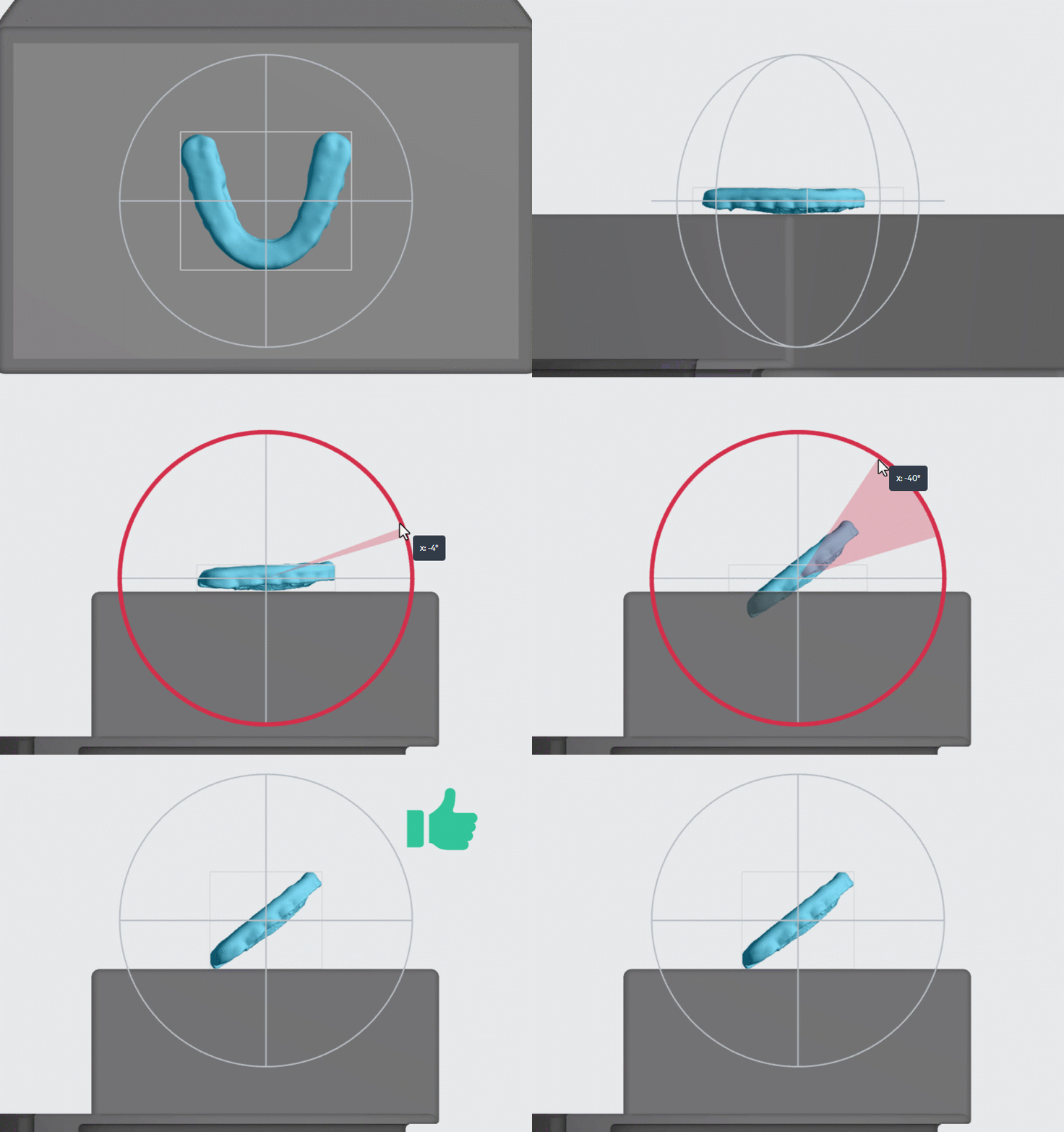
Adjust the splint so that it is mostly **parallel with the platform**
:::
:::WorkflowBlockItem
Rotate the splint so that it is at a **40 degree angle** from the platform with the **posterior close to the platform**
:::
::::
**Support**
Carbon recommends using **fences**. They are easy to remove and do not increase the footprint of the splint, enabling more to be fit onto the build platform.
:::hint{type="info"}
💡**Toggle Platform Off** ('B' keyboard shortcut)****
This will hide the platform and allow a clear view while you are adding supports.
:::
::::::WorkflowBlock
:::WorkflowBlockItem
Click on **Supports** (Shift + S) in the top bar in the printer interface.

:::
:::WorkflowBlockItem
For the **Part Position**, select **Above** to lift parts off the platform.
::Image[]{src="https://res.cloudinary.com/carbon3d/image/upload/t_auto_quality_format/Education/Materials/dental/__General_Use/Support-part-position-above.png" size="70" width="355" height="62" position="flex-start" alt="Part Position Above" showCaption="false"}
:::
:::WorkflowBlockItem
Click the **Manual** tab and select **Fence** for supports generation method.
::Image[]{src="https://res.cloudinary.com/carbon3d/image/upload/t_auto_quality_format/Education/Materials/dental/__General_Use/Support-fence-menu.png" size="70" width="350" height="110" position="flex-start" alt="Manual Supports - Fence Method" showCaption="false"}
:::
:::::WorkflowBlockItem
**Add supports**
1. Click a **series of points **on the perimeter of the splint to define a fence.
2. Click **Esc **key on keyboard to end a fence and begin another.
- Carbon recommends making a series of small fences, rather than making a single continuous fence, to give greater flexibility to reposition points.
- Hold down the **E key** and click with the mouse to reposition points.
3. Click **Generate** to create the fence geometry. This may take a few minutes.
4. Continue steps 1 - 4 until the entire perimeter is supported.
5. Click **Done** in the upper left corner when finished.
::embed[]{url="https://vimeo.com/1035385172?dnt=1"}
::::VerticalSplit{layout="middle"}
:::VerticalSplitItem
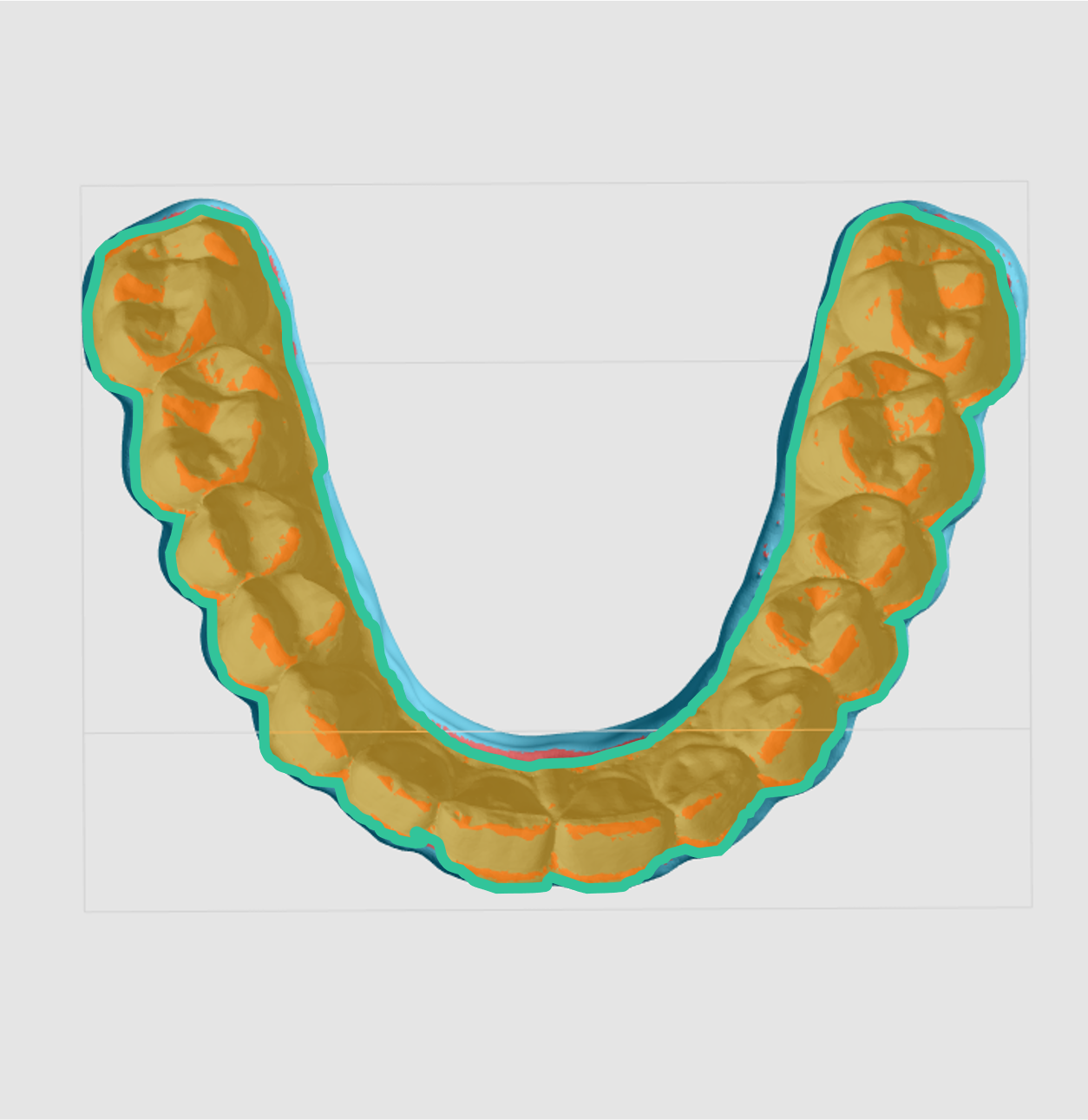
- Support the **entire perimeter** of the platform side of the model.
- **Avoid supporting areas that come in direct contact with teeth** as this can affect fit and function.
:::
:::VerticalSplitItem
:::
::::
:::::
:::WorkflowBlockItem
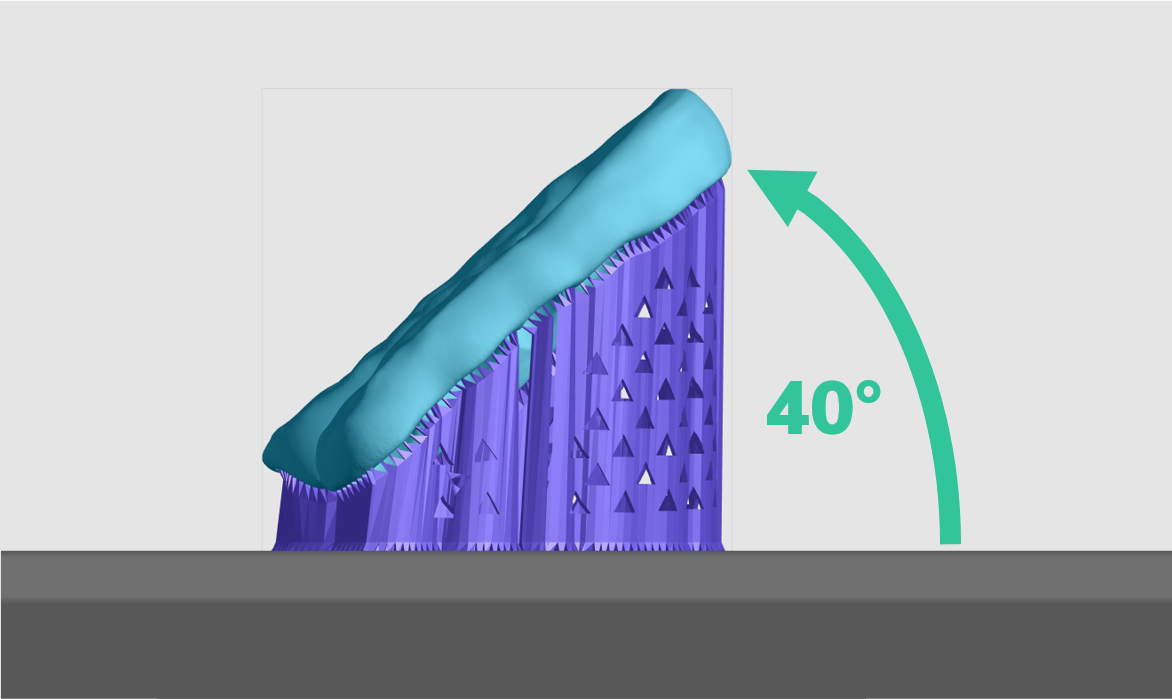
**Example** of well-supported tilted splint
:::
::::::
:::::::
:::::::ExpandableHeading
### Splints and Night Guards - Double-Sided | Tilted Orientation
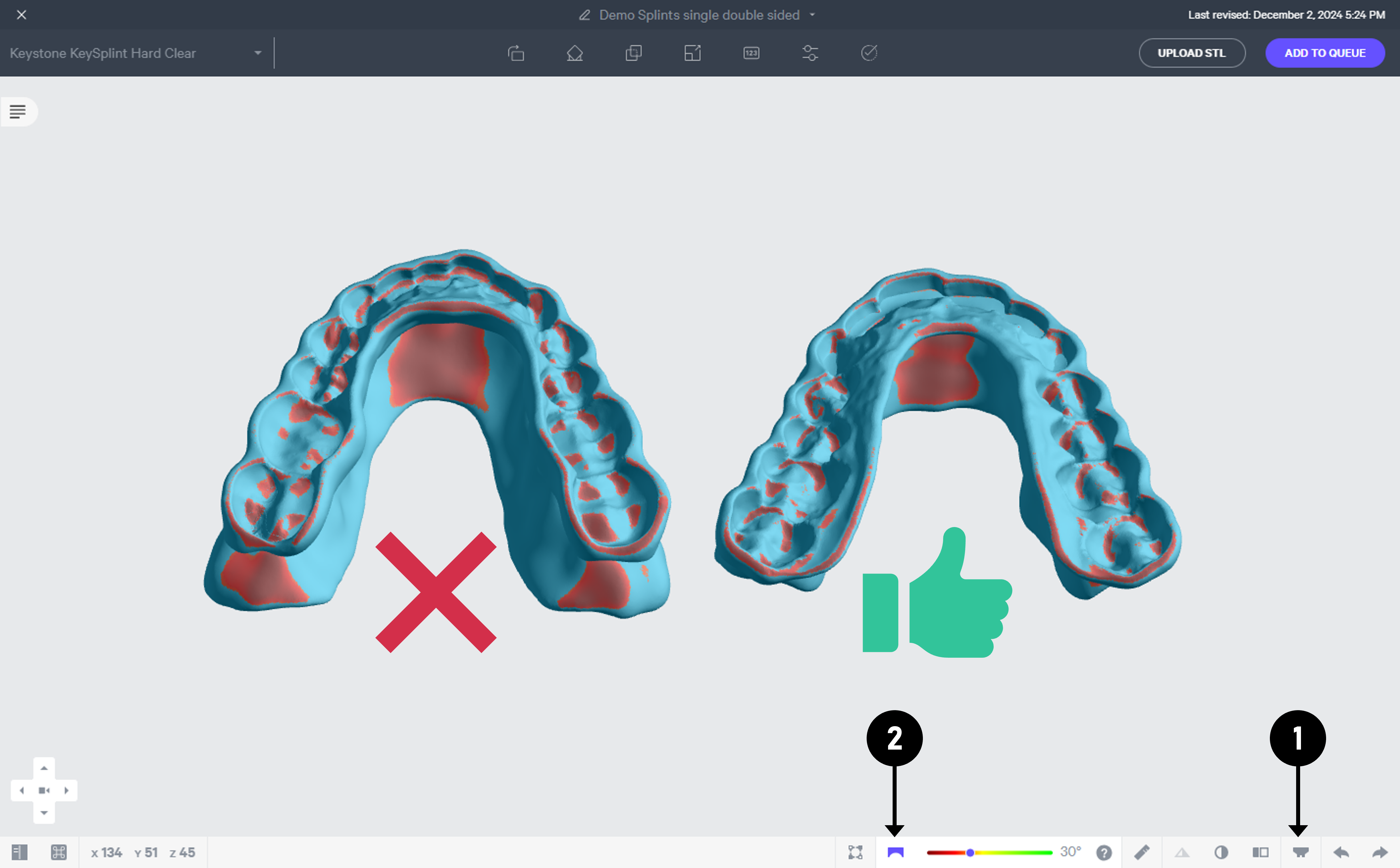
Double-sided splints are oriented similarly to single-sided splints, but determining which side should be supported requires comparing both sides using **Overhang Detection**. Carbon recommends supporting the side that has the **fewest overhangs** and thus requires the **fewest supports.** This has a number of benefits:
- Part accuracy resulting from fewer unsupported overhangs on intaglio surface.
- Minimizes time creating the supports in the software.
- Reduces resin usage.
- Reduces finishing time by minimizing support nubs.
Each splint is evaluated by duplicating it, flipping the copy, turning on the Overhang Detection tool, and then seeing which part has the fewest overhangs (red area).
If there is not a clear difference, then either side may be supported.
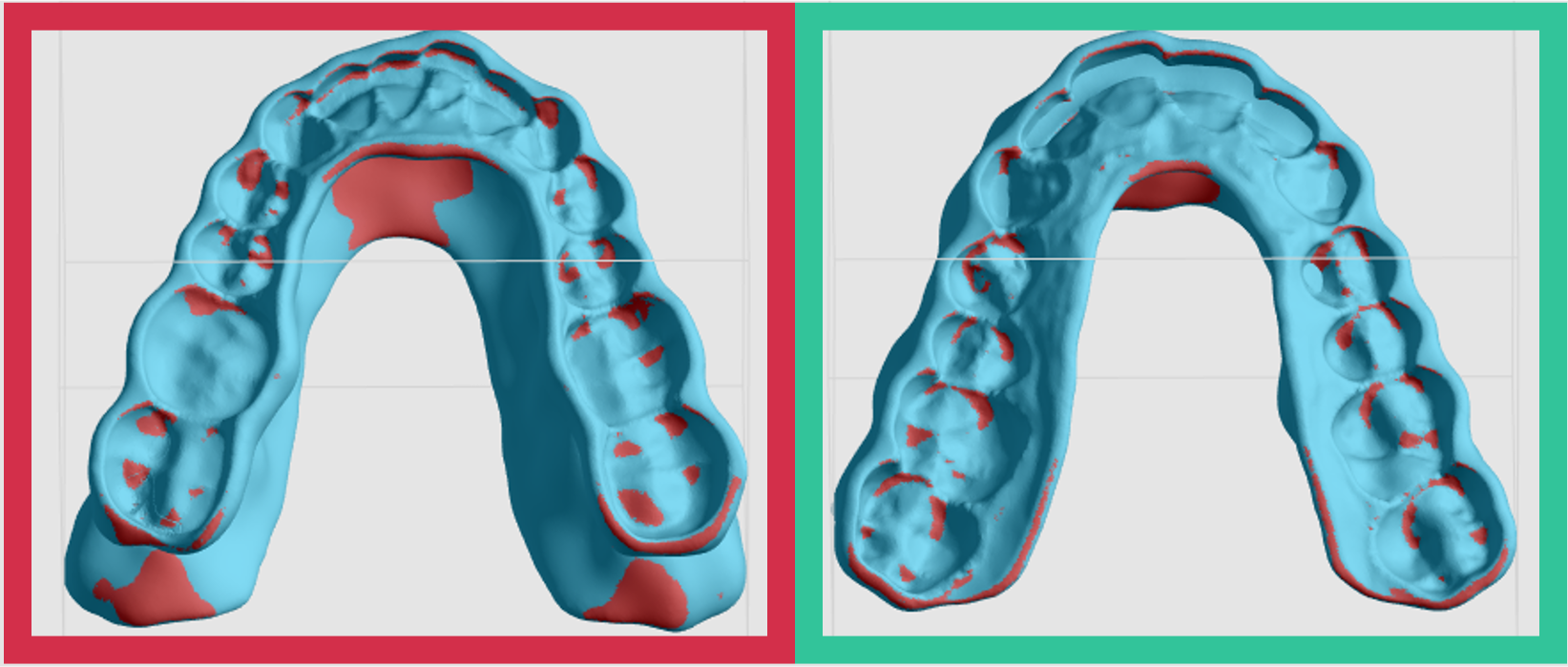
Proper orientation of splints is critical to:
- Maximize yield by minimizing print defects
- Achieve the required accuracy and surface quality
::::VerticalSplit{layout="middle"}
:::VerticalSplitItem
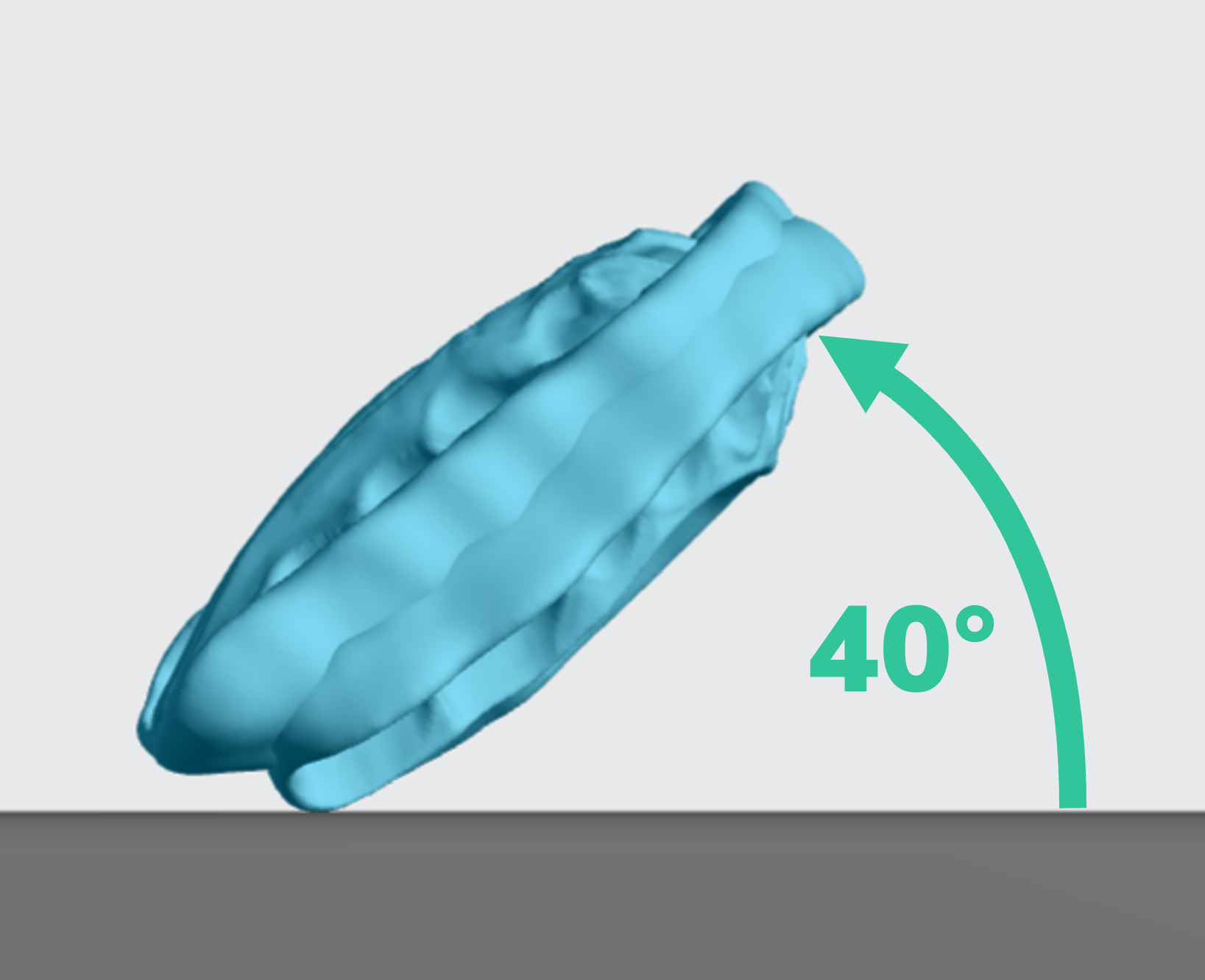
**Double-Sided Splint**
- **40º tilt** with anterior rotated away from platform
- Mandibular or maxillary surface facing platform to minimize supports
:::
:::VerticalSplitItem
:::
::::
**Orient**
::::::WorkflowBlock
:::WorkflowBlockItem
Click on **Orient** (Shift + O) in the top bar in the printer interface.

:::
:::WorkflowBlockItem
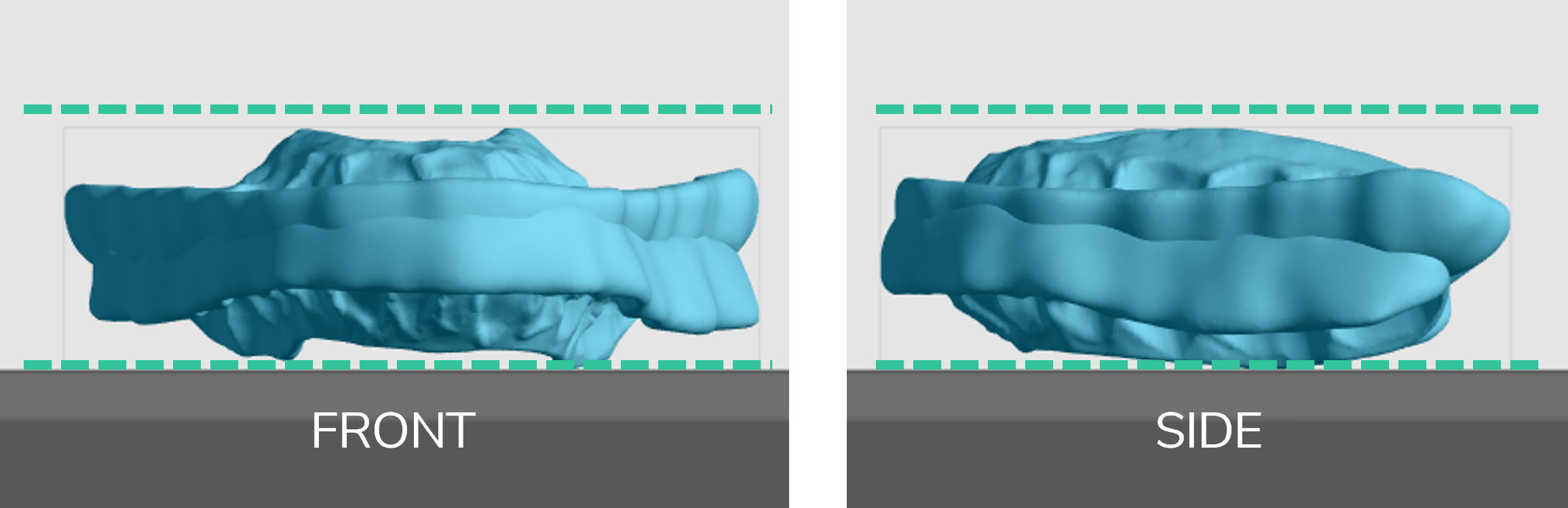
Adjust the splint so that it is mostly **parallel with the platform. **Either side of the splint can face the platform.
:::
:::WorkflowBlockItem
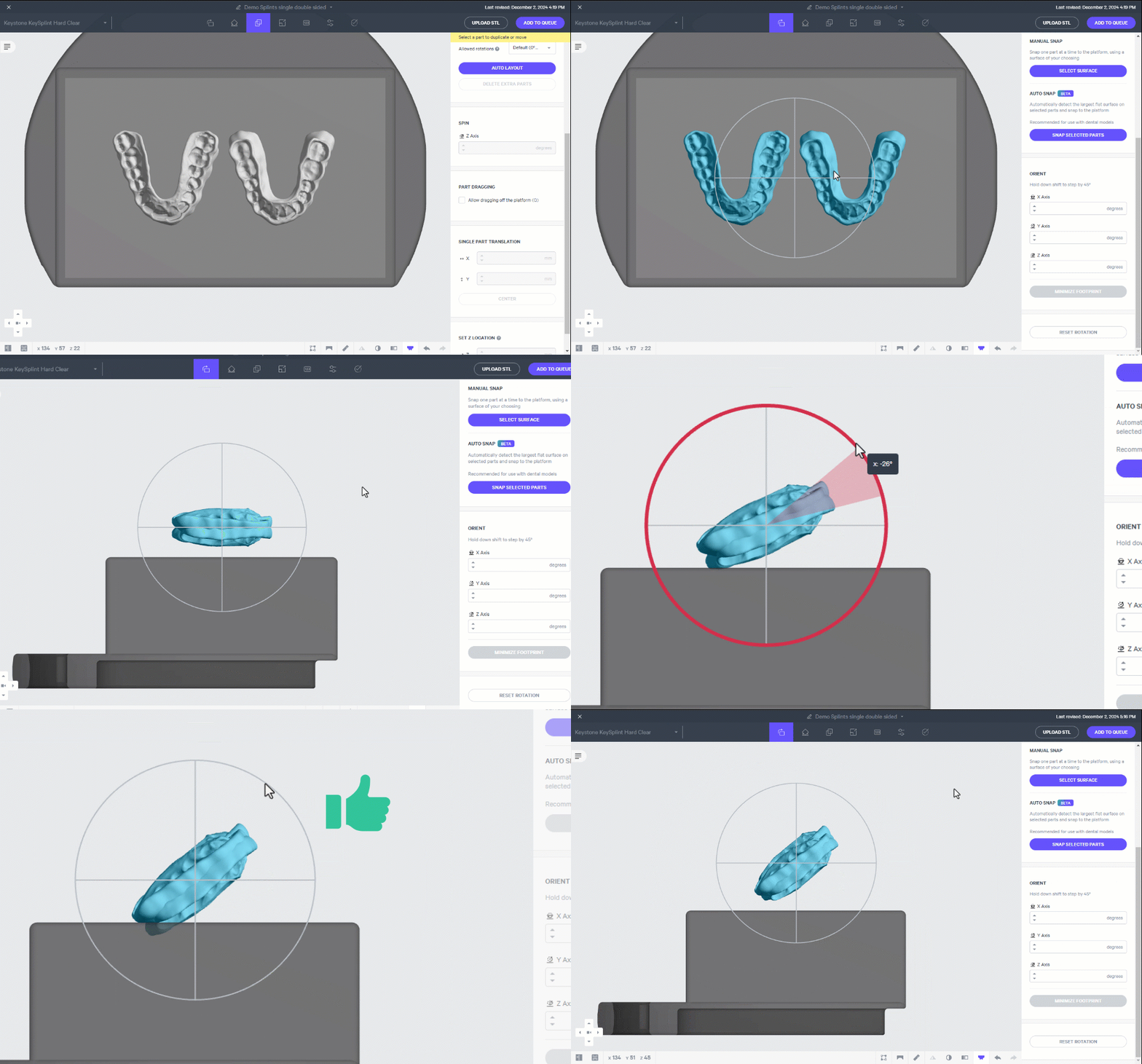
**Duplicate and flip** the splint
1. Click **Layout** in the main bar in the printer software.
2. Click the splint model to select it.
3. Enter **1** in **Number of copies** and click **Duplicate**.
- A duplicate of the model will appear.
4. Click **Orient** in the main bar.
5. Type **180 in the Y Axis field** and press **Enter.**
6. Click **Layout **again.
- Move the models apart from each other so they do not overlap.
::embed[]{url="https://vimeo.com/1035419148?dnt=1"}
**You now have 2 copies of the splint:**
- One with **maxillary **impression facing the platform.
- One with **mandibular **impression facing the platform.
:::
:::::WorkflowBlockItem
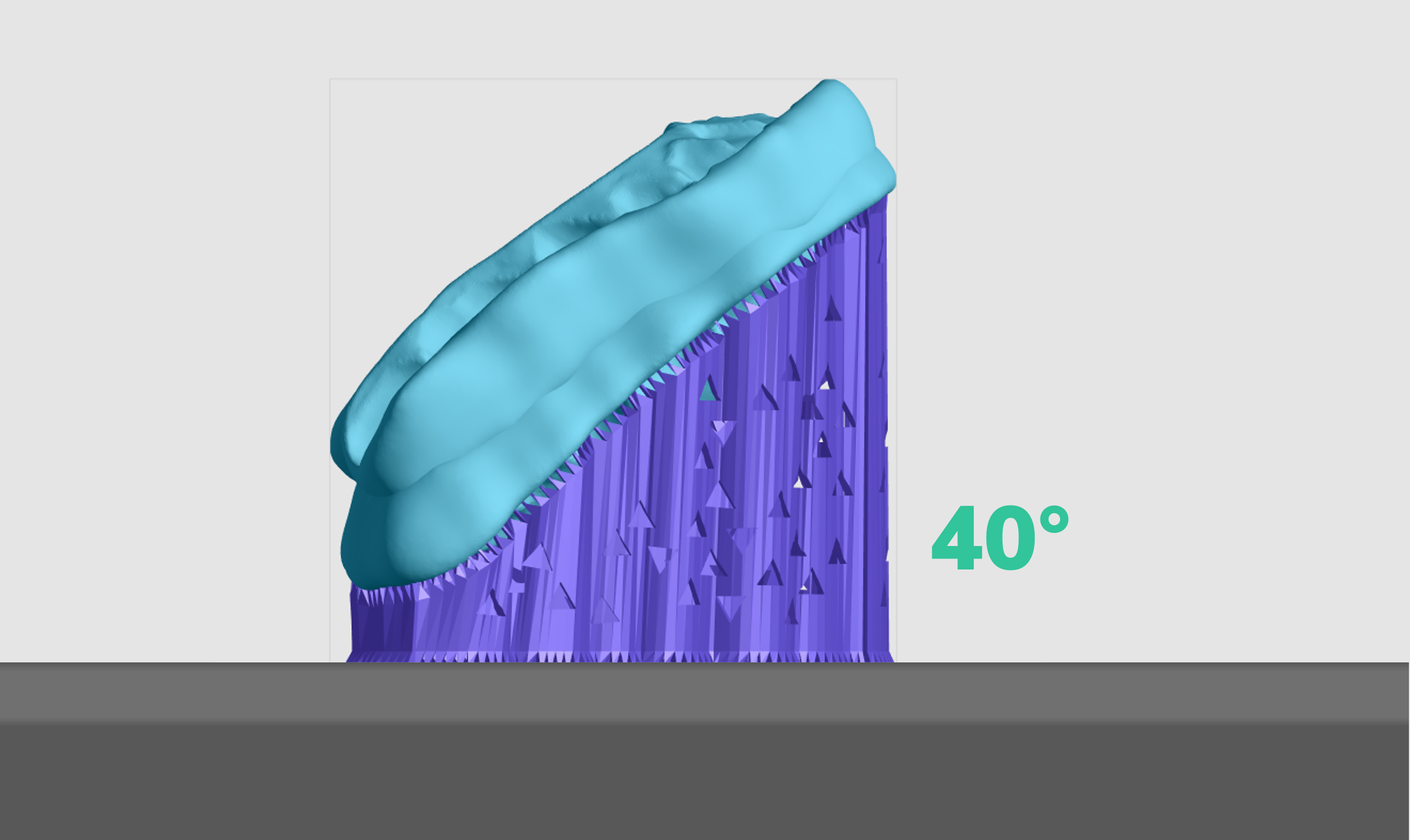
**Rotate **double-sided splints so that it is at a **40 degree angle** from the platform with the **posterior close to the platform**
::::VerticalSplit{layout="middle"}
:::VerticalSplitItem
1. Select both models
2. Rotate the splints until the anterior portions are at **40 degrees **from the platform.
3. The posterior of the splint should be touching the platform.
:::
:::VerticalSplitItem
:::
::::
:::::
:::WorkflowBlockItem
**Compare overhangs**
1. Click **Toggle Platform button** in the lower toolbar or press the **B key** to hide the platform. This will allow you to see the overhang areas clearly.
2. Click **Overhang Detection** or press the **V key** and set to **30º** to find areas that need support.
3. Orient the camera so that you see the models from the bottom (platform side) and can clearly see the red overhang areas.
- Orbit around the models as needed to make sure you can see all overhang areas.
- You may want to adjust the model tilt **±5º **to reduce overhangs. You can adjust the models independently.
4. After carefully comparing the models, **delete the model that has the most overhangs. **If there is no clear difference in overhang area, either one is fine to select.
:::
::::::
**Support**
Carbon recommends using **fences**. They are easy to remove and do not increase the footprint of the splint, enabling more to be fit onto the build platform.
:::hint{type="info"}
💡**Keep Platform Off** ('B' keyboard shortcut)****
This will hide the platform and allow a clear view while you are adding supports.
:::
::::::WorkflowBlock
:::WorkflowBlockItem
Click on **Supports** (Shift + S) in the top bar in the printer interface.

:::
:::WorkflowBlockItem
For the **Part Position**, select **Above** to lift parts off the platform.
::Image[]{src="https://res.cloudinary.com/carbon3d/image/upload/t_auto_quality_format/Education/Materials/dental/__General_Use/Support-part-position-above.png" size="70" width="355" height="62" position="flex-start" alt="Part Position Above" showCaption="false"}
:::
:::WorkflowBlockItem
Click the **Manual** tab and select **Fence** for supports generation method.
::Image[]{src="https://res.cloudinary.com/carbon3d/image/upload/t_auto_quality_format/Education/Materials/dental/__General_Use/Support-fence-menu.png" size="70" width="350" height="110" position="flex-start" alt="Manual Supports - Fence Method" showCaption="false"}
:::
:::::WorkflowBlockItem
**Add fence supports along perimeter**
1. Click a **series of points **on the perimeter of the splint to define a fence.
2. Click **Esc **key on keyboard to end a fence and begin another.
- Carbon recommends making a series of small fences, rather than making a single continuous fence, to give greater flexibility to reposition points.
- Hold down the **E key** and click with the mouse to reposition points.
3. Click **Generate** to create the fence geometry. This may take a few minutes.
4. Continue steps 1 - 4 until the entire perimeter is supported.
5. Click **Done** in the upper left corner when finished.
::embed[]{url="https://vimeo.com/1037613846?dnt=1"}
::::VerticalSplit{layout="middle"}
:::VerticalSplitItem
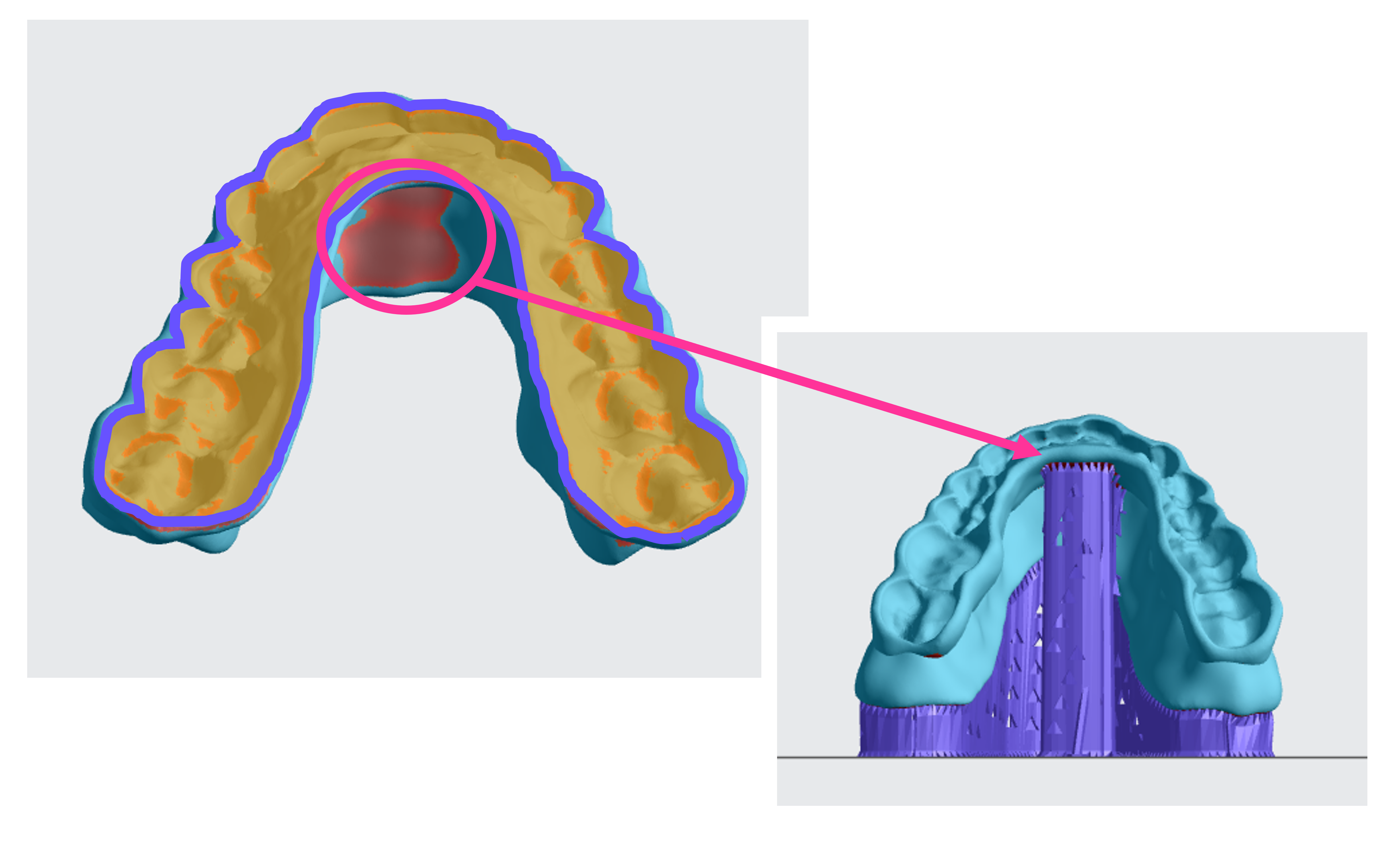
- Support the **entire perimeter** of the platform side of the model.
- **Avoid supporting areas that come in direct contact with teeth** as this can affect fit and function.
:::
:::VerticalSplitItem
:::
::::
:::::
:::::WorkflowBlockItem
**Add additional patch supports as needed**
Double sided splints may require additional supports, especially for overhangs on the anterior lingual surfaces. Use **Patch **supports for these areas.
1. Click **Patch.**
2. Click an area of overhang.
3. Under Patch, set Overhang to **30º.**
4. Set **Primary Support Type** to **Fence.**
5. Check the **Boundary Fence** box.
6. Click Generate All to create the supports.
7. Repeat as needed for additional areas of overhang.
::embed[]{url="https://vimeo.com/1037636311?dnt=1"}
::::VerticalSplit{layout="middle"}
:::VerticalSplitItem
- Double-sided splints may require additional supports on **polished/cameo surfaces**.
:::
:::VerticalSplitItem

:::
::::
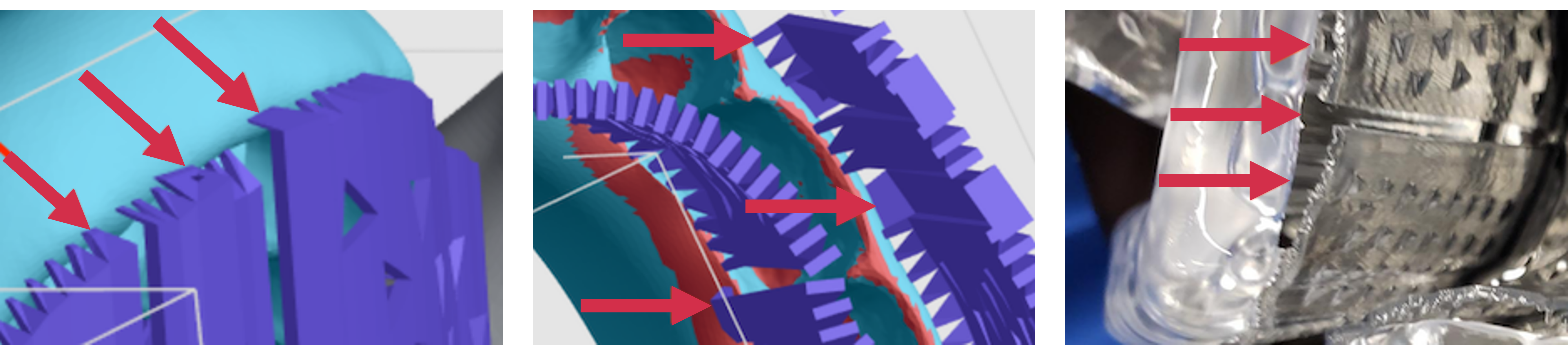
- If the **supports are attaching at a horizontal angle**, they may detach during printing causing part deformation. Supports should attach to the surface of the part that is facing the platform creating vertically oriented support tips. Please reapply the supports and move the attachment points to address this issue if this problem occurs.
:::::
:::WorkflowBlockItem
**Troubleshooting**
If the **supports are attaching at a horizontal angle**, they may detach during printing causing part deformation. Supports should attach to the surface of the part that is facing the platform creating vertically oriented support tips. Please reapply the supports and move the attachment points to address this issue if this problem occurs.
::Image[]{src="https://res.cloudinary.com/carbon3d/image/upload/Education/Materials/dental/Keysplint-Hard/Double-sided-splint-supporting-notes-horizontal02.png" size="100" width="5412" height="1195" position="center" showCaption="false" indent="2"}
:::
:::WorkflowBlockItem
**Example** of well-supported tilted splint
::Image[]{src="https://res.cloudinary.com/carbon3d/image/upload/Education/Materials/dental/Keysplint-Hard/double-splint-well-supported01.gif" size="70" width="600" height="600" position="flex-start" showCaption="false"}
:::
::::::
:::::::
::::::::
::::::WorkflowBlockItem
## Layout
:::::ExpandableHeading{isOpen="true"}
::::WorkflowBlock
:::WorkflowBlockItem
Select the **Layout** tab (Shift + L) in the top menu bar

:::
:::WorkflowBlockItem
Under **Auto Layout**, select **Gen2**
Gen2 usually gives the most effecient packing for dental devices.
:::
:::WorkflowBlockItem
Enter at least **1 mm** minimum in **Padding**
:::
:::WorkflowBlockItem
Leave **Optimize starting rotation** **unchecked**
This leaves your parts in their previous orientations.
:::
:::WorkflowBlockItem
Leave **Allowed rotations** at the **default** setting
This gives the software maximum flexibility to fit the most possible parts on the build platform.
:::
:::WorkflowBlockItem
Press the **Auto Layout** button to arrange your parts.
:::
::::
:::::
If necessary, nesting can be changed manually:
- Click and drag parts to adjust their position.
- Modify Z rotation by using the **Spin **tool
The software will try four 90 degree rotations to maximize the build. You may rotate the part in the Z axis prior to running autolayout where it may be advantageous to fit more models.
::Image[]{src="https://res.cloudinary.com/carbon3d/image/upload/Education/Materials/dental/Keysplint-Hard/support_single_z_rotation.png" size="90" width="1419" height="799" position="center" caption="Any Z orientation is acceptable" alt="Any Z orientation is acceptable" showCaption="true"}
- Use the **Part List tab **as needed to more easily select models and focus on them.
::::::
::::::::WorkflowBlockItem
## Print Controls
:::::::ExpandableHeading
::::::WorkflowBlock
:::WorkflowBlockItem
Select the **Print Controls** tab (Shift + P) in the top menu bar

:::
:::::WorkflowBlockItem
**Slicing**
::::VerticalSplit{layout="left"}
:::VerticalSplitItem
Slice Thickness should be **Standard (100 µ)**.
:::
:::VerticalSplitItem
::Image[]{src="https://res.cloudinary.com/carbon3d/image/upload/Education/Materials/dental/Keysplint-Hard/slicing-standard-100um.png" size="100" width="342" height="234" position="flex-start" showCaption="false" indent="2"}
:::
::::
:::hint{type="info"}
Reducing the slice thickness by choosing the **Fine** (50 µ) or **Super-fine** (25 µ) settings will increase print time and may reduce part quality and accuracy.
:::
:::::
::::::
:::::::
::::::::
::::::WorkflowBlockItem
## Project Analysis
:::::ExpandableHeading
::::WorkflowBlock
:::WorkflowBlockItem
Select the **Project Analysis** tab (Shift + A) in the top menu bar

:::
:::WorkflowBlockItem
Click **Start Analysis** and wait for the processing to complete.
:::
:::WorkflowBlockItem
Note the **required resin volume** and **print time**
:::
:::WorkflowBlockItem
Click **Add to Queue**
:::
::::
:::::
::::::
:::::::::
# Post-Processing
## Pre-Cure
::::VerticalSplit{layout="middle"}
:::VerticalSplitItem
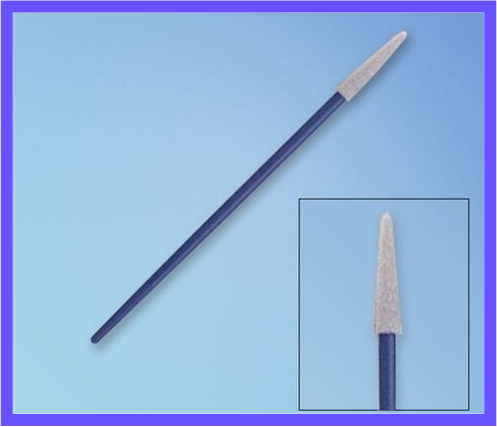
Reminder from the **Keystone Industries® KeyPrint® KeySplint Hard™** [IFU](docId\:oMBYMp5dsFTApFdsGDYzG) :
*Using a clean ****foam swab**** dipped in IPA, wipe the entire intaglio surface of each part.*
:::
:::VerticalSplitItem
:::
::::
## Curing
All approved curing units use the same settings for both KeySplint Hard Clear and KeySplint Hard with the following exception:
### Post-Curing Coloration
::::VerticalSplit{layout="middle"}
:::VerticalSplitItem
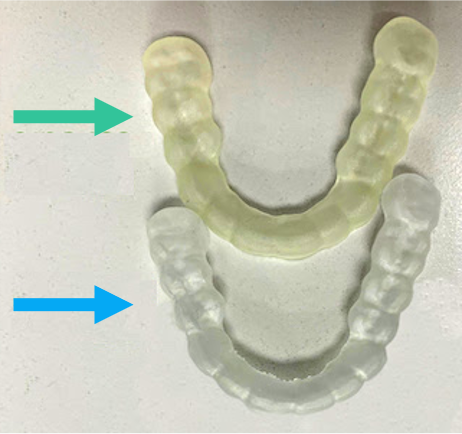
- A **yellow tint** is expected and normal after curing parts printed in the KeySplint Hard and KeySplint Hard Clear resins.
- The yellowish tint will **fade away within 24-48 hours**.
- If after this time period you are still experiencing issues with discoloration, please contact [Carbon Support](docId\:K86Zo5vcyN_wqJL3vdGFt) with a detailed description of the issue.
:::
:::VerticalSplitItem
:::
::::
::::VerticalSplit{layout="middle"}
:::VerticalSplitItem
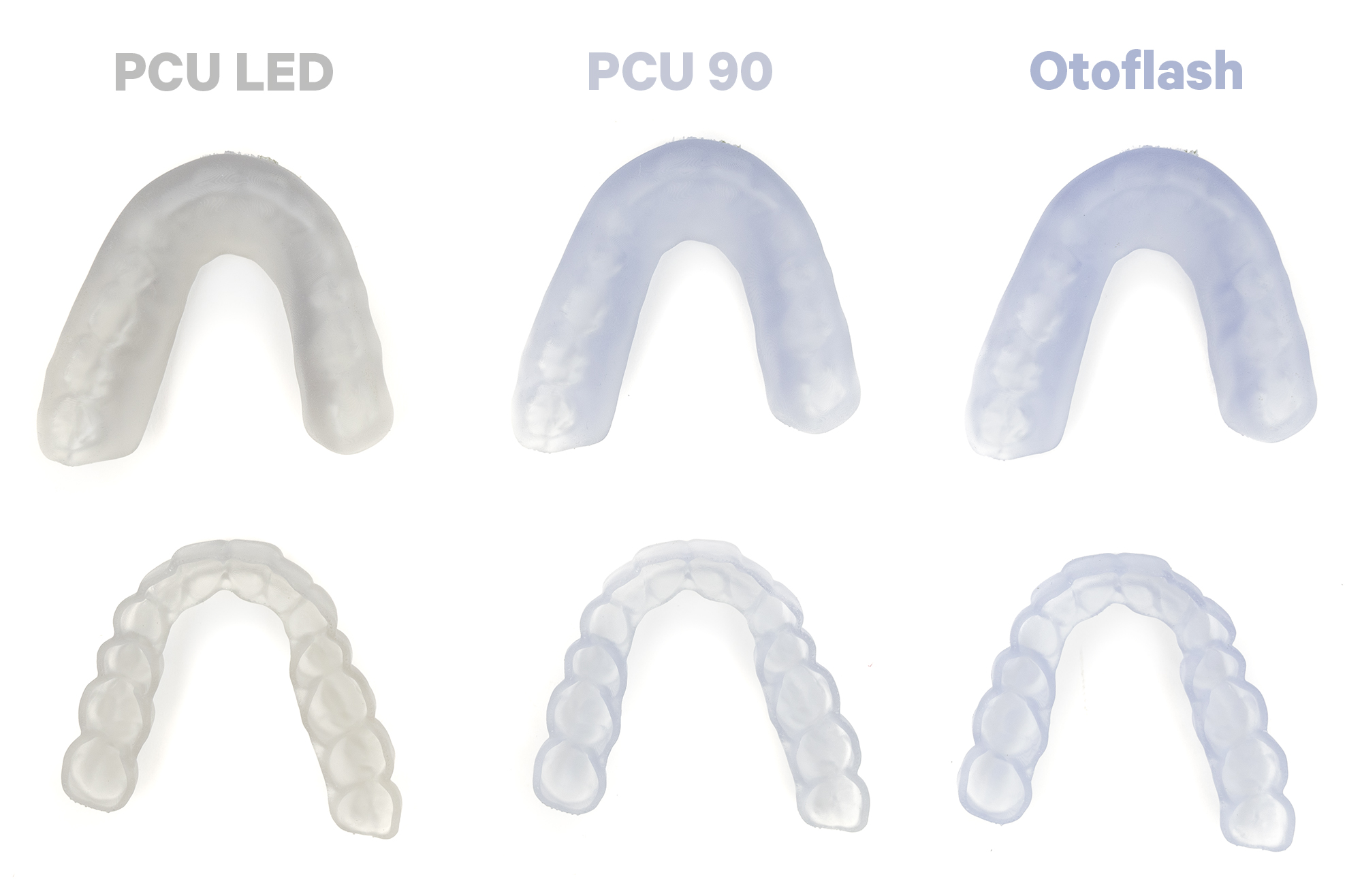
The final color of your tinted splints is dependent on the cure chamber used.
- Dreve PCU LED chamber results in a gray tint
- Otoflash and PCU 90 cure chamber result in a light violet tint
- Uvitron Intelliray 400W will produce a coloration that falls between the PCU LED and PCU 90
:::
:::VerticalSplitItem
:::
::::
::::VerticalSplit{layout="middle"}
:::VerticalSplitItem
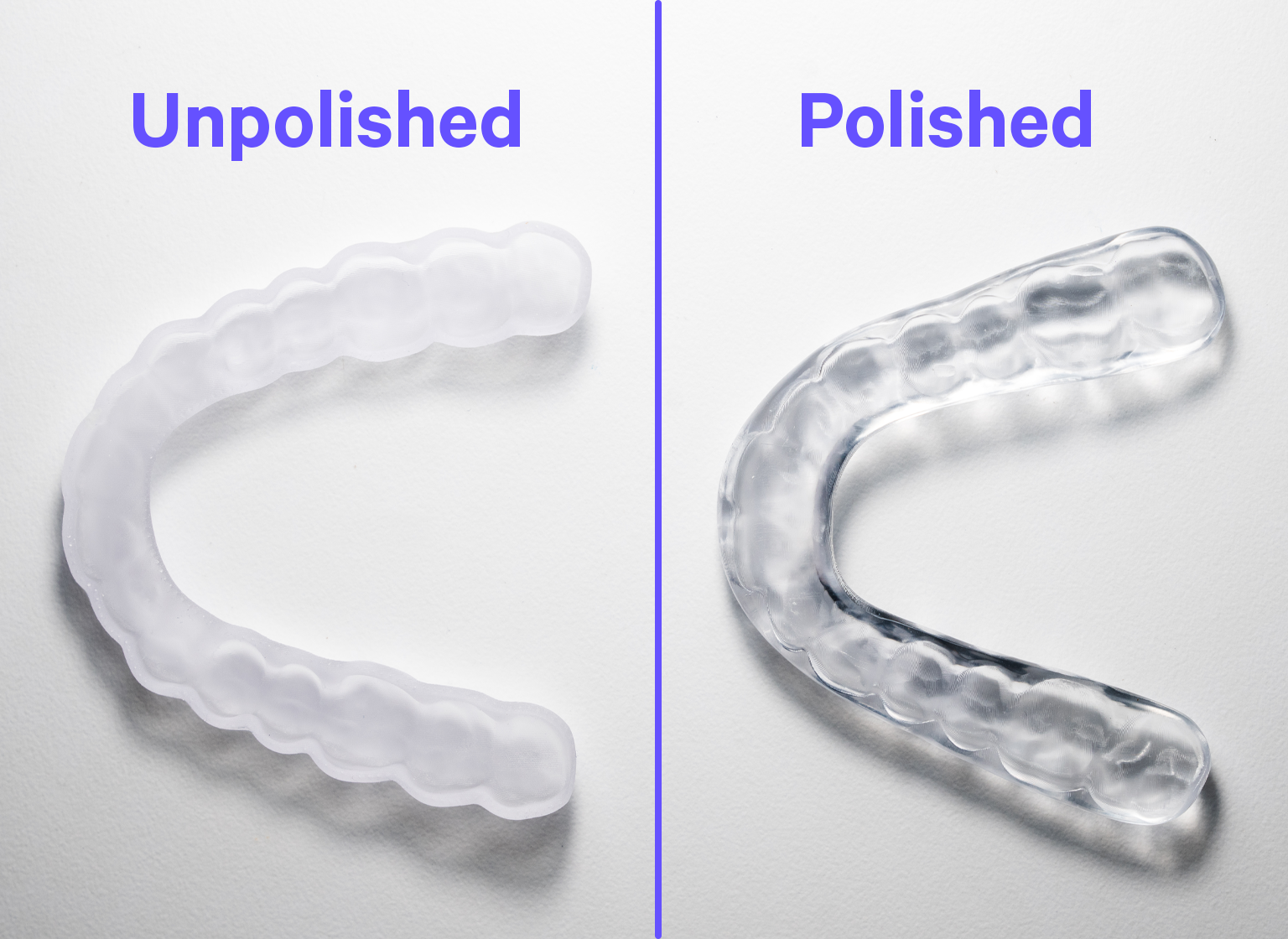
KeySplint Hard Clear is translucent after curing. Polishing reveals a water clear appearance.
:::
:::VerticalSplitItem
:::
::::
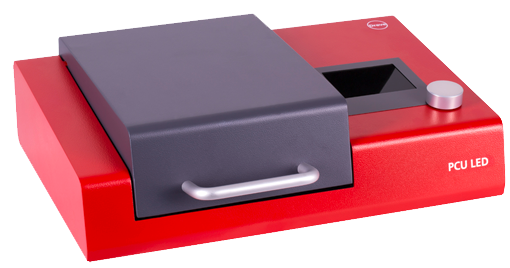
### Dreve PCU LED
::::VerticalSplit{layout="middle"}
:::VerticalSplitItem
- **Hard Clear - Use program Splint HC/KG**
- 8 mins at 90% intensity with Nitrogen.
- **Hard - Use program Splint HT**
- 10 mins at 90% intensity with Nitrogen.
:::
:::VerticalSplitItem
:::
::::
# Questions & Support
For questions about the **resin properties**, printing, washing or curing your parts, please contact the Keystone technical team:
- Email: [customerservice@keystoneind.com](mailto\:customerservice@keystoneind.com)
- Phone:
- **U.S. and Canada** 1-800-333-3131
- **EU** +49 77 31 91 21 01
For questions about your **Carbon printer** or **Carbon software settings** used for this resin, please [contact Carbon](https://learn.carbon3d.com/carbon-support):
- Email: [support@carbon3d.com](mailto\:support@carbon3d.com)
- Phone:
- **U.S. and Canada** 1-650-285-6307 option 2
- **Germany** +49 6102 5790849
- **UK **+44 (0) 2082 647484
- Printer UI: On the dashboard, select the **Prints** tab. **Select one of the printed projects.** Click **Request Help** in the lower right corner.
::Image[]{src="https://api.archbee.com/api/optimize/3CesIL2dYMCHPZvRjp8S0/YY6yCChSIB8SevmBwY76W_request-help-01.png" size="70" width="6541" height="3371" position="flex-start" alt="Location of button in the printer software" showCaption="false"}