---
title: Keystone KeyGuard
slug: materials/keystone-keyguard
description: Explore the essential guide for using Keystone KeyGuard resin with Carbon printers, including preparation, printing tips, and support methods.
docTags:
createdAt: 2024-07-18T19:27:04.040Z
---
# Overview
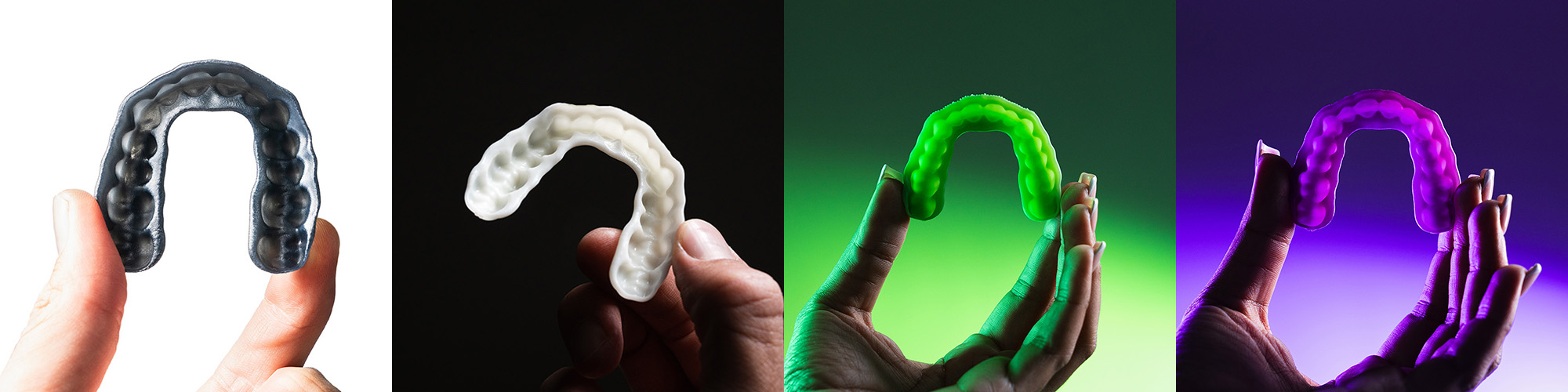
**Keystone KeyGuard™ **by Keystone Industries® is a biocompatible photopolymer resin for the fabrication of custom-made athletic mouth guards.
Keystone KeyGuard™ is available in black, white, purple and green.
This course will cover digital prep of your splints and night guards to properly prepare them for printing.
:::hint{type="info"}
This resin is not currently compatible with the [AO Polishing Cassette](docId\:iFFh3q8-WLk-LIqr87bd5).
:::
## Resource Links
::::LinkArray
:::LinkArrayItem{headerType="IMAGE" headerImage="https://api.archbee.com/api/optimize/uXbZOKjJTGpPhjapQ8fvM-IOQIJkNnkbUAw9Q-ap1FV-20241115-235121.jpg"}
**[About the Material](https://www.carbon3d.com/materials/keyguard)**
:::
:::LinkArrayItem{headerType="IMAGE" headerImage="https://api.archbee.com/api/optimize/3CesIL2dYMCHPZvRjp8S0/cJAKqDDnRUAeJAXNRThMm-20251016-221334.png"}
**[Manufacturer Instructions for Use ](https://keyprint.keystoneindustries.com/wp-content/uploads/2023/11/4915193_IFU_KeyGuard.pdf)**
:::
:::LinkArrayItem{headerType="IMAGE" headerImage="https://api.archbee.com/api/optimize/3CesIL2dYMCHPZvRjp8S0/1r3fpdvMUMFVZGfey2Tjn-20251016-221405.jpg"}
**[Safety Data Sheet](https://keyprint.keystoneindustries.com/keyguard/)**
:::
::::
## Protocol
This downloadable handout provides important usage information, including instructions about storage and post-processing. Print it out and bring it into the lab!
::File{src="https://api.archbee.com/api/presign/uXbZOKjJTGpPhjapQ8fvM-VwQqIufdgWSyZl6tqU6e_-20241126-020538.pdf" label="Keyguard Mouthguard Protocol v01.01.pdf"}
## Dental Post-Processing Grids
::::VerticalSplit{layout="right"}
:::VerticalSplitItem
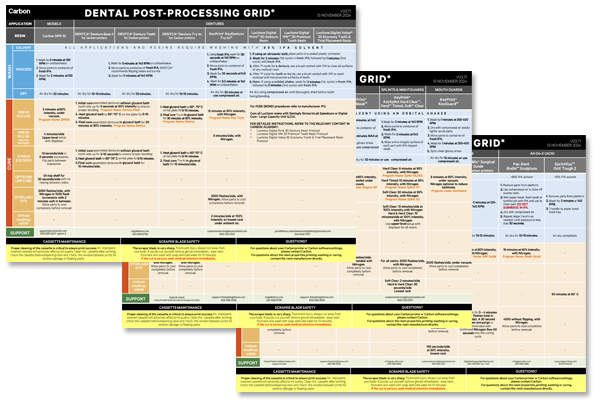
One of our most popular downloads! This table provides washing and curing instructions for all supported dental resins.
Print it and use it in the lab as a quick reference.
:::
:::VerticalSplitItem
:::
::::
::::VerticalSplit{layout="left"}
:::VerticalSplitItem
**English**
:::
:::VerticalSplitItem
::File{src="https://api.archbee.com/api/presign/3CesIL2dYMCHPZvRjp8S0/vQ2WsRger2d-CoLrn-m5f_dental-post-processing-grids-v0501.pdf" label="Dental-Post-Processing-Grids_v0501.pdf"}
:::
::::
::::VerticalSplit{layout="left"}
:::VerticalSplitItem
**German/Deutsch**
:::
:::VerticalSplitItem
::File{src="https://api.archbee.com/api/presign/uXbZOKjJTGpPhjapQ8fvM-seBSLAiWUzNDRI1GCLlop-20241125-214312.pdf" label="ZAHNÄRZTLICHES NACHBEARBEITUNGSGITTER v03.71 DE Deutsch.pdf"}
:::
::::
::::VerticalSplit{layout="left"}
:::VerticalSplitItem
**Spanish/Español**
:::
:::VerticalSplitItem
::File{src="https://api.archbee.com/api/presign/uXbZOKjJTGpPhjapQ8fvM-2i0UhzOfuA4aYJFusL1v2-20241203-180542.pdf" label="Rejilla de Posprocesamiento Dental v03.71 ES Espanol Spanish.pdf"}
:::
::::
# Design Recommendations
- **Carbon does not make mouth guard design recommendations.**
- Users should follow design guidance provided in the **manufacturer instructions for use (IFU).**
::::LinkArray
:::LinkArrayItem{headerType="IMAGE" headerImage="https://api.archbee.com/api/optimize/3CesIL2dYMCHPZvRjp8S0/cJAKqDDnRUAeJAXNRThMm-20251016-221334.png"}
**[Manufacturer Instructions for Use ](https://keyprint.keystoneindustries.com/wp-content/uploads/2023/11/4915193_IFU_KeyGuard.pdf)**
:::
::::
# General Orientation & Support Information
## Hide the Platform
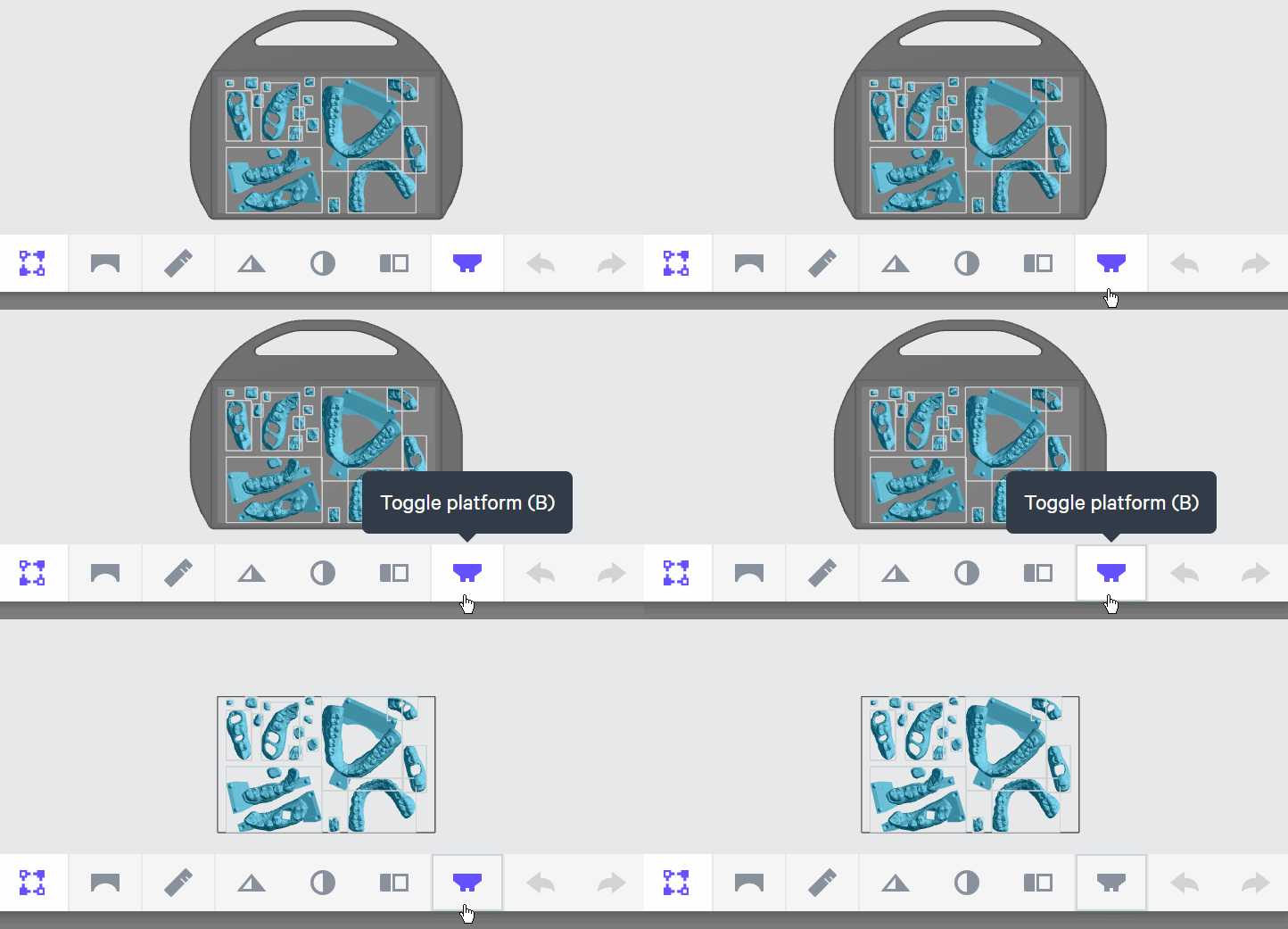
Use **Toggle platform** (or press **B**) to hide the platform before orienting parts. This will make it easier to see overhangs and place supports.
## Use Patch and Fence tools to create supports
::::VerticalSplit{layout="middle"}
:::VerticalSplitItem
### Patch tool
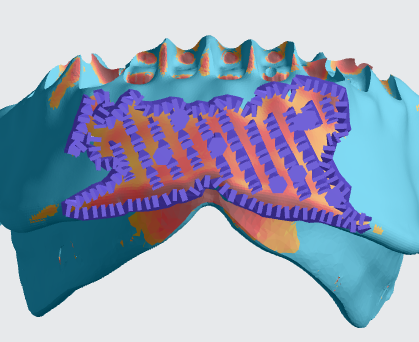
- The [Patch tool](docId\:VUbpoAitbLM11aM9-qJ1p) speeds up support creation by automatically supporting an area with just a few clicks. It is useful for supporting **larger areas** of overhang that would take longer to support manually.
- It is often useful to support your parts with this tool **before **manually adding supports.
::Image[]{src="https://res.cloudinary.com/carbon3d/image/upload/v1741914725/Education/Materials/dental/__General_Use/standard-support-menu-patch.png" size="50" width="208" height="73" position="flex-start" showCaption="false"}
:::
:::VerticalSplitItem
:::
::::
::::VerticalSplit{layout="middle"}
:::VerticalSplitItem
### Fence tool
- [Fence supports](docId\:VUbpoAitbLM11aM9-qJ1p) are manually placed by the user and are best suited on **linear overhangs **or smaller areas.
- Fences provide stability while leaving smaller nubs than the default Bars option.
::Image[]{src="https://res.cloudinary.com/carbon3d/image/upload/v1741914724/Education/Materials/dental/__General_Use/standard-support-menu-fence.png" size="50" width="214" height="77" position="flex-start" showCaption="false"}
:::
:::VerticalSplitItem
:::
::::
:::hint{type="info"}
Review [Supports](docId\:VUbpoAitbLM11aM9-qJ1p) in [Printer UI](docId\:oId4ZNZtZYeltTPVJ984a) course for more information.
:::
# Orienting
Keyprint KeyGuard resin offers flexibility when orienting and supporting digital models. **Carbon encourages experimentation within the provided guidelines to determine what works best for your lab.**
:::hint{type="info"}
**The following information applies to all colors.**
:::
## Orient the mouth guard
::::VerticalSplit{layout="middle"}
:::VerticalSplitItem
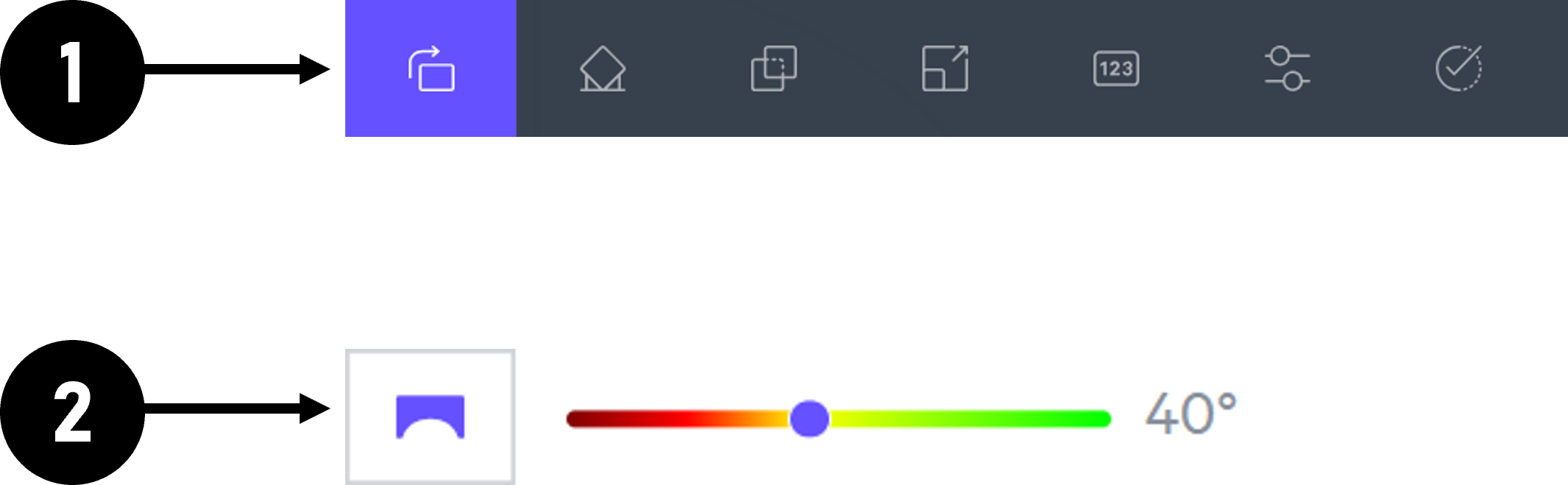
1\. Click on **Orient** or **Shift + O** in the top bar in the printer interface.
2\. In the lower right corner of the bottom bar, turn on **Overhang Detection** or **V key** and set to **40 degrees. **Areas that need support will appear **red.**
:::
:::VerticalSplitItem
:::
::::
::::VerticalSplit{layout="middle"}
:::VerticalSplitItem
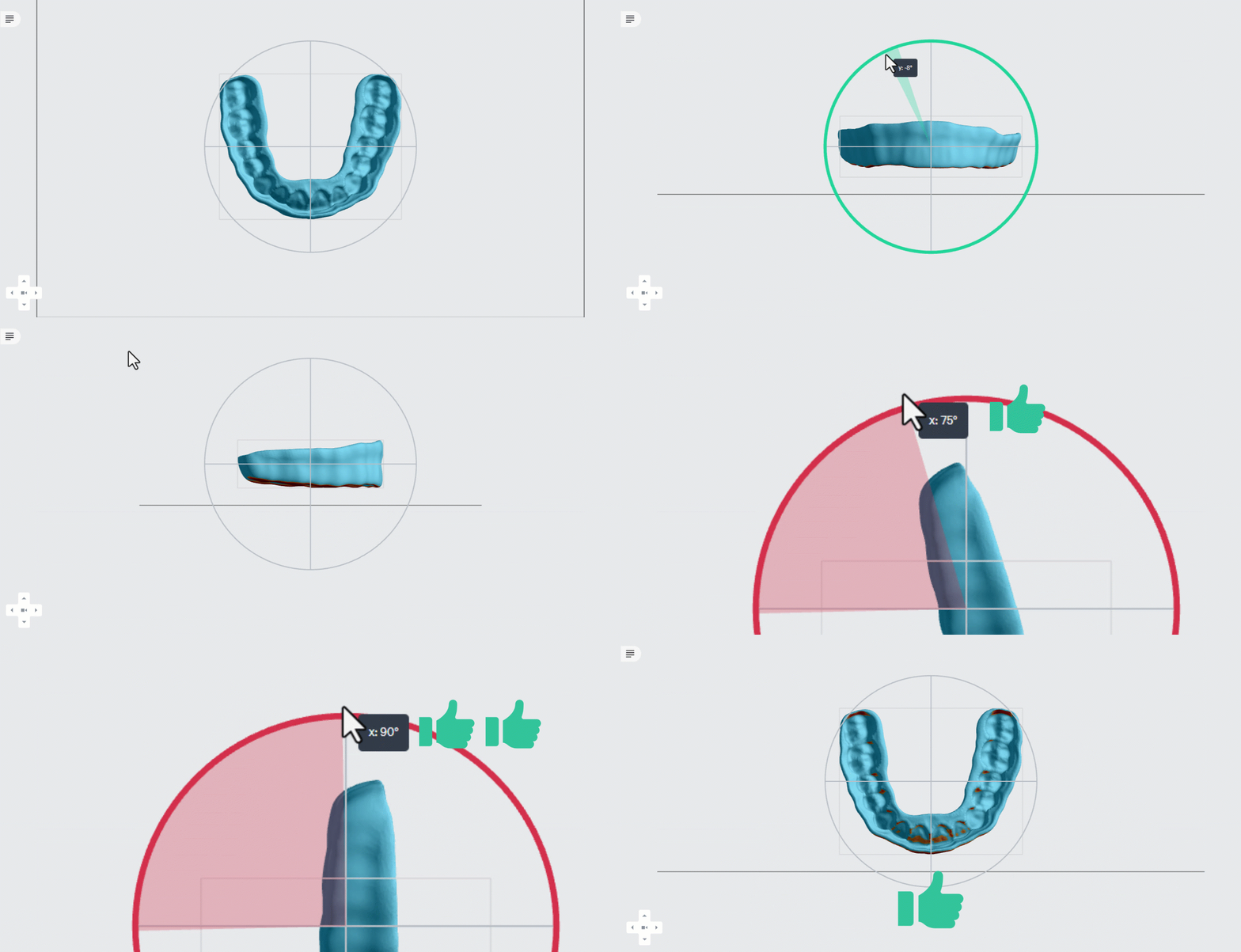
3\. Orient the mouth guard so it is **about parallel to the platform.**
4\. Rotate the model at least **75 degrees** from horizontal with the **anterior facing the platform. **
**90 degrees (perpendicular to the platform) is the recommended orientation. **
:::
:::VerticalSplitItem
:::
::::
:::hint{type="danger"}
**Surfaces that have overhangs will require supports. Supported surfaces will require finishing to ensure proper seating.**
:::
# Supporting
## Enter Support mode
::::VerticalSplit{layout="middle"}
:::VerticalSplitItem
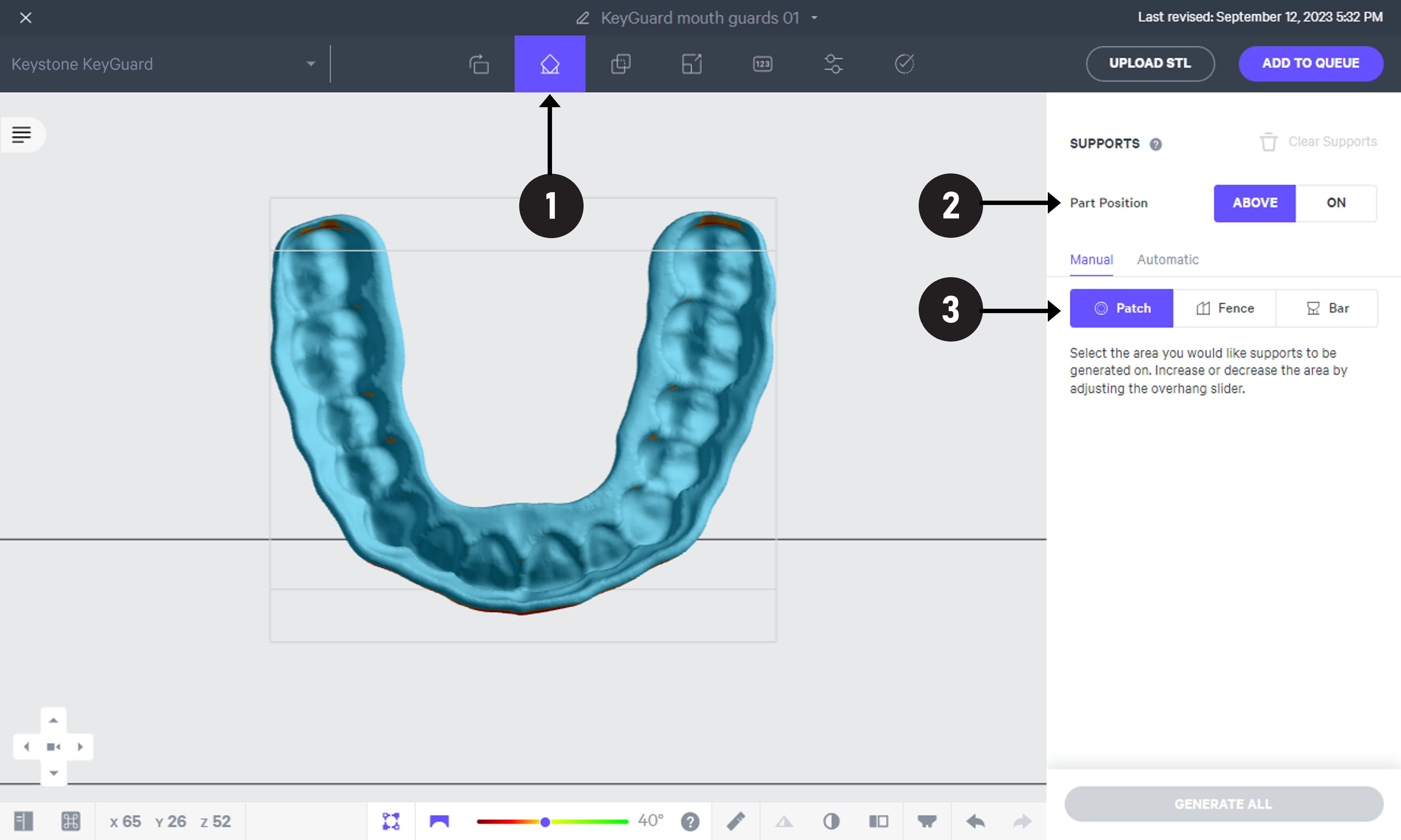
1. Click **Support** in the dark gray bar at the top of screen.
2. Under **Position**, select **Above Platform** to lift parts off the platform.
3. Click the **Manual tab** and make sure **Patch **is selected.
:::
:::VerticalSplitItem
:::
::::
## Add supports
::embed[]{url="https://vimeo.com/1033670052?dnt=1"}
1. Under the **Patch **tab, adjust the **Overhang **to between **40 and 60 degrees. **
1. Select a value to ensure that the patch covers the **red overhangs on the anterior surface.**
2. In the **Primary Support Type** dropdown menu, select **Bar **or **Fence. **Bars tend to provide a stronger connection to the platform. Fences are easier to remove and require less finishing than other support types.
3. Enter a **Spacing **value between **2 and 4 mm.**
4. Make sure the **Boundary Fence** checkbox is selected.
5. **Margin **value should be **0 mm.**
6. Click **Generate All **to create the supports.
##
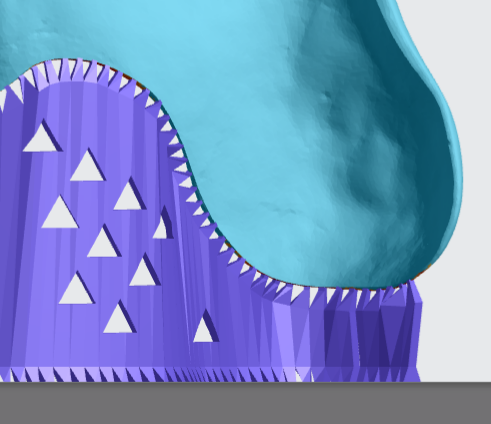
## Example of well-supported mouth guard

# Nesting

::::VerticalSplit{layout="right"}
:::VerticalSplitItem
1. Select the **Layout tab**** (Shift + L)** in the top menu bar.
2. Under **Auto Layout,** select **Gen2.**
- Gen2 usually gives the most effecient packing for dental devices.
3. Enter at least **1 mm** in **Padding.**
- Models require a minimum of 1 mm of space between them.
4. Leave **Optimize starting rotation** unchecked.
- This leaves your parts in their previous orientations.
5. Leave **Allowed rotations** at the default setting.
- This gives the software maximum flexibility to fit the most possible parts on the build platform.
6. Press the **Auto Layout** button to arrange your parts.
:::
:::VerticalSplitItem

:::
::::
If necessary, nesting can be changed manually:
- Click and drag parts to adjust their position.
- Modify Z rotation by using the **Spin **tool or manual rotations under the **Orient tab** **(Shift + O).**
- Use the **Part List tab **as needed to more easily select models and focus on them.
# Print Preparation
## Print Controls
Click **Print Controls** or **Shift + P** in the top menu bar.

## Slicing
::::VerticalSplit{layout="middle"}
:::VerticalSplitItem
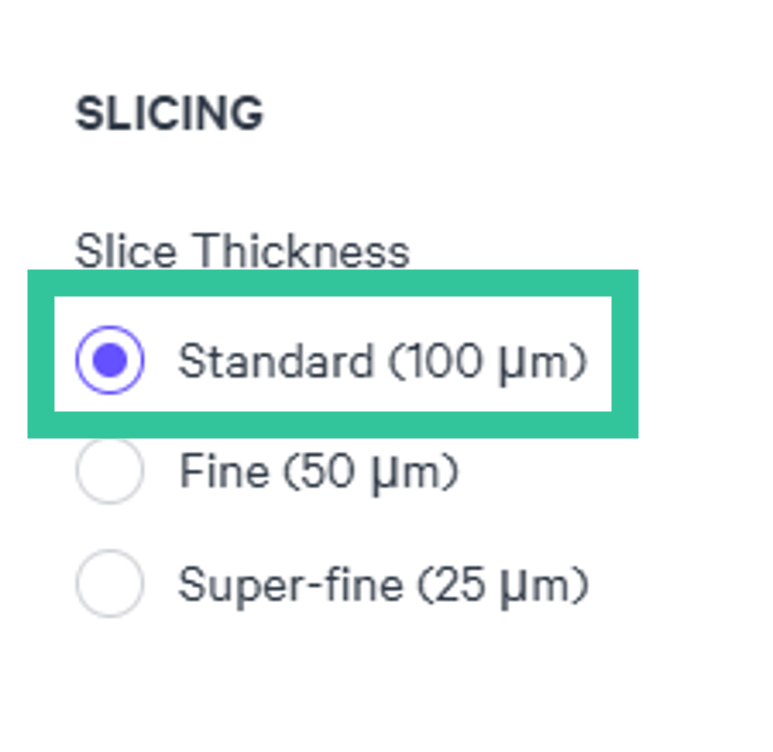
- Slice Thickness should be **Standard (100 µ)**.
- **Reducing the slice thickness by choosing the Fine (50 µ) or Super-fine (25 µ) settings will increase print time and may reduce part quality and accuracy.**
:::
:::VerticalSplitItem
:::
::::
## Project Analysis
1. Select the **Project Analysis** tab.
2. Click **Start Analysis** and wait for the processing to complete.
- Note the required resin volume and print time.
3. Click **Add to Queue.**

# Manufacturer Instructions for Use
::::LinkArray
:::LinkArrayItem{headerType="IMAGE" headerImage="https://api.archbee.com/api/optimize/3CesIL2dYMCHPZvRjp8S0/cJAKqDDnRUAeJAXNRThMm-20251016-221334.png"}
**[Manufacturer Instructions for Use ](https://keyprint.keystoneindustries.com/wp-content/uploads/2023/11/4915193_IFU_KeyGuard.pdf)**
:::
::::
# Questions & Support
**For questions about the resin properties, printing, washing or curing your parts, please contact the Keystone support team:**
- Submit support ticket: customerservice\@keystoneind.com
For questions about your **Carbon printer** or **Carbon software settings** used for this resin, please [contact Carbon](https://learn.carbon3d.com/carbon-support):
- Email: [support@carbon3d.com](mailto\:support@carbon3d.com)
- Phone:
- **U.S. and Canada** 1-650-285-6307 option 2
- **Germany** +49 6102 5790849
- **UK **+44 (0) 2082 647484
- Printer UI: On the dashboard, select the **Prints** tab. **Select one of the printed projects.** Click **Request Help** in the lower right corner.
::Image[]{src="https://api.archbee.com/api/optimize/3CesIL2dYMCHPZvRjp8S0/YY6yCChSIB8SevmBwY76W_request-help-01.png" size="70" width="6541" height="3371" position="flex-start" alt="Location of button in the printer software" showCaption="false"}