---
title: Carbon FP3D
slug: materials/fp3d
description: Discover FP3D, the advanced two-part resin from Carbon specifically engineered for flexible removable partial dentures. This durable and stain-resistant material leverages Carbon's innovative dual-cure chemistry to ensure unmatched flexibility.
docTags:
createdAt: 2025-01-28T17:47:33.901Z
---
:::hint{type="success"}
**September 29 2025 - **FDA approval. IFU updated and SDS available.
:::
# Overview
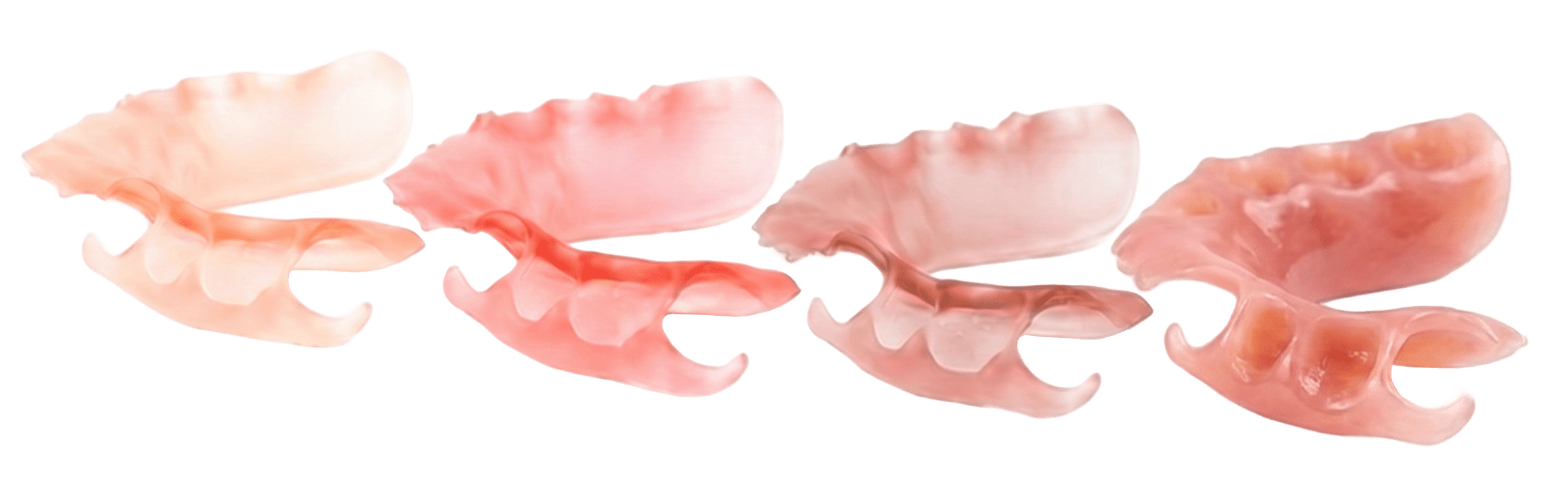
**FP3D **(manufactured by Keystone Industries®) is a **two-part resin **developed for producing flexible removable partial dentures.
::::VerticalSplit{layout="left"}
:::VerticalSplitItem
Engineered using Carbon’s proprietary dual-cure chemistry, FP3D sets a new industry standard by delivering a unique combination of durability, stain resistance, dimensional accuracy, and flexibility.
:::
:::VerticalSplitItem

:::
::::
Beyond its material strengths, FP3D easily integrates into Carbon’s digital denture workflow, assisting in reliable, economical, and quick production.
:::hint{type="success"}
This resin is compatible with the [AO Polishing Cassette](docId\:iFFh3q8-WLk-LIqr87bd5).
:::
## Two-part Resin
Carbon's two-part resins differ from the one-part resins used throughout the dental industry in a few important ways.
::Image[]{src="https://res.cloudinary.com/carbon3d/image/upload/v1741908650/Education/Materials/dental/FP3D/Two-components-epoxy01.jpg" size="70" width="1103" height="890" position="flex-start" darkWidth="1103" darkHeight="890" showCaption="false"}
- The two components (Part A & Part B) of FP3D are stored in** separate chambers** in a cartridge, similar to an **epoxy** you may purchase at a hardware store.
- The components are combined at the time of use by using a **battery-powered dispenser** and a **disposable mixing tip.**
- Once combined, FP3D has an **8 hour** life span called a **pot life. **After the resin has aged beyond its pot life, it is not suitable for printing and should be [disposed](docId\:kQYgmwDX_5LNp-uy81_Xt).
- After printing, two-part resins require [thermal curing](docId:7NE6rGdaSzpAPOHH5QOzm) (baking) in a convection oven.
- To preserve clasps and fine features, partials must be [packed in salt](docId\:wHftudZDY0cS0A0-dljcm) during the baking process.
- Some salt will stick to parts during baking and must be washed off afterwards.
## Required Equipment
:::hint{type="info"}
Carbon's two-part resins require equipment that will be new to most dental labs.
:::
### Cox Dual-Drive Dispenser
A powered **dispenser **is required to push the resin components out of the cartridge and through a disposable **mixing tip.**
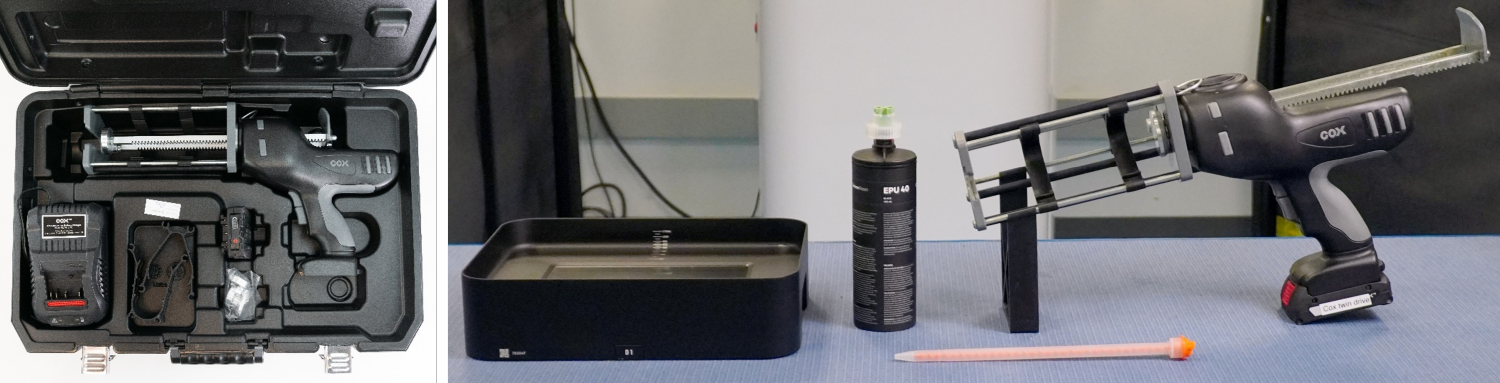
Go to [Cartridge Dispensing](docId\:FdA6pRA3_XHQoAx3hOwS3) for more information.
:::::VerticalSplit{layout="right"}
::::VerticalSplitItem
### Yamato Convection Oven
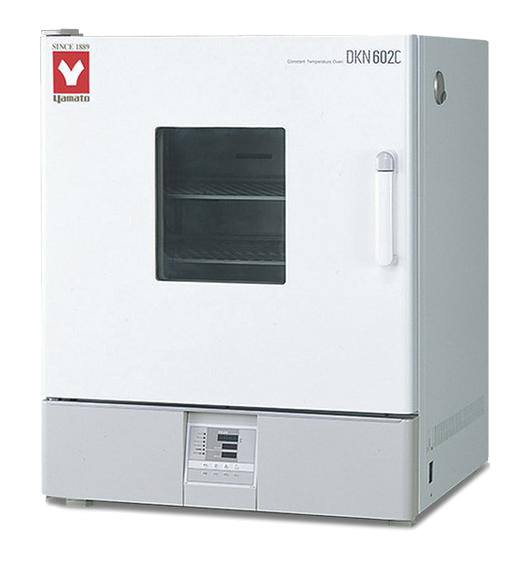
Like all of Carbon's two-part resins, FP3D partial dentures require **thermal curing in a convection oven** to attain their ultimate mechanical properties.
See [Yamato Convection Oven](docId:7NE6rGdaSzpAPOHH5QOzm) for more information including programming and operating instructions.
:::hint{type="info"}
The Yamato Convection Oven has ventilation and electrical infrastructure requirements. See the [facility requirement checklist](docId\:xcKd87zQ6nzxz3bsAmcCB) for your printer for specific information.
:::
:::hint{type="info"}
The oven must be ordered from Carbon (PN 101807) because only this model includes the required hardware. This item is available form the [Carbon Shop.](https://shop.carbon3d.com/collections/accessories/products/convection-oven)
:::
::::
:::VerticalSplitItem
:::
:::::
### Condenser for High-Volume Production
If you will be using approximately **100 liters** or more **annually**, you will need to install a **condenser **to prevent buildup in the ventilation ducting.
Download the handout below for more information.
::File{src="https://api.archbee.com/api/presign/3CesIL2dYMCHPZvRjp8S0/Z8rcZYK-OMyeg8UwHt50X-20260203-024611.pdf" label="Condenser System Guide v0203.pdf"}
### Salt Baking Equipment
Salt baking requires a variety of supplies and equipment including
- **[Powder grain salt](https://seasalt.com/premium-sea-salt-bulk-powder-grain)** - supports parts during thermal curing
- **[Baking pans](https://www.amazon.com/Good-Cook-04017-786173391991-Square/dp/B0026RHHX8?th=1)** - oven-safe pans that hold the salt and parts
- **[Salt strainer](https://www.amazon.com/dp/B0B7JM45FW?th=1)** - strains out clumps of salt or other large particulates that can negatively affect part accuracy
- **[Foil](https://www.amazon.com/dp/B09F8PHR1L)** - covers the pan and contains salt during baking
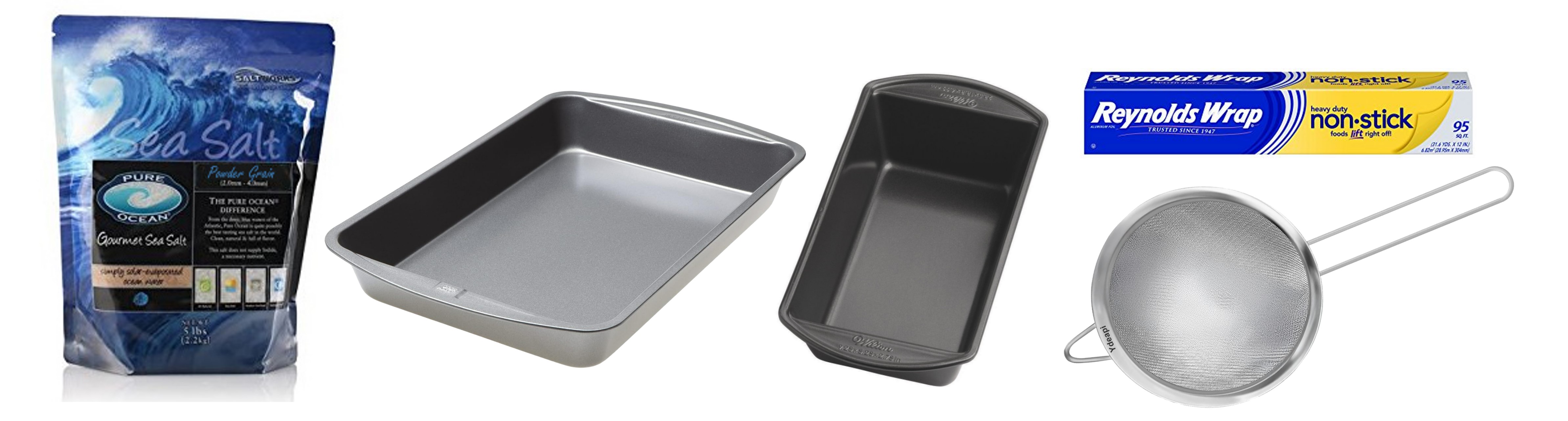
See [Salt Baking](docId\:wHftudZDY0cS0A0-dljcm) for more information.
The above items and more are all available on the [Accessories & Supplies](docId:95TwE3ttL-5ihI6dNl4XI) page.
## Resource Links
::::LinkArray{contentSource="CUSTOM"}
:::LinkArrayItem{headerType="IMAGE" headerImage="https://api.archbee.com/api/optimize/uXbZOKjJTGpPhjapQ8fvM-IOQIJkNnkbUAw9Q-ap1FV-20241115-235121.jpg"}
**[About the Material ](https://www.carbon3d.com/materials/flexible-partial-3d)**
`Promotional Content`
:::
::::
::::LinkArray{contentSource="CUSTOM"}
:::LinkArrayItem{headerType="IMAGE" headerImage="https://api.archbee.com/api/optimize/3CesIL2dYMCHPZvRjp8S0/meEa1m4VN4HOvIJpjIIld-20251016-220433.jpg"}
**[Technical Data Sheet ](https://docs.carbon3d.com/files/technical-data-sheets/tds_carbon_fp3d.pdf)(TDS)**
:::
:::LinkArrayItem{headerType="IMAGE" headerImage="https://api.archbee.com/api/optimize/3CesIL2dYMCHPZvRjp8S0/cJAKqDDnRUAeJAXNRThMm-20251016-221334.png"}
[Instructions for Use](https://docs.carbon3d.com/files/technical-data-sheets/Carbon-FP3D-IFU.pdf) (IFU)
:::
:::LinkArrayItem{headerType="IMAGE" headerImage="https://api.archbee.com/api/optimize/3CesIL2dYMCHPZvRjp8S0/1r3fpdvMUMFVZGfey2Tjn-20251016-221405.jpg"}
**[Safety Data Sheet](https://keyprint.keystoneindustries.com/compatible/fp3d-sds/)****
:::
::::
# Design
::::VerticalSplit{layout="right"}
:::VerticalSplitItem
Follow these design recommendations for partial dentures to be printed with FP3D.
- Wall thickness should be **1 - 3 mm.**
- Incorporate **T-bars** to prevent splaying of parts during curing.
- Add T-bars to all full arch partial geometries (uppers and lowers) to achieve the best accuracy.
- T-bars should be equivalent to the **median thickness** of the partial denture.
:::
:::VerticalSplitItem

:::
::::
# Digital Preparation
***
### Connect to Printer
::::VerticalSplit{layout="left"}
:::VerticalSplitItem
Connect to the printer software using your web browser.
:::
:::VerticalSplitItem
::Image[]{src="https://res.cloudinary.com/carbon3d/image/upload/t_auto_quality_format/Education/Materials/dental/__General_Use/Connect-printer_thumbnail.png" size="70" width="774" height="319" darkWidth="774" darkHeight="319" position="flex-start" alt="Connect to Printer" showCaption="false"}
:::
::::
::::::::ExpandableHeading
*Expand for steps*
:::::::WorkflowBlock
:::::WorkflowBlockItem
::::VerticalSplit{layout="middle"}
:::VerticalSplitItem
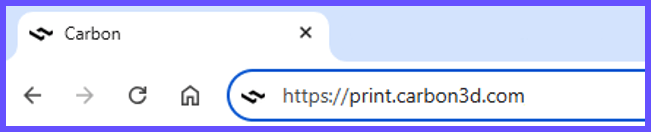
**Open browser**
Enter [https://print.carbon3d.com](https://print.carbon3d.com/) in the URL field.
:::
:::VerticalSplitItem
:::
::::
:::hint{type="info"}
Latest version of Chrome recommended.
:::
:::::
:::::WorkflowBlockItem
::::VerticalSplit{layout="middle"}
:::VerticalSplitItem
If you are not automatically logged in, enter your email and password and **click Log In****.**
:::
:::VerticalSplitItem
::Image[]{src="https://res.cloudinary.com/carbon3d/image/upload/t_auto_quality_format/Education/Materials/dental/__General_Use/Connect-login.png" size="60" width="561" height="677" darkWidth="561" darkHeight="677" position="center" alt="Carbon Log In" showCaption="false"}
:::
::::
:::::
::::::WorkflowBlockItem
:::::VerticalSplit{layout="middle"}
::::VerticalSplitItem
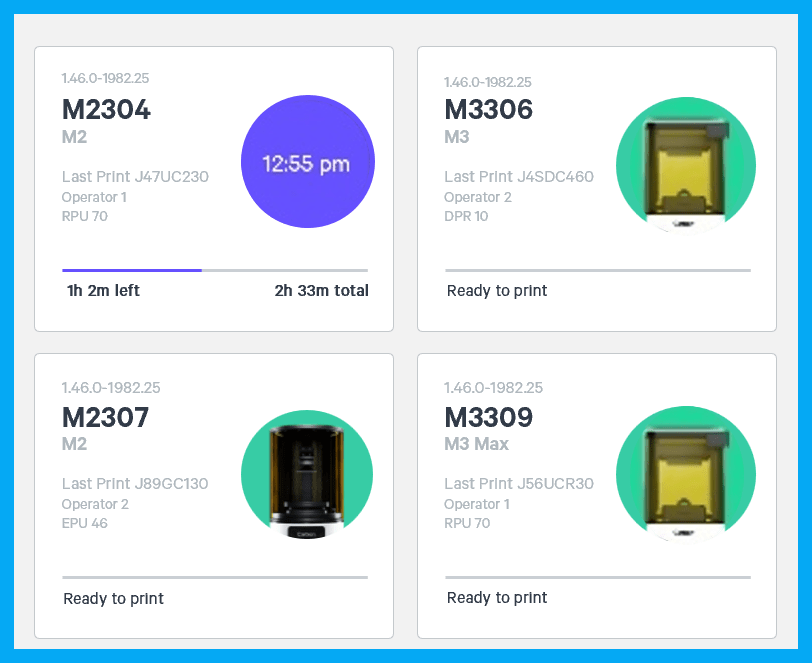
If you have multiple printers, **select the printer** that you wish to use to create the project.
:::hint{type="info"}
You may queue the build to other printers.
:::
::::
:::VerticalSplitItem
:::
:::::
::::::
:::::::
::::::::
***
### Create Project
::::VerticalSplit{layout="left"}
:::VerticalSplitItem
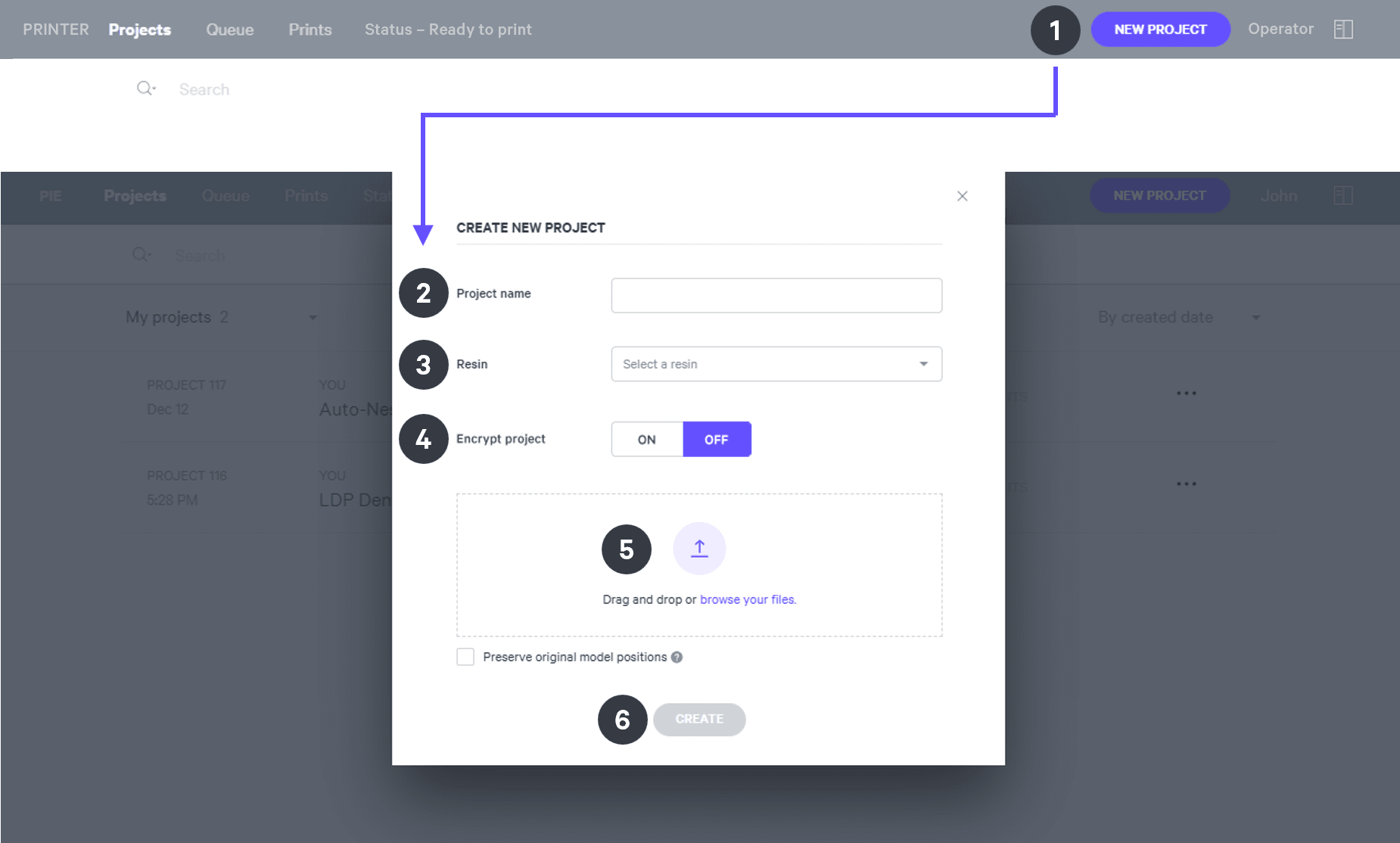
After you have chosen the printer, you must create a new project.
:::
:::VerticalSplitItem
::Image[]{src="https://res.cloudinary.com/carbon3d/image/upload/t_auto_quality_format/Education/Materials/dental/__General_Use/Create-project_thumbnail.png" size="70" width="673" height="247" darkWidth="673" darkHeight="247" position="flex-start" alt="Create Project" showCaption="false"}
:::
::::
::::::ExpandableHeading
*Expand for steps*
:::::WorkflowBlock
:::WorkflowBlockItem
Click **New Project.**
You can also drag your files from a file browser window and drop it on top of the **New Project** icon.
:::
:::WorkflowBlockItem
Enter a new **Project name.**
:::
:::WorkflowBlockItem
In the Resin dropdown, select **your resin.**
:::
::::WorkflowBlockItem
Only use [Encrypt project](docId:1bT3mas8msvxq9CDza67C) if you want to require a password to access the project.
:::hint{type="warning"}
**Carbon cannot provide support** for encrypted projects.
:::
::::
:::WorkflowBlockItem
**Drag and drop** your part files into the dotted box or click **browse your files **and select them in a file browser window.
:::
:::WorkflowBlockItem
Click **Create**
After a few moments you will see the project printer interface with your parts on the platform.
:::
:::::
::::::
***
## Orientation
:::hint{type="info"}
For detailed information about orienting parts, read [Orient](docId\:rMnxtq1NIAHXZOc4bZXWu).
:::
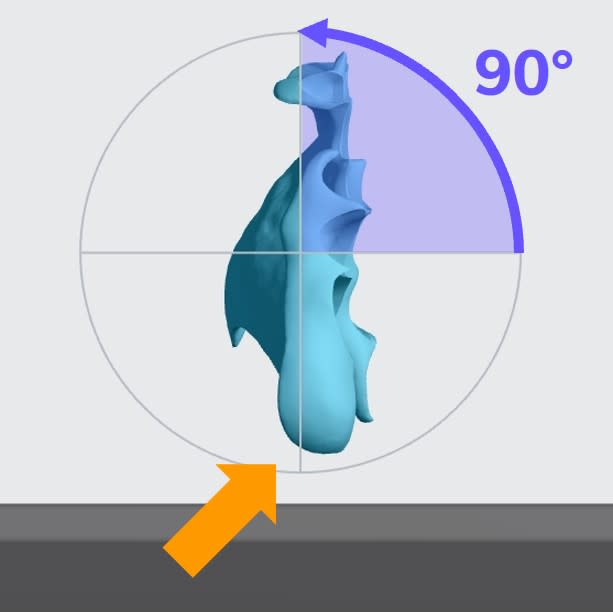
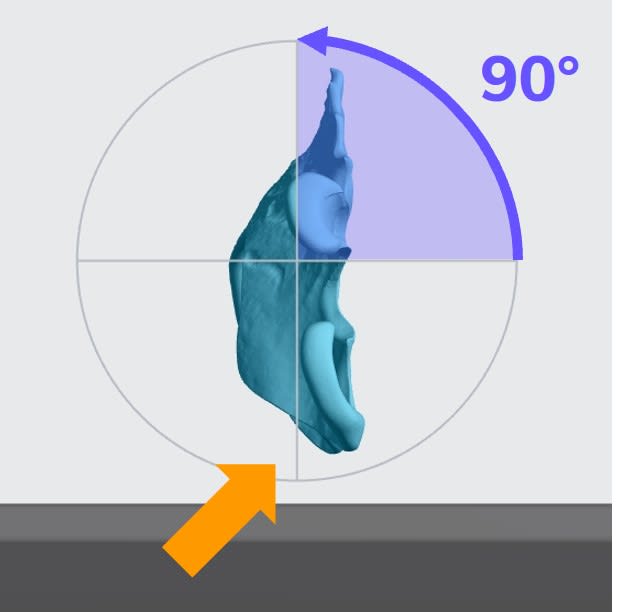
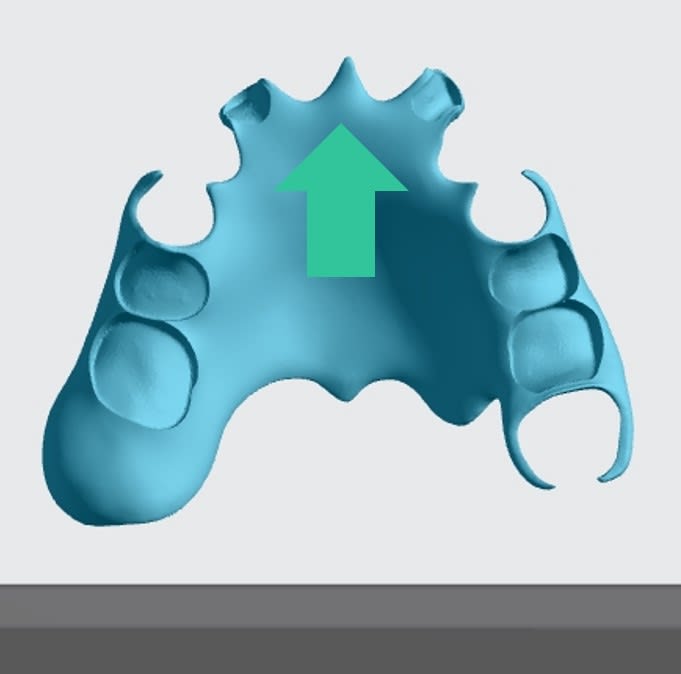
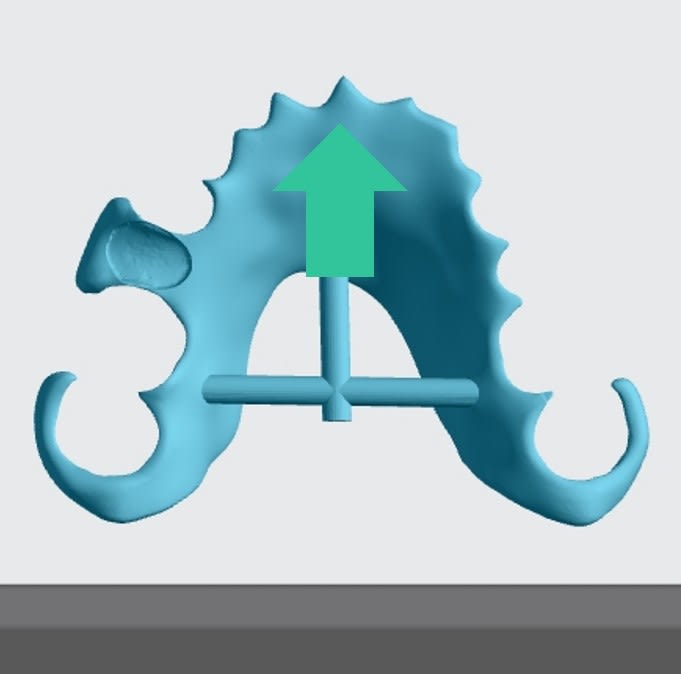
Orient partials **vertically** with the **posterior at the platform** **(anterior rotated away from the platform).**
::::VerticalSplit{layout="middle"}
:::VerticalSplitItem
**Upper Partial**
:::
:::VerticalSplitItem
**Lower Partial**
:::
::::
::::VerticalSplit{layout="middle"}
:::VerticalSplitItem
:::
:::VerticalSplitItem
:::
::::
## Supporting
:::hint{type="info"}
See [Supports](docId\:VUbpoAitbLM11aM9-qJ1p) for detailed information.
:::
:::::WorkflowBlock
:::WorkflowBlockItem
Select the [Supports](docId\:VUbpoAitbLM11aM9-qJ1p) tab in the top bar or press **Shift + S.**

:::
:::WorkflowBlockItem
In the bottom bar, toggle [Overhang Detection](docId:1bT3mas8msvxq9CDza67C) on and set the angle to **40 degrees.**
::Image[]{src="https://res.cloudinary.com/carbon3d/image/upload/t_auto_quality_format/v1741914659/Education/Materials/dental/__General_Use/overhang-detection02.gif" size="70" width="712" height="278" position="flex-start" darkWidth="712" darkHeight="278" showCaption="false"}
:::
:::WorkflowBlockItem
Also in the bottom bar, set [Toggle Platform](docId:1bT3mas8msvxq9CDza67C) to **off.**
::Image[]{src="https://res.cloudinary.com/carbon3d/image/upload/v1741970064/Education/Materials/dental/__General_Use/toggle-platform02.gif" size="70" width="722" height="347" position="flex-start" darkWidth="722" darkHeight="347" showCaption="false"}
:::
:::WorkflowBlockItem
Set **Part Position** to **Above.**
::Image[]{src="https://res.cloudinary.com/carbon3d/image/upload/t_auto_quality_format/v1743201611/Education/Materials/dental/__General_Use/part-position-above.jpg" size="70" width="733" height="146" position="flex-start" darkWidth="733" darkHeight="146" showCaption="false"}
:::
:::WorkflowBlockItem
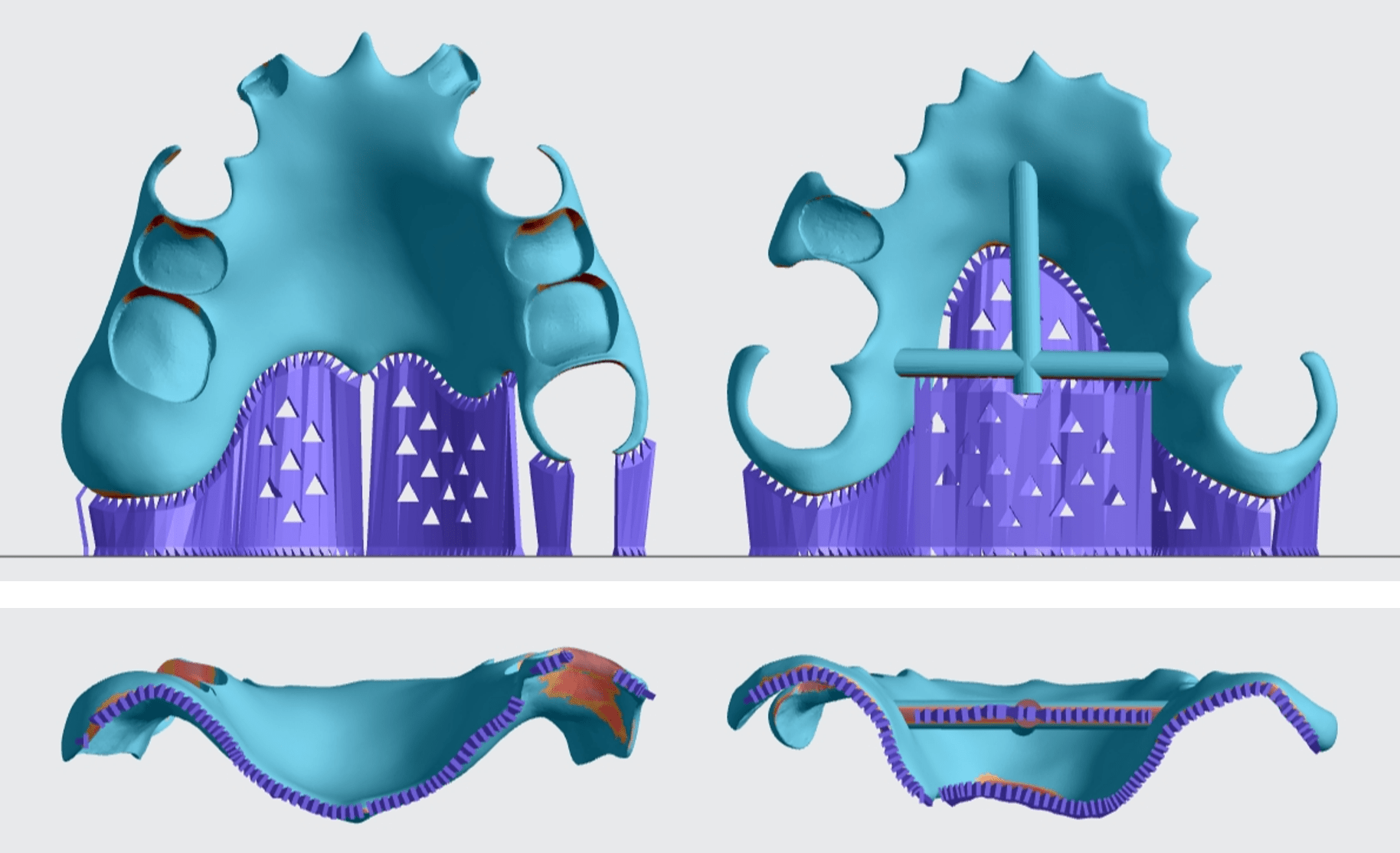
Support posterior edges with [fences.](docId\:VUbpoAitbLM11aM9-qJ1p)
- Avoid adding supports to **intaglio surfaces.**
- Add fences to **horizontal T-bars.**
- Do not add fences to areas higher than about **30 mm** above the platform. These areas require bar supports.
:::
::::WorkflowBlockItem
Add [bar supports](docId\:VUbpoAitbLM11aM9-qJ1p).
- Support overhangs that are more than **30 mm** above the platform.
- Add bars to any overhangs where fences did not generate.

- Add bars to **reinforce fences** that support clasps or other delicate features.
::Image[]{src="https://res.cloudinary.com/carbon3d/image/upload/t_auto_quality_format/v1742001021/Education/Materials/dental/FP3D/Bars-as-reinforcement01.jpg" size="50" width="898" height="864" position="flex-start" darkWidth="898" darkHeight="864" showCaption="false"}
:::hint{type="warning"}
For best accuracy, do not under-support clasps.
:::
::::
:::::
## Nesting
::::WorkflowBlock
:::WorkflowBlockItem
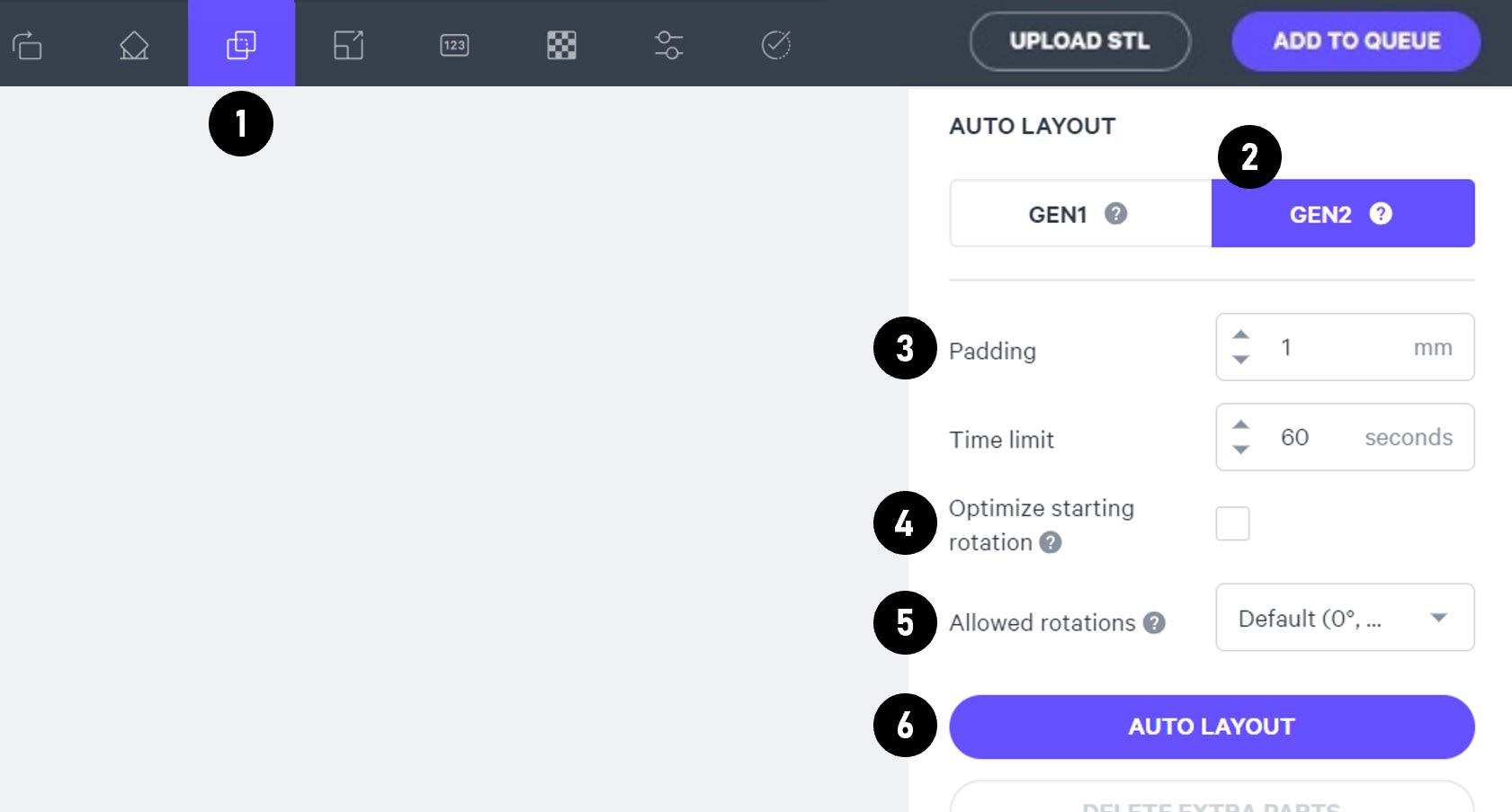
Select the **Layout tab (Shift + L)** in the top menu bar.
:::
:::WorkflowBlockItem
Under **Auto Layout,** select **Gen2.**
Gen2 usually gives the most efficient packing for dental devices.
:::
:::WorkflowBlockItem
Enter at least **1 mm** in **Padding.**
Models require a minimum of 1 mm of space between them.
:::
:::WorkflowBlockItem
Leave **Optimize starting rotation** unchecked.
This leaves your parts in their previous orientations.
:::
:::WorkflowBlockItem
Leave **Allowed rotations** at the default setting.
This gives the software maximum flexibility to fit the most possible parts on the build platform.
:::
:::WorkflowBlockItem
Press the **Auto Layout** button to arrange your parts.
:::
::::
If necessary, nesting can be changed manually:
- Click and drag parts to adjust their position.
- Modify Z rotation by using the **Spin **tool or manual rotations under the **Orient tab** **(Shift + O).**
- Use the [Part List tab](docId:1bT3mas8msvxq9CDza67C)** **as needed to more easily select models and focus on them.
## Print Controls
Click **Print Controls** or **Shift + P** in the top menu bar.

### Slicing
Set Slice Thickness to **Standard**
::::VerticalSplit{layout="right"}
:::VerticalSplitItem
- **FP3D**
Standard Slice Thickness = 100 µm
:::
:::VerticalSplitItem
::Image[]{src="https://res.cloudinary.com/carbon3d/image/upload/t_auto_quality_format/Education/Materials/dental/FP3D/Slicing_FP3D.jpg" size="70" width="160" height="150" position="center" alt="Standard Slicing 100 µm" darkWidth="160" darkHeight="150" showCaption="false"}
:::
::::
::::VerticalSplit{layout="right"}
:::VerticalSplitItem
- **AO-Polish FP3D**
Standard Slice Thickness = 50 µm
:::
:::VerticalSplitItem
::Image[]{src="https://res.cloudinary.com/carbon3d/image/upload/t_auto_quality_format/Education/Materials/dental/FP3D/Slicing_AO-polish-FP3D.jpg" size="70" width="160" height="150" position="center" alt="Standard Slicing 50 µm" darkWidth="160" darkHeight="150" showCaption="false"}
:::
::::
:::hint{type="warning"}
Reducing the slice thickness below the default standard slicing will increase print time and may reduce part quality and accuracy.
:::
## Project Analysis

::::WorkflowBlock
:::WorkflowBlockItem
On the top menu bar, select the **Project Analysis tab** (Shift + A).
:::
:::WorkflowBlockItem
Press **Start Analysis.**
:::
:::WorkflowBlockItem
After a short time, the result of the project analysis will be displayed. Note the **print time** and the **required resin volume.**
::Image[]{src="https://res.cloudinary.com/carbon3d/image/upload/t_auto_quality_format/v1742344445/Education/Materials/dental/__General_Use/Analysis-print-time-reqd-resin01.png" size="50" width="842" height="594" position="flex-start" alt="Print Time and Required Resin Volume" showCaption="false"}
:::
:::WorkflowBlockItem
Click **Add to Queue.**

:::
::::
# Printing and Post-Processing Video
This video shows the entire workflow from dispensing resin through washing and salt baking.
::embed[]{url="https://vimeo.com/1115549307?dnt=1"}
# Resin Dispensing
Dispensing the two-part resin FP3D is very different from pouring out one-part resins. In particular, the **8 hour pot life** is a variable that needs to be kept in mind.
:::hint{type="info"}
Read [Cartridge Dispensing](docId\:FdA6pRA3_XHQoAx3hOwS3) for detailed information about setup and operation of the Cox Dual-Drive Dispenser.
:::
:::::WorkflowBlock
:::WorkflowBlockItem
Set up the **Cox Dual Drive Dispenser.**
- Check the battery.
- Install E\:F ratio plates.
- Set **speed to 1.**
:::
:::WorkflowBlockItem
Install the **orange mixing tip** on the cartridge.
- Replace the mixing tip **8 hours** after the initial dispense as the resin reaches the end of its pot life.
:::
:::WorkflowBlockItem
Slide the **cartridge **into the dispenser.
::Image[]{src="https://res.cloudinary.com/carbon3d/image/upload/t_auto_quality_format/v1742348312/Education/Materials/dental/FP3D/Install-cartridge-in-dispenser01.jpg" size="70" width="1210" height="678" position="flex-start" darkWidth="1210" darkHeight="678" showCaption="false"}
:::
:::WorkflowBlockItem
Place the **shroud **over the mixing tip.
:::
::::WorkflowBlockItem
Dispense and **discard** approximately **10 mL** of resin for **new cartridges**. This standard procedure is known as **burn off**.
:::hint{type="warning"}
If you are experiencing **discoloration** in your parts, we advise the following:
- Ensure that you are following proper burn off procedure and dispensing at the speed specified in the [IFU](https://docs.carbon3d.com/files/technical-data-sheets/Carbon_FP3D_IFU_4920047_Rev_0.pdf).
- If discoloration persists, burn off resin for **every dispense**, not just new cartridges.
:::
::::
:::WorkflowBlockItem
Dispense the required resin into the cassette.
:::
:::::
# Printing
:::::WorkflowBlock
:::WorkflowBlockItem
Install the cassette with the newly dispensed resin in the printer.
::Image[]{src="https://res.cloudinary.com/carbon3d/image/upload/t_auto_quality_format/v1742403994/Education/Materials/dental/FP3D/Install-cassette01.jpg" size="70" width="1980" height="1112" position="flex-start" darkWidth="1980" darkHeight="1112" showCaption="false"}
:::
::::WorkflowBlockItem
Mix resin in cassette using silicone spatula.
- This mixing helps ensure color accuracy.
:::hint{type="warning"}
Mix resin before **every print,** including after initial dispense.
:::
::::
:::WorkflowBlockItem
Start printing.
:::
:::WorkflowBlockItem
When printing is complete, remove the platform to begin post processing.
::Image[]{src="https://res.cloudinary.com/carbon3d/image/upload/t_auto_quality_format/v1742403668/Education/Materials/dental/FP3D/Remove-platform01.jpg" size="70" width="1980" height="1112" position="flex-start" darkWidth="1980" darkHeight="1112" showCaption="false"}
:::
:::::
:::hint{type="info"}
See [Printing](docId\:ilqKpB5tBXC66CMJMGWv0) for more information.
:::
# Washing
The washing process for FP3D is similar to washing most one-part dental resins.
:::hint{type="danger"}
FP3D has a total maximum solvent exposure time of **5 minutes.**
:::
::::WorkflowBlock
:::WorkflowBlockItem
Remove the printed parts from the platform.
::Image[]{src="https://res.cloudinary.com/carbon3d/image/upload/t_auto_quality_format/v1742404476/Education/Materials/dental/FP3D/remove-parts-from-platform-VEG08097.jpg" size="70" width="2000" height="1333" position="flex-start" darkWidth="2000" darkHeight="1333" showCaption="false"}
:::
:::WorkflowBlockItem
Remove the supports from the parts.
Supports are easily removed manually.
::Image[]{src="https://res.cloudinary.com/carbon3d/image/upload/t_auto_quality_format/v1742406093/Education/Materials/dental/FP3D/remove-supports-manually-VEG08116.jpg" size="70" width="2000" height="1043" position="flex-start" darkWidth="2000" darkHeight="1043" showCaption="false"}
Using a blue shop towel can help keep sticky resin off of your gloves.
::Image[]{src="https://res.cloudinary.com/carbon3d/image/upload/t_auto_quality_format/v1742406097/Education/Materials/dental/FP3D/remove-supports-towel-VEG08108.jpg" size="70" width="2000" height="1333" position="flex-start" darkWidth="2000" darkHeight="1333" showCaption="false"}
:::
:::WorkflowBlockItem
First wash.
1. Add parts to washing container of fresh IPA.
2. Place container on orbital shaker and wash parts for **2 minutes at 140 RPM.**
::Image[]{src="https://res.cloudinary.com/carbon3d/image/upload/t_auto_quality_format/v1742409149/Education/Materials/dental/FP3D/Parts-in-ipa01.jpg" size="70" width="1114" height="1114" position="flex-start" darkWidth="1114" darkHeight="1114" showCaption="false"}
:::
:::WorkflowBlockItem
Detailed cleaning.
1. Remove parts from IPA.
2. Wet a **toothbrush **with IPA and remove any liquid resin from tooth pockets, intaglio surfaces or anywhere that resin can be trapped.
::Image[]{src="https://res.cloudinary.com/carbon3d/image/upload/t_auto_quality_format/v1742409327/Education/Materials/dental/FP3D/toothbrush-detailing-VEG08124.jpg" size="70" width="2000" height="1180" position="flex-start" darkWidth="2000" darkHeight="1180" showCaption="false"}
:::
:::WorkflowBlockItem
Second wash.
1. Place parts in container of fresh IPA.
2. Place container on orbital shaker and wash parts for another **2 minutes at 140 RPM.**
:::
:::WorkflowBlockItem
Dry the parts.
1. Place parts on clean surface to dry.
2. Alternately, use compressed air to dry parts.
:::
::::
# Curing
FP3D parts must be packed in salt and **thermally cured (baked)** in a Yamato convection oven.
:::hint{type="warning"}
Thermal curing must be started within **8 hours** of printing.
:::
:::hint{type="warning"}
Parts must be fully clean and completely dry before baking.
:::
:::::WorkflowBlock
:::WorkflowBlockItem
Program the Yamato convection oven.
Before parts can be cured, the oven must be programmed with the appropriate temperatures and timings for curing FP3D.
- Follow the instructions in [Oven Programming](docId\:fZE0_QDaHOVHnVVM6l6kk) to program your oven.
- Find the precise settings for curing FP3D in the handout under [Resin Programs for the Yamato Oven](docId\:fZE0_QDaHOVHnVVM6l6kk).
:::
::::WorkflowBlockItem
Add salt to the baking tray.
- Use a fine mesh strainer to add salt to a **75 mm (3 inch) deep baking tray.**
::Image[]{src="https://res.cloudinary.com/carbon3d/image/upload/t_auto_quality_format/v1742416863/Education/Materials/dental/FP3D/add-salt-to-tray-VEG08134.jpg" size="70" width="2000" height="1125" position="flex-start" darkWidth="2000" darkHeight="1125" showCaption="false"}
- Add approximately **50 mm (2 inches) of salt.**
- Shake and/or tap the tray to make the surface of the salt relatively flat.
::Image[]{src="https://res.cloudinary.com/carbon3d/image/upload/t_auto_quality_format/v1742416863/Education/Materials/dental/FP3D/tray-one-inch-salt-VEG08138.jpg" size="70" width="1714" height="991" position="flex-start" darkWidth="1714" darkHeight="991" showCaption="false"}
:::hint{type="info"}
Replace salt after 10 curing cycles to ensure part cleanliness.
:::
::::
::::WorkflowBlockItem
Place the parts in salt.
:::hint{type="warning"}
Parts must be completely dry before placing in salt.
:::
- Place each part **intaglio side up** in the salt.
::Image[]{src="https://res.cloudinary.com/carbon3d/image/upload/t_auto_quality_format/v1742422160/Education/Materials/dental/FP3D/placing-parts-in-salt-VEG08145.jpg" size="70" width="2000" height="1125" position="flex-start" darkWidth="2000" darkHeight="1125" showCaption="false"}
- **Gently nestle each part **into the salt so that all down-facing surfaces are supported by the salt.
:::hint{type="warning"}
Using excess force will deform the part.
:::
::Image[]{src="https://res.cloudinary.com/carbon3d/image/upload/t_auto_quality_format/v1743108852/Education/Materials/dental/FP3D/fp3d_gentle_nestle_in_salt02_orange.gif" size="70" width="800" height="450" position="flex-start" darkWidth="800" darkHeight="450" showCaption="false"}
::::
:::WorkflowBlockItem
Cover the parts with salt.
- Using the sifter, add about **25 mm (1 inch)** of salt on top of the parts.
- To enable even heat distribution during baking, the parts should have **the same amount of salt above and below them.**
- Shake and/or tap the tray to ensure the parts are settled in the salt.
::Image[]{src="https://res.cloudinary.com/carbon3d/image/upload/t_auto_quality_format/v1742416864/Education/Materials/dental/FP3D/cover-parts-in-salt-VEG08147.jpg" size="70" width="2000" height="1125" position="flex-start" darkWidth="2000" darkHeight="1125" showCaption="false"}
:::
:::WorkflowBlockItem
Cover tray with aluminum foil.
- Cover tray with **aluminum foil.**
- If necessary, write identifying information on a **metal tent sign** and place it on top of the foil.
::Image[]{src="https://res.cloudinary.com/carbon3d/image/upload/t_auto_quality_format/v1742424717/Education/Materials/dental/FP3D/foil-and-tent-on-tray-VEG08159.jpg" size="70" width="2000" height="1125" position="flex-start" darkWidth="2000" darkHeight="1125" showCaption="false"}
:::
:::WorkflowBlockItem
Bake the parts.
- Place covered tray in the oven.
- Start the FP3D bake program:
- 15 minute ramp to 120° C
- Hold at 120° C for 10 hours.
:::
::::WorkflowBlockItem
Remove the parts from the oven.
:::hint{type="danger"}
The tray and interior of the oven will be hot. Use caution when removing items from the oven.
:::
1. Wearing **heat-resistant gloves,** remove the pan from the oven and allow it to cool (\~27° C).
2. Alternately, parts may be allowed to cool inside the oven.
::::
:::::
FP3D parts will change color after baking.
::Image[]{src="https://res.cloudinary.com/carbon3d/image/upload/t_auto_quality_format/v1742430611/Education/Materials/dental/FP3D/fp3d-green-state-comparison_labeled.jpg" size="70" width="2081" height="1864" position="flex-start" caption="FP3D parts become significantly more red after curing" alt="FP3D parts become much more red after curing" darkWidth="2081" darkHeight="1864" showCaption="true"}
# Rinse
::::WorkflowBlock
:::WorkflowBlockItem
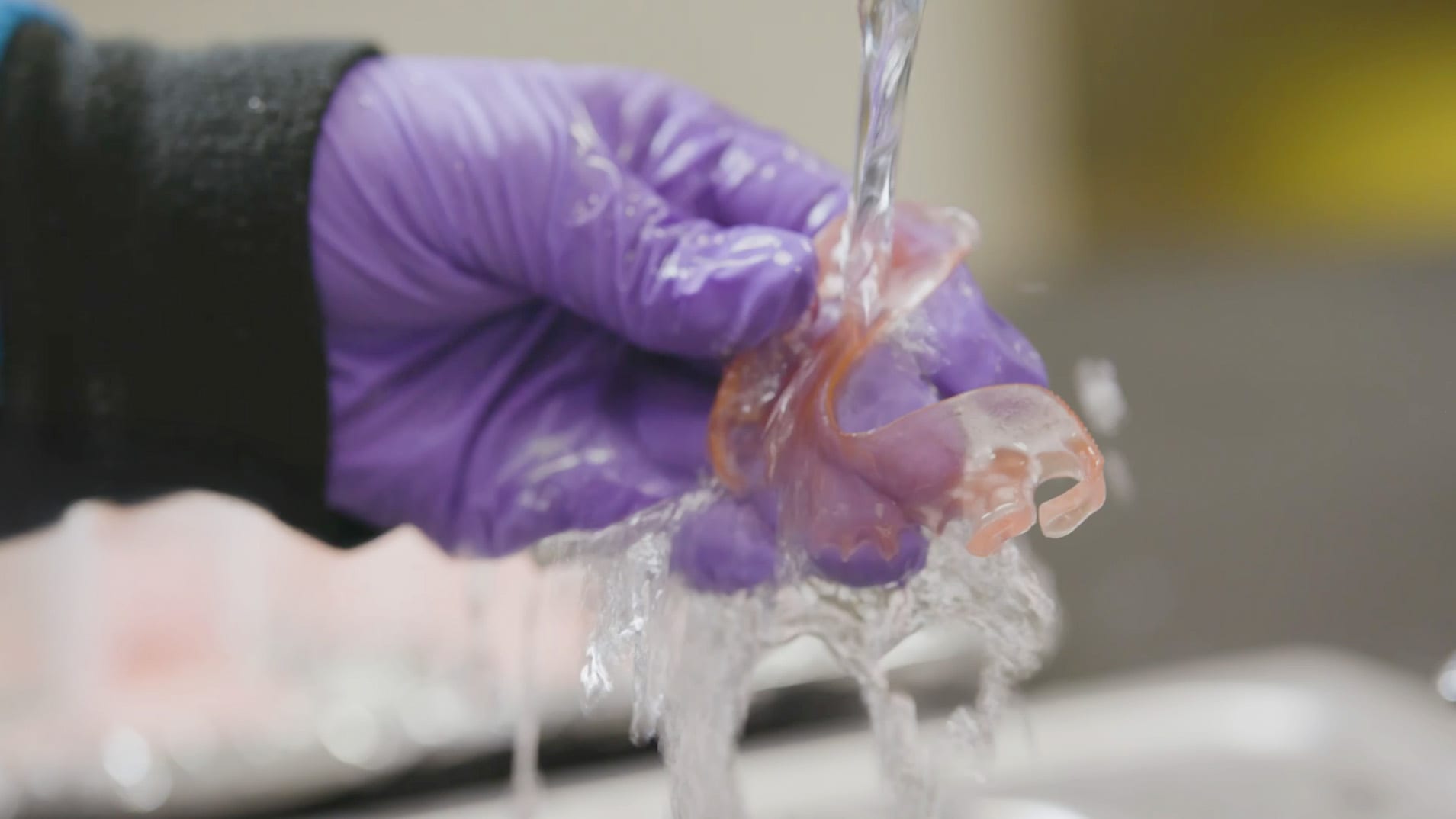
Rinse parts with warm water to remove excess salt from the surface.
- A **toothbrush **can help remove salt residue, but it is not required.
:::
:::WorkflowBlockItem
Dry parts.
1. Place parts on a clean surface to dry.
2. Alternately, use compressed air to dry parts.
:::
::::
# Tooth Bonding and Finishing
:::hint{type="info"}
FP3D partial dentures require a final UV cure cycle. See step 3 below for more info.
:::
## Video
::embed[]{url="https://vimeo.com/1114391898?dnt=1"}
:::hint{type="info"}
The numbering of the steps below differs from the video above.
:::
## Workflow
:::::WorkflowBlock
:::WorkflowBlockItem
Finish teeth and base according to your lab's standard practices.
::Image[]{src="https://api.archbee.com/api/optimize/uXbZOKjJTGpPhjapQ8fvM-4NyeVKUpkf2mXROlhlCIK-20250829-175759.jpg" size="70" width="1200" height="670" position="flex-start" caption="Smooth teeth and base as needed" alt="Smooth teeth and base as needed" darkWidth="1200" darkHeight="670" showCaption="true"}
:::
:::WorkflowBlockItem
Bond the teeth to the partial denture.
- Follow the tooth bonding instructions for your tooth material of choice.
::Image[]{src="https://res.cloudinary.com/carbon3d/image/upload/t_auto_quality_format/v1742430041/Education/Materials/dental/FP3D/tack-cure-teeth.jpg" size="70" width="1909" height="1074" position="flex-start" darkWidth="1909" darkHeight="1074" showCaption="false"}
:::
::::WorkflowBlockItem
Perform the final UV cure.
:::hint{type="warning"}
FP3D partial dentures require a final UV cure cycle.
:::
- Cure the assembled denture by following the instructions for your tooth material.
- If the tooth bonding instructions do not include a final UV cure, then consult the table below for final cure instructions.
| **Cure Unit** | **Process** |
| ------------------------------------------------------ | ---------------------------------------------------------------------------------------------------------------- |
| Dreve PCU LED | Program Name: Dhealth 1
• Available in Configuration File 1
18 minutes at 90% intensity, under vacuum. |
| Dentsply Sirona
Digital Cure | Program: Lucitone
60 minutes at 80º C |
| Dentsply Sirona
Digital Cure:
Large Capacity | Program: Lucitone Digital Appliances
Preheat: 30 minutes
Cure: 60 minutes at 80º C |
:::hint{type="info"}
Curing instructions are also available on the [IFU](https://docs.carbon3d.com/files/technical-data-sheets/Carbon_FP3D_IFU_4920047_Rev_0.pdf).
:::
::::
:::WorkflowBlockItem
Remove any T-bars and smooth base.
::Image[]{src="https://api.archbee.com/api/optimize/uXbZOKjJTGpPhjapQ8fvM-xevWWpH5-UvuSaIJqv_AW-20250829-180203.jpg" size="70" width="956" height="537" position="flex-start" darkWidth="956" darkHeight="537" showCaption="false"}
:::
:::WorkflowBlockItem
Finish the partial denture.
- Follow recommendations in the [IFU](https://docs.carbon3d.com/files/technical-data-sheets/Carbon_FP3D_IFU_4920047_Rev_0.pdf).
::Image[]{src="https://res.cloudinary.com/carbon3d/image/upload/t_auto_quality_format/v1742430440/Education/Materials/dental/FP3D/polishing-partial.jpg" size="70" width="1909" height="1074" position="flex-start" caption="Polishing the bonded denture" alt="Polishing the bonded denture" darkWidth="1909" darkHeight="1074" showCaption="true"}
:::
:::WorkflowBlockItem
Your partial denture is now complete!
:::
:::::
::Image[]{src="https://res.cloudinary.com/carbon3d/image/upload/t_auto_quality_format/v1742430890/Education/Materials/dental/FP3D/frpd-complete-set-1.jpg" size="70" width="2000" height="1125" position="flex-start" darkWidth="2000" darkHeight="1125" showCaption="false"}
# Clinical Handling
:::hint{type="info"}
FP3D is engineered to respond to intraoral conditions. **Avoid aggressive flexing outside of intended use.**
:::
# Patient Handling Instructions
This medical device is a single-patient, customized, multi-use oral appliance that should be cleaned between usages.
- The patient should clean the appliance with soap and warm water, or any over-the-counter mild cleaning agents indicated for oral devices.
- Dry partial dentures thoroughly overnight if not wearing and do not leave submerged in the cleaner.
:::hint{type="info"}
Printable [Patient Care Instructions](https://res.cloudinary.com/carbon3d/image/upload/v1784582576/Carbon_FP3DPatientCareInstructions-Generic_One-Pager.pdf)
:::