---
title: Dreve FotoDent tray2 385/405 nm
slug: materials/dreve-fotodent-tray2-385405-nm
docTags:
createdAt: 2024-07-18T19:17:55.804Z
---
# Overview
::::VerticalSplit{layout="middle"}
:::VerticalSplitItem
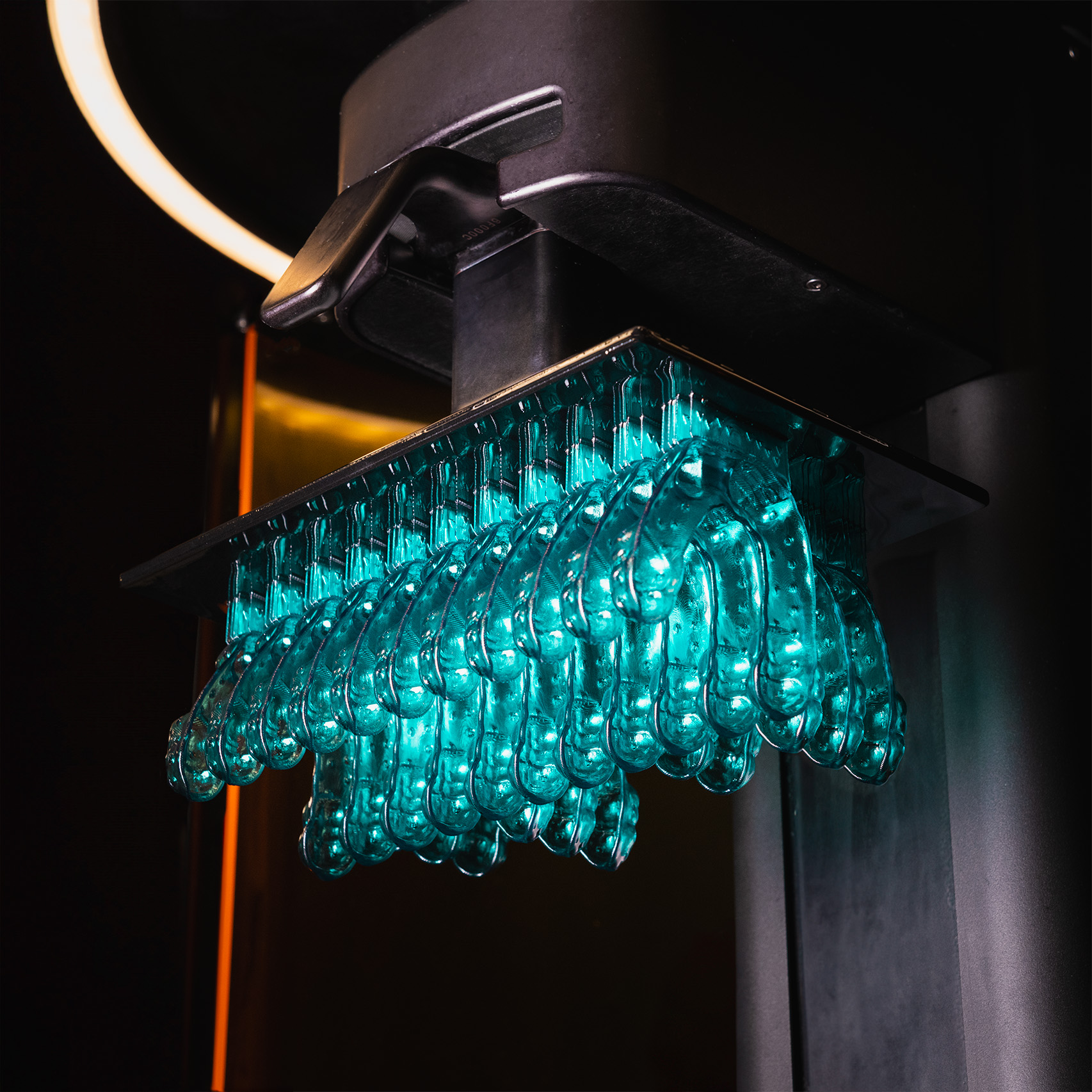
This new and improved formulation of FotoDent Tray was developed for printing custom impression bite trays with higher throughputs. A unique printing strategy enables trays to be printed with 300 micron slice thickness, yielding exceptional print speed and unit economics.
:::
:::VerticalSplitItem
:::
::::
:::hint{type="info"}
This resin is not currently compatible with the [AO Polishing Cassette](docId\:iFFh3q8-WLk-LIqr87bd5).
:::
Resource Links
==============
::::LinkArray
:::LinkArrayItem{headerType="IMAGE" headerImage="https://api.archbee.com/api/optimize/uXbZOKjJTGpPhjapQ8fvM-IOQIJkNnkbUAw9Q-ap1FV-20241115-235121.jpg"}
**[About the Material](https://www.carbon3d.com/materials/fotodent-tray2)**
:::
:::LinkArrayItem{headerType="IMAGE" headerImage="https://api.archbee.com/api/optimize/3CesIL2dYMCHPZvRjp8S0/cJAKqDDnRUAeJAXNRThMm-20251016-221334.png"}
**[Manufacturer Instructions for Use ](https://dentamidshop.dreve.de/daten/enu_dentamid_inst_fotodent_tray2_de_en_fr_es_nl_it_pt.pdf?expired=1725999243)**
:::
:::LinkArrayItem{headerType="IMAGE" headerImage="https://api.archbee.com/api/optimize/3CesIL2dYMCHPZvRjp8S0/1r3fpdvMUMFVZGfey2Tjn-20251016-221405.jpg"}
**[Safety Data Sheet ](https://dentamidshop.dreve.de/daten/enu_dentamid_sds_fotodent_tray2_s0016_gb.pdf?expired=1725999436)**
:::
::::
# Protocol
This downloadable handout provides important usage information, including instructions about storage and post-processing. Print it out and bring it into the lab!
::File{src="https://api.archbee.com/api/presign/vMzsbEjDegHbwm-J2w3HR-xThbbr7KiTJehezoi2ahF-20240910-202716.pdf" label="Dreve FotoDent tray2 Protocol 01.01.pdf"}
## Dental Post-Processing Grids
::::VerticalSplit{layout="right"}
:::VerticalSplitItem
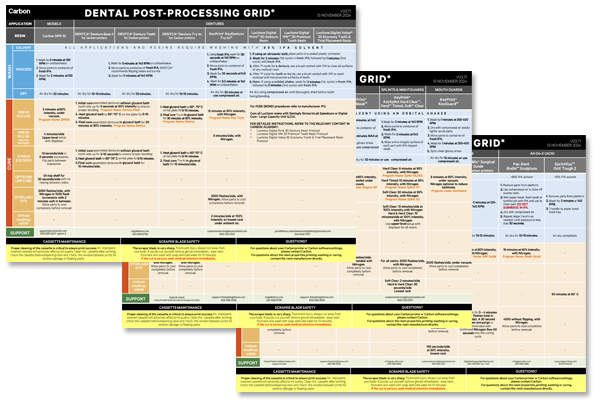
One of our most popular downloads! This table provides washing and curing instructions for all supported dental resins.
Print it and use it in the lab as a quick reference.
:::
:::VerticalSplitItem
:::
::::
::::VerticalSplit{layout="left"}
:::VerticalSplitItem
**English**
:::
:::VerticalSplitItem
::File{src="https://api.archbee.com/api/presign/3CesIL2dYMCHPZvRjp8S0/vQ2WsRger2d-CoLrn-m5f_dental-post-processing-grids-v0501.pdf" label="Dental-Post-Processing-Grids_v0501.pdf"}
:::
::::
::::VerticalSplit{layout="left"}
:::VerticalSplitItem
**German/Deutsch**
:::
:::VerticalSplitItem
::File{src="https://api.archbee.com/api/presign/uXbZOKjJTGpPhjapQ8fvM-seBSLAiWUzNDRI1GCLlop-20241125-214312.pdf" label="ZAHNÄRZTLICHES NACHBEARBEITUNGSGITTER v03.71 DE Deutsch.pdf"}
:::
::::
::::VerticalSplit{layout="left"}
:::VerticalSplitItem
**Spanish/Español**
:::
:::VerticalSplitItem
::File{src="https://api.archbee.com/api/presign/uXbZOKjJTGpPhjapQ8fvM-2i0UhzOfuA4aYJFusL1v2-20241203-180542.pdf" label="Rejilla de Posprocesamiento Dental v03.71 ES Espanol Spanish.pdf"}
:::
::::
# Orientation
**Orient the impression trays vertically with tab on platform.** This orientation yields the best accuracy, requires the fewest supports and allows the most parts per build.

## Snap To Platform
The **Snap To Platform** feature enables automatic alignment of a selected surface with the platform. This feature is the best way to quickly and accurately orient the flat side of the tab to the platform.
::::VerticalSplit{layout="middle"}
:::VerticalSplitItem
1. Click **Orient** or **Shift + O** in the main bar in the printer software.
2. Click **Select Surface**. The button will change to **Done**.
3. Click on the **flat underside surface** of the part that you want to align with the platform.
4. Click on **Done** to exit **Snap To Platform** tool.
:::
:::VerticalSplitItem

:::
::::
# Supporting
## Enter Support Mode
Supports hold up the part during printing. They do this by connecting platform-facing surfaces to the platform.
::::VerticalSplit{layout="middle"}
:::VerticalSplitItem
1. Click **Support or Shift + S** in the dark gray bar at the top of screen.
2. Under **Position**, select **On Platform** to lift parts off the platform.
3. Under **Auto Support Method**, select **Basic**.
4. Click **Generate** to automatically create supports. This may take seconds or minutes depending on the complexity of your part.
**Note**: We recommend using the **Basic support method** instead of Advanced for impression trays. The Advanced method’s FEA processing takes about 30 minutes for each tray. Typically, using Basic Auto Supports and manually editing takes 5-20 minutes based on skill level with no drop in part quality.
:::
:::VerticalSplitItem

:::
::::
## Check The Supported Tray
The Auto-Support function aggressively adds supports to your part in order to ensure print success. Since supports leave small bits or nubs after removal, they reduce part accuracy. Therefore, supports usually need manual editing to eliminate them from important surfaces and features.
::::VerticalSplit{layout="middle"}
:::VerticalSplitItem

:::
:::VerticalSplitItem
1. Examine your newly supported model.
2. Note any supports that:
- **contact any intaglio surface.**
- contact any other critical feature.
3. Use the **Edit** feature to remove any unwanted supports.
:::
::::
## Edited Supports
These are before/after images of the tray before editing and after editing.
::::VerticalSplit{layout="middle"}
:::VerticalSplitItem

:::
:::VerticalSplitItem
::Image[]{src="https://api.archbee.com/api/optimize/3CesIL2dYMCHPZvRjp8S0/OQgGBlVvvZcTAmERZSp3Z_image.png" size="98" width="516" height="516" position="center" showCaption="false"}
:::
::::
::::VerticalSplit{layout="middle"}
:::VerticalSplitItem
:::
:::VerticalSplitItem
**After Editing - No supports on intaglio surfaces.**
:::
::::
## Fence Supports
Fences are supports that work well for impression trays.
- They are easy to remove.
- They do not increase the footprint of the part, which allows more trays to be built at once.
:::::VerticalSplit{layout="middle"}
::::VerticalSplitItem
1. Click on **Fences**.
2. Click a **series of points** on the tray to define the fence.
- Use **Overhang Detection** to find areas that need support.
3. Click **Generate** to create the fence geometry.
4. Repeat as needed.
:::hint{type="info"}
**Carbon recommends running fences every 2 - 4 mm on horizontal or near horizontal surfaces.**
:::
::::
:::VerticalSplitItem

:::
:::::
## Well Supported Trays
This is an example of an impression tray that is well-supported with fences.
- Supported on the platform
- Provides stability.
- Lower than printing above platform so print times are shorter.
- Fewer supports require less resin.
- Intaglio surfaces are free from supports.
::::VerticalSplit{layout="middle"}
:::VerticalSplitItem

:::
:::VerticalSplitItem
::Image[]{src="https://api.archbee.com/api/optimize/3CesIL2dYMCHPZvRjp8S0/zQ3_UzAa7DhkPmWVfudR2_image.png" size="98" width="570" height="570" position="center" showCaption="false"}
:::
::::
::::VerticalSplit{layout="middle"}
:::VerticalSplitItem

:::
:::VerticalSplitItem
:::
::::
# Manufacturer Instructions for Use
::::LinkArray
:::LinkArrayItem{headerType="IMAGE" headerImage="https://api.archbee.com/api/optimize/3CesIL2dYMCHPZvRjp8S0/cJAKqDDnRUAeJAXNRThMm-20251016-221334.png"}
**[Manufacturer Instructions for Use ](https://dentamidshop.dreve.de/daten/enu_dentamid_inst_fotodent_tray2_de_en_fr_es_nl_it_pt.pdf?expired=1725999243)**
:::
::::
# Questions & Support
::::VerticalSplit{layout="middle"}
:::VerticalSplitItem
**For questions about the resin properties, printing, washing or curing your impression trays, please contact the Dreve technical team:**
- Email: support-fotodent\@dreve.com
- Phone: 1-952-358-3526
:::
:::VerticalSplitItem

:::
::::
For questions about your **Carbon printer** or **Carbon software settings** used for this resin, please [contact Carbon](https://learn.carbon3d.com/carbon-support):
- Email: [support@carbon3d.com](mailto\:support@carbon3d.com)
- Phone:
- **U.S. and Canada** 1-650-285-6307 option 2
- **Germany** +49 6102 5790849
- **UK **+44 (0) 2082 647484
- Printer UI: On the dashboard, select the **Prints** tab. **Select one of the printed projects.** Click **Request Help** in the lower right corner.
::Image[]{src="https://api.archbee.com/api/optimize/3CesIL2dYMCHPZvRjp8S0/YY6yCChSIB8SevmBwY76W_request-help-01.png" size="70" width="6541" height="3371" position="flex-start" alt="Location of button in the printer software" showCaption="false"}