Dreve FotoDent gingiva
Overview
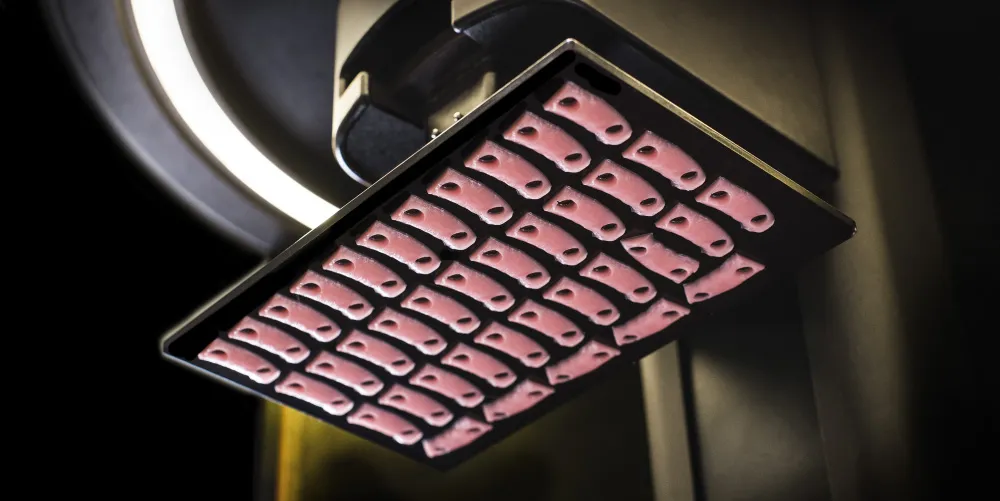
Dreve FotoDent® gingiva is available to produce dental gingiva masks. The material is pink in color and is ideal for fast production.
This resin is not currently compatible with the AO Polishing Cassette.
Resource Links
Scroll to bottom of page and select Safety data sheets
Protocol
This downloadable handout provides important usage information, including instructions about storage and post-processing. Print it out and bring it into the lab!
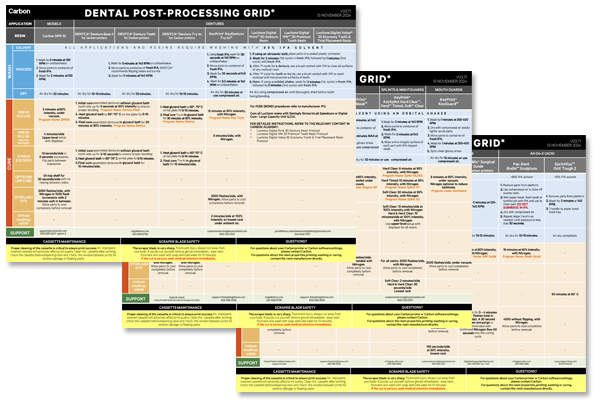
Dental Post-Processing Grids
One of our most popular downloads! This table provides washing and curing instructions for all supported dental resins.
Print it and use it in the lab as a quick reference.
German/Deutsch
Spanish/Español
Orient
Always orient the gingiva mask with the flat surface directly on the platform. This eliminates the need for supports and reduces overall print time.

Use Snap to Platform feature to quickly and accurately orient gingiva masks.
Support
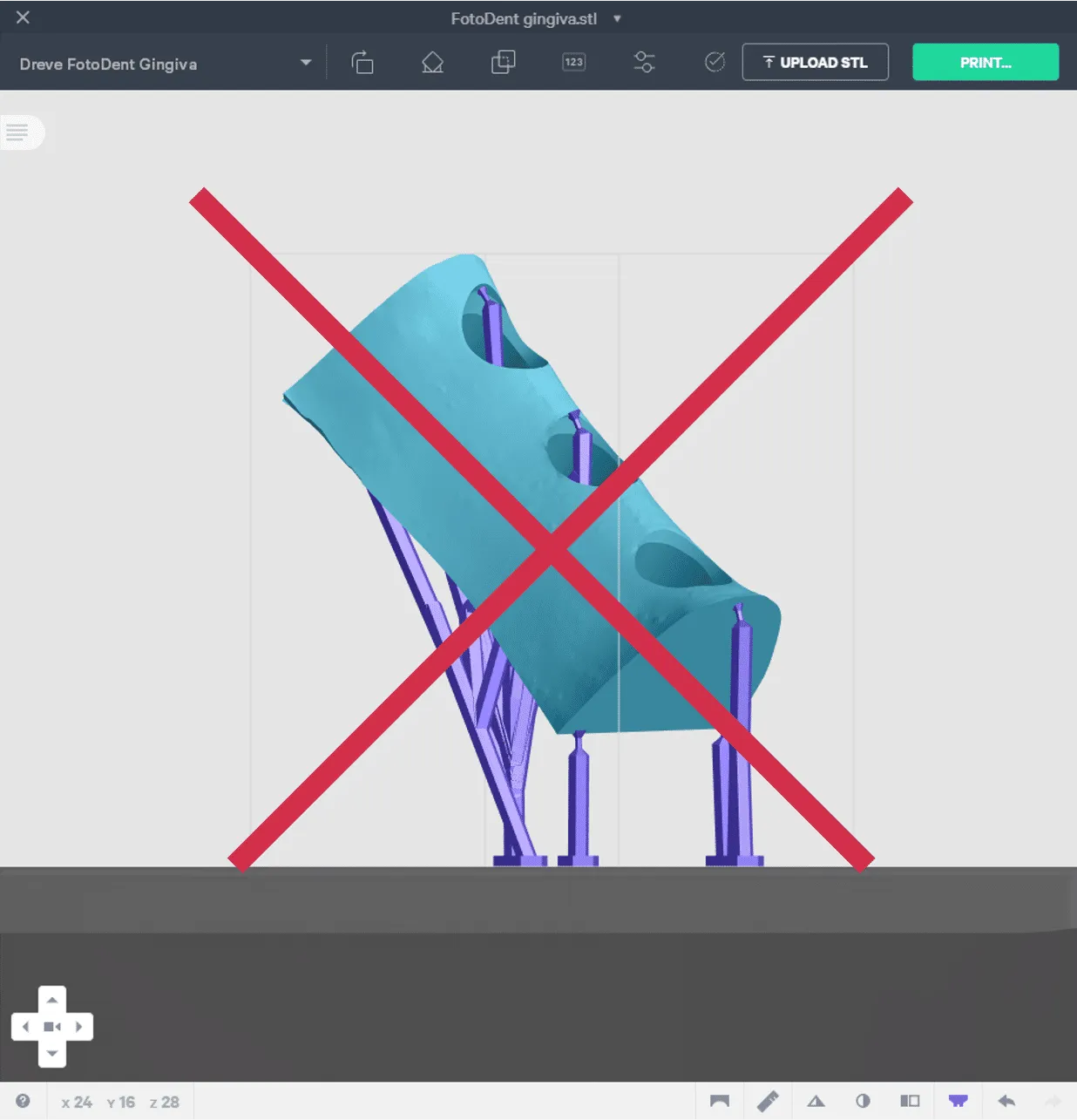
Gingiva masks do not require supports when properly oriented.
Gingiva masks have a flat surface that adheres to the platform well, and when properly oriented, do not have overhangs. Supports also leave nubs that negatively affect the surface quality and accuracy of your gingiva masks.
For these reasons, we do not expect supports will be required for these parts. Carbon strongly recommends using Snap To Platform to properly orient your gingiva mask parts. This tool ensures that the flat underside of the gingiva mask is laying flat on the platform.
If you believe your part requires supports, please contact [email protected].
Properly oriented and supported gingiva mask
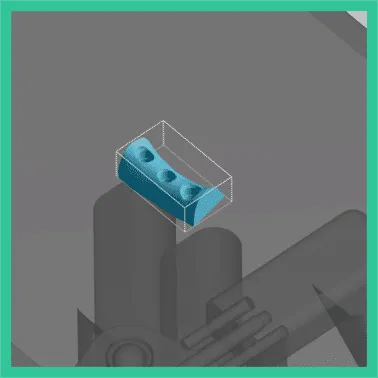
- Gingiva mask laying flat on platform.
- No supports.
Poorly oriented and supported gingiva mask
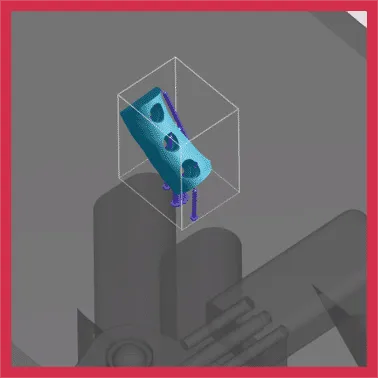
- Gingiva mask not laying flat on platform.
- Supports needed because of poor orientation of part.
Nesting

- Select the Layout tab (Shift + L) in the top menu bar.
- Under Auto Layout, select Gen2.
- Gen2 usually gives the most effecient packing for dental devices.
- Enter at least 1 mm in Padding.
- Models require a minimum of 1 mm of space between them.
- Leave Optimize starting rotation unchecked.
- This leaves your parts in their previous orientations.
- Leave Allowed rotations at the default setting.
- This gives the software maximum flexibility to fit the most possible parts on the build platform.
- Press the Auto Layout button to arrange your parts.
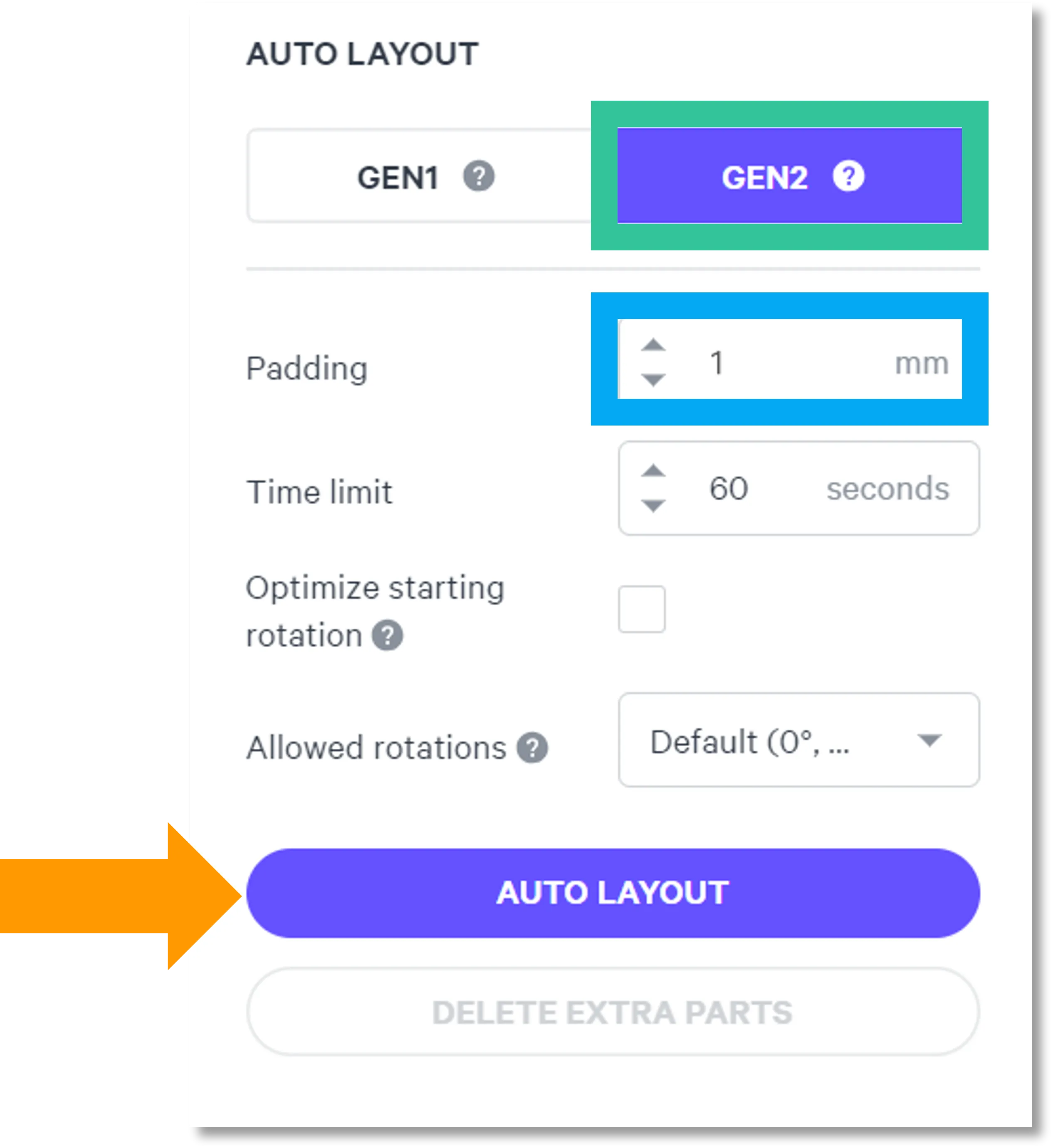
If necessary, nesting can be changed manually:
- Click and drag parts to adjust their position.
- Modify Z rotation by using the Spin tool or manual rotations under the Orient tab (Shift + O).
- Use the Part List tab as needed to more easily select models and focus on them.
Print Preparation
Print Controls
Click Print Controls or Shift + P in the top menu bar.
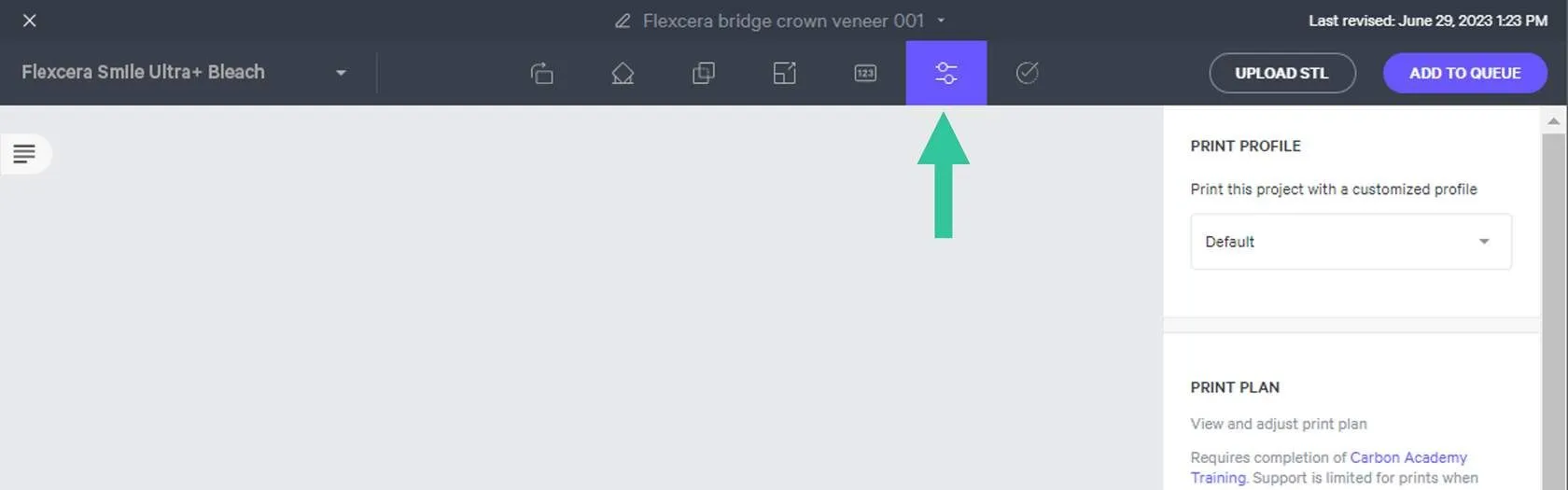
Do not change any of the settings. The default settings deliver the best results for gingiva masks.
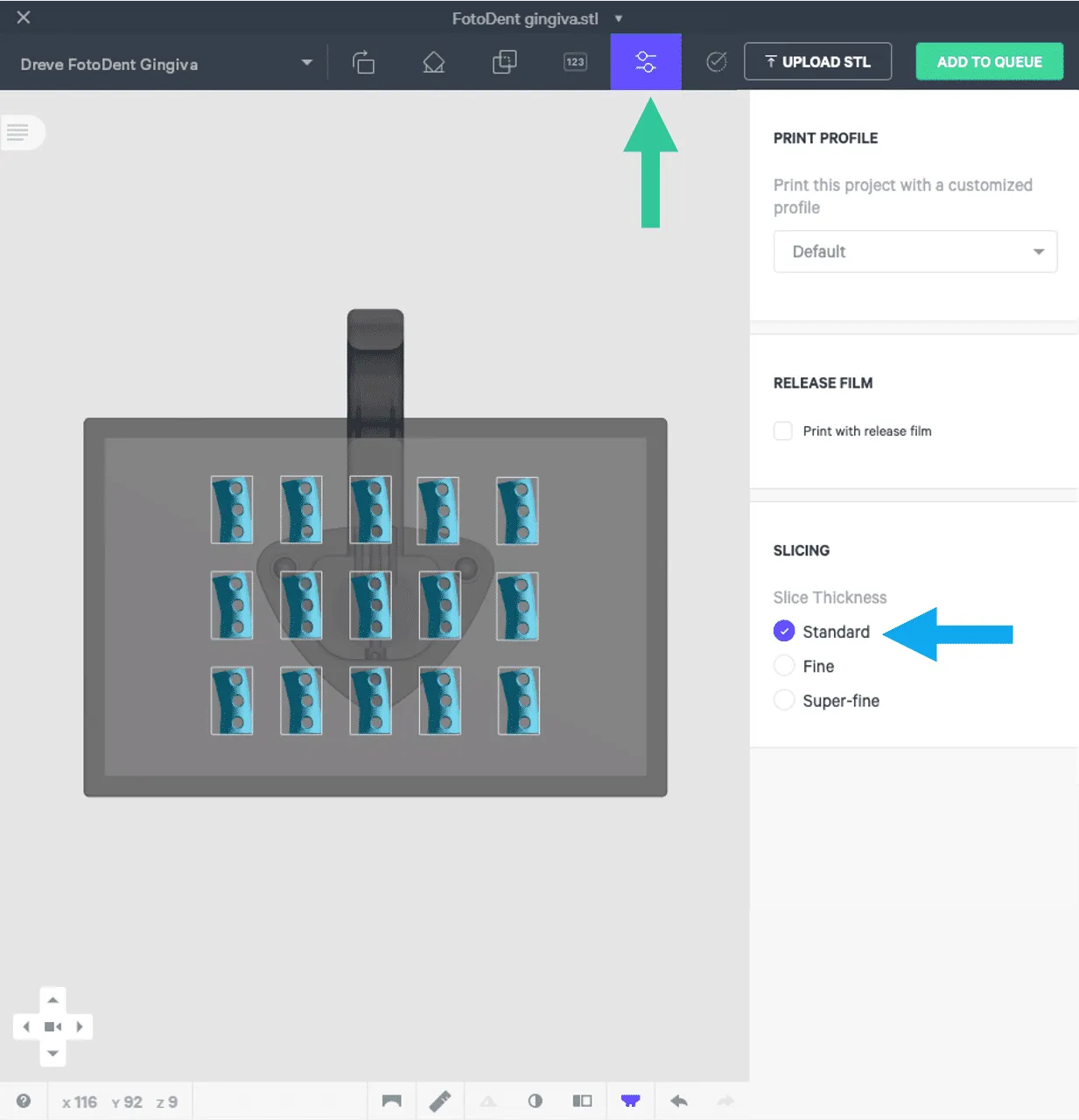
Slicing
- Slice Thickness should stay at the Standard (100 µ) setting.
- Reducing the slice thickness by choosing the Fine (50 µ) or Super-fine (25 µ) settings will increase print time and may reduce part quality and accuracy.
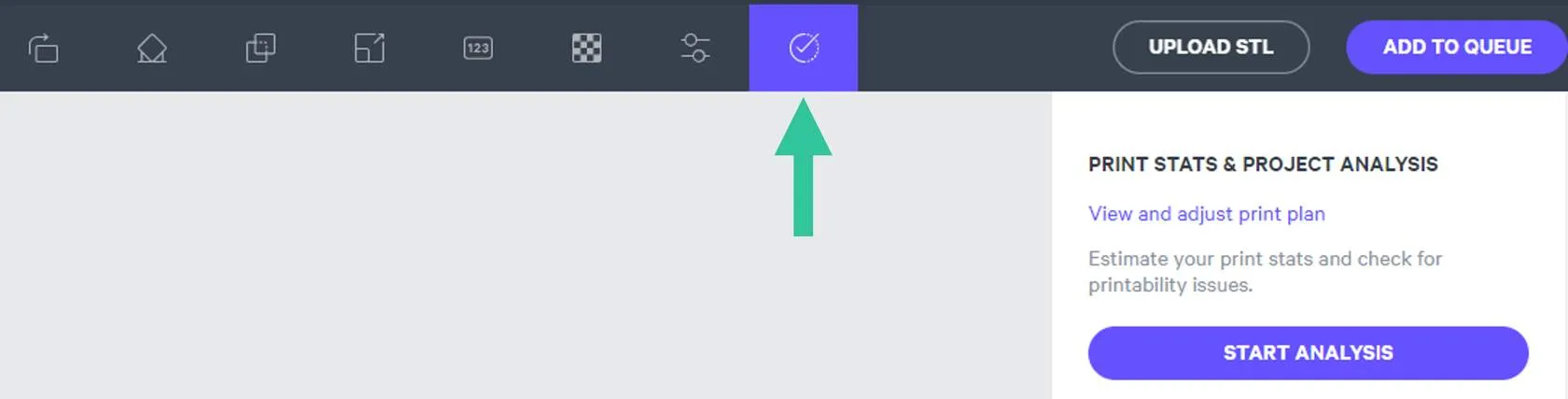
Project Analysis
- Select the Project Analysis tab.
- Click Start Analysis and wait for the processing to complete.
- Note the required resin volume and print time.
- Click Add to Queue.
Manufacturer Instructions for Use
Questions & Support
For questions about the resin properties, printing, washing or curing your parts, please contact the Dreve technical team:
- Email: [email protected]
- Phone: 952-358-3526
For questions about your Carbon printer or Carbon software settings used for this resin, please contact Carbon:
- Email: [email protected]
- Phone:
- U.S. and Canada 1-650-285-6307 option 2
- Germany +49 6102 5790849
- UK +44 (0) 2082 647484
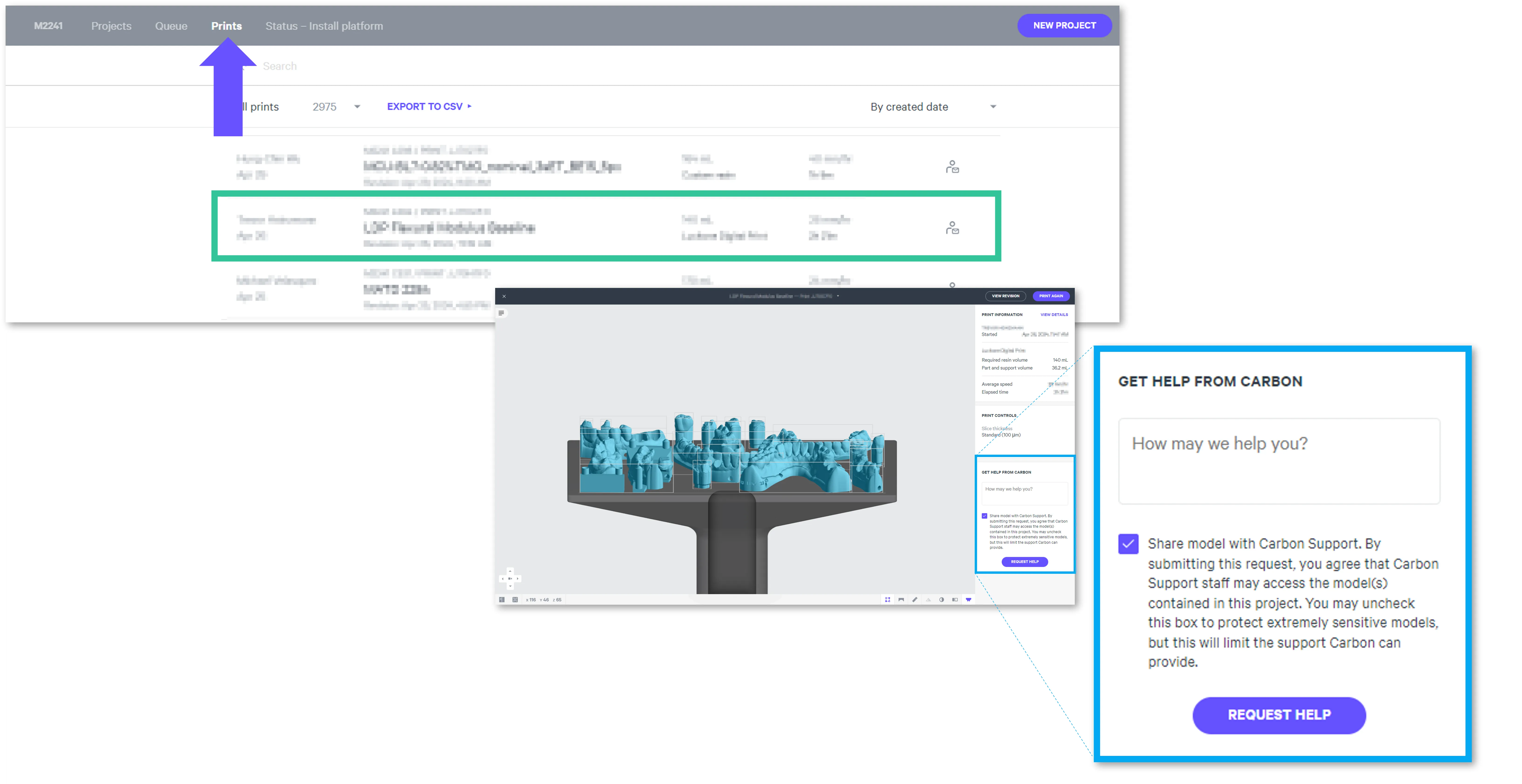
- Printer UI: On the dashboard, select the Prints tab. Select one of the printed projects. Click Request Help in the lower right corner.