---
title: DENTCA Denture Base II for Carbon Printers
slug: materials/dentca-denture-base
description: Discover the optimal use of DENTCA® Base II resin with this comprehensive guide tailored for Carbon M-Series printers. Learn effective strategies for printing denture bases compatible with DENTCA® Teeth.
docTags:
createdAt: 2024-07-08T20:19:12.485Z
---
# Overview
::::VerticalSplit{layout="middle"}
:::VerticalSplitItem
**DENTCA® Base II for Carbon printers** is now available for Carbon M-Series printers to produce bases for dentures. When paired with DENTCA® Teeth, you can create complete denture appliances with DLS™.
This guide will cover preparation of your digital denture base models to properly prepare them for printing with DENTCA® Base II for Carbon printers resin.
DENTCA® Base II for Carbon printers currently comes in 4 colors:
- DP (Dark Pink)
- LP (Light Pink)
- OP (Original Pink)
- RP (Reddish Pink)
:::
:::VerticalSplitItem

:::
::::
:::hint{type="info"}
This resin is not currently compatible with the [AO Polishing Cassette](docId\:iFFh3q8-WLk-LIqr87bd5).
:::
## Resource Links
::::LinkArray
:::LinkArrayItem{headerType="IMAGE" headerImage="https://api.archbee.com/api/optimize/uXbZOKjJTGpPhjapQ8fvM-IOQIJkNnkbUAw9Q-ap1FV-20241115-235121.jpg"}
**[About the Material](https://www.carbon3d.com/materials/3d-printed-denture)**
:::
:::LinkArrayItem{headerType="IMAGE" headerImage="https://api.archbee.com/api/optimize/3CesIL2dYMCHPZvRjp8S0/cJAKqDDnRUAeJAXNRThMm-20251016-221334.png"}
**[Instructions for Use](https://s3-us-west-1.amazonaws.com/dentca.b-dentca-w-ss-paperclip/production/public/ckeditor_assets/attachments/22/directions_for_use_db_ii_for_carbon_printers-_carbon_final.pdf)**
:::
:::LinkArrayItem{headerType="IMAGE" headerImage="https://api.archbee.com/api/optimize/3CesIL2dYMCHPZvRjp8S0/1r3fpdvMUMFVZGfey2Tjn-20251016-221405.jpg"}
**[Safety Data Sheet](https://s3-us-west-1.amazonaws.com/dentca.b-dentca-w-ss-paperclip/production/public/ckeditor_assets/attachments/21/sds_of_dentca_denture_base_ii_for_carbon_printers.pdf)**
:::
::::
## Protocol
This downloadable handout provides important usage information, including instructions about storage and post-processing. Print it out and bring it into the lab!
::File{src="https://api.archbee.com/api/presign/3CesIL2dYMCHPZvRjp8S0/-YWWbCB7jvXeGHgcsRLlC_dentca-denture-base-ii-protocol-v0104.pdf" label="DENTCA Denture Base II Protocol v01.04.pdf"}
## Dental Post-Processing Grids
::::VerticalSplit{layout="right"}
:::VerticalSplitItem
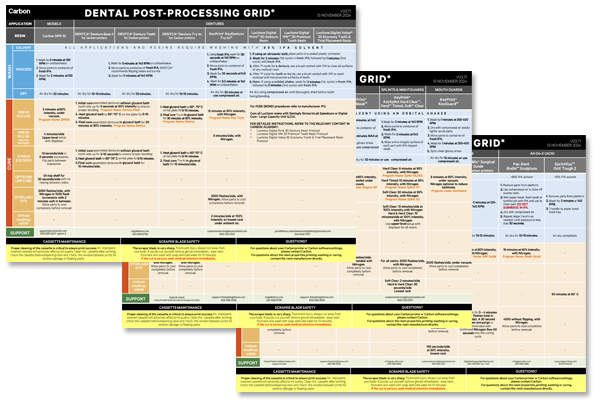
One of our most popular downloads! This table provides washing and curing instructions for all supported dental resins.
Print it and use it in the lab as a quick reference.
:::
:::VerticalSplitItem
:::
::::
::::VerticalSplit{layout="left"}
:::VerticalSplitItem
**English**
:::
:::VerticalSplitItem
::File{src="https://api.archbee.com/api/presign/3CesIL2dYMCHPZvRjp8S0/vQ2WsRger2d-CoLrn-m5f_dental-post-processing-grids-v0501.pdf" label="Dental-Post-Processing-Grids_v0501.pdf"}
:::
::::
::::VerticalSplit{layout="left"}
:::VerticalSplitItem
**German/Deutsch**
:::
:::VerticalSplitItem
::File{src="https://api.archbee.com/api/presign/uXbZOKjJTGpPhjapQ8fvM-seBSLAiWUzNDRI1GCLlop-20241125-214312.pdf" label="ZAHNÄRZTLICHES NACHBEARBEITUNGSGITTER v03.71 DE Deutsch.pdf"}
:::
::::
::::VerticalSplit{layout="left"}
:::VerticalSplitItem
**Spanish/Español**
:::
:::VerticalSplitItem
::File{src="https://api.archbee.com/api/presign/uXbZOKjJTGpPhjapQ8fvM-2i0UhzOfuA4aYJFusL1v2-20241203-180542.pdf" label="Rejilla de Posprocesamiento Dental v03.71 ES Espanol Spanish.pdf"}
:::
::::
##
# General Orientation & Support Information
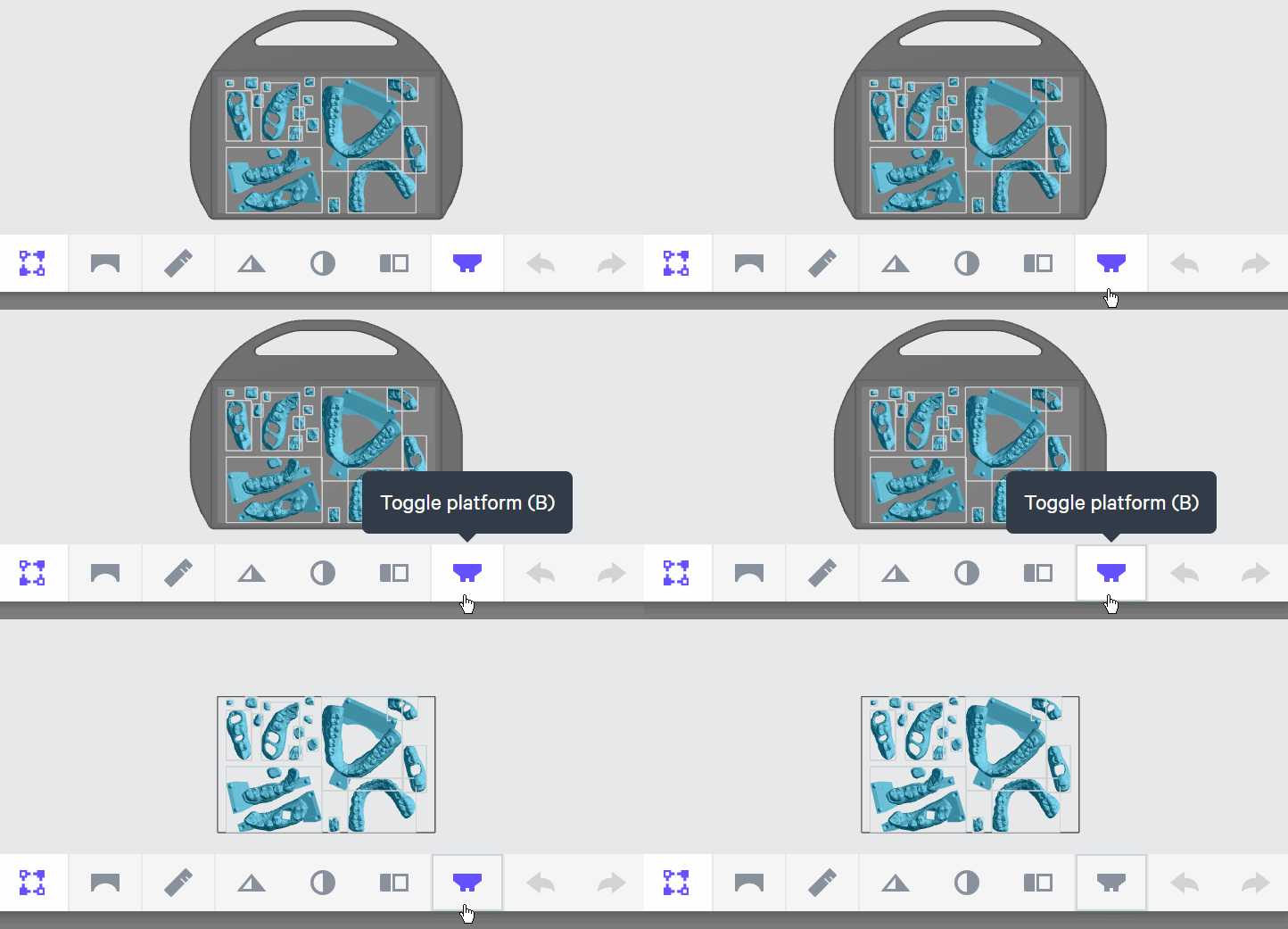
## Hide the Platform
Use **Toggle platform** (or press **B**) to hide the platform before orienting parts. This will make it easier to see overhangs and place supports.
## Patch and Fence tools
::::VerticalSplit{layout="middle"}
:::VerticalSplitItem
### Patch tool
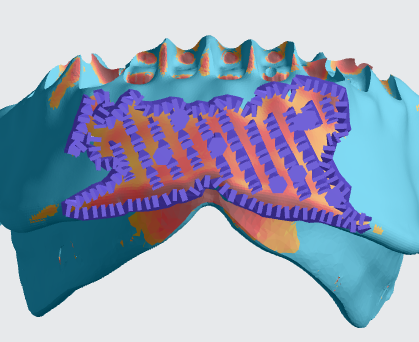
- The [Patch tool](docId\:VUbpoAitbLM11aM9-qJ1p) speeds up support creation by automatically supporting an area with just a few clicks. It is useful for supporting **larger areas** of overhang that would take longer to support manually.
- It is often useful to support your parts with this tool **before **manually adding supports.
::Image[]{src="https://res.cloudinary.com/carbon3d/image/upload/v1741914725/Education/Materials/dental/__General_Use/standard-support-menu-patch.png" size="50" width="208" height="73" position="flex-start" showCaption="false"}
:::
:::VerticalSplitItem
:::
::::
::::VerticalSplit{layout="middle"}
:::VerticalSplitItem
### Fence tool
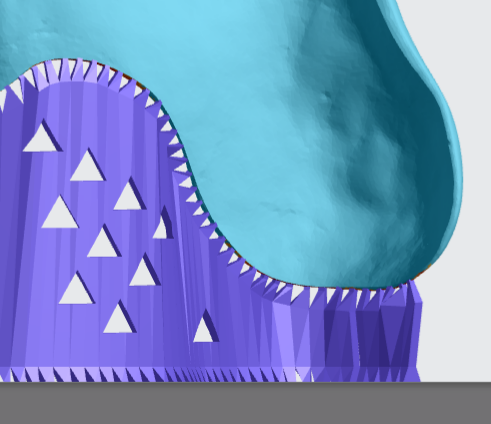
- [Fence supports](docId\:VUbpoAitbLM11aM9-qJ1p) are manually placed by the user and are best suited on **linear overhangs **or smaller areas.
- Fences provide stability while leaving smaller nubs than the default Bars option.
::Image[]{src="https://res.cloudinary.com/carbon3d/image/upload/v1741914724/Education/Materials/dental/__General_Use/standard-support-menu-fence.png" size="50" width="214" height="77" position="flex-start" showCaption="false"}
:::
:::VerticalSplitItem
:::
::::
:::hint{type="info"}
Review [Supports](docId\:VUbpoAitbLM11aM9-qJ1p) in [Printer UI](docId\:oId4ZNZtZYeltTPVJ984a) course for more information.
:::
# Orientation Options
There are 2 options for orienting bases for printing.
::::VerticalSplit{layout="middle"}
:::VerticalSplitItem
## Near Horizontal
- No supports on cameo surface
- Limits supports on intaglio edge
- Minimizes support creation and support removal time
- Minimizes print time
- Fewer models per print
:::
:::VerticalSplitItem
## Near Vertical
- No supports on intaglio surface
- Requires more time creating and removing supports
- Requires more finishing time to remove support nubs
- Increase print time
- More models per print
:::
::::
::::VerticalSplit{layout="middle"}
:::VerticalSplitItem

:::
:::VerticalSplitItem

:::
::::
# Orient & Support Near Horizontal
## Initial Orientation
Perform an initial orientation of both bases so that they are roughly parallel with the platform.
1. Click on **Orient** or **Shift + O** in the main bar in the printer software.
2. In the lower right corner, turn on **Overhang Detection** or **V key** set to **40 degrees** to indicate areas that need support in red.
::Image[]{src="https://res.cloudinary.com/carbon3d/image/upload/Education/Materials/dental/__General_Use/Orient-toggle-platform-color01.png" size="70" width="1661" height="866" position="flex-start" alt="Printer UI showing Orient and Overhang Detection buttons" showCaption="false"}
3\. Orient each base so that the tissue-facing surface is facing the platform.
4\. Adjust the bases so that the tooth sockets are **mostly parallel with the platform**.

5\. Position the camera so you are looking straight down on the platfrom. Make sure that
the **posterior region of each base is facing the lower portion of the screen.**

## Final Orientation
Now perform the final orientations. Because denture bases are organic surfaces with no well defined flat areas, we do not recommend using Snap To Platform.
### Maxillary Base
1. Click on the maxillary base to select it.
2. Enter **30 **into the X axis field.
3. The posterior of the base should be touching the platform.
::Image[]{src="https://api.archbee.com/api/optimize/3CesIL2dYMCHPZvRjp8S0/vg33aiSt5ugIzyPQGLGFr_image.png" size="80" width="1236" height="700" position="center" alt="Orientation of maxillary base" showCaption="false"}
### Mandibular Base
1. Click on the mandibular base to select it.
2. Enter **-15** into the X axis field.
3. The anterior of the base should be touching the platform.
::Image[]{src="https://api.archbee.com/api/optimize/3CesIL2dYMCHPZvRjp8S0/MY-KWU32i_S9yoVeqz8GO_image.png" size="80" width="1185" height="699" position="center" alt="Orientation of mandibular base" showCaption="false"}
## Supporting
1. Click **Support or Shift + S** in the dark gray bar.
2. Under **Position, **select **Above Platform** to lift parts off the platform.
3. Skip **Auto Support Method** as this mode is not recommended.
4. Click **Manually Ad****d** to go to the Support editing interface.
::Image[]{src="https://api.archbee.com/api/optimize/3CesIL2dYMCHPZvRjp8S0/n-lEjh80ks2GAwW4lCes4_image.png" size="70" width="1235" height="1324" position="center" alt="Support screen in UI" showCaption="false"}
:::hint{type="danger"}
Using either Auto Support method will result in **supports covering a large portion of the tissue-facing surfaces**, which will use more resin and require more cleanup.
:::
::Image[]{src="https://api.archbee.com/api/optimize/3CesIL2dYMCHPZvRjp8S0/f-B_v20CMRWRrIMmL7cID_image.png" size="60" width="321" height="321" position="center" alt="Over-supported base" showCaption="false"}
### Add Fence Supports
Fence supports are required to support the edges of mandibular and maxillary bases.
1. Click on **Fences**.
2. Click a **series of points** in an area of overhang to define the fence.
1. Use **Overhang Detection** to find areas that need support.
3. Click **ESC key** and then hold down **E key** to reposition points.
4. Click **Generate** to create the fence geometry. This may take a few minutes.
5. Repeat as needed.
::Image[]{src="https://api.archbee.com/api/optimize/3CesIL2dYMCHPZvRjp8S0/kvpc9NCwlkUazMyEPOOAh_image.png" size="82" width="1278" height="1476" position="center" alt="Fence screen in UI" showCaption="false"}
### Supporting Maxillary Base
**Fence Supports**
1. Support entire boundary of base with fence supports.
1. We recommend using a single, long fence for easier removal.
2. A sequence of 2 or more short fences is acceptable.
Once the outer boundary of the maxillary base has been supported with fences, proceed to supporting the palette with bar supports.

### Supporting Maxillary Base Palette
Support the palette with a field of bar supports to prevent deformation.
**Bar Supports**
1. Press **Overhang Detection** to highlight the areas to focus on.
2. Click on **Multiple add**.
3. Click in the palette area to create **field of points** that will be contact points for bar supports.
- Bar supports are usually required only in the palette area.
- Place points within **3-6 mm **of each other.
4. Click **Generate** to create the bar supports.
5. **Check the bar supports** and move to supporting the mandibular base.

### Supporting Mandibular Base
Use **fences **to support the outer boundary of the base. Mandibular bases also require additional fences in the posterior areas to ensure proper fit.
1. Support entire **boundary of base** with fence supports.
- We recommend using a single, long fence for easier removal.
- A sequence of 2 or more short fences is acceptable.
2. Create **secondary lines of fences** along the posterior region.
3. Offset from outer fence by **2-4 mm.**
::Image[]{src="https://api.archbee.com/api/optimize/3CesIL2dYMCHPZvRjp8S0/jOH23u8XOmF31I4OT0CeL_image.png" size="70" width="1045" height="1282" position="center" alt="Mandibular fence placement" showCaption="false"}
## Examples of Properly Oriented and Supported Bases
- Tissue-facing surfaces facing platform.
- Supported **Above Platform.**
- Fences around part boundary.
- Bar supports on maxillary base palette.
::::VerticalSplit{layout="middle"}
:::VerticalSplitItem
### Maxillary Base
Rotated **30 degrees** with posterior tilted towards platform.

:::
:::VerticalSplitItem
### Mandibular Base
Rotated **15 degrees** with anterior tilted towards platform.

:::
::::
# Orient & Support Near Vertical
Orienting your denture base models vertically keeps the intaglio surface free of supports and allows more models to be fit on the build platform at the expense of increased printing time and additional time required to create supports and then remove them after printing.

## Initial Orientation
Perform an initial orientation of both bases so that they are roughly parallel with the platform.
1. Click on **Orient** or **Shift + O** in the main bar in the printer software.
2. In the lower right corner, turn on **Overhang Detection** or **V key** set to **40 degrees** to indicate areas that need support in red.
::Image[]{src="https://api.archbee.com/api/optimize/3CesIL2dYMCHPZvRjp8S0/-9tdnQVwtMT4dkb643JV3_image.png" size="60" width="800" height="496" position="center" alt="Printer UI showing Orient and Overhang Detection buttons" showCaption="false"}
3\. Orient each base so that the tissue-facing surface is facing the platform.
4\. Adjust the bases so that the tooth sockets are **mostly parallel with the platform**.

5\. Position the camera so you are looking straight down on the platfrom. Make sure that
the **posterior region of each base is facing the lower portion of the screen.**

## Final Orientation
Now perform the final orientations. Because denture bases are organic surfaces with no well defined flat areas, we do not recommend using Snap To Platform. It is much easier to enter values directly into the **Orient **fields.
### Maxillary and Mandibular Bases
1. Click on the base model to select it.
2. Enter** -95 **into the X axis field.
- The labial surface of the bases should be facing the platform.
- The lingual surfaces should be **5-10 degrees **from vertical, tilted towards the platform.
::Image[]{src="https://api.archbee.com/api/optimize/3CesIL2dYMCHPZvRjp8S0/s69h2DQugE7TPXCTlqDBM_image.png" size="80" width="1398" height="1364" position="center" alt="Orientation of bases" showCaption="false"}
## Supporting
1. Click **Support or Shift + S** in the dark gray bar.
2. Under **Position, **select **Above Platform** to lift parts off the platform.
3. Skip **Auto Support Method** as this mode is not recommended.
4. Click **Manually Ad****d** to go to the Support editing interface.
::Image[]{src="https://api.archbee.com/api/optimize/3CesIL2dYMCHPZvRjp8S0/nyM2B_d8vFUih25FF05Am_image.png" size="80" width="1235" height="1324" position="center" alt="Support screen in UI" showCaption="false"}
:::hint{type="danger"}
Using either Auto Support method will result in **supports covering a large portion of the tissue-facing surfaces**, which will use more resin and require more cleanup.
:::
::Image[]{src="https://api.archbee.com/api/optimize/3CesIL2dYMCHPZvRjp8S0/c-UQLAyARAgI_vDhfWkTX_image.png" size="56" width="338" height="338" position="center" alt="Poor supports generated by Auto Support feature" showCaption="false"}
### Support Papillas
Use **bar supports** to support papillas.
1. Click on **Bar support button.**
2. Click on **each papilla** to place a single support.
3. Click **Generate** to create the bar supports.
4. Repeat as needed.
::Image[]{src="https://api.archbee.com/api/optimize/3CesIL2dYMCHPZvRjp8S0/a6o2iX7dNVqk9SdlvHr7T_image.png" size="80" width="1081" height="1192" position="center" alt="Supporting papillas" showCaption="false"}
### Support Lingual Walls
1. Click on **Bar support button.**
1. Use **Overhang Detection** to find areas that need support.
2. Click a **series of points** to support lingual walls.
3. Click **Generate** to create the bar supports.
4. Repeat as needed.
::Image[]{src="https://api.archbee.com/api/optimize/3CesIL2dYMCHPZvRjp8S0/o8-DRK9fL0oUT1K24qnDO_image.png" size="80" width="1081" height="1223" position="center" alt="Supporting lingual walls" showCaption="false"}
### Support Labial Walls
Fences are ideal for supporting base walls that face the platform.
- They are easy to remove.
- Contact points require less finishing.
1. Click on **Fences.**
1. Use **Overhang Detection** to find areas that need support.
2. Click a **series of points** to define the fence.
3. Click **ESC key** and then hold down **E key** to reposition points.
4. Click **Generate** to create the bar supports.
5. Repeat as needed.
::Image[]{src="https://api.archbee.com/api/optimize/3CesIL2dYMCHPZvRjp8S0/iueakRIRcQhJZ4xUtxszX_image.png" size="80" width="1151" height="1336" position="center" alt="Supporting labial walls" showCaption="false"}
### Support Tooth Channels
1. Click on **Bar support button.**
2. Click a **series of points** to support the tooth channels of the few teeth that are closest to the platform.
3. Click **Generate** to create the bar supports.
4. Repeat as needed.
::Image[]{src="https://api.archbee.com/api/optimize/3CesIL2dYMCHPZvRjp8S0/MEvTpPIBPB6tRtvg5U30M_image.png" size="82" width="1080" height="1194" position="center" alt="Supporting tooth channels" showCaption="false"}
## Examples of Properly Oriented and Supported Bases
- Bases oriented vertically, tilted **5-10** degrees towards platform.
- Papilla, lingual walls and tooth channels supported.
- Support-free intaglio surface.
- Labial wall supported with fence.

# Nesting

::::VerticalSplit{layout="right"}
:::VerticalSplitItem
1. Select the **Layout tab**** (Shift + L)** in the top menu bar.
2. Under **Auto Layout,** select **Gen2.**
- Gen2 usually gives the most effecient packing for dental devices.
3. Enter at least **1 mm** in **Padding.**
- Models require a minimum of 1 mm of space between them.
4. Leave **Optimize starting rotation** unchecked.
- This leaves your parts in their previous orientations.
5. Leave **Allowed rotations** at the default setting.
- This gives the software maximum flexibility to fit the most possible parts on the build platform.
6. Press the **Auto Layout** button to arrange your parts.
:::
:::VerticalSplitItem

:::
::::
If necessary, nesting can be changed manually:
- Click and drag parts to adjust their position.
- Modify Z rotation by using the **Spin **tool or manual rotations under the **Orient tab** **(Shift + O).**
- Use the **Part List tab **as needed to more easily select models and focus on them.
# Print Preparation
## Print Controls
Click **Print Controls** or **Shift + P** in the top menu bar.

**Do not change any of the settings under Print Controls. **The default settings deliver the best results for denture bases.
### Slicing
Slice Thickness should stay at the **Standard (100 µ) setting.**
::Image[]{src="https://api.archbee.com/api/optimize/3CesIL2dYMCHPZvRjp8S0/dI8cVTIGq7abMv6UpjVwq_image.png" size="80" width="1237" height="1324" position="center" alt="Slicing options" showCaption="false"}
:::hint{type="warning"}
**Reducing the slice thickness by choosing the Fine (50 µ) or Super-fine (25 µ) settings will increase print time and may reduce part quality and accuracy.**
:::
## Project Analysis
1. Select the **Project Analysis** tab.
2. Click **Start Analysis** and wait for the processing to complete.
1. Note the required resin volume and print time.
3. Click **Add to Queue.**

# Manufacturer Instructions for Use
::::LinkArray
:::LinkArrayItem{headerType="IMAGE" headerImage="https://api.archbee.com/api/optimize/3CesIL2dYMCHPZvRjp8S0/cJAKqDDnRUAeJAXNRThMm-20251016-221334.png"}
**[Instructions for Use](https://s3-us-west-1.amazonaws.com/dentca.b-dentca-w-ss-paperclip/production/public/ckeditor_assets/attachments/22/directions_for_use_db_ii_for_carbon_printers-_carbon_final.pdf)**
:::
::::
# Questions & Support
**For questions about the resin properties, printing, washing or curing your parts, please contact the DENTCA support team:**
- Email: cs\@dentca.com
- Phone: 424-558-8726
For questions about your **Carbon printer** or **Carbon software settings** used for this resin, please [contact Carbon](https://learn.carbon3d.com/carbon-support):
- Email: [support@carbon3d.com](mailto\:support@carbon3d.com)
- Phone:
- **U.S. and Canada** 1-650-285-6307 option 2
- **Germany** +49 6102 5790849
- **UK **+44 (0) 2082 647484
- Printer UI: On the dashboard, select the **Prints** tab. **Select one of the printed projects.** Click **Request Help** in the lower right corner.
::Image[]{src="https://api.archbee.com/api/optimize/3CesIL2dYMCHPZvRjp8S0/YY6yCChSIB8SevmBwY76W_request-help-01.png" size="70" width="6541" height="3371" position="flex-start" alt="Location of button in the printer software" showCaption="false"}