---
title: Vita Vionic Base Resin Impact
slug: materials/Vita-Vionic-Base-Resin-Impact
description: Discover the Vita Vionic Base Resin Impact for use on the Carbon DLS platform: a durable and impact-resistant material for denture bases, ensuring longevity, comfort, and efficient printing with high accuracy.
docTags:
createdAt: 2025-01-28T17:47:33.901Z
---
# Overview
::::VerticalSplit{layout="right"}
:::VerticalSplitItem
**Vita Vionic Base Resin Impact **is an impact resistant printing material for removable denture bases. The excellent impact resistance of the product reduces the risk of breaking under stress.
In addition to the fracture work, the high flexural strength and optimized modulus of elasticity values ensure a balanced property profile, forming the basis for long-lasting dentures.
- **Long lasting**
Patients benefit from long-lasting dentures, thanks to the impact resistance of the material, which reduces the risk of breaking under stress. Low plaque adhesion contributes to wearing comfort.
- **Well balanced**
The well-balanced mechanical property profile is impressive in terms of fracture work, flexural strength and modulus of elasticity.
- **Excellent processing**
Short printing times, low shrinkage and high fitting accuracy are just as compelling as the great polishing characteristics.
:::
:::VerticalSplitItem

:::
::::
Carbon has validated the following shades:
- pink
- pink translucent
:::hint{type="info"}
This resin is not currently compatible with the [AO Polishing Cassette](docId\:iFFh3q8-WLk-LIqr87bd5).
:::
## Resource Links
::::LinkArray{contentSource="CUSTOM"}
:::LinkArrayItem{headerType="IMAGE" headerImage="https://api.archbee.com/api/optimize/uXbZOKjJTGpPhjapQ8fvM-IOQIJkNnkbUAw9Q-ap1FV-20241115-235121.jpg"}
**[About the Material](https://www.carbon3d.com/materials/base-resin-impact)**
:::
:::LinkArrayItem{headerType="IMAGE" headerImage="https://api.archbee.com/api/optimize/3CesIL2dYMCHPZvRjp8S0/cJAKqDDnRUAeJAXNRThMm-20251016-221334.png"}
**[Instructions for Use](https://www.vita-zahnfabrik.com/en/Digital-Dentures/3D-printing/VITA-VIONIC-BASE-RESIN-IMPACT-328539,27568.html)**
*Scroll down to 'Instructions for Use' and click the appropriate region.*
:::
:::LinkArrayItem{headerType="IMAGE" headerImage="https://api.archbee.com/api/optimize/3CesIL2dYMCHPZvRjp8S0/1r3fpdvMUMFVZGfey2Tjn-20251016-221405.jpg"}
**[Safety Data Sheet](https://www.vita-zahnfabrik.com/en/Digital-Dentures/3D-printing/VITA-VIONIC-BASE-RESIN-IMPACT-328539,27568.html)**
*Scroll down to 'Safety data sheets' and click the appropriate region.*
:::
::::
### Protocol
This downloadable handout provides important usage information, including instructions about storage and post-processing. Print it out and bring it into the lab!
::File{src="https://api.archbee.com/api/presign/3CesIL2dYMCHPZvRjp8S0/KhXbus68JxogRmSCwuz7I-20260114-200810.pdf" label="VITA-Vionic-Base-Resin-Impact-v0101.pdf"}
# Design
See IFU above for manufacturer design recommendations.
# Print Preparation
## Connect to Printer
::::VerticalSplit{layout="left"}
:::VerticalSplitItem
Connect to the printer software using your web browser.
:::
:::VerticalSplitItem
::Image[]{src="https://res.cloudinary.com/carbon3d/image/upload/t_auto_quality_format/Education/Materials/dental/__General_Use/Connect-printer_thumbnail.png" size="70" width="774" height="319" darkWidth="774" darkHeight="319" position="flex-start" alt="Connect to Printer" showCaption="false"}
:::
::::
::::::::ExpandableHeading
*Expand for steps*
:::::::WorkflowBlock
:::::WorkflowBlockItem
::::VerticalSplit{layout="middle"}
:::VerticalSplitItem
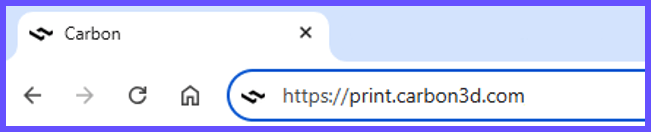
**Open browser**
Enter [https://print.carbon3d.com](https://print.carbon3d.com/) in the URL field.
:::
:::VerticalSplitItem
:::
::::
:::hint{type="info"}
Latest version of Chrome recommended.
:::
:::::
:::::WorkflowBlockItem
::::VerticalSplit{layout="middle"}
:::VerticalSplitItem
If you are not automatically logged in, enter your email and password and **click Log In****.**
:::
:::VerticalSplitItem
::Image[]{src="https://res.cloudinary.com/carbon3d/image/upload/t_auto_quality_format/Education/Materials/dental/__General_Use/Connect-login.png" size="60" width="561" height="677" darkWidth="561" darkHeight="677" position="center" alt="Carbon Log In" showCaption="false"}
:::
::::
:::::
::::::WorkflowBlockItem
:::::VerticalSplit{layout="middle"}
::::VerticalSplitItem
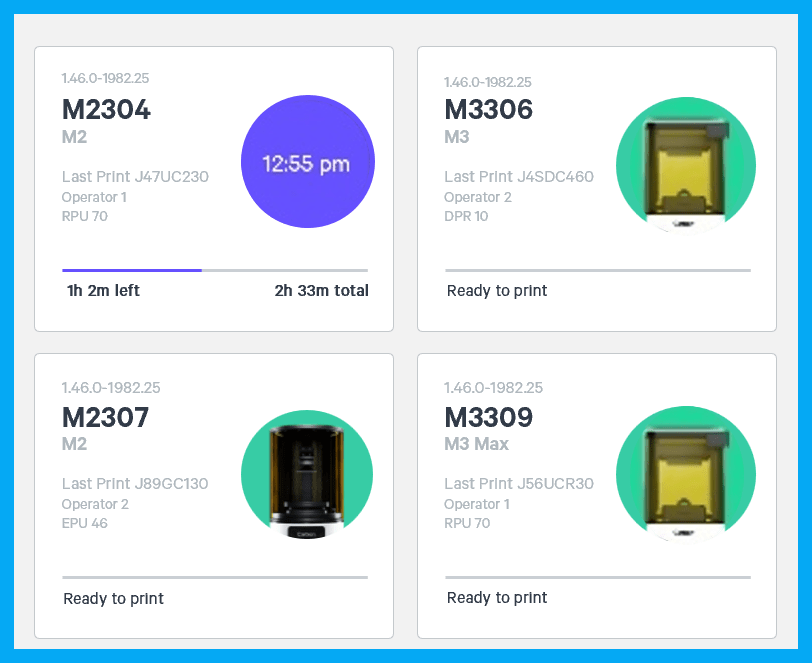
If you have multiple printers, **select the printer** that you wish to use to create the project.
:::hint{type="info"}
You may queue the build to other printers.
:::
::::
:::VerticalSplitItem
:::
:::::
::::::
:::::::
::::::::
***
## Create Project
::::VerticalSplit{layout="left"}
:::VerticalSplitItem
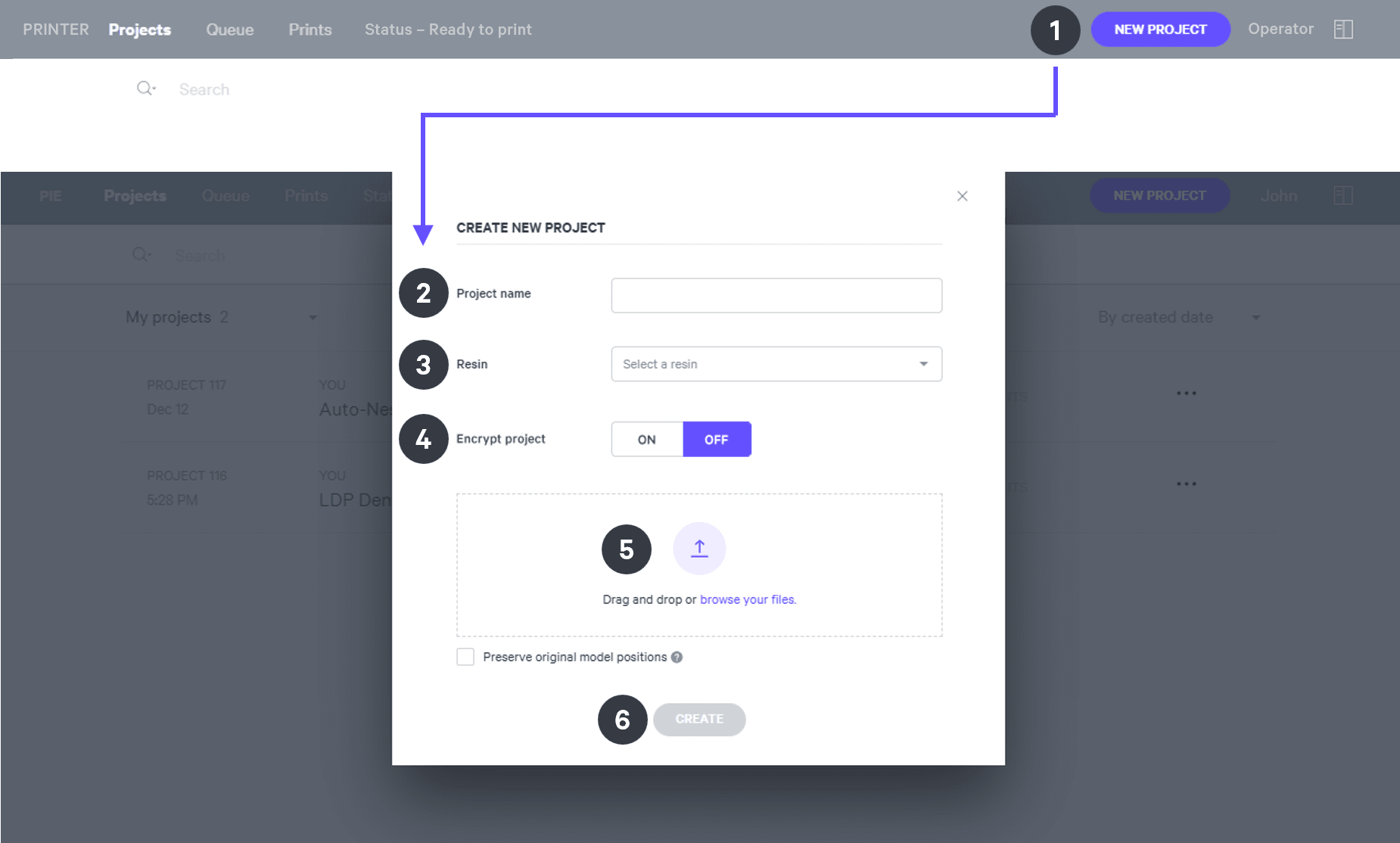
After you have chosen the printer, you must create a new project.
:::
:::VerticalSplitItem
::Image[]{src="https://res.cloudinary.com/carbon3d/image/upload/t_auto_quality_format/Education/Materials/dental/__General_Use/Create-project_thumbnail.png" size="70" width="673" height="247" darkWidth="673" darkHeight="247" position="flex-start" alt="Create Project" showCaption="false"}
:::
::::
::::::ExpandableHeading
*Expand for steps*
:::::WorkflowBlock
:::WorkflowBlockItem
Click **New Project.**
You can also drag your files from a file browser window and drop it on top of the **New Project** icon.
:::
:::WorkflowBlockItem
Enter a new **Project name.**
:::
:::WorkflowBlockItem
In the Resin dropdown, select **your resin.**
:::
::::WorkflowBlockItem
Only use [Encrypt project](docId:1bT3mas8msvxq9CDza67C) if you want to require a password to access the project.
:::hint{type="warning"}
**Carbon cannot provide support** for encrypted projects.
:::
::::
:::WorkflowBlockItem
**Drag and drop** your part files into the dotted box or click **browse your files **and select them in a file browser window.
:::
:::WorkflowBlockItem
Click **Create**
After a few moments you will see the project printer interface with your parts on the platform.
:::
:::::
::::::
***
## Orientation
:::hint{type="info"}
For detailed information about orienting parts, read [Orient](docId\:rMnxtq1NIAHXZOc4bZXWu).
:::
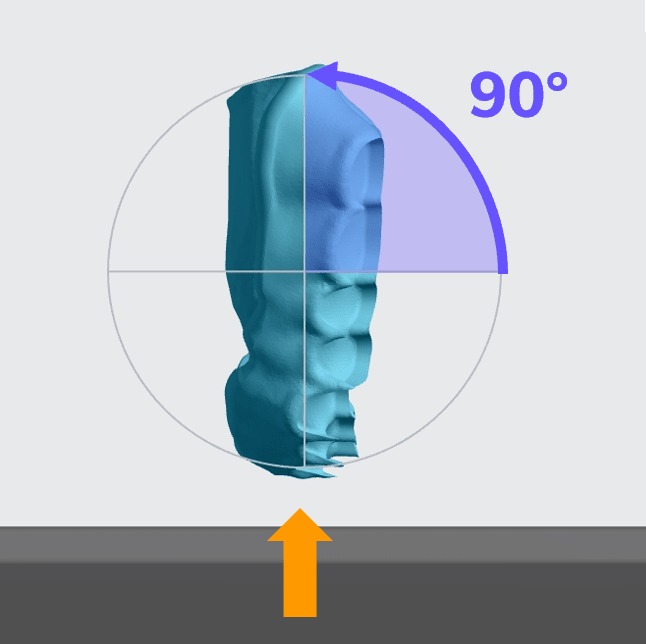
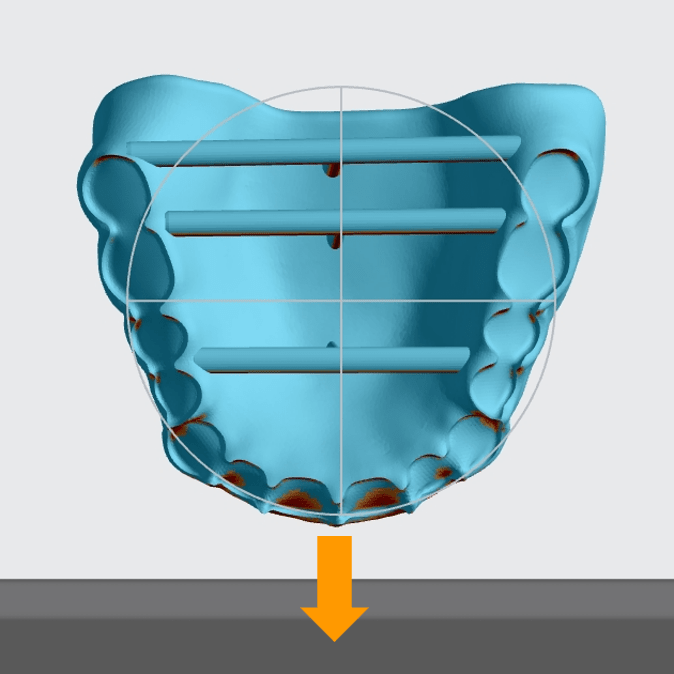
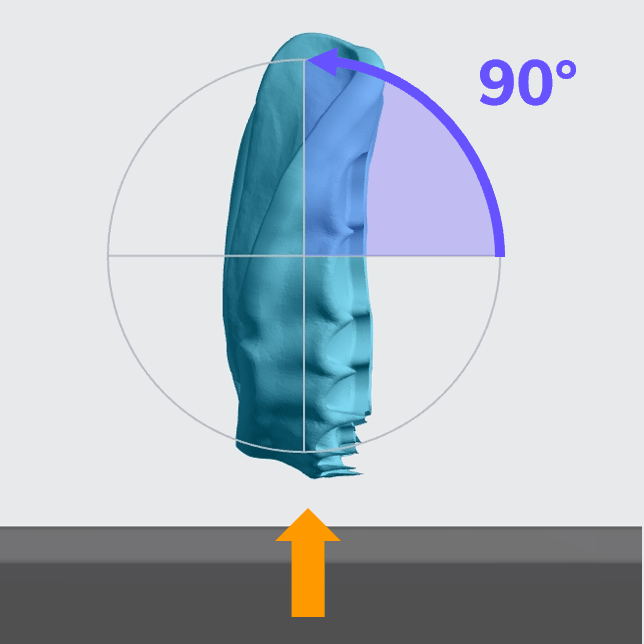
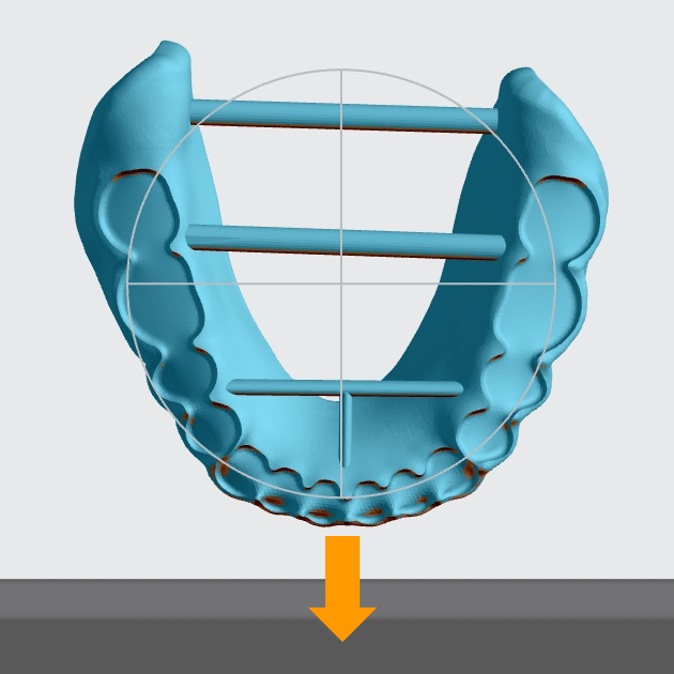
- Rotate denture bases to **vertical to the platform** with the **anterior at the platform.**
::::VerticalSplit{layout="middle"}
:::VerticalSplitItem
**Upper Base**
:::
:::VerticalSplitItem
**Lower Base**
:::
::::
::::VerticalSplit{layout="middle"}
:::VerticalSplitItem
:::
:::VerticalSplitItem
:::
::::
## Supporting
:::hint{type="info"}
See [Supports](docId\:VUbpoAitbLM11aM9-qJ1p) for detailed information.
:::
::::WorkflowBlock
:::WorkflowBlockItem
Select the [Supports](docId\:VUbpoAitbLM11aM9-qJ1p) tab in the top bar or press **Shift + S.**

:::
:::WorkflowBlockItem
In the bottom bar, toggle [Overhang Detection](docId:1bT3mas8msvxq9CDza67C) **on** and set the angle to **40 degrees.**
::Image[]{src="https://res.cloudinary.com/carbon3d/image/upload/t_auto_quality_format/v1741914659/Education/Materials/dental/__General_Use/overhang-detection02.gif" size="70" width="712" height="278" position="flex-start" alt="Overhang Detection" darkWidth="712" darkHeight="278" showCaption="false"}
:::
:::WorkflowBlockItem
Also in the bottom bar, set [Toggle Platform](docId:1bT3mas8msvxq9CDza67C) to **off.**
::Image[]{src="https://res.cloudinary.com/carbon3d/image/upload/v1741970064/Education/Materials/dental/__General_Use/toggle-platform02.gif" size="70" width="722" height="347" position="flex-start" alt="Toggle Platform" darkWidth="722" darkHeight="347" showCaption="false"}
:::
:::WorkflowBlockItem
Set **Part Postion** to **Above.**
::Image[]{src="https://res.cloudinary.com/carbon3d/image/upload/t_auto_quality_format/v1743201611/Education/Materials/dental/__General_Use/part-position-above.jpg" size="70" width="733" height="146" position="flex-start" alt="Part Position" darkWidth="733" darkHeight="146" showCaption="false"}
:::
:::WorkflowBlockItem
Support the **labial anterior surface **with the [patch tool.](docId\:VUbpoAitbLM11aM9-qJ1p)
- Adjust the **Overhang **as needed, typically between 35 and 45 degrees.
- Set the** Primary Support Type** to **Fence.**
- Set **Spacing **as desired, typically 3.5 - 4.5 mm.
- Avoid placing supports in tooth pockets.
::Image[]{src="https://res.cloudinary.com/carbon3d/image/upload/t_auto_quality_format/v1755649255/Education/Materials/dental/Vita%20Vionic%20Base%20Resin%20Impact/Patches_front_and_bottom02.png" size="70" width="1344" height="973" position="flex-start" alt="Support Labial Anterior Surface" darkWidth="1344" darkHeight="973" showCaption="false"}
:::
:::WorkflowBlockItem
Support **horizontal T-bars** with [fences.](docId\:VUbpoAitbLM11aM9-qJ1p)
::Image[]{src="https://res.cloudinary.com/carbon3d/image/upload/t_auto_quality_format/v1755652102/Education/Materials/dental/Vita%20Vionic%20Base%20Resin%20Impact/Tbar_fences_front02.jpg" size="70" width="951" height="663" position="flex-start" alt="Support Horizontal T-bars" darkWidth="951" darkHeight="663" showCaption="false"}
:::
::::
## Nesting
::::WorkflowBlock
:::WorkflowBlockItem
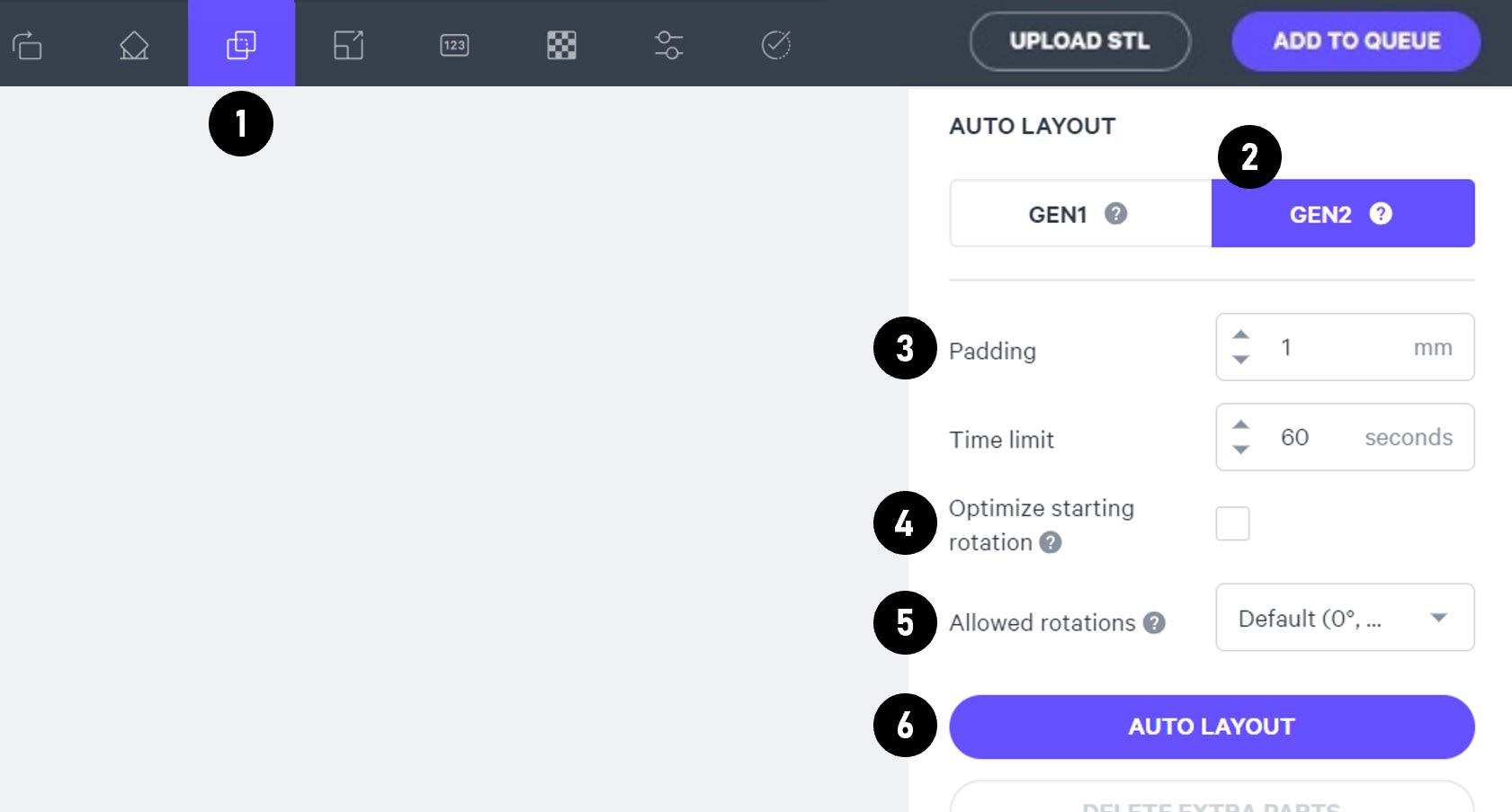
Select the **Layout tab (Shift + L)** in the top menu bar.
:::
:::WorkflowBlockItem
Under **Auto Layout,** select **Gen2.**
Gen2 usually gives the most efficient packing for dental devices.
:::
:::WorkflowBlockItem
Enter at least **1 mm** in **Padding.**
Models require a minimum of 1 mm of space between them.
:::
:::WorkflowBlockItem
Leave **Optimize starting rotation** unchecked.
This leaves your parts in their previous orientations.
:::
:::WorkflowBlockItem
Leave **Allowed rotations** at the default setting.
This gives the software maximum flexibility to fit the most possible parts on the build platform.
:::
:::WorkflowBlockItem
Press the **Auto Layout** button to arrange your parts.
:::
::::
If necessary, nesting can be changed manually:
- Click and drag parts to adjust their position.
- Modify Z rotation by using the **Spin **tool or manual rotations under the **Orient tab** **(Shift + O).**
- Use the [Part List tab](docId:1bT3mas8msvxq9CDza67C)** **as needed to more easily select models and focus on them.
## Print Controls
Click **Print Controls** or **Shift + P** in the top menu bar.

### Slicing
::::VerticalSplit{layout="middle"}
:::VerticalSplitItem
Set Slice Thickness to **Standard (100 µm).**
:::
:::VerticalSplitItem

:::
::::
:::hint{type="warning"}
Reducing the slice thickness by choosing the Fine (50 µm) or Super-fine (25 µm) settings will increase print time and may reduce part quality and accuracy.
:::
## Project Analysis
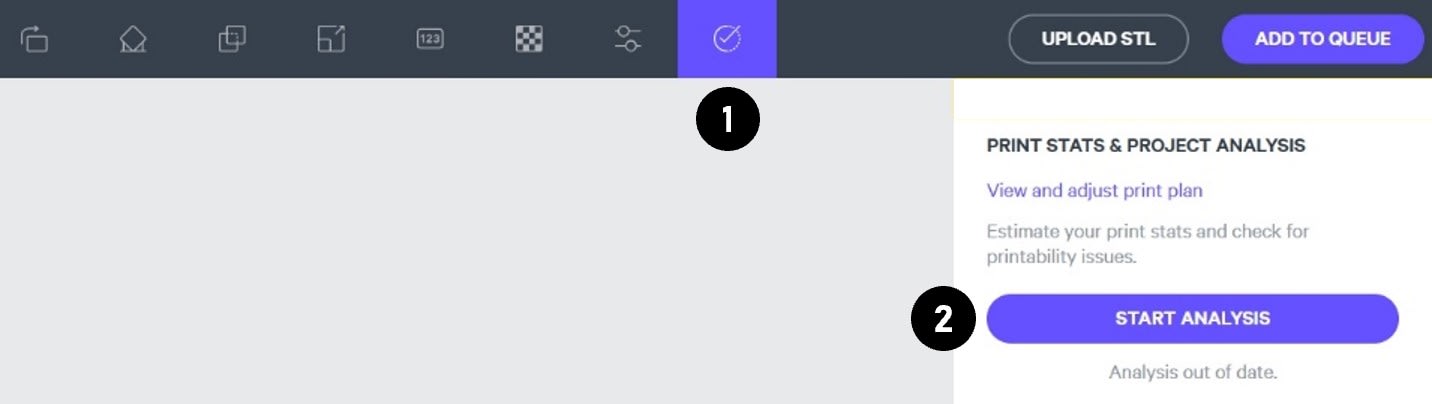
::::WorkflowBlock
:::WorkflowBlockItem
On the top menu bar, select the **Project Analysis tab** (Shift + A).
:::
:::WorkflowBlockItem
Press **Start Analysis.**
:::
:::WorkflowBlockItem
After a short time, the result of the project analysis will be displayed. Note the **print time** and the **required resin volume.**
::Image[]{src="https://res.cloudinary.com/carbon3d/image/upload/t_auto_quality_format/v1742344445/Education/Materials/dental/__General_Use/Analysis-print-time-reqd-resin01.png" size="50" width="842" height="594" position="flex-start" alt="Print Time and Required Resin Volume" showCaption="false"}
:::
:::WorkflowBlockItem
Click **Add to Queue.**

:::
::::
# Printing & Post-Processing
Consult the manufacturer IFU for dispensing, printing, washing, curing, bonding and finishing information.
::::LinkArray{contentSource="CUSTOM"}
:::LinkArrayItem{headerType="IMAGE" headerImage="https://api.archbee.com/api/optimize/3CesIL2dYMCHPZvRjp8S0/cJAKqDDnRUAeJAXNRThMm-20251016-221334.png"}
**[Instructions for Use](https://www.vita-zahnfabrik.com/en/Digital-Dentures/3D-printing/VITA-VIONIC-BASE-RESIN-IMPACT-328539,27568.html)**
*Scroll down to 'Instructions for Use' and click the appropriate region.*
:::
::::
# Questions & Support
**For questions about the resin properties, printing, washing or curing your parts, please contact the Vita support team:**
- Phone: +49 7761 562 222
- Form: [https://www.vita-zahnfabrik.com/kontakt\_formular\_en.html](https://www.vita-zahnfabrik.com/kontakt_formular_en.html)
For questions about your **Carbon printer** or **Carbon software settings** used for this resin, please [contact Carbon](https://learn.carbon3d.com/carbon-support):
- Email: [support@carbon3d.com](mailto\:support@carbon3d.com)
- Phone:
- **U.S. and Canada** 1-650-285-6307 option 2
- **Germany** +49 6102 5790849
- **UK **+44 (0) 2082 647484
- Printer UI: On the dashboard, select the **Prints** tab. **Select one of the printed projects.** Click **Request Help** in the lower right corner.
::Image[]{src="https://api.archbee.com/api/optimize/3CesIL2dYMCHPZvRjp8S0/YY6yCChSIB8SevmBwY76W_request-help-01.png" size="70" width="6541" height="3371" position="flex-start" alt="Location of button in the printer software" showCaption="false"}