---
title: Release Film Applicator
slug: hardware/release-film-applicator
description: Optimize your production process with our comprehensive guide on the release film applicator for the L1 platform. This production tool ensures precise application of release film for consistent results.
docTags:
createdAt: 2024-07-01T23:11:24.109Z
---
# Overview
::::VerticalSplit{layout="middle"}
:::VerticalSplitItem
The Release Film Applicator enables simple, consistent and accurate application of [release film](docId\:YRnQPLrG4yMFcK1m5tCCv) to your L1 build platform.
:::
:::VerticalSplitItem

:::
::::
## Stats
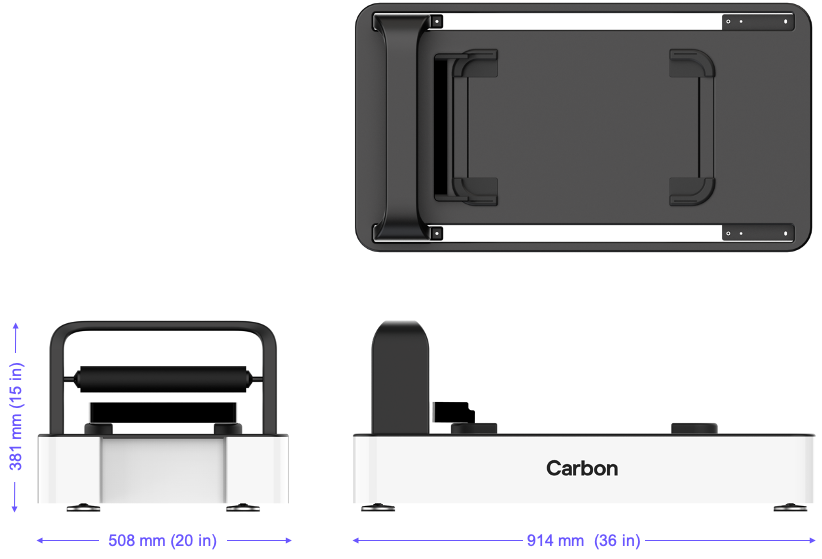
**Weight:** 31.8 kg (70 lbs)
:::hint{type="info"}
Will require 2 people to lift into place or move!
:::
**Dimensions: **914 x 508 x 381 mm (36 x 20 x 15 in)
# Features
::::WorkflowBlock
:::WorkflowBlockItem
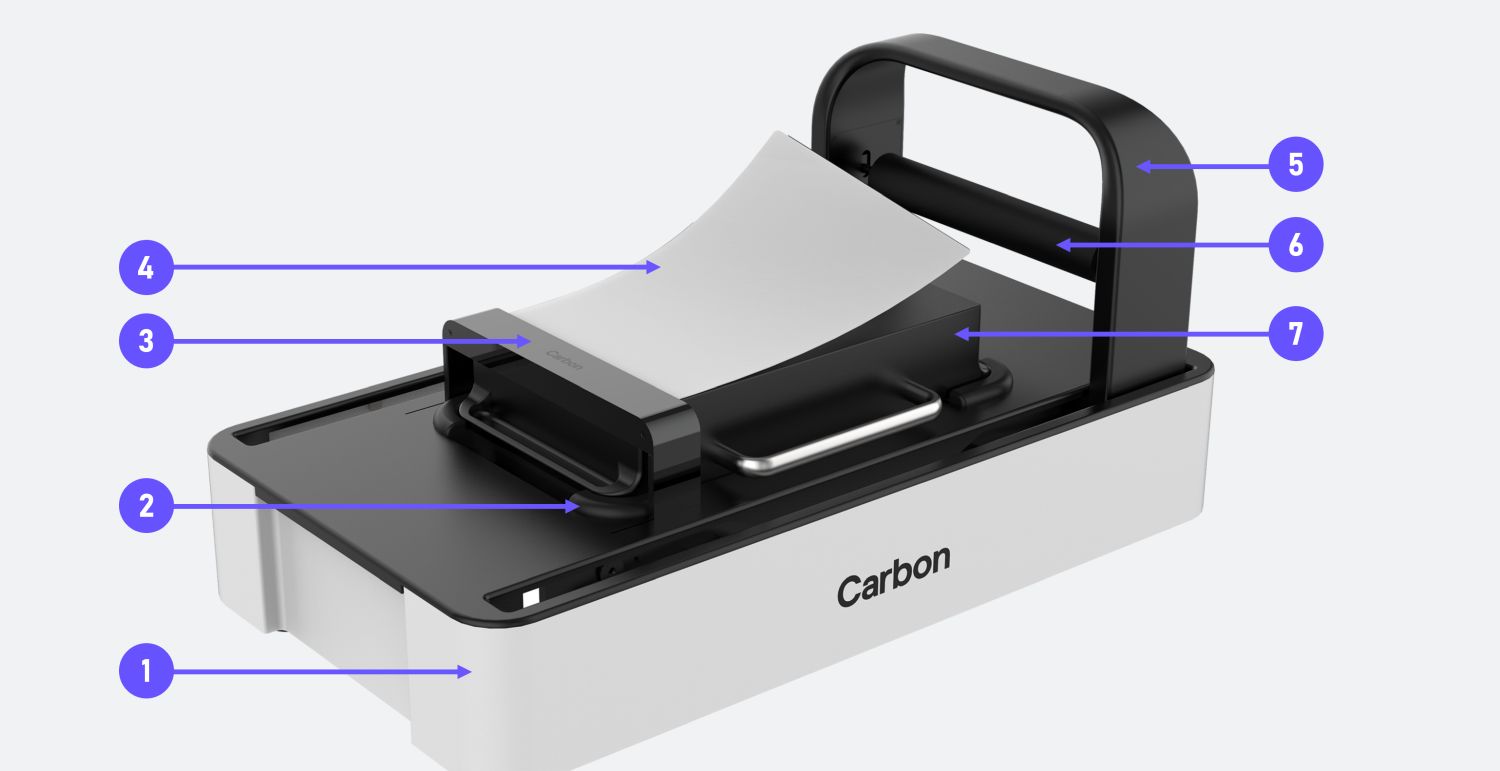
**Base**
Place on a stable surface such as a table or workbench.
:::
:::WorkflowBlockItem
**Platform holder**
Aligns and holds in place the build platform during film application.
:::
:::WorkflowBlockItem
**Film aligner**
Aligns release film with the build platform surface.
:::
:::WorkflowBlockItem
**Release film**
A disposable sheet of plastic that sits between the platform and parts.
:::
:::WorkflowBlockItem
**Roller arm**
Supports the roller as it travels over the surface of the build platform.
:::
:::WorkflowBlockItem
**Roller**
Evenly presses down the release film as it adheres to the build platform.
:::
:::WorkflowBlockItem
**Build platform**
Surface upon which parts are printed.
:::
::::
::::WorkflowBlock
:::WorkflowBlockItem
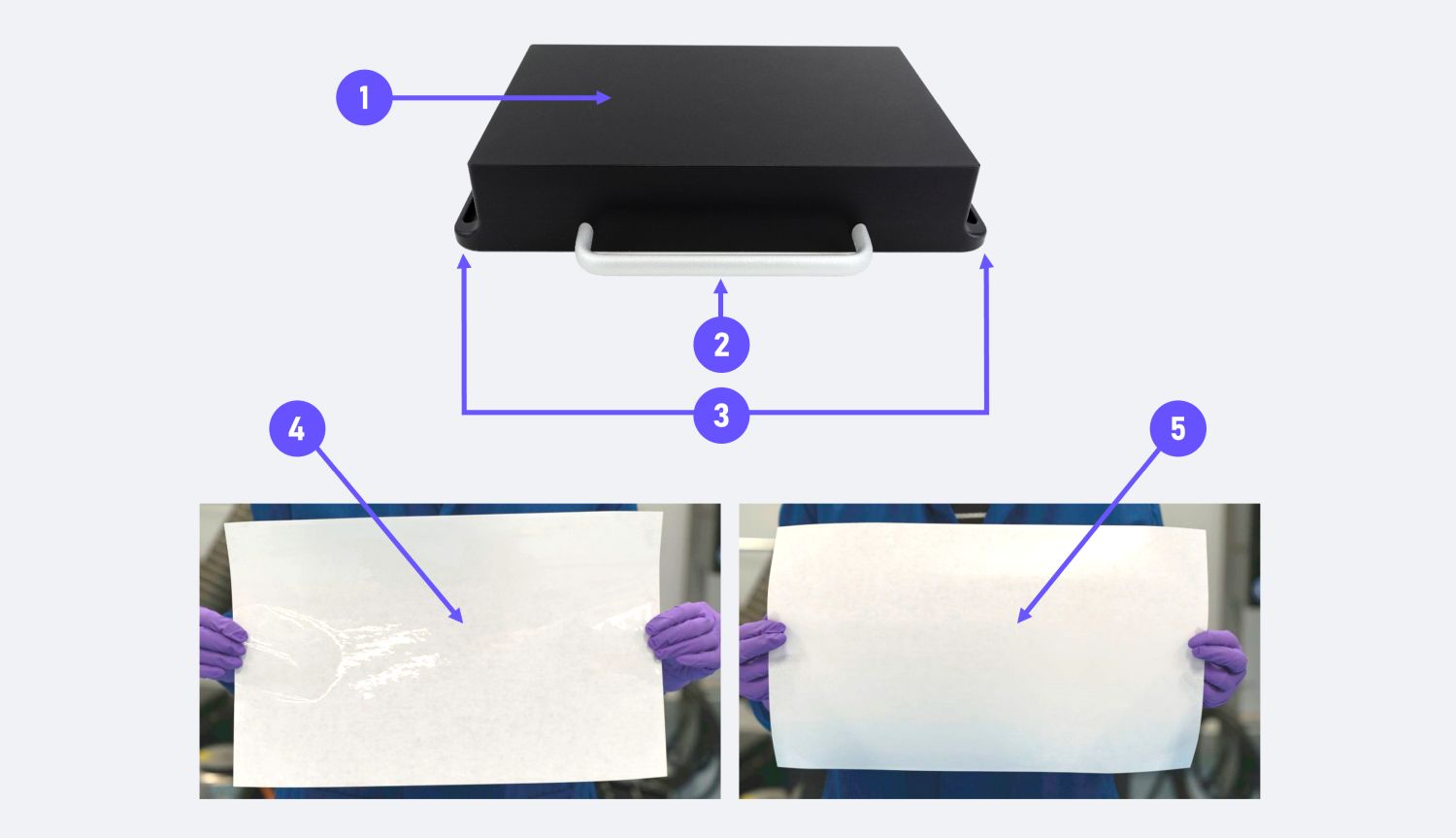
**Build platform**
Surface upon which parts are printed.
:::
:::WorkflowBlockItem
**Platform handle**
:::
:::WorkflowBlockItem
**Platform grips**
Used to remove platform from the printer.
:::
:::WorkflowBlockItem
**Release film** (glossy, still adhered to release film liner)
Clear, sticky film still adhered to release film liner.
:::
:::WorkflowBlockItem
**Release film liner **(matte)
Prevents the sticky film back from adhering to surfaces before actual application.
:::
::::
# Safety
::::VerticalSplit{layout="middle"}
:::VerticalSplitItem
**Personal Protective Equipment (PPE) **must be worn at all times when operating or interacting with the L1 accessories to prevent exposure to uncured resin.
Proper PPE includes:
- Safety glasses
- Splash resistant lab coat
- Gloves
- Long pants
- Closed-toe shoes
Change gloves often to prevent spreading liquid resin to clean surfaces.
:::
:::VerticalSplitItem
::Image[]{src="https://res.cloudinary.com/carbon3d/image/upload/Education/Automatic-Operation-Suite/AO%20Backpack/Safety/Matt_full_PPE_DSC4500_400x600.jpg" size="70" width="400" height="600" position="flex-start" showCaption="false"}
:::
::::
# Operation
The following steps will show you how to operate the release film remover.
::::::WorkflowBlock
:::::WorkflowBlockItem
### Roller Arm opposite Film Aligner
::::VerticalSplit{layout="middle"}
:::VerticalSplitItem
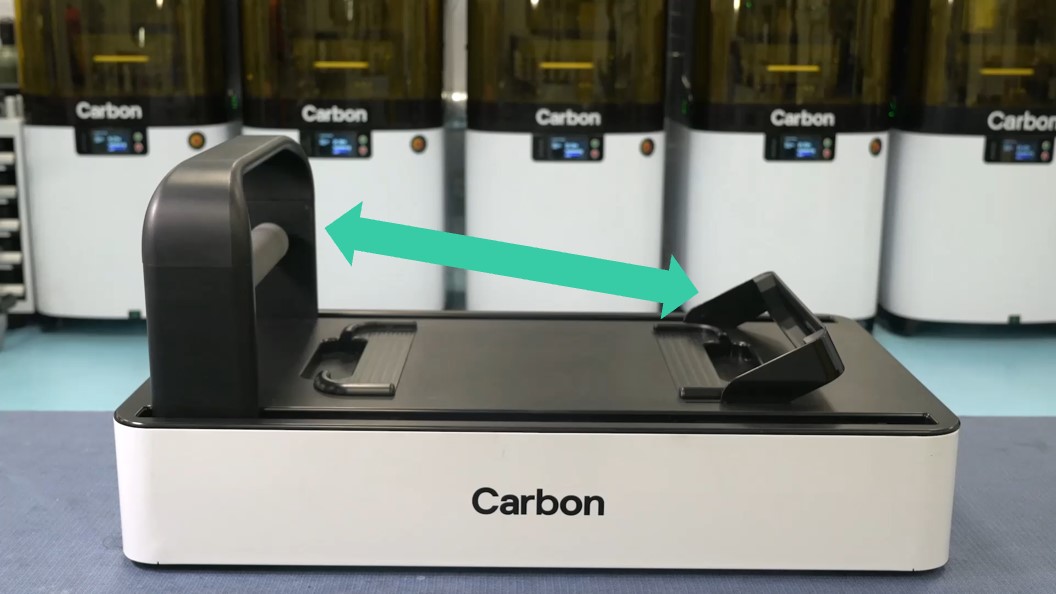
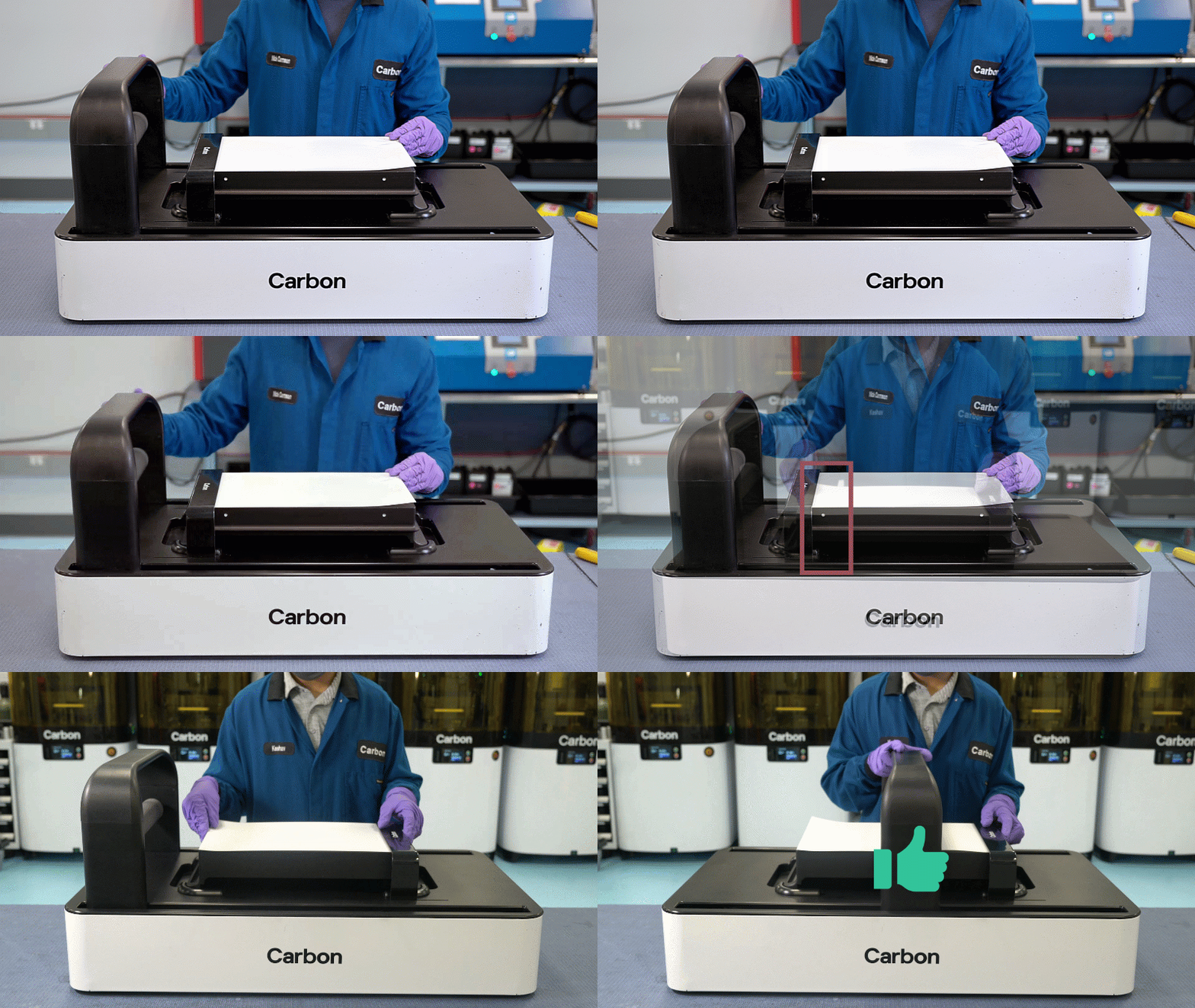
1. Make sure the roller arm is positioned at the **opposite side** of the release film applicator from the film aligner.
:::
:::VerticalSplitItem
:::
::::
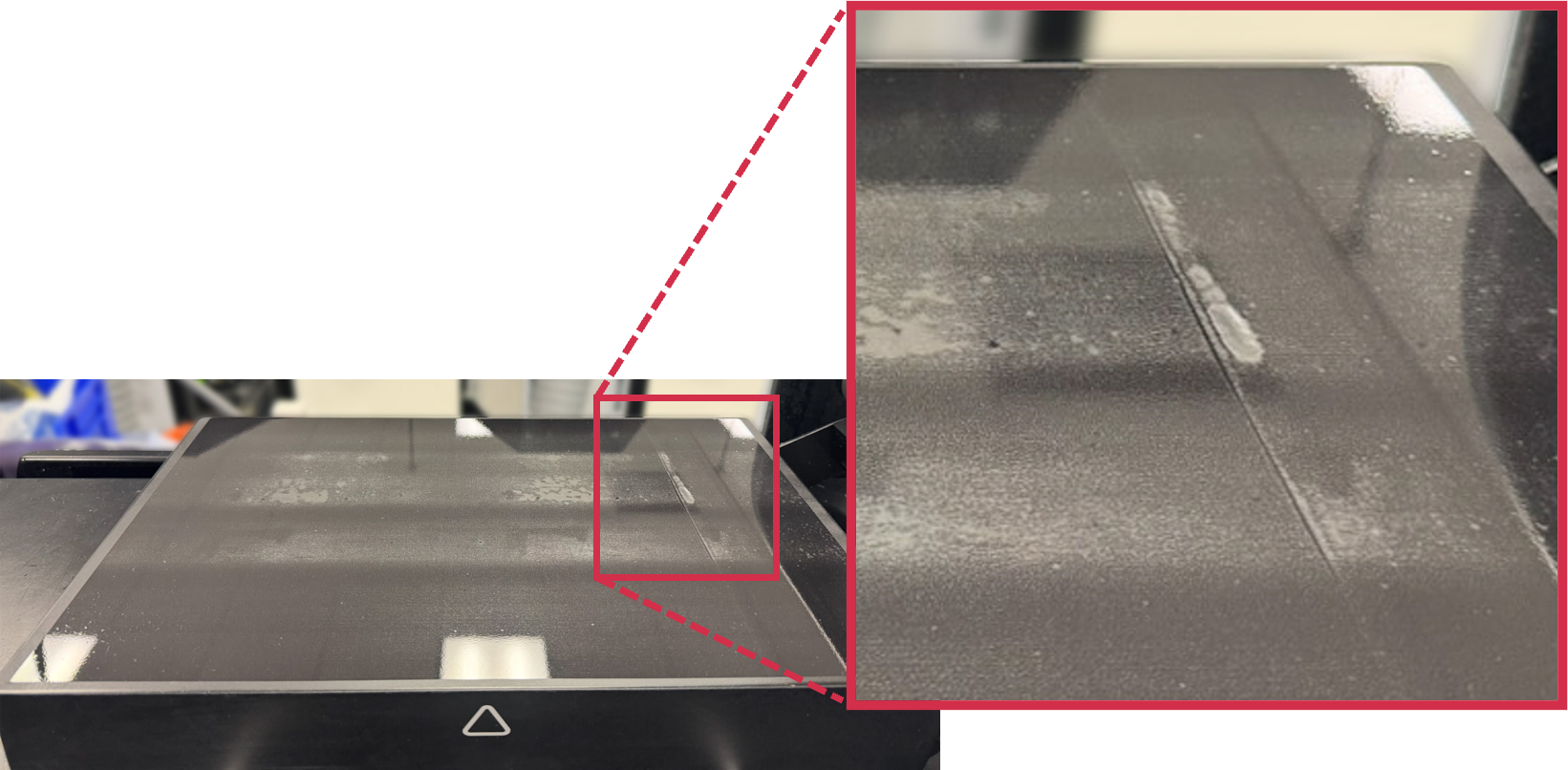
**Never move the roller** **over the film aligner.** The film aligner can damage the roller.
Using a damaged roller can cause uneven pressure when applying the release film, leading to the formation of **bubbles**. This can result in the film detaching from the platform during printing or spinning, impacting print yield.
:::hint{type="warning"}
If you suspect your roller is damaged, contact [Carbon Support](docId\:K86Zo5vcyN_wqJL3vdGFt).
:::
:::::
:::::WorkflowBlockItem
### Insert the Platform
::::VerticalSplit{layout="middle"}
:::VerticalSplitItem
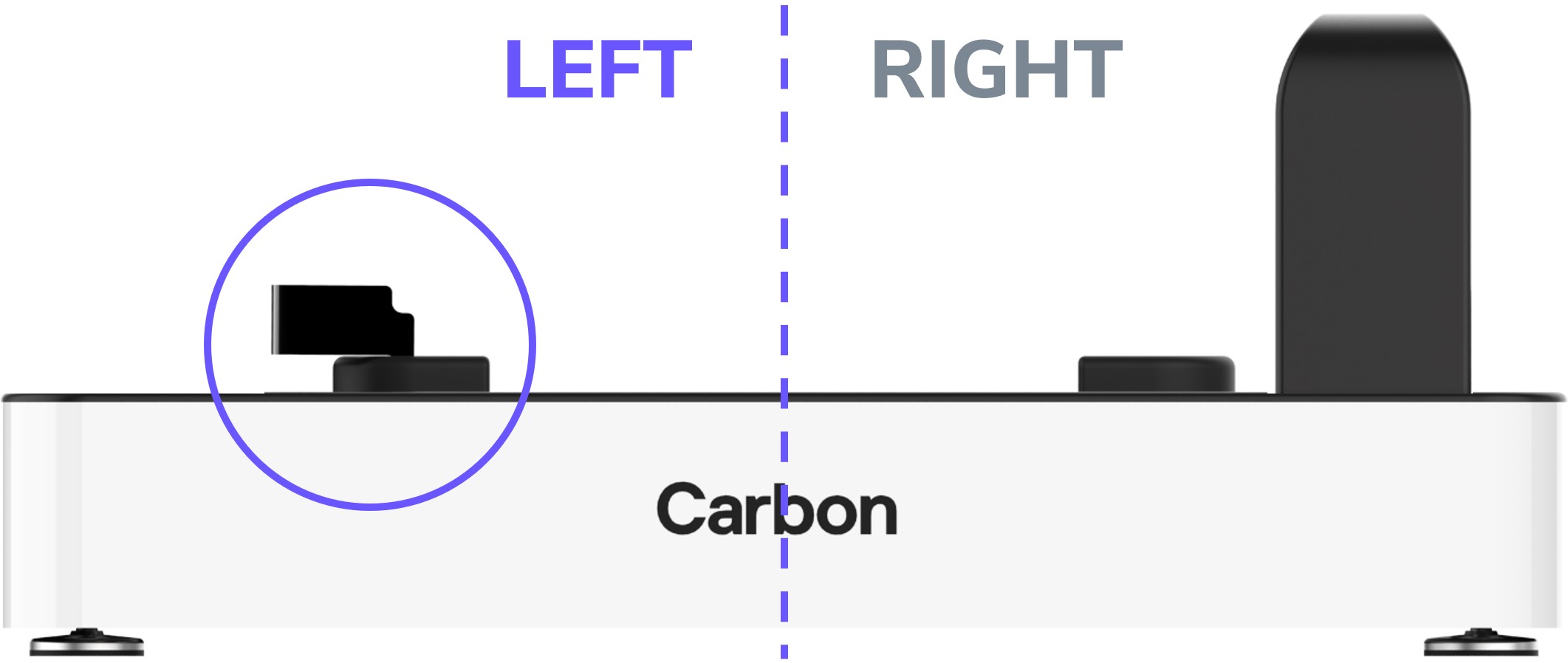
**Note:** These instructions assume that the operator is facing the release film applicator with the **film aligner on the left.**
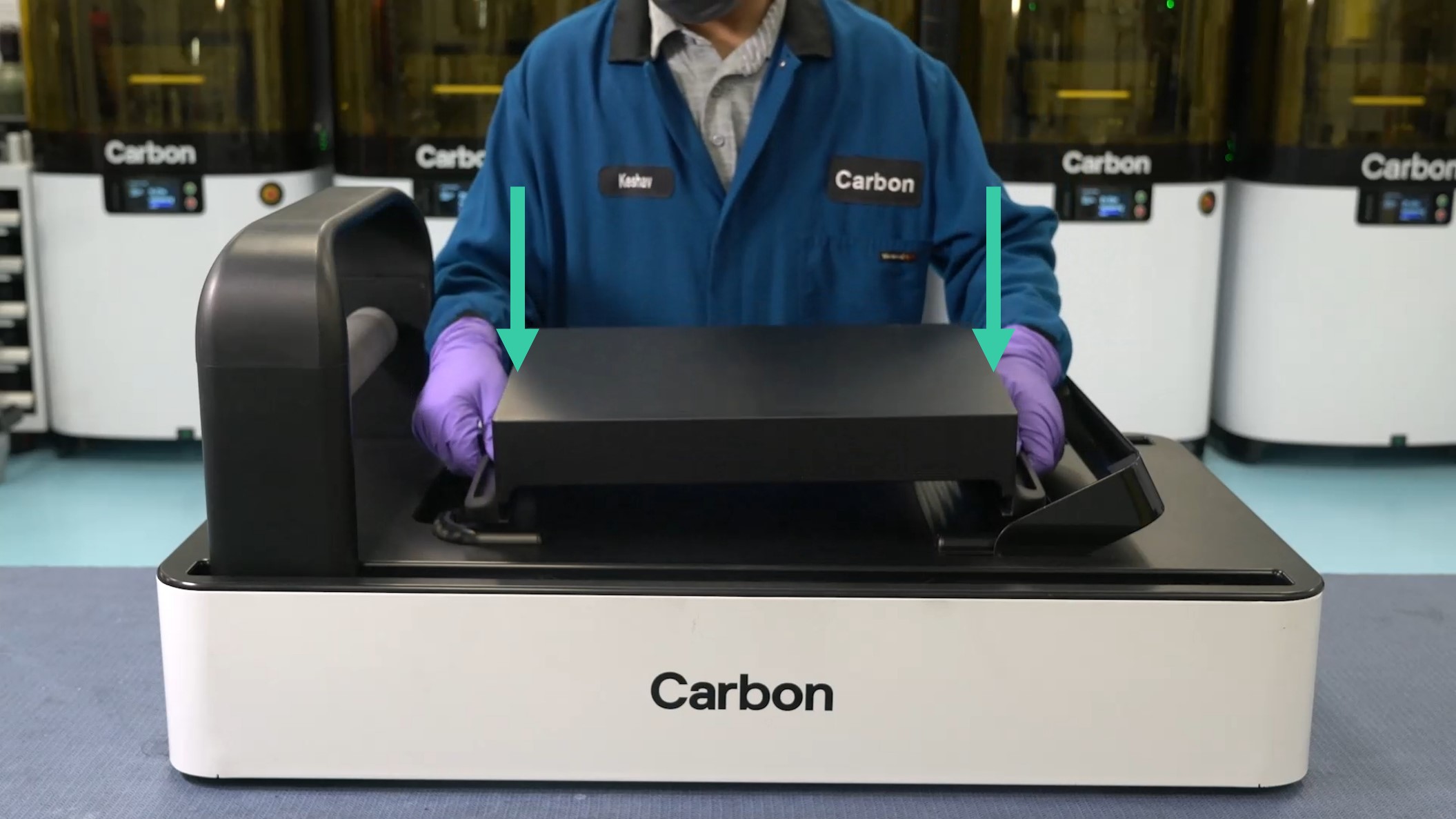
1. Clean the platform surface with an acetone wipe and ensure there are no particles or residual adhesive from the previous film.
2. **Lower platform into the platform holder while holding onto the side grips.**
:::
:::VerticalSplitItem
:::
::::
:::::
:::WorkflowBlockItem
### Insert the Release Film
1. Ensure the film aligner is lowered.
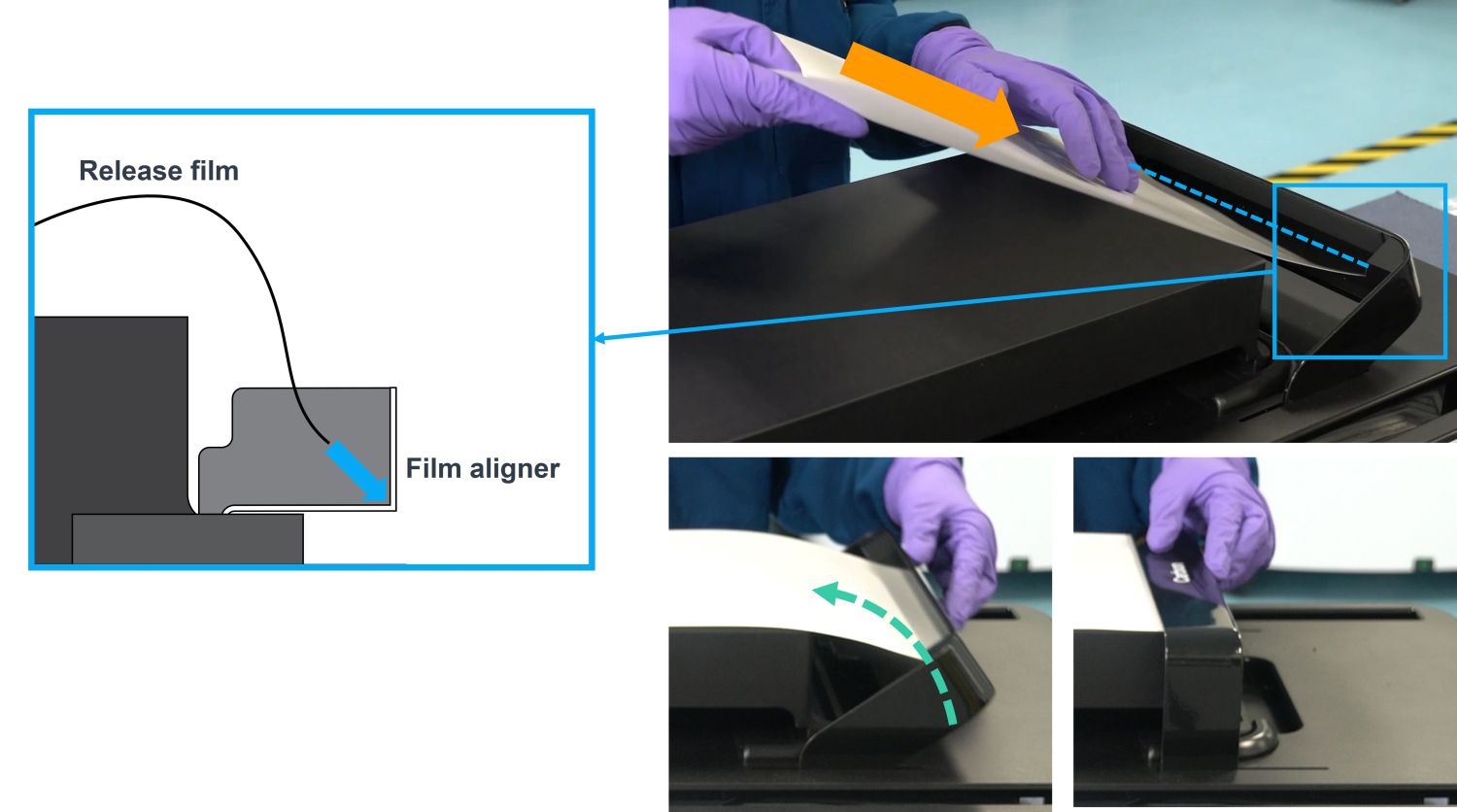
2. Take a piece of release film with the glossy side up and **insert the short edge into the inside corner of the film aligner.**
- **The edge of the film should be flush against the back surface of the aligner.**
3. Maintaining contact of the film with the corner of the aligner with your right hand, **use your left hand to raise the film aligner until it stops.** This will lock the film in place.
:::
:::WorkflowBlockItem
### Check Release Film Alignment
1. Double-check the alignment of the **3 visible edges of the film** **are parallel with** **the edges of the platform.**
2. If they are not parallel, lower the film aligner and repeat the previous step to insert the release film. Otherwise, proceed to the next step.
::Image[]{src="https://res.cloudinary.com/carbon3d/image/upload/v1741723109/Education/Hardware/Accessories/Release-Film-Applicator/Film-aligned-with-edges01.jpg" size="70" width="3323" height="2209" position="flex-start" showCaption="false"}
:::
:::WorkflowBlockItem
### Slide the Roller Arm
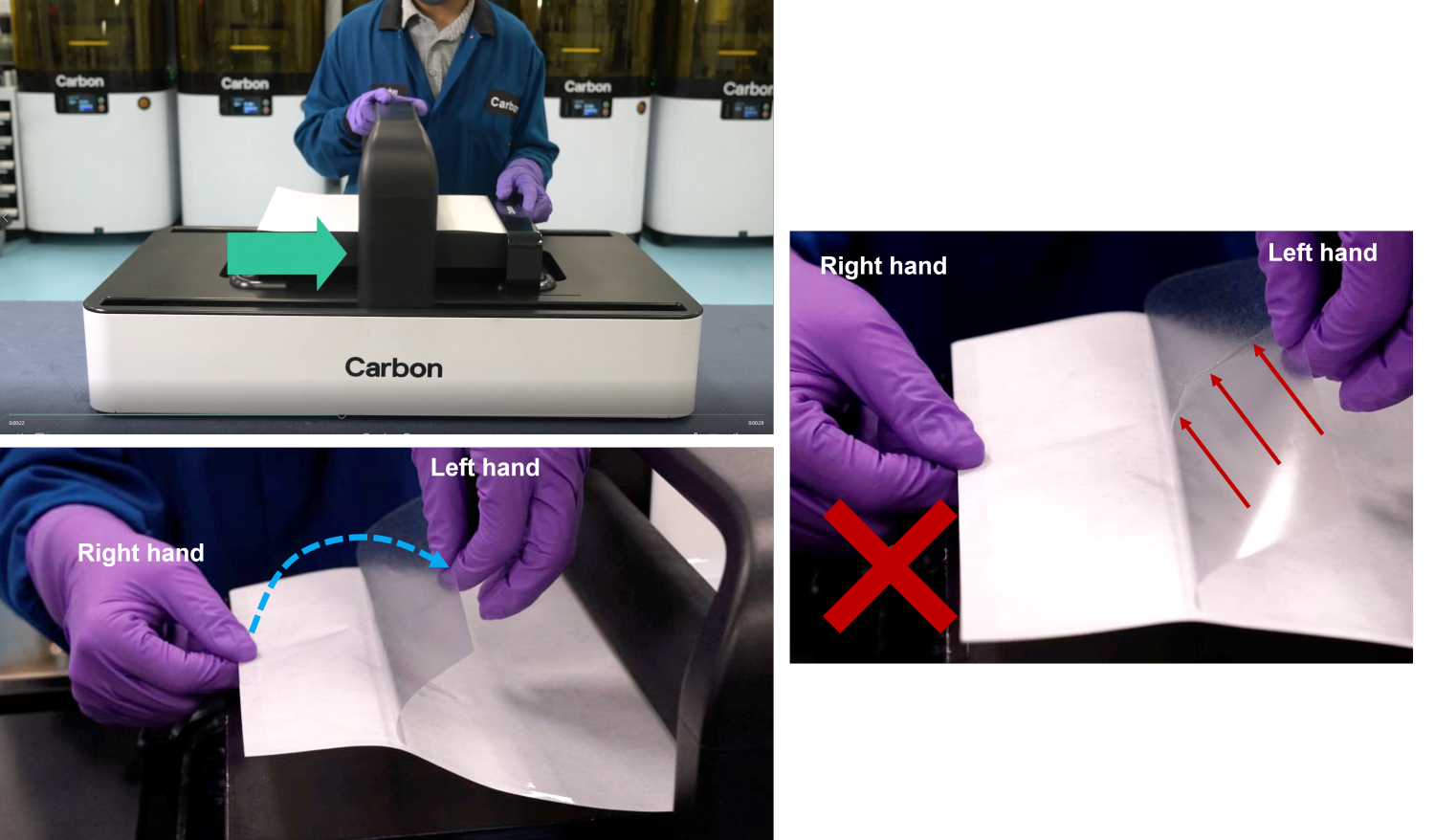
1. **Slide the roller to the right past the aligner, until it is approximately halfway across the platform surface.**
1. There will be some resistance as the roller moves over the film aligner.
2. Starting at the right corner of the film that is closest to you, **peel back the white liner** to expose the film’s adhesive all along the right edge.
- **Do not crease the release film.** Creasing film may cause part failure. Creasing film may cause part failure.
:::
:::WorkflowBlockItem
### Thread the Release Film
1. Using your left hand, **thread the film back through the gap between the roller and the roller arm.**
2. **Continue holding the film with your left hand and use your right hand to tuck the edge of the liner under the roller.**
- You may want to crease the liner to ensure it stays in place.
- **Do not crease the release film. **Creasing film may cause part failure.
::Image[]{src="https://res.cloudinary.com/carbon3d/image/upload/v1741723542/Education/Hardware/Accessories/Release-Film-Applicator/Thread-film01.png" size="70" width="1000" height="1150" position="flex-start" showCaption="false"}
::Image[]{src="https://res.cloudinary.com/carbon3d/image/upload/v1741719900/Education/Hardware/Accessories/Release-Film-Applicator/peel-and-fold-film-GIF01-s2g.gif" size="70" width="800" height="450" position="flex-start" showCaption="false"}
:::
:::WorkflowBlockItem
### Slide the Roller Arm
1. Holding the film with your left hand, **slide the roller arm across the platform surface with your right hand until it stops.**
- Be sure to release the film with your left hand as it is pulled by the roller.
- The right side of the film should be well adhered to the build platform resulting in a **smooth, reflective finish.**
- If the roller is not pushed to the end of the track, it will affect the following steps.
2. **Move the film aligner to its down position.**
3. **Slide the roller arm towards the film aligner until the roller lands on the platform surface.**
::Image[]{src="https://res.cloudinary.com/carbon3d/image/upload/v1741723595/Education/Hardware/Accessories/Release-Film-Applicator/Slide-arm-lower-aligner01.png" size="70" width="1218" height="1387" position="flex-start" showCaption="false"}
:::
:::WorkflowBlockItem
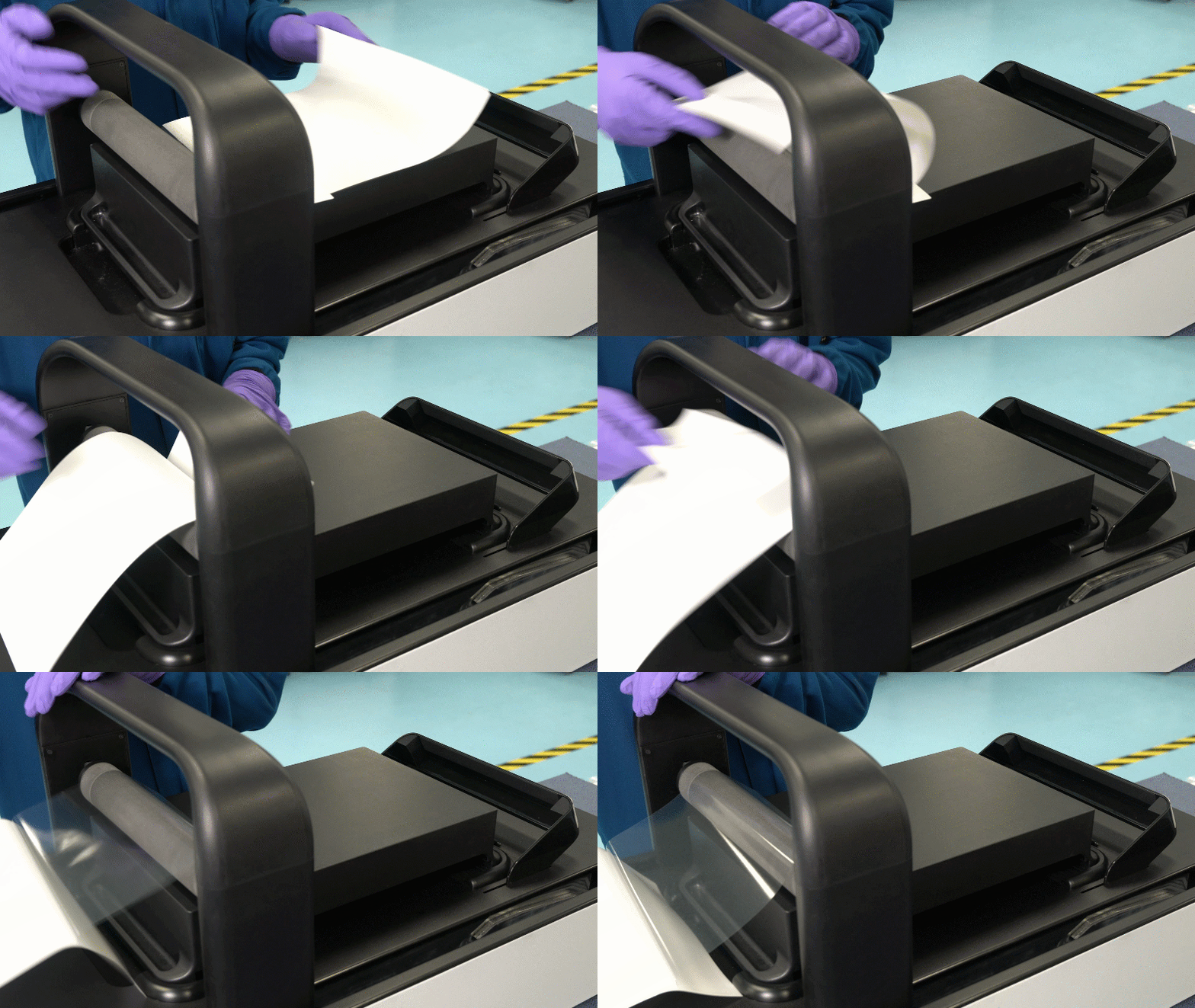
### Thread the Film
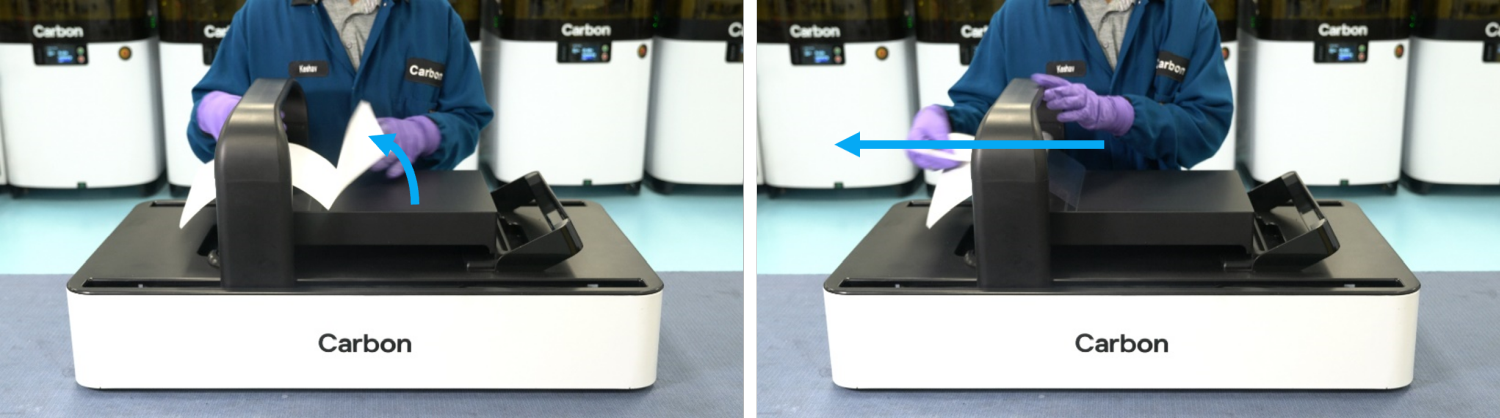
1\. **Thread the left side of the film through the gap above the roller.**
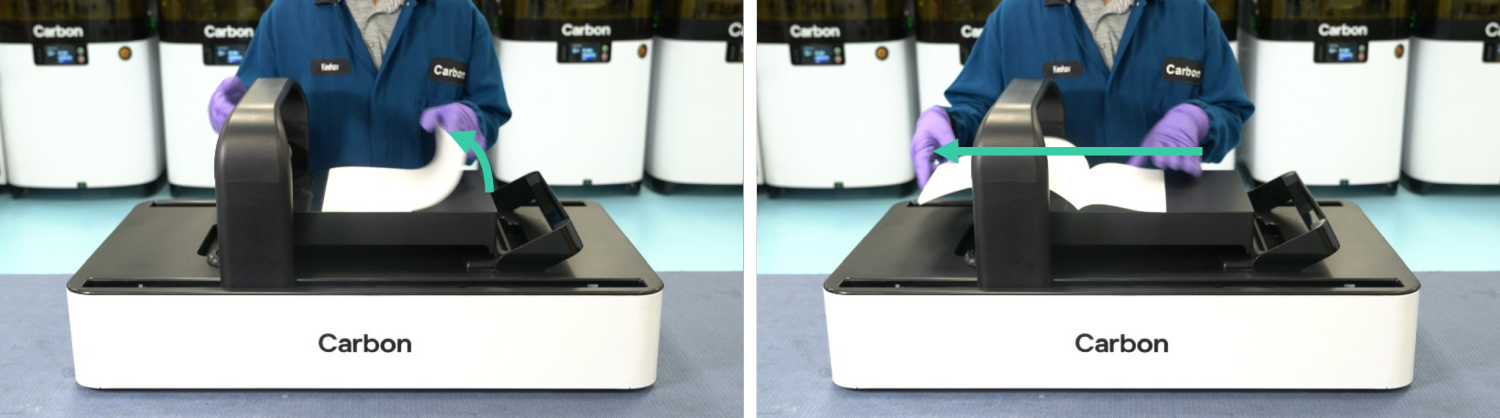
2\. **Pull the folded edge of the liner through the gap above the roller.**
:::
:::WorkflowBlockItem
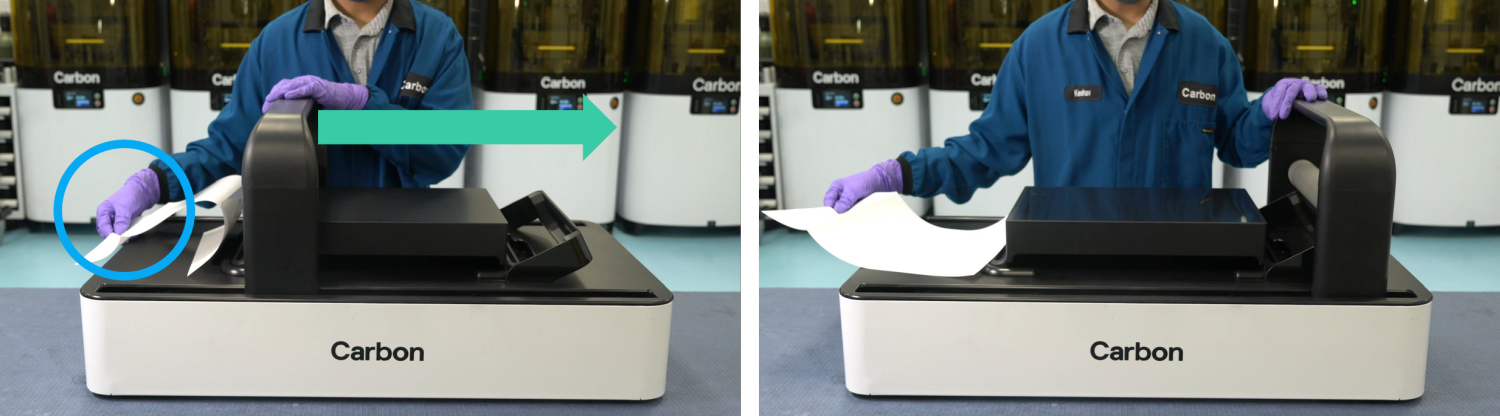
### Slide the Roller Arm to Apply Film
1. **Hold the liner with your right hand.**
2. **Slide the roller across the platform surface with your left hand until the roller arm stops at the far end of the track past the film aligner.**
3. Save the liner for use with the remover or dedicate a permanent non-stick surface for use with the part remover.
:::
:::WorkflowBlockItem
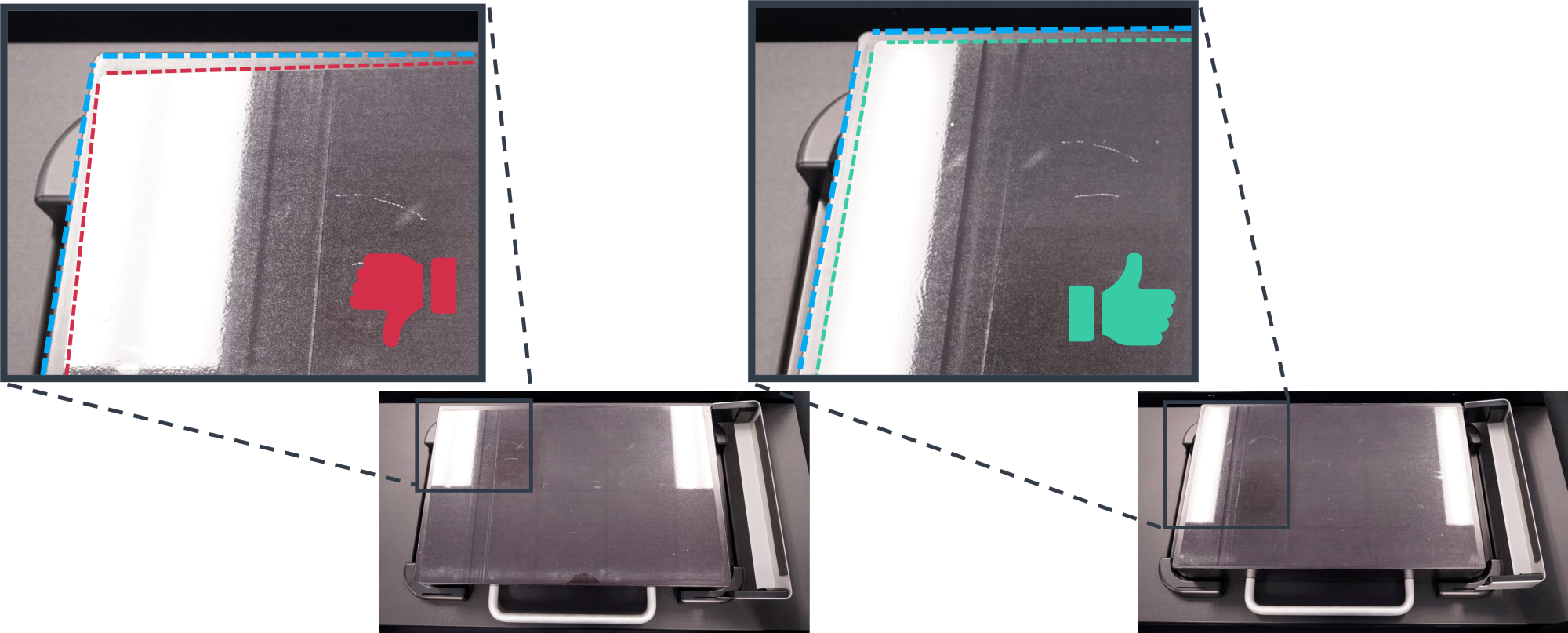
### Check Film Alignment
1. Check that the edges of the release film are **parallel with the edges of the build platform.**
2. If not, remove release film and apply new sheet of film.
:::
:::::WorkflowBlockItem
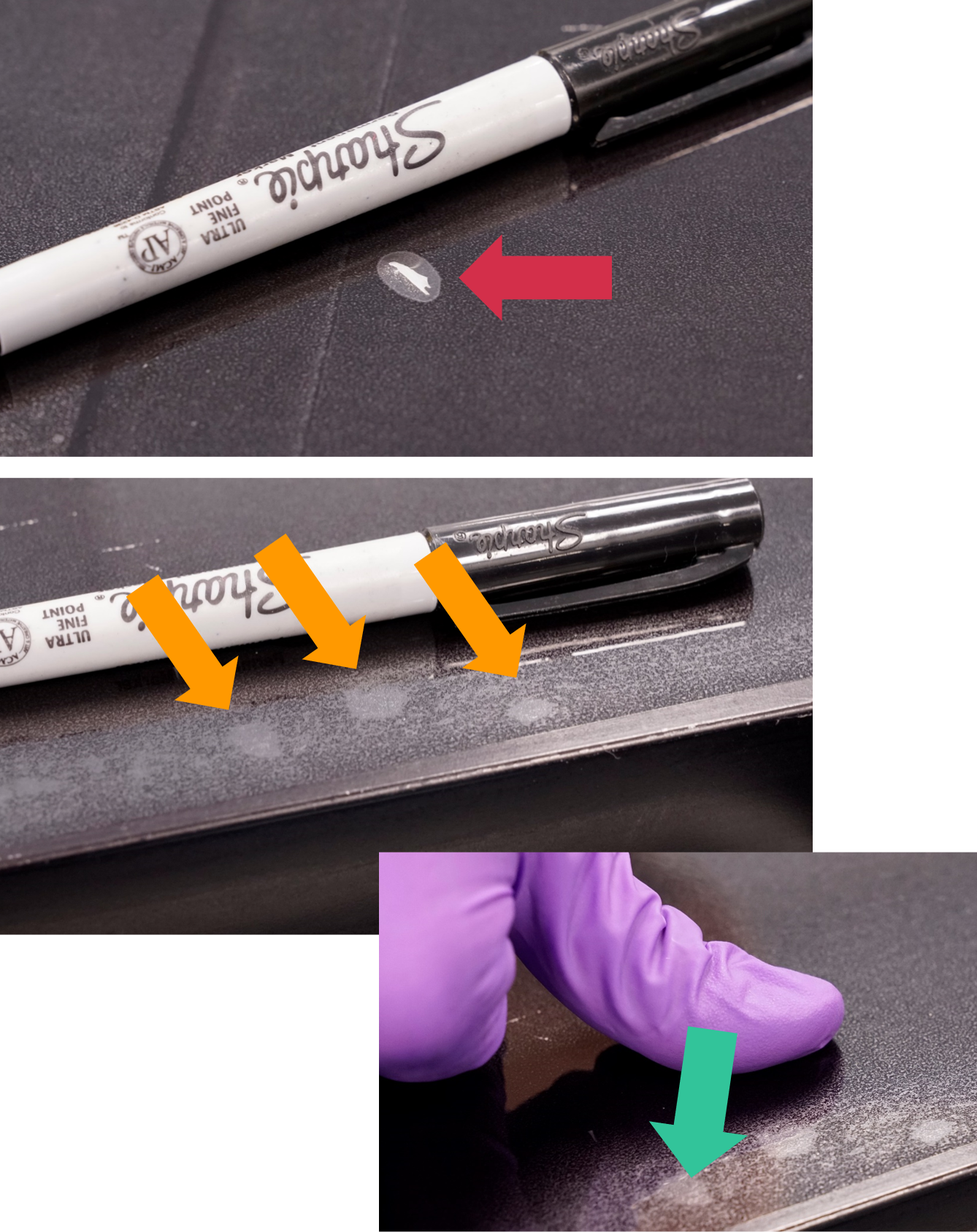
### Check for Bubbles and Debris
::::VerticalSplit{layout="middle"}
:::VerticalSplitItem
1. Check for debris and bubbles on the film.
2. **If debris is caught under the film,** remove release film, clean platform surface with acetone and apply new sheet of film.
3. **If bubbles exist,** **use gloved thumb or finger to try to smooth out bubble.**
- **Do not use solvent of any kind on the release film. This may lead to failed prints.**
- If bubbles persist, remove release film and apply new sheet of film.
:::
:::VerticalSplitItem
:::
::::
:::::
:::WorkflowBlockItem
### Completion
The release film has been successfully installed and printing may begin.
::Image[]{src="https://res.cloudinary.com/carbon3d/image/upload/v1741723898/Education/Hardware/Accessories/Release-Film-Applicator/good-film-still-HD-zoomed.jpg" size="70" width="1904" height="1066" position="flex-start" showCaption="false"}
:::
::::::
## Process Video
This video shows the process of operating the release film applicator.
::embed[]{url="https://vimeo.com/1064505423?dnt=1"}
# Maintenance
## Foam Strip Replacement
The foam strip under the film aligner must be replaced as needed, or yearly. Replacement foam can be purchased from McMaster-Carr: .
1. Remove the old foam strip from the film aligner.
2. Wipe the surface down with IPA to ensure there is no remaining adhesive or foam.
3. Cut the stock foam strip to **10.43 inches (265 mm) long.**
4. Remove the backer to expose the adhesive and apply so that the **foam strip is centered on the film aligner and aligned with the aligner’s leading edge.**
1. **Note**: Make sure the foam strip does not extend past the edge.
::Image[]{src="https://res.cloudinary.com/carbon3d/image/upload/v1741723952/Education/Hardware/Accessories/Release-Film-Applicator/Foam.png" size="70" width="599" height="336" position="flex-start" showCaption="false"}
# Uncrating and Crating
Download this document to learn about uncrating your newly delivered Release Film Applicator or packing the applicator for safe shipment.
::::VerticalSplit{layout="left"}
:::VerticalSplitItem
**English**
:::
:::VerticalSplitItem
::File{src="https://api.archbee.com/api/presign/vMzsbEjDegHbwm-J2w3HR-WLWtPF9-h3ezq_YpwINKl-20240807-233251.pdf" label="Release Film Applicator Crating-Uncrating v01.01.pdf"}
:::
::::
# Resources
For additional information, follow the links provided below.
- [Release Film Remover](docId\:hHe2MRV5esyp61qqaT05K)
- [L1 Printer](docId\:oN8OtjugBxOTH6QMqW2oM)