---
title: Troubleshooting
slug: hardware/m3-troubleshooting
docTags:
createdAt: 2024-07-02T16:28:32.503Z
---
# Introduction
**Printer alerts **present in two different ways, with each presentation mode corresponding to a different machine behavior.
::::VerticalSplit{layout="left"}
:::VerticalSplitItem

:::
:::VerticalSplitItem
**Aborting**
This alert ends a print prematurely and is followed by the abort reason. Further printing is allowed, but prints will abort similarly until the underlying issue is resolved.
**Halting**
Unlike an aborting alert, this alert can occur at any time and will persist and inhibit further printing until the underlying issue is resolved.
:::
::::
::::VerticalSplit{layout="left"}
:::VerticalSplitItem

:::
:::VerticalSplitItem
**Informational**
The firing of such an alert can occur at any time and it will persist until the underlying issue is resolved. Informational alerts do not affect the ability to print.
:::
::::
::::VerticalSplit{layout="middle"}
:::VerticalSplitItem
### Printer Alert Search
1. In the upper left corner, click the search box that says **Search or ask anything...**
2. Type a few key words from your specific printer alert.
3. Click on the results until you find your alert.
:::
:::VerticalSplitItem

:::
::::
# Pneumatics Alerts
:::ExpandableHeading{isOpen="true"}
### System air pressure near zero. Check external compressor or pressurized air source at the printer.
**Recommended Action:**
1. Check to make sure that there’s nothing obstructing or interfering with the actuation path.
2. Check that flow and pressure into the printer meet requirements in [M3 Facility Requirements](docId\:hws1UJVXQpVoKV9YMdsu4) or [M3 Max Facility Requirements](docId\:hws1UJVXQpVoKV9YMdsu4).
3. If the problem persists, contact [Carbon Support. ](mailto\:support@carbon3d.com)

:::
:::ExpandableHeading
### System air pressure low. Check external compressor or pressurized air source.
**Recommended Action:**
1. Check to make sure that there’s nothing obstructing or interfering with the actuation path.
2. Check that flow and pressure into the printer meet requirements in [M3 Facility Requirements](docId\:hws1UJVXQpVoKV9YMdsu4) or [M3 Max Facility Requirements](docId\:hws1UJVXQpVoKV9YMdsu4).
3. If the problem persists, contact [Carbon Support. ](mailto\:support@carbon3d.com)

:::
:::ExpandableHeading
### System air pressure high. Check external compressor or pressurized air source.
**Recommended Action:**
1. Check that flow and pressure into the printer meet requirements in [M3 Facility Requirements](docId\:hws1UJVXQpVoKV9YMdsu4) or [M3 Max Facility Requirements](docId\:hws1UJVXQpVoKV9YMdsu4).
2. If the problem persists, contact [Carbon Support. ](mailto\:support@carbon3d.com)

:::
# Heater Alerts
:::ExpandableHeading
### Seat front heater glass. If already fully inserted, carefully check placement.
**Recommended Action:**
1. Check the front heater to make sure the heater glass is seated properly. See [heater glass maintenance](docId\:iMUK_y8KlPC7qPxkU6YyK) for more information.
2. If the glass is cracked or broken, replace with new glass. See [heater glass maintenance](docId\:iMUK_y8KlPC7qPxkU6YyK) for more information.

:::
:::ExpandableHeading
### Front heater glass sensor faulty. Contact Carbon Support
**Recommended Action:**
1. Check the front heater to make sure the heater glass is seated over the sensor (metal bar at center of assembly) and the clips are securely in place. See [heater glass maintenance](docId\:iMUK_y8KlPC7qPxkU6YyK) for more information.
2. Contact [Carbon Support. ](mailto\:support@carbon3d.com)

:::
:::ExpandableHeading
### Seat rear heater glass. If already fully inserted, carefully check placement
**Recommended Action:**
1. Check the rear heater to make sure the heater glass is seated properly. See [heater glass maintenance](docId\:iMUK_y8KlPC7qPxkU6YyK) for more information.
2. If the glass is cracked or broken, replace with new glass. See [heater glass maintenance](docId\:iMUK_y8KlPC7qPxkU6YyK) for more information.

:::
:::ExpandableHeading
### Rear heater glass sensor faulty. Contact Carbon Support
**Recommended Action:**
1. Check the rear heater to make sure the heater glass is seated over the sensor (metal bar at center of assembly) and the clips are securely in place. See [heater glass maintenance](docId\:iMUK_y8KlPC7qPxkU6YyK) for more information.
2. Contact [Carbon Support. ](mailto\:support@carbon3d.com)
:::
# Cassette Alerts
:::ExpandableHeading
### Cassette should be seated/locked but is not detected. Contact Carbon Support.
**Recommended Action: **
- Contact [Carbon Support](mailto\:support@carbon3d.com) as soon as possible!

:::
:::ExpandableHeading
### Cassette lid detected
A cassette lid is available for** M3 cassettes** to prevent external debris from falling into cassettes when not in use.
**The lid should be removed prior to printing**. If a lid is accidentally left in place at the start of a print, M3 printers will **abort the print and alert the user**.
*Contact [Carbon Support](mailto\:support@carbon3d.com) to purchase M3 cassette lids. Lids are not planned for M3 Max cassettes at this time.*

:::
### Cassette is Inactive Alert
::::VerticalSplit{layout="middle"}
:::VerticalSplitItem
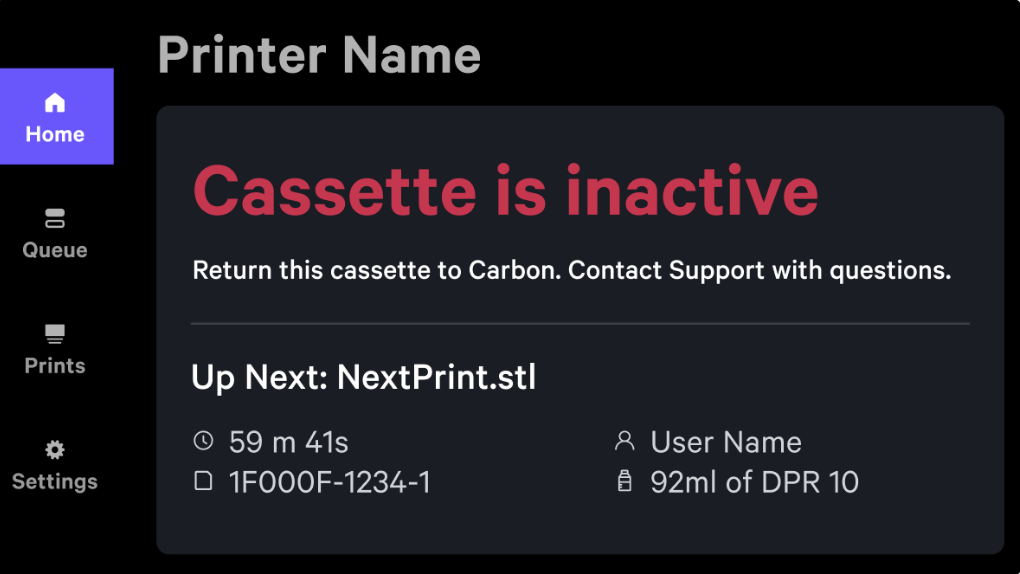
To make it easier for customers to track cassettes that should be returned to Carbon, use of such hardware is blocked if a print is attempted with that cassette.
A message will be displayed reminding the user to return the asset to Carbon.
:::
:::VerticalSplitItem
:::
::::
:::hint{type="info"}
The same alert is issued for RMA'd platforms as well.
:::
# Platform Alerts
:::ExpandableHeading
### Platform unlocked during print. Contact Carbon Support.
**Recommended Action:**
1. Raise and remove platform
2. Remove any cured material from platform
3. Check and clean locating pins and pull stud
4. Contact [Carbon Support. ](mailto\:support@carbon3d.com)

:::
:::ExpandableHeading
**\[When Unlocking] Platform unable to actuate. Try cycling the door button several times to see if the issue persists.**
**Recommended Action:**
1. Try cycling the door button several times.
2. If the problem persists, contact [Carbon Support. ](mailto\:support@carbon3d.com)

:::
:::ExpandableHeading
**\[When Locking] Platform unable to actuate. Try cycling the door button several times to see if the issue persists.**
**Recommended Action:**
1. Try cycling the door button several times.
2. If the problem persists, contact [Carbon Support. ](mailto\:support@carbon3d.com)

:::
:::ExpandableHeading
### Platform did not return to the home position.
**Recommended Action:**
1. Click **Settings**
2. **Enter Setup Mode**
3. Navigate to the **Printer Setup** screen
4. Click **Home Build Arm**
5. If the problem persists, contact [Carbon Support. ](mailto\:support@carbon3d.com)

:::
:::ExpandableHeading
### Platform is Inactive Alert
See **Cassette is Inactive Alert **above.
:::
# Other Alerts
:::ExpandableHeading
### E-stop pressed - system power limited
**Recommended Action: **
1. Disengage red e-stop button and press restore power on the touchscreen. Reference [Operation](docId\:i8T8SZ08GsA_TtGAUrecr) for more information.
2. If the problem persists, contact [Carbon Support.](mailto\:support@carbon3d.com)

:::
:::ExpandableHeading{isOpen="true"}
### Service door is open. Close service door to enable normal operation.
Recommended Action:
1. Close service door (press door shut until you hear latch click).
2. If the problem persists, contact [Carbon Support.](mailto\:support@carbon3d.com)

:::
::::ExpandableHeading{isOpen="true"}
### Too much/not enough resin in cassette
M3 and M3 Max printers will **abort a print and alert the user** if there is too little resin in the cassette for the print, or if there is too much resin to proceed safely.
- Too little resin can lead to a failed print or a completed print with visible evidence of resin starvation.
- Too much resin in the cassette may overflow into the printer when the platform descends, damaging the printer.
When an inappropriate amount of resin is detected:
- **Add or remove **resin before continuing.
resin before continuing.
- Select **Resin Corrected **to restart printing
- The project that was previously disrupted will still be at the top of the print queue.
- An **override** option is available if needed. **Use this option with caution.**
:::hint{type="info"}
Resin level detection is available for M3/M3 Max printers in software v1.42 and higher.
:::

::::
::::ExpandableHeading{isOpen="true"}
### Check cassette and platform for debris
M3 and M3 Max printers will **abort a print and alert the user** if solid debris is detected in the resin at the start of a print.
- **Filter or replace resin before continuing. **Reference reclaiming resin instructions in **Resin Handling During/ After Printing. **Remember that most debris will be too small to easily spot visually in the resin.
- Select **Debris Removed** to restart printing
- The project that was previously disrupted will still be at the top of the print queue.
- An **override **option is available in the unlikely event that no debris can be located/removed, and the print continues to abort. **Use this option with extreme caution.**
:::hint{type="info"}
Automatic debris detection is available for M3/M3 Max printers in software v1.42 and higher.
:::

::::