---
title: Setup
slug: hardware/m3-setup
description: Discover essential guidance for installing M3 and M3 Max printers with our comprehensive installation document. Learn preparation tips, from site setup and connection requirements to troubleshooting network issues.
docTags:
createdAt: 2024-06-13T17:17:44.406Z
---

# Overview
The M3 and M3 Max printers are designed to be installed by customers. Follow the instructions below to install your printer.
## Before Starting the Install
Ensure that you have performed the following steps:
::::::WorkflowBlock
:::::WorkflowBlockItem
### Site prep
See [General Site Prep Guide](docId\:qURI-vop3eJ6F43hnuslD) or [Dental Site Prep Guide](docId:8bULGdVSGPoM0BLn8WV3j) for more information.
::::VerticalSplit{layout="left"}
:::VerticalSplitItem
**M3**
:::
:::VerticalSplitItem
::File{src="https://api.archbee.com/api/presign/uXbZOKjJTGpPhjapQ8fvM-wuKRCgZih9A3z2YELJmUN-20250224-023751.pdf" label="117458-01-F Facility Requirements M3.pdf"}
:::
::::
::::VerticalSplit{layout="left"}
:::VerticalSplitItem
**M3 Max**
:::
:::VerticalSplitItem
::File{src="https://api.archbee.com/api/presign/uXbZOKjJTGpPhjapQ8fvM-_fQ9rSTPUiYPGbPpWUrGu-20250224-023810.pdf" label="120127-01-D Facility Requirements M3 Max.pdf"}
:::
::::
:::::
:::WorkflowBlockItem
### Uncrate the printer
See [Uncrating](docId\:Qe-RrXAgcHsgF6sjON2k3) below.
:::
:::::WorkflowBlockItem
### M3 / M3 Max Installation Qualification Form
Download and complete this form to verify installation of your M3 or M3 Max printer. Print this document and fill it out during installation so that you have a record.
::::VerticalSplit{layout="left"}
:::VerticalSplitItem
**English**
:::
:::VerticalSplitItem
::File{src="https://api.archbee.com/api/presign/xcOI3p6O5jO0MVhoHv9rO-S2TVqblNN59XiryWE_QDO-20240830-081951.pdf" label="M3 M3 Max Installation Qualification Form v01.00.pdf"}
:::
::::
:::::
:::::WorkflowBlockItem
### M3 / M3 Max Printer Startup
This handout describes the process of connecting the printer to power, the network and compressed air. Follow the instructions in this handout before proceeding.
::::VerticalSplit{layout="left"}
:::VerticalSplitItem
**English**
:::
:::VerticalSplitItem
::File{src="https://api.archbee.com/api/presign/uXbZOKjJTGpPhjapQ8fvM-DAUVsge5WxJfGB3dm3j-B-20250415-163420.pdf" label="118037-01-F M3 M3 Max Printer Startup v02.11.pdf"}
:::
::::
:::::
::::::
***
::::VerticalSplit{layout="right"}
:::VerticalSplitItem
## Welcome Screen
Your printer is ready to begin setup when you see the **Welcome screen.**
Refer to the [Printer Startup](docId\:cUc-4ICE6KvrrgvJRfxrJ) handout above for troubleshooting if the printer is not ready.
:::
:::VerticalSplitItem

:::
::::
***
## Tools Needed for Installation
| **Network Setup** | **Facilities Setup** | **Printer Setup** | **Position and Level** | **Get Ready for First Print** |
| -------------------------------------------------------------------- | ----------------------- | ----------------- | ------------------------------------ | ------------------------------------------- |
| Workstation | (2) Adjustable wrenches | 8 mm allen wrench | Tape Measure | Screen Protector Kit *`provided by Carbon`* |
| USB - ethernet - USB cables + adapter\*
*`provided by Carbon`* | - | - | Digital Level *`provided by Carbon`* | - |
| 2.5 mm allen wrench | - | - | 8 mm allen wrench | - |
| - | - | - | 5 mm small socket wrench | - |
| - | - | - | 5 mm allen wrench | - |
*\*The provided network setup cables will only be used for custom network configurations.*
## Begin Printer Setup
The printer touchscreen will guide you throughout the setup process alongside these instructions. Note that for each task, these instructions will:
- **Outline the steps **of the task
- Show you what **successful completion **of the task looks like
- Provide **troubleshooting** steps
::::VerticalSplit{layout="left"}
:::VerticalSplitItem
1. Press** Begin** in the upper right corner of the touchscreen to start the setup process.
:::
:::VerticalSplitItem

:::
::::
# Network Setup
**Carbon printers require a network connection due to cloud-based printer software. Follow the steps below to connect the printer to the network.**
1. Check ethernet status
2. Connect to Carbon servers
3. Verify connection to Carbon servers
4. Finish network setup
:::::::WorkflowBlock
:::::WorkflowBlockItem
## Check Ethernet Status
The ethernet cable was plugged in prior to turning on the printer. Check the **Network setup screen** to confirm that the ethernet connection is recognized.
::::VerticalSplit{layout="left"}
:::VerticalSplitItem

:::
:::VerticalSplitItem
**Successful Connection**
- The **Ethernet** **status** on the Network setup screen will have a green indicator and a connection confirmation message.
:::
::::
:::ExpandableHeading
### Troubleshooting Ethernet
**1. Check ethernet cable**
::Image[]{src="https://api.archbee.com/api/optimize/3CesIL2dYMCHPZvRjp8S0/bqNS__PnLGQ5crlDanbbs_image.png" size="70" width="1680" height="655" position="flex-start" alt="Ethernet cable at printer" showCaption="false"}
Verify the ethernet cable is fully plugged in
- At the printer
- At the facility ethernet port
- Use the same port used during site prep to configure and test your network connection.
**2. Consult IT department**
If the ethernet connection is still not established, consult your company's IT department.
**3.** **Contact Carbon Support**
If issues persist, contact [Carbon Support](mailto\:support@carbon3d.com).
:::
:::::
::::::WorkflowBlockItem
## Connect to Carbon Servers
\[Option 1] By default, the printer connects to the local network automatically using **DHCP **(Dynamic Host Configuration Protocol), which is standard on most networks.
\[Option 2] Some networks do not use DHCP and in this case, the printer network settings must be manually configured.
:::hint{type="info"}
Consult with your information technology (IT) team to determine your network requirements and follow the appropriate option below.
:::
:::::VerticalSplit{layout="middle"}
::::VerticalSplitItem
### Option 1: DHCP network
If the network **uses DHCP, **then proceed to **Step 3** below.
:::hint{type="info"}
Connection to Carbon servers should occur automatically if you have completed the [NCD Setup](docId\:hws1UJVXQpVoKV9YMdsu4) process during **Site Prep**.
:::
::::
:::VerticalSplitItem
### Option 2: Non-DHCP network
If the network **does not use DHCP** functionality (static IP address) or uses other security measures, then download and follow the **Custom Printer Network Configuration **handout below.
::File{src="https://api.archbee.com/api/presign/3CesIL2dYMCHPZvRjp8S0/sP9-5yru83XHfFvxMaOLS-20260212-230025.pdf" label="Custom Printer Network Configuration v0111.pdf"}
**Note: **Leave this window open because you will return here after completing the custom configuration steps.
:::
:::::
::::::
:::::WorkflowBlockItem
## Verify Connection to Carbon Servers
Now check the setup screen to make sure the printer has successfully connected to the Carbon servers.
::::VerticalSplit{layout="middle"}
:::VerticalSplitItem

:::
:::VerticalSplitItem
**Successful Connection**
1. The Network configuration status on the Network setup screen will show a green check box.
2. The printer will automatically connect to Carbon's servers and the Connection status on the Network setup screen will change to connected with a green check box when successful (it may take **up to 60 seconds**).
:::
::::
### Troubleshooting
**1.** **Carbon Server Status**
::Image[]{src="https://api.archbee.com/api/optimize/3CesIL2dYMCHPZvRjp8S0/ULhDoUsZY7sCvYxaUI_OP_do-zdioi8ncywlw-h4o-sg93myzylcc.png" size="70" width="893" height="258" position="flex-start" showCaption="false"}
- Check the [Carbon status page](https://status.carbon3d.com/) to ensure Carbon services are fully operational.
- Subscribe to updates in the event of an outage.
**2. Confirm Network Settings**
- Ensure network settings provided by your IT team are correct.
- If not able to successfully connect, please reach out to your IT team for assistance.
**3. Carbon Support**
If issues persist, contact [Carbon Support. ](mailto\:support@carbon3d.com)
:::::
:::::WorkflowBlockItem
## Finish Network Setup
::::VerticalSplit{layout="middle"}
:::VerticalSplitItem

:::
:::VerticalSplitItem
**If you used the Custom Printer Network Configuration document:**
- **Unplug the USB-ethernet cable **from the USB port on the back of the printer to disconnect the workstation.
- **Reattach the communications panel **on the back of the printer with a 2.5 mm allen wrench.
:::
::::
::::VerticalSplit{layout="right"}
:::VerticalSplitItem
Press the **button** on the touchscreen and proceed to the next lesson in this course.
:::
:::VerticalSplitItem

:::
::::
:::::
:::::::
# Facilities Setup
1. Check Compressed Air Status
2. Ventilation Connection Reminder
::::::WorkflowBlock
:::::WorkflowBlockItem
## Check Compressed Air Status
The air hose cable was connected prior to turning on the printer.
Verify on the Facilities Setup screen that the compressed air connection is recognized and within the printer's pressure specifications.
**Successful Compressed Air Connection**
- The **Compressed air source status** on the Facilities Setup screen will have a green indicator and a connection confirmation message.
- Incorrect air source status will be indicated with a red indicator and a message of air pressure that is not detected or too low.
- Correct pressure is between **90 psi and 115 psi.**
::::VerticalSplit{layout="middle"}
:::VerticalSplitItem

:::
:::VerticalSplitItem

:::
::::
### Troubleshooting
**1. Verify House Air Pressure**
- Air pressure should fall between **90 psi and 115 psi**
- Adjust house air to fall within this range
**2. Carbon Support**
If issues persist, contact [Carbon Support. ](mailto\:support@carbon3d.com)
:::::
:::::WorkflowBlockItem
## Ventilation Connection Reminder
The printer's build area requires direct ventilation. The exhaust duct should be connected prior to turning on the printer.
The Facilities Setup screen offers a reminder to complete this action if not already done. Refer to [M3/M3 Max Printer Startup handout](docId\:cUc-4ICE6KvrrgvJRfxrJ) above for details.
### Confirm Ventilation
- Ensure the exhaust duct is tightly connected to the exhaust outlet.
- Click **confirm** after the hose connection is verified.
::::VerticalSplit{layout="middle"}
:::VerticalSplitItem

:::
:::VerticalSplitItem

:::
::::
### Successful Connection
::::VerticalSplit{layout="middle"}
:::VerticalSplitItem
The **Ventilation hose status** on the Facilities Setup screen will change to a green indicator with a confirmation message once confirmed.
:::
:::VerticalSplitItem

:::
::::
:::::
::::::
# Leveling
1. Position Printer
2. Level Printer
3. Conditional - Install Seismic Restraints
4. Confirm the Printer Is Positioned and Leveled
::::::WorkflowBlock
:::::WorkflowBlockItem
## Position Printer
- Roll printer on built-in casters for fine maneuvers to final position.
- Ensure the following clearances:
*To wall, another printer, or other obstruction.*
- **Sides: 240 mm (9.4 in)**
- **Back:**
- Minimum: 380 mm (15 in)
- *Requires 3 feet of slack for all connection cables, hoses and ducts to move printer for servicing*
- **Recommended: 610 mm (24 in)**
- **Front: 561 mm (22.1 in)**
*Minimum space for service door to open*
*Actual provided clearance at the front of the printer to meet local regulations for egress and accessibility*
::::VerticalSplit{layout="middle"}
:::VerticalSplitItem

**Minimum Clearances -** Move printer 3 feet back from setup position and fine tune to specified dimensions
:::
:::VerticalSplitItem

**Recommended Clearances **- Fine tune to specified dimensions
:::
::::
:::hint{type="info"}
If you will be installing the [AO Backpack](docId\:K-8b42NeZQ-pIa8PL-dg-) accessory, please refer to the document below for updated clearances.
:::
::::VerticalSplit{layout="middle"}
:::VerticalSplitItem
**AO Backpack Clearances**
:::
:::VerticalSplitItem
::File{src="https://api.archbee.com/api/presign/uXbZOKjJTGpPhjapQ8fvM-sfd8Qofe_0zHVesQJkYTa-20241105-225146.pdf" label="AO-Backpack Notes v01.11.pdf"}
:::
::::
:::::
:::::WorkflowBlockItem
## Level Printer
The **goal** is to ensure that
- The printer is securely sitting on the feet so it **will not roll on the built-in caster. **
- **Resin will remain level **during printing and avoid a resin starvation print defect.
::::VerticalSplit{layout="left"}
:::VerticalSplitItem

:::
:::VerticalSplitItem
**Open Service Door**
- Locate the access lock hole on the left side of the printer
- Insert an **8 mm allen wrench** into the hole and turn a **1/4 of a turn clockwise**
- DO NOT turn counter-clockwise
- The door will release open
:::
::::
:::hint{type="info"}
Opening the service door powers down certain sub-systems to disable high voltage and enable a safe touch state for accessible electronics within the service area.
[IEC 61010 Compliance](https://www.iecee.org/dyn/www/f?p=106:49:0\::\::FSP_STD_ID:4279)
:::
::::VerticalSplit{layout="left"}
:::VerticalSplitItem

:::
:::VerticalSplitItem
**Projection Volume Cover**
Remove the foam insert covering the projection volume cavity.
**Save the insert for later use during maintenance.**
:::
::::
::::VerticalSplit{layout="right"}
:::VerticalSplitItem
**Optional manual adjustment**
When adjusting the rear feet, you may use the included **leveling knob **instead of the a 5 mm hex socket wrench described below. The leveling knob fits on the top of the level foot screw extender and is adjusted manually.
**If you are using the leveling knob, follow the steps below and replace the 5 mm hex socket wrench with the leveling knob.**
:::
:::VerticalSplitItem

:::
::::
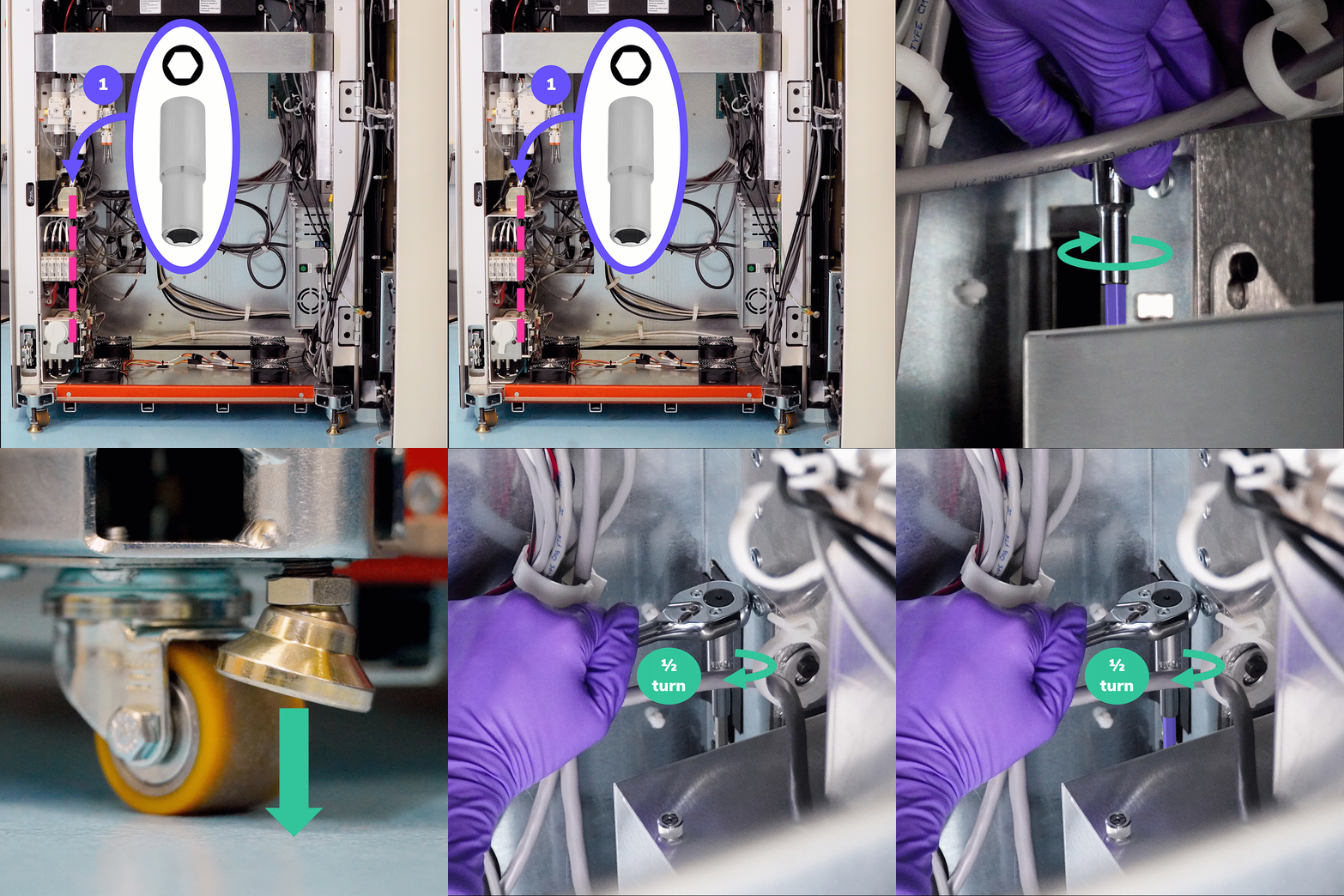
### Step 1: Rear Foot - Right
::::VerticalSplit{layout="middle"}
:::VerticalSplitItem
- Place a **5 mm hex socket **on top of the level foot screw extender in the rear of the printer and twist by hand to lower the rear foot until it rests on the floor
- The feet are fully raised when shipped, so you will need to lower them all the way down.
- Use the socket wrench to **turn another half turn** lower to tighten.
- *A small socket wrench is recommended. Photo shows a 1/4" drive size.*
:::
:::VerticalSplitItem

:::
::::
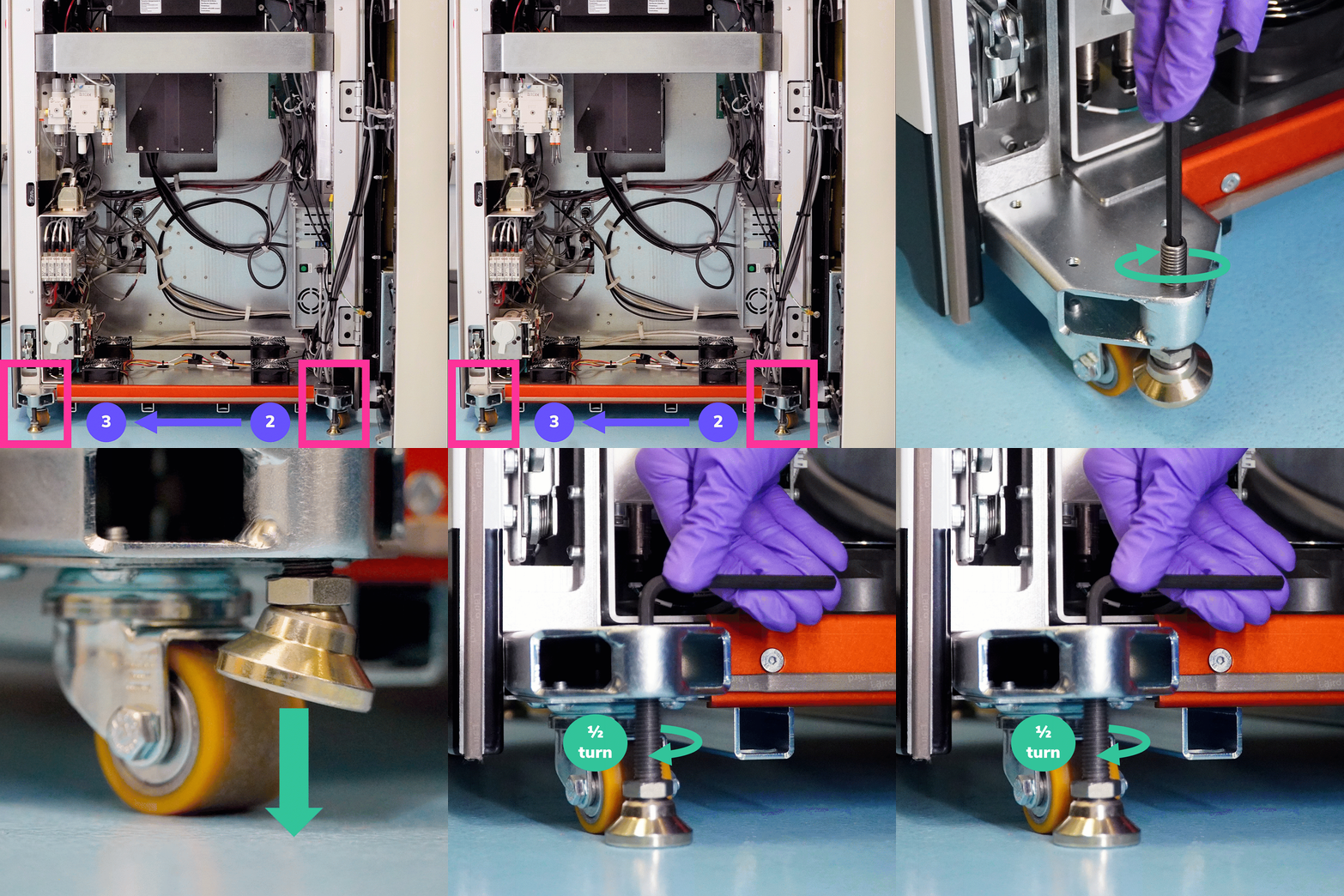
### Step 2: Front Feet
::::VerticalSplit{layout="middle"}
:::VerticalSplitItem
- Use a **5 mm allen wrench **and turn screw to lower the front foot until it rests on the floor.
- Use the allen wrench to **turn another half turn **lower to tighten.
:::
:::VerticalSplitItem
:::
::::
### Step 3: Adjust the Three Lowered Feet
Before lowering the fourth foot, adjust the first three to approximately reach a level spec.
:::hint{type="info"}
***TIP**: When making adjustments, **lower the feet** such that you don't accidentally raise the feet off the floor.*
:::
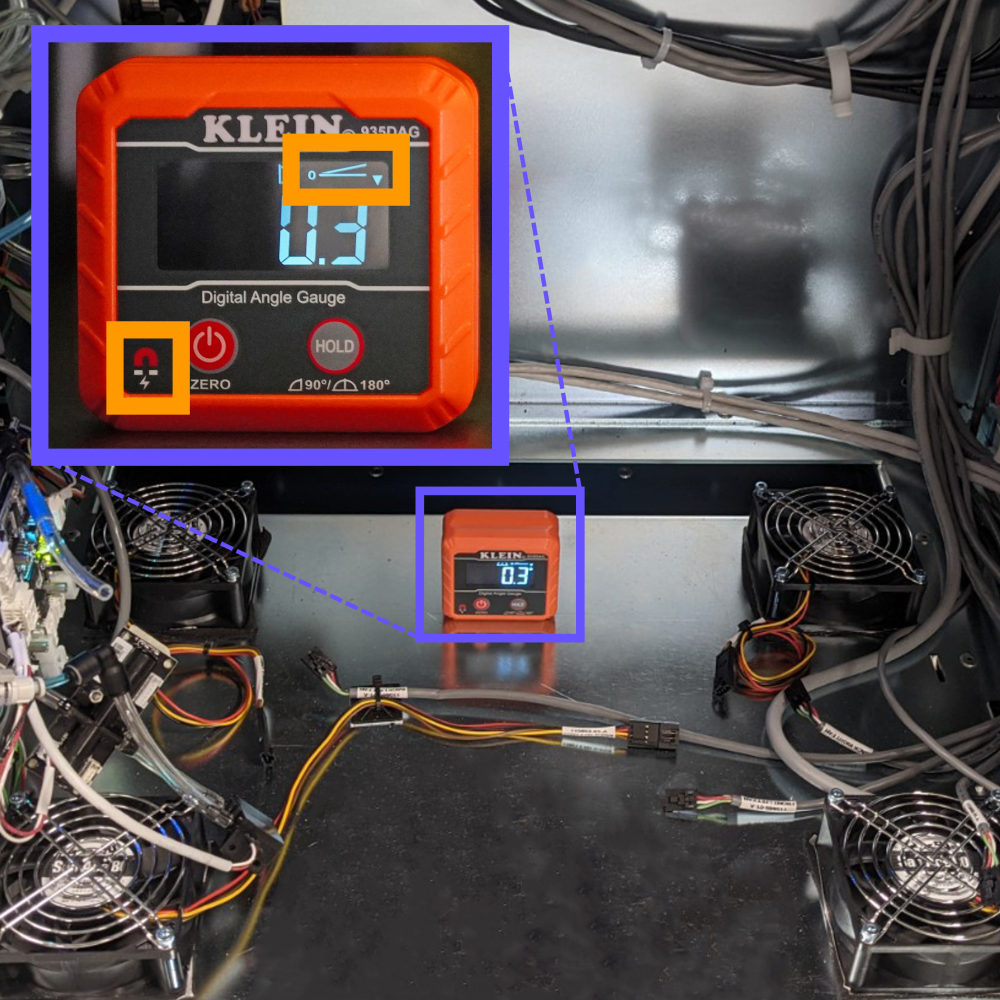
**Place Digital Level on Service Deck**
*The service deck will serve as an **approximate** measure of level only at this step.*
**Level Left-to-Right**
- Place the digital **level facing you **to read left-to-right
- Adjust the **front feet **to reach **+/- 0.5 degrees**
**Level Front-to-Back**
- Rotate the digital **level 90 degrees facing printer left **to read front-to-back
- Adjust the **left feet **to reach **+/- 0.5 degrees**
::::VerticalSplit{layout="middle"}
:::VerticalSplitItem
**Notes**
- The level is **magnetic.**
- The level shows the **direction of tilt.**
- The case for the level has extra batteries if needed.
:::
:::VerticalSplitItem
:::
::::
### Step 4: Rear Foot - Left
::::VerticalSplit{layout="middle"}
:::VerticalSplitItem
- Place a **5 mm hex socket **on top of the level foot screw extender in the rear of the printer and twist by hand to lower the rear foot until it rests on the floor.
- The feet are fully raised when shipped, so you will need to lower them all the way down.
- Use the socket wrench to **turn another half turn **lower to tighten.
*A small socket wrench is recommended. Photo shows a 1/4" drive size. *
:::
:::VerticalSplitItem
:::
::::
:::hint{type="info"}
If your floor is already level, you may complete Steps 2 and 5 only to secure the printer in place and double check that it's level.
:::
### Step 5: Final Adjustment
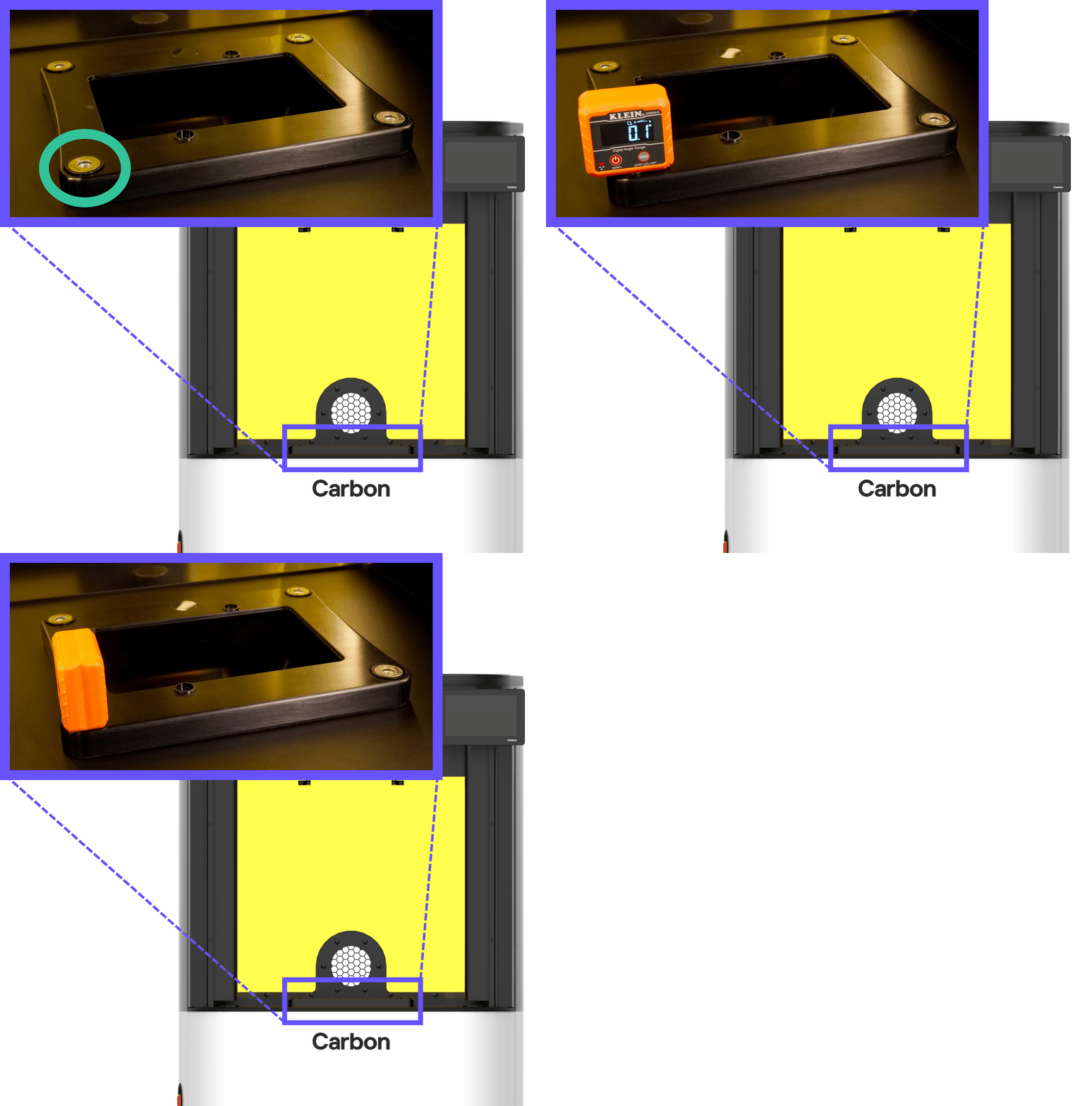
The most important part of the printer to be level is the cassette. Final measurement of the printer's leveling is on one of the clamp pots that hold the cassette in place.
**Place Digital Level on Deck Clamp Pot**
The level is magnetized, so it will stay securely in place for adjustments.
::::VerticalSplit{layout="middle"}
:::VerticalSplitItem
- Measure for level both** left-to-right** and **front-to-back** by rotating the level 90 degrees for both checks.
- Continue lowering the feet as needed to reach a **+/- 0.5 degrees **specification.
- Note that while 0.5 degrees meets the required operational spec, the resin may be visually perceived as tilting in the cassette.
- For **optimal** results, you may choose to aim for **\<= 0.2 degrees**.
:::
:::VerticalSplitItem
:::
::::
### Successfully Leveled Printer
::::VerticalSplit{layout="middle"}
:::VerticalSplitItem
The printer should be resting on the leveled feet such that the built-in casters will not roll.

:::
:::VerticalSplitItem
A correctly leveled printer registers **+/- 0.5 degrees** both left-to-right and front-to-back.

:::
::::
### Close Service Door
::::VerticalSplit{layout="middle"}
:::VerticalSplitItem
There are **2 latches** that secure the service door: 1 at the top and 1 at the bottom. **Both latches must be engaged to ensure proper printer operation.**
1. **Place your hand on the white body panel near the Carbon logo.**
2. **Press door shut firmly, as you would a car door, until both latches click. **Insufficient force can result in a partial latch.
:::
:::VerticalSplitItem

:::
::::
:::::
:::::WorkflowBlockItem
## Conditional - Install Seismic Restraints
If local regulations require seismic restraints, secure the seismic bracket after the printer is leveled.
1. Verify the seismic brackets are securely attached to the printer according to [Printer Startup](docId\:cUc-4ICE6KvrrgvJRfxrJ) above.
2. Using shims provided with the printer, place shims between the seismic bracket and the floor as needed to fill any gaps.
3. Install bolts into the floor (in the pre-drilled holes).
1. Ensure the bolts have the lock washer and washer in place as shown.
4. Tighten bolts with a 15 mm wrench.
::::VerticalSplit{layout="middle"}
:::VerticalSplitItem

:::
:::VerticalSplitItem

:::
::::
:::::
:::::WorkflowBlockItem
## Confirm the Printer Is Positioned and Leveled
::::VerticalSplit{layout="middle"}
:::VerticalSplitItem

:::
:::VerticalSplitItem
Confirm that you have completed the Positioning and Leveling steps.
Press **Confirm.**
:::
::::
::::VerticalSplit{layout="middle"}
:::VerticalSplitItem
Press the **button** on the printer touchscreen and proceed to the next section.
:::
:::VerticalSplitItem

:::
::::
:::::
::::::
# Printer Setup
The printer is shipped powered down and with the build arm lowered to protect the hardware during shipping. The following actions are necessary for the printer to be ready for operation.
1. Restore System Power
2. Service Door Check
3. Home the Build Arm
::::::WorkflowBlock
:::::WorkflowBlockItem
## Restore System Power
::::VerticalSplit{layout="middle"}
:::VerticalSplitItem

:::
:::VerticalSplitItem
- The **E-stop status** on the printer screen should be yellow to indicate the e-stop is disengaged but power has not been fully restored.
- Press **Restore system power** on the touch screen to power on all hardware sub-systems for operation.
:::
::::
::::VerticalSplit{layout="middle"}
:::VerticalSplitItem
**Successful Power Restoration**
- The **E-stop status** on the Printer setup screen will change to confirmed.
- You may hear a click sound of printer sub-systems powering on.
:::
:::VerticalSplitItem

:::
::::
:::hint{type="info"}
The **Restore System Power **button will appear on the touchscreen every time the printer goes through boot-up, and you may be prompted to repeat this step in other circumstances after setup (such as if the E-stop is pressed during operation).
:::
### Troubleshooting
::Image[]{src="https://api.archbee.com/api/optimize/3CesIL2dYMCHPZvRjp8S0/JzhmVoLju-uKbZL2OrwTF_gkre0-9aej-hejyp-1-eg3t-ni43inpiw.jpg" size="70" width="1680" height="1214" position="flex-start" showCaption="false"}
**1. Check the E-Stop Jumper
**
::::VerticalSplit{layout="middle"}
:::VerticalSplitItem
Ensure that the **External E-Stop Jumper** was installed and is fully connected.
- v1 - E-stop jumper is user-installed.
- (Reference the [Printer Startup](docId\:cUc-4ICE6KvrrgvJRfxrJ) instructions.)
- Tighten with a flathead screwdriver if connection is loose.
- v2 - Compact e-stop jumper is pre-installed
- Tighten with a 3/32 allen wrench if connection is loose.
:::
:::VerticalSplitItem

:::
::::
**2. Check the E-stop**
::::VerticalSplit{layout="middle"}
:::VerticalSplitItem
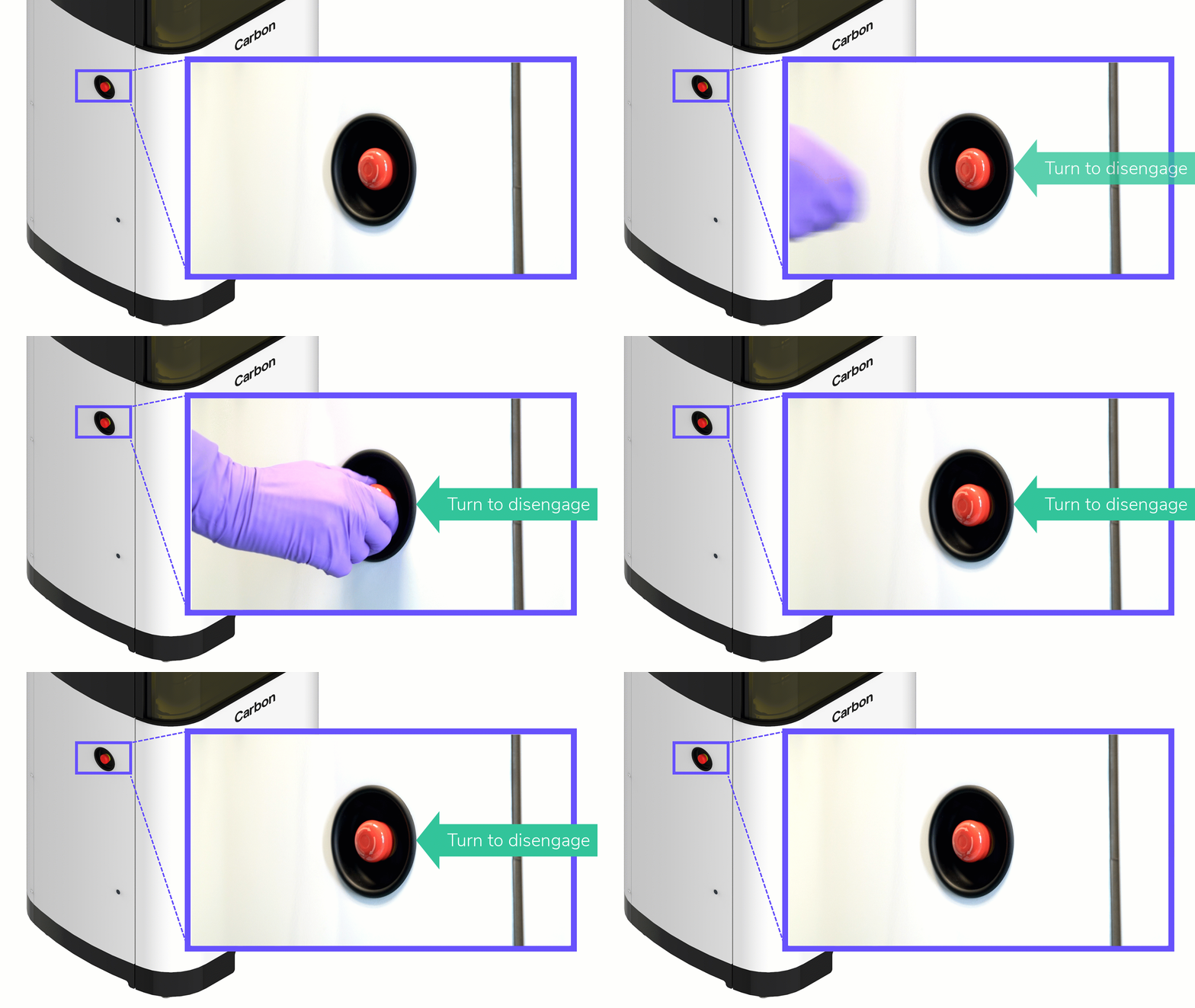
- The red E-stop button will be pressed in if engaged.
- If pressed, disengage the E-stop by turning the red button slightly clockwise to pop out the button.
:::
:::VerticalSplitItem
:::
::::
**3. Carbon Support**
If the issue persists, contact [Carbon Support.](mailto\:support@carbon3d.com)
:::::
:::::WorkflowBlockItem
## Service Door Check
The service door for the printer is shipped in the closed position, so no action should be needed beyond a status check.
::::VerticalSplit{layout="middle"}
:::VerticalSplitItem

:::
:::VerticalSplitItem
**Successful Service Door Check**
- The **Service door status** on the Printer setup screen should be green with a message confirming the service door is closed.
:::
::::
### Troubleshooting
::::VerticalSplit{layout="middle"}
:::VerticalSplitItem
**1. Close the service door**
- Press service door closed
If status does not change to **closed **on the touchscreen:
- Open service door
- Insert a **8 mm allen wrench**
- Turn a **1/4 turn clockwise **(DO NOT turn counter-clockwise)
- Service door pops open
- Press service door closed again
:::
:::VerticalSplitItem

:::
::::
**2. Carbon Support**
If the issue persists, contact [Carbon Support.](mailto\:support@carbon3d.com)
:::::
:::::WorkflowBlockItem
## Home the Build Arm
The printer is shipped with the build arm lowered to keep the center of gravity lower and prevent the crate from tipping over easily. To prepare the printer for operation, the build arm must be sent to its home position.
::::VerticalSplit{layout="middle"}
:::VerticalSplitItem
**Ensure the area is clear**
- Ensure the door opening is not blocked if the printer door has been opened.
:::
:::VerticalSplitItem

:::
::::
::::VerticalSplit{layout="middle"}
:::VerticalSplitItem

:::
:::VerticalSplitItem
- Press **Home build arm **on the touchscreen to activate the homing operation
- Note that if the printer door has been opened, the prompt will read **Close door and home build arm **and the operation will close the door first and then begin homing
- The printer screen will show a status message:
- **Build arm is homing, ****keep clear of internal printer build volume** **until process completes.**
- The build arm will begin moving up very slowly at first. This is normal.
:::
::::
::::VerticalSplit{layout="middle"}
:::VerticalSplitItem
**Successful Connection**
- The **Build arm homing status** on the Printer setup screen will change to green indicator.
- The printer's build arm will be in its home position.
:::
:::VerticalSplitItem

:::
::::
:::hint{type="info"}
Contact [Carbon Support](mailto\:support@carbon3d.com) if the build arm did not home successfully.
:::
## Finish Printer Setup
::::VerticalSplit{layout="middle"}
:::VerticalSplitItem

:::
:::VerticalSplitItem
Press the **>** **button** on the printer touchscreen and proceed to the next lesson in this course.
:::
::::
:::::
::::::
# Review Setup
The final screen will provide a status overview.
::::VerticalSplit{layout="middle"}
:::VerticalSplitItem
**Action Required** - Return to prior steps to complete any indicated actions.
:::
:::VerticalSplitItem

:::
::::
::::VerticalSplit{layout="middle"}
:::VerticalSplitItem
**Setup Complete** - Once all steps have been completed, **exit setup** to enter normal printer operation.
:::
:::VerticalSplitItem

:::
::::
## Software Update
::::VerticalSplit{layout="middle"}
:::VerticalSplitItem
****
**After Setup**
A software update is likely to automatically begin installing after Setup is complete. Allow the update to run before proceeding with printer operation.
:::
:::VerticalSplitItem

:::
::::
# Get Ready for First Print
## Servicing Before Operation
A few service tasks are required before beginning operation of the printer.
## Prepare Printer for Servicing
- Remove the platform from the homed position.
- Remove the cassette.
- Power down the printer.
- Press power switch to the **off position**
::::VerticalSplit{layout="middle"}
:::VerticalSplitItem

**Remove Platform**
:::
:::VerticalSplitItem
::Image[]{src="https://api.archbee.com/api/optimize/xcOI3p6O5jO0MVhoHv9rO-eUyj2sukGQiYFavzfYDYj-20240829-120804.gif" size="98" width="400" height="400" position="center" showCaption="false"}
**Remove Cassette**
:::
::::
::Image[]{src="https://api.archbee.com/api/optimize/xcOI3p6O5jO0MVhoHv9rO-g754_UgNmdKIOODgZJFjE-20240829-120859.jpg" size="40" width="1680" height="1685" position="flex-start" showCaption="false"}
**Power Down Printer**
- Press power switch to the **off position**
## Service Tasks
Perform the following service tasks.
1. Check Heater Glass
2. Check Spill Window Glass
3. Touchscreen Protector Film
::::::WorkflowBlock
:::::WorkflowBlockItem
### Check Heater Glass
The M3 / M3 Max printer comes equipped with two heaters to provide temperature control for highly viscous resins to improve their flow during printing. The heaters are covered with glass to prevent resin from accidentally dripping on heating elements and igniting.
The glass is secured with clips but shipping may have loosened their position.
::::VerticalSplit{layout="right"}
:::VerticalSplitItem
**Locate Heaters**
- Heaters reside at the front and back of the projection volume, below where the cassette sits.
- Heaters sit partially underneath a short overhang of the deck.
**Inspect Heaters**
- **Glass properly seated on ledge**
- **Clips positioned over glass**
:::
:::VerticalSplitItem

:::
::::
:::hint{type="warning"}
If glass has fallen out of position, reference [heater glass maintenance](docId\:sse-8NsW_jHOjBJbKTPr5) for a video on securing the glass.
:::
::::VerticalSplit{layout="middle"}
:::VerticalSplitItem

:::
:::VerticalSplitItem

:::
::::
:::::
:::::WorkflowBlockItem
### Spill Window Glass
The light engine projects light through the spill window onto the cassette window to cure resin. If the spill window is not clean, it may affect part quality.
**Inspect Spill Window**
Inspect the **light engine spill window **inside the projection volume for any smudges, resin, dust or debris that will affect print performance.
::::VerticalSplit{layout="middle"}
:::VerticalSplitItem

:::
:::VerticalSplitItem

:::
::::
**Clean Glass** **If Dirty**
- Lightly dampen a blue shop towel with IPA, outside of the printer.
- **Do not saturate the towel to the point of dripping solvent.**
- Reach into the opening, and wipe the spill window glass with the towel, until it is clean, dry, and without streaks.
- **If cured resin cannot be removed in this manner, contact [Carbon Support. ](mailto\:support@carbon3d.com)**
::::VerticalSplit{layout="middle"}
:::VerticalSplitItem

:::
:::VerticalSplitItem

:::
::::
:::::
:::::WorkflowBlockItem
### Screen Protector Film
::::VerticalSplit{layout="middle"}
:::VerticalSplitItem

:::
:::VerticalSplitItem
****
It is **strongly recommended** to apply a screen protector to the printer's touchscreen display.
:::
::::
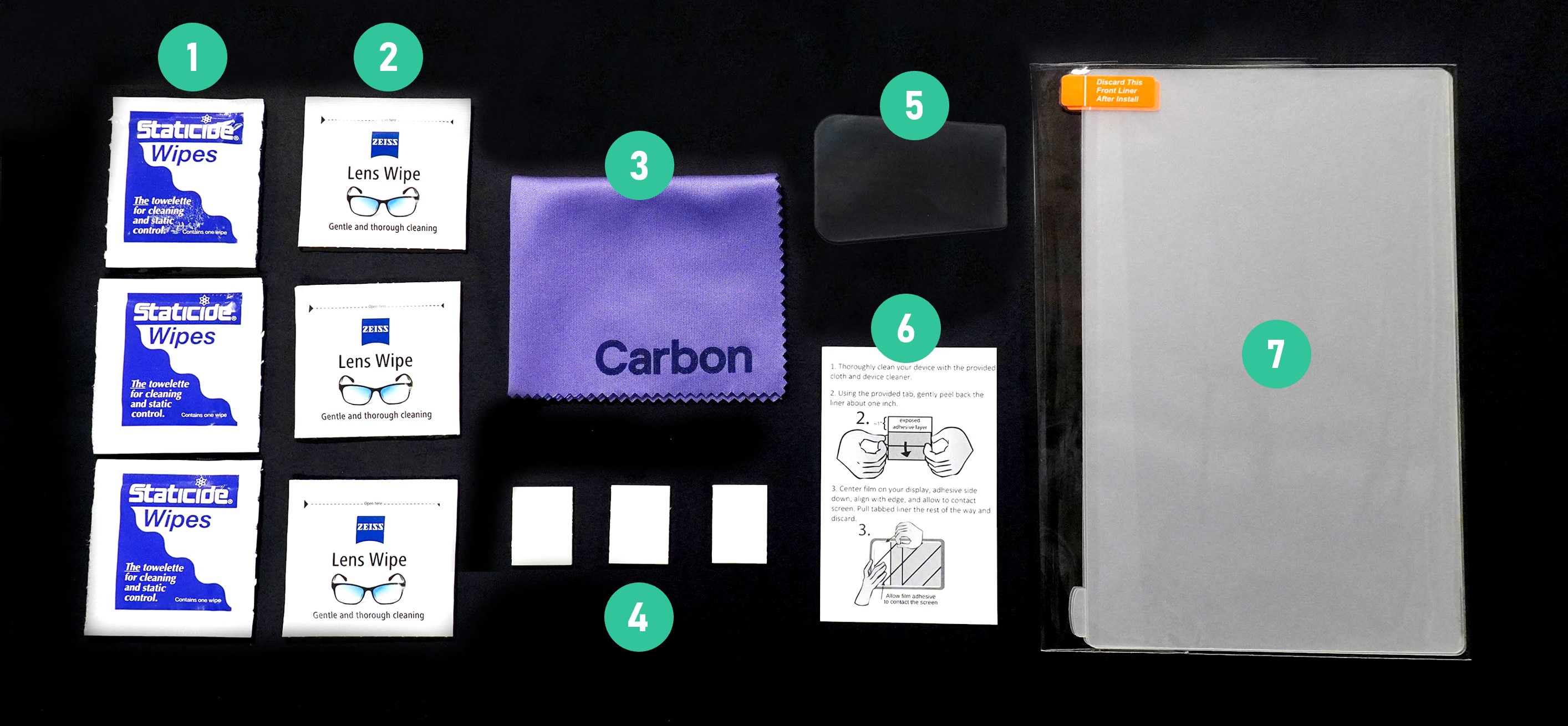
1. **Static wipes**
- The static wipes are used to remove small dust particles remaining after cleaning the glass and prevent new dust from collecting before the film is applied.
2. **Lens wipes**
- The lens wipes are used to clean the glass surface.
3. **Carbon Microfiber Cloth**
- The microfiber cloth is used to wipe the screen protector film after application to help remove small bubbles.
4. **Double Stick Foam Tape**
- The double stick foam tape is used to dab the screen to remove dust particles.
5. **Scraper**
- The plastic scraper is used to apply even pressure while applying the film. It is also used to remove any remaining bubbles after applying the film.
6. **Instructional Leaflet**
- The instructional leaflet supplements the instructions provided here.
7. **Screen Protector Film**
- A few sheets of screen protector film are provided in the kit.
::embed[]{url="https://player.vimeo.com/video/644991697?dnt=1"}
:::ExpandableHeading{isOpen="true"}
**Video text**
1. Remove factory film
2. Clean glass with lens wipe
3. Pick up dust particles with double stick foam tape
4. Clean glass with static wipe
5. Apply screen protector film
- Peel off the back film \~25 mm (1") to expose the adhesive layer.
- Place the exposed film on the screen, aligning with the edges.
- Use the scraper to flatten the film in place.- Drag the scraper along the film while removing the rest of the back film.
- Use the scraper to remove any bubbles.
6. Remove front film
7. Use microfiber cloth to remove remaining bubbles
:::
:::::
::::::
## Return Printer to Operation
- Turn on power switch
- Restore system power
::::VerticalSplit{layout="middle"}
:::VerticalSplitItem

**Turn on power switch**
- Press power switch to the **on position**
:::
:::VerticalSplitItem

**Restore System Power**
- Press **Restore system power **on the touchscreen to power on all hardware sub-systems for operation
:::
::::