---
title: Features
slug: hardware/m3-features
description: Unlock the full potential of your M3 and M3 Max printers with this comprehensive document. Learn how to install, operate and maintain your Carbon printer.
docTags:
createdAt: 2024-07-02T16:29:55.512Z
---
# Printer Stats
### M3 Printer
::::VerticalSplit{layout="left"}
:::VerticalSplitItem
::Image[]{src="https://res.cloudinary.com/carbon3d/image/upload/t_auto_quality_format/Education/Hardware/M3-M3-Max-printer/features/Small-build-volume_AB.png" size="70" width="621" height="903" position="center" caption="M3 Build Volume" alt="M3 Build Volume" darkWidth="621" darkHeight="903" showCaption="true"}
:::
:::VerticalSplitItem
**Dimensions (W x D x H): **
760 x 696 x 1760 mm (30 x 27.5 x 69.3 in)
**Weight: **
231 kg ( 510 lbs)
**Pixel Size: **
75 µm
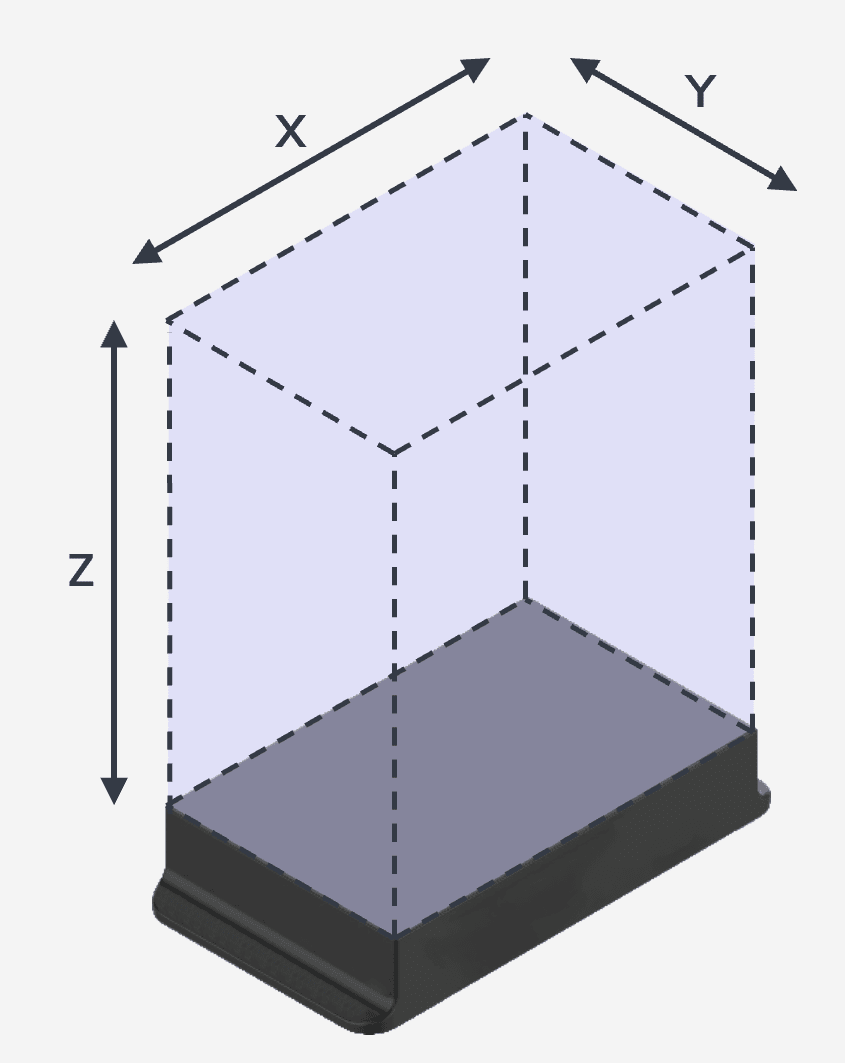
**Build Volume (X x Y x Z): **
189\* x 118\* x 326 mm (7.4 x 4.6 x 12.8 in)
:::
::::
### M3 Max Printer
::::VerticalSplit{layout="left"}
:::VerticalSplitItem
:::
:::VerticalSplitItem
**Dimensions (W x D x H): **
760 x 696 x 1760 mm (30 x 27.5 x 69.3 in)
**Weight: **
249 kg ( 550 lbs)
**Pixel Size: **
75 µm
**Build Volume (X x Y x Z): **
307\* x 163\* x 305 mm (12.1 x 6.4 x 12 in)
:::
::::
:::hint{type="warning"}
**\***Be aware that models drawn to the **precise XY maximum will not fit** on the platform when [correction scale](docId:4Z6MFha_0Lh3vOpPv9Jmn) is applied for the selected resin.
Carbon recommends adjusting down your design dimensions below the full build volume. Reference the [typical scaling range](docId:4Z6MFha_0Lh3vOpPv9Jmn) and [geometry dependent resins](docId:4Z6MFha_0Lh3vOpPv9Jmn) for more guidance.
:::
:::hint{type="info"}
For information about **facility requirements** for installation, please refer to [General Site Prep Resources](docId\:hws1UJVXQpVoKV9YMdsu4) or [Dental Site Prep Resources](docId\:xcKd87zQ6nzxz3bsAmcCB).
:::

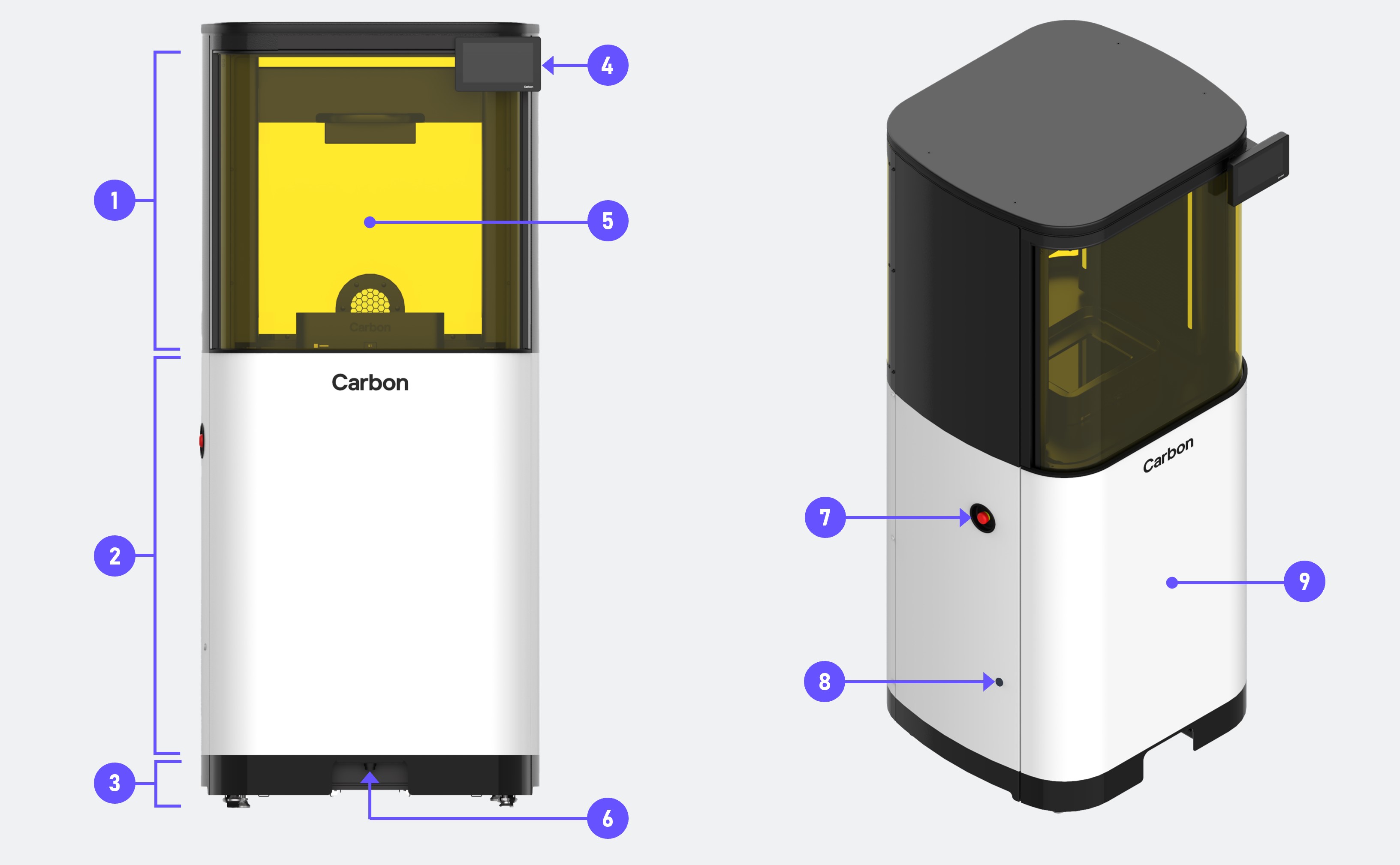
:::::WorkflowBlock
::::WorkflowBlockItem
:::ExpandableHeading{isOpen="true"}
**Build Area**
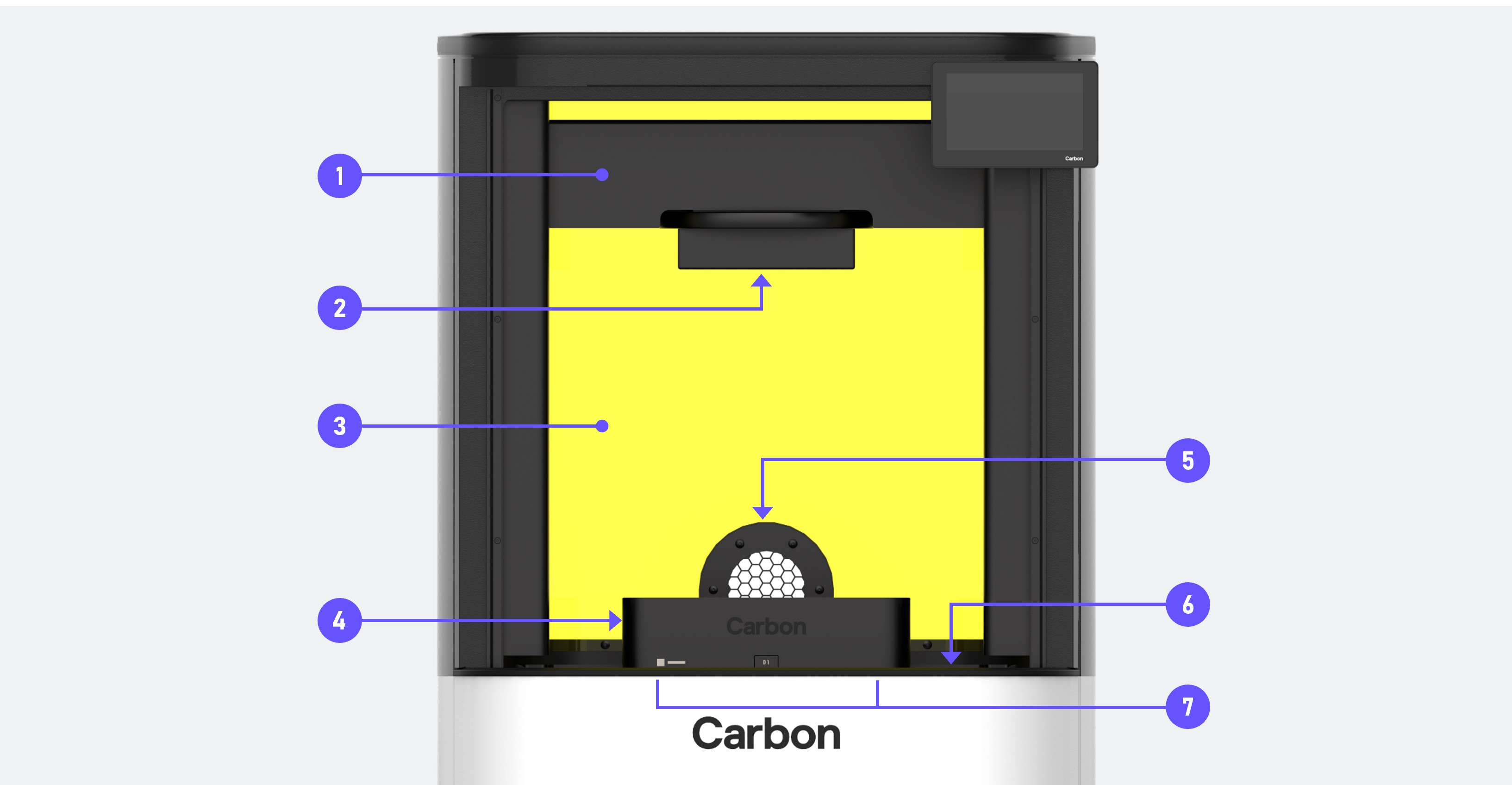
Parts are printed in the build area. Operators will primarily interact with components in this part of the printer during daily operation. The major components of the build area are:
- Platform
- Cassette
More information on the Build Area are provided in a detailed diagram below.
:::
::::
::::WorkflowBlockItem
:::ExpandableHeading{isOpen="true"}
**Body**
The body is the portion of the printer below the build area. It is clad with white metal panels.
:::
::::
::::WorkflowBlockItem
:::ExpandableHeading{isOpen="true"}
**Foot**
The foot is the base of the printer.
- There are four built-in casters to position the printer.
- There are four leveling feet used to stabilize the printer once in position.
:::
::::
::::WorkflowBlockItem
:::ExpandableHeading{isOpen="true"}
**Touchscreen**
The display shows the printer’s status and has touchscreen functionality for performing basic functions.
More information provided below.
:::
::::
::::WorkflowBlockItem
:::ExpandableHeading{isOpen="true"}
**Printer Door**
The printer door is the curved, transparent yellow barrier that encloses and protects the build area.
- The door moves up and down and is activated using the foot switch located at the foot of the printer.
- The door protects your part from ambient UV light as well as protecting against dust or objects interfering with the printing process.
- The door is disabled during printing and forcing open the door will automatically abort your print.
:::
::::
::::WorkflowBlockItem
:::ExpandableHeading{isOpen="true"}
**Foot Switch**
::Image[]{src="https://api.archbee.com/api/optimize/3CesIL2dYMCHPZvRjp8S0/hzncnLac6TEWr8EjMsjYC_image.png" size="70" width="1680" height="979" position="flex-start" alt="Foot Switch" darkWidth="1680" darkHeight="979" showCaption="false"}
:::
The foot switch, located underneath the front edge of the printer, allows the user to open and close the door by placing their foot under the printer and pushing up on the button.
Pressing and holding the switch will both close the door and start a print when the printer is ready for operation.
::::
::::WorkflowBlockItem
:::ExpandableHeading{isOpen="true"}
**Emergency Stop Button**
::Image[]{src="https://api.archbee.com/api/optimize/3CesIL2dYMCHPZvRjp8S0/xpKlbcFyMkgdHvuAHXjA2_e-stop-disengage.gif" size="60" width="3701" height="3712" position="flex-start" darkWidth="3701" darkHeight="3712" showCaption="false"}
:::
In case of emergency, press the Emergency Stop (E-stop) button. When pressed, power will be cut to most printer systems and all printer motion will cease.
- Your in-progress print will be lost if the Emergency Stop button is pushed. Any partially printed parts will need to be discarded and reprinted.
::::
::::WorkflowBlockItem
:::ExpandableHeading{isOpen="true"}
**Service Door Access Lock**
::Image[]{src="https://res.cloudinary.com/carbon3d/image/upload/v1738627906/Education/Hardware/M3-M3-Max-printer/setup/Service_Door_Open_sq_v01.01_s2g.gif" size="60" width="800" height="800" position="flex-start" darkWidth="800" darkHeight="800" showCaption="false"}
:::
The service door is opened by inserting an **8 mm allen wrench** into the access lock hole and turning the wrench an **1/4 of a turn clockwise** to release the door open.
:::hint{type="warning"}
DO NOT turn counter-clockwise.
:::
::::
::::WorkflowBlockItem
:::ExpandableHeading{isOpen="true"}
**Service Door**
The service door allows access to self-service maintenance areas in the printer body.
:::
::::
:::::
# Build Area
::::::WorkflowBlock
:::::WorkflowBlockItem
::::ExpandableHeading{isOpen="true"}
**Bridge**
::Image[:::VerticalSplitItem

::::::VerticalSplitItem
**Dimensions (W x D x H): ** 760 x 696 x 1760 mm
(30 x 27.5 x 69.3 in)
**Weight: **231 kg ( 510 lbs)
**Build Envelope: **189 x 118 x 326 mm
(7.4 x 4.6 x 12.8 in)
**Pixel Size: **75 µm
:::]{src="https://api.archbee.com/api/optimize/3CesIL2dYMCHPZvRjp8S0/pCCBo4QYVTfi8AOa6Yris_build-arm-moving-up.gif" size="70" width="533" height="300" position="flex-start" darkWidth="533" darkHeight="300" showCaption="false"}
::::
The bridge holds the platform and moves it vertically during printing.
:::::
::::WorkflowBlockItem
:::ExpandableHeading{isOpen="true"}
**Platform**
::Image[]{src="https://api.archbee.com/api/optimize/3CesIL2dYMCHPZvRjp8S0/mz0jrLoPHZuB1JK3Ktj2k_image.png" size="70" width="1680" height="721" position="flex-start" darkWidth="1680" darkHeight="721" showCaption="false"}
:::
The platform is a removable appliance with a flat surface upon which parts are printed.
::::
::::WorkflowBlockItem
:::ExpandableHeading{isOpen="true"}
**Rear Window**
The rear is the curved, transparent yellow barrier that encloses and protects the back of the build area.
The window protects your part from ambient UV light.
:::
::::
::::WorkflowBlockItem
:::ExpandableHeading{isOpen="true"}
**Cassette**
::Image[]{src="https://api.archbee.com/api/optimize/3CesIL2dYMCHPZvRjp8S0/SbUV1rixeoswdoTZKt4YV_image.png" size="70" width="1680" height="735" position="flex-start" darkWidth="1680" darkHeight="735" showCaption="false"}
:::
The cassette is a highly engineered optical device that is a critical component of the Digital Light Synthesis™ platform. It is a removable appliance that holds the liquid resin used to make parts.
:::hint{type="danger"}
The window must be properly maintained to ensure print quality. Improper maintenance or damage to the window will reduce print quality and may result in failed prints and production delays.
:::
::::
::::WorkflowBlockItem
:::ExpandableHeading{isOpen="true"}
**Exhaust Vent**
::Image[]{src="https://api.archbee.com/api/optimize/3CesIL2dYMCHPZvRjp8S0/ZFEoWaaUghDczLBMti5q0_image.png" size="70" width="978" height="584" position="flex-start" darkWidth="978" darkHeight="584" showCaption="false"}
:::
The printer's exhaust vent resides in the rear window at the base of the build area.
::::
::::WorkflowBlockItem
:::ExpandableHeading{isOpen="true"}
**Printer Deck**
::Image[]{src="https://api.archbee.com/api/optimize/3CesIL2dYMCHPZvRjp8S0/cN8ObVehdffJS0KWFreRk_image.png" size="70" width="1680" height="945" position="flex-start" darkWidth="1680" darkHeight="945" showCaption="false"}
:::
The printer deck is the flat surface that lines the bottom of the build area. The cassette resides on the printer deck.
::::
::::WorkflowBlockItem
:::ExpandableHeading{isOpen="true"}
**Projection Volume**
::Image[]{src="https://api.archbee.com/api/optimize/3CesIL2dYMCHPZvRjp8S0/FQFoajms1-iYOGmvfkDHY_image.png" size="70" width="1665" height="767" position="flex-start" darkWidth="1665" darkHeight="767" showCaption="false"}
:::
This is an opening in the printer deck that is typically covered by the cassette.
UV light from the light engine passes up through this space from the printer cavity onto the cassette window.
More information provided below.
::::
::::::
## Side Covers
The build area sides come in three configurations:
::::VerticalSplit{layout="middle"}
:::VerticalSplitItem
**Bellows**
A corrugated cover.
:::
:::VerticalSplitItem
::Image[]{src="https://api.archbee.com/api/optimize/3CesIL2dYMCHPZvRjp8S0/ljYJu95XzS-81J4ZCW8jj_bellows-02-850x850.jpg" size="50" width="867" height="868" position="flex-start" darkWidth="867" darkHeight="868" showCaption="false"}
:::
::::
::::VerticalSplit{layout="middle"}
:::VerticalSplitItem
**Roller shades**
A flat sheet of material.
:::
:::VerticalSplitItem
::Image[]{src="https://api.archbee.com/api/optimize/3CesIL2dYMCHPZvRjp8S0/escIuf2koCIZOKGVVdpCS_roller-shade-02-850x850.jpg" size="50" width="867" height="868" position="flex-start" darkWidth="867" darkHeight="868" showCaption="false"}
:::
::::
::::VerticalSplit{layout="middle"}
:::VerticalSplitItem
**Coverless**
No covering.
:::
:::VerticalSplitItem
::Image[]{src="https://api.archbee.com/api/optimize/3CesIL2dYMCHPZvRjp8S0/5F0djxngjgW7SC49Vnwk-_m3-max-no-bellows-img-6204.jpg" size="50" width="900" height="900" position="flex-start" darkWidth="900" darkHeight="900" showCaption="false"}
:::
::::
The bellows and roller shade covers are for **cosmetic purposes only.** To reduce user maintenance, **newer printers will not have either cover in place. **
# Rear Connectors
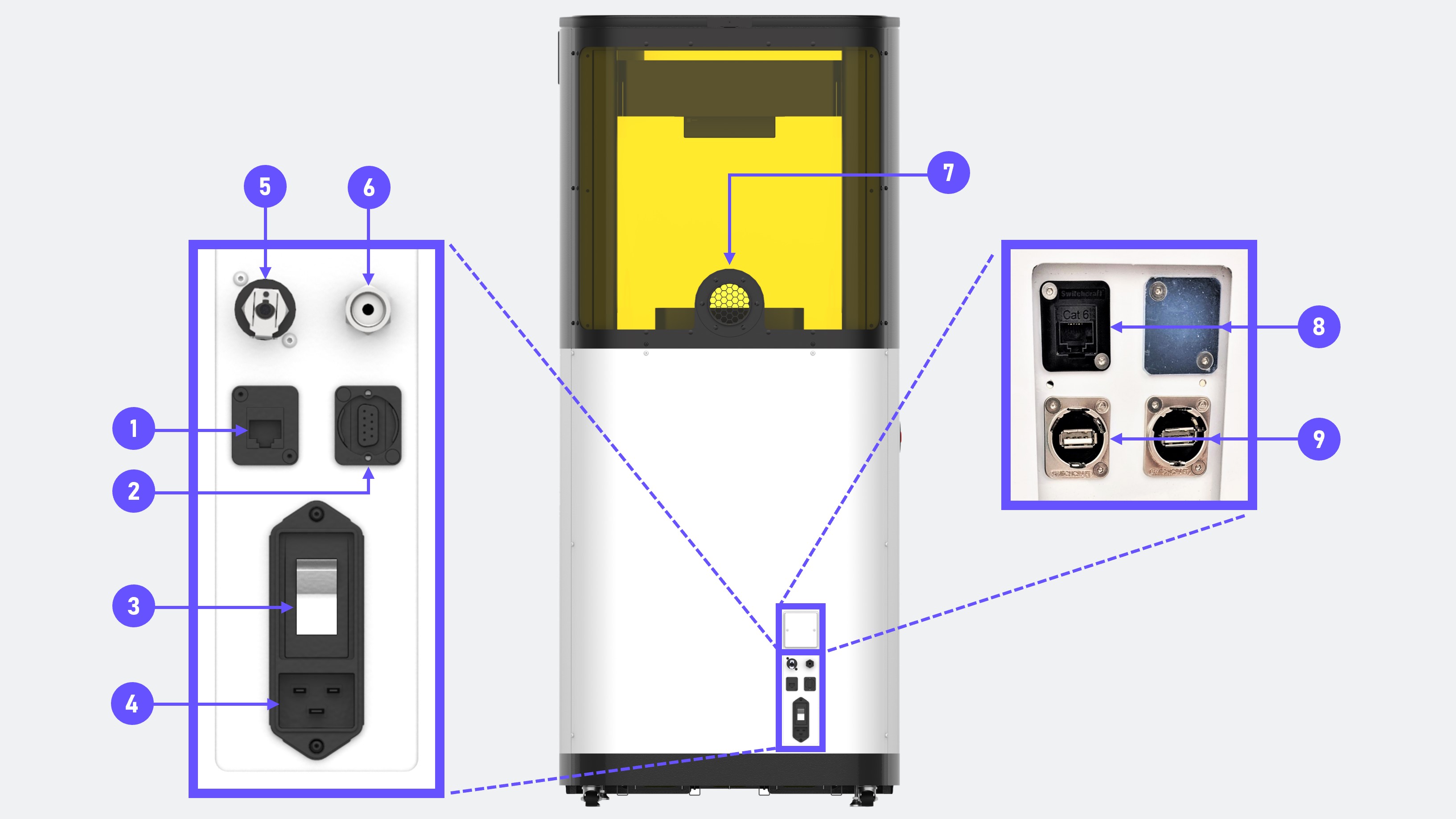
During normal use, you shouldn’t need to touch the back of the printer, but you will need access for setup and maintenance.
**Do not attempt to open or remove any of the printer panels unless instructed to do so.**
:::::WorkflowBlock
::::WorkflowBlockItem
:::ExpandableHeading{isOpen="true"}
**Network Port**
::Image[]{src="https://api.archbee.com/api/optimize/3CesIL2dYMCHPZvRjp8S0/gwaQwKYfIuImJoyjbRObr_image.png" size="70" width="472" height="263" position="flex-start" darkWidth="472" darkHeight="263" showCaption="false"}
:::
Standard RJ-45 port for connecting the printer to your network via ethernet cable.
::::
::::WorkflowBlockItem
:::ExpandableHeading{isOpen="true"}
**External E-Stop Jumper**
::Image[]{src="https://api.archbee.com/api/optimize/3CesIL2dYMCHPZvRjp8S0/WGUyL4TZTPNZy4hyUEa1x_image.png" size="70" width="1080" height="1080" position="flex-start" darkWidth="1080" darkHeight="1080" showCaption="false"}
An External E-Stop Jumper (provided by Carbon) must be installed in this port at all times. **Without this jumper in place, the printer will be in an e-stopped state.**
This jumper also allows the usage of a remote E-Stop device.
- **v1** - E-stop jumper is user-installed (Refer to [Printer Startup](docId\:cUc-4ICE6KvrrgvJRfxrJ) instructions.)
- **v2** - Compact e-stop jumper is pre-installed
:::
::::
::::WorkflowBlockItem
:::ExpandableHeading{isOpen="true"}
**Power switch**
::Image[]{src="https://api.archbee.com/api/optimize/3CesIL2dYMCHPZvRjp8S0/jGXGYLx3K1xRKOxKHVjkn_image.png" size="70" width="1373" height="932" position="flex-start" darkWidth="1373" darkHeight="932" showCaption="false"}
The power switch must be turned on to supply power to the printer.
Select maintenance tasks will require shutting down power with this switch.
:::
::::
::::WorkflowBlockItem
:::ExpandableHeading{isOpen="true"}
**AC Power Socket**
::Image[]{src="https://api.archbee.com/api/optimize/3CesIL2dYMCHPZvRjp8S0/FVGJgH6K44s8PC6fUvBms_image.png" size="70" width="385" height="237" position="flex-start" darkWidth="385" darkHeight="237" showCaption="false"}
Power socket for the printer.
Electrical Inlet Connection: IEC 320-C19
:::
::::
::::WorkflowBlockItem
:::ExpandableHeading{isOpen="true"}
**Reserved**
Not for customer use at this time.
:::
::::
::::WorkflowBlockItem
:::ExpandableHeading{isOpen="true"}
**Compressed Air Inlet **
::Image[]{src="https://api.archbee.com/api/optimize/3CesIL2dYMCHPZvRjp8S0/l1GxJhgbypDHmNESpzVvW_image.png" size="70" width="446" height="237" position="flex-start" darkWidth="446" darkHeight="237" showCaption="false"}
The printer requires a connection to compressed air.
- Air Inlet: ¼” NPT female bulkhead connector
:::
::::
::::WorkflowBlockItem
:::ExpandableHeading{isOpen="true"}
**Exhaust Outlet**
::Image[]{src="https://api.archbee.com/api/optimize/3CesIL2dYMCHPZvRjp8S0/FvsdGK2lCYouhu6Jnz4Xm_image.png" size="70" width="1146" height="586" position="flex-start" darkWidth="1146" darkHeight="586" showCaption="false"}
Air from the build area is passed through the exhaust at the back of the printer.
- The printer must be connected to mechanical ventilation via a 4 inch diameter duct.
:::
::::
::::WorkflowBlockItem
:::ExpandableHeading{isOpen="true"}
**Reserved**
Not for customer use at this time.
:::
::::
::::WorkflowBlockItem
:::ExpandableHeading{isOpen="true"}
**USB Port**
Two USB ports are located behind a service panel.
- During printer setup, users will use one of these ports (either is fine) to connect the printer to Carbon servers.
- During normal operation or maintenance, this service panel will be closed and not in use.
:::
::::
:::::
# Cassette
::::VerticalSplit{layout="middle"}
:::VerticalSplitItem

:::
:::VerticalSplitItem
The M3 / M3 Max printer uses next-gen oxygen permeable optics with the M3 / M3 Max cassette.
The cassette sits on the deck and holds liquid resin during printing. The transparent window in the center creates the dead zone that unlocks the speed and quality of the Digital Light Synthesis™ process. During printing, light from the light engine in the body of the M3 / M3 Max printer shines through the window and cures liquid resin to build parts.
The standard M3/M3 Max cassette is labelled **D1.**
:::
::::
:::hint{type="info"}
**The window must be properly maintained to ensure print quality. **Improper maintenance or damage to the window will reduce print quality and may result in failed prints and production delays.
:::
- **M3**
- **Dimensions:** 332 x 256 x 89 mm (13.1 10.1 x 3.5 in)
- **Weight empty: **3.4 kg (7.5 lbs)
- **Weight full: **5.2 kg (11.5 lbs)
- **Resin Capacity: **1700 mL
- **M3 Max**
- **Dimensions:** 415 x 360.4 x 118.6 mm (16.4 x 14.2 x 4.7 in)
- **Weight empty: **6.4 kg (14 lbs)
- **Weight full: **9.5 kg (21 lbs)
- **Resin Capacity: **3200 mL
### M3 Cassette
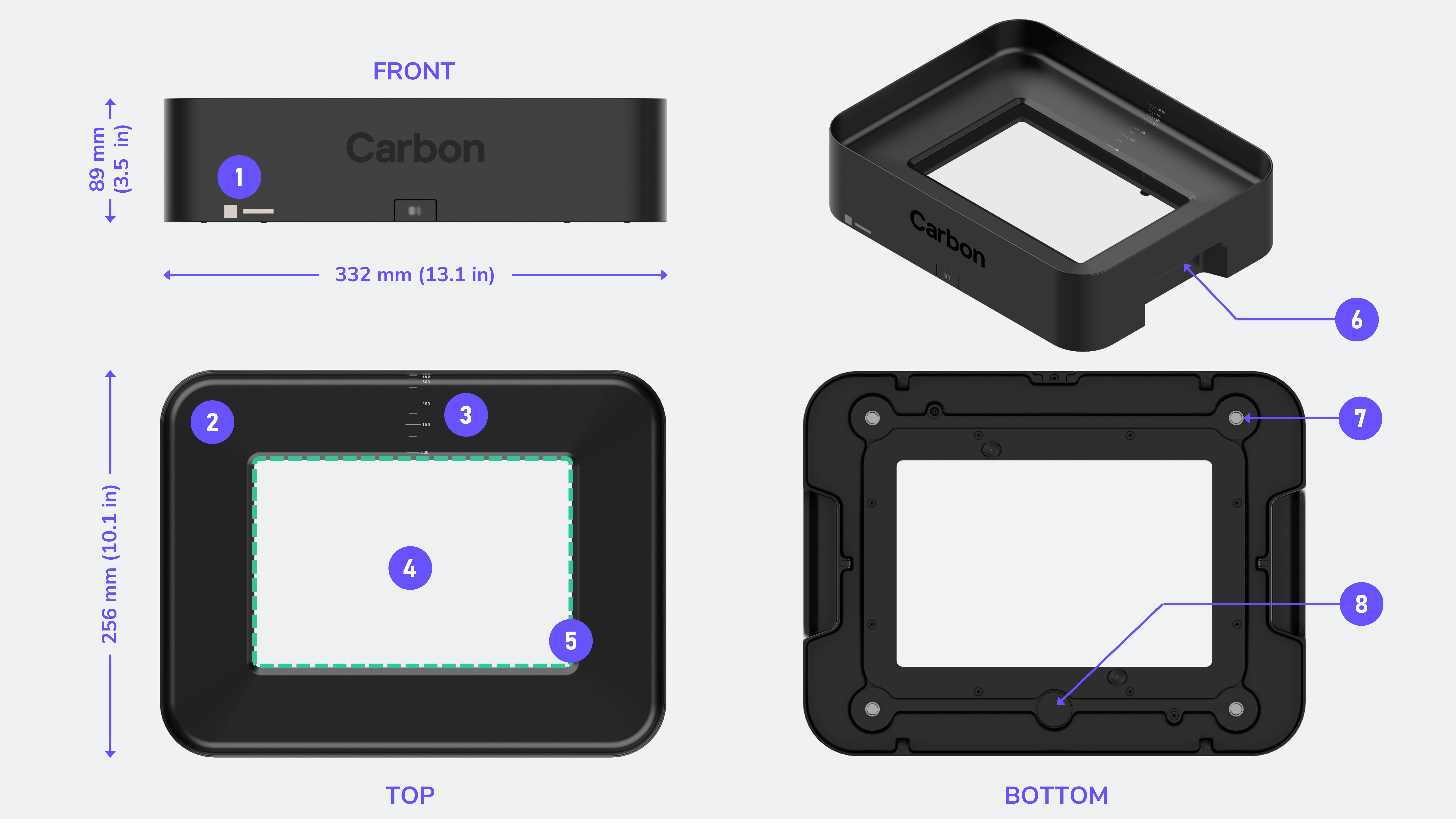
::::::WorkflowBlock
::::WorkflowBlockItem
:::ExpandableHeading{isOpen="true"}
**Serial Number**
Unique identifier used to record specific print history.
:::
::::
::::WorkflowBlockItem
:::ExpandableHeading{isOpen="true"}
**Metal Frame**
For measuring, containing and carrying resin.
:::
::::
::::WorkflowBlockItem
:::ExpandableHeading{isOpen="true"}
**Graduation Lines**
::Image[]{src="https://api.archbee.com/api/optimize/3CesIL2dYMCHPZvRjp8S0/yw1Q-cpvQ7-Pm2sGD_83H_image.png" size="70" width="999" height="499" position="flex-start" darkWidth="999" darkHeight="499" showCaption="false"}
Graduation lines indicate volume in milliliters.
The lines may be used as an approximation of resin amount when dispensing. (Other options also available.)
:::
::::
:::::WorkflowBlockItem
::::ExpandableHeading{isOpen="true"}
**Window**
::Image[]{src="https://api.archbee.com/api/optimize/3CesIL2dYMCHPZvRjp8S0/jhTLD5udrytHgfHTa3ZnW_image.png" size="70" width="1680" height="793" position="flex-start" darkWidth="1680" darkHeight="793" showCaption="false"}
The window in the bottom of the cassette allows light and oxygen to pass through into the resin during printing.
:::hint{type="danger"}
The transparent window is not a simple piece of glass. It is a complex light- and oxygen-permeable membrane that is precious and delicate, like the surface of your eye.
:::
::::
:::::
:::::WorkflowBlockItem
::::ExpandableHeading{isOpen="true"}
**Seam**
The seam is where the window meets the frame.
:::hint{type="danger"}
Do not use sharp tools to clean residual resin from the seam as this will damage the window.
:::
::::
:::::
::::WorkflowBlockItem
:::ExpandableHeading{isOpen="true"}
**Handle**
There are handles on both sides of the cassette frame. The cassette can be gripped using these features.
:::
::::
::::WorkflowBlockItem
:::ExpandableHeading{isOpen="true"}
**Pull Studs**
::Image[]{src="https://api.archbee.com/api/optimize/3CesIL2dYMCHPZvRjp8S0/ayWAGoAGmkvmMlr1J3nTf_image.png" size="70" width="940" height="501" position="flex-start" darkWidth="940" darkHeight="501" showCaption="false"}
:::
The cassette contains four pull studs, one at each corner. The pull studs hold the cassette in place during printing with pneumatic power.
::::
::::WorkflowBlockItem
:::ExpandableHeading{isOpen="true"}
**NFC Tag**
The NFC tag communicates with the printer.
:::
::::
::::::
### M3 Max Cassette
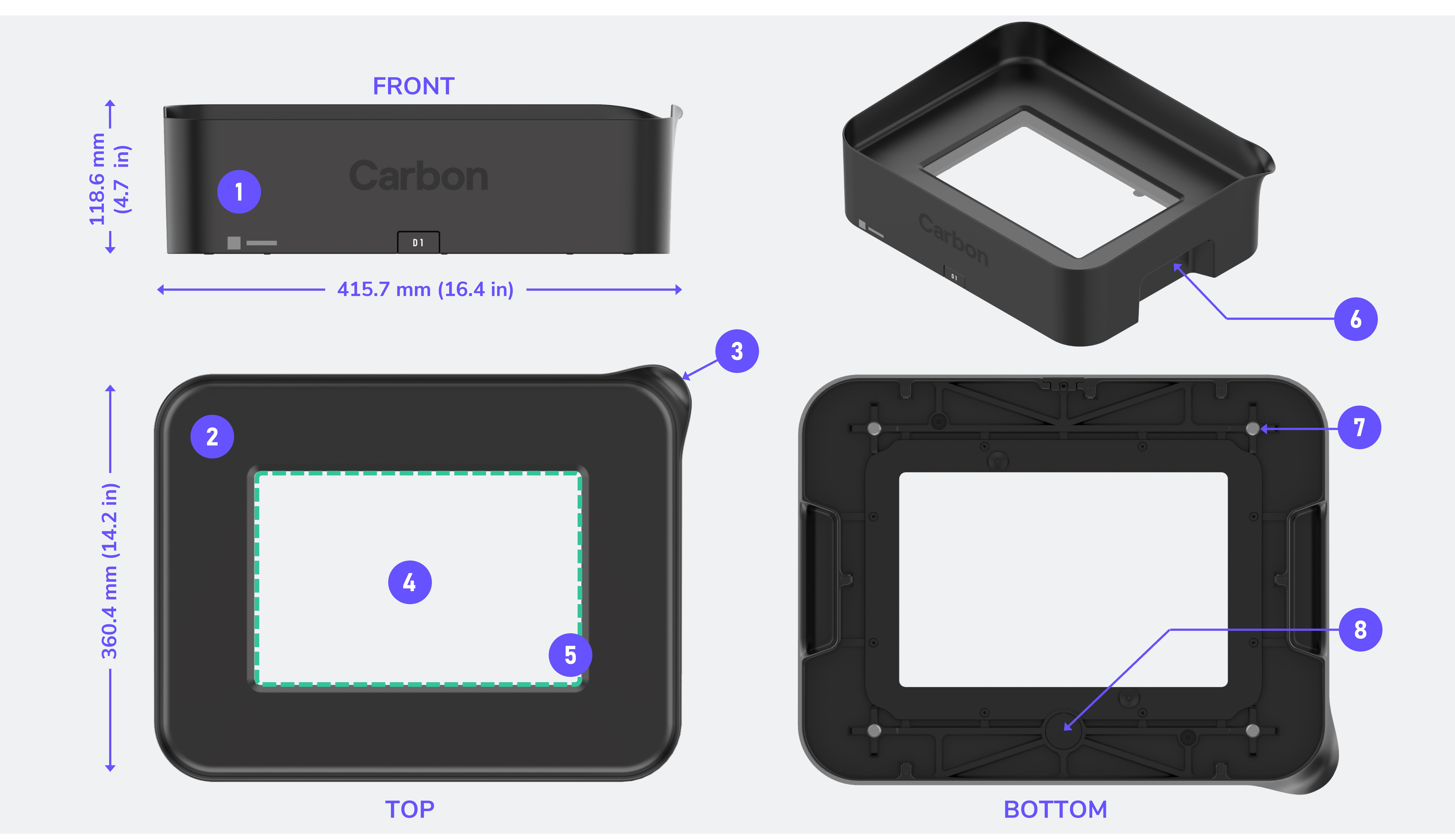
:::::WorkflowBlock
::::WorkflowBlockItem
:::ExpandableHeading{isOpen="true"}
**Serial Number**
Unique identifier used to record specific print history.
:::
::::
::::WorkflowBlockItem
:::ExpandableHeading{isOpen="true"}
**Metal Frame**
For measuring, containing and carrying resin.
:::
::::
::::WorkflowBlockItem
:::ExpandableHeading{isOpen="true"}
**Pour Spout**
Guides resin when emptying cassette. Compatible with [M Series Pour Stand](docId\:f1aYnlyVOGRuEAF5oZQG4).
:::
::::
::::WorkflowBlockItem
:::ExpandableHeading{isOpen="true"}
**Window**
::Image[]{src="https://api.archbee.com/api/optimize/3CesIL2dYMCHPZvRjp8S0/nqPurd1UPSRRHNefkcymj_image.png" size="70" width="1680" height="793" position="flex-start" darkWidth="1680" darkHeight="793" showCaption="false"}
:::
The window in the bottom of the cassette allows light and oxygen to pass through into the resin during printing.
:::hint{type="danger"}
The transparent window is not a simple piece of glass. It is a complex light- and oxygen-permeable membrane that is precious and delicate, like the surface of your eye.
:::
::::
::::WorkflowBlockItem
:::ExpandableHeading{isOpen="true"}
**Seam**
::Image[]{src="https://api.archbee.com/api/optimize/3CesIL2dYMCHPZvRjp8S0/ewNkHy-h6hpDy85jVJQtA_image.png" size="70" width="389" height="136" position="flex-start" darkWidth="389" darkHeight="136" showCaption="false"}
:::
The seam is where the window meets the frame.
:::hint{type="danger"}
Do not use sharp tools to clean residual resin from the seam as this will damage the window.
:::
::::
::::WorkflowBlockItem
:::ExpandableHeading{isOpen="true"}
**Handle**
There are handles on both sides of the cassette frame. The cassette can be gripped using these features.
:::
::::
::::WorkflowBlockItem
:::ExpandableHeading{isOpen="true"}
**Pull Studs**
::Image[]{src="https://api.archbee.com/api/optimize/3CesIL2dYMCHPZvRjp8S0/Zc4fvYk4cwwF7yHtQuSa1_image.png" size="70" width="940" height="501" position="flex-start" darkWidth="940" darkHeight="501" showCaption="false"}
:::
The cassette contains four pull studs, one at each corner. The pull studs hold the cassette in place during printing with pneumatic power.
::::
::::WorkflowBlockItem
:::ExpandableHeading{isOpen="true"}
**NFC Tag**
The NFC tag communicates with the printer.
:::
::::
:::::
### Additional cassette types
- [AO Polishing Cassette](docId\:iFFh3q8-WLk-LIqr87bd5)**: **Developed specifically for oral health applications, this cassette features **light scattering technology** to improve surface quality and reduce the need for manually finishing **splints.**
- The M3 and M3 Max AO Polishing Cassettes are labeled **D4.**
- This cassette can also be used for non-dental applications. Contact [Carbon Support](docId\:K86Zo5vcyN_wqJL3vdGFt) for more information.
### Cassette Lid (M3 only)
The **M3 cassette lid **is a UV-resistant cover that enables resin to be stored in a cassette outside of a printer. The lid keeps light, dust and debris from getting to the resin stored in the cassette, keeping the resin safe for reuse. The lid is especially helpful for **oral health **customers that use one-part resins.

:::hint{type="warning"}
Only one-part resins can be stored in the cassette. Two-part resins cannot be stored due to their limited pot life. Two-part resins that are past their pot life may damage the cassette.
:::
::::VerticalSplit{layout="middle"}
:::VerticalSplitItem

:::
:::VerticalSplitItem
**Stackable**
The lid design is **stackable,** to enable easier storage of multiple cassettes.
:::
::::
::::VerticalSplit{layout="middle"}
:::VerticalSplitItem

:::
:::VerticalSplitItem
**Easy labeling**
The cassette lid features a shiny surface that is designed to be used with a [chalk marker.](https://www.amazon.com/dp/B0BFT9DM7G/ref=pe_386300_442618370_TE_dp_i1) Be sure to write the name of the stored resin on the **shiny surface.** The writing can easily be erased with a towel moistened with IPA or water.
:::
::::
:::hint{type="info"}
The lid must be removed from the cassette before printing.
:::
Additional lids can be ordered from the [Carbon Shop ](https://shop.carbon3d.com/collections/accessories/products/m3-cassette-lid) in quantities of two. Login is required.
# Platform
**The platform** is a flat surface upon which parts are printed. It is held in place by the bridge which moves vertically to build parts. When printing is completed, the platform is removed from the printer so that parts can be processed.
- The platform can be scratched by steel tools such as a platform scraper when removing parts.
- Keep all bladed tools parallel with the platform during part removal to minimize chances of damaging the platform.
- Scratches and dings on the platform’s printing surface will show on parts where they contact the platform.
- Dents, bumps, and scratches on the platform can damage the window of the cassette. It is critical to clean it carefully and always treat the platform gently. Inspect the platform for damage before loading it into the printer.
The standard platform for** M3 and M3 Max Printers** is designed to also work with the **AO Backpack**.
::::VerticalSplit{layout="middle"}
:::VerticalSplitItem
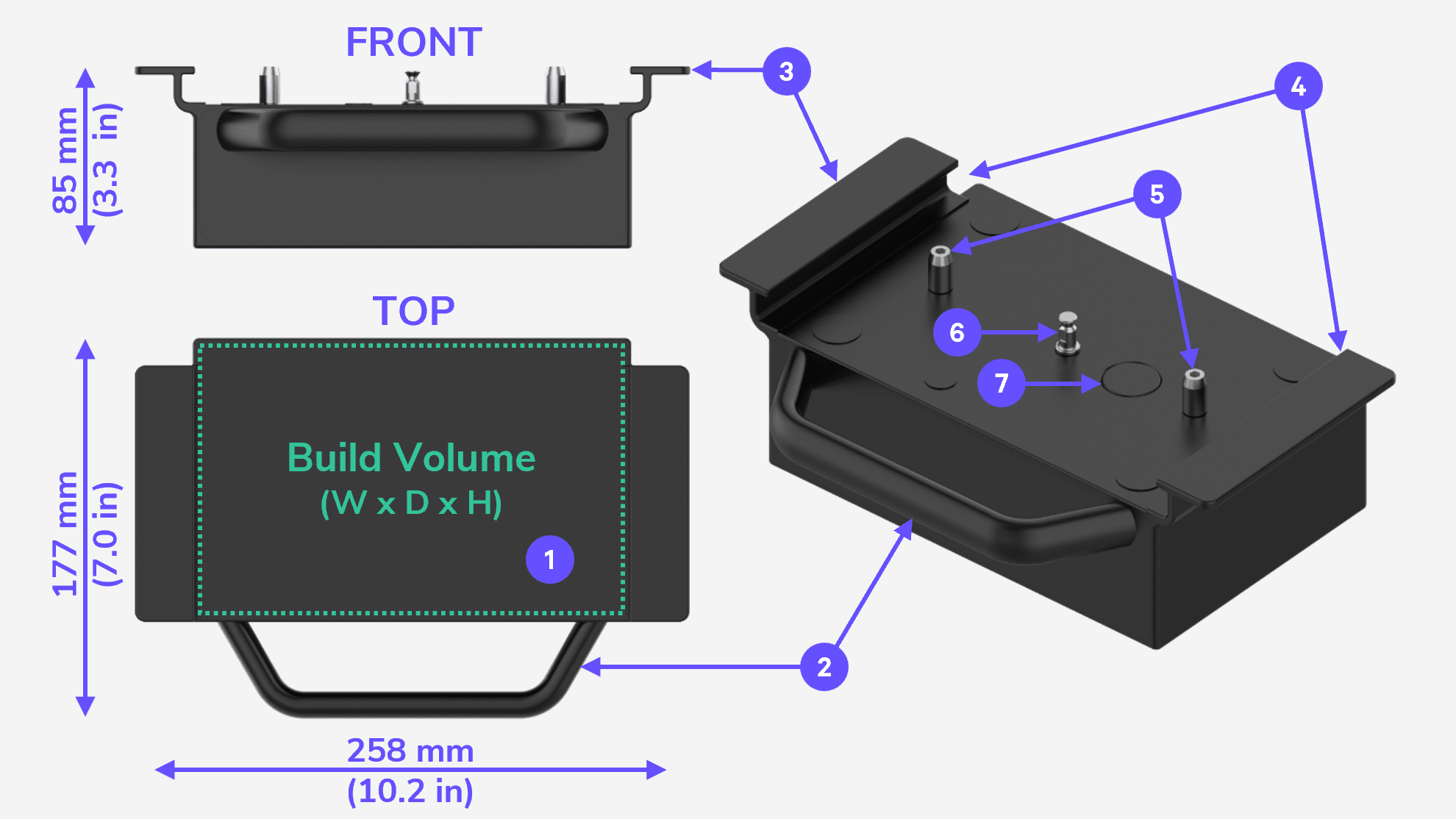
**M3 Platform**
- **Weight: **1.72 kg (3.80 lbs)
- **Dimensions:** 258 x 177 x 85 mm (10.2 x 7.0 x 3.3 in)
:::
:::VerticalSplitItem
**M3 Max Platform**
- **Weight:** 3.83 kg (6.24 lbs)
- **Dimension:** 360.5 x 221.5 x 84.75 mm (14.19 x 8.72 x 3.34 in)
:::
::::
:::::VerticalSplit{layout="middle"}
::::VerticalSplitItem
:::hint{type="warning"}
The **M3 platform** is **not**** compatible** with the **Smart Part Washer.**
:::
::::
::::VerticalSplitItem
:::hint{type="warning"}
The **M3 Max platform** is **not**** compatible** with the **Smart Part Washer.**
:::
::::
:::::
:::hint{type="info"}
If you require use of the part washer with your M3 prints and do not have the legacy platform, please reach out to [Carbon Support](mailto\:support@carbon3d.com).
:::
::::Tabs
:::Tab{title="M3 Platform"}
:::
:::Tab{title="M3 Max Platform"}
:::
::::
::::WorkflowBlock
:::WorkflowBlockItem
**Build Area**
The flat surface of the platform where parts are built.
The Build Volume is the usable print area. Reference [Printer Stats](docId:2nxiKvTUJloOWyMApXUNL) for dimensions.
:::
:::WorkflowBlockItem
**Front Handle**
The front handle is best used to transport an empty platform around the lab.
:::
:::WorkflowBlockItem
**Side Grips**
The side grips are best used for loading/unloading the platform onto the bridge and transporting printed parts around the lab.
:::
:::WorkflowBlockItem
**Guide Rails**
These features on the underside of the platform slide onto the bridge.
:::
:::WorkflowBlockItem
**Locating Pins**
The locating pins ensure that the platform is seated correctly during operation.
:::
:::WorkflowBlockItem
**Pull Stud**
The pull stud holds the platform in place during printing with pneumatic power.
:::
:::WorkflowBlockItem
**NFC Tag**
The NFC tag communicates with the printer.
:::
::::
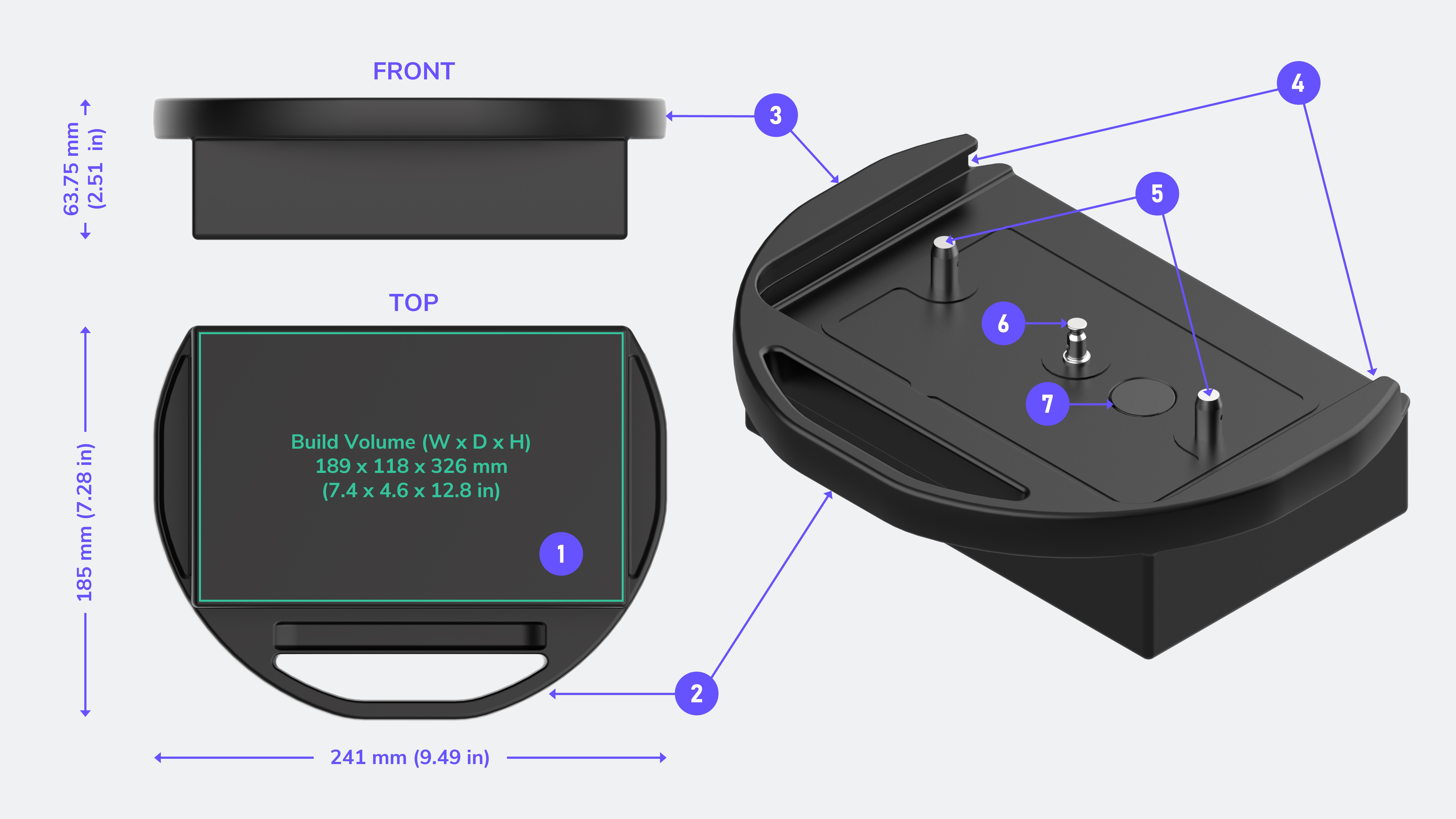
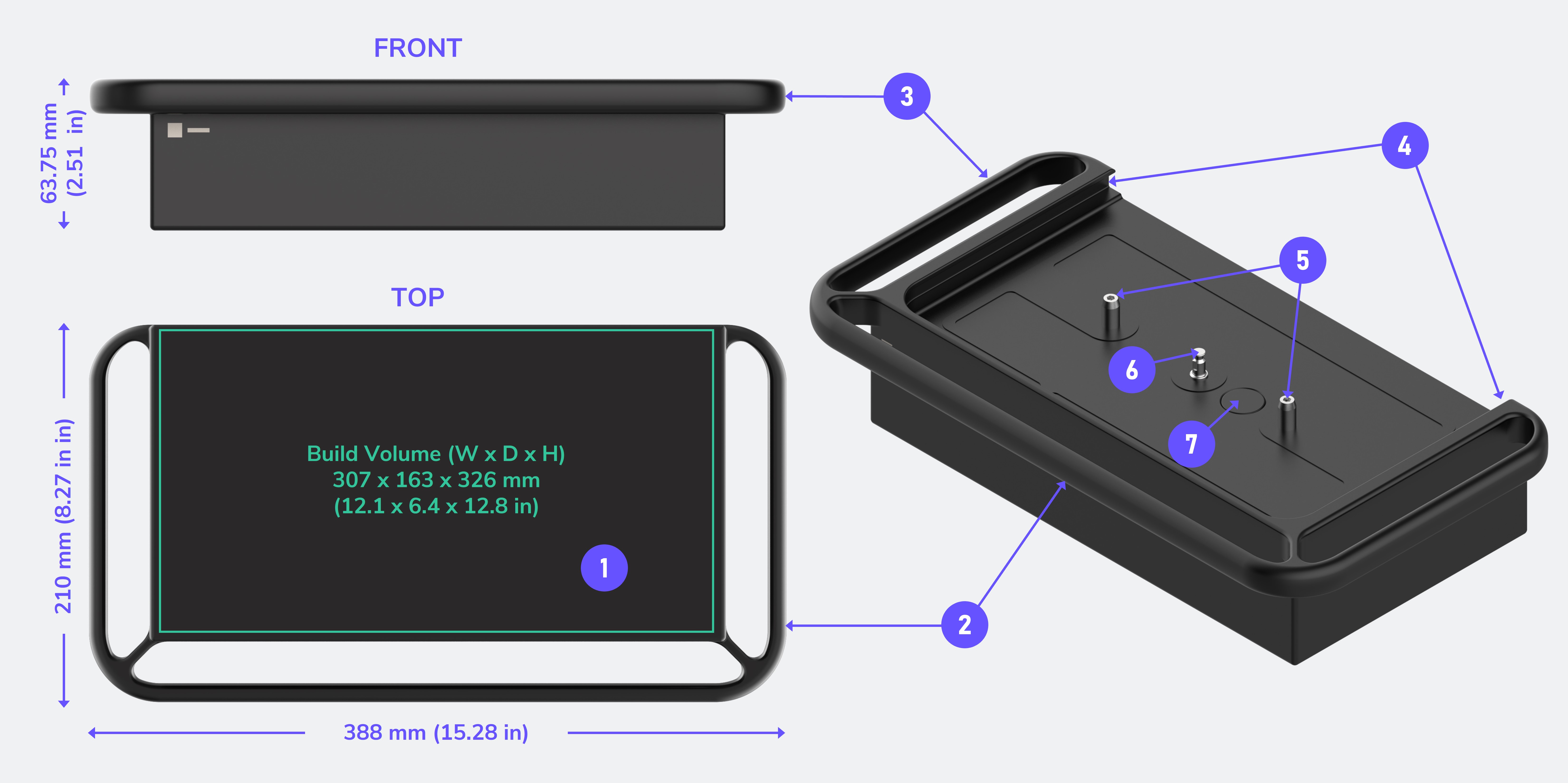
### Legacy Platforms
The platforms originally released with the M3 and M3 Max printers have been replaced by those compatible with the AO Backpack.
:::hint{type="warning"}
The **legacy** M3 and M3 Max platform are **not**** compatible** with the **AO Backpack.**
:::
:::hint{type="info"}
You may still use the legacy platform for all printing when not using the backpack accessory.
:::
::::VerticalSplit{layout="middle"}
:::VerticalSplitItem
**M3 Legacy Platform**
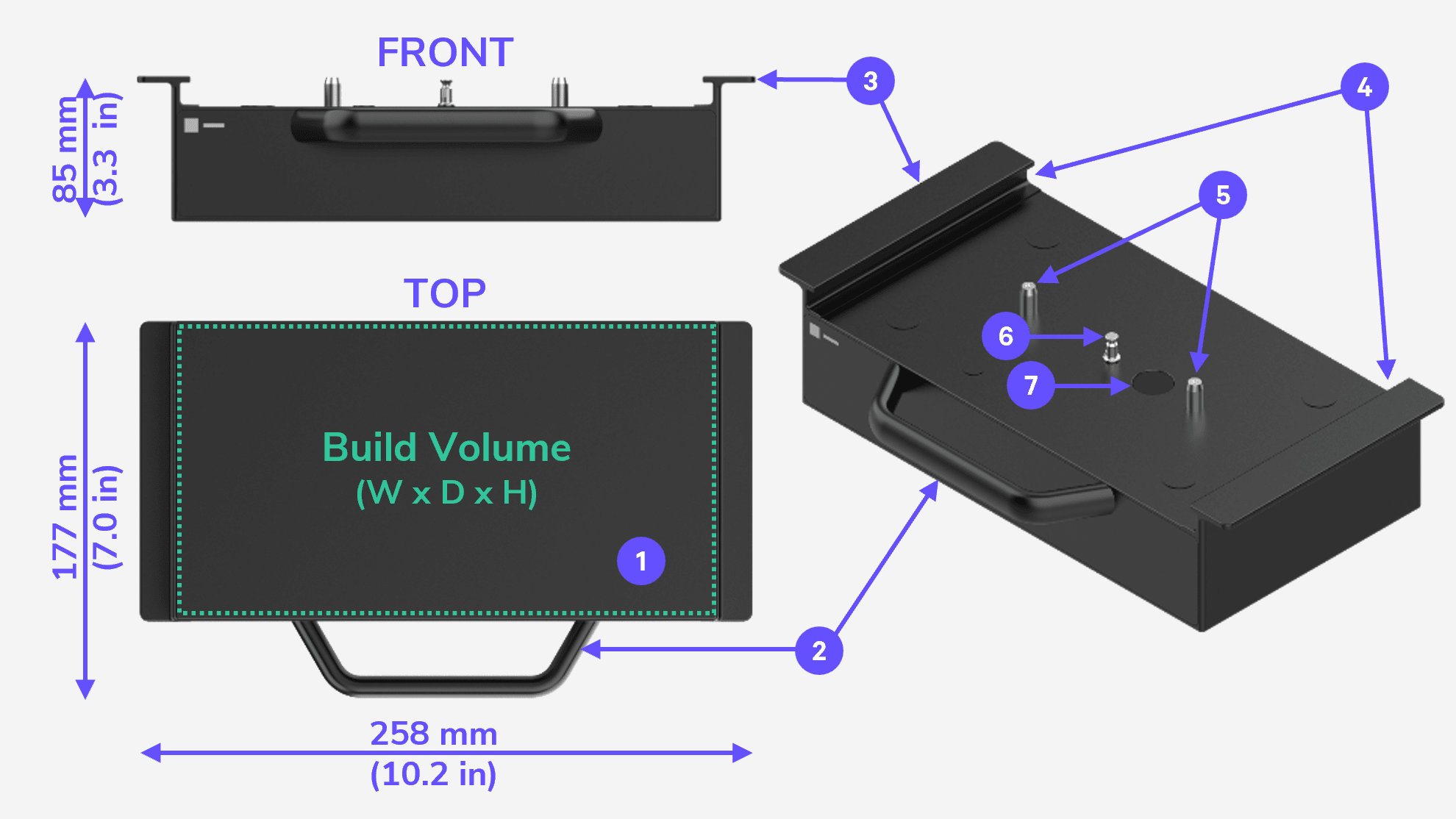
- **Weight: **1.67 kg (3.69 lbs)
- **Dimensions:** 241 x 185 x 63.75 mm (9.49 x 7.28 x 2.51 in)
:::
:::VerticalSplitItem
**M3 Max Legacy Platform**
- **Weight:** 3.4 kg (7.5 lbs)
- **Dimension:** 388 x 210 x 63.75 mm (15.28 x 8.27 x 2.51 in)
:::
::::
:::::VerticalSplit{layout="middle"}
::::VerticalSplitItem
:::hint{type="info"}
The** legacy M3 platform **is** compatible** with the** Smart Part Washer** when combined with an [adapter](docId\:p6zGFlME2odRJVPfw5U5C).
If you require use of the part washer with your M3 prints and do not have the legacy platform, please reach out to [Carbon Support](mailto\:support@carbon3d.com).
:::
::::
::::VerticalSplitItem
:::hint{type="warning"}
The** legacy M3 Max platform** is **not**** compatible** with the** Smart Part Washer.**
:::
::::
:::::
::::Tabs
:::Tab{title="M3 Legacy Platform"}
:::
:::Tab{title="M3 Max Legacy Platform"}
:::
::::
1. Build Area
2. Front Handle
3. Side Grips
4. Guide Rails
5. Locating Pins
6. Pull Stud
7. NFC Tag
# Bridge
The **bridge ** is supported from the sides of the build area over the cassette. It holds the platform and moves it vertically during printing.
::::VerticalSplit{layout="middle"}
:::VerticalSplitItem

:::
:::VerticalSplitItem
Operators will interface with three components of the bridge.
**For Printing**
- **Guide Rails** are where the platform slides onto the bridge.
**For Inspection**
- **Print Head Clamp Pot**** **ensures the proper seating of the platform.
- **Platform NFC Antenna**** **reads the identity of the platform.
:::
::::
# Projection Volume
The **projection volume ** is the opening in the deck below an installed cassette.
::::VerticalSplit{layout="middle"}
:::VerticalSplitItem
Operators will interface with three components in the projection volume.
**For Inspection and Cleaning**
- **Deck Clamp Pots**** **ensures the proper seating of the cassette.
- **Heaters** span the projection volume opening. It is used to warm certain resins during printing to decrease viscosity. Use caution with the heating element as it may be hot.
- **Light Engine Spill Window** is located below the deck surface, at the bottom of the projection volume. It protects the light engine's sensitive electronics from spills and debris.
:::
:::VerticalSplitItem

:::
::::
# Touchscreen
The display shows the printer’s status and has touchscreen functionality for performing basic functions.
::::VerticalSplit{layout="middle"}
:::VerticalSplitItem

:::
:::VerticalSplitItem
The **Home** screen shows the current status of the printer.
**When idle, **the home screen prompts you with the next expected action. **Ready to Print **screen shown here, with information about the next print in the queue and the **Start** button in the upper right.
:::
::::
**When printing, **the display shows the UV image projected into the resin as well as the remaining printing time and other print stats (shown below).
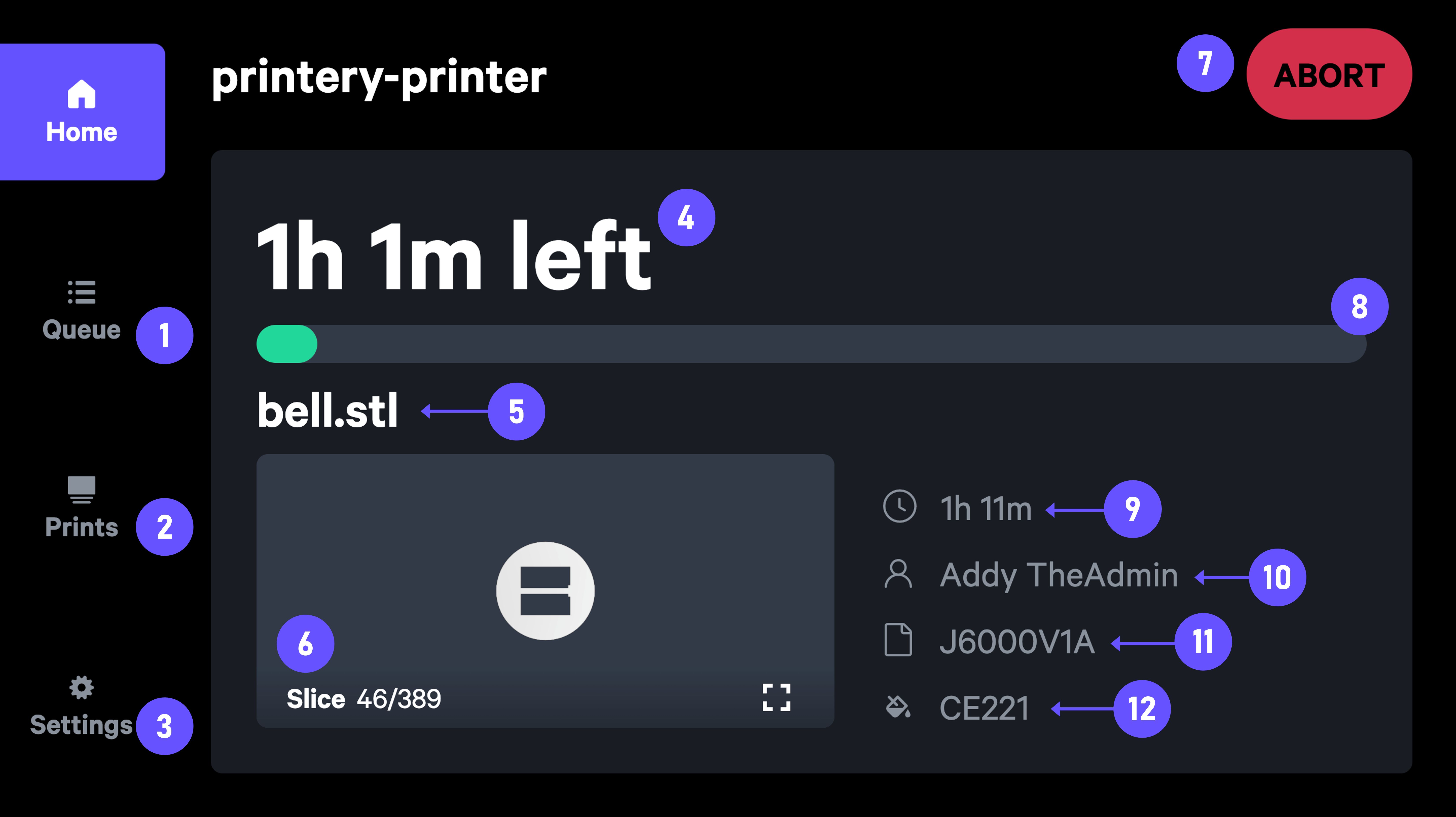
:::::WorkflowBlock
::::WorkflowBlockItem
:::ExpandableHeading{isOpen="true"}
**Queue**
The current print queue can be accessed via this side menu.
:::
::::
::::WorkflowBlockItem
:::ExpandableHeading{isOpen="true"}
**Prints**
Previously printed projects can be accessed via this side menu.
:::
::::
::::WorkflowBlockItem
:::ExpandableHeading{isOpen="true"}
**Settings**
Printer settings can be accessed via this side menu.
:::
::::
::::WorkflowBlockItem
:::ExpandableHeading{isOpen="true"}
**Time Remaining**
The amount of time left for the print.
This number may adjust in real time as the M3 printer's force feedback feature speeds up or slows down the print according to real time forces.
:::
::::
::::WorkflowBlockItem
:::ExpandableHeading{isOpen="true"}
**Project Name**
The name of the project currently printing.
:::
::::
::::WorkflowBlockItem
:::ExpandableHeading{isOpen="true"}
**Slices Movie**
The current slice printing plays here as a video throughout the print.
:::
::::
::::WorkflowBlockItem
:::ExpandableHeading{isOpen="true"}
**Abort**
Aborts a print. A non-emergency option for quickly stopping a print.
:::
::::
::::WorkflowBlockItem
:::ExpandableHeading{isOpen="true"}
**Progress Bar**
The print's progress will update here in real time.
:::
::::
::::WorkflowBlockItem
:::ExpandableHeading{isOpen="true"}
**Total Print Time**
The total estimated print time.
This number may adjust in real time as the M3 printer's force feedback feature speeds up or slows down the print according to real time forces.
:::
::::
::::WorkflowBlockItem
:::ExpandableHeading{isOpen="true"}
**Operator name**
The name of the operator who sent the project to the print queue.
:::
::::
::::WorkflowBlockItem
:::ExpandableHeading{isOpen="true"}
**Print Number**
The print number for tracking.
If the print number is used in a part label, this number will be used.
:::
::::
::::WorkflowBlockItem
:::ExpandableHeading{isOpen="true"}
**Resin**
The material currently printing.
:::
::::
:::::
# Light Bar
::::VerticalSplit{layout="middle"}
:::VerticalSplitItem

:::
:::VerticalSplitItem
**Printer Status**
The light bar at the top of the printer provides a quick indicator of the printer's status.
:::
::::
| **Light Bar Pattern** | **Idle** | **Needs Hardware** | **Printing** | **Warning** | **Needs Attention** | **Service** |
| --------------------- | -------------------------------------------------------------------------------------------------------------------------------------- | -------------------------------------------------------------------------------------------------------------------------------------- | -------------------------------------------------------------------------------------------------------------------------------------- | -------------------------------------------------------------------------------------------------------------------------------------- | -------------------------------------------------------------------------------------------------------------------------------------- | --------------------------- |
| **Color** | :inlineImage[]{src="https://api.archbee.com/api/optimize/uXbZOKjJTGpPhjapQ8fvM-nH7zk_YU0PzfNk9hIDxyi-20250204-215050.png" alt caption} | :inlineImage[]{src="https://api.archbee.com/api/optimize/uXbZOKjJTGpPhjapQ8fvM-_NMkhFyGN8x7wpu_REOfh-20250204-215457.png" alt caption} | :inlineImage[]{src="https://api.archbee.com/api/optimize/uXbZOKjJTGpPhjapQ8fvM-ATd6A9y_o0NvRv0XjH2pD-20250204-215457.png" alt caption} | :inlineImage[]{src="https://api.archbee.com/api/optimize/uXbZOKjJTGpPhjapQ8fvM-qZ3j2QBIaCyhsTGwuCAnK-20250204-215457.png" alt caption} | :inlineImage[]{src="https://api.archbee.com/api/optimize/uXbZOKjJTGpPhjapQ8fvM-chx5pcGpT_7sA-37GQtm2-20250204-215457.png" alt caption} | |
| **Solid** | - | Needs Platform | Ready to Print | Power Restore Needed | E-Stop Engaged | Service Door Open |
| | - | Needs Cassette | Printing | - | Printer Halted | - |
| **Chasing** | Default (bootup, etc) | - | Preparing to Print | - | - | Software Update in Progress |
| | Setup Mode in Process | - | - | - | - | - |
| **Pulsing** | Needs Part Removal | - | Print Finishing | Factory Mode | Print Error | Service Mode |
| | - | - | User Aborted Print Finishing | - | - | - |
# Sounds
| **Sound** | **Scenarios** | **Initiated By** |
| ------------ | ----------------------------------------------------------------------- | ---------------- |
| Tap | User touches touchscreen | User |
| Confirmation | Print started | User |
| Completion | Print finished | Printer |
| Alert | 1. Print Aborts
2. Error alert sets | Printer |
| Halted | 1. E-stop pressed
2. Printer enters halted state (unable to print) | User or printer |
# Force Feedback
Force feedback means the printer adapts in real-time to respond to suction forces and resin flow.
This leads to **more first print successes** and **fewer print defects**.
As the printer measures forces, the printer reacts by adjusting how far the platform moves up between slices, how fast the platform moves up and down, and how long to wait before exposing each slice to UV light.
The adjustments are also influenced by the geometry of the parts, the resin and its viscosity, and how the ambient temperature of the room all affect printing.
**What happens during one slice of printing**
- The platform moves up, pulling resin into the dead zone
- When forces stabilize, the platform moves down to the curing position
- Then the platform remains stationary while the forces and resin flow relax
- When stabilized, the UV Curing occurs for the slice

:::hint{type="info"}
Force feedback means that** print time estimates are approximate.**
Estimates lean conservative, meaning that actual print time will often result in faster prints than the estimate. Occasionally, the print time may adjust slightly longer.
Either way, print time adjusts in real-time on the printer status page or touchscreen, so you can check on the print as it progresses.
:::