---
title: Preparation
slug: hardware/backpack-preparation
docTags:
createdAt: 2024-10-28T23:38:10.762Z
---
# Articulator Base Design
Certain articulator base designs on dental models may need to be adjusted for best performance with the AO Backpack.
## Design Guidelines
::::VerticalSplit{layout="middle"}
:::VerticalSplitItem
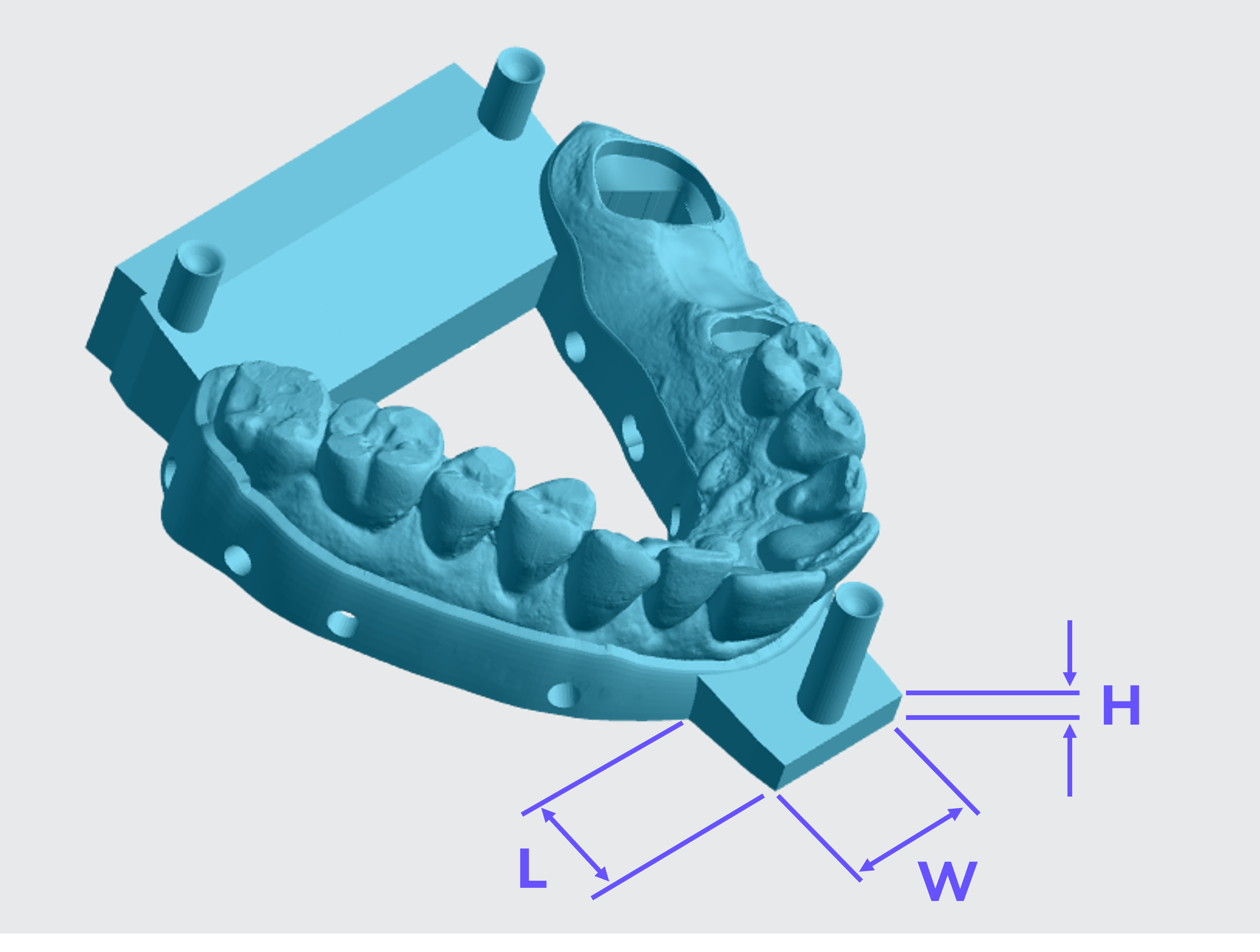
Measure Length (L) x Width (W) x Height (H) of the protruding features.
- **LWH - 3.5 mm minimum each**
- **L to W ratio - 1.2 maximum**
All articulator base models with features that protrude from the arch should follow these guidelines.
:::
:::VerticalSplitItem
:::
::::
::::VerticalSplit{layout="middle"}
:::VerticalSplitItem
**Good Example**
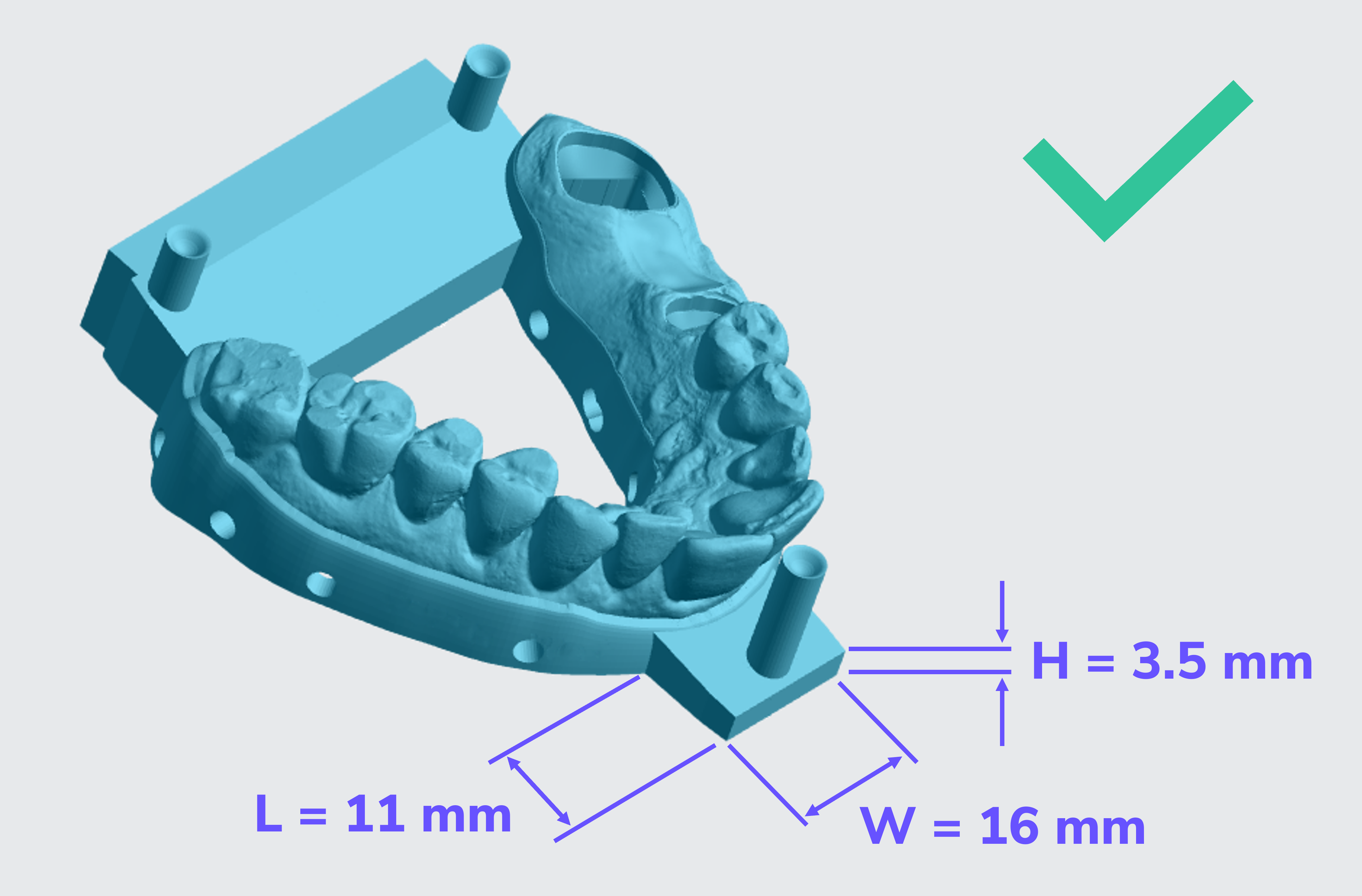
- Smallest dimension (LWH) = **3.5 mm **✔
- Length to width ratio = **0.7** (less than 1.2) ✔
:::
:::VerticalSplitItem
**Bad Example**
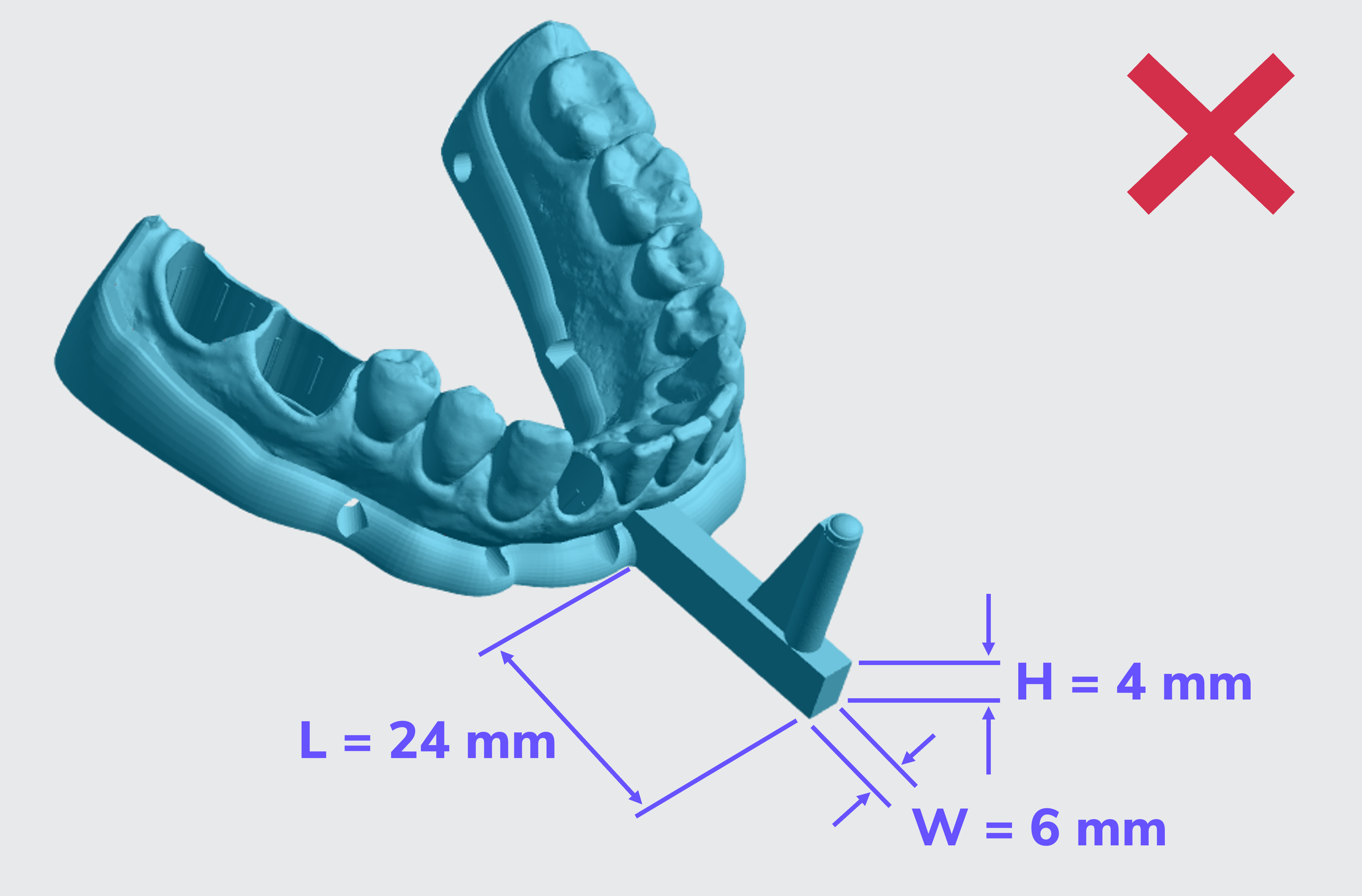
- Smallest dimension (LWH) = **4 mm **✔
- Length to width ratio = **4 **(greater than 1.2)❌
:::
::::
:::hint{type="warning"}
**Models that do not follow these guidelines may end up with articulator pins bent or broken.**
:::
# Automatic Mode Print Preparation
:::hint{type="info"}
**"Automatic Mode" is often shortened to "Auto Mode" on the touchscreen.**
:::
:::::::WorkflowBlock
::::::WorkflowBlockItem
:::::ExpandableHeading{isOpen="true"}
## Supporting Models for Automatic Mode
**Full Palate Models and Articulator Cups**
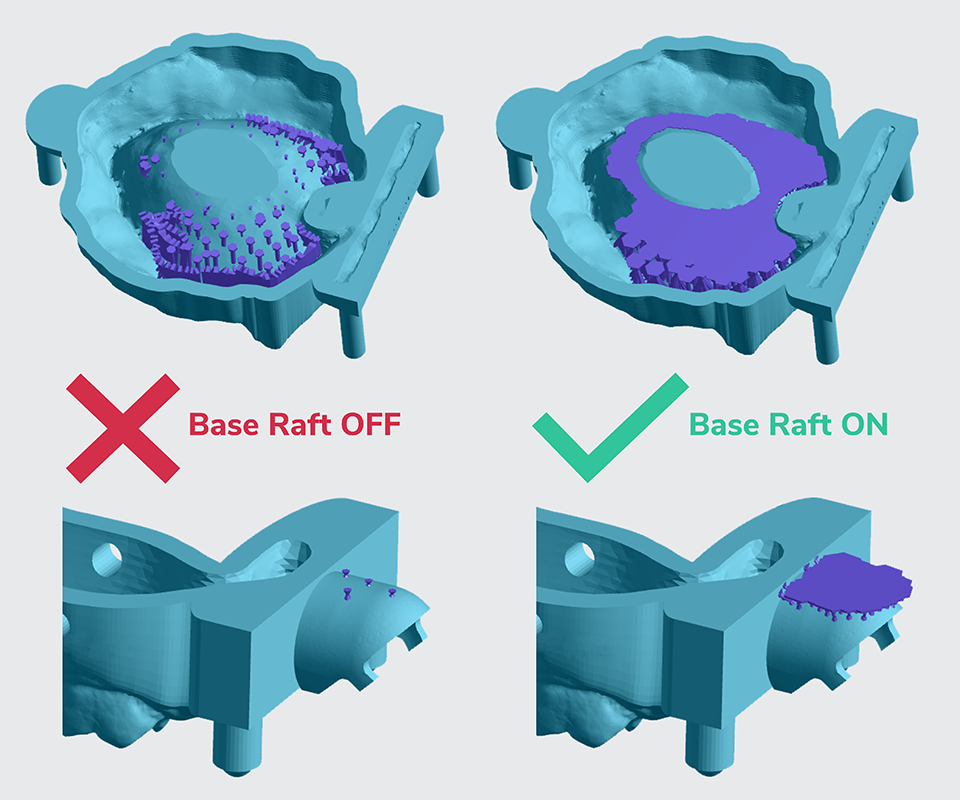
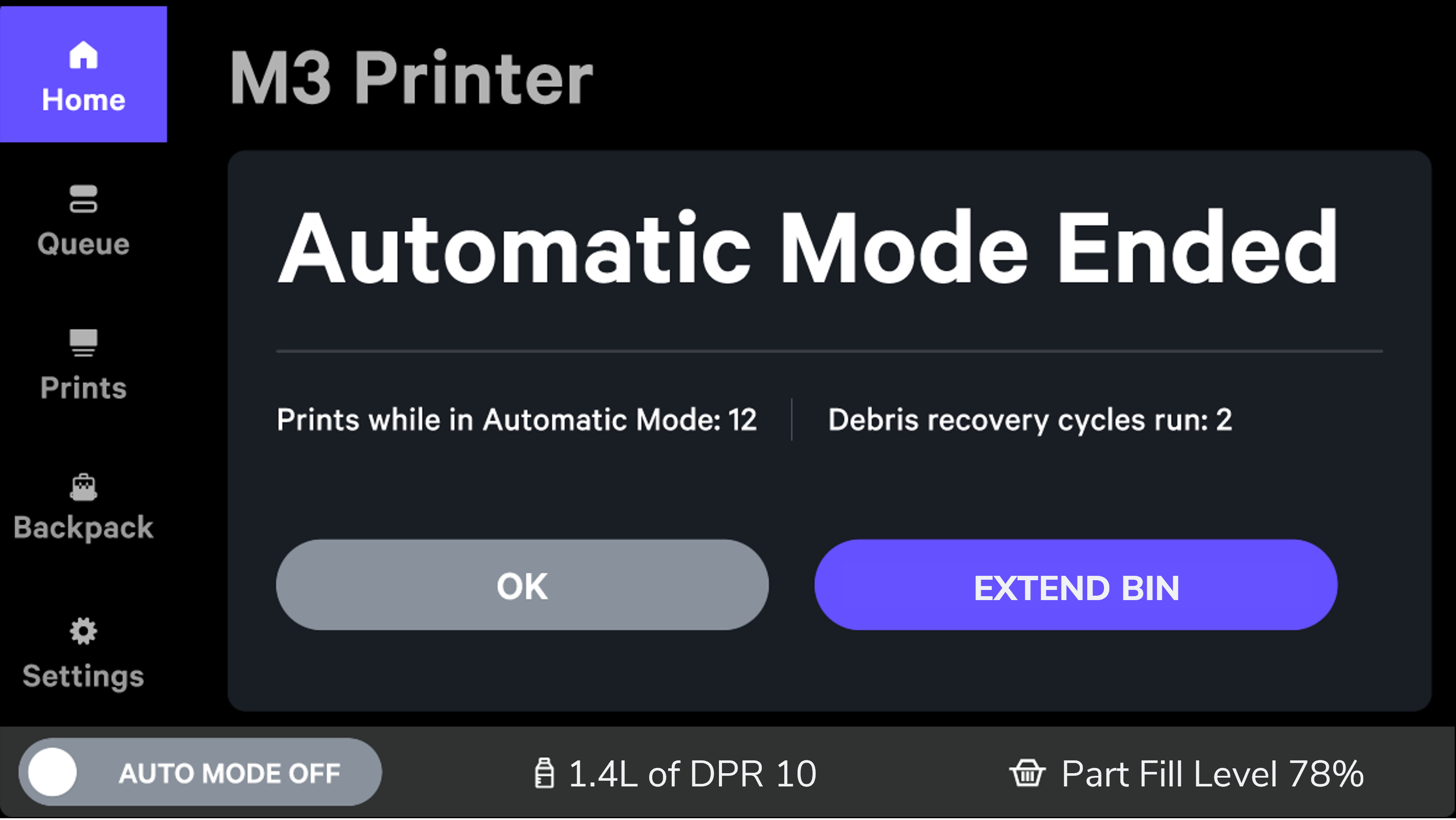
Some models, such as hollow full-palate models, or features like articulator cups require **patch supports.** The patch feature quickly populates an overhang area with multiple bar supports. When printing in Automatic Mode, one or more of the individual supports can potentially fall into the cassette during removal from the platform, which may cause Automatic Mode to exit/end prematurely, or may cause your printer to spend an excessive amount of time trying to remove debris automatically.
To mitigate this, there is a Supports feature called a **Base** **Raft**. Base Rafts hold the many small bar supports generated by the patch features together in a single unit, making them less likely to find their way into the cassette, or elsewhere in the printer.
:::hint{type="warning"}
**All patch supports that will be printed in Automatic Mode require the use of base rafts**.
:::
::::VerticalSplit{layout="middle"}
:::VerticalSplitItem
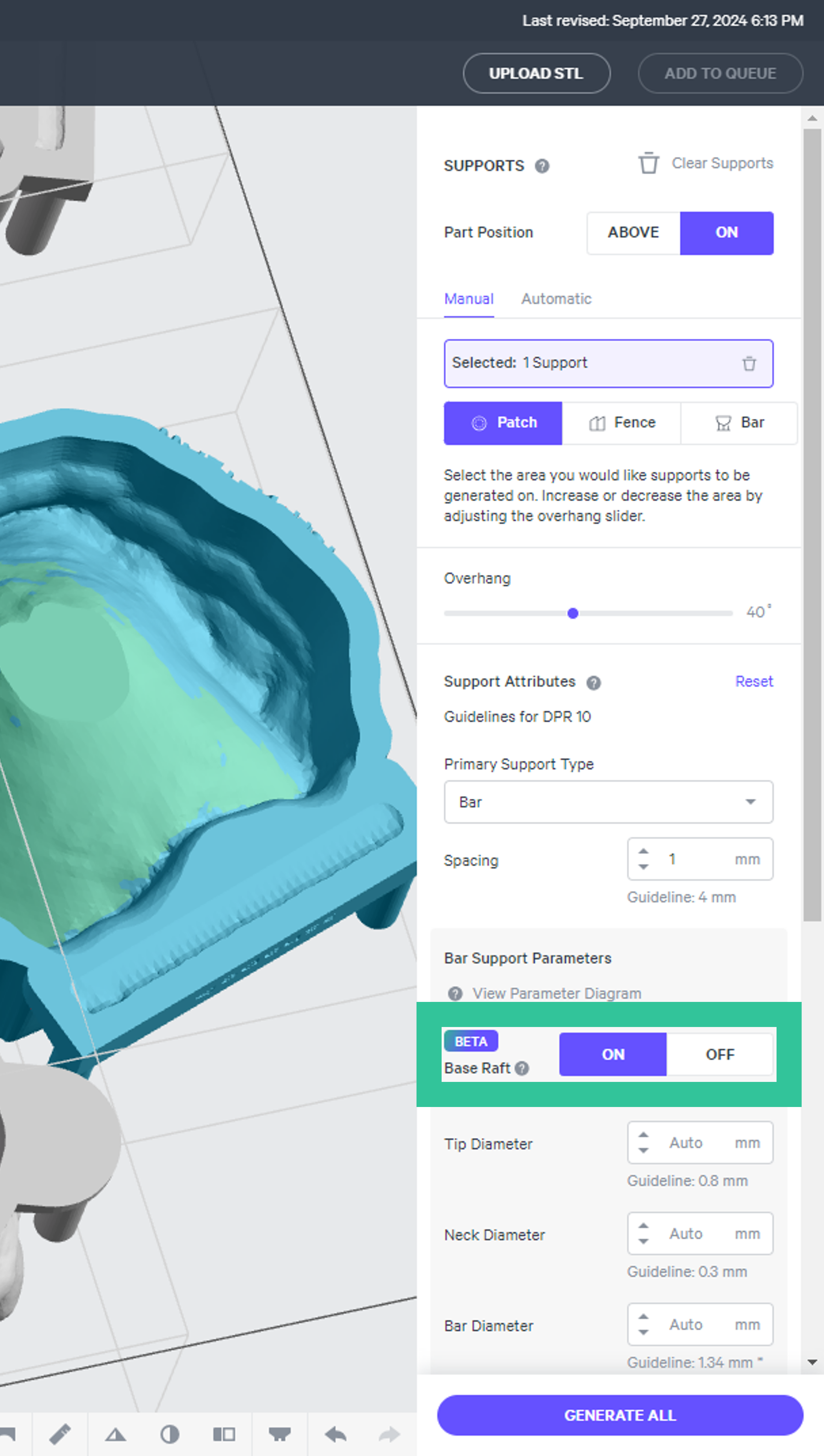
**Generate Base Raft for Patch Supports**
- Go to the [Supports](docId\:VUbpoAitbLM11aM9-qJ1p) tab in the Printer UI.
- Select a **patch** for the area to be supported, following overhang guidelines for the model type.
- Under **Bar Support Parameters, **toggle **Base Raft to ON.**
- Leave the parameter settings per defaults, which have been optimized for use with the AO Backpack and DPR 10 dental models/dies.
- Click **Generate All. **Dismiss any notifications of supports that could not be generated
:::
:::VerticalSplitItem
:::
::::
### Check Supports
::::VerticalSplit{layout="middle"}
:::VerticalSplitItem
The left shows examples of **bad** supports for Auto Mode generated with **Base Raft OFF.** Small, disconnected bar supports and fence supports will leave debris in the cassette and cause either delays for debris removal or Auto Mode to turn off.
:::
:::VerticalSplitItem
The right shows examples of **good** supports for Auto Mode generated with **Base Raft ON**. Supports are spaced closer together with large bases that connect most, or all, supports together.
:::
::::
### Dies
Some models such as angled or small-base dies may require the use of a small number of manually placed **bar supports.** Support these models as usual according to the standard recommendations in [Carbon DPR 10](docId\:Y2PWbCu6_Ifchm2sdgN0R).
:::hint{type="info"}
**Base rafts are not available or required for manually placed bar supports.**
:::
### Fence Supports
:::hint{type="danger"}
**NEVER use fence supports when printing with the AO Backpack.**
:::
:::::
::::::
::::::WorkflowBlockItem
:::::ExpandableHeading{isOpen="true"}
## Add Compatible Projects to the Printer Queue
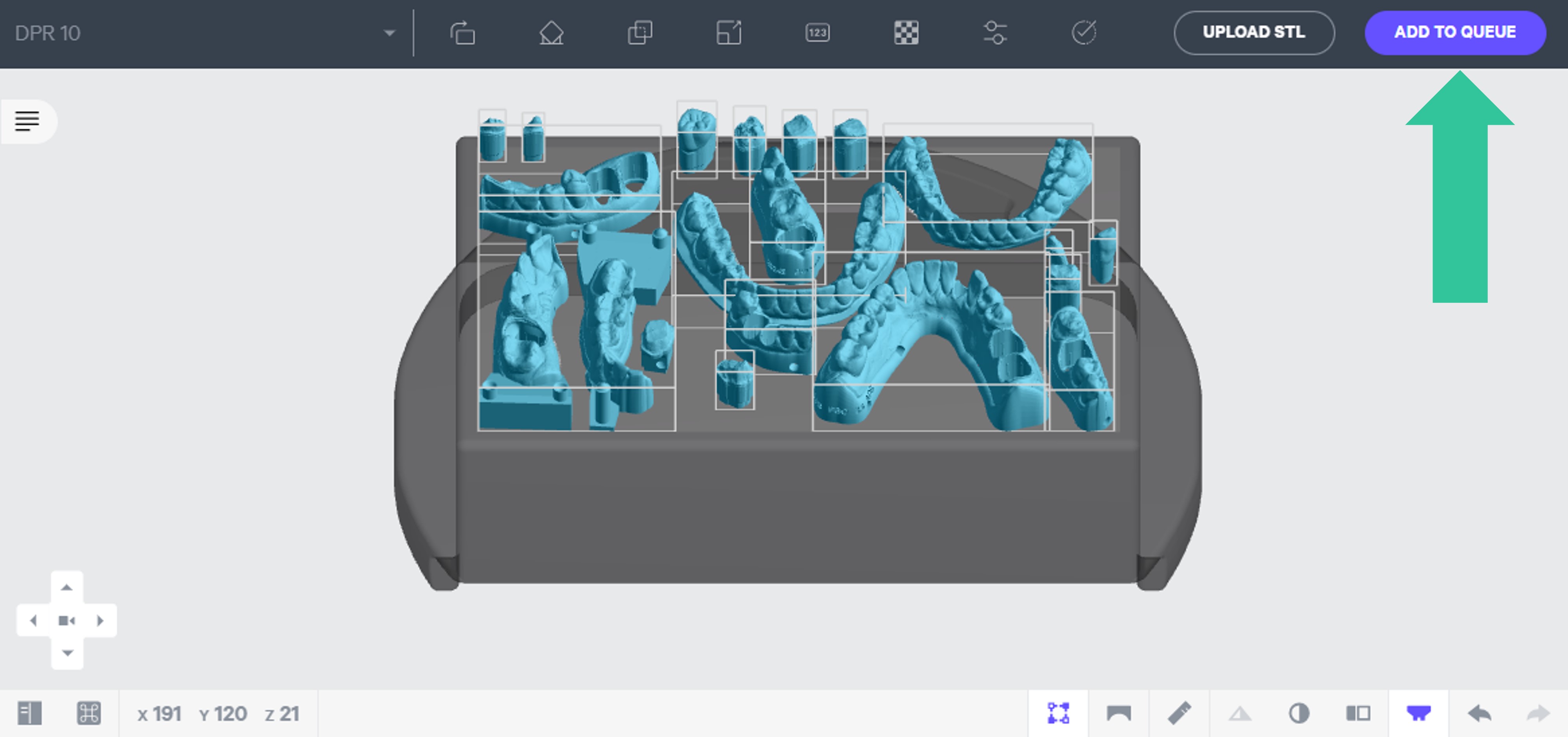
In the printer UI, prepare your projects and add them to the printer queue.
**Incompatible Projects**
::::VerticalSplit{layout="middle"}
:::VerticalSplitItem
Some projects are not compatible with Automatic Mode:
- Projects with at least one part that is taller than **40 mm in the Z dimension.**
- Projects with any resin **other than DPR 10** selected.
- Projects that use **release film.**
These projects will be automatically detected by the system and skipped. Once the AO Backpack has finished cycling through all valid projects, it will wait for additional valid projects to be added to the queue.
:::
:::VerticalSplitItem
:::
::::
:::::
::::::
:::::::
# AO Backpack Preparation
The following steps will show how to prepare the AO Backpack and M3 printer for automatic operation.
Cassette and platform specific tasks (inspection, installation and cleaning) below are unchanged from standard procedure. These are summarized here for brevity.
For more information about printer preparation, go to [Per Print Process under M3/M3 Max Printer > Operation.](docId\:i8T8SZ08GsA_TtGAUrecr)
:::hint{type="info"}
**Starting Automatic Mode (step 7 below) can also be done after step 2. This will display a checklist that will walk the user through steps 3-6 of AO Backpack preparation.**
:::
:::::::WorkflowBlock
::::::WorkflowBlockItem
:::::ExpandableHeading{isOpen="true"}
## Check the Resin Tank Fill Level
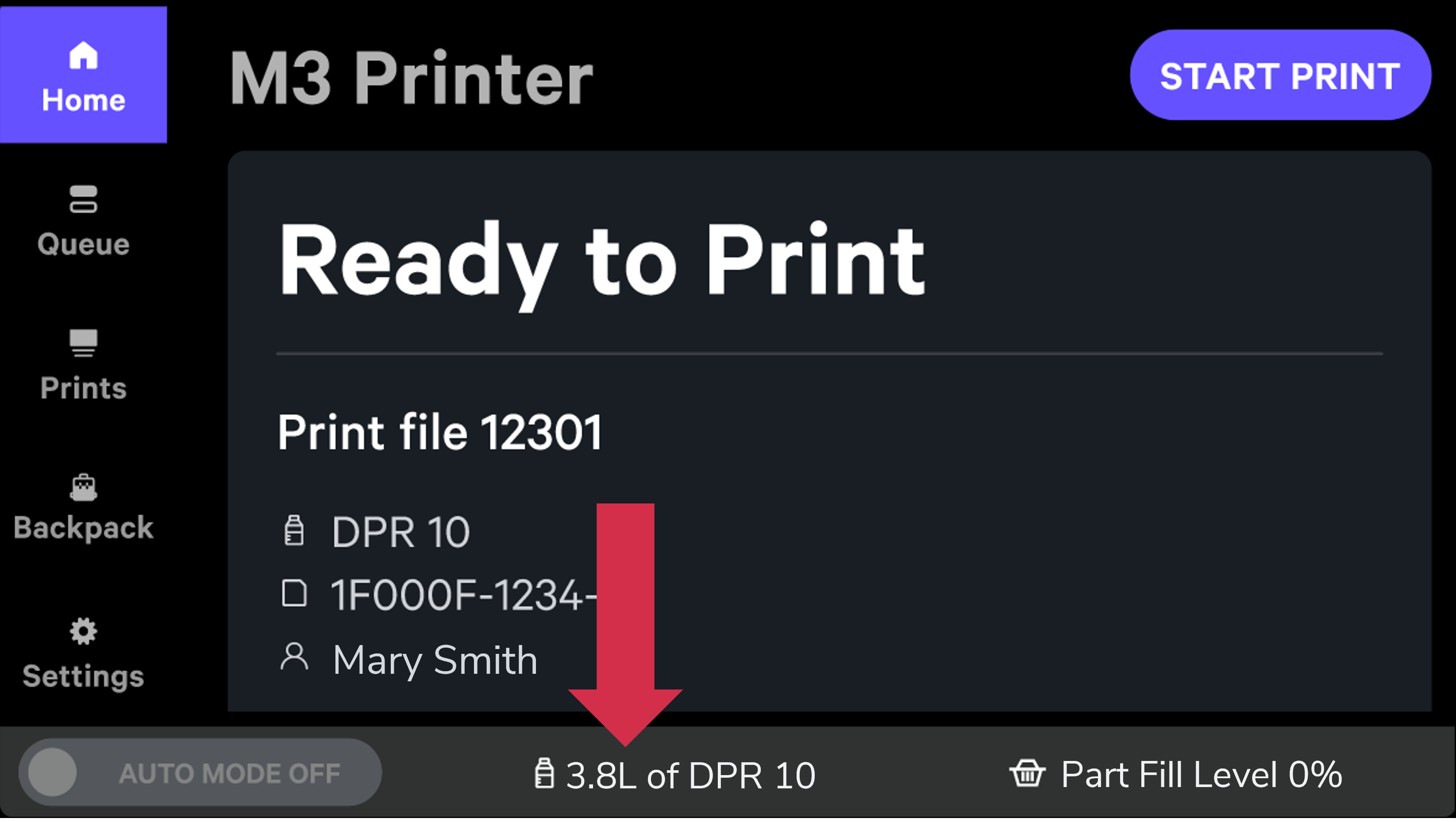
At the bottom of the touchscreen, check the amount of resin in the tank.
For a full **12 hours of continuous printing**. Carbon recommends **4.8 L of DPR 10** in the resin tank.
::::VerticalSplit{layout="middle"}
:::VerticalSplitItem
In this example, there is **3.8 L** of resin in the tank.
The rule of thumb is 400 mL (0.4 L) of resin is needed for an average build with a 1 hour print time. Over 12 hours, 3.8 L is not enough resin.
If the tank does not have enough resin, **replace it with a full one.**
:::
:::VerticalSplitItem
:::
::::
:::hint{type="info"}
**For detailed instructions about handling the resin tank switching and refilling activities, go to **[Resin Tank Swap.](docId\:s3t7TIa7TXtmtbEoGr8TF)
:::
:::hint{type="warning"}
**If no action is taken to increase the amount of available resin and Automatic Mode is turned on, the system will print projects until there is not enough resin to complete the next job in the queue. At this point, the system will exit Automatic mode.**
:::
:::::
::::::
::::::WorkflowBlockItem
:::::ExpandableHeading{isOpen="true"}
## Inspect and Install the Cassette
::::VerticalSplit{layout="middle"}
:::VerticalSplitItem
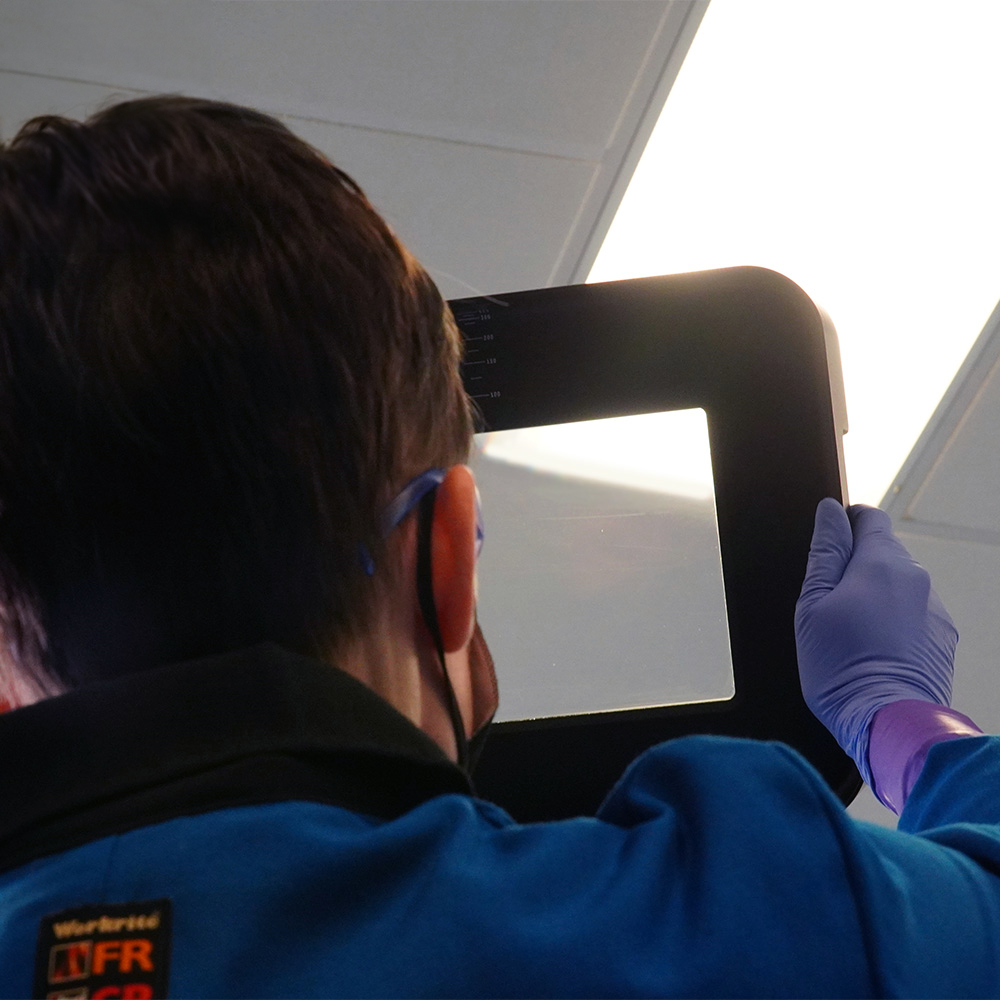
For more information, go to [Per Print Process under M3/M3 Max Printer > Operation.](docId\:i8T8SZ08GsA_TtGAUrecr)
:::
:::VerticalSplitItem
:::
::::
:::::
::::::
::::WorkflowBlockItem
:::ExpandableHeading{isOpen="true"}
## Position the Resin Spout
Flip the resin spout so that it points into the cassette.
::Image[]{src="https://res.cloudinary.com/carbon3d/image/upload/Education/Automatic-Operation-Suite/AO%20Backpack/Preparation/resin-spout-down01-800x450.gif" size="70" width="800" height="450" position="flex-start" showCaption="false"}
:::
::::
:::::WorkflowBlockItem
::::ExpandableHeading{isOpen="true"}
## Inspect and Install the AO Platform
Once the platform as been inspected, slide it onto the guide rails on the printer and push until the platform stops.
For more information, go to [Per Print Process under M3/M3 Max Printer > Operation.](docId\:i8T8SZ08GsA_TtGAUrecr)
::Image[]{src="https://res.cloudinary.com/carbon3d/image/upload/Education/Automatic-Operation-Suite/AO%20Backpack/Preparation/install-platform-gif-01-800x450.gif" size="70" width="800" height="450" position="flex-start" showCaption="false"}
:::hint{type="info"}
**Install the platform after you have installed the cassette to keep dust and debris from falling onto the spill window above the light engine.**
:::
:::hint{type="danger"}
**The standard M3 platform is not compatible with the AO Backpack.**
:::
::::
:::::
::::::WorkflowBlockItem
:::::ExpandableHeading{isOpen="true"}
## Install the Bin and Parts Basket
Place the empty basket in the bin.
::Image[]{src="https://res.cloudinary.com/carbon3d/image/upload/Education/Automatic-Operation-Suite/AO%20Backpack/Preparation/Basket-in-bin-01.png" size="70" width="797" height="449" position="flex-start" showCaption="false"}
- Press **Backpack** on the touchscreen.
- Press **Extend Bin** **and Open Door **to move the shuttle into the build area of the printer.
::Image[]{src="https://res.cloudinary.com/carbon3d/image/upload/Education/Automatic-Operation-Suite/AO%20Backpack/Preparation/Touchscreen-present-bin02.png" size="70" width="3294" height="1860" position="flex-start" showCaption="false"}
### M3 Max with Interconnected Grid
:::hint{type="warning"}
If you are printing parts with an **interconnected grid on an M3 Max, **follow the additional steps below.
:::
:::hint{type="info"}
See [Automate: Automatic Print Preparation (APP)](docId\:RdxnuAgHPa5GQfBl5QYSb) (login required) for more information about the interconnected grid.
:::
::::VerticalSplit{layout="middle"}
:::VerticalSplitItem
When printing parts with an interconnected grid on an M3 Max, the **M3 Max Grid Guides** must be used.
:::
:::VerticalSplitItem

:::
::::
Download the .carbon file below which contains **four guides.** The project will print in about **30 minutes **and use approximately **30 mL of DPR 10.**
::File{src="https://api.archbee.com/api/presign/uXbZOKjJTGpPhjapQ8fvM-X4Y7mYZyKxRqR08E1mGOL-20250716-204754.carbon" label="M3 Max Grid Guides.carbon"}
Clip two guides onto the **rear wall of the parts basket outside of the vertical rods.**

These guides prevent damage to prints and ensure that printed interconnected grids lay flat and stack neatly in the parts basket.
Failure to use the the grid guides, may result in the following:
- Printed interconnected grids may not lie flat and the parts basket will **fill up more quickly,** limiting the amount of projects that can print overnight.
- The bottom (first) print may be damaged by subsequent prints. Articulator pins are especially susceptible to damage or bending.
The grid guides are not required for prints without the interconnected grid or for any prints on M3 printers. The guides can remain installed as they have no negative affect on these other situations.
:::::
::::::
::::::WorkflowBlockItem
:::::ExpandableHeading{isOpen="true"}
## Close the Printer Door
::::VerticalSplit{layout="left"}
:::VerticalSplitItem
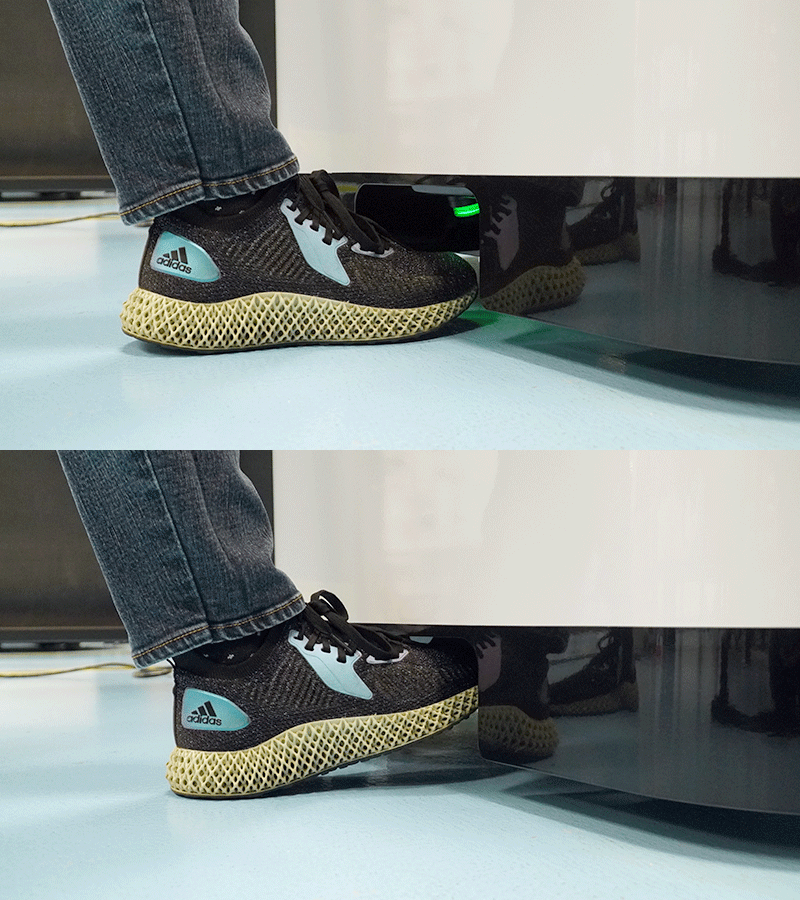
Use the **foot switch** to close the printer door.
:::
:::VerticalSplitItem
:::
::::
:::::
::::::
:::::WorkflowBlockItem
::::ExpandableHeading{isOpen="true"}
## Start Automatic Mode
On the touchscreen, press the **Auto Mode toggle button.**
:::hint{type="warning"}
**Do not press Start Print as this will start a single print only and not begin Automatic Mode.**
:::
::Image[]{src="https://res.cloudinary.com/carbon3d/image/upload/Education/Automatic-Operation-Suite/AO%20Backpack/Preparation/operation-start-auto-mode-02.png" size="70" width="3297" height="1857" position="flex-start" showCaption="false"}
- A **checklist **will be displayed. If there are any alerts or issues present, address each one (see steps above) until all items are green.
- Once all items are green, press **Start Auto Mode** to begin automatic operation.
::Image[]{src="https://res.cloudinary.com/carbon3d/image/upload/Education/Automatic-Operation-Suite/AO%20Backpack/Preparation/operation-checklist-READY-03-simple-names.png" size="70" width="3296" height="1853" position="flex-start" showCaption="false"}
:::hint{type="warning"}
Auto Mode can only be toggled ON at the printer.
:::
::::
:::::
:::::::